
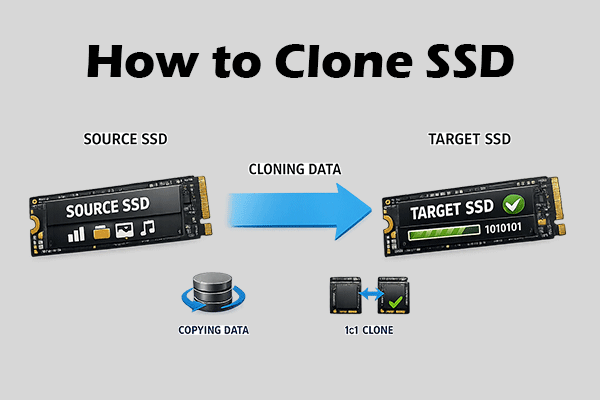
How to Clone an SSD to Another? A Complete Guide!
This post shows you how to clone an SSD to another SSD in detail, covering preparation work, SSD connection, SSD cloning, and boot drive change.
This post shows you how to clone an SSD to another SSD in detail, covering preparation work, SSD connection, SSD cloning, and boot drive change.
![How to Fix SSD Is Full for No Reason [Popular Methods]](https://images.minitool.com/partitionwizard.com/images/uploads/2025/09/ssd-is-full-thumbnail.png)
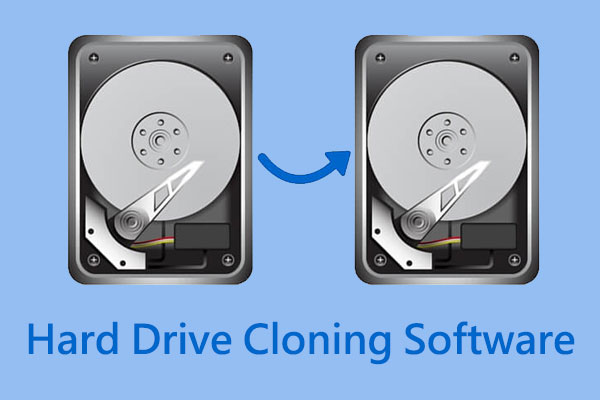
This category shows you the best solutions to migrate Windows 10, move files from SSD to HDD, clone HDD to smaller SSD, build your own laptop, clone NVME M.2 drive, upgrade to a larger drive without data loss, safeguard your system and data, etc. Using the Migrate OS to SSD/HD Wizard and Copy Disk features of MiniTool Partition Wizard, you are able to resolve such issues with ease.
Meanwhile, if you would like to solve multiple Windows system errors such as “Your PC ran into problem”, “dual boot options not showing”, “Xbox One not reading disc”, “Windows 10 reset stuck”, “Xbox One controller not working on PC” etc., you just go and discover more tips & tricks from the following MiniTool solutions.
Learn why is your PC taking so long to boot and how to fix slow startup on Windows 10/11 using 11 simple and practical methods.
This post shows you how to clone an SSD to another SSD in detail, covering preparation work, SSD connection, SSD cloning, and boot drive change.
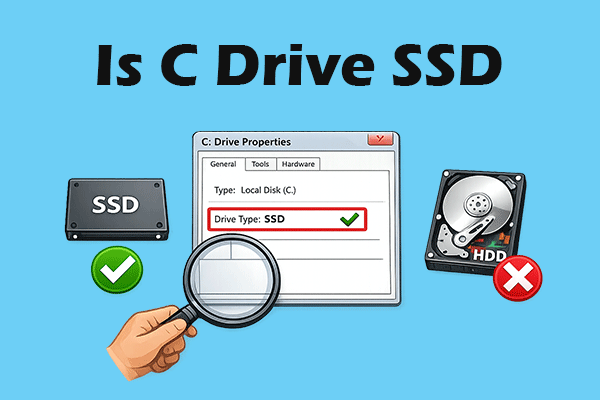
It’s better that C drive is an SSD. This post shows you how to check if the C drive is SSD or not, and offers methods to speed up PC performance.
This post explores common factors and solutions to Windows 11 slow in different situations, including slow boot, gaming performance, and file access.
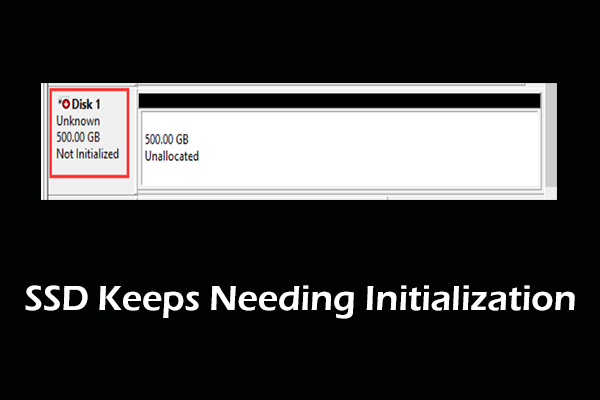
If your SSD keeps needing initialization on a computer, don’t worry, and you can find several solutions in this post to fix the issue.
This post introduces you to the top disk cloning tools for small business to help you clone a disk and migrate OS to SSD easily. You can have a try.
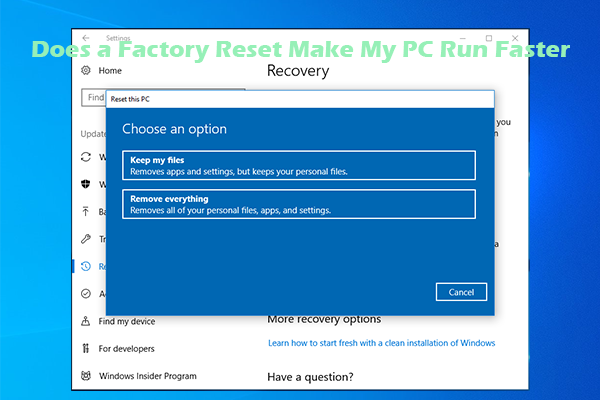
Does a factory reset make my pc run faster? If you are curious about that like others, explore the answer now!
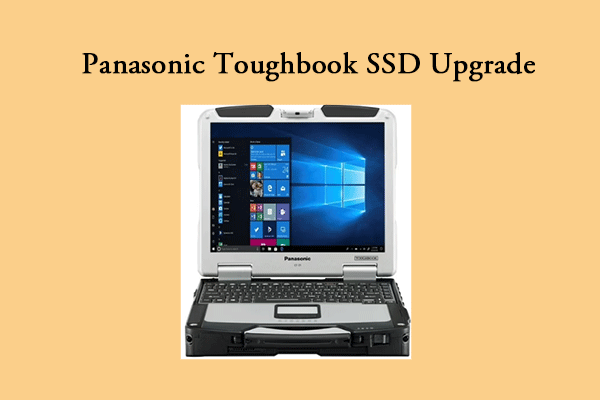
Looking to boost your Panasonic Toughbook’s performance with an SSD upgrade? Check out this guide for all the details.
This article provides a comprehensive guide to upgrading the SSD in your HP Notebook. It is helpful post if you are planning to replace it.
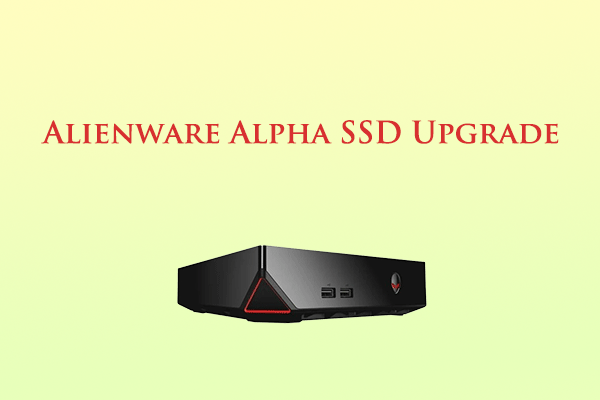
This post offers a full guide on how to choose an SSD for Alienware Alpha and how to upgrade it. If you have the same needs, this post is worth reading.