
You may be plagued by this case: SSD keeps needing initialization in Windows. To resolve the issue, try the following methods offered by MiniTool Partition Wizard: check physical connections, check SSD health, update the SSD firmware, and wipe then format the drive.
SSD Keeps Asking to Be Initialized
Many users from some forums, like Reddit and Microsoft, reported a common issue: an SSD keeps needing initialization. Perhaps you are also experiencing the same problem.
Commonly, this issue occurs when the computer has two hard drives (HDD + SSD).
To be specific, you insert a new solid-state drive (SSD) into a computer that already has an HDD installed. Disk Management can recognize it and requires you to initialize it. Then, you create partitions on that SSD for normal use.
However, after rebooting the system, the drive disappears and then asks to be initialized.
What causes an SSD to ask for initialization over and over? Here are common factors.
- Connection issues: The data or power cable may be loose, damaged, or connected to a faulty port.
- Damaged partition table: MBR (Master Boot Record) or GPT (GUID Partition Table) that organizes the drive’s data may be corrupted, which makes the SSD appear unformatted or uninitialized to the operating system.
- BIOS/UEFI configuration issues: Incorrect BIOS settings can prevent the system from properly detecting the SSD.
- Faulty or incompatible drive: The SSD may be defective or incompatible with the motherboard.
- Outdated firmware: Outdated SSD firmware can cause communication errors between the drive and the operating system, sometimes leading to initialization issues.
- Enabled fast startup: This power option can interfere with the operating system, causing initialization problems.
How to Fix “SSD Keeps Needing Initialization”
Don’t worry if an SSD requires repeated initialization. To address this frustrating issue, try checking physical connections, testing SSD health, disabling fast startup, setting SATA mode to AHCI, and updating the SSD firmware.
Here is the breakdown.
#1. Check Physical Connections
A loose or faulty SATA data cable can cause the SSD to keep requiring initialization. Therefore, do the following to check the physical connections:
- Power off your computer, unplug the power cables, and ensure all the cables are securely connected to both the SSD and the motherboard.
- Try a different SATA port on the motherboard or a different cable.
- If possible, connect the SSD to a different computer to test if the issue persists. If the problem disappears, your original computer hardware, settings, or drivers are problematic. If it still occurs, there is a problem with your SSD.
Proceed with the troubleshooting steps below.
#2. Check SSD Health
Your SSD may be experiencing errors or degradation if it requires repeated initialization. It is recommended to check its health.
To do that:
Step 1: Run Command Prompt as an administrator.
Step 2: Type wmic diskdrive get status and press Enter. If Windows says “OK”, it indicates your drive is healthy.
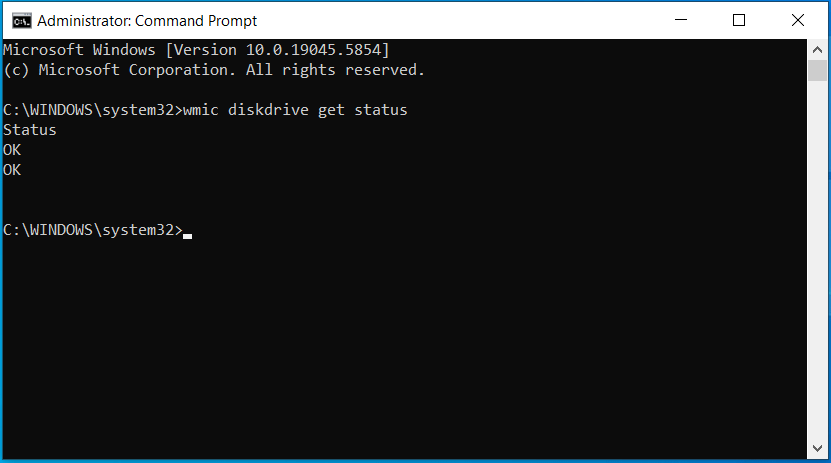
If the SSD has issues, consider replacing the SSD.
#3. Disable Fast Startup
Disabling fast startup may help resolve initialization issues in some cases.
Follow these steps.
Step 1: Open Control Panel via the Windows Search and set View by to Large icons.
Step 2: Click Power Options > Choose what the power buttons do.
Step 3: Choose Change settings that are currently unavailable and uncheck Turn on fast startup (recommended).
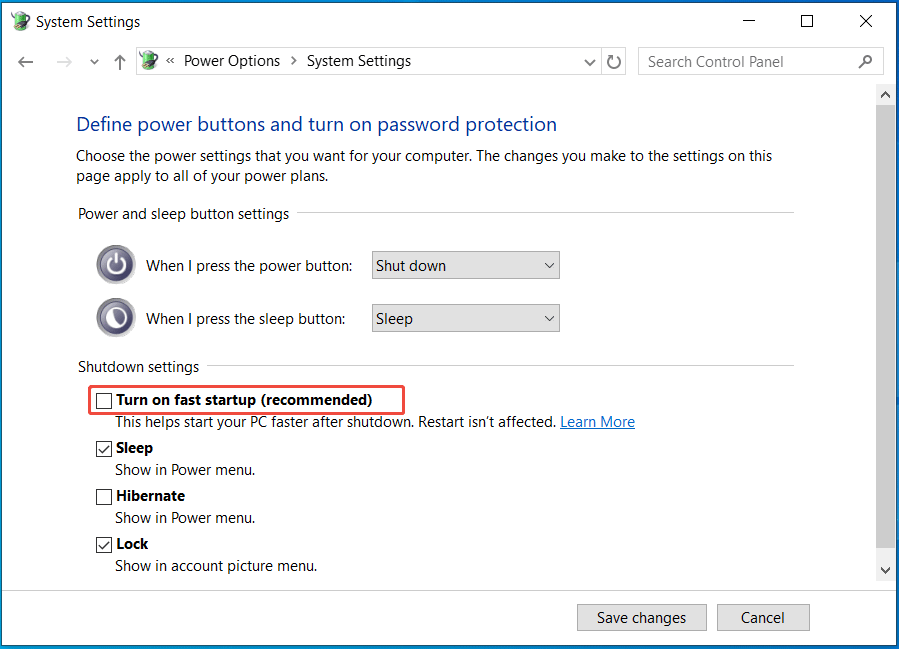
Step 4: Click Save changes.
After disabling fast startup, check Disk Management and see if Windows still asks you to initialize the SSD.
#4. Set SATA Mode to AHCI in BIOS
Incorrect BIOS settings, such as the SATA mode not being set to AHCI, can prevent the system from properly detecting the drive.
Adjust the setting if your SSD keeps needing initialization.
Step 1: Restart your computer and press F2, Del, or Esc to enter the BIOS menu.
Step 2: Locate the section for SATA Configuration, SATA Operation, IDE Configuration, depending on BIOS version/brand. Change the settings to AHCI.
This mode provides the best performance and supports modern features for SSDs.
After changing the setting, check Disk Management to confirm whether the SSD is recognized correctly.
#5. Update Firmware
When your SSD keeps needing to be initialized, try updating the SSD firmware. This may resolve the issue.
Step 1: Go to the SSD manufacturer’s website and locate the support or downloads section.
Step 2: Download a professional tool like Samsung Magician, Kingston SSD Manager, or the manufacturer’s specific utility for your SSD model.
Step 3: Run this utility and perform the firmware update.
Upon the update, the solid-state drive should function properly.
Case Study: Fixing a Samsung SSD That Keeps Needing Initialization
Here is a real user case from the Samsung website. A user experienced re-initialization issues and attempted OS migration, which initially failed.
1. Initial Problem
When installing the Samsung 990 Pro SSD into the M.2_2 slot, BIOS recognized it. However, after initializing the disk and adding a volume in Disk Management, the SSD disappeared and went offline shortly.
Then, the user put the Samsung SSD into the M.2_1 slot. Nonetheless, it wasn’t recognized at all by the BIOS.
2. Attempts
He tried many methods, such as updating drivers and BIOS, buying a new SSD, using Diskpart to online the disk, creating a simple GPT volume, and using a different M.2. Unfortunately, all methods failed.
Additionally, he ran tests in Samsung Magician. The SSD seemed to be fine.
3. Community Recommendation
One person called 3Fees recommended using MiniTool Partition Wizard to delete partitions, wipe the SSD, and format the drive to NTFS.
Next up, the user used this software to clean the drive, convert it to GPT, and then rebooted. The SSD showed in File Explorer.
4. OS Migration Attempts
The user also used Macrium Reflect to copy system partitions to that SSD.
The drive was not visible in File Explorer, while it is visible in the MiniTool app. After booting the system from the SSD, a blue screen appeared.
5. Community Recommendation
3Fees recommended running Samsung Data Migration for transferring the system.
That user did this. Finally, the SSD functioned.
If you are also encountering such a case, learn how to fix the issue and migrate your OS.
Option 1: Run MiniTool Partition Wizard
MiniTool Partition Wizard is a professional partition manager. It helps users delete partitions, wipe the SSD by writing zeros to the entire drive, and format the drive. After these operations, Windows can recognize the Samsung 990 Pro SSD.
Additionally, this tool supports converting MBR to GPT and vice versa, aligning all partitions, setting a drive letter, resizing a partition, and performing other disk management operations.
If your SSD keeps asking to be initialized, try MiniTool Partition Wizard.
MiniTool Partition Wizard FreeClick to Download100%Clean & Safe
Step 1: Launch MiniTool Partition Wizard.
Step 2: Delete all the partitions.
1. Right-click your SSD and choose Delete All Partitions.
2. Click Yes > Apply.
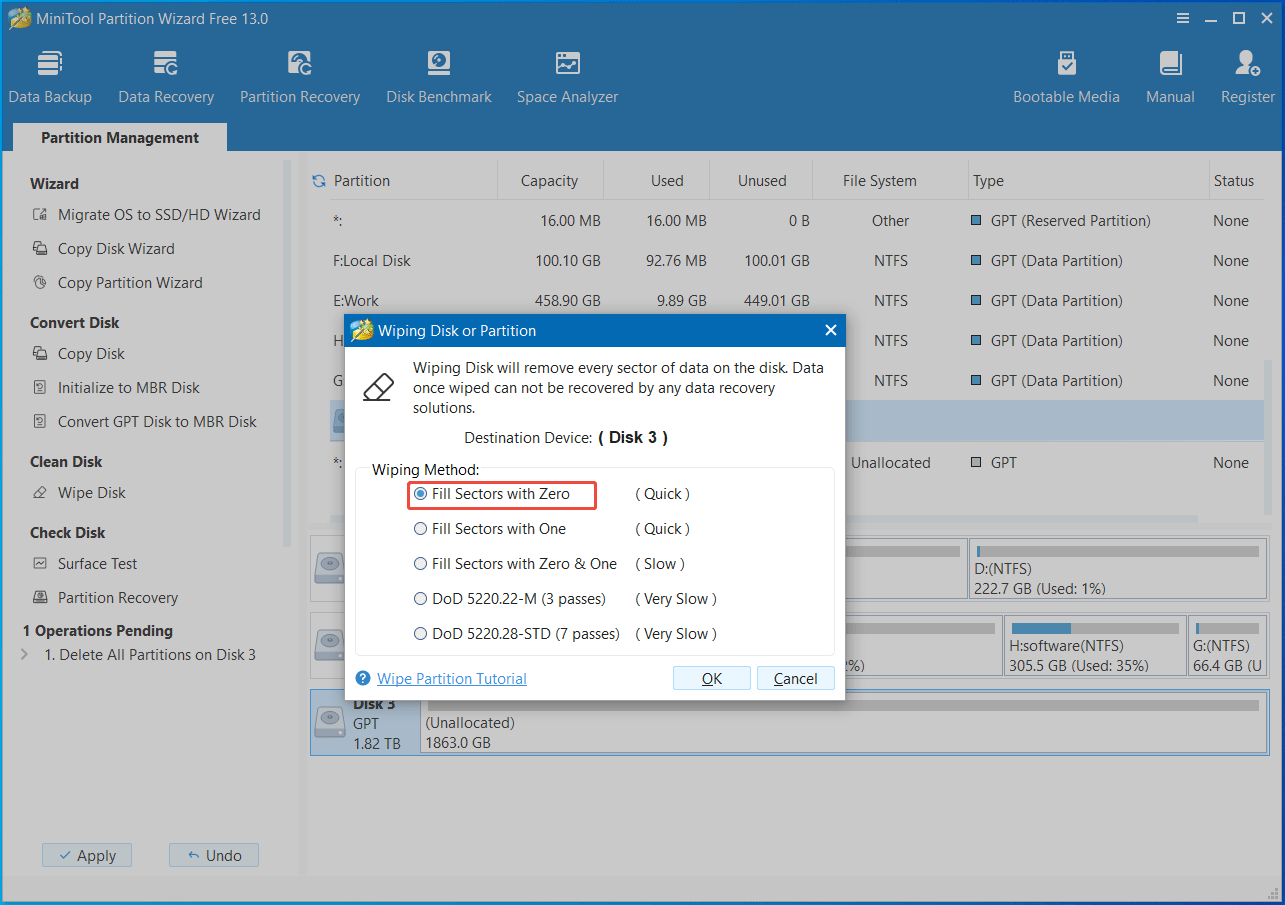
Step 3: Wipe the SSD.
1. Right-click on the SSD and select Wipe Disk.
2. In the new window, check Fill Sectors with Zero and click OK > Apply to confirm the wiping.
Step 4: Format the SSD.
1. Locate the wiped partition and choose Format.
2. Select NTFS as the file system.
3. Apply the change to make the SSD usable in Windows.
After completing these operations, the SSD won’t require you to initialize it over and over, and it can work properly.
Option 2: Migrate System with Samsung Data Migration
To migrate the operating system to a Samsung SSD, the official cloning software, Samsung Data Migration, is crucial.
It is developed by Samsung, enabling users to clone data from a source drive like an HDD or SSD to a new Samsung SSD. This utility transfers the operating system, apps, and all user files, allowing for a quick upgrade to a faster SSD.
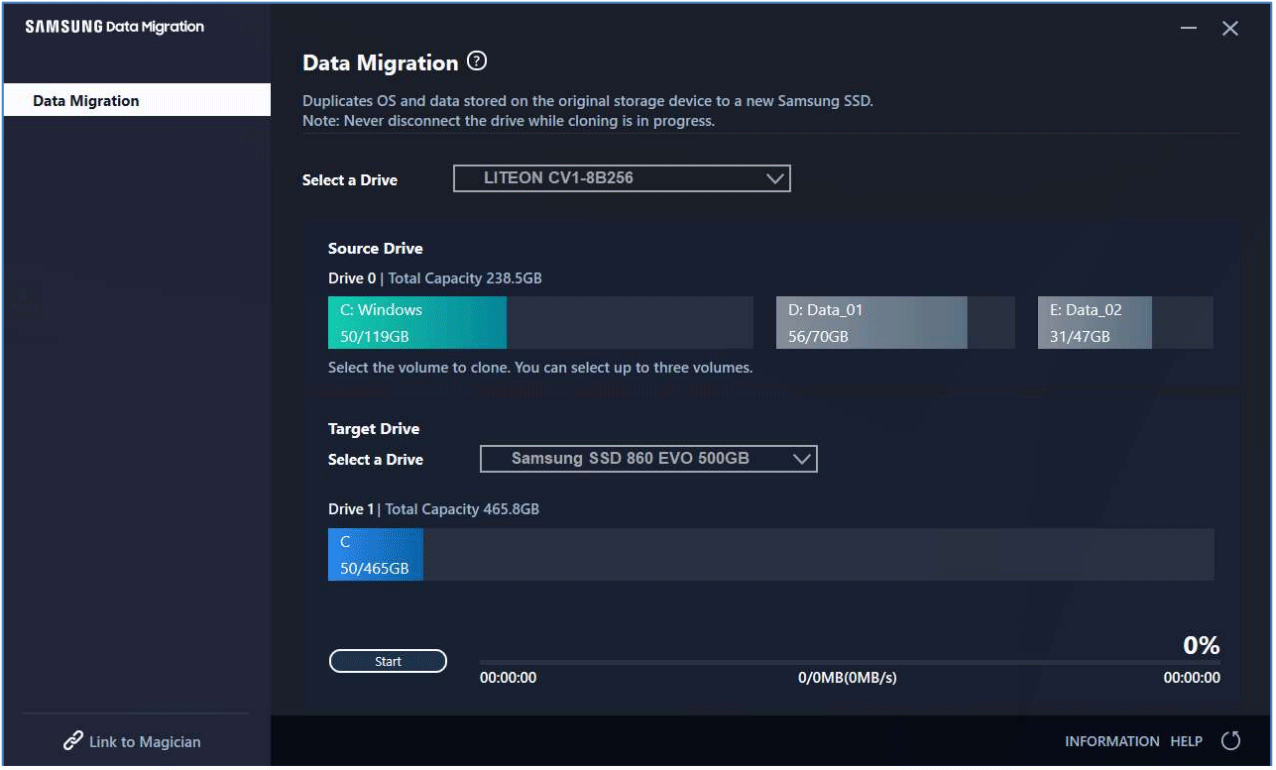
(Image from Samsung)
Alternatively, if you want to clone your hard drive to an SSD from any brand, MiniTool Partition Wizard can be your assistant.
It features Copy Disk and Migrate OS to SSD/HD, easily and effectively cloning a system disk or data disk to another hard drive or migrating only the system to another disk. Notably, you should use its Pro Edition or an advanced one to handle the system disk cloning.
The repeated initialization issue should now be resolved, and the data migrated to the new SSD.
Bottom Line
In some cases, an SSD keeps needing initialization. This post covers the potential causes of this issue, several solutions, and a specific case study about a Samsung SSD that keeps asking to be initialized. Try to fix your issue and migrate the OS to an SSD by following the instructions above.
When encountering issues with MiniTool software, send an email to [email protected].
SSD Keeps Needing Initialization on PC FAQ
1. Right-click on the Start icon to choose Disk Management.
2. Locate a disk, right-click on it, and select Properties.
3. Under the Volumes tab, check Partition style.
About The Author

Position: Columnist
Vera has been working at the MiniTool Team for over 10 years as a technical editor and content writer. She mainly focuses on disk and partition management, data recovery, Windows backup and restore, and PC troubleshooting. Through in-depth software testing and hands-on experience, she has helped users solve a wide range of computer problems and better protect their data on Windows devices.
User Comments :