
If you want to know how to clone SSD to a new one, this post is worth reading. It shows you how to connect the new SSD to the computer, how to clone the SSD with MiniTool Partition Wizard, and how to change the boot device.
Nowadays, most computers use SSDs as storage devices. You may want to clone an SSD to another because the original SSD is failing, the SSD capacity is not enough anymore, or the SSD performance drops.
How to clone SSD to new SSD? The steps should be as follows:
- Connect the new SSD to your computer.
- Use MiniTool Partition Wizard to clone the SSD.
- After the SSD cloning, set the new SSD as the boot drive.
SSD Cloning Preparation Checklist
Before cloning an SSD, take the following steps to avoid cloning failure.
- New SSD: According to the form factor and interface, purchase a new SSD compatible with your computer.
- Capacity: MiniTool Partition Wizard can clone SSD to larger SSD or a smaller one. If you want to clone the SSD to a smaller one, the new SSD’s usable capacity should be at least as large as the data currently stored on the old drive.
- System Health: Check if Windows is stable. If not, SSD cloning is not recommended. Instead, back up data and then clean install Windows on the new SSD.
- Encryption: Many modern cloning software programs use file-level copying by default, which is fast and efficient. This usually requires disabling or pausing encryption. Otherwise, sector-level copying will be performed, which is typically slow.
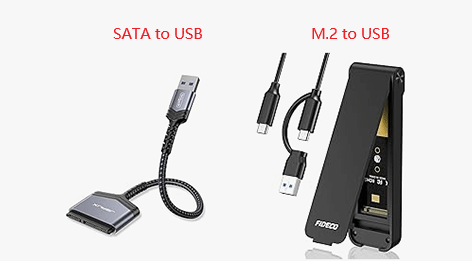
- Connection: For laptops and mini-PCs that only have one SSD slot, a SATA/M.2 to USB adapter is required.
#1. Connect the New SSD to Your Computer
If your computer (usually desktops) has extra SSD slots, you can install the new SSD into the computer directly. As for how to do that, it’s recommended to view video guides on YouTube. Then, perform the SSD clone.
If your computer has only one SSD slot, connect the new SSD to the computer via a SATA/M.2 to USB adapter, perform the SSD clone, and then install the new SSD into the computer.
#2. Clone the SSD with MiniTool Partition Wizard
Download and install MiniTool Partition Wizard. Then, use this SSD clone software to clone the SSD to the new one.
MiniTool Partition Wizard DemoClick to Download100%Clean & Safe
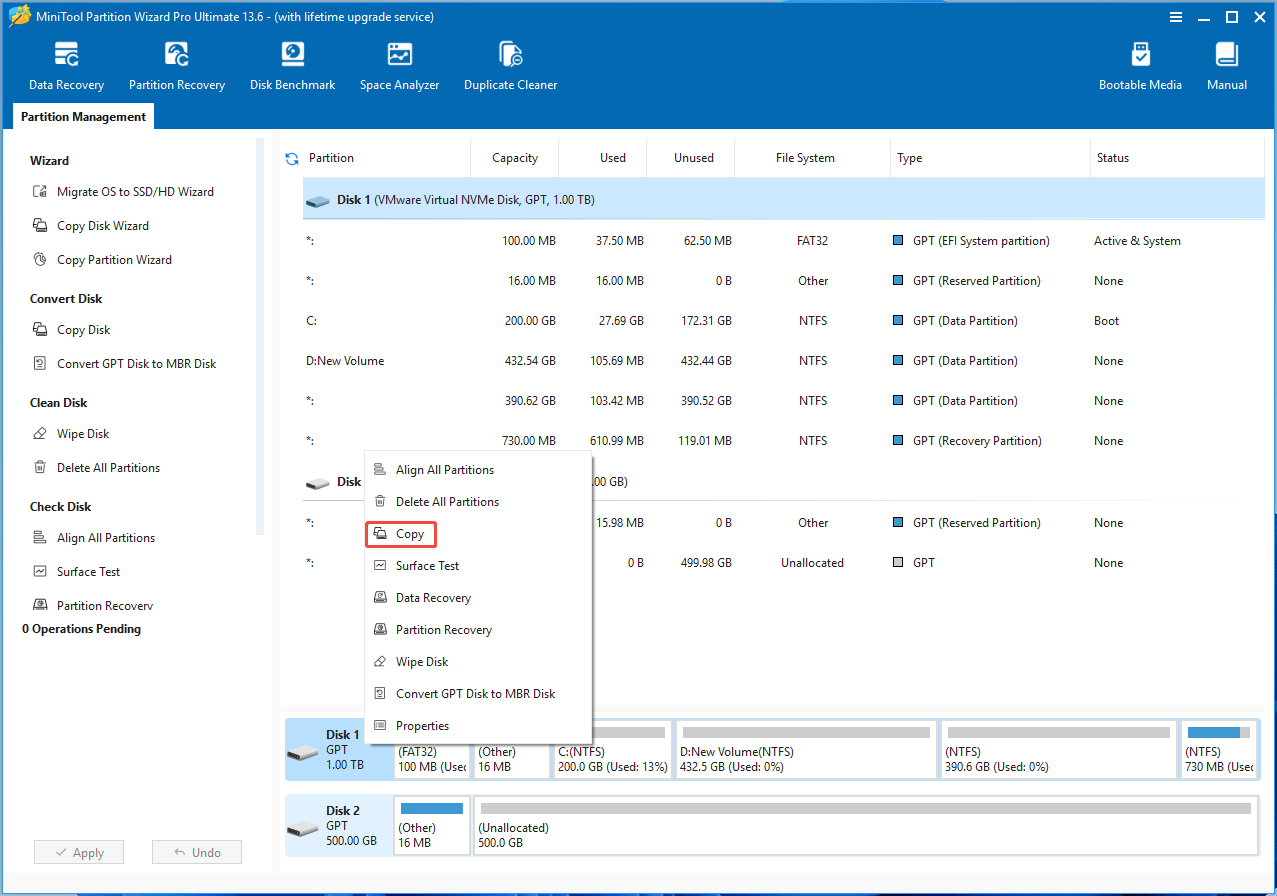
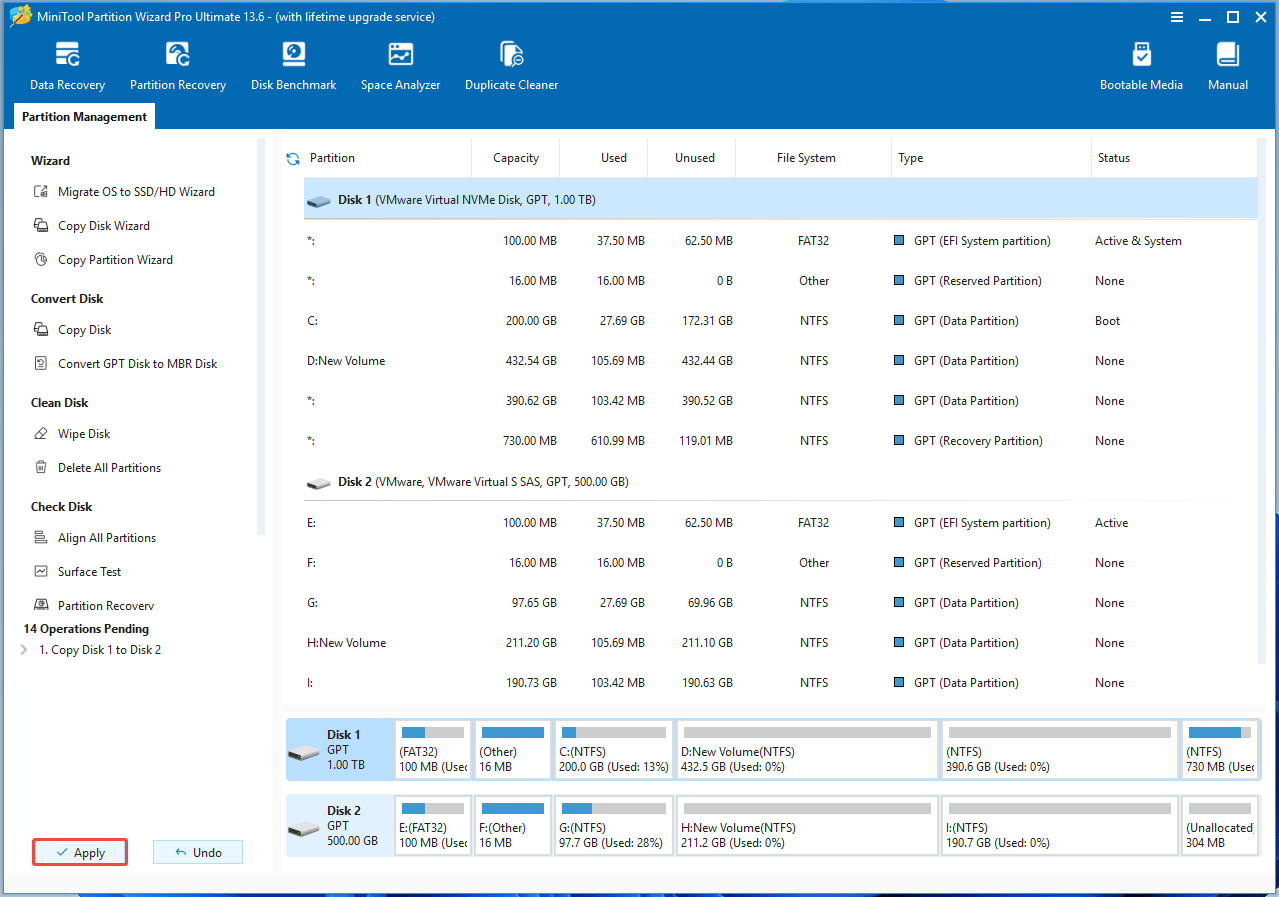
Step 1: Right-click the original SSD and choose Copy.
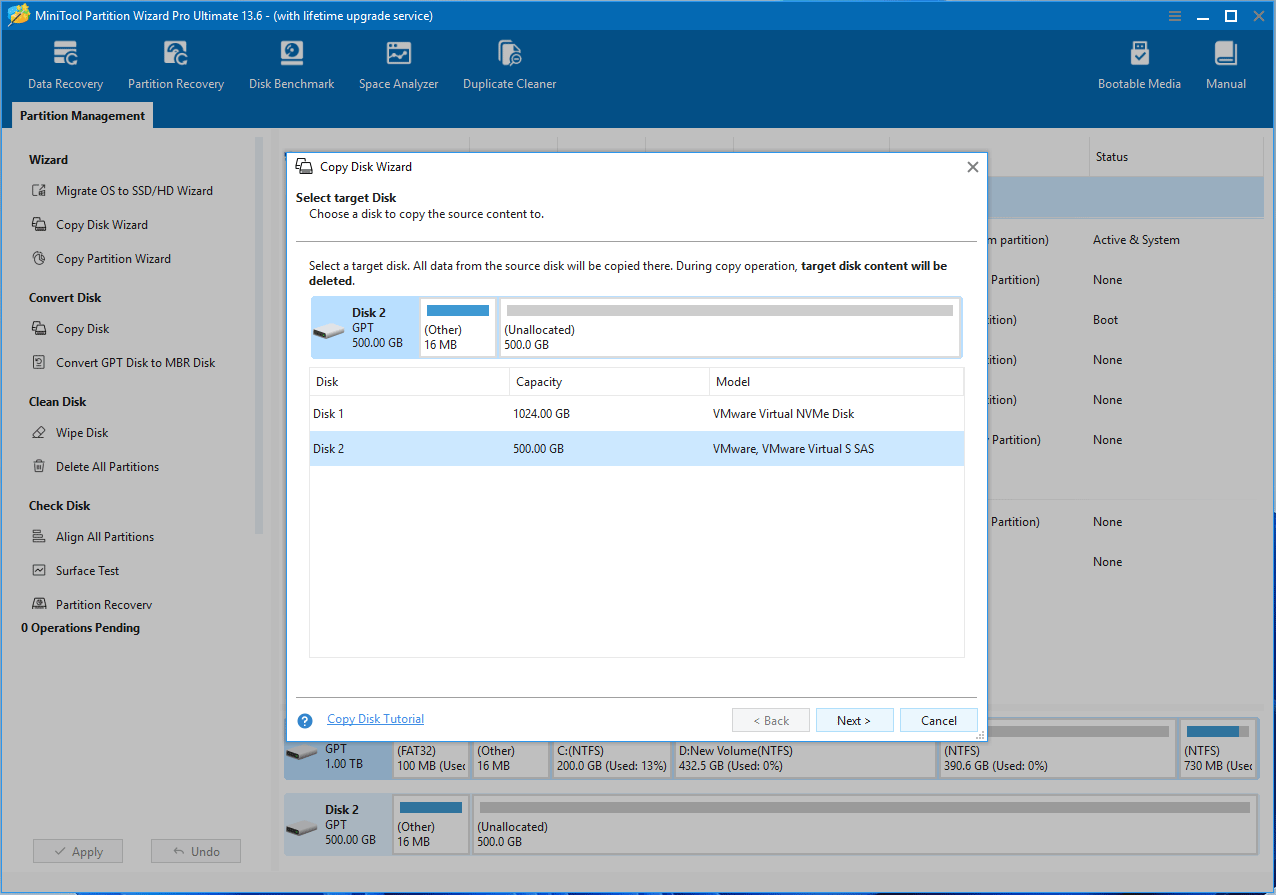
Step 2: In the pop-up window, select the new SSD as the target disk.
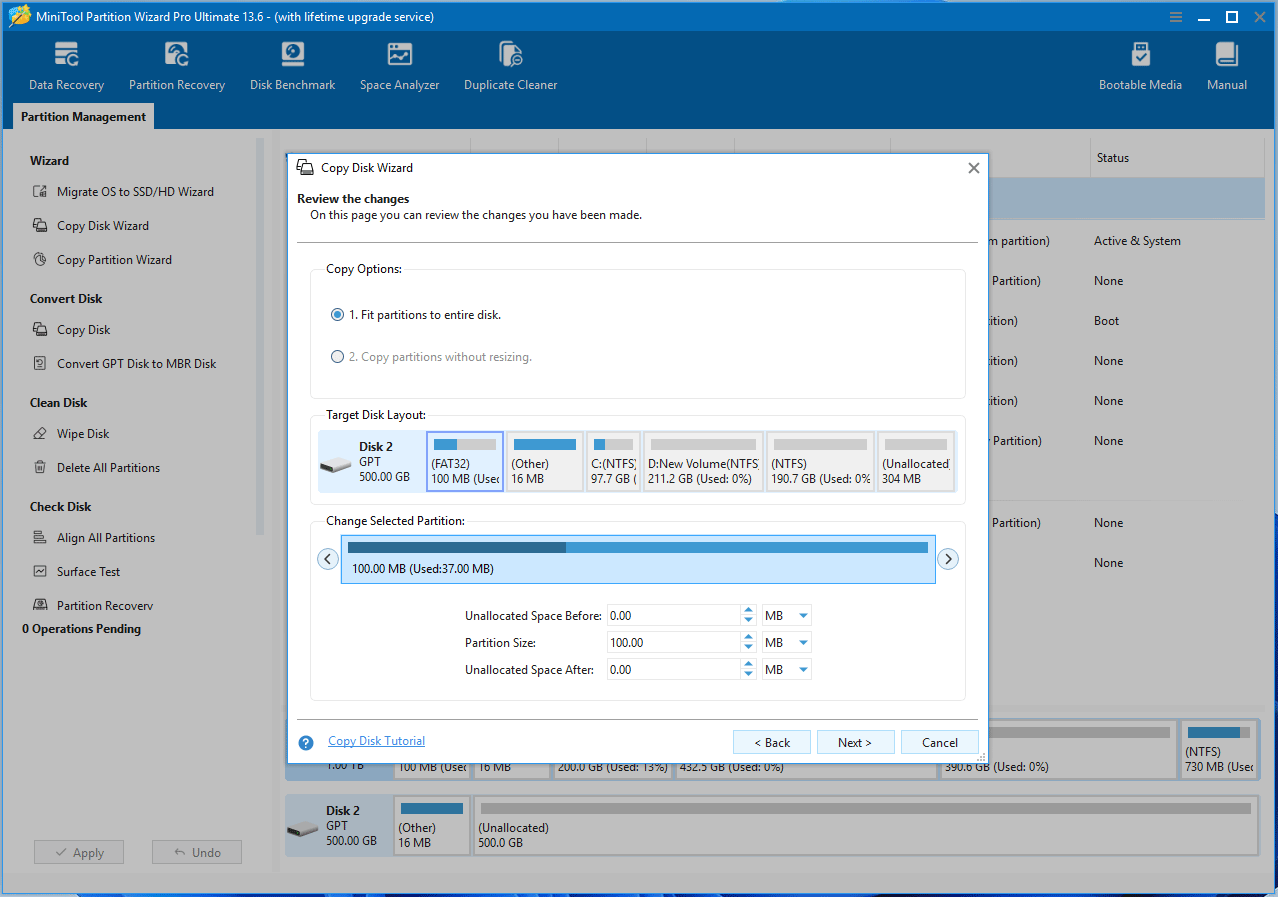
Step 3: Review the copy options and target disk layout.
Step 4: Click Finish. Then, click Apply to execute the cloning process.
#3. Set the New SSD As the Boot Drive
After the SSD clone and installation, you need to set the new SSD as the boot drive. Here is the guide.
- Enter BIOS: Restart your PC. As soon as the manufacturer’s logo appears, press your motherboard’s designated BIOS key. Common keys include F2, F12, Delete, or Escape.
- Find the Boot Settings: Navigate to the Boot, Startup, or Settings tab using your keyboard’s arrow keys.
- Adjust the Boot Order: Look for Boot Option #1 or the Boot Sequence. Change this primary setting to the new SSD by using the + / – keys to move it up or down in the list.
- Save and Exit: Press F10 to save your changes and exit the BIOS. Then, the computer will boot from the new SSD.
How to clone an SSD to a new one? This post offers a detailed guide.Click to Tweet
How to Clone SSD FAQ
For example, it takes approximately 15 to 30 minutes to transfer per 100 GB of data. A mostly empty drive takes significantly less time than a completely full one.
SSDs are connected directly to the motherboard, which is the fastest method, and the SSD clone process usually takes 10 to 30 minutes. However, if the SSD is connected to the computer via an external hard drive enclosure/USB 3.0 adapter, cloning the SSD typically takes 30 to 60 minutes.
Bottom Line
With MiniTool Partition Wizard, SSD cloning is easy. This post shows you how to clone an SSD to another one step by step. If you encounter issues when using MiniTool Partition Wizard, contact our support team via [email protected] for help.
About The Author

Position: Columnist
Linda has been an editor at MiniTool for seven years. She continuously learns about computers and puts her knowledge into practice. Moreover, she is particularly knowledgeable in disk management, data recovery, system installation, and PDF editing. Her articles typically reference multiple examples or are based on her own experience, providing users with the most suitable solutions.
User Comments :