
Quick Answer
The PC startup slow issue may be due to too many startup programs, insufficient disk space, outdated drivers, corrupted system files, malware, HDD limitations, or background services.
To fix it, you can try the following methods.
- Disable unnecessary Startup programs
- Free up space on the C drive
- Enable Windows Fast Startup
- Update Windows and device drivers
- Reduce visual effects
- Repair corrupted Windows system files
- Check SSD/HDD health
- Upgrade from HDD to SSD
- Scan for malware and viruses
- Adjust BIOS/UEFI Boot settings
- Reset or reinstall Windows (Last Resort)
How Long Should Windows Startup Take?
In general, a healthy Windows PC should boot within 10–60 seconds after pressing the power button.
However, the specific time Windows takes to start depends mainly on your storage device and hardware configuration.
| Storage Type | Typical Windows Startup Time | User Experience |
| NVMe SSD | 10–20 seconds | Very fast boot with minimal delay |
| SATA SSD | 15–40 seconds | Fast startup for most Windows PCs |
| HDD | 1–3 minutes | Noticeably slower, especially on older computers |
| Older PCs with low RAM or older CPUs | 2+ minutes | May require hardware upgrades |
Why Does My PC Take so Long to Boot?
If Windows boots more slowly than expected, or if the startup speed suddenly drops, consider potential causes at the software level or hardware malfunctions.
Here are some common reasons for the Windows 11 or Windows 10 slow boot issue.
| Cause | How It Slows Windows Startup | Common Symptoms |
| Too many startup programs | Apps automatically launch when Windows boots, increasing loading time. | Long delay before the desktop appears, many apps opening after login. |
| Low C drive space | Windows has less space for temporary files, updates, cache, and virtual memory. | Slow boot, system lag, frequent low disk space warnings |
| Outdated or corrupted drivers | Hardware initialization takes longer during boot | Slow startup after Windows updates or hardware changes |
| Windows system file corruption | During the loading process, Windows repeatedly attempts to read or repair them. | Boot errors, freezing, automatic repairs |
| Malware or unwanted software | Malicious programs may run automatically during startup | Unknown apps launching, unusual resource usage |
| Pending Windows updates | Windows may perform update-related tasks during startup | Slow boot after installing updates |
| Incorrect BIOS/UEFI settings | The computer spends more time in BIOS POST and hardware initialization phases. | Long black screen before Windows loads |
| Failing HDD/SSD | Storage errors make reading system files slower | Long loading times, disk usage stuck at 100% |
How to Fix Slow Startup Windows 10/11
Is your computer slow on startup? If so, try the following methods to speed up computer startup.
Fix 1. Disable Unnecessary Startup Programs
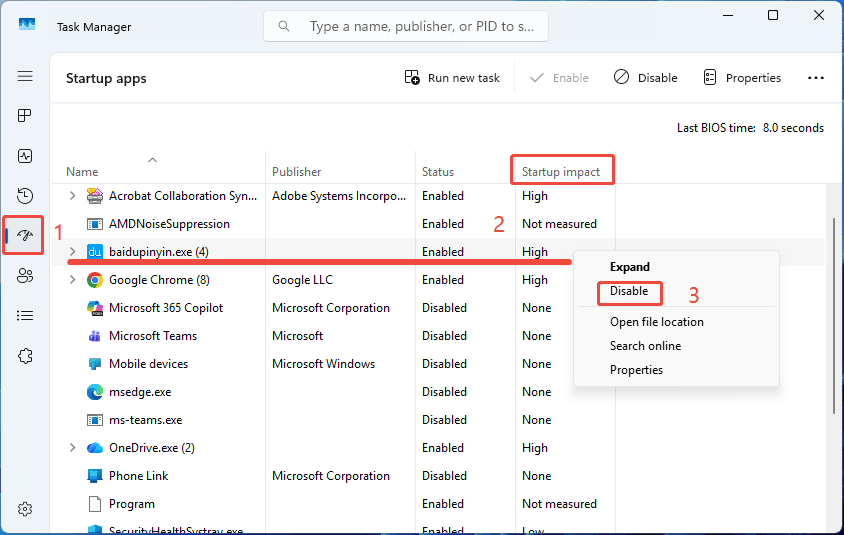
Too many apps launching automatically can delay the time your PC takes to reach the desktop. To fix the Windows 10 or Windows 11 slow startup issue, you can disable some startup apps like game launchers, video conferencing apps, music players, software update assistants, etc.
Here are the steps.
- Press Ctrl + Shift + Esc to open Task Manager.
- Select Startup apps.
- Check the Startup impact column.
- Right-click the high-impact and unnecessary apps.
- Select Disable.
Fix 2. Free Up Space on the C Drive
A full system drive can slow Windows startup because the operating system needs free space for temporary files, updates, caches, and virtual memory.
In general, it’s recommended to keep at least 15–20% free space on your Windows drive. If your C drive is full, you can try the following methods to free up space.
- Move large files to another drive or external storage.
- Uninstall unused applications (in Settings > System > Storage > Installed apps).
- Run Disk Cleanup. Open Disk Cleanup from Windows Search, select the C drive and click OK, click Clean up system files and hit OK again. Then, tick all files in the box and click OK to delete them.
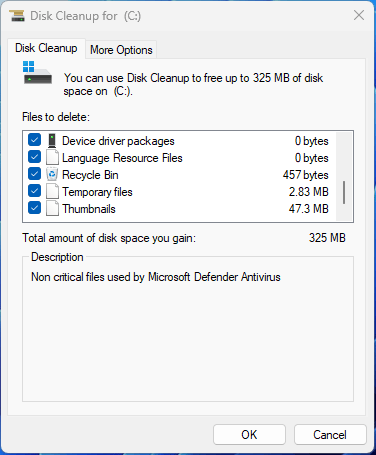
Disk Cleanup can empty the Recycle Bin, delete temp files, Windows Update installation files, previous Windows installation (Windows.old), DirectX shader cache, system restore points, etc.
If these strategies do not work, you can also extend the C drive or upgrade the system disk to a larger one. For more solutions, you can refer to the following post.
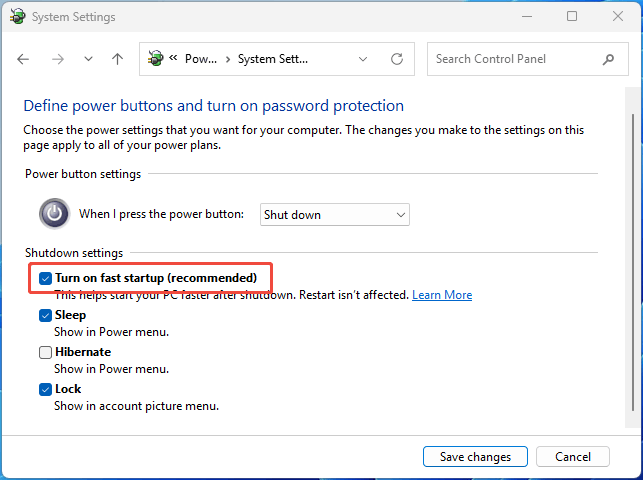
Fix 3. Enable Windows Fast Startup
Windows Fast Startup reduces boot time by saving system information during shutdown and loading it faster during startup.
Turning it on will speed up the boot time. Here is the guide.
- Open Control Panel from Windows Search.
- Select Hardware and Sound > Power Options.
- Click Choose what the power button does.
- Select Change settings that are currently unavailable.
- Check Turn on fast startup (recommended).
- Click Save changes.
Fix 4. Update Windows and Device Drivers
Outdated drivers can slow startup by delaying hardware initialization. Updating Windows system files, chipset drivers, storage controller drivers, graphics drivers, etc. may fix the Windows 11 slow startup issue. Here is the guide.
Step 1: Open Settings and go to Windows Update. Click Check for updates. Once the check is done, available updates will be downloaded and installed automatically.
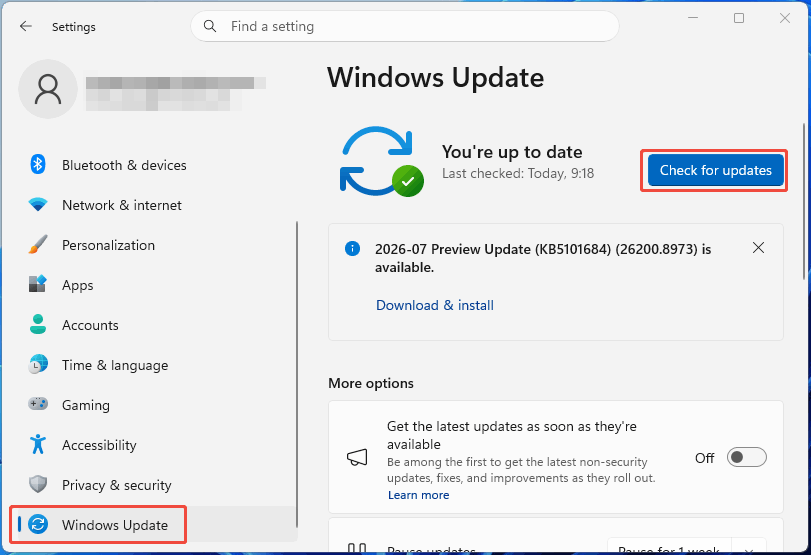
Step 2: Scroll down to select Advanced options > Optional updates. Check if some driver updates are listed here. If so, select them and click Download & install.
Fix 5. Reduce Visual Effects
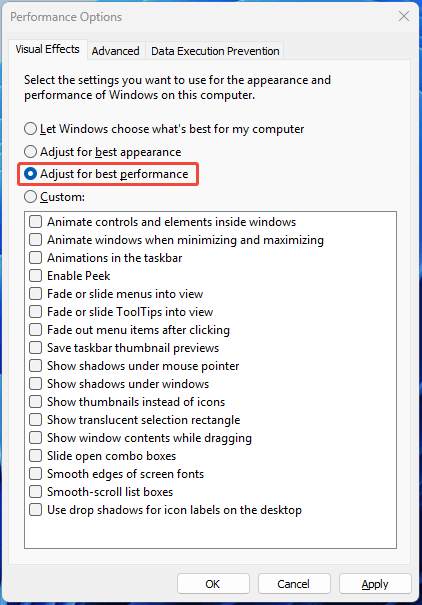
Windows animations can increase the workload after login. To reduce the workload, you can adjust visual effects by following these steps.
- In Windows Search, search for “Adjust the appearance and performance of Windows.”
- Select Adjust for best performance.
- Click OK.
Fix 6. Repair Corrupted Windows System Files with DISM And SFC
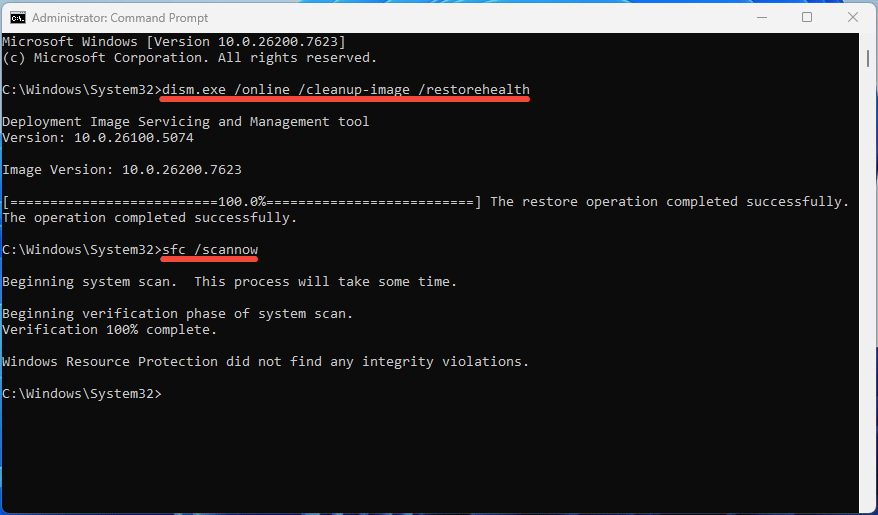
Damaged system files may cause Windows to load slowly or freeze during startup. To make the computer boot faster, follow the guide below to repair Windows system files.
- Type “cmd” in Windows Search.
- Right-click Command Prompt and select Run as administrator.
- Type “dism.exe /online /cleanup-image /restorehealth” and press Enter. Wait for the command to execute successfully.
- Type “sfc /scannow” and press Enter. Wait for the progress to reach 100%, and then check if the repair was successful.
Fix 7. Check SSD/HDD Health
A failing storage drive can significantly increase Windows startup time. You can check drive health using commands. Open Command Prompt as administrator, type “wmic diskdrive get status,” and press Enter to see if it reads OK.
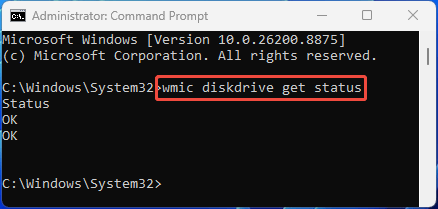
Moreover, you can also use SMART monitoring tools, manufacturer diagnostic software, and third-party software to check hard drive health.

Fix 8. Upgrade from HDD to SSD
If your computer still uses a traditional hard disk drive (HDD), upgrading to a solid-state drive (SSD) can provide the biggest improvement in Windows startup speed.
For a hard drive upgrade, you can install the new drive and perform a clean installation of Windows. However, this requires reinstalling all programs and migrating all personal files.
If you want to avoid the hassle of reinstalling Windows and programs, you can use MiniTool Partition Wizard, a professional OS migration and disk cloning program.
MiniTool Partition Wizard DemoClick to Download100%Clean & Safe
Here is how to upgrade from HDD to SSD without reinstalling the OS and apps.
Step 1: Purchase an SSD compatible with your PC. Then, connect it to your PC via an NVMe/SATA to USB adapter.
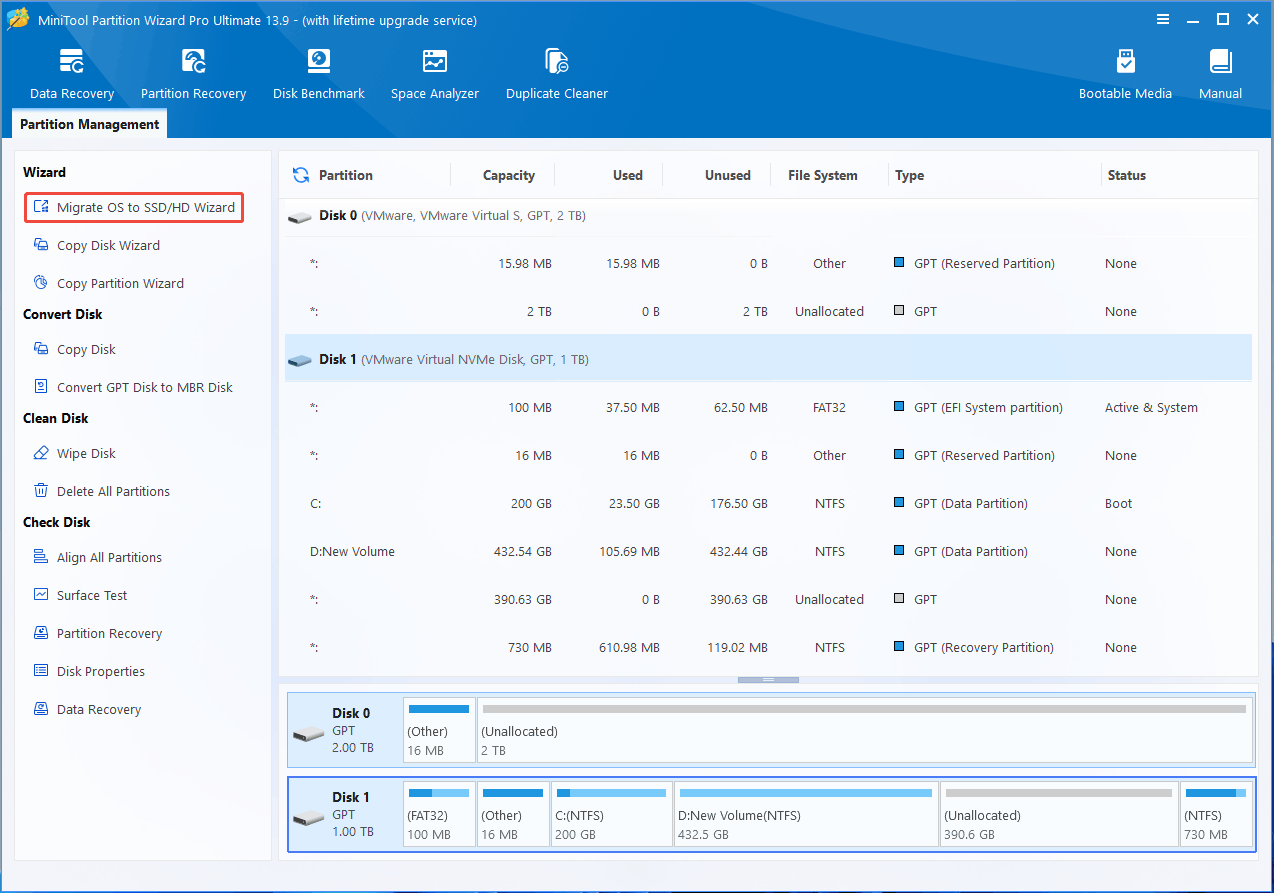
Step 2: Launch MiniTool Partition Wizard and click Migrate OS to SSD/HD Wizard in the action panel.
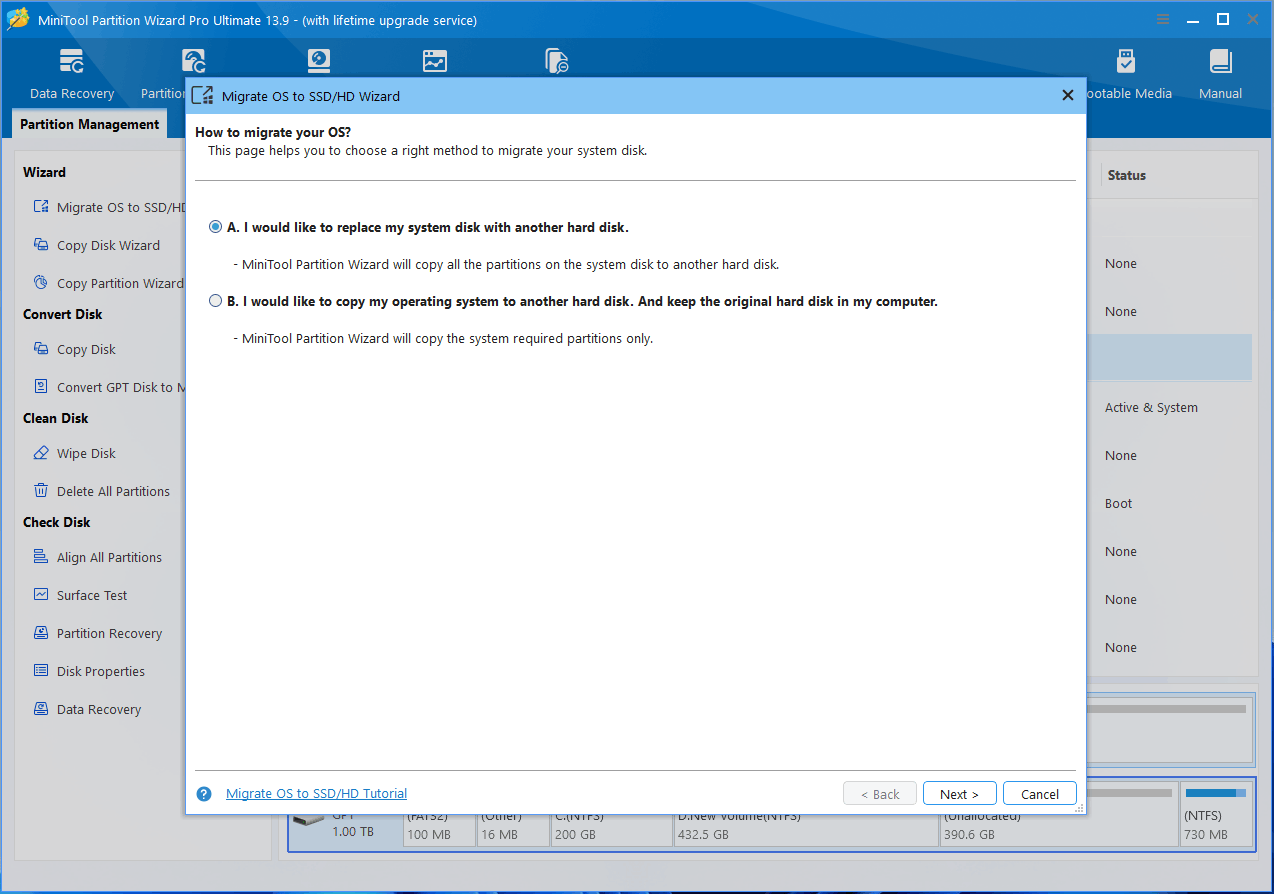
Step 3: Choose an OS migration method. Option A is recommended because it will clone the entire system disk to the SSD.
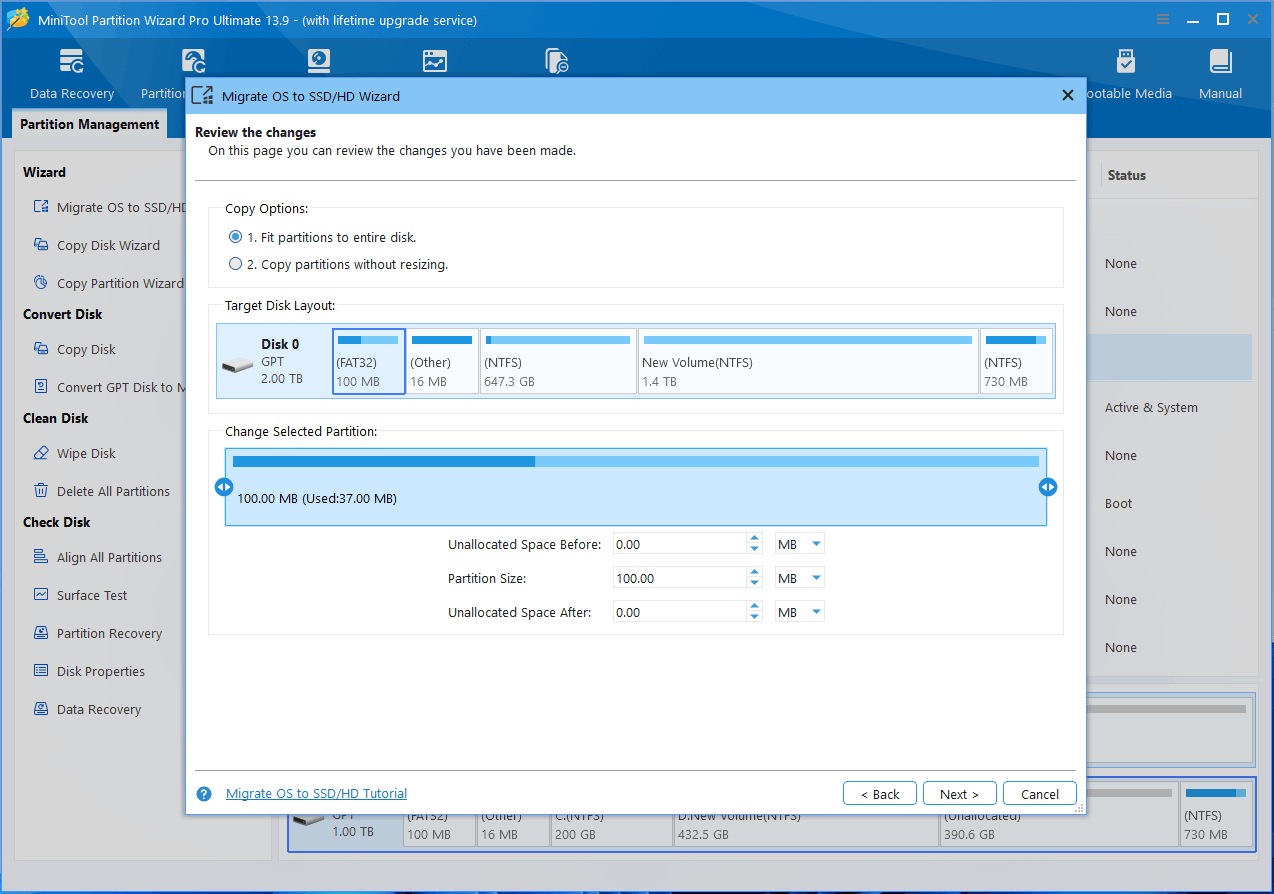
Step 4: Select the SSD as the destination disk and click Next. Click Yes when a warning window pops up. Then, review the changes. If necessary, change the Copy Options and adjust the Target Disk Layout. Then, click Next, OK, and Finish.
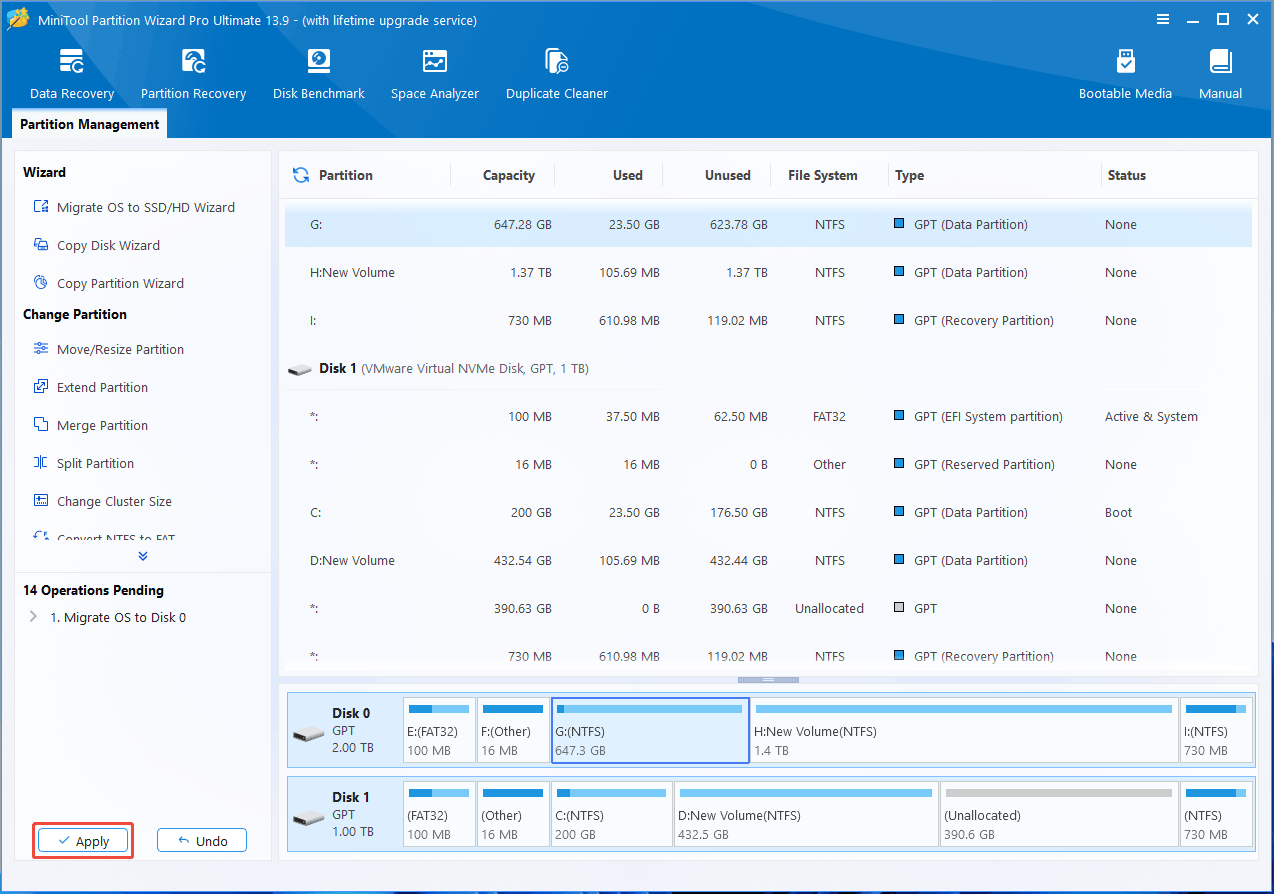
Step 5: Click Apply to execute the OS migration operation.
Fix 9. Scan for Malware And Viruses
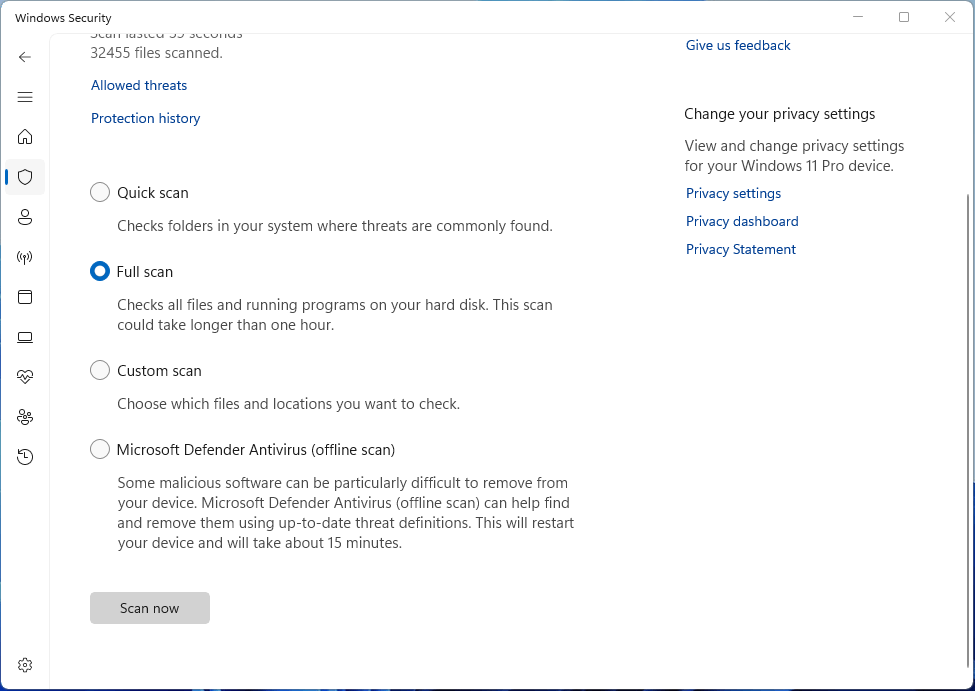
Malware can add unwanted startup processes that slow down boot time. You need to run a Windows Security scan through the following steps.
- Open Settings.
- Go to Privacy & security > Windows Security.
- Select Virus & threat protection.
- Under the Quick scan button, click Scan options.
- Select the Full scan option and then click Scan now.
Fix 10. Adjust BIOS/UEFI Boot Settings
If your PC takes a long time before the Windows logo appears, the issue may be related to BIOS settings. Then, you need to check the following items in the BIOS.
- Fast Boot: It is usually located under the Boot, Startup, or Post Behavior tab. When enabled, the BIOS will skip some unnecessary hardware checks and peripheral initializations and directly boot the system, significantly reducing boot time.
- Boot Priority: Under the Boot tab, set the primary hard drive as the first boot device. If you put network boot (PXE), optical drive, or USB flash drive first, the BIOS will take time to try searching for them one by one during startup.
- Memory Context Restore / MCR: Commonly found on AMD/Intel platforms, once enabled, the motherboard will directly call the saved memory training parameters during a warm boot or restart, saving the time of retraining the memory and significantly reducing the boot time of PCs.
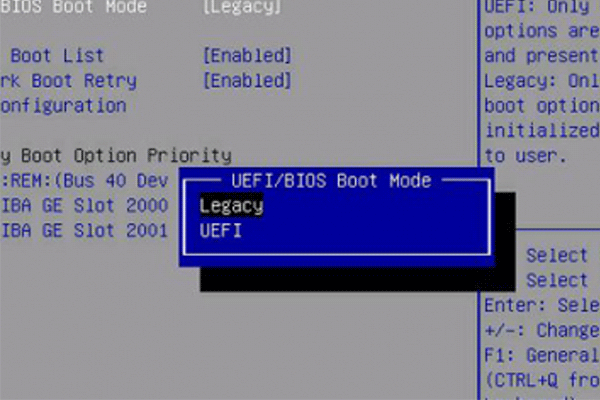
- UEFI / CSM: It is recommended to fully enable pure UEFI mode and disable CSM (Compatibility Support Module). Traditional Legacy bootloaders and CSM load additional compatibility programs, slowing down the self-test process.
- Option ROM: If you have enabled boot support for infrequently used onboard network card PXE ROM, RAID controller ROM, or peripherals in the BIOS, setting them to “Disable” or “Do Not Launch” can reduce the time spent loading redundant drivers during self-test.
Fix 11. Reset or Reinstall Windows
If Windows startup remains slow after trying all fixes, the operating system may have deeper problems. You need to consider resetting Windows while keeping personal files or performing a clean Windows installation.
If you choose the latter option, please back up important files and save application licenses and settings in advance.
Bottom Line
This post explains why a computer boots up slowly and offers 11 methods to fix the issue. For example, disable unnecessary startup apps, free up space on the C drive, enable Fast Startup, update Windows and drivers, scan for malware, repair corrupted system files, and upgrade the HDD to an SSD, etc.
When performing these solutions, if you have problems with MiniTool Partition Wizard’s OS migration feature, contact our support team via [email protected] for help.
About The Author

Position: Columnist
Linda has been an editor at MiniTool for seven years. She continuously learns about computers and puts her knowledge into practice. Moreover, she is particularly knowledgeable in disk management, data recovery, system installation, and PDF editing. Her articles typically reference multiple examples or are based on her own experience, providing users with the most suitable solutions.
User Comments :