
You may want to know “is C drive SSD?” This post shows you how to check that quickly. If your C drive is an HDD, you can upgrade it to SSD using MiniTool Partition Wizard. In addition, this post also offers some tips to help you optimize the SSD C drive performance.
Is C Drive SSD?
Is local disk C the SSD? The answer is YES for most computers nowadays, because they now use SSDs as their system disk.
Of course, you can also use the following method to check that manually.
- Press Win + R to open Run.
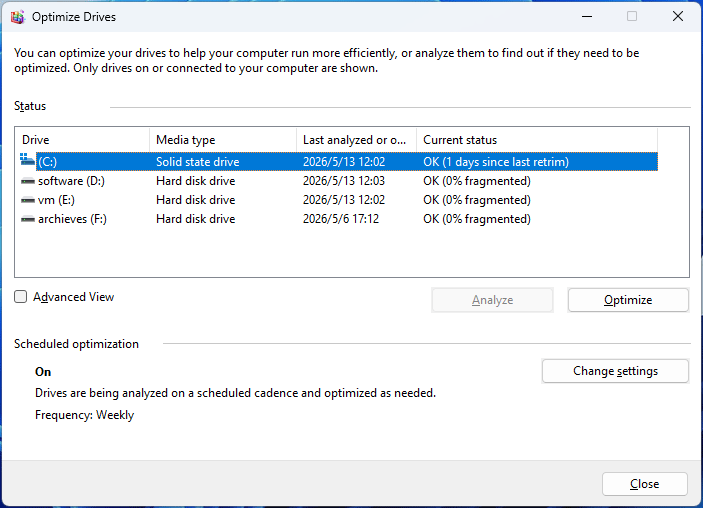
- Type “dfrgui” and press Enter to open Optimize Drives.
- Find the C drive and check the Meide type column. It will tell you if the drive is Solid state drive (SSD) or Hard disk drive (HDD).

Why Is It Better to Use an SSD for Your C Drive?
The C drive is the default system boot drive for Windows computers, storing core operating system files, software programs, and some user data. It is the primary hard drive for booting and running programs, and is closely related to the computer’s operating speed.
Ideally, the C drive should be an SSD. This allows the computer to fully utilize the SSD’s performance, improving boot speed, program running speed (including games), and file transfer speed.
What to Do If the C Drive Is HDD?
If your C drive is an HDD, your computer’s current speed may no longer meet your needs. Then, you can upgrade it to an SSD to improve the computer performance.
If your computer has a lot of large software installed, such as Office, various large games, or other software that is troublesome or time-consuming to install, then migrating the system is a nice option.
To migrate the OS, MiniTool Partition Wizard can help you. It allows you to migrate only the system or clone the entire disk to the SSD. Here is the guide.
MiniTool Partition Wizard DemoClick to Download100%Clean & Safe
Step 1: Connect the SSD to your computer.
- If your computer has only one slot, connect the SSD to your PC via a USB-to-SATA/NVMe adapter.
- If your computer has an extra slot, install the SSD into the empty slot.
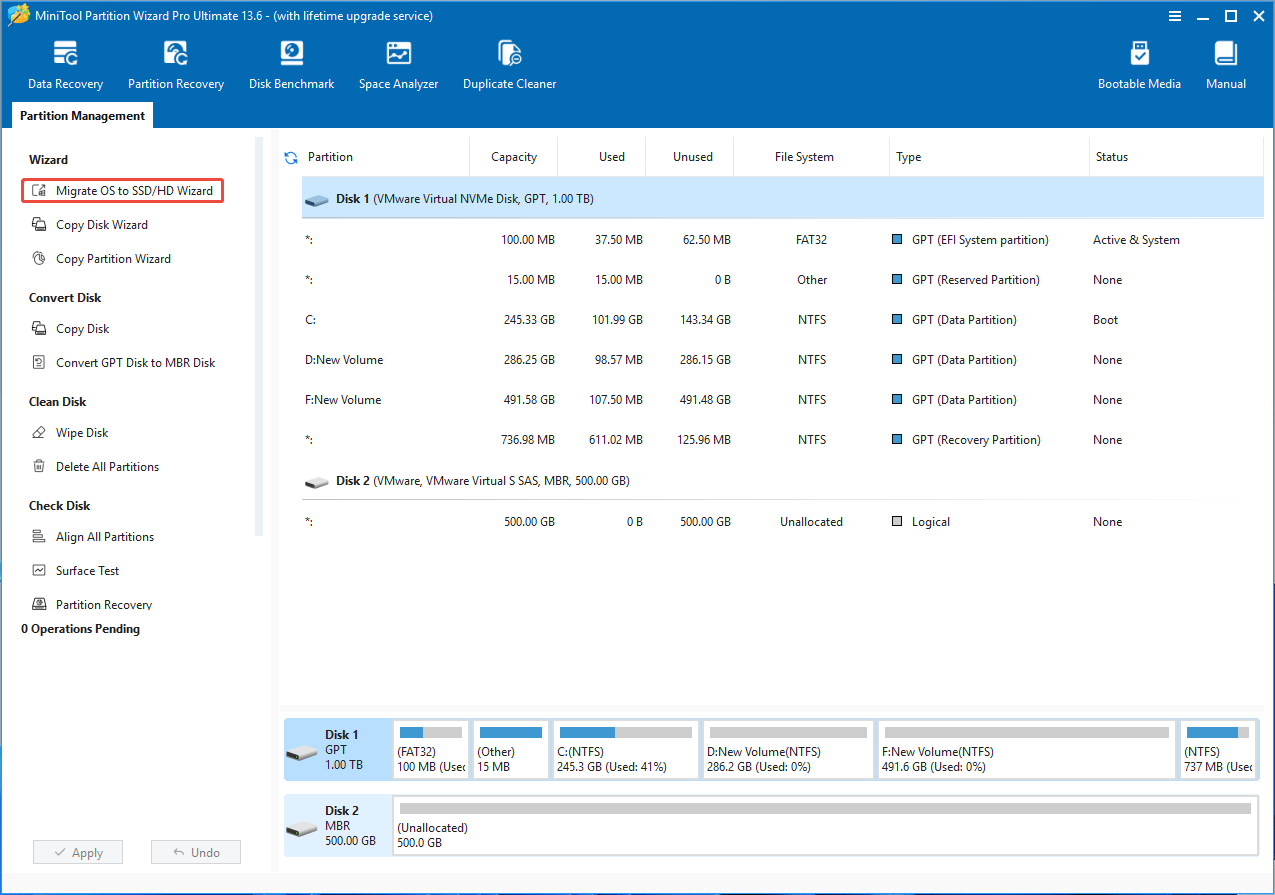
Step 2: Launch MiniTool Partition Wizard and click Migrate OS to SSD/HD Wizard in the action panel.
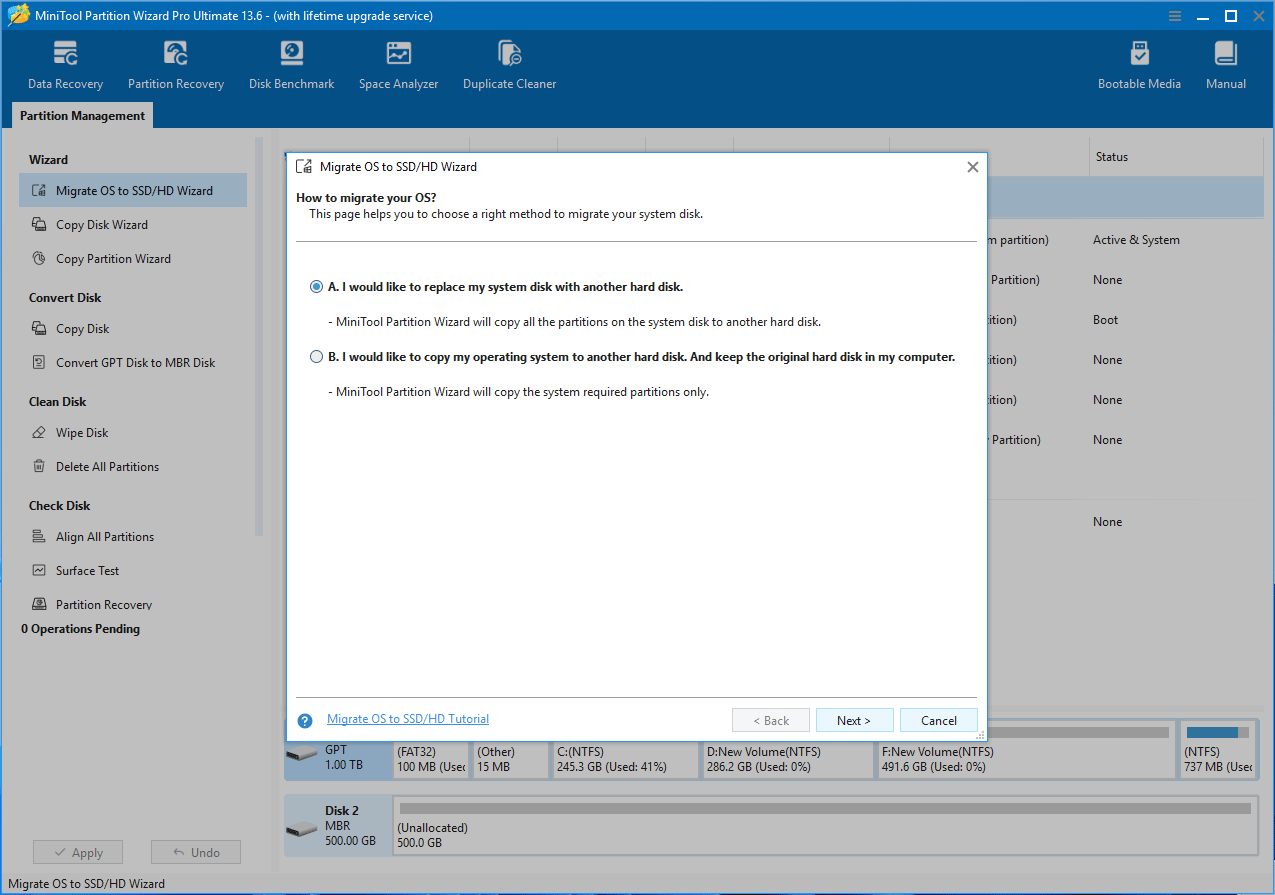
Step 3: Select a migration method. Option A is recommended. It will clone all partitions to the SSD.
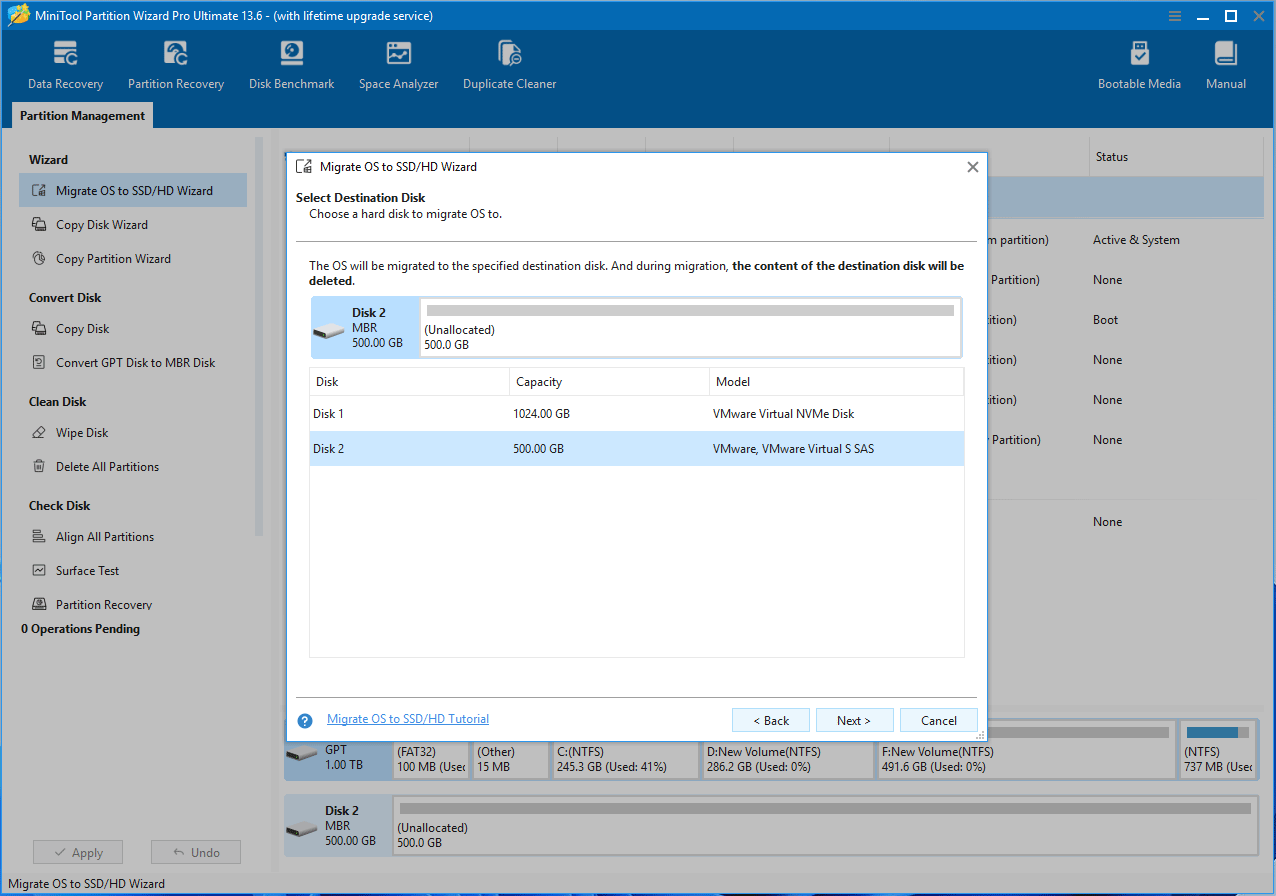
Step 4: Select the SSD as the destination disk.
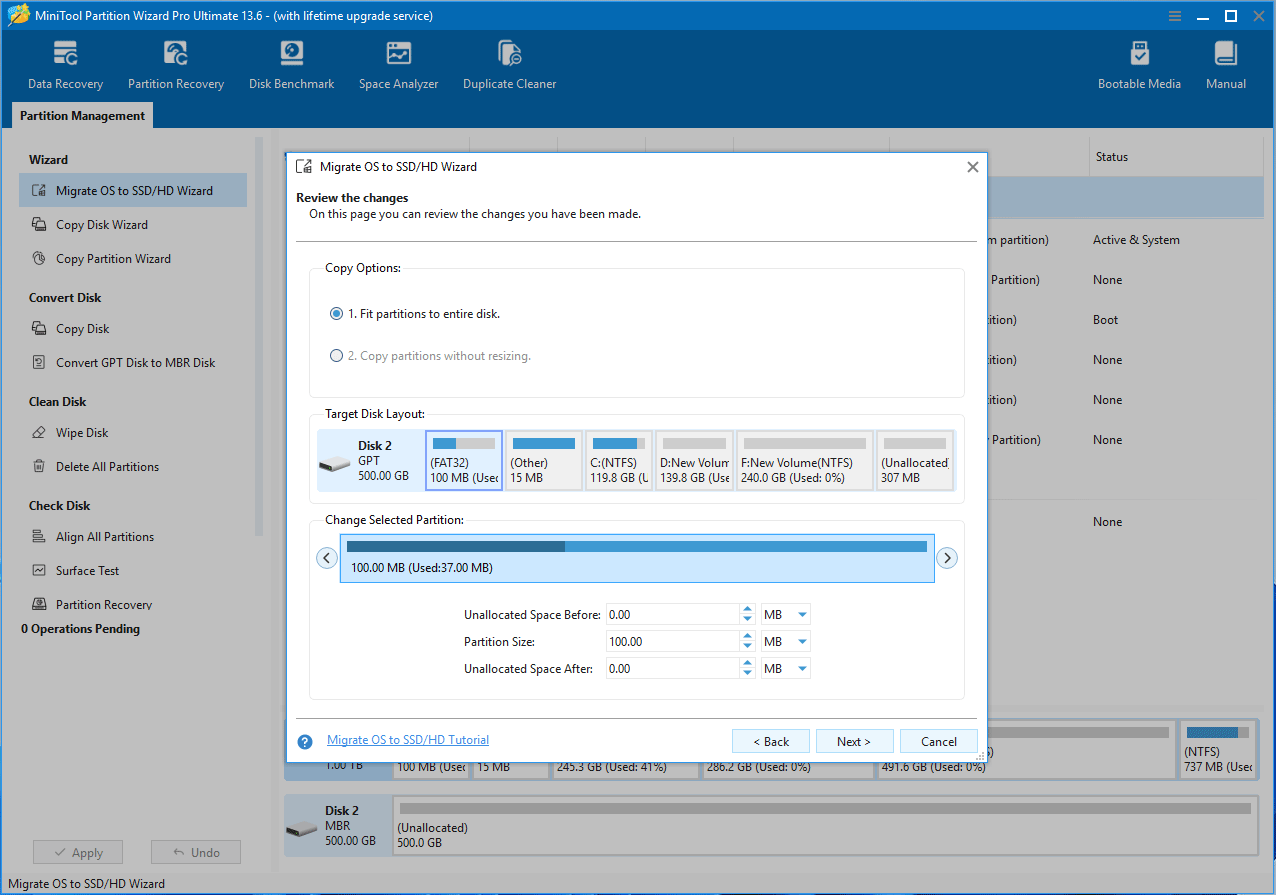
Step 5: Review the changes. You can adjust each parturition’s size here.
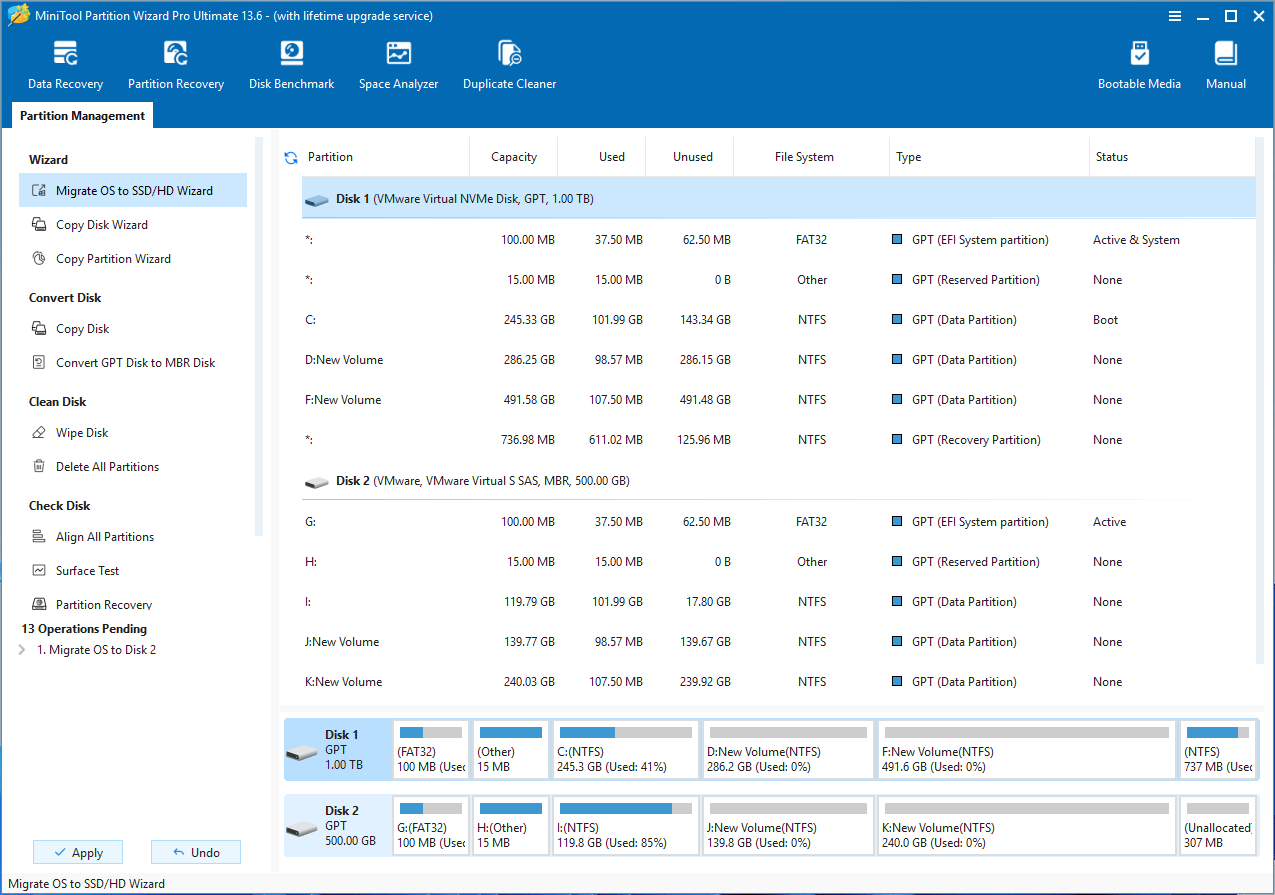
Step 6: Finish the wizard. Then, click Apply to execute the operation.
After the OS migration and disk installation, you can then enter the firmware to let PC boot from the SSD.
How to Optimize SSD C Drive Performance
If your C drive is an SSD, but you still feel your computer is slow, you can try the following methods to speed it up.
#1. Perform TRIM
The TRIM command can perform garbage collection, reduce write amplification, and optimize SSD write speed.
To perform TRIM, open Optimize Drives, highlight the C drive, and then click the Optimize button.
#2. Perform 4K Alignment
4K misalignment in SSDs can lead to severe write amplification, significantly reducing read and write speeds to potentially half of normal speeds and causing system lag. The performance loss is particularly noticeable when writing small files.
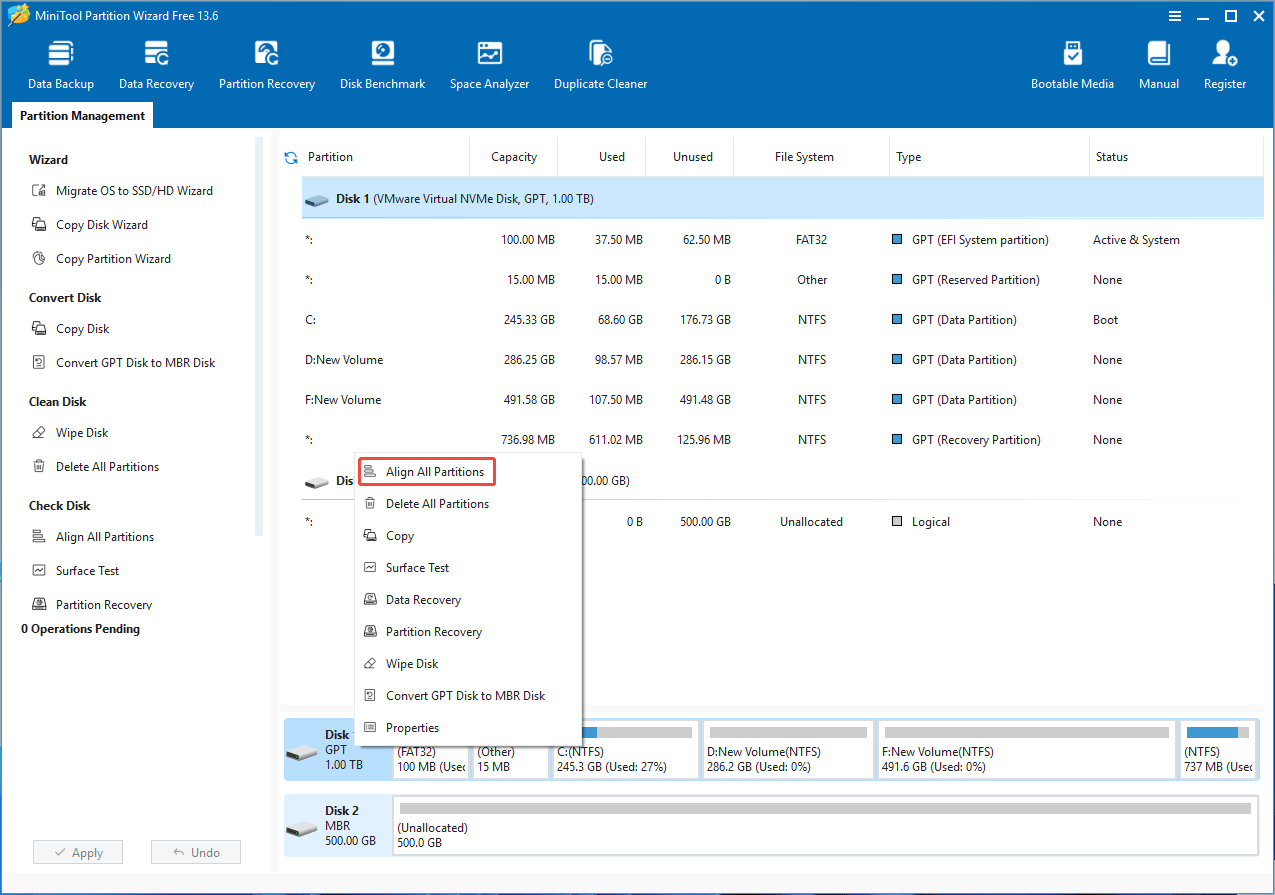
To make sure SSD 4K alignment, you can use MiniTool Partition Wizard Free. Right-click the system disk and then select Align All Partitions.
#3. Ensure sufficient free space on your C drive.
The system needs sufficient “buffer space” to run. When the C drive is running out of space, it can lead to limited virtual memory, extremely scattered data storage, conflicts in operating system temporary files, and insufficient cache space, resulting in slow system response, lag, or program crashes.
To ensure smooth operation of the Windows system without affecting speed, it is recommended that the C drive have at least 50GB-100GB of free space.
Is C Drive SSD FAQ
Bottom Line
This post shows you how to check if the C drive is SSD, explains why it is better to use an SSD for the C drive, how to upgrade HDD to SSD, and how to optimize SSD performance.
If you encounter issues when using MiniTool Partition Wizard to migrate OS, send an email to [email protected]. We will get back to you soon.
About The Author

Position: Columnist
Linda has been an editor at MiniTool for seven years. She continuously learns about computers and puts her knowledge into practice. Moreover, she is particularly knowledgeable in disk management, data recovery, system installation, and PDF editing. Her articles typically reference multiple examples or are based on her own experience, providing users with the most suitable solutions.
User Comments :