-
I purchased the Pro Annual subscription but when I attempted to recover some lost data from a hard drive, I am now being told that I am not allowed to do that with the current license.
MiniTool Partition Wizard Pro Annual license does not support data recovery and partition recovery, and you need a Pro Deluxe or Pro Ultimate license. If you need the license urgently, you can place a new order to purchase the correct license, then send both the old order ID and the new order ID to
[email protected], and then we can refund the incorrect order. Or you can send your order ID and problem details to
[email protected] so that we can provide you other available solutions.
-
Is the Data Recovery function in MiniTool Partition Wizard as strong as MiniTool Power Data Recovery?
The Data Recovery feature of MiniTool Partition Wizard works the same as MiniTool Power Data Recovery when it comes to recovering data from hard drives and flash drives. However, for CD/DVD recovery, MiniTool Power Data Recovery is the right choice.
-
Difference between Partition Recovery and Data Recovery.
Partition Recovery function is designed to recover lost/deleted partitions along with data to their original location while the Data Recovery function is developed to recover data from Recycle Bin, lost/deleted/formatted/damaged partitions and existing partitions to another drive.
-
The program crashed when scanning my drive in the Data Recovery module.
Please send us an email that includes the following details so that we can review them and give you some instructions. Here is our email:
[email protected].
- Where were your files originally saved and how did they get lost?
- Please take a screenshot to show us the disk layout in Windows Disk Management.
- Please send us the log file of the program, which is located in the installation folder of the program (C:\Program Files\MiniTool Partition Wizard 12\ by default) and called log.txt.
-
The program only found .swf files which are unable to open.
Please send an email to
[email protected] and tell us the following details:
- Where were your files originally saved and how did they get lost?
- What types of files are you going to recover? Just tell us the extension or suffix of these files.
- Please send us the log file of the program, which is located in the installation folder of the program (default location is C:\Program Files\MiniTool Partition Wizard 12\) and called log.txt.
-
It is very slow to save files or the program crashed during the process of saving files.
Please try this way to save files again:
Firstly, please go to the installation folder of the program (default location is C:\Program Files\MiniTool Partition Wizard 12\), locate the partitionwizard.exe.ini file (sometimes, the .ini suffix is invisible), open the file, add one line under [General], copy DestPathSimpleMode=1 and paste it to the file, as the following screenshot shows:
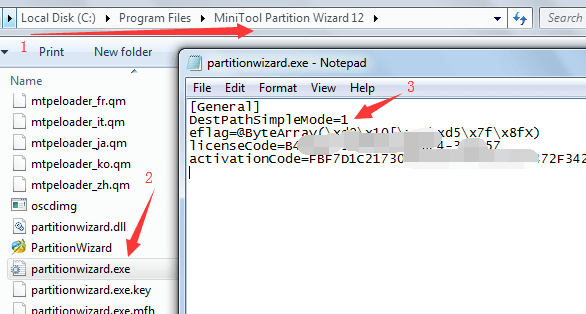
Then, save the change. If you are not allowed to save the change, please close the file without saving the change, then copy the file to another drive, drive E: for example, open the copied file, add one line under [General], copy DestPathSimpleMode=1, paste it to the file, save the change, and copy the changed file back to replace the original one in the installation folder.
Next, run MiniTool Partition Wizard again, choose the Data Recovery function, and load the previous recovery result:
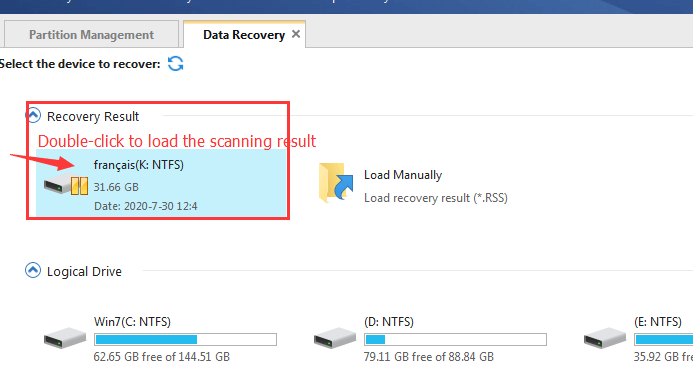
Then, save files again.
-
Why the program found 1.7TB of files from a 500GB drive?
Our program uses 2 ways to scan a drive, namely file system scan and RAW scan.
Files found by file system scan are saved in Existing Partition or Lost Partition and have the original names while files found by the RAW scan are saved in the More Lost Files folder and lose the original names. Most files found by these 2 methods are repeated files.
-
Can I recover data to the original drive?
We strongly advise you not to recover the data to the original drive, because doing this may overwrite the lost files. If you do, do at your own risk.
-
How long it will take to complete scan process?
The time required to scan a drive depends on many factors, such as how many data you saved in this drive and the current status of the drive.
-
After scan I got the error message "failed to find any file system information from the specified device", and no files are found.
There are 2 possible causes for the issue:
- The connection between the drive and the computer is not good.
- The drive is physically damaged.
So, please reconnect the drive and scan the drive again. If the program still fails to find any file, probably the drive is already damaged, and you can download HD Tune free trial version to make an error scan for the drive.
-
The Free version scanned my drive for 12 hours and it found my data, so i upgraded to the Full version. Do i need to install the Full version and rescan my drive?
There is no need to rescan your drive with the Full version, because you can directly activate the program on the Free version and continue to recover.
-
It's a 2TB disk, but the program reported that there are dozens of TB files found, so I can't save them.
In your case, mostly some files have problems and miscalculated. Please use this method to filter files:
Step 1: if you already closed the program, please run the program again and load the previous recovery result, which can avoid rescanning the drive:
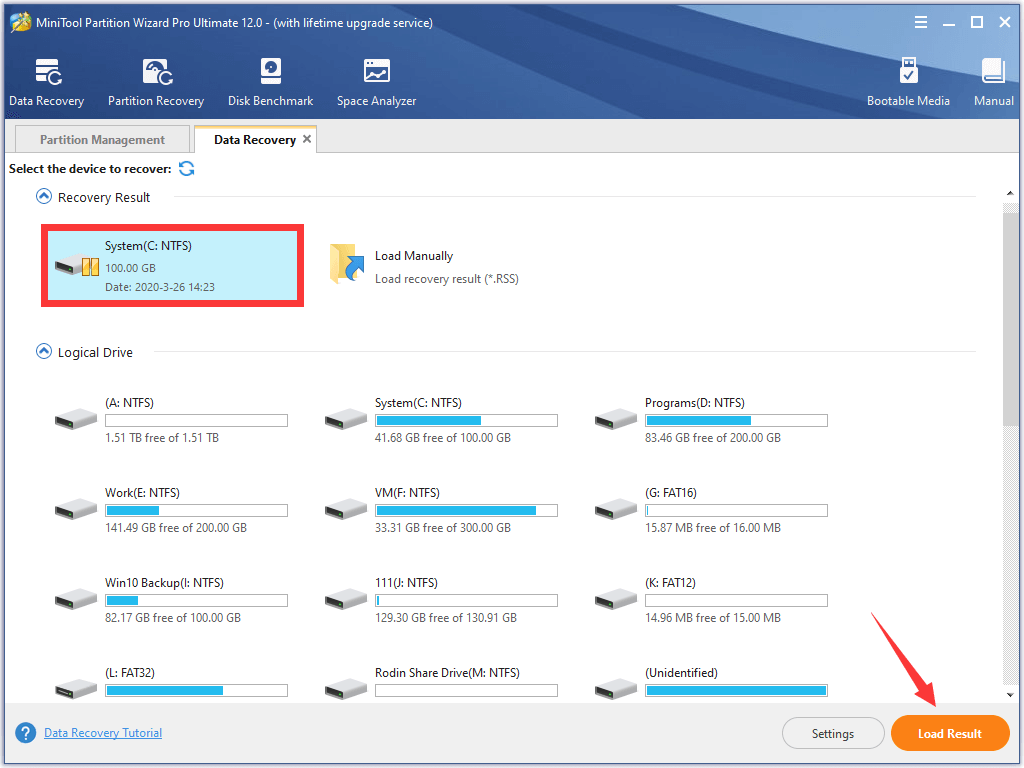
Step 2: Click the Filter button, give a check mark "√" on By Size option, and limit the size for files that the program found. For example, we need to recover files smaller than 1GB, so we make the following filter:
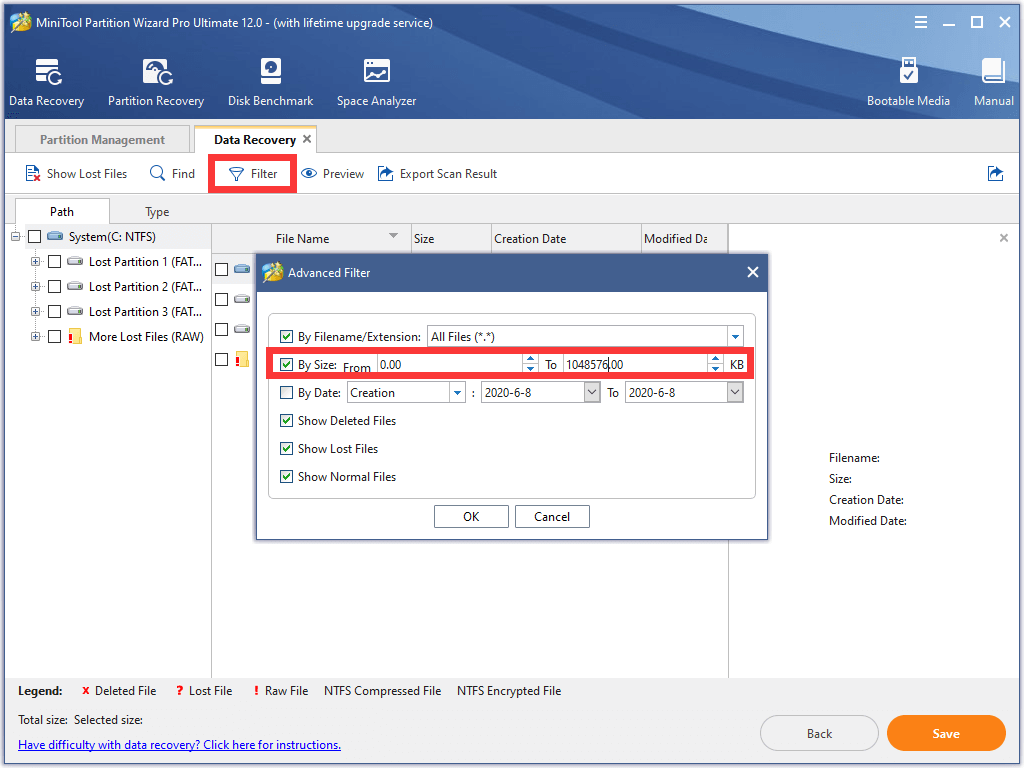
1048576KB = 1024MB = 1G
Then, we can only see files NOT Larger than 1GB.
Please limit the size of your files.
-
Why the program found a lot of partitions
When our program finds a file system track, after scanning it will show it as a partition no matter the file system is intact or not. If it finds 10 file system tracks, it will show 10 partitions. If file system is intact, all files in this partition will be shown correctly. If file system is incomplete or corrupted, all files will be in the RAW Files folder and lose their original name. Files in the All RAW Files partition are found over file system, so they lose original names and date.
-
What does RAW Files mean?
Our program uses 2 ways to scan a drive, namely file system scan and raw scan. RAW files are found by the raw scan. Most files found by the file system scan and the raw scan are repeated files. If you find the needed files from the Existing Partition or Lost partition, there is no need to recover RAW files. If you do not find the needed files from the Existing/Lost Partition or the program only finds RAW files, please just recover those RAW files.
-
The program said it saved files successfully, but I just found an empty folder.
In general, there are 4 causes for this issue:
1. There is not enough free space on the drive to save the file. Could you please check the unused space of the drive?
2. There are errors in the path selected for recovered files. In this case, could you please right click an individual file and recover it to root directory of a drive to see whether it is there? If you already closed the program, you can run it again, choose the function you used to scan the drive, and load previous scanning results.
3. Errors occurred during scan. In this case, would you mind rescanning the drive and saving an individual file to see whether it can open?
4. File system of the drive you used to save recovered files isn't supported by Windows. Could you please try saving files to an NTFS or FAT32 partition?
-
Recovered files can't open in any supported programs.
In general, there are 4 possible causes for the issue that recovered files cannot be opened:
- File records in the file system got corrupted and you recovered files with original names.
- Errors occurred during the process of scanning or saving.
- Files are already overwritten or corrupted before recovery.
- The disk has physical issues.
Under such a circumstance, please run the program again, choose the Data Recovery function and load the previous recovery result (not rescan), which just takes a few seconds:
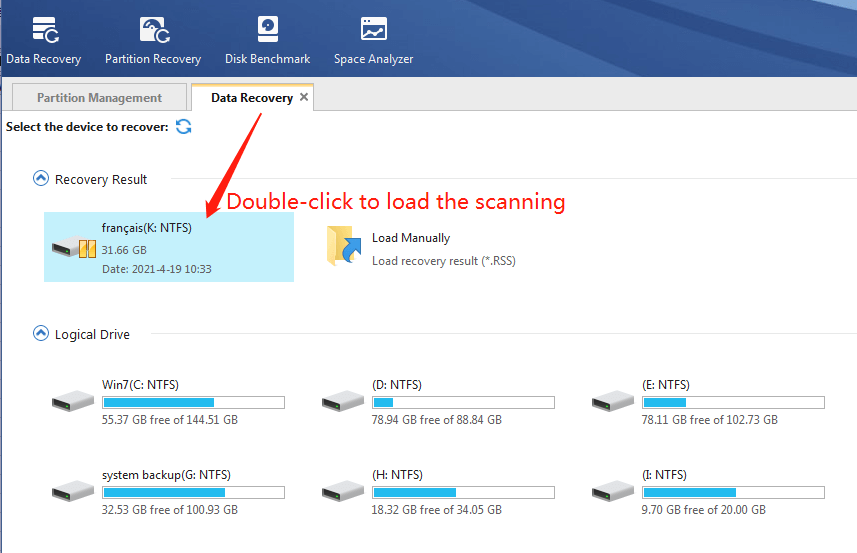
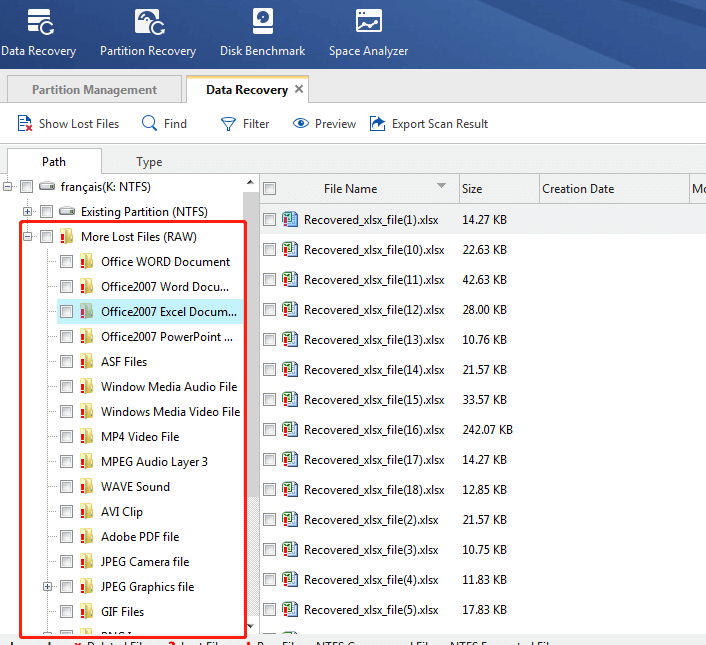
Then, please try saving some files again and see whether they can open correctly. This time, please save files with the original names as well as save files in the More Lost Files (RAW) folder:
However, if this method still doesn't work, errors may occur during the process of the first scanning. In this case, please scan the drive again. During the process of scanning, please try previewing and saving some files.
Kindly Reminder: Please do not save files to the original drive, because doing this may overwrite lost files, and the overwritten files can't be recovered any more.
-
Why recovered files lost original names and showing up as file1, file2, file3…
There are 2 causes for this issue, including:
1. Errors occurred during the process of scanning. In this case, would you mind rescanning the drive?
2. File system is damaged. In this case, original folder structure can't be restored.
-
When I click the save button, the window that pops up is blank.
Have you moved Desktop or My Documents from OS drive (default) to another drive or do other related move recently? If yes, to change them back may solve the problem.
-
How to create bootable disk to recover data from a crashed computer?
You need to prepare a CD, DVD, or USB drive, then run MiniTool Partition Wizard, and click the Bootable Media Builder button to create.
-
When I clicked the Bootable Edition button, it brings me to a website. How can I create a bootable disc?
This indicates you are using MiniTool Partition Wizard Free Edition. When clicking the Bootable Media Builder feature, you will be led to purchase a higher version to unlock this feature.


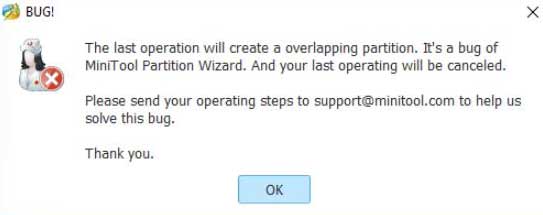 Could you please use the Align Partition function to align partitions that will be operated during the process of resizing, and then resize partition again?
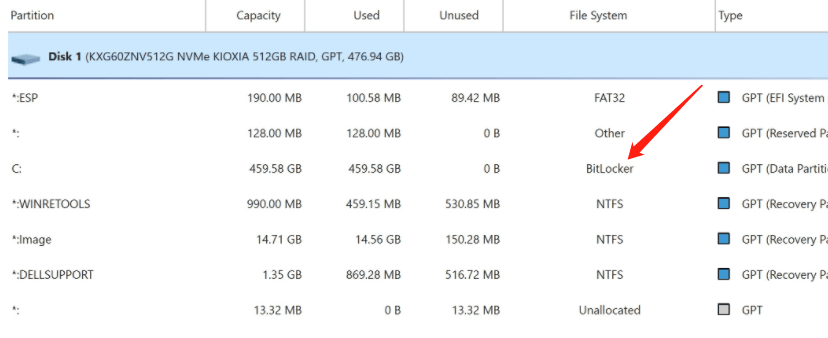
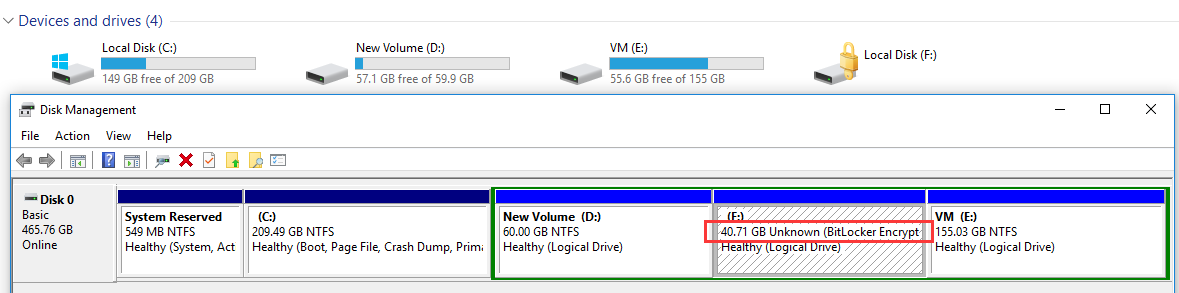
 You are unable to take free space from C to extend the EFI partition because there is a 128MB or 16MB Other partition between the EFI partition and the partition C. Under such a circumstance, you can delete the Other partition, which shouldn’t affect Windows, and then extend the EFI system partition again. However, since you are going to operate the OS partition, it’s better to create a backup for the system in advance or use the bootable version of the program to extend.
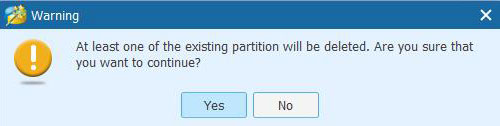 When doing partition recovery, users need to choose all needed partitions, both existing and lost/deleted ones, because unchecked partitions will be deleted.
 It is affected by many factors but mainly depends on how many files should be moved. Let's just see a simple example: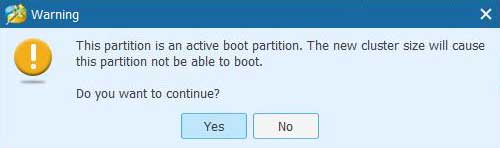
 Please disconnect all USB storage devices, then restart computer, connect the target USB disk to the computer, and run MiniTool Partition Wizard to copy disk again.
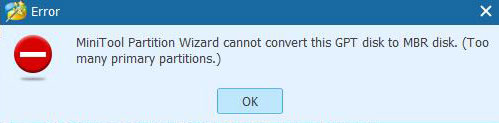 You received this error message because an MBR disk can only hold 4 primary partitions at most. To fix this issue, you have 2 choices:
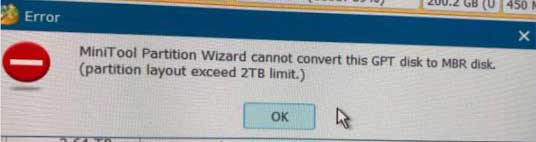 You received this error message because MBR disk has a 2TB limit. In this case, we suggest keeping GPT if you want to use all space. But if you need to convert GPT to MBR due to some reason, please delete or shrink the last partition and confirm existing partitions just use 2TB or less capacity.
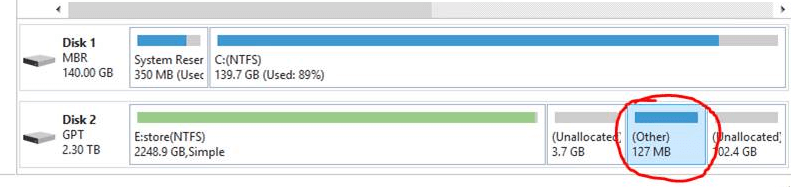
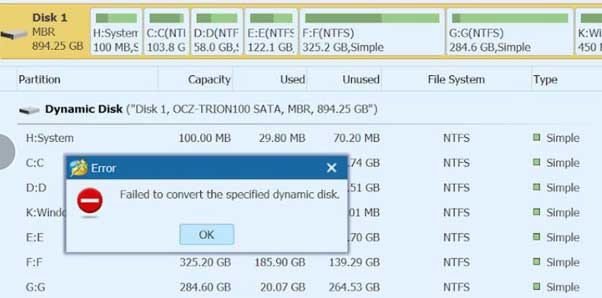 You received this error message because an MBR diks can only hold 4 primary partitions at most. To fix this issue, you have 2 choices:
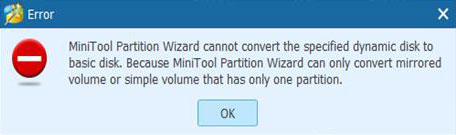 Please read
 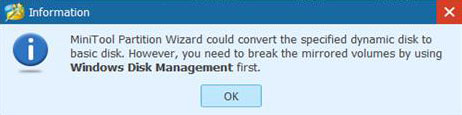 Firstly, please break mirrored volume (not remove mirror) in Windows Disk Management, which doesn't affect data. Then, please retry conversion using MiniTool Partition Wizard.
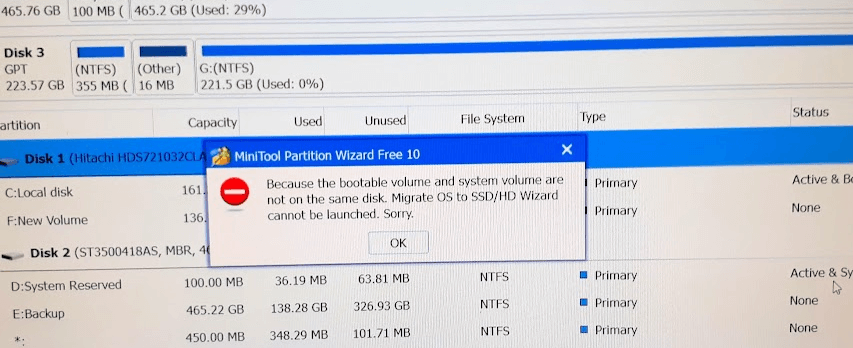
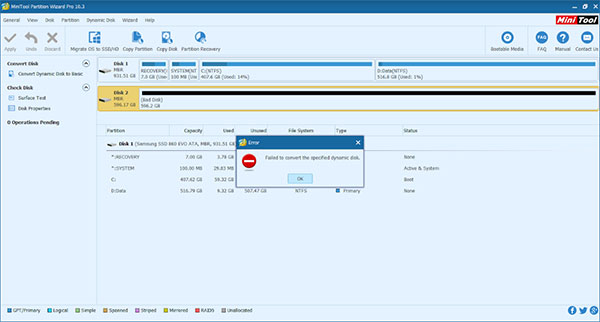 It seems this dynamic disk is from another system. If the disk wasn't a part of striped volume, spanned volume, or RAID volume before, please go to Windows Disk Management, right click the dynamic disk, and choose Reactivate Disk. In general, this should make your disk workable again. However, if you receive an error message, please choose Convert to Basic Disk instead, which will delete all partitions, but you can recover all deleted partitions using MiniTool Partition Wizard. We have tested this method for multiple times, and all worked.
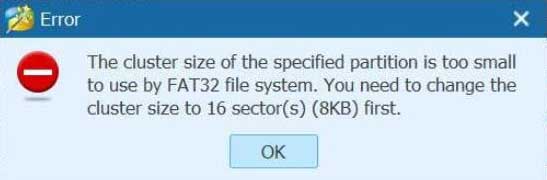 Please high light this partition, choose Change Cluster Size feature, set cluster size to 16 sectors, then execute Apply. After that, please retry converting this NTFS partition to FAT32.
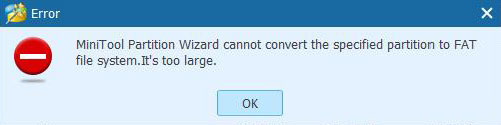 The maximum size for an FAT32 partition in Windows is 2TB, so you can't convert a 4TB drive from NTFS to FAT32. If files saved on this drive are less than 2TB, you can shrink the partition to 2TB, and then convert the 2TB NTFS partition to FAT32.
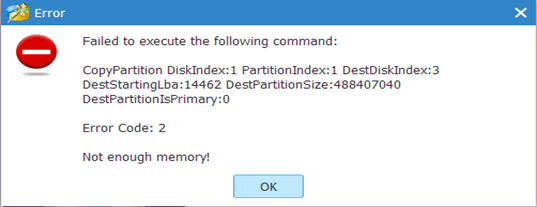 Probably there are illegal value in the partition. In this case, could you please use the "Check File System" function to do some repair? If this method doesn't work, you need to recover data using MiniTool Power Data Recovery at first, and then recreate the partition.
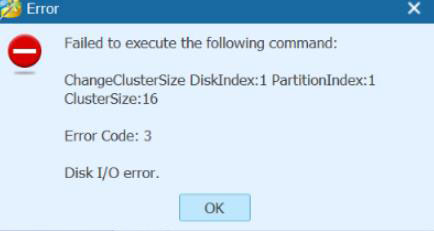 The error code shows there are bad sectors on the drive. Could you please use Surface Test feature of MiniTool Partition Wizard or CHKDSK.exe to see whether it has bad sectors? If there is bad sector, you can try running chkdsk /r in CMD and then try again.
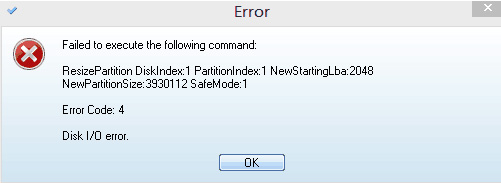 "Failed to execute the following command:
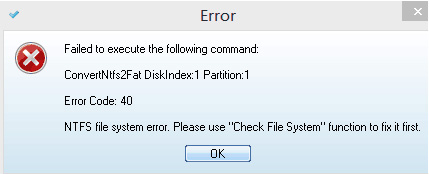 How did this happen? During the process of installing MiniTool Partition Wizard, there is a remote possibility that the related device drivers which are responsible for invoking system information are installed inappropriately.
 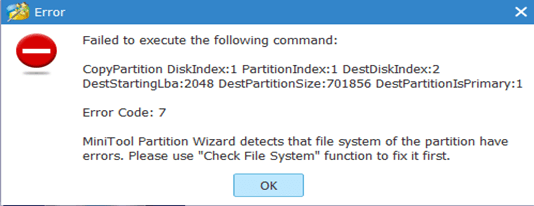 This error indicates this partition has file system errors. Please use "Check File System" function to fix file system at first. If the partition doesn't have drive letter, please assign it one at first.
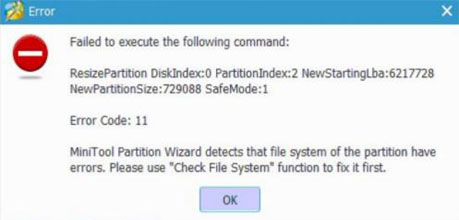 This error shows file system of the partition has errors. Please highlight this partition, and then use the Check File System feature to do some repair. If the partition doesn’t have drive letter, please assisgn it one at first.
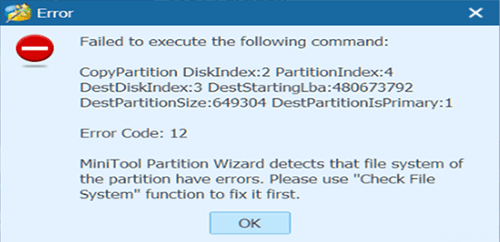 This error indicates this partition has file system errors. Please use the "Check File System" to fix file system at first. If the partition doesn't have drive letter, please assign it one at first.
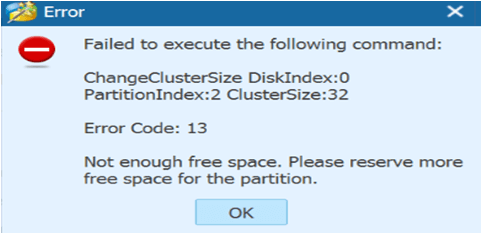 The operation failed largely because there is little free space left in the partition, and we suggest extending the partition by taking free space from other partitions or from unallocated space on the same disk.
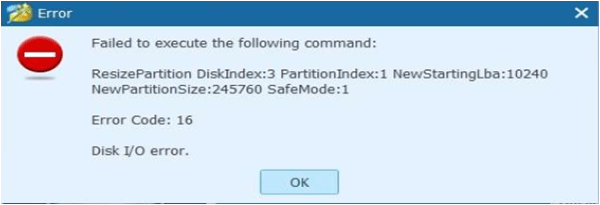 This error indicates there are bad sectors on your disk. We suggest running chkdsk /f /r for this partition in CMD, and then try again.
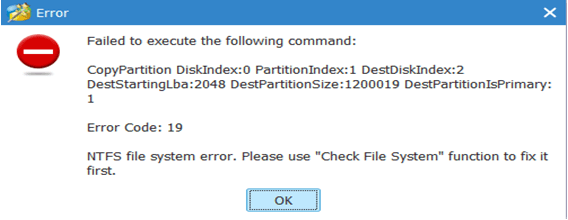 This error indicates the partition has NTFS file system errors. Please use "Check File System" function to fix file system at first. If the partition doesn't have drive letter, please assign it one at first.
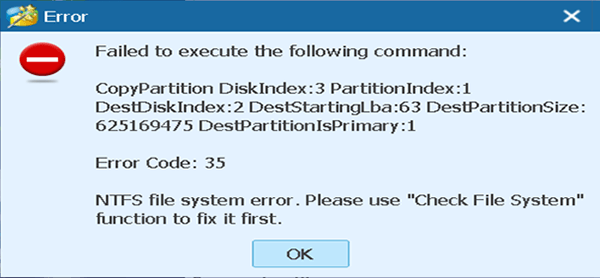 This error indicates your partition has NTFS file system errors. Please use "Check File System" function to fix it at first. If the partition doesn't have drive letter, please assign it one at first.
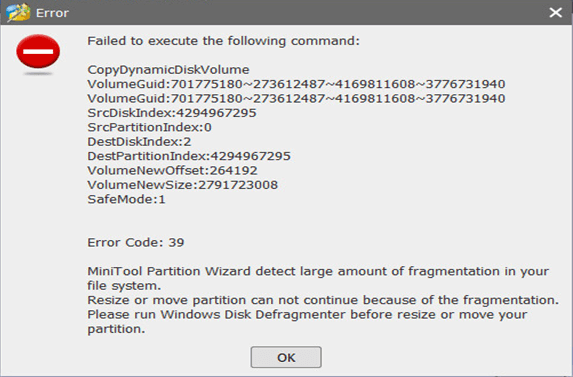 This error indicates there is much fragmentation in your file system. Please run Windows Disk Defragmener before operating your partition.
 However, if you do not have a Credit Card or PayPal account, you can also choose wire transfer. Please send an email to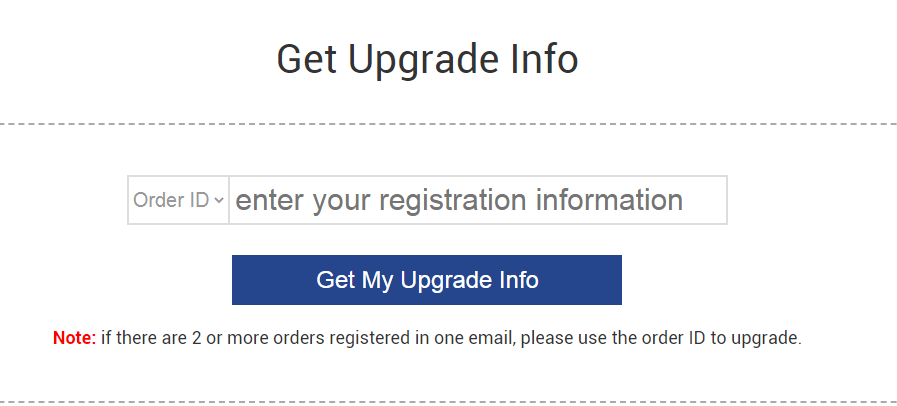
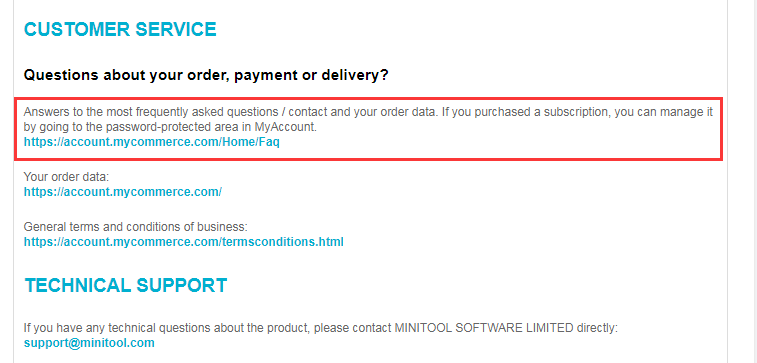 You can also send an email along with your order ID or the registered email address to
 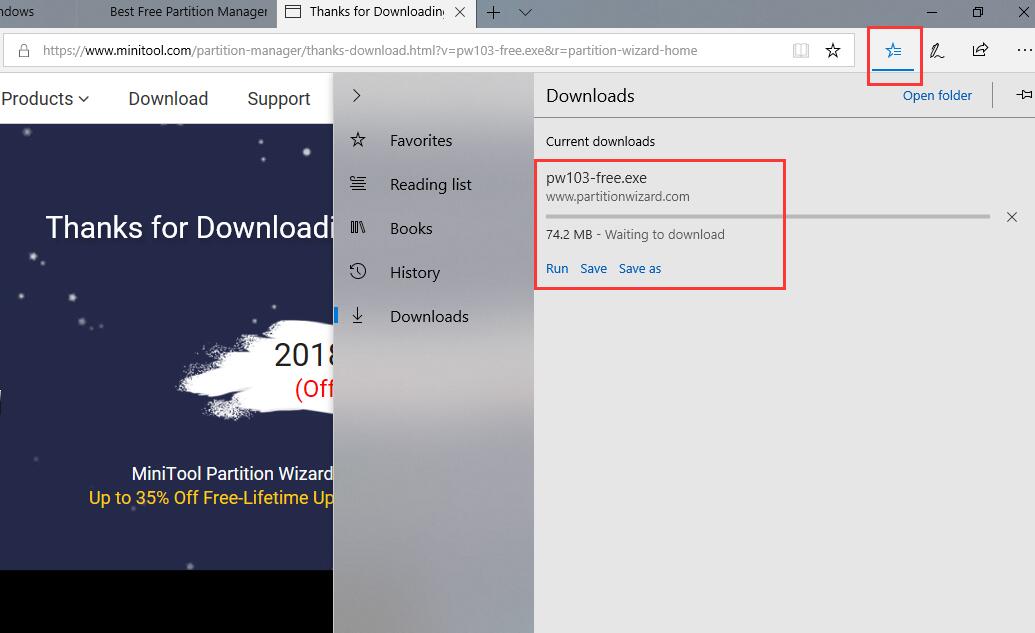 Or, please go back to the previous page, you may be asked to Save, Run or Cancel the download.
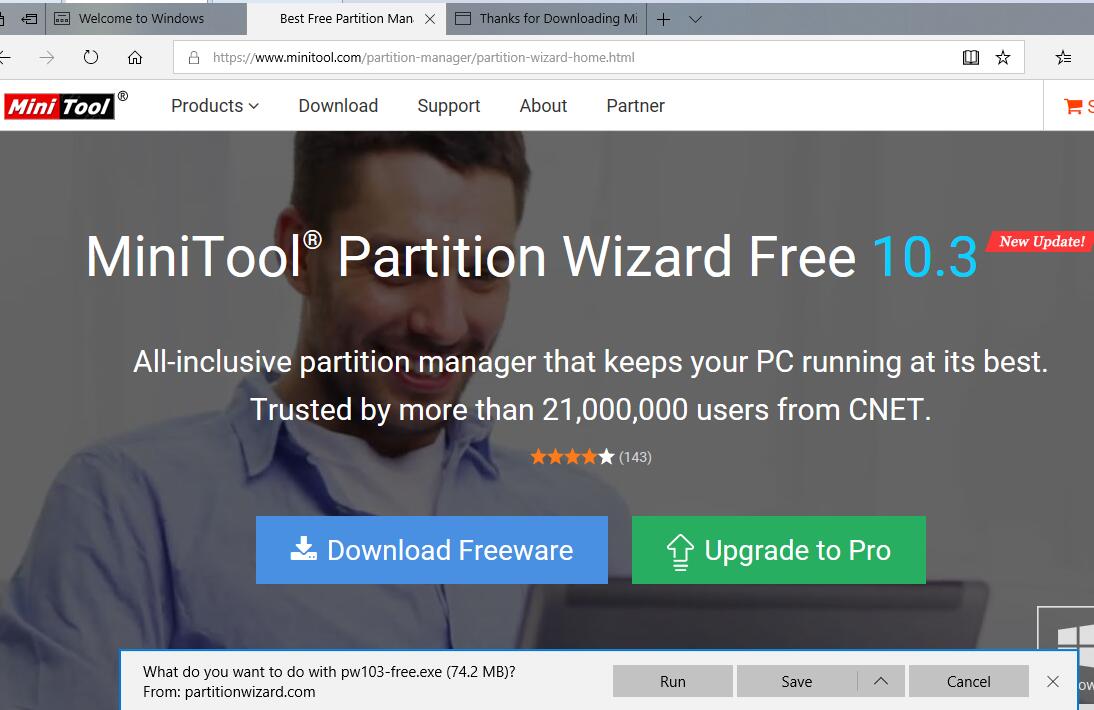 However, if your system is running another browser, please check if there is a download task which is located at the bottom of the browser page.
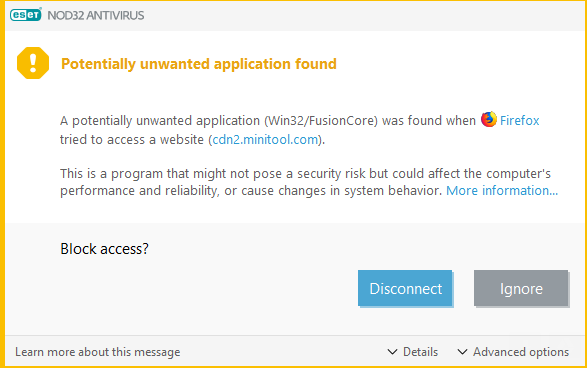 This is a false positive mainly reported by ESET. You got this error because of the FusionCore file which is about our parterner. The program is 100% safe, so you can download or install it without any worries.
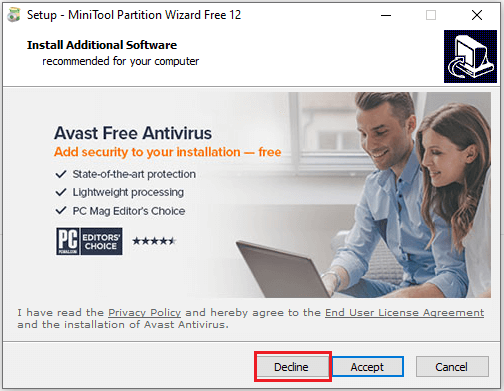
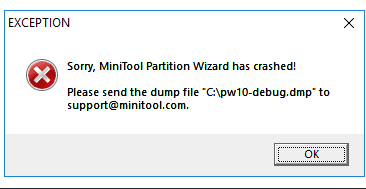 If you are running Free version, could you please try this version:
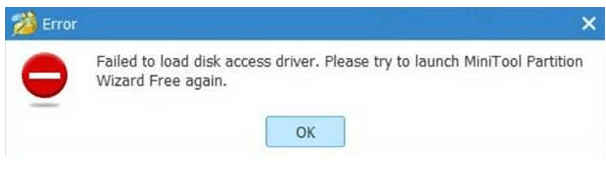 A: This error appears because it failed to install drivers. Could you please run regedit.exe and delete "pwdrvio" & "pwdspio" under "Computer > HKEY_LOCAL-MACHINE> SYSTEM > CurrentControlSet > Services". For your reference to find both items:
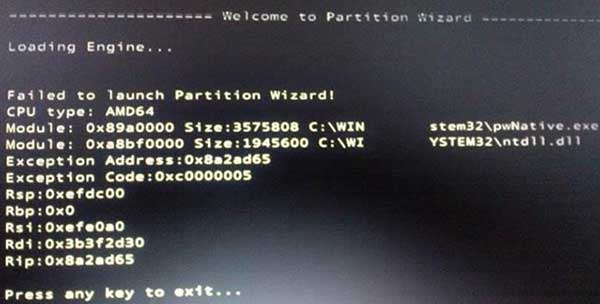 Could you please boot computer from Safe Mode, then run regedit.exe and delete autorun pwnative* and autocheck pwnative under Value data after double-clicking on BootExecute under HKEY_LOCAL_MACHINE\SYSTEM\CurrentControlSet\Control\Session Manager. Then, start your computer again?
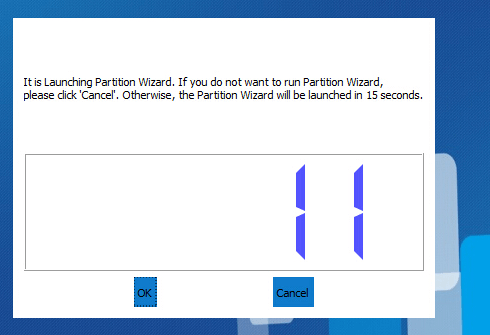
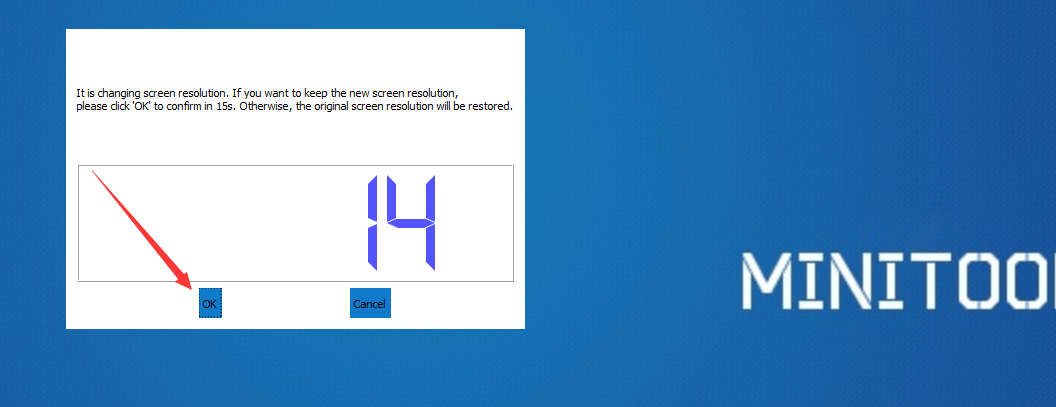
 If you need the bootable disc urgently, could you please send your order ID or registered email address and problem description to