
USB flash drives are small, portable storage devices commonly used for data storage, transfer, and backup. Today, they have become an indispensable part of our digital lives.
However, most people never consider the file system format of their USB flash drive. This choice determines the USB flash drive’s compatibility, maximum file capacity, and performance.
Choosing the wrong format can lead to a series of annoying problems: video files that are “too large” to copy, the USB flash drive unable to be used on TVs or car stereos, and slow transfer speeds.
This guide will explore the most common USB flash drive file systems, introduce their main characteristics, pros, and cons, and provide practical advice on when to use each format.
Why Does the File System Matter for USB Drive?
File system is the set of rules that tells a computer how to store, organize, find, read, write, and delete data on a storage device. Without it, your USB drive would just be a block of unreadable memory.
For USB drives, the file system controls four critical factors:
- Compatibility: Which devices can read and write to the USB drive.
- Maximum file size: Whether you can copy 4GB+ videos or archives to the USB drive.
- Performance: Speed of transfers and how well the system treats flash memory.
Different operating systems and devices support different file systems. That’s why formatting matters.
Best Format for USB Drive
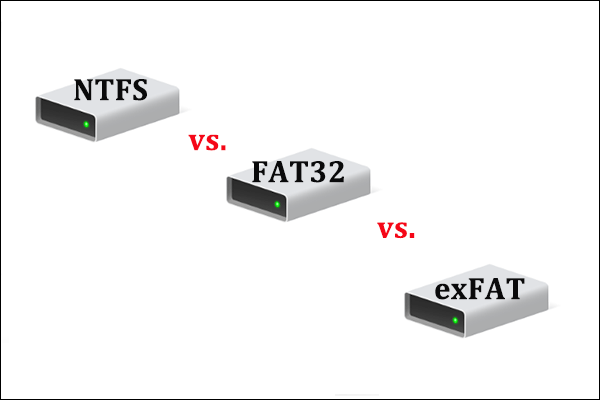
Below, we’ll analyze the several most relevant file systems for USB drives: FAT32, exFAT, NTFS, Ext4, APFS, along with their ideal use cases.
In short, the best file system for USB drive is exFAT because it offers high compatibility across Windows and Mac, supports files larger than 4GB, and works with modern devices.
#1. FAT32: The Oldest, Most Compatible Format
FAT32 (File Allocation Table 32) is one of the oldest and most widely supported file systems, introduced in Windows 95. It was designed as an upgrade to the earlier FAT16 format, offering larger storage support and improved efficiency.
Despite its age, it remains a staple for USB drives due to its cross-device compatibility.
Key Features
- Max file size: 4GB
- Max partition size: 2TB (32GB limited by most Windows systems and theoretically 16TB with tweaks, but not practical)
- Compatibility: Windows, Mac, Linux, smart TVs, cars, cameras, game consoles (PS4/5, Xbox, Switch), routers, printers
- Journaling: No
- Permissions: No
- Compression/encryption: No
Pros
The most compatible file system available. It works with almost every operating system (Windows, macOS, Linux) and device with a USB port, including old game consoles (PS3, Xbox 360), smart TVs, car stereos, and digital cameras.
Cons
The USB drive with FAT32 cannot store files larger than 4GB (such as high-definition movies or large game images).
If you pull the USB drive out while it’s writing, there is a much higher risk of file corruption without journaling.
When to Choose
FAT32 is the ideal choice in specific scenarios:
- The USB drive has a small capacity (8GB to 32GB).
- You use the USB drive to store small files (under 4GB), like music, MP3s, JPEG photos, and text documents.
- The USB drive is used with older or specific hardware, such as a car stereo, digital camera, or older game consoles (like the PS3).
#2. exFAT: The Best Format for USB Drive
exFAT (Extended File Allocation Table) was developed by Microsoft in 2006 as a successor to FAT32, specifically designed to eliminate the 4GB file size limit while maintaining broad cross-platform compatibility.
It strikes the perfect balance between compatibility and functionality, making it the best format for USB drives.
Key Features
- Max file size: 16EB (no limit in actual use)
- Max partition size: 128PB (no limit in actual use)
- Compatibility: Windows, Mac (10.6.5+), Linux, PS4/5, Xbox One/Series, modern TVs, cars
- Journaling: No
- Permissions: No
- Compression/encryption: No
Pros
The USB drive with exFAT has no practical file/drive size limit and has high cross-platform compatibility (Windows/macOS/Linux computers, mobile devices, game consoles, smart TVs, and media players).
It is optimized for flash storage devices (USB drives, SD cards), making it ideal for portable media.
Cons
The USB drive with exFAT is not compatible with very old devices. It has no journaling and will cause minor corruption if unplugged during writing.
When to Choose
exFAT is the best all-around format for most modern USB drive users, and it’s the top choice in these scenarios:
- The USB drive is a large-capacity (64GB to 2TB+) device.
- You need to transfer large files across platforms between Windows PCs, Linux systems, and modern devices.
- The USB drive is used for portable backup of large folders, photos, or work files across multiple devices.
#3. NTFS/Ext4/APFS: The Operating System Format
NTFS, Ext4, and APFS are designed for different operating systems.
NTFS (Windows only)
- Best for USB drives used only on Windows PCs.
- Supports files larger than 4GB, includes a “journaling” feature to prevent data corruption during power outages, and allows file-level security permissions.
Ext4 (Linux only)
- Best for USB drives used only with Linux systems (such as Ubuntu, Debian, Fedora).
- Provides high stability, extremely fast for handling large files.
APFS (Modern Macs only)
- Best for high-speed USB drives used only with modern Macs (macOS 10.13 High Sierra or later).
- Features instant file cloning, easy-to-recover snapshot functionality, and advanced multi-key encryption.
How to Format USB Drive on Windows?
After choosing the best USB drive format for your needs, you may need to format it with the specific file system. To format the USB drive on Windows, here are 4 tools:
- MiniTool Partition Wizard
- File Explorer
- Disk Management
- DiskPart
The last three are built-in Windows tools. However, they are unable to format USB drives larger than 32GB to FAT32. Fortunately, MiniTool Partition Wizard can break this limitation. It is worth trying.
Method 1. Use MiniTool Partition Wizard
MiniTool Partition Wizard is a USB formatter that can help you format the USB drive to different file systems, and is a FAT32 formatter that can format a 64/128/256/500GB USB drive to FAT32.
Additionally, it is a free partition manager, which can directly change the file system between FAT32 and NTFS without data loss, delete/extend/resize partitions, convert MRR to GPT, clone a hard drive, and recover data from hard drives.
Here is how to format the USB drive using MiniTool Partition Wizard. Before that, you should download and install this software on your computer.
MiniTool Partition Wizard FreeClick to Download100%Clean & Safe
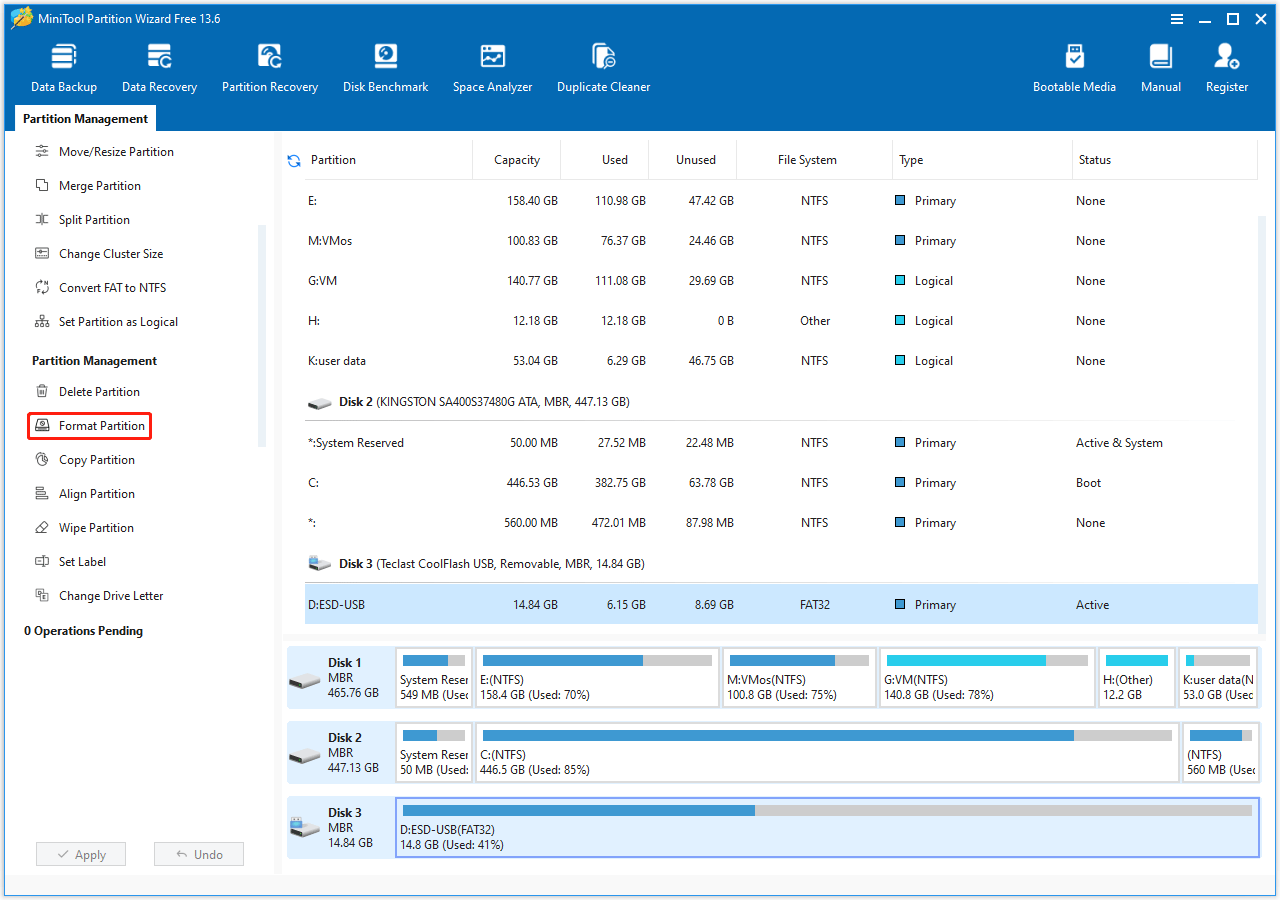
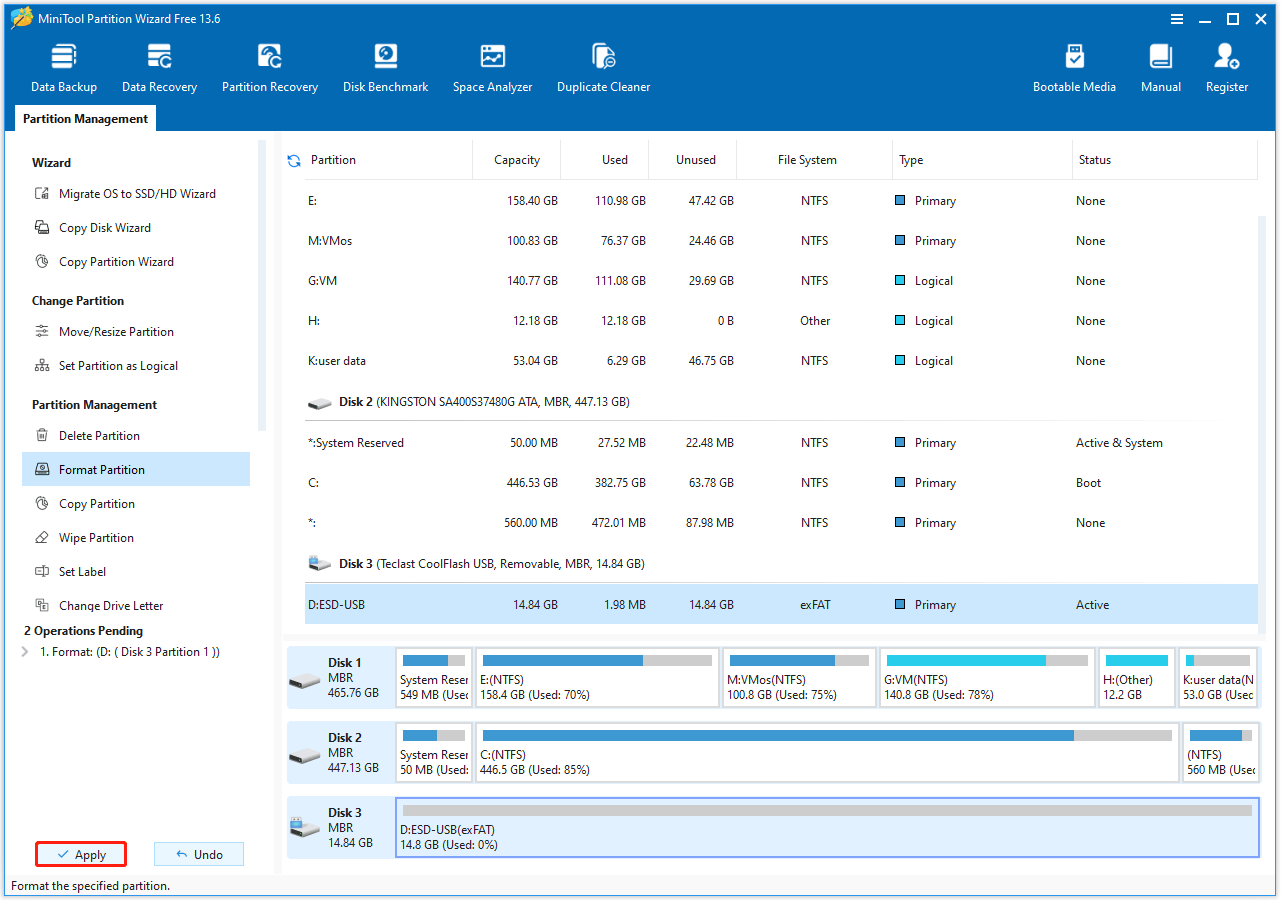
Step 1. Enable the Format feature.
- Insert the USB drive into your computer.
- Launch MiniTool Partition Wizard to enter its main interface.
- Choose the partition on the USB drive.
- Select the Format Partition feature from the left action panel.
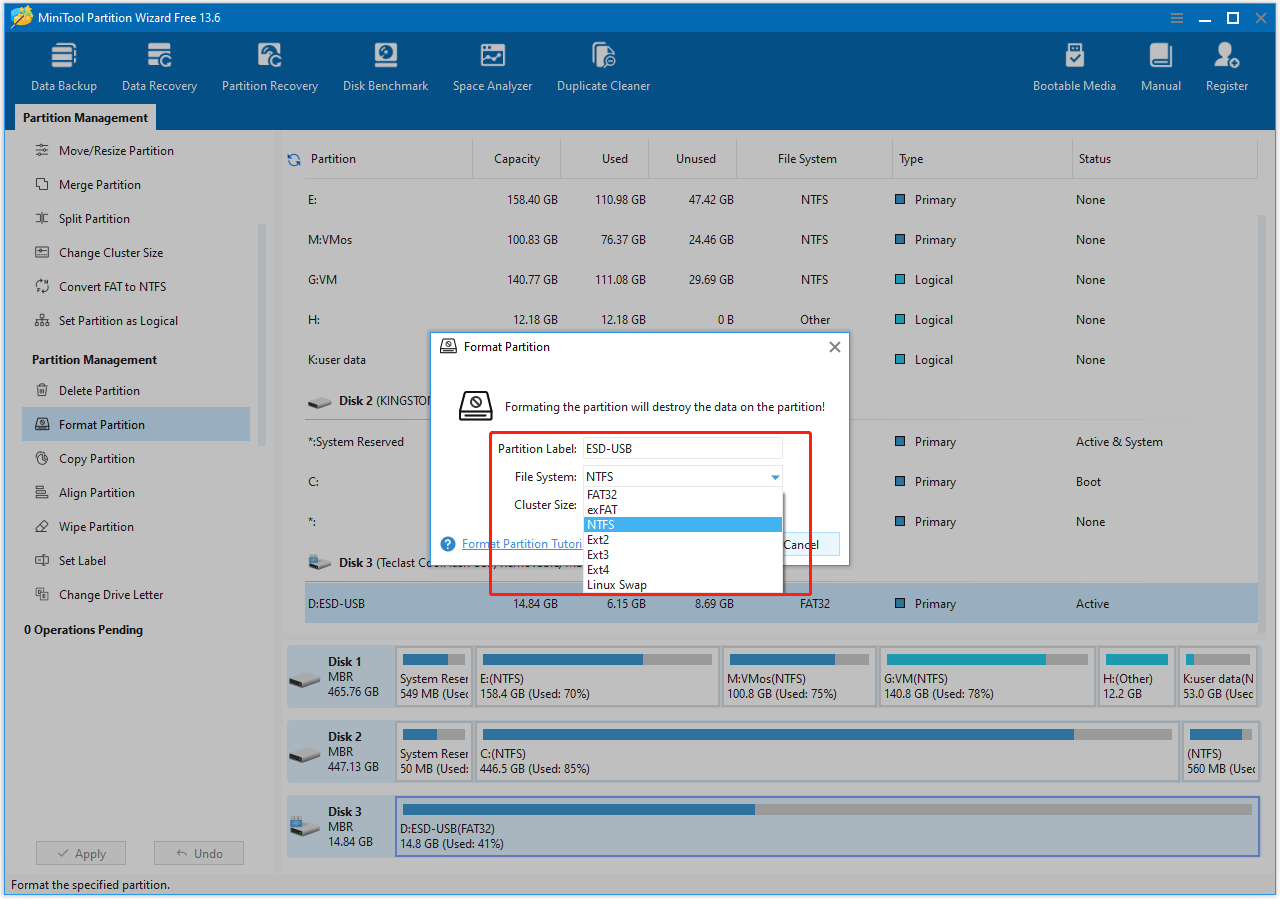
Step 2. In the pop-up window, choose the file system and configure the other settings like volume label and cluster size. Then click OK.
Step 3. Click Apply to start the formatting process, and then click Yes to confirm this operation.
Method 2. Use File Explorer
Using Windows File Explorer is the standard method for most Windows users. The steps are as follows:
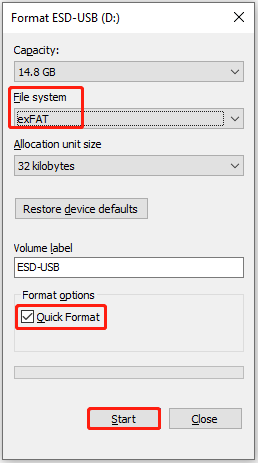
- Open File Explorer and click This PC in the left sidebar.
- Right-click your USB drive and select Format.
- Choose your File system and enter a Volume label.
- Ensure Quick Format is checked and click Start.
- Click OK on the warning prompt to confirm.
Method 3. Use Disk Management
Disk Management is a Windows built-in utility that offers features to partition and format drives. Here are the steps to format the USB drive.
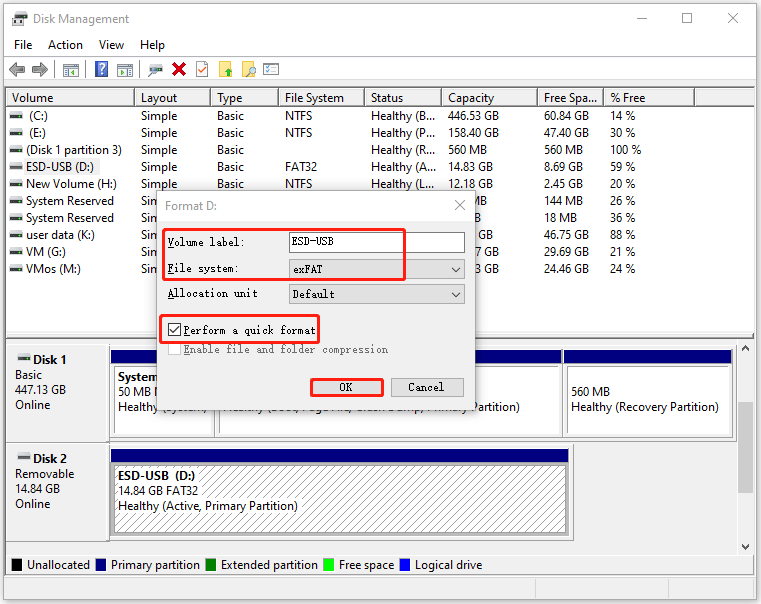
- Right-click Start and select Disk Management.
- Right-click the USB drive’s partition and select Format.
- Set the Volume Label and File System, check Perform a quick format, and then click OK.
Method 4. Use DiskPart
DiskPart is a command line to manage disks/partitions on Windows. To do a USB format for Windows, here are the steps:
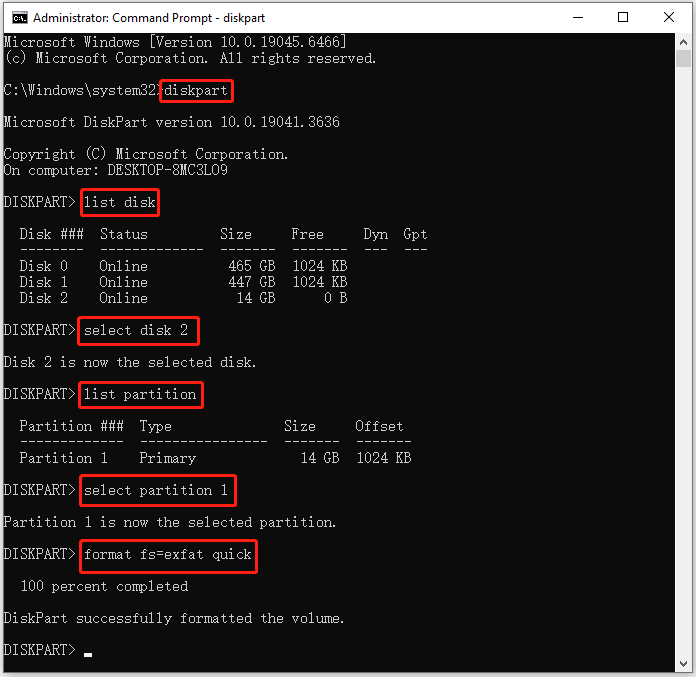
- Type cmd in the search bar, right-click Command Prompt, and choose Run as administrator to open it.
- Type diskpart and press Enter.
- Type list disk and press Enter to find your USB’s number.
- Type select disk X (replace X with your USB’s number) and press Enter.
- Type list partition and press Enter to list partitions on the USB drive.
- Type select partition X (replace X with the USB’s partition) and press Enter.
- Type format fs=fat32 quick (replace fat32 with exfat/ntfs if necessary) and press Enter.
Best Format for USB Drive FAQ
While the FAT32 file system technically supports up to 2TB, Microsoft deemed 32GB a reasonable, efficient, and sufficient maximum at the time.
After that, try formatting the USB drive using the MiniTool Partition Wizard.
Data recovery software, such as MiniTool Partition Wizard, can scan the drive and restore files, as the data is usually just marked as free space, not immediately erased.
Bottom Line
For most modern users, exFAT is the best format for a USB drive because it has unlimited file size support, broad cross-platform compatibility, and efficient performance for high-capacity drives.
By understanding the pros and cons of each file system and matching them to your specific needs, you can ensure your USB drive performs optimally and avoids compatibility problems.
If you have any questions or suggestions on how to use MiniTool Partition Wizard, do not hesitate to contact us via [email protected].
User Comments :