
Need to repair a corrupted NTFS file system? This guide covers common symptoms and causes, then explains practical ways to repair NTFS drives with Windows tools and MiniTool Partition Wizard.
NTFS File System Corruption: What Does It Mean?
NTFS (New Technology File System) is a file system developed by Microsoft and widely used by Windows. It provides features such as file system journaling, access control, file encryption, compression, and support for large storage devices.
Although NTFS is designed to help protect file system integrity, corruption can still occur because of disk problems, bad sectors, unexpected system shutdowns, faulty drivers, malware, or partition-related issues.
When an NTFS file system becomes corrupted, you may be unable to access files or folders, receive error messages, or even find that Windows cannot properly recognize the affected partition.
This post focuses on NTFS file system corruption, including its common symptoms, causes, and practical fixes.
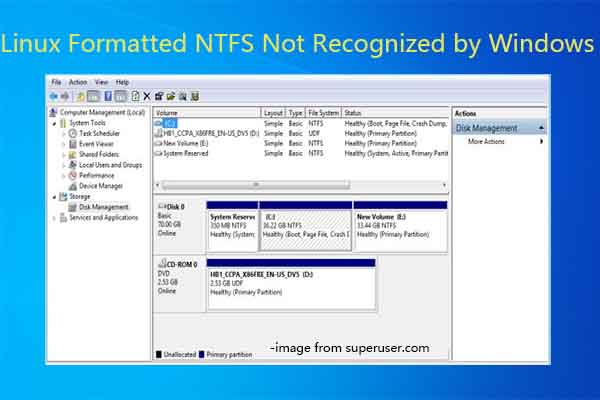
How to Know If the NTFS File System Is Corrupted
Is your NTFS file system corrupted? Certain symptoms and error messages can indicate NTFS file system corruption.
However, these symptoms can also result from hardware problems, bad sectors, connection issues, or driver errors, so they should not be treated as proof of file system corruption by themselves.
Common signs include:
- Unexpected volume full errors
- Inability to access or display files
- Occurrence of system errors like “ntfs.sys missing or corrupt”
- Blue screen errors
Besides, you will encounter error messages like below if NTFS file system corruption occurs.
- File or directory is corrupted and unreadable
- Hard disk needs formatting. Are you ready to do this?
- This volume contains an unrecognized file system. Ensure that all file system drivers are loaded and that the volume is not corrupted.
If your NTFS drive shows one or more of these symptoms, check the drive and file system before formatting it, especially when it contains important data.
What Causes NTFS File System Corruption?
Multiple factors are responsible for NTFS file system corruption. In this section, possible reasons are summarized as follows.
- Hardware issues like damaged cable or a hard drive crash
- Invalid partition table or file system is displayed RAW
- MBR corruption or repetitive data formatting in NTFS
- OS not found or the hard disk is formatted
- Disk partition corruption
- Windows boot sector failure
- Faulty drivers or BSODs
- Virus or malware attacks
In addition to NTFS file system corruption, the above factors also lead to other issues, such as data loss, data inaccessibility, NTFS partition loss, etc. If so, you can use MiniTool Partition Wizard to recover data from hard drives or recover missing/deleted NTFS partition.
MiniTool Partition Wizard DemoClick to Download100%Clean & Safe
MiniTool ShadowMaker TrialClick to Download100%Clean & Safe
How to Repair Corrupted NTFS File System
Now, you can repair corrupted NTFS file system with the following methods. They may help you recover NTFS file system on USB device and other storage devices.
Before repairing the file system, back up important data if the drive is still accessible. If the drive shows signs of physical failure or repeatedly disconnects, avoid repeated repair attempts and consider data recovery first.
#1: Check and Fix File System Errors
First and foremost, you should check and fix file system errors on your NTFS drive. It’s strongly recommended to use MiniTool Partition Wizard to do that. Its Check File System feature helps you detect and fix file system errors on the drive.
According to your needs, you can also check if there are bad sectors on the drive via its Surface Test feature. Besides, this multifunctional partition manager also allows you to perform disk benchmark, clone hard drives, secure erase SSD, migrate OS to SSD/HDD, convert MBR to GPT, convert FAT to NTFS (vice versa), etc.
Now, click the button below to download this software and then follow the on-screen instructions to finish installation. After that, launch the software and complete the operation by following these steps.
MiniTool Partition Wizard FreeClick to Download100%Clean & Safe
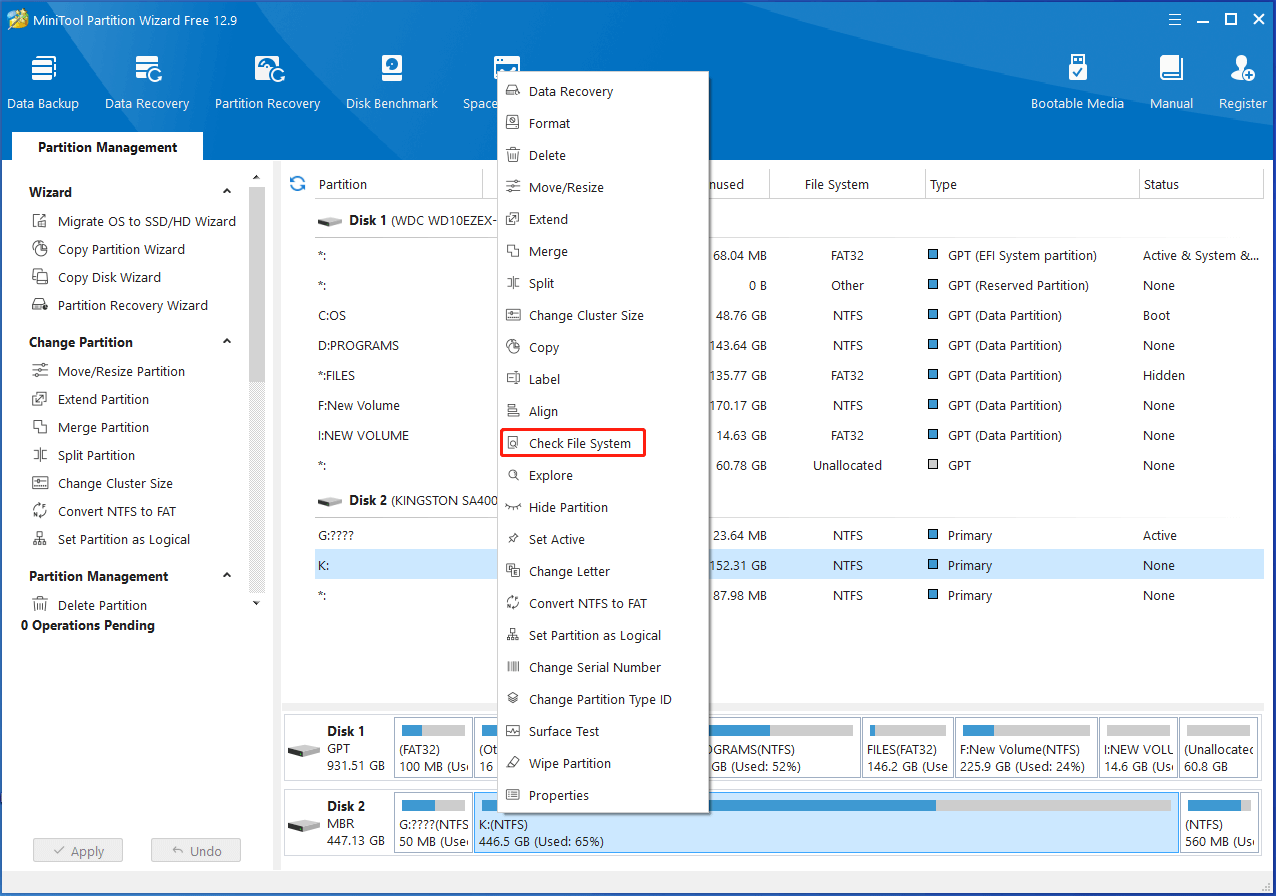
Step 1: Right-click the corrupted NTFS drive and choose Check File System on the context menu.
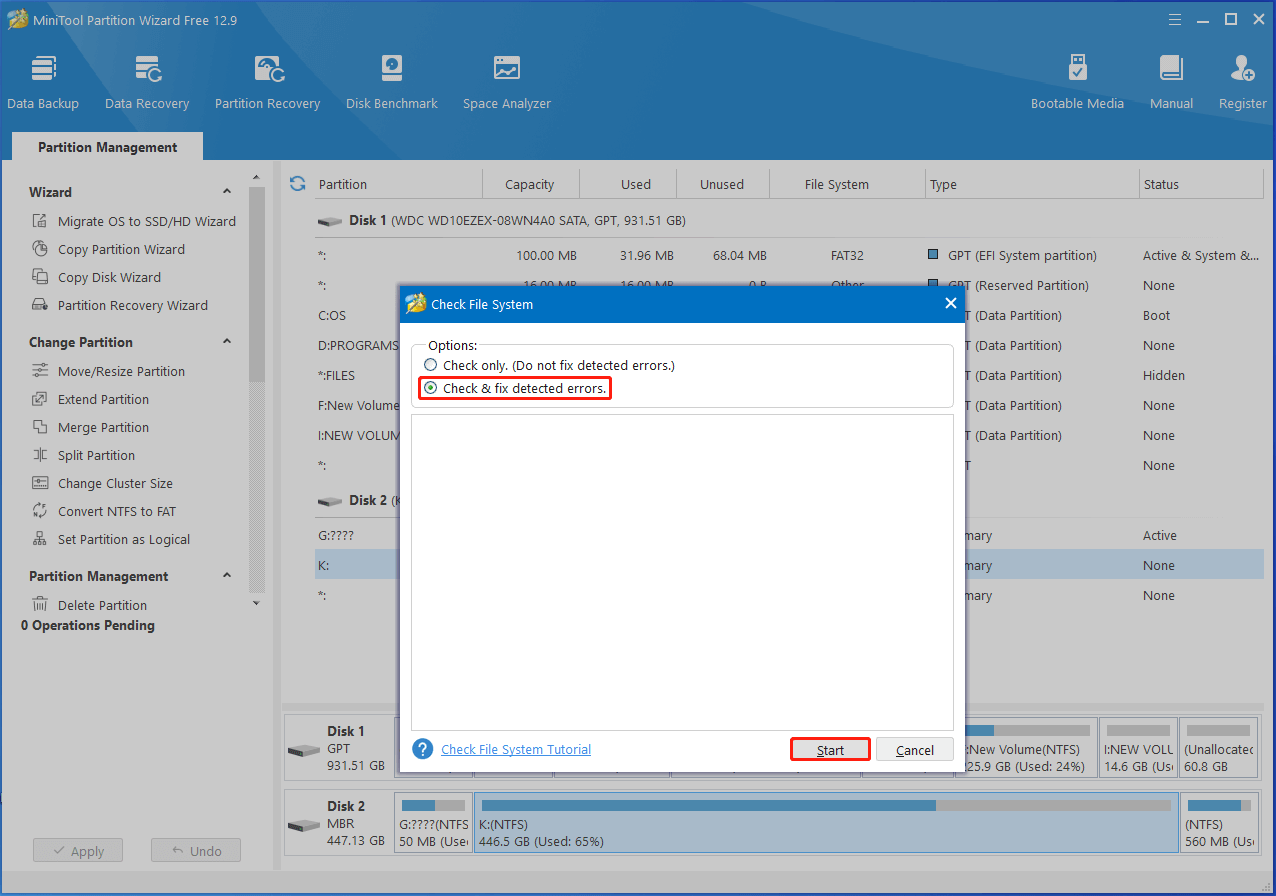
Step 2: In the prompted window, select Check & fix detected errors and click on the Start button. Then Partition Magic will scan and fix the file system errors on the selected NTFS drive.
Step 3: Once done, any file systems on the picked NTFS partition will be repaired.
Alternative: use CHKDSK. Open Command Prompt as administrator and run chkdsk X: /f /r (replace X with the drive letter). The /f parameter fixes file system errors, and /r locates bad sectors and recovers readable data. If the drive is your system drive, CHKDSK may ask to run at the next restart.
#2: Run a Virus Scan
You should run a virus scan since NTFS file system corruption can be caused by virus or malware attacks. Either Windows Security or third-party antivirus software helps you scan the computer for malicious software. According to your situation, run a program now.
Step 1: Press Windows and I keys to open the Settings app.
Step 2: Locate and click on Update & Security > Windows Security > Virus & threat protection.
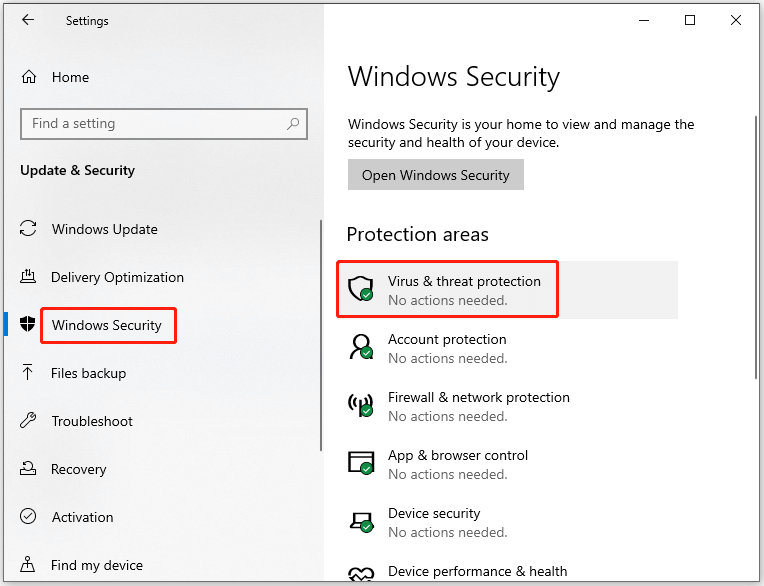
Step 3: In the next window, click Scan options.
Step 4: Pick a scan option from the provided options and then tap on the Scan now button. In this scenario, I choose Full scan.
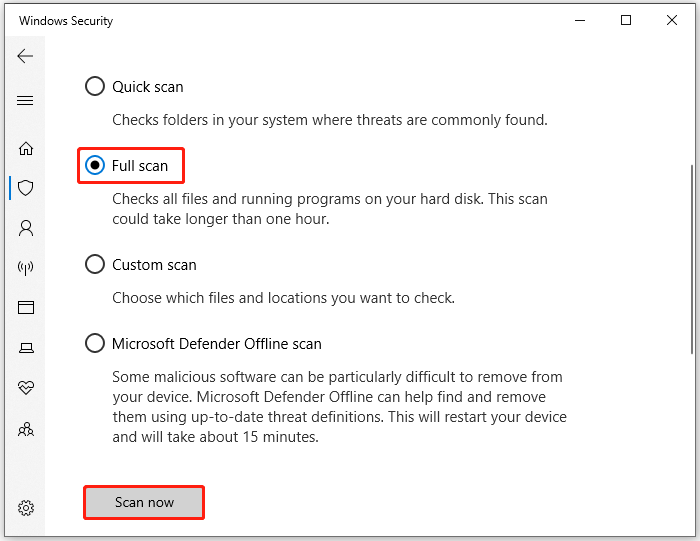
After the scan finishes, follow Windows Security’s recommendations to remove or quarantine any detected threats. Then check whether the NTFS file system or affected files can be accessed normally.
#3: Rebuild MBR
As mentioned earlier, invalid partition table or MBR can lead to NTFS file system corruption. Hence, an available way to repair corrupted NTFS file system is to rebuild MBR. Here comes the need for MiniTool Partition Wizard again. It enables you to rebuild MBR even if your PC is unbootable.
Get the software installed on your computer and then follow these steps to perform the operation.
MiniTool Partition Wizard DemoClick to Download100%Clean & Safe
Step 1: Boot the computer from MiniTool bootable USB drive again to enter the main interface of MiniTool Partition Wizard.
Step 2: Right-click the disk with corrupted NTFS file system and then choose Rebuild MBR on the context menu.
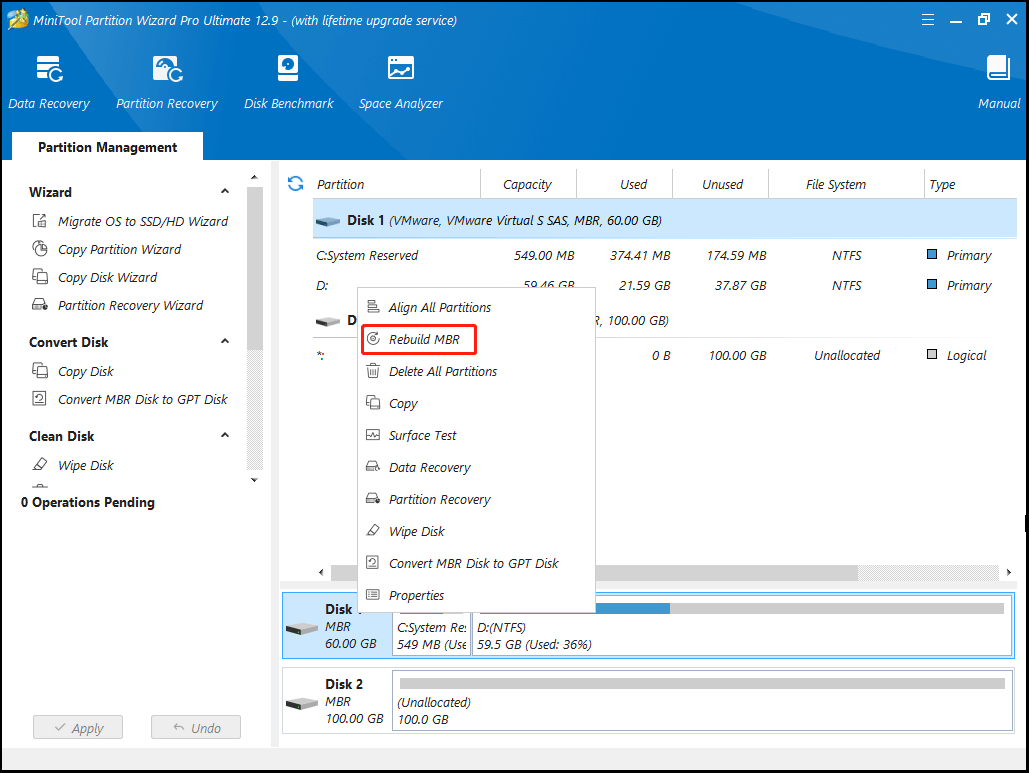
Step 3: Click on the Apply > Yes button to carry out the operation.
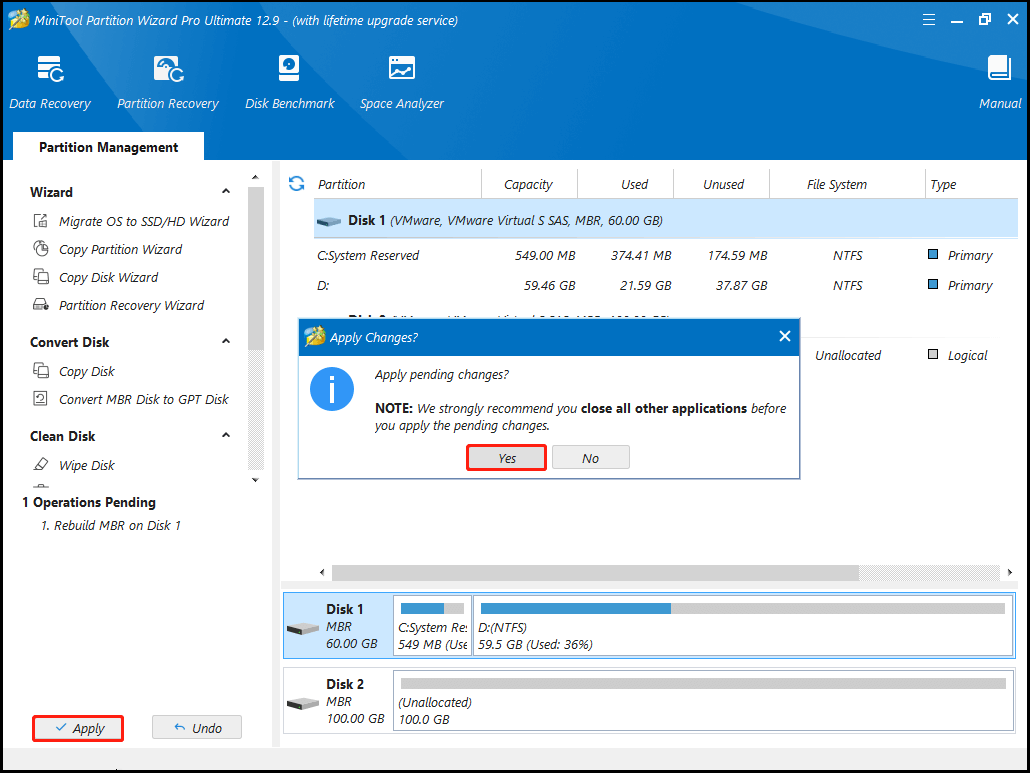
Step 4: Once done, restart the computer and check corrupted NTFS file system is repaired.
#4: Format the NTFS Partition
Formatting the NTFS partition is an effective solution to NTFS file system corruption, which has been proved by many users. It’s worth having a try, especially if you can’t repair NTFS file system of external hard drive with the above methods.
Windows built-in tools like Disk Management, File Explorer, and DiskPart can help you format the partition with ease. Here, I show you how to format the partition via Disk Management.
Step 1: Right-click the Start icon to open the Start menu.
Step 2: Tap on Disk Management to open it.
Step 3: Right-click on the target NTFS partition and hit the Format option on the context menu. How to fix Disk Management Format option greyed out issue? Find the possible reasons behind the issue and available solutions for the issue.
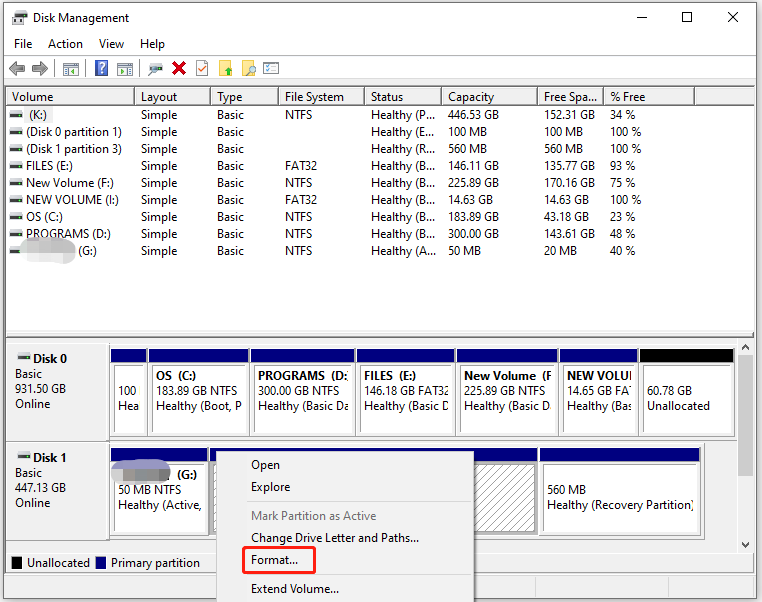
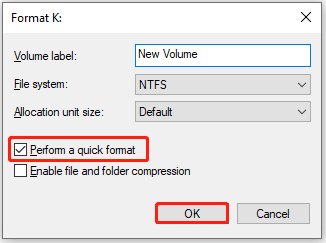
Step 4: In the pop-up window, set parameters like volume label, file system, and allocation unit size based on your needs. You’d better choose NTFS so that you can see if this method works. Once done, click OK to save changes.
Repair Corrupted NTFS File System FAQ
Choose the file system based on your compatibility and usage requirements.
In Conclusion
NTFS file system corruption can result from hardware problems, MBR or partition table damage, boot sector failure, faulty drivers, or malware.
To repair corrupted NTFS file system, check and fix file system errors, scan for viruses, rebuild the MBR, or format the partition as a last resort after backing up your data.
Knowing the symptoms helps you spot corruption early and apply the right NTFS file system corruption fix before data is lost.
If you encounter any issue while using MiniTool software, contact us by sending an email via [email protected].
About The Author

Position: Columnist
Charlotte is a technology columnist with a strong focus on the Windows operating system, specializing in disk management, backup, and data recovery. She is passionate about analyzing computer errors, identifying root causes, and delivering practical solutions. In her free time, she stays updated on the latest developments in computer systems and hardware while continuously learning new technologies to broaden her expertise. Her writing style is clear and easy to understand, making complex technical topics accessible even to users with limited computer knowledge.
User Comments :