
Hard drive recovery can help restore deleted, lost, or formatted files from HDDs, SSDs, external hard drives, USB drives, and SD cards. If your data has not been overwritten, recovery is often possible. This guide explains how to recover files on Windows using MiniTool Partition Wizard.
Hard drive data loss can happen for many reasons, including accidental deletion, partition loss, formatting, RAW file systems, virus attacks, or hardware issues.
Fortunately, deleted or lost files can often be recovered if the data has not been overwritten. This guide explains how to recover data from a hard drive using MiniTool Partition Wizard.
Before starting the recovery process, let’s look at the types of devices and files supported by this recovery tool.
MiniTool Partition Wizard Supports:
| Feature | Details |
| Supported Devices | HDDs, SSDs, external hard drives, USB flash drives, SD cards |
| Supported File Systems | NTFS, FAT32, exFAT |
| Supported File Types | Videos, audio files, images, documents, archives, and more |
| Recovery Scenarios | Deleted files, formatted drives, lost partitions, RAW drives |
| Special Recovery | Data recovery from unbootable PCs |
MiniTool Partition Wizard DemoClick to Download100%Clean & Safe
| Drive Type | Recovery Difficulty | Success Rate |
| HDD | Easy | High |
| External HDD | Easy | High |
| SSD (TRIM Disabled) | Medium | Moderate |
| SSD (TRIM Enabled) | Difficult | Low |
| USB Drive | Easy | High |
| SD Card | Easy | High |
Common Causes of Hard Drive Data Loss
Hard drive data loss can occur for many reasons, including accidental deletion, formatting, partition loss, file system corruption, malware attacks, and physical damage.
Understanding the cause of data loss can help you choose the most effective recovery method and improve your chances of successful recovery.
| Cause | Description | Recoverability |
| Accidental Deletion | Files are deleted by mistake or removed from the Recycle Bin | High |
| Formatting | The hard drive or partition is accidentally formatted | High (Quick Format) |
| Partition Loss | A partition is deleted, lost, or becomes unallocated | High |
| File System Corruption | The file system becomes RAW or inaccessible due to corruption | Moderate–High |
| Power Failure | Unexpected shutdown interrupts write operations and damages files | Moderate |
| Bad Sectors | Damaged sectors prevent files from being read correctly | Depends |
| Physical Damage | The drive suffers mechanical or electronic failure | Low |
Now that you understand the common causes of hard drive data loss, it’s time to recover your files. The following section walks you through the hard drive recovery process step by step, helping you perform Windows hard drive recovery.
How to Recover Data from a Hard Drive
Step 1: Install MiniTool Partition Wizard, but the installation location should not be a partition where data has been lost.
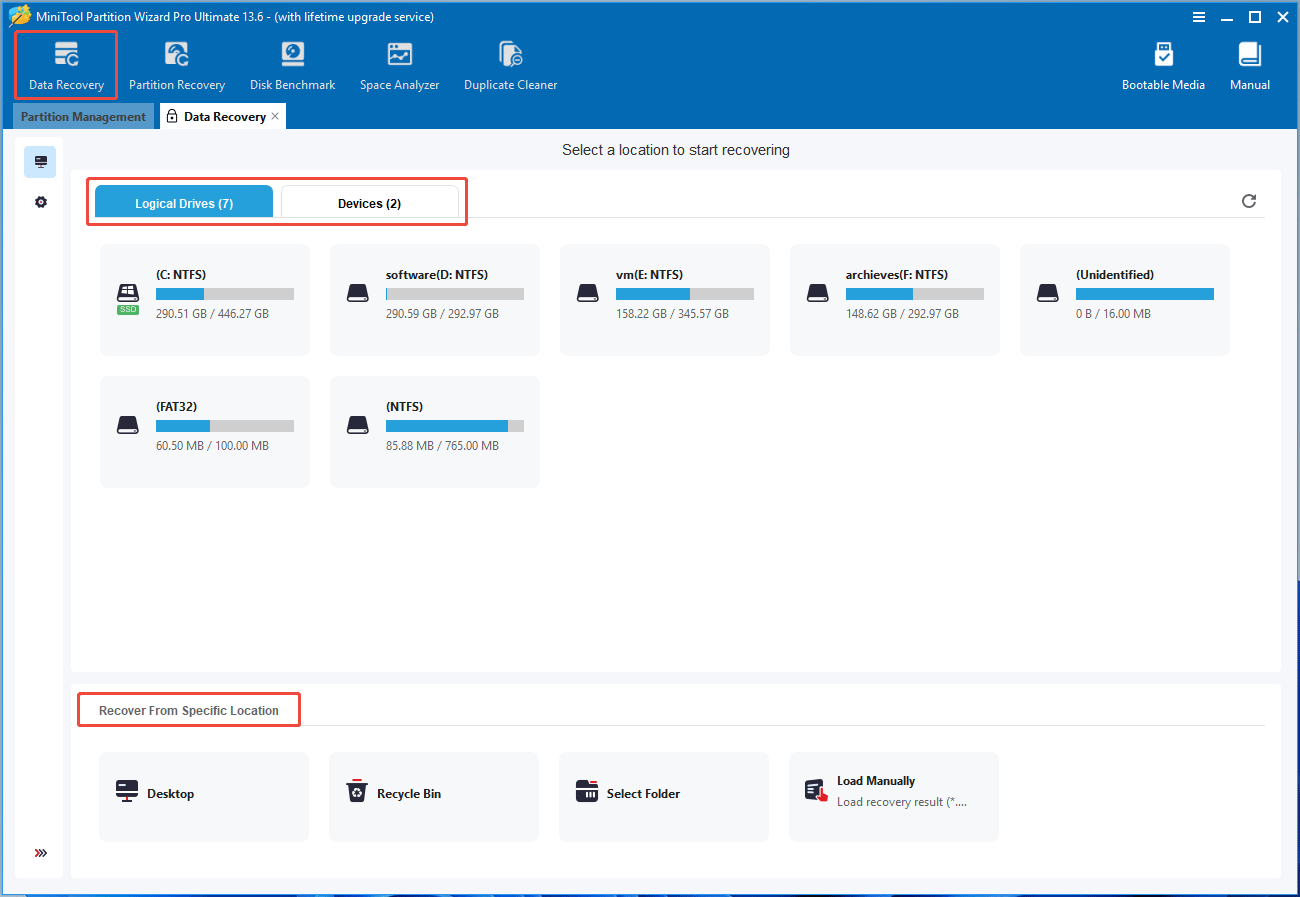
Step 2: Launch this software and click Data Recovery. Select a location to scan. The following options are offered.
- Logical Drives: An existing or lost partition, or unallocated space.
- Devices: An entire hard drive.
- Specific Location: Desktop, Recycle Bin, or a folder.
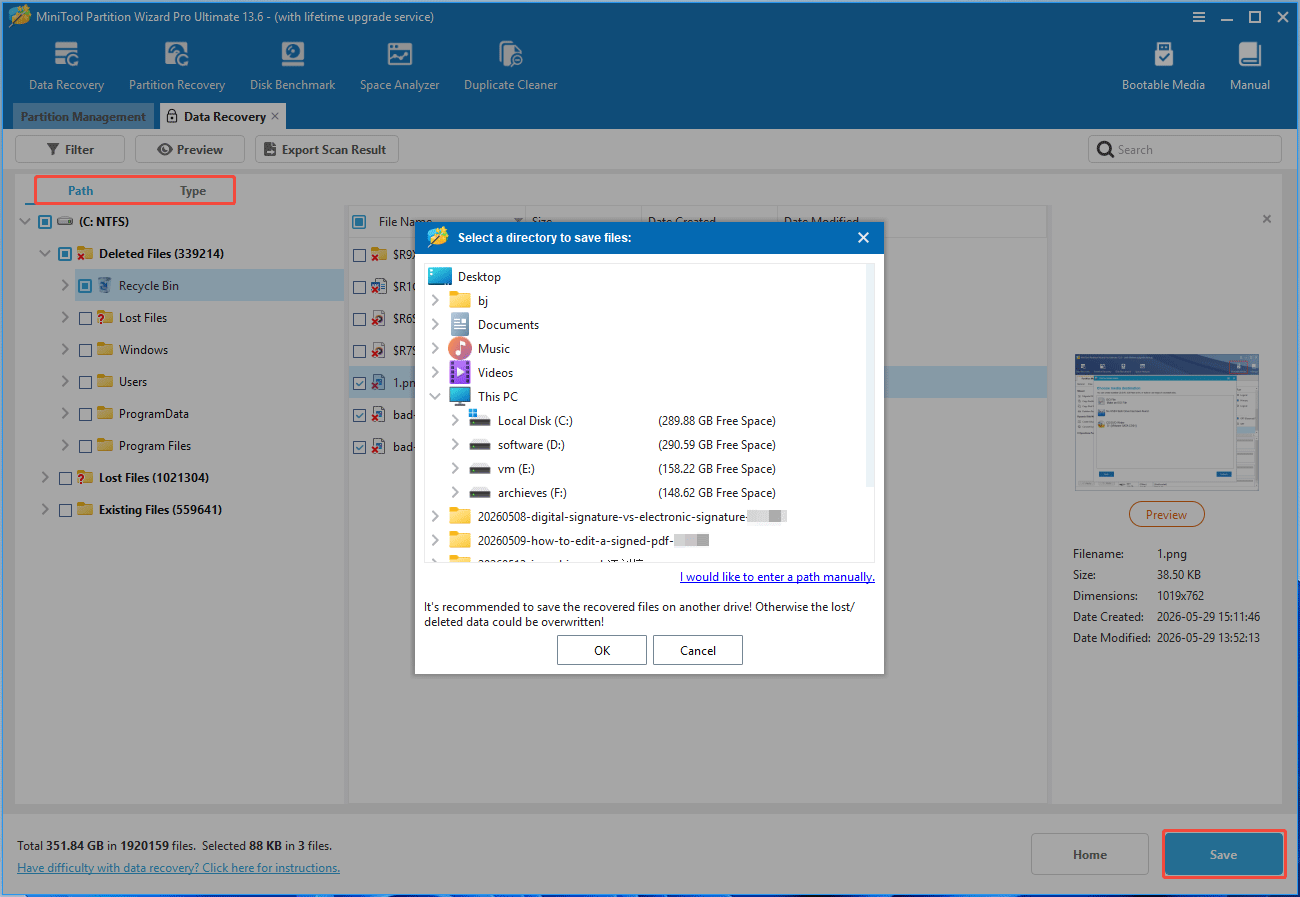
Step 3: Once the scanning process is completed, find the files you want to recover under Path or Type. Select them and click Save. Select a safe location to put the recovered file so that lost files won’t be overwritten.
Bonus Tip: How to Recover a Partition from a Hard Drive
If a partition is deleted or lost, MiniTool Partition Wizard can also recover it. Here is the guide.
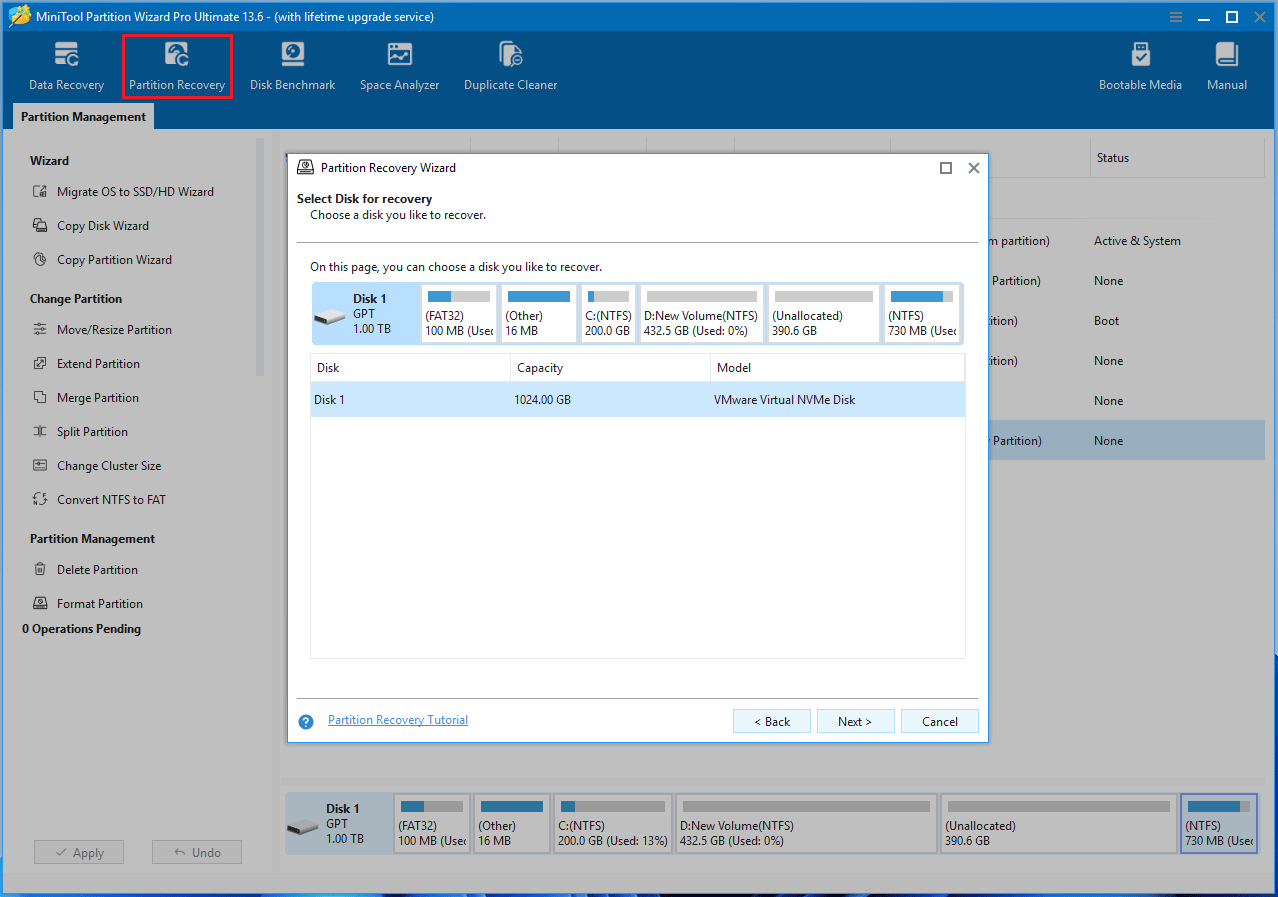
Step 1: In MiniTool Partition Wizard, click Partition Recovery. On the pop-up window, click Next. Then, select the disk for partition recovery.
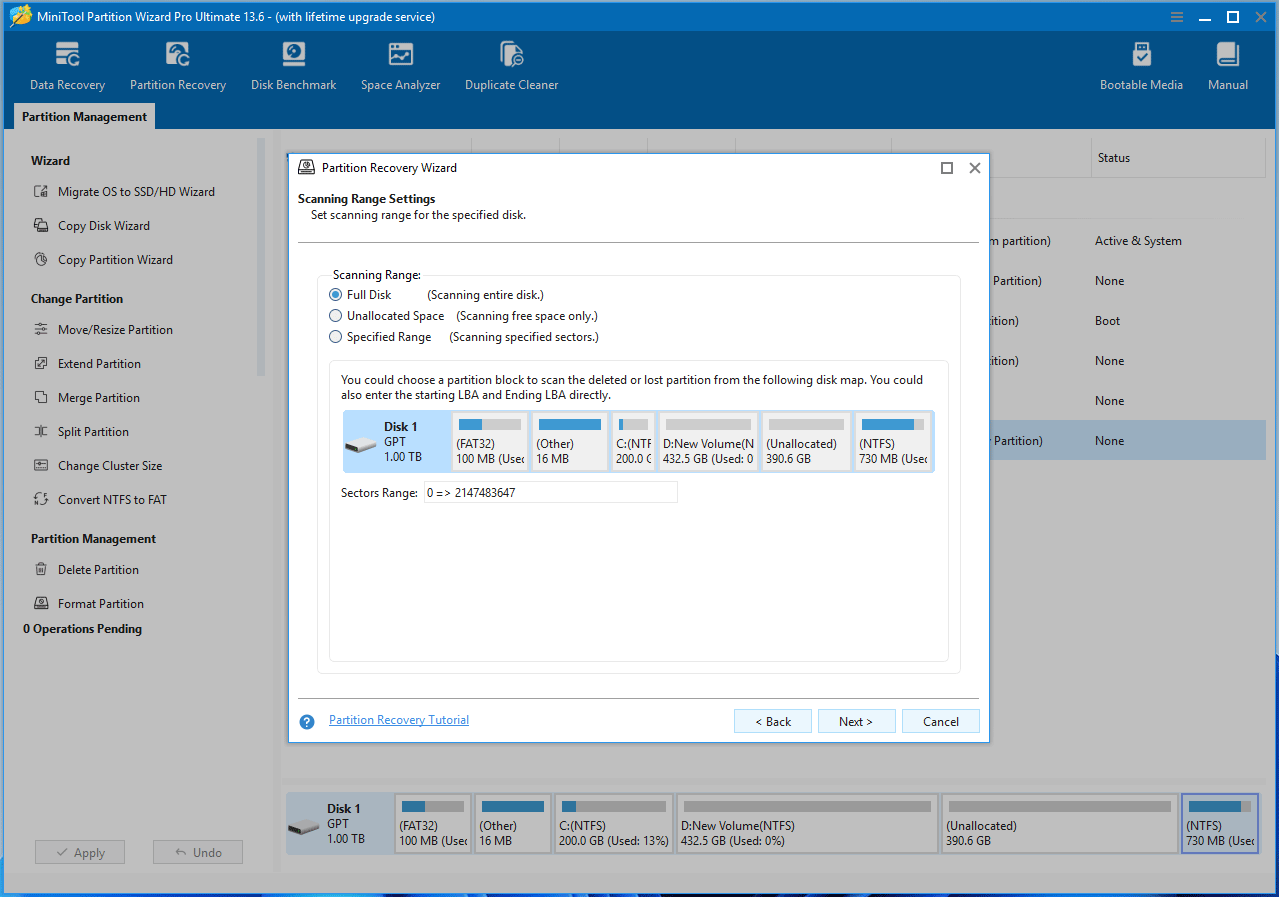
Step 2: Select a Scanning Range (Full Disk, Unallocated Space, or Specified Range).
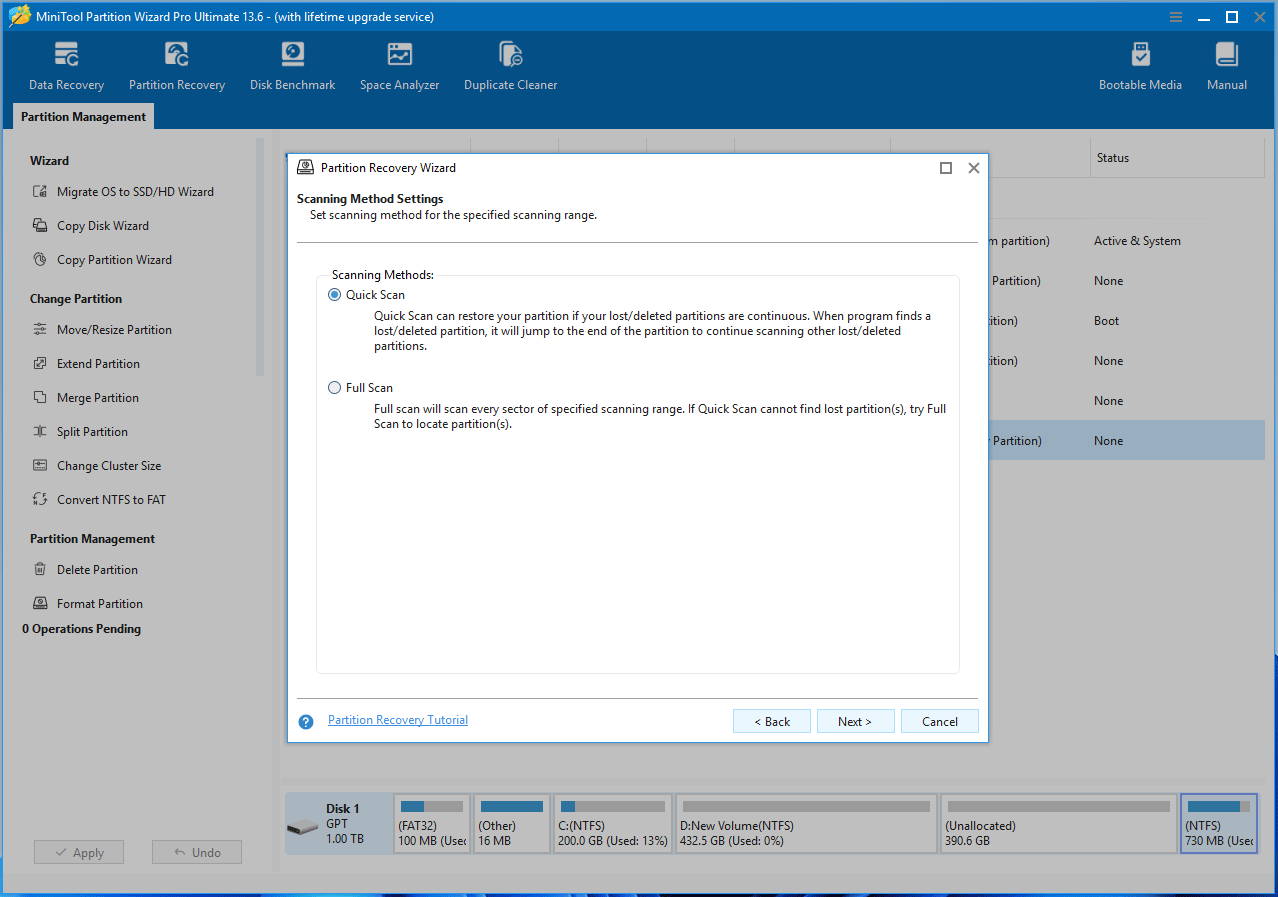
Step 3: Select a Scanning Method (Quick Scan or Full Scan).
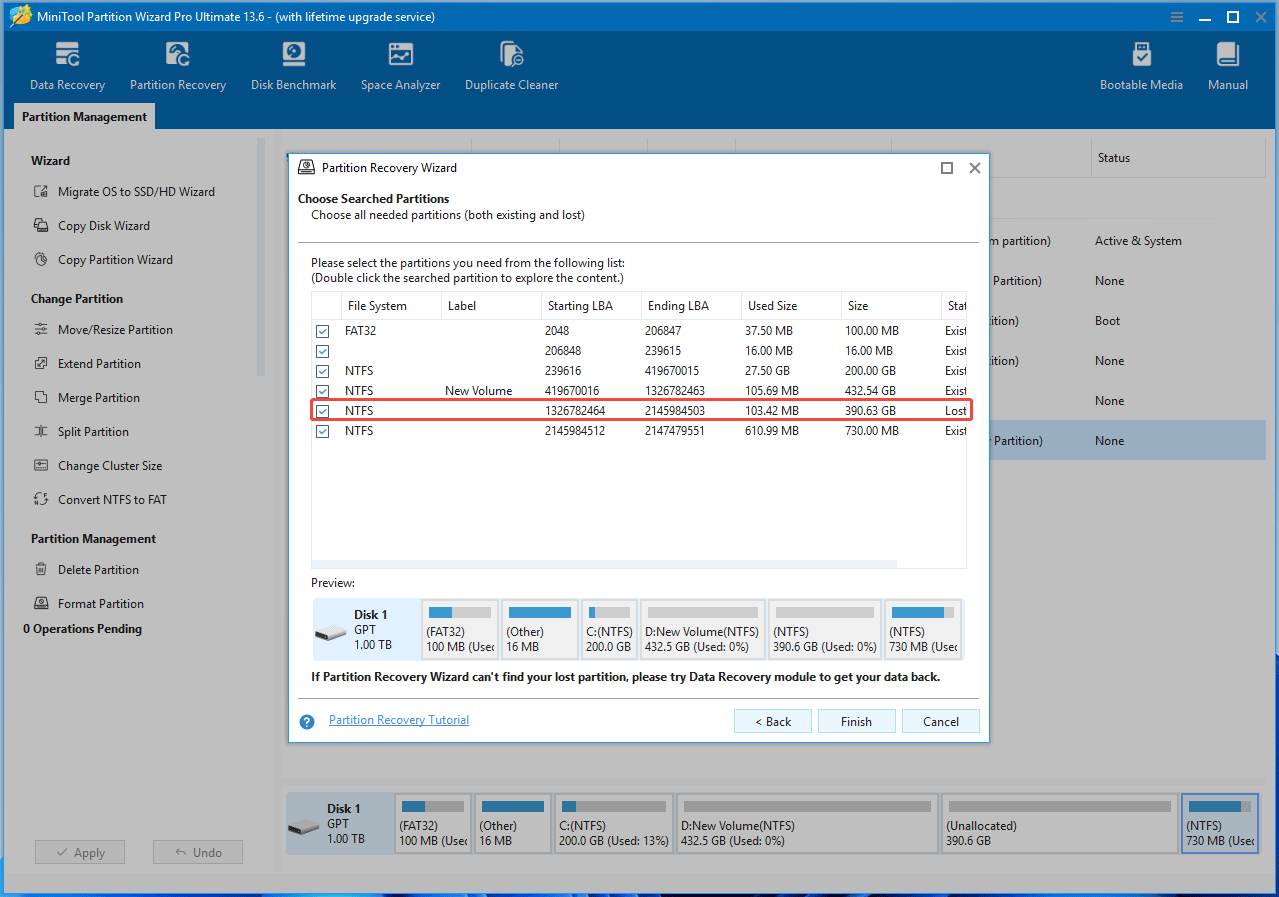
Step 4: After the scanning is completed, tick the lost partition and click Finish.
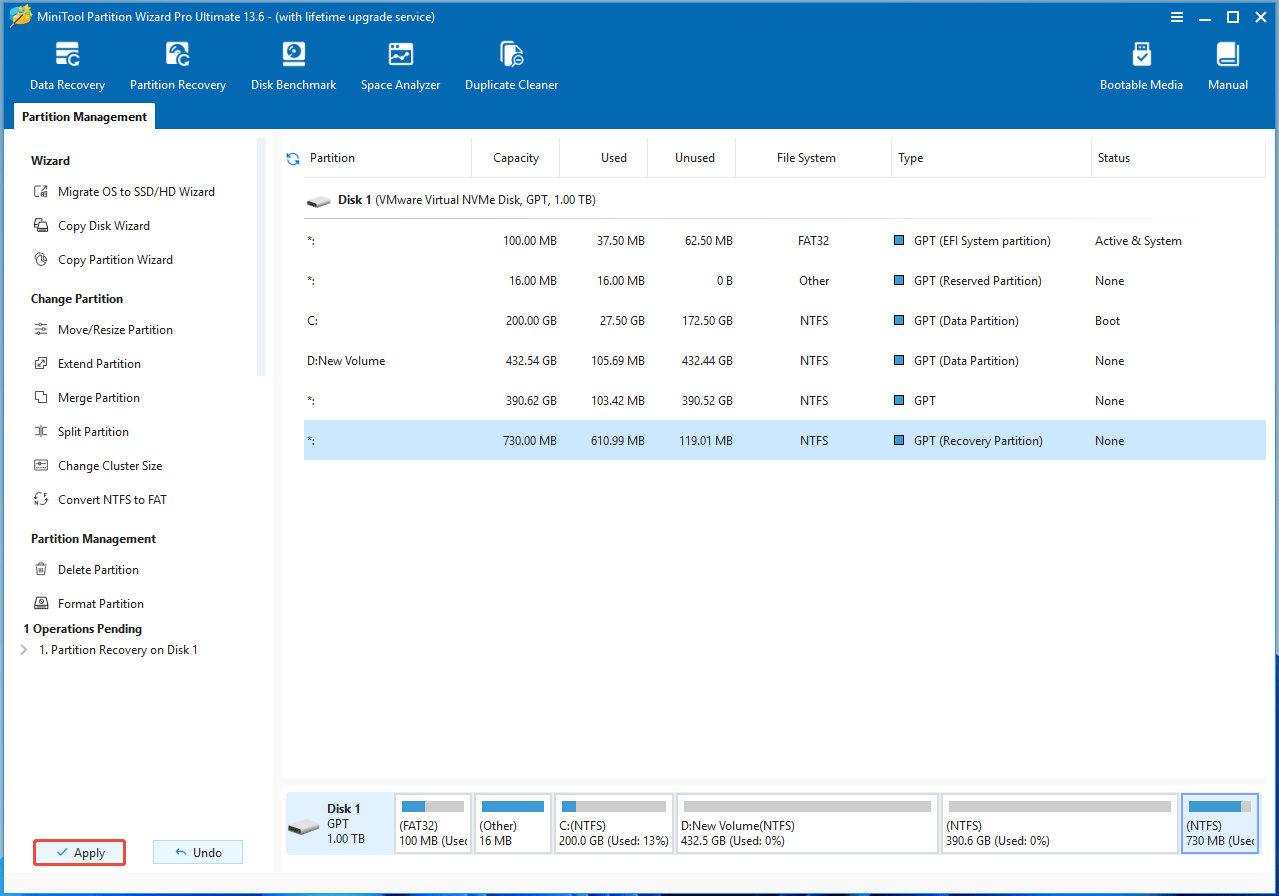
Step 5: Click Apply to execute the recovery operation.
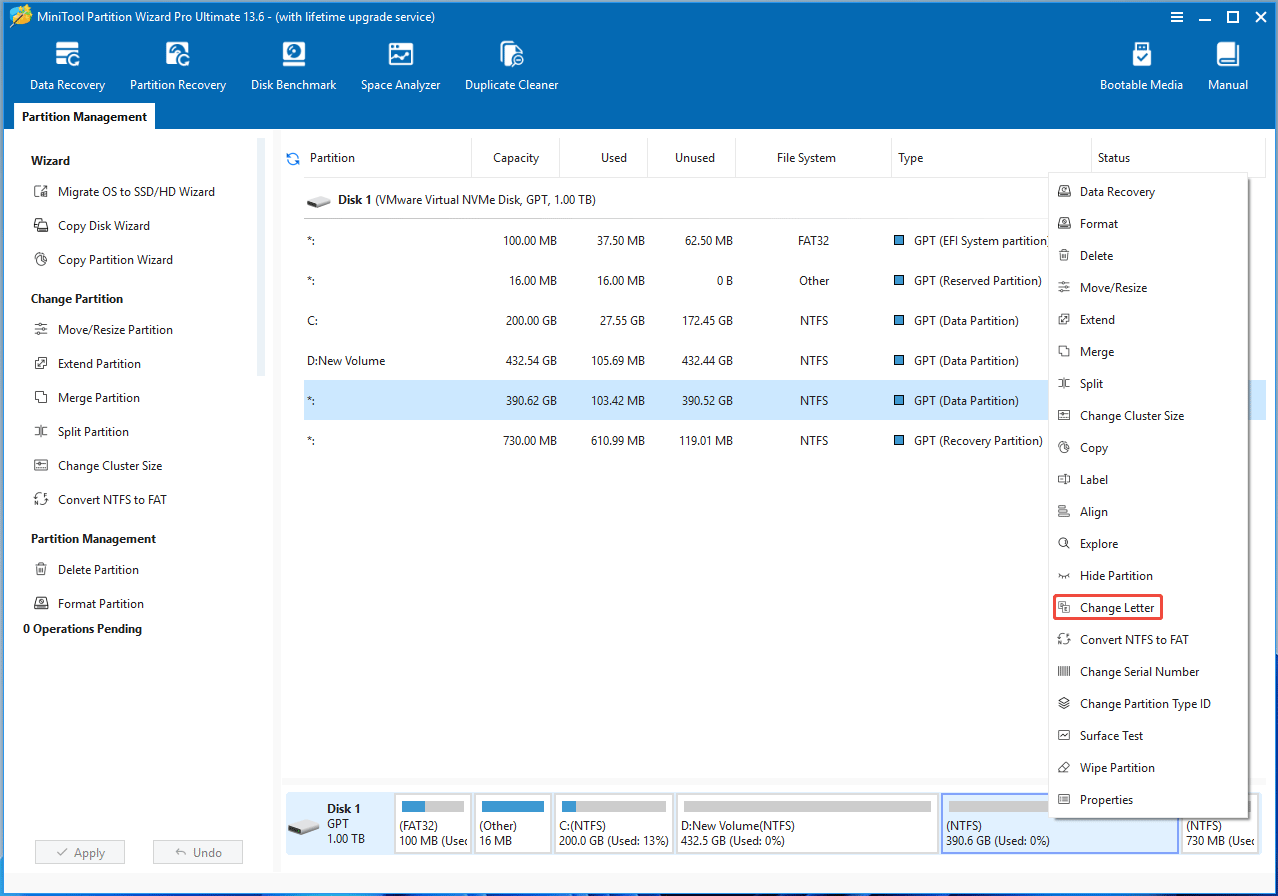
Step 6: The recovered partition has no drive letter. Right-click it and choose Change Letter. Then, follow the wizard to add a drive letter to the partition.
Here is nice hard drive data recovery software. It can also recover lost partitions.Click to Tweet
Bottom Line
This article tells you how to make hard drive data recovery and partition recovery with the best hard drive recovery software – MiniTool Partition Wizard. If you have any question about this software, you can contact us via [email protected].
User Comments :