
What should you do if Windows 11 won’t boot? This guide explains the common causes of Windows 11 booting problems and provides methods to fix them, including Startup Repair, adjusting BIOS settings, and other troubleshooting methods. If you cannot access your files after Windows fails to boot, try MiniTool Partition Wizard to recover data.
Why Is Windows 11 Not Booting?
Windows 11 may fail to boot for various reasons, such as hardware failure, corrupted system files, driver conflicts, or startup errors. By observing the symptoms, you can identify the underlying cause and apply appropriate troubleshooting methods.
The table below lists common PC not booting to Windows issues and their possible causes.
| Windows 11 Boot Problem | Possible Causes |
| No sign of power | Faulty power supply unit (PSU), damaged power cable, loose power connection |
| Windows 11 starts booting, but shuts down immediately | Power failure, computer overheating, loose connection between memory modules and motherboard slots |
| Power light is on, but no display appears | Faulty monitor, graphics card issue, damaged motherboard |
| Windows 11 is stuck on the logo screen, boot screen, or loading screen | Incompatible external devices, motherboard firmware issues, failed POST process, corrupted boot files |
| Windows 11 black screen | Hardware problems, failed POST process, incorrect BIOS settings, hard drive failure, missing or corrupted system files |
| Windows 11 blue screen | Incompatible drivers, faulty or incompatible memory modules, hard drive failure, overheating, viruses, missing or corrupted system files |
Once you have identified the possible cause, try the following fixes to troubleshoot and resolve the Windows not booting issue.
Fix 1. Cool Down Your Computer
Shut down your computer and wait for it to cool down completely. Then, power on your computer and see if it can enter Windows 11. If not, it means that the issue is not caused by overheating.
If the Windows 11 not booting issue is caused by overheating, you can try the following methods to get rid of this issue permanently.
- Disable CPU or GPU overclocking.
- Remove dust from the fan.
- Replace the thermal paste.
Fix 2. Remove All the External Devices
Incompatible external devices may also cause the “Windows 11 stuck on boot screen” issue. To solve it, remove all the peripheral equipment. Then, power on the PC to see if the issue is solved.
Fix 3. Check the Power Supply Unit and the Power Cable
When you power on your PC, if the power light is not on or it is just on and then immediately off, you should check the PSU and the power cable.
- Remove the power cable and the battery.
- Plug in the power cable and then try powering on the computer.
- If the PC is on, it means that the battery is corrupt and you need to replace it.
- If Windows 11 won’t start still, try another power cable. If the issue persists, it’s possible that the motherboard gets damaged.
Fix 4. Check the Monitor
My laptop won’t turn on but the power light is on Windows 11. In this case, you need to check if the monitor works normally. Connect an external display to your computer and then power on the PC. If Windows 11 is loading normally, the display is fine.
If the Windows 11 not loading issue persists, you need to consider that the issue is caused by a damaged motherboard. Then, replacing the motherboard may solve the issue.
Fix 5. Flash the BIOS
Is your Windows 11 stuck on boot screen? If so, you can try entering the BIOS. If you cannot enter the BIOS, you should consider that the BIOS is corrupt. Then, you can flash the BIOS in the following 2 ways.
- Use BIOS FlashBack.
- Download the BIOS file into a USB drive and connect it to your computer. The PC may detect the file in the USB drive and then flash the BIOS automatically.
Fix 6. Adjust the BIOS Settings
If Windows 11 freezes on startup, you should enter the BIOS to check if all settings are OK. For example, you should make sure the boot mode is right, the boot device is right, and so on. If necessary, you can reset the BIOS.
Fix 7. Use Repair Tools in WinRE
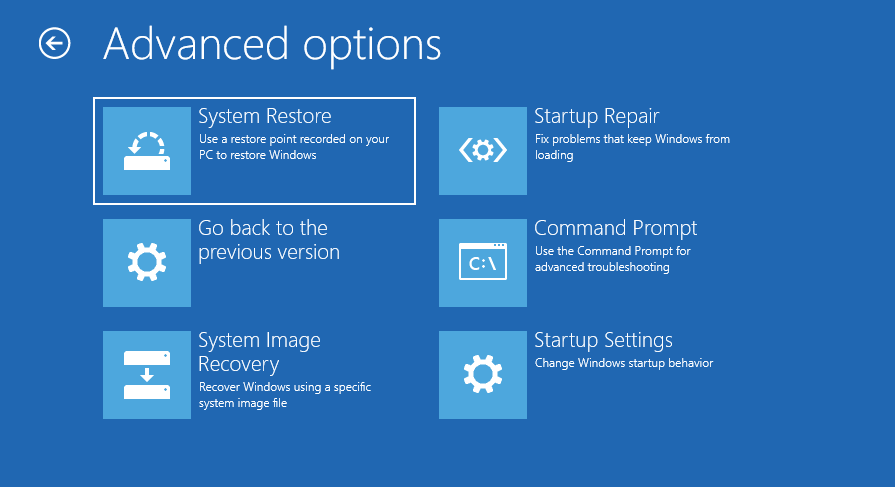
If Windows 11 won’t start and you are facing a blue screen, please try powering on and off your computer repeatedly to enter the WinRE. WinRE offers many tools to help you solve the Windows 11 freezing on startup issue.
#1. Run Startup Repair
Go to Troubleshoot > Advanced options and click Startup Repair. This option will fix the most common issues that prevent your computer from loading correctly.
#2. Use Command Prompt to Repair System Files
Click Command Propmt and execute the command “sfc /scannow”. If the Windows 11 freezing on startup issue is caused by corrupt system files, this method may work.
#3. Uninstall Windows Updates
Some people report that Windows 11 won’t boot after update. It’s very likely that the update caused the issue. Then, you can uninstall it. To do that, you can click Go back to the previous version. Sometimes, this option is named Uninstall Updates.
# 4. Use System Restore
This option can revert your computer’s state to a previous point in time. Therefore, if Windows 11 won’t boot after update, this option may also work. You just need to click this option and then follow the on-screen instructions.
#5. Reset Your PC
This option can restore your computer to the factory settings. In addition, this option offers you the choice to keep your personal files. You just need to click Troubleshooter > Reset this PC and then follow the on-screen instructions.
Fix 8. Rebuild MBR
MBR is the first sector of the disk, storing boot codes and partition table. Corrupted MBR will make the boot drive not booting. Therefore, when Windows 11 won’t load, you can try repairing MBR. Here is the guide:
Step 1: On a well-running computer, create a Windows installation USB drive using the Windows Media Creation Tool.
Step 2: Boot the problematic PC from the Windows installation USB drive.
- Insert the USB drive into the unbootable computer.
- Start the computer and immediately and repeatedly press the boot menu key (F12, F11, F9, F8, or Esc).
- Once the boot menu appears, select the USB drive to boot.
Step 3: When the Windows Setup interface appears, press Shift + F10 to call out Command Prompt. Then, execute the following commands one by one.
- bootrec /fixmbr
- bootrec /fixboot
- bootrec /rebuildbcd
Fix 9. Reinstall Windows 11
If Windows 11 won’t boot due to software issues, reinstalling Windows 11 can solve the issue in most cases.
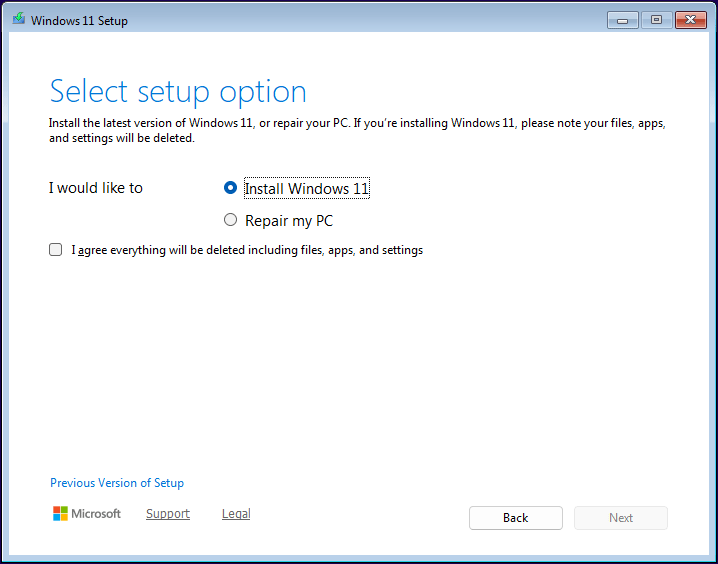
Follow the Windows 11 Setup wizard. When it asks you to select the setup option, choose the Install Windows 11 option.
Fix 10. Check If the Hard Drive Failing
Hard drive failure will also cause PC not booting. Fortunately, if the system hard drive is damaged, you will be notified by S.M.A.R.T errors or the BIOS hard drive status.
Of course, you can also check the hard drive heath manually by using software like MiniTool Partition Wizard, CrystalDiskInfo, DiskGenius, etc.
Taking MiniTool Partition Wizard as an example, the process is as follows.
MiniTool Partition Wizard DemoClick to Download100%Clean & Safe
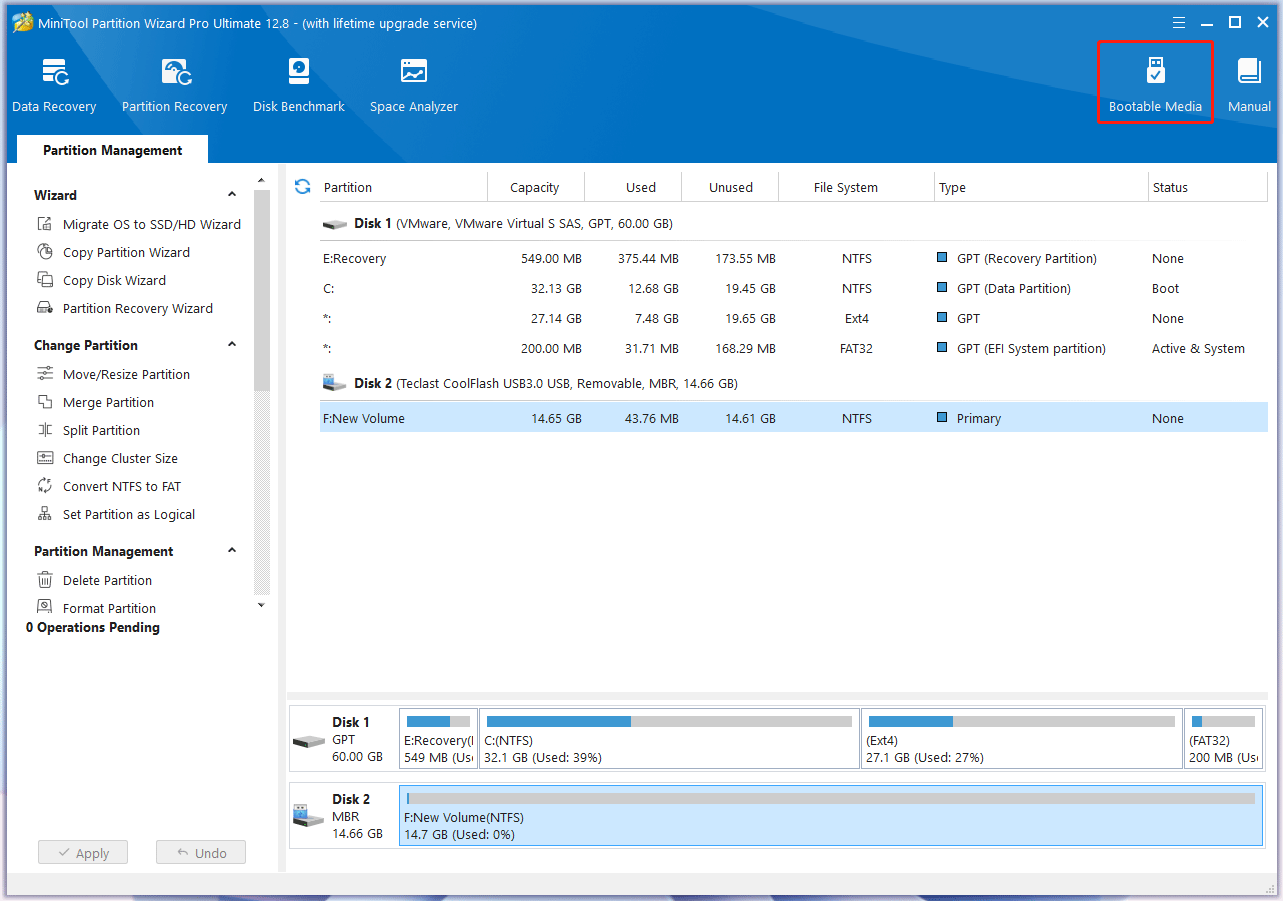
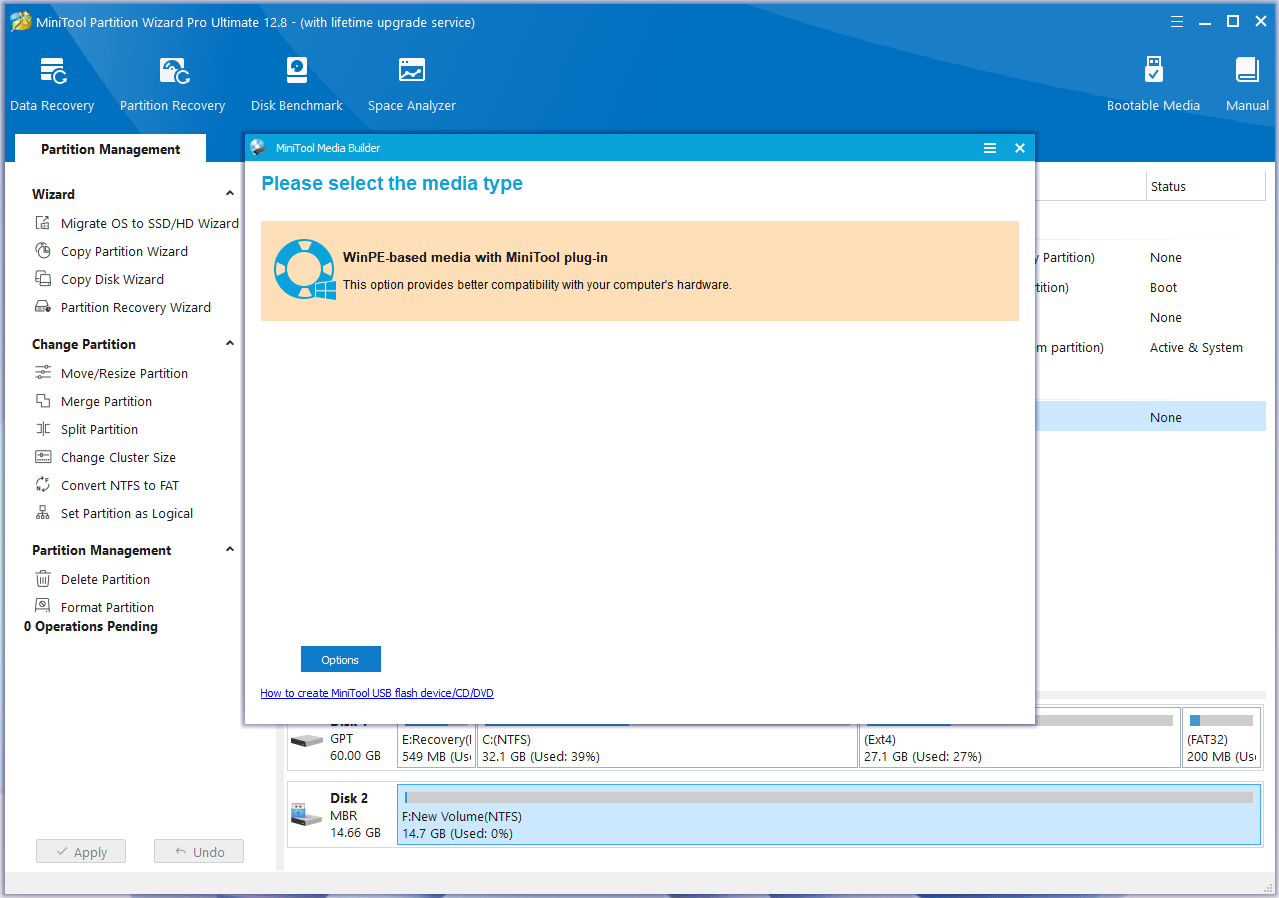
Step 1: Insert a USB drive into a normal PC. Launch MiniTool Partition Wizard and click Bootable Media.
Step 2: Click WinPE-based media with MiniTool plug-in.
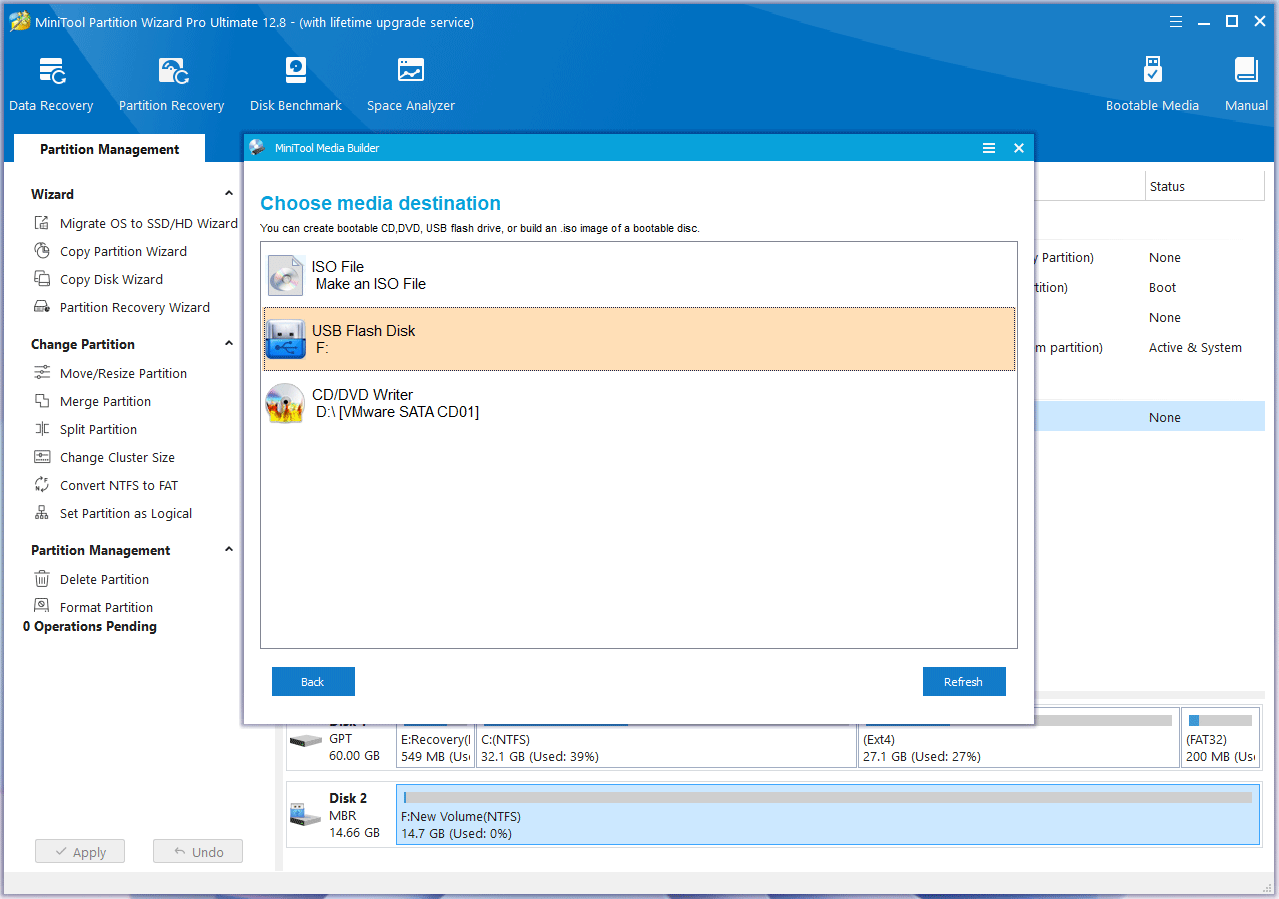
Step 3: Click the USB Flash Disk and then Yes. MiniTool Partition Wizard will start to create a bootable USB drive.
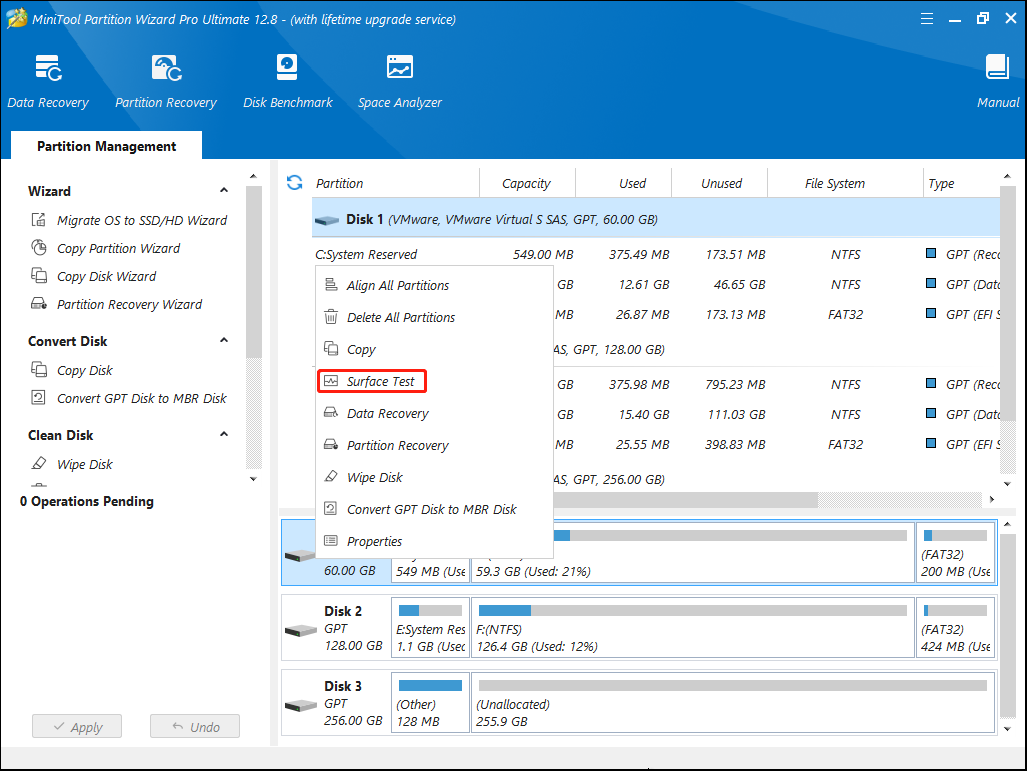
Step 4: Boot the problematic PC from the USB drive. Wait for MiniTool Partition Wizard to launch automatically. Right-click the system hard drive and choose Surface Test.
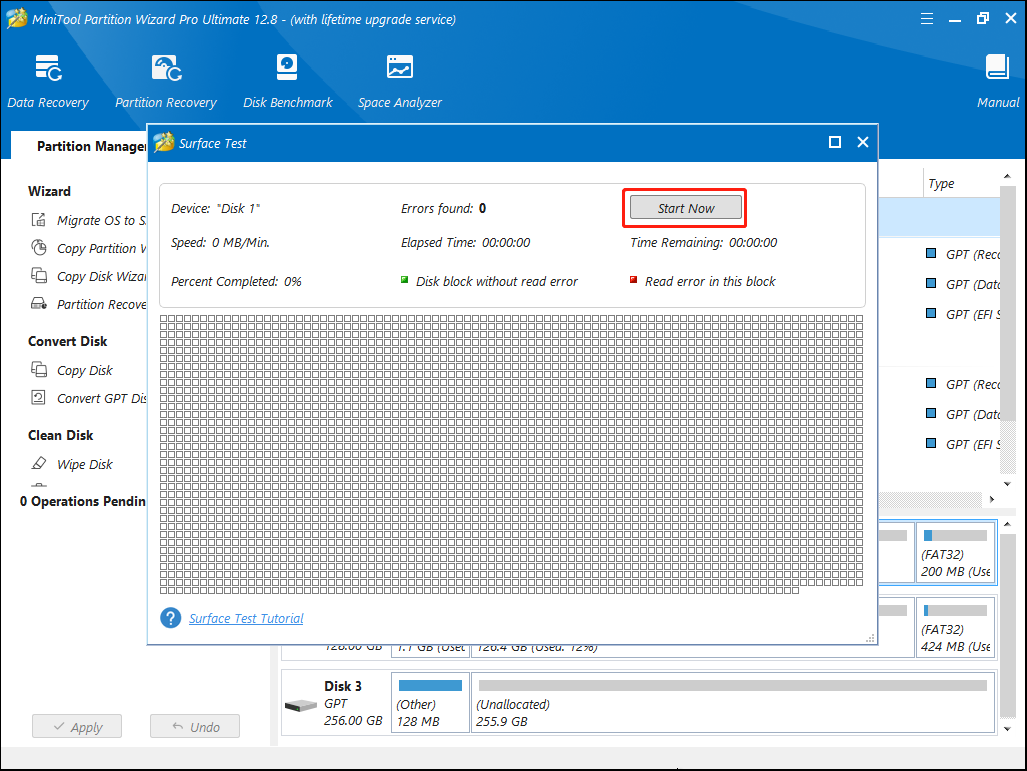
Step 5: On the pop-up window, click Start Now. Damaged sectors/blocks will be marked as red. If there are too many red sectors/blocks, you may need to replace the hard drive.
Recover Data from the Unbootable Windows 11 PC
If all the above solutions don’t work and there are important files on your PC, you can recover files from the unbootable Windows 11 PC with the steps below.
MiniTool Partition Wizard DemoClick to Download100%Clean & Safe
Step 1: Follow the guide mentioned above to create a MiniTool Partition Wizard bootable USB drive. Then, use the USB drive to boot up the problematic PC.
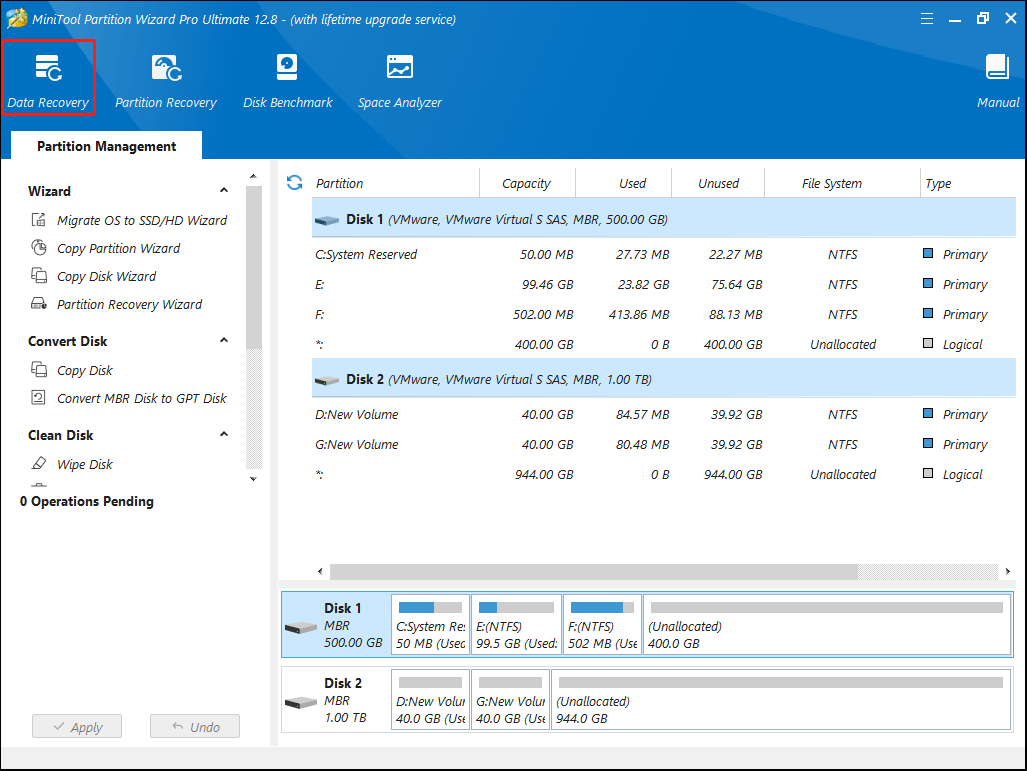
Step 2: Once MiniTool Partition Wizard opens, click Data Recovery on the toolbar.
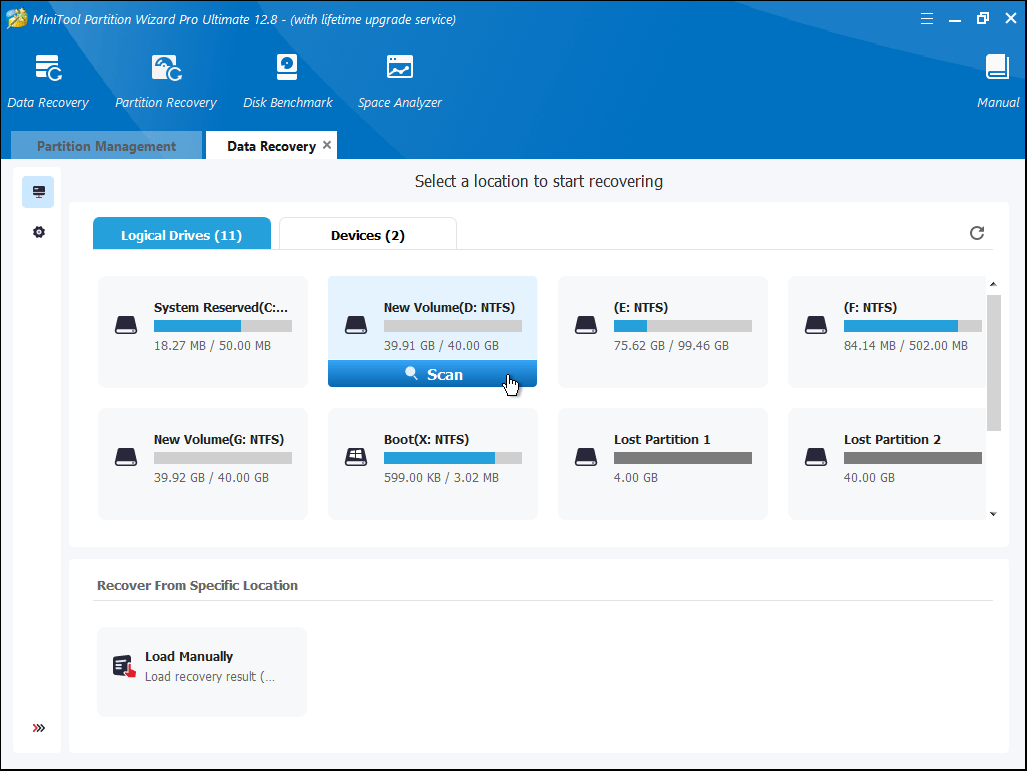
Step 3: Hover the cursor over a partition and click Scan.
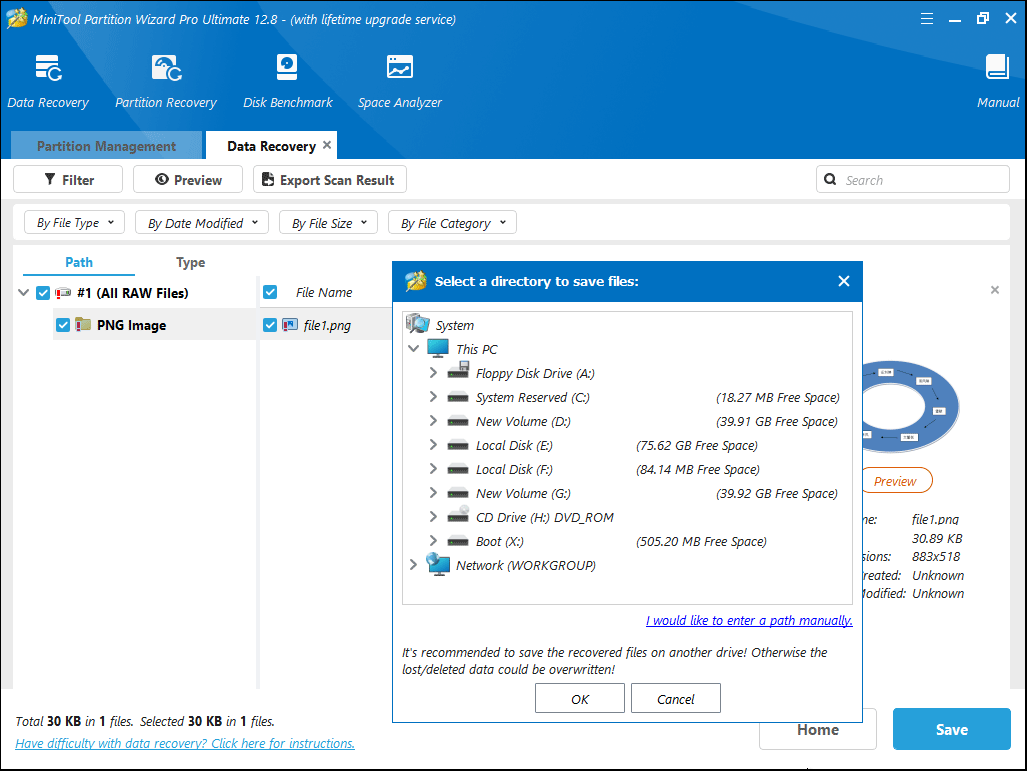
Step 4: Wait a few minutes, then manually terminate the scan. Find the files you want to recover using Path, Type, Filter, or Search tools. Select them and click Save. Select a safe location and click OK.
Bottom Line
What to do if Windows 11 won’t boot? Do you know other solutions to this issue? Leave your comments in the following zone. In addition, if you encounter problems when using MiniTool Partition Wizard, please feel free to contact us via [email protected]. We will get back to you as soon as possible.
User Comments :