
The best partition recovery software depends on your needs. We tested 7 popular tools for Windows 11/10, including MiniTool Partition Wizard, EaseUS, AOMEI Partition Assistant, etc., and compared their recovery features, ease of use, and performance to help you choose the right one.
Losing a partition can make an entire drive or its files inaccessible. Whether a partition was accidentally deleted, formatted, or became corrupted, the right recovery tool may help restore access to your data.
In this guide, we’ll cover 7 partition recovery tools and explain their key features, pros and cons, and best use cases.
What Is Partition Recovery Software?
Partition recovery software is a specialized tool designed to restore lost or deleted partitions on storage devices (HDDs, SSDs, USB drives, memory cards). As for formatted or corrupt partitions, it also offers corresponding measures to retrieve the data in them.
When a partition is deleted, the system does not immediately erase the underlying data. Instead, the space is marked as “unallocated,” which makes partition recovery possible in many cases.
For a deleted or lost partition, only the partition table is changed, while the partition and data themselves remain on the disk. The partition recovery software will scan the disk for Volume Boot Record (VBR) of the deleted/lost partition and then use it to rebuild the MBR and recover the deleted/lost partition and its data.
For a formatted or corrupted partition, the VBR has been overwritten, or the file system structure has been corrupted, which means the partition is usually unrecoverable. However, data recovery is still often achievable. Data recovery functions scan each sector of the disk to find known file header and footer identifiers (e.g., FFD8…FFD9 for JPG files), and then retrieve the files based on them.
A deleted or lost partition usually shows as unallocated space, as long as you don’t create new partitions on it.
A corrupt partition usually shows as a RAW partition. To repair a corrupt partition, the commonly used method is running the chkdsk *: /f /r command.
2. Software like Disk Drill, Stellar Data Recovery, Wondershare Recoverit, RStudio, UFS Explorer Professional Recovery, etc., are not mentioned because they are more like data recovery software. These programs can only recover files from the lost partition, but not recover the entire partition.
![How to Recover Files from a Formatted Hard Drive [3 Methods]](https://images.minitool.com/partitionwizard.com/images/uploads/2026/04/recover-formatted-hard-drive-thumbnail.png)
How to Choose Partition Recovery Software
When choosing a partition recovery tool, you should consider the following aspects.
#1. Recovery Success Rate
Partition recovery success rate is affected by disk type, partition condition, file system integrity, and other factors. However, good recovery software generally employs up-to-date partition recovery algorithms and strategies to improve the success rate and handle complex partition loss scenarios.
#2. File System and Device Compatibility
Well-designed partition recovery software should support mainstream operating systems (Windows, macOS, Linux), multiple file systems (NTFS, FAT32, exFAT, HFS+, APFS, and EXT2/3/4), and common storage devices (HDD, SSD, USB flash drive, memory card, and external hard drive).
#3. Efficiency and Reliability
Effective software should offer both Quick Scan to locate recently deleted partitions and Deep Scan to thoroughly analyze the storage device for lost partitions.
On the other hand, a reliable partition recovery tool should offer a preview feature, allowing users to confirm that the partition to be recovered is the one they want.
#4. User Experience
Excellent partition recovery software should have a user-friendly and step-by-step interface that simplifies complex recovery tasks, making it accessible to non-tech-savvy users.
In addition, a reliable tool should include a preview feature, allowing verification of the partition before recovery. Some programs also offer a simulation process, enabling evaluation of recovery results in advance and helping determine whether the software meets actual needs before purchase.
#5. Pricing
Product price is also an important factor to consider. Generally speaking, lifetime upgrades are better than annual subscriptions. Some software may only offer subscription services and not lifetime upgrades.
Secondly, when prices are similar, an excellent program is expected to feature a plenty of functions. You should choose the partition recovery tool comprehensively based on your budget.
Editor’s Recommendation
This article recommends seven excellent programs for Windows partition recovery. Which one is the best partition recovery software for Windows? I would recommend MiniTool Partition Wizard.
This software is a versatile tool, combining a user-friendly interface with a comprehensive feature set. Furthermore, its partition recovery speed is relatively fast overall, and it can find all valid lost partitions.
MiniTool Partition Wizard DemoClick to Download100%Clean & Safe
Of course, other software also has its own strengths. For example:
- If you want a partition recovery freeware, try TestDisk. Another advantage is that it supports most file systems and operating systems.
- If you’re looking for an extremely easy-to-use program and the fastest partition recovery speed, try EaseUS Partition Master.
- If you like the Windows To Go feature, try AOMEI Partition Assistant.
- If you want freeware to migrate OS or convert MBR to GPT without data loss, try DiskGenius.
- If you like the partition repair feature, try iBoysoft Data Recovery.
#1. MiniTool Partition Wizard – User-Friendly and Feature-Rich
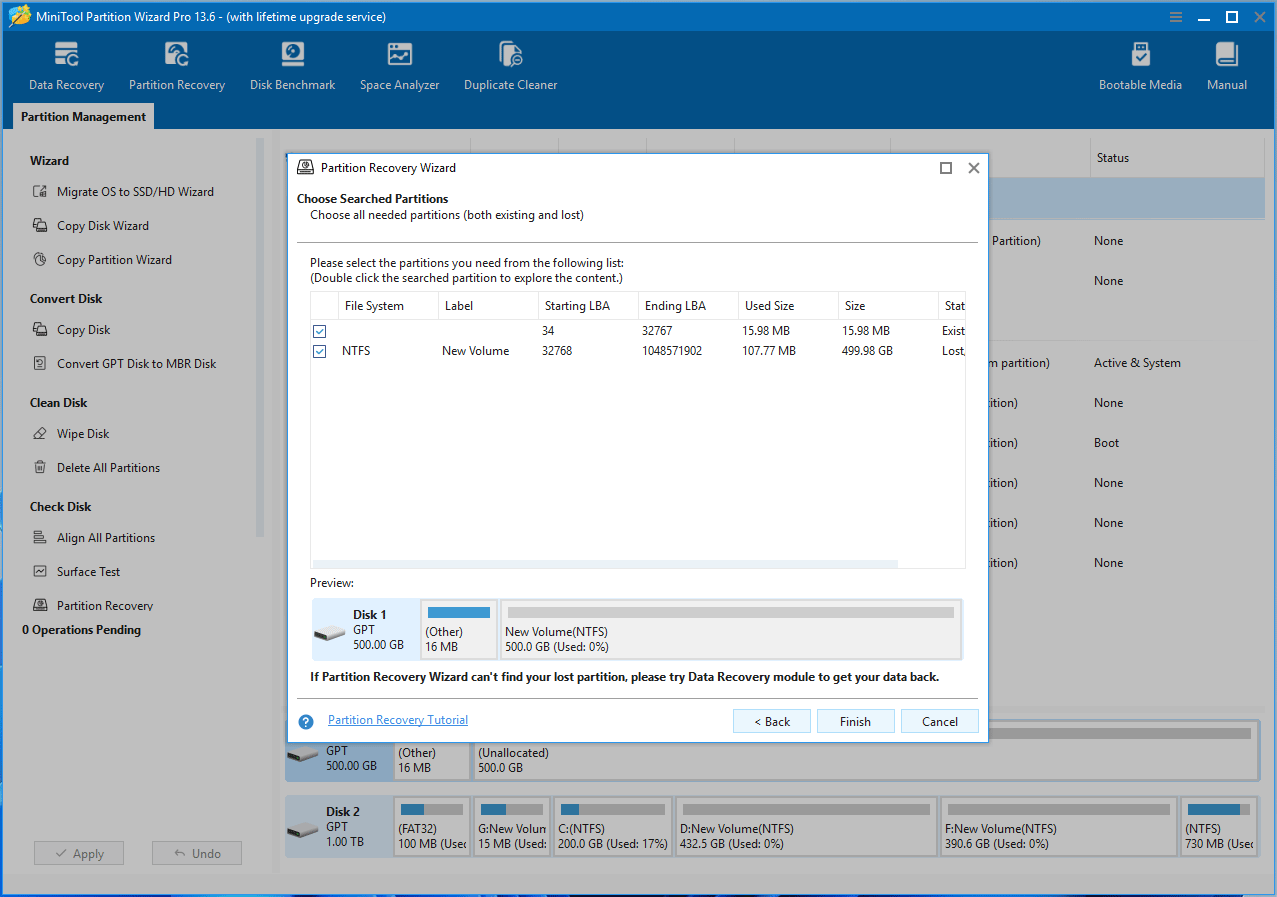
MiniTool Partition Wizard is a comprehensive, user-friendly Windows-based disk management tool designed to optimize hard drive performance. It offers many practical features.
- Basic Features: It enables you to create, move, resize, extend, merge, split, format, delete, and wipe partitions. With it, you can also copy data partitions and disks for free.
- Key Features: It can convert file systems (NTFS/FAT32) and disk styles (MBR/GPT and Dynamic/Basic) without data loss, change cluster size without reformatting, copy system partitions or disks, migrate OS to SSDs, and recover partitions and data. Besides, it supports dynamic disks and the WinPE environment.
- Other Noteworthy Features: It can align partitions to 4K, change partitions’ serial number and partition ID, scan disk for bad sectors, rebuild MBR, test hard drive speeds, check for bad sectors, delete duplicate files, and analyze disk space to delete unnecessary files.
To learn more about features and editions, visit the MiniTool Partition Wizard Comparison webpage.
My Experience with Its Partition Recovery Feature
I just tried the free version. The software allows you to try out the partition recovery function first, and then purchase it if you’re satisfied.
Upon opening, you can see the Partition Recovery function immediately. The tool has a clean and simple interface, with key functions clearly displayed.
Clicking the Partition Recovery feature brings up a wizard window. Then, follow the instructions to select the disk where to recover the partition, choose the scan range (Full Disk, Unallocated Space, or a Specified Range), and select a scanning method (Quick Scan or Full Scan).
When I chose Quick Scan, it found a recently deleted partition, and the scanning speed was very fast. As for Full Scan, it found two deleted partitions within several minutes.
Double-click the lost partition to explore the file directory, which helps determine if the partition is the one that needs to be recovered. If it is, purchase the software to actually perform the partition recovery.
If it cannot find the lost partition, then there’s no need to consider purchasing it, which is the advantage of the software providing the partition recovery trial.
| Pros | Cons |
| 1. The user interface is relatively friendly, with key features displayed clearly. 2. The partition recovery function is relatively simple to operate, requiring only a few clicks following the steps. 3. Both quick and full scan modes are provided. In addition, multiple scan range options are offered, leading to high partition recovery efficiency. 4. The partition recovery feature supports NTFS, exFAT, and FAT32 file systems. 5. It supports data recovery from corrupt or formatted partitions and offers the bootable media creation function. 6. This free partition manager offers many useful features like partition Move/Resize/Extend, the Duplicate Cleaner, and Space Analyzer. 7. The partition recovery and other paid features can be tried first, and then purchase the software if you are satisfied. | Only supports Windows PCs. |
#2. TestDisk – Free and Powerful Partition Recovery Software
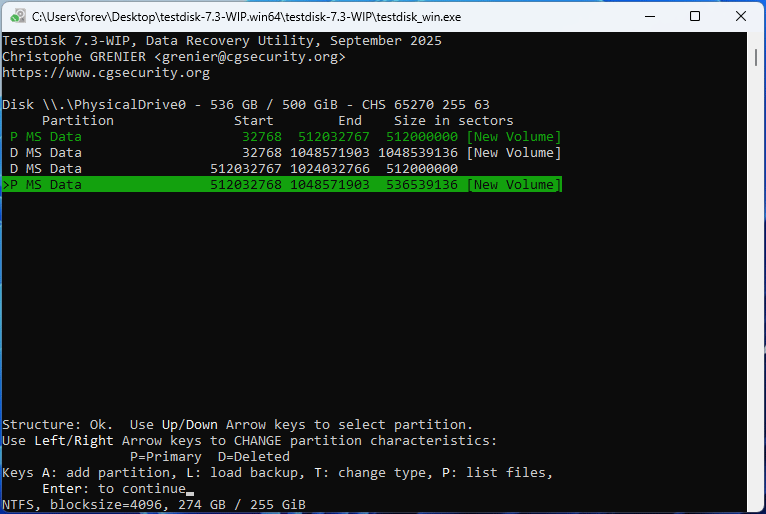
If you want free partition recovery software, TestDisk is worth trying. It is a powerful, free, and open-source data recovery tool designed to recover lost partitions, fix boot sectors, repair file systems, and recover files from damaged or deleted file systems of hard drives, USB drives, and memory cards.
You can download it from CGSecurity. To learn more about TestDisk’s features, read the TestDisk Documentation.
My Experience with Its Partition Recovery Feature
This tool requires no installation. After extracting the downloaded package, simply run the TestDisk executable file.
However, the interface is very unfriendly. You can’t use a mouse. Instead, you can only use the arrow keys and the Enter key to perform various operations.
After the program opens, choose whether to create a log file, select the disk, and the disk type. Then select Analyze > Quick Search. In my case, it found a recently deleted partition immediately.
Select all partitions needed to recover and then write them to the disk.
The Deeper Search option only appears after performing the Quick Search. When I chose this option, it took several hours to scan my 500GB disk. Then, it found 4 partitions. This was far beyond my expectations because I did the following on this disk:
- Created a 500GB partition using all available space, and then deleted it.
- Created two partitions of about 250GB and deleted them.
- Created a 500GB partition and deleted it again.
So, there were indeed 4 partitions, and it found them all. Unfortunately, it didn’t allow me to see the contents of each partition, so I can’t determine if these partitions are the ones created and deleted by me.
| Pros | Cons |
| 1. Completely free software. 2. Offers quick and deeper modes for partition recovery. It is worth noting that the deep mode is excellent, with a very high partition recovery success rate. 3. Provides both partition recovery and data recovery features. 4. Compatible with Windows, macOS, and Linux systems. 5. Supports partition recovery and data recovery from various file systems, including NTFS, exFAT, FAT32, HFS+, EXT4/3/2, JFS, XFS, BTRFS, etc. | 1. Unfriendly user interface. 2. The deeper mode is very time-consuming. 3. Unable to preview the file directory within the partition to be recovered to help confirm whether it is the partition the user wants. 4. The partition size is calculated in sectors, not in commonly used units such as GB or MB. 5. If you want to recover partitions or files when the computer is not booting, you need to create a bootable disk yourself and then put the tool on it to run. Fortunately, this tool is included in the GParted Live USB by default. |
#3. EaseUS Partition Master – Best for Easy to Use
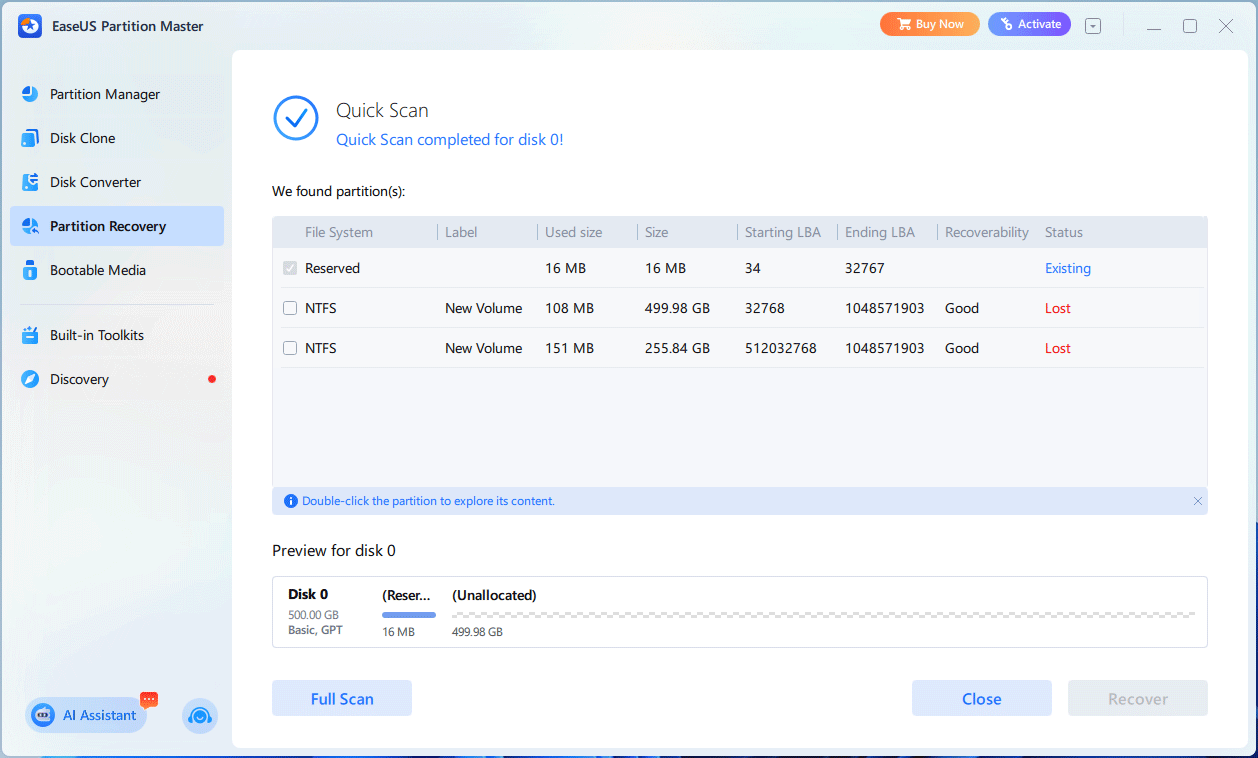
EaseUS Partition Master is a comprehensive, all-in-one Windows disk management tool designed to optimize storage. Its features are various.
- Basic Features: It can create, format, move, resize, merge, split, delete, and wipe partitions for free. Moreover, it can also copy data disks/partitions for free.
- Key Features: It can migrate OS, clone the OS disk, convert a disk between MBR and GPT as well as Dynamic and Basic without data loss, convert partitions between NTFS and FAT as well as from FAT to exFAT without data loss, recover lost partitions, migrate apps and data from one drive to another, and support low-level format and bootable media creation.
- Other Noteworthy Features: It can download/burn a Windows ISO to USB, scan for bad sectors, rebuild MBR, align partitions to 4K, enable/disable write protection for USB, and turn on/off BitLocker for partitions.
For a complete list of features and a comparison of features among different editions, visit the EaseUS Partition Master Comparison webpage.
My Experience with Its Partition Recovery Feature
This software allows for the trial of the partition recovery feature. After the software opens, you can see all the important tools are displayed in the left panel. Clicking each of them, detailed tools will be displayed in the right panel, which is concise enough. You can quickly find the functions you want.
Click the Partition Recovery feature and then select a disk to perform a Quick Scan. This mode quickly found 2 partitions for me. Then, the Full Scan option appears. Tried the Full Scan mode. Unfortunately, the partitions found remained unchanged.
Double-click the lost partition to see the file directory. If the partition you want to recover is found, purchase the software to actually recover the partitions.
| Pros | Cons |
| 1. The user interface is very concise enough, and all functions are clearly displayed. 2. The partition recovery function is simple to operate, with just a few clicks. 3. Both quick scan and full scan modes are provided, and neither mode takes too much time. 4. The quick scan results are excellent. 5. This software offers Windows and macOS versions, and supports FAT, NTFS, and EXT2/3 volumes in the Windows version. 6. It allows you to create bootable media, enabling you to manage disks and recover partitions when your computer fails to boot. 7. It offers a wealth of disk and space management features. Among the free features, I especially like the partition Resize/Move, Extend/Shrink, and Allocate Space features. 8. It features an AI Assistant that provides suggestions on disk management and software usage. 9. The software allows users to try it out before purchasing. | 1. There is no significant difference between the quick scan result and the full scan result. 2. It lacks data recovery functionality. |
#4. AOMEI Partition Assistant – Boasts More Than 30 Functions
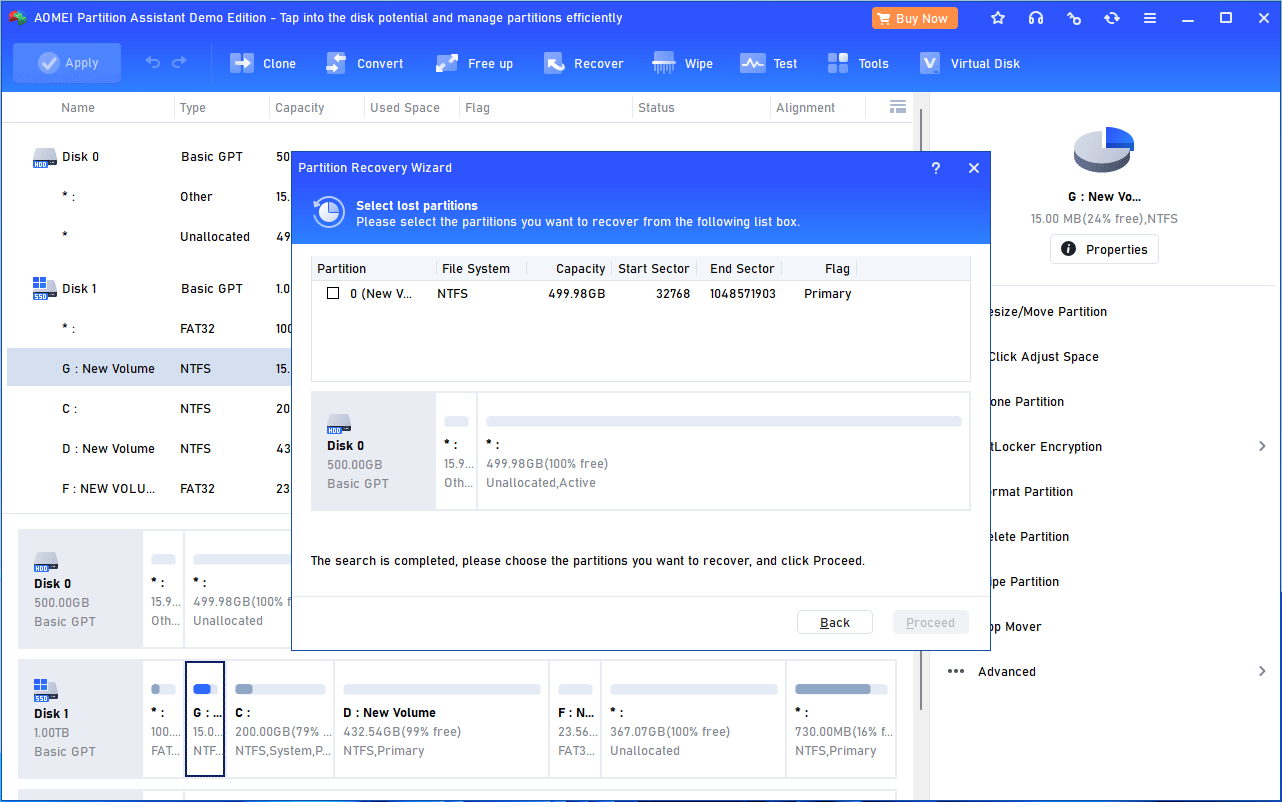
AOMEI Partition Assistant is a comprehensive disk management tool for Windows designed to create, resize, merge, split, and clone partitions, as well as migrate the OS to SSD without data loss. It provides the following features.
- Basic Features: It can create, format, move/resize, split, merge, delete, and wipe partitions. It can also clone data disks/partitions, and convert drives between FAT32 and NTFS for free.
- Key Features: It can migrate OS, copy the system disks and partitions, convert disks to MBR/GPT and Dynamic/Basic without data loss, recover lost partitions and data, repair BCD (Boot Configuration Data), change serial number and partition type ID, create a portable Windows to USB (Windows To Go), manage dynamic disks and volumes, manage VHD (Virtual Hard Disk), and create bootable media.
- Other Noteworthy Features: It can quick partition a hard drive, align partitions, delete junk files/large files/duplicate files, move apps to another drive, analyze disk space to delete unnecessary files, shred files, secure erase SSD, test disk speeds, scan disk for bad sectors, reset Windows password, turn on/off BitLocker on NTFS partitions, manage Users and Groups, and manage PC boot options.
AOMEI Partition Assistant boasts more than 30 valuable functions. To get a complete list of its features, visit the AOMEI Partition Assistant Edition Comparison webpage.
My Experience with Its Partition Recovery Feature
The AOMEI Partition Assistant free version also supports the partition recovery demonstration. Once the software opens, click Recover > Partition Recovery to enable the feature.
AOMEI Partition Assistant’s functions are mostly arranged in a hierarchical directory structure. Therefore, finding the corresponding function may take some time.
Then, select a disk and a scanning method (Fast Search or Full Search) to find the lost partitions. In my case, the Fast Search found a recently deleted partition (C) and the Full Search found 2 partitions (C and B2).
Double-click the partition to be recovered to view the root directory of the partition. Then, select the lost partitions and apply the recovery.
But unfortunately, in this test, no files or directories were displayed, which may affect usability in certain scenarios.
| Pros | Cons |
| 1. The partition recovery process is relatively simple, and there’s nothing unclear about it. 2. Both fast and full search modes are provided. 3. The partition recovery feature supports NTFS, exFAT, and FAT32 file systems. 4. It offers data recovery and bootable media creation functions. 5. It boasts more than 30 valuable functions. Free features like convert file system to NTFS/FAT32, PC Cleaner, Duplicate Files Finder, and Move/Resize Partition are recommended. 6. The free version supports the partition recovery demonstration. You can purchase it after finding the partition you want to recover. | 1. The placement of many functions is rather scattered. 2. Many similar functions could be combined, but they haven’t. 3. The function to preview the root directory of the partition to be recovered may be faulty, resulting in no file directories being displayed. 4. Only supports Windows PCs. |
#5. DiskGenius – Contains Plenty of Practical & Free Features
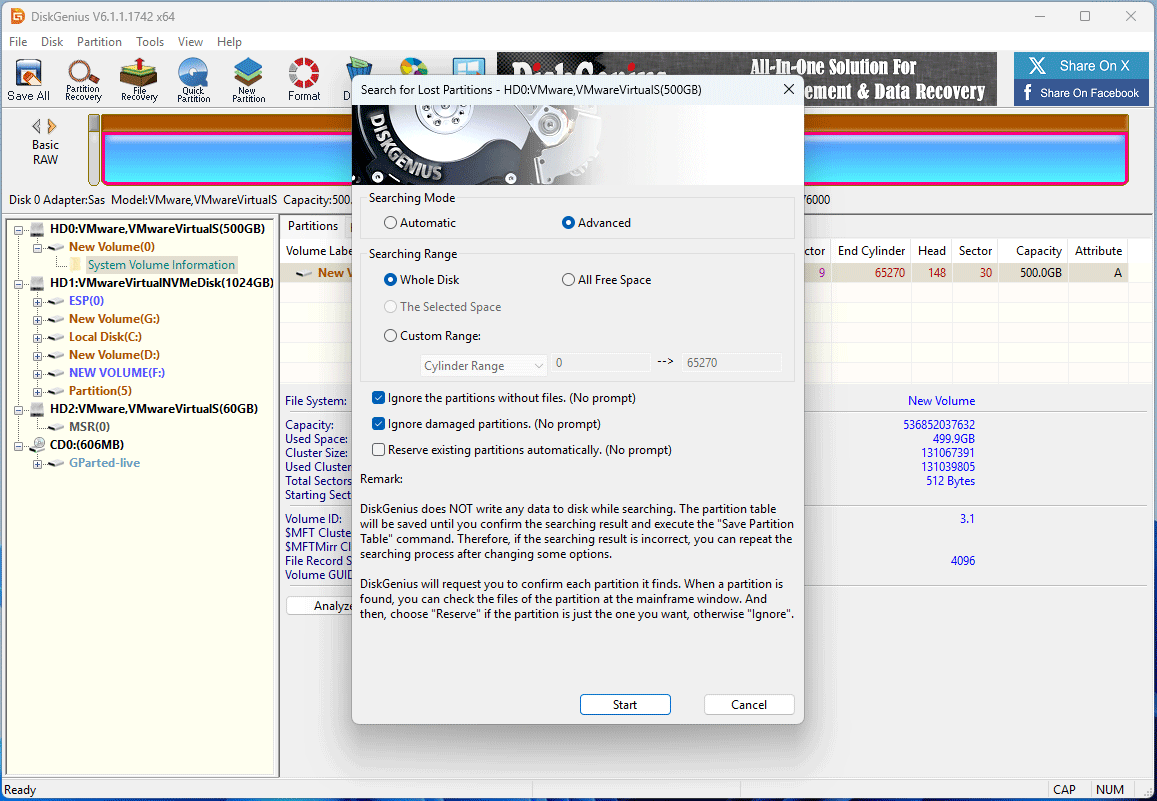
DiskGenius is a comprehensive, all-in-one Windows utility for data recovery, partition management, disk cloning, and backup. Its main features are as follows.
- Basic Features: It can create, format, split, resize, extend, and delete partitions, quick partition a hard drive, check and repair partition table error, convert a disk to MBR/GPT, check partition 4K alignment, migrate Windows to HDD/SSD/USB, virtualize Windows into VMware/VirtualBox, clone partitions and disks, support LVM2, etc. Most importantly, all of these features are free.
- Key Features: It can wipe data on disks/partitions, check and repair bad sectors, batch format USB drives, convert dynamic disk to basic, set hard drive parameters, edit sectors in raw Hex, interpreter any sector as partition beginning, copy sectors, batch migrate Windows, batch clone disks, back up partition/disk to image and extract/restore partition/disk from image, write files to virtual disks and LVM volumes, recover lost partitions and data, support virtual disk files of various formats, etc.
- Other Noteworthy Features: It can rebuild MBR, modify partition parameters, back up partition table, clear reserved sectors, view S.M.A.R.T. information, view disk sector data, copy files from Ext2/3/4 partitions, etc.
Compared to other partition recovery software, DiskGenius seems to have a different focus. First, it offers many free practical features, which may charge fees in other software. For example, the OS migration, disk type (MBR/GPT) version, and bootable media creation features are free.
Second, it offers other professional-grade features like the Hex editor, the disk/partition to image backup and restore, etc. If you want to see all the features it offers, visit the DiskGenius Edition Comparison webpage.
My Experience with Its Partition Recovery Feature
DiskGenius’s interface design is not aesthetically pleasing. The layout of the disks/partitions and the functions are not very concise or clear.
Once the software opens, select unallocated space or a disk where partitions are lost, and then click Partition Recovery.
On the pop-up window, select a Searching Mode (Automatic or Advanced). The Automatic mode is not recommended in most cases because it will not prioritize keeping existing partitions. Existing partitions will only be kept if no other partitions are found at their locations.
As for the Advanced mode, it allows you to select a Searching Range (Whole Disk, All Free Space, The Selected Space, and Custom Range), and determine the partition ignore and reserve options.
I tried both search modes, but didn’t find obvious differences between them. The two modes completed in seconds, and they all found just one recently-deleted partition (C).
Double-click the partition to be recovered to open its file directory, based on which you can check if this partition is what you need. In addition, you can also recover these files directly here.
| Pros | Cons |
| 1. Supports recovering lost FAT, NTFS, exFAT, and EXT2/3/4 partitions. 2. Supports both partition recovery and file recovery features. 3. It offers many free and practical features, such as OS migration, system disk clone, convert MBR to GPT without data loss, bootable media creation, etc. 4. Compared to other partition recovery software, it offers features related to virtual disks and images. 5. Supports the partition recovery demonstration. | 1. A rudimentary user interface and a cluttered layout of functions. 2. It lacks deep partition recovery, so the recovery results may not be ideal. 3. Only supports Windows PCs. |
#6. iBoysoft Data Recovery – Partition Repair & Encrypted Data Recovery
iBoysoft Data Recovery is a professional software designed to recover lost, deleted, or formatted files, including documents, photos, and videos, from Mac and Windows devices. It is also capable of partition repair & recovery. Its main features are as follows:
- Repair the RAW partition, converting it to NTFS, FAT32, or exFAT file systems without data loss.
- Recover deleted or lost partitions.
- Recover data from formatted, inaccessible, deleted, or lost partitions.
- Recover data from inaccessible, failed, corrupted, deleted, or lost BitLocker-encrypted partitions after supplying the password or recovery key.
My Experience with Its Partition Recovery Feature
iBoysoft Data Recovery’s user interface is simple. When it opens, only three options are offered (Data Recovery, Partition Recovery, and BitLocker Data Recovery).
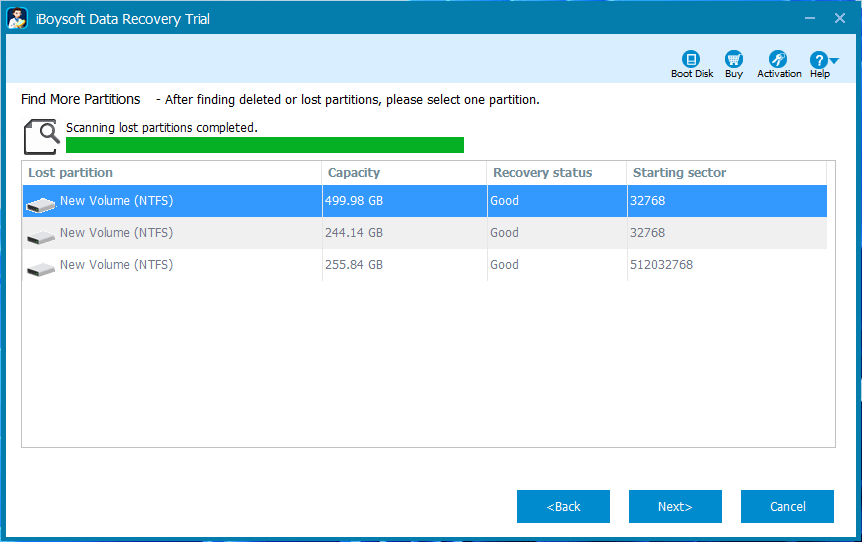
Click Partition Recovery and then Find More Partitions. Select the disk where partitions are lost for scanning. There is no scanning mode selection. In my case, the scanning process took several minutes and found 3 lost partitions (C, B1, and B2). Therefore, I speculate that the scan uses the deep mode.
Double-click the partition to be recovered to check the files in it. Once ensure this partition is what you need, recover it directly.
It’s worth noting that although three partitions were searched, only two partitions (C and B2) contained intact files. The files on the remaining partition (B1) are missing.
I think the reason is as follows: two partitions (C and B1), despite being different sizes, have the same initial sector position. Therefore, the Volume Boot Record of the older partition (B1) has been overwritten by the newer partition (C).
In this situation, restoring the old partition (B1) is pointless because its files are already lost. The only method to recover these files is through data recovery.
| Pros | Cons |
| 1. Eye-catching partition recovery feature. 2. Excellent partition recovery success rate. 3. Supports partition recovery, partition repair, data recovery, and encrypted partition data recovery. 4. Available for Windows and macOS. 5. Supports NTFS, FAT32, exFAT, and HFS+ partition recovery. 6. Offers the bootable version. 7. Allows users to try it out before they buy. | 1. There is no fast partition recovery mode. 2. Unfriendly user interface design. |
#7. Active@ Partition Recovery – Supports Various File Systems
Active@ Partition Recovery is a powerful, comprehensive software utility designed to restore accidentally deleted or damaged partitions and volumes.
In addition, it can also create/fix partitioning, convert the disk type (MBR/GPT), create a disk image, fix the boot sector, view Hex data, recover lost files from lost or existing partitions, and create bootable media.
To learn more about the features and editions of this software, go to the Active@ Partition Recovery Compare Packages webpage.
My Experience with Its Partition Recovery Feature
Once it opens, Partition Recovery and Easy File Recovery options are offered. Click Partition Recovery to enter the main interface.
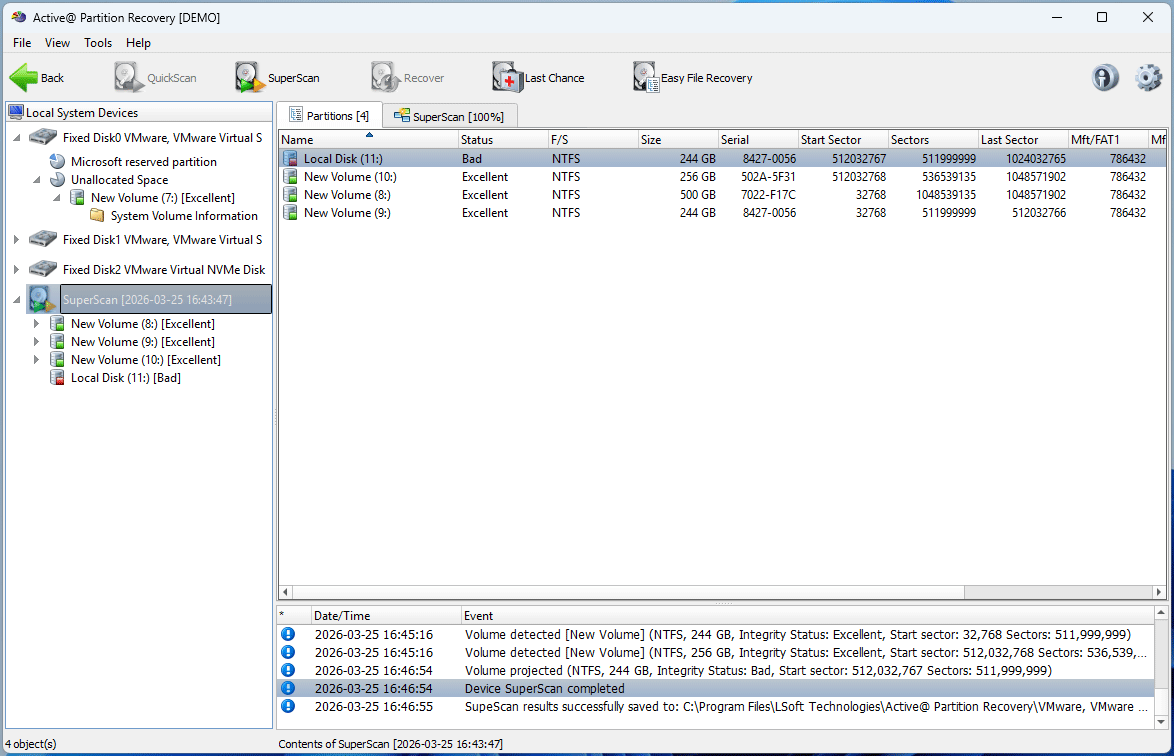
In the left panel, select the disk where partitions are lost and then perform either QuickScan or SuperScan to find lost partitions. The found partitions will be listed in the left panel and marked with either green (can be recovered) or red (damaged) colors.
In my case, the QuickScan found one partition (C) and the SuperScan found four partitions. However, there is a damaged partition (A) and only two partitions’ (C and B2) files are intact. As for the partition B1, its files are missing.
Click a found partition to view files in it. If this partition is what you want, click Recover to write it to the disk or copy its files to another partition.
| Pros | Cons |
| 1. Eye-catching partition recovery feature. 2. Excellent partition recovery success rate. 3. Both quick and super scan modes are provided. 4. Supports both partition recovery and file recovery. 5. Supports recovering NTFS, ReFS, FAT32, exFAT, HFS+, ApFS, EXT4/3/2, BtrFS, XFS, JFS, and UFS partitions. 6. Supports creating a bootable media. 7. Allows users to simulate the partition recovery process before purchasing. | 1. Unfriendly user interface design. 2. The file recovery function is incomplete. Once the partition’s file system is corrupted, the lost files cannot be recovered. 3. Only supports Windows PCs. |
Partition Recovery Software FAQ
When using the partition recovery software, install the software to an external drive or a different partition to prevent overwriting lost data.
1. Regularly back up the disk. Then, you can restore the entire disk state if a partition is lost.
2. Avoid interrupting processes like creating, resizing, or formatting partitions.
3. Use an Uninterruptible Power Supply (UPS) to ensure the computer does not shut down suddenly during critical disk operations.
4. Use up-to-date antivirus software to prevent malware or viruses from attacking and deleting partition tables.
Bottom Line
This post introduces the key factors to consider when choosing partition recovery software and recommends 7 options to you. It also describes the actual partition recovery experience with these programs and the problems encountered.
Each program has its advantages and disadvantages. Choose one of them to try and then purchase based on your own needs.
User Comments :