
Deleting duplicate files on Windows 10/11 can free up disk space and enhance system performance. This post shows detailed steps to find and remove duplicate files using File Explorer, PowerShell, and MiniTool Partition Wizard.
Over time, Windows computers accumulate a large number of files, including work documents, photos, and installation packages. These files are very likely to be duplicated.
These redundant files lurk in folders and external hard drives, consuming valuable storage space and degrading system performance, especially if the duplicate files are very large.
Furthermore, if duplicate files are stored in different locations on your computer, it can cause a lot of clutter. You might not know which file to use.
Fortunately, this post provides several solutions to find and remove duplicate files.
About Duplicate Files
A duplicate file is an identical copy of another file, meaning they have the same content, file size, and often the same name. Even files with different names can be duplicates if their underlying data matches.
Duplicate files form for a variety of reasons:
- Accidental copies: Dragging and dropping files instead of cutting them, or using “Copy-Paste” when you meant to “Move,” creates instant duplicates. This is especially common with photos or documents transferred between folders.
- Download redundancy: Downloading the same file multiple times. Whether because you forgot you already saved it or the first download failed, it piles up duplicates in your Downloads folder.
- Backup errors: Improperly configured backup settings can create redundant copies.
Duplicates can be any type of file, including:
- User files: photos, videos, music files, documents, and downloaded attachments.
- System/application files: Windows and installed programs sometimes create duplicate system files or library files in different directories to avoid conflicts or for system recovery.
How to Delete Duplicate Files?
To find and remove duplicate files on Windows 10/11, here are 3 different tools. The first one is third-party software, and the next two are built-in Windows tools.
2. Deleting these can cause software crashes or system instability. The key is to distinguish between user-created duplicates (safe to remove) and system-required duplicates (best left untouched).
Here is a video guide:
Method 1. MiniTool Partition Wizard
MiniTool Partition Wizard is a free duplicate file cleaner, which enables you to find and delete duplicate files stored across your PC and external drives with just a few clicks.
Its key features:
- Fast scanning using MD5 (default) and SHA-1 hash algorithms for accurate content matching.
- Filters for file types, size, and locations (e.g., exclude external drives).
- Sort files from results by name, size, or quantity to easily identify and manage duplicates.
- One-click selection of duplicates (e.g., keep the newest/oldest modified/created).
- Safe deletion (files go to the Recycle Bin by default).
Now, try the steps below to find and remove duplicate files.
MiniTool Partition Wizard FreeClick to Download100%Clean & Safe
Step 1. Download and install this software on your computer. Then launch it.
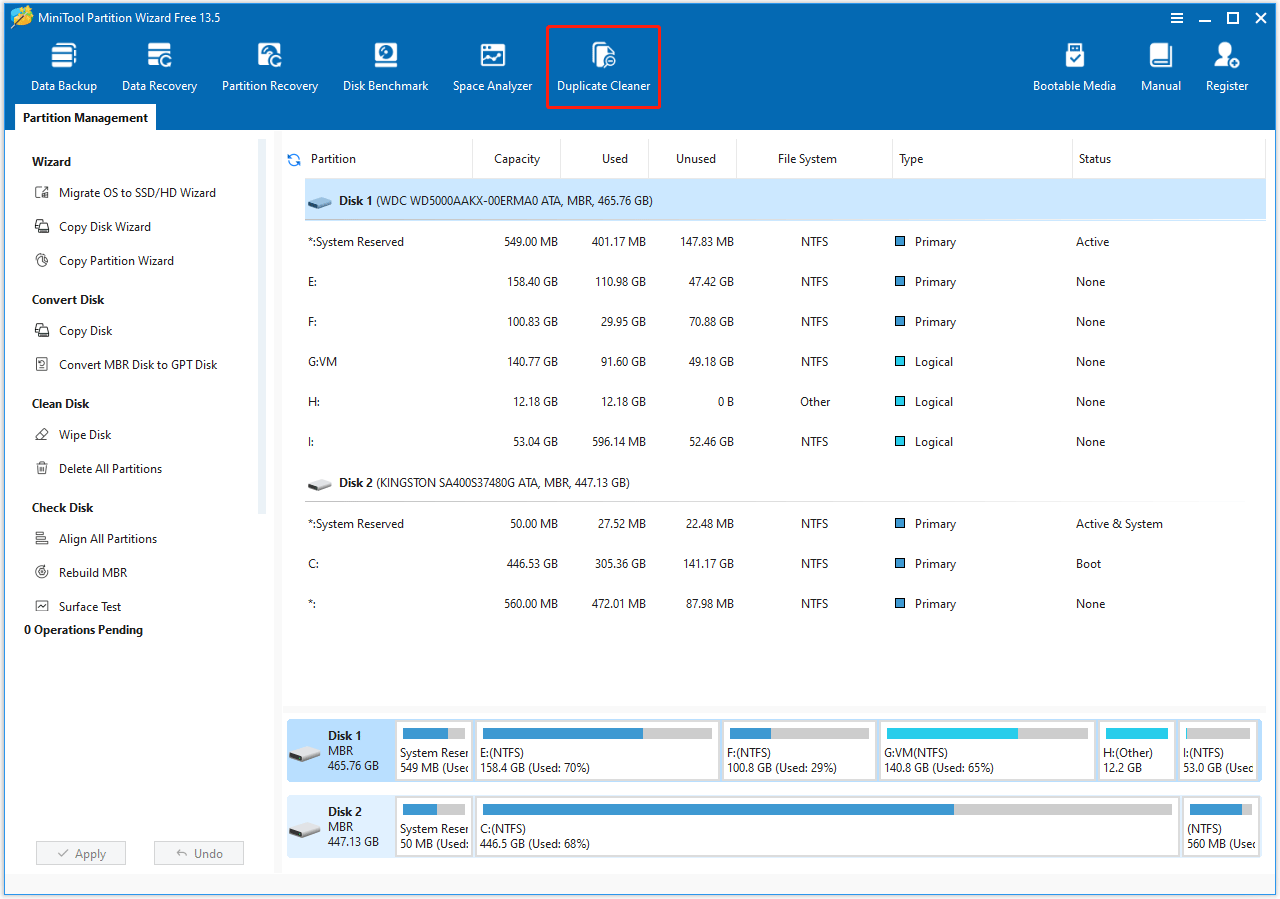
Step 2. On the top toolbar of the main interface, select the Duplicate Cleaner feature.
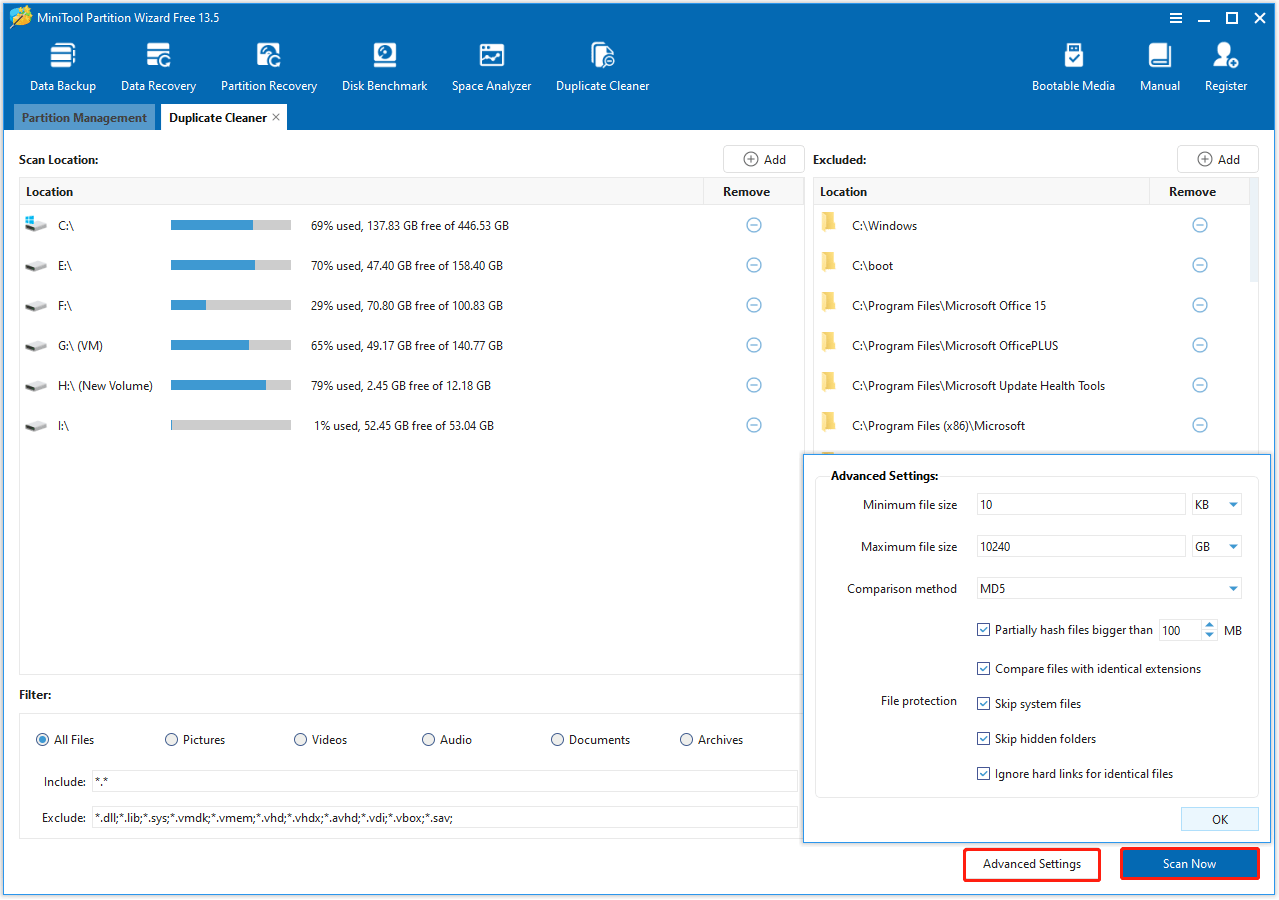
Step 3. In the following interface, configure the scan settings, including location and file type. Then click Scan Now.
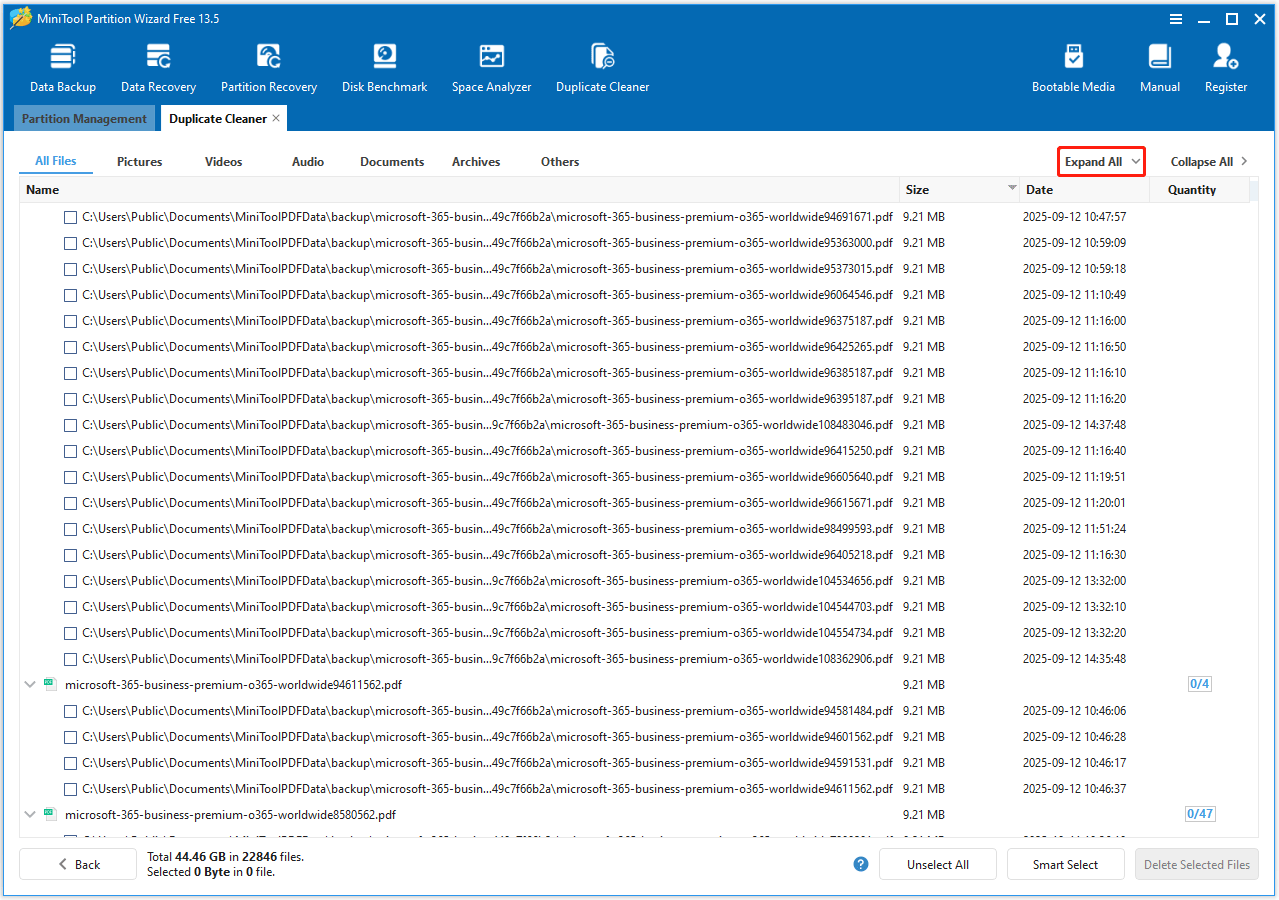
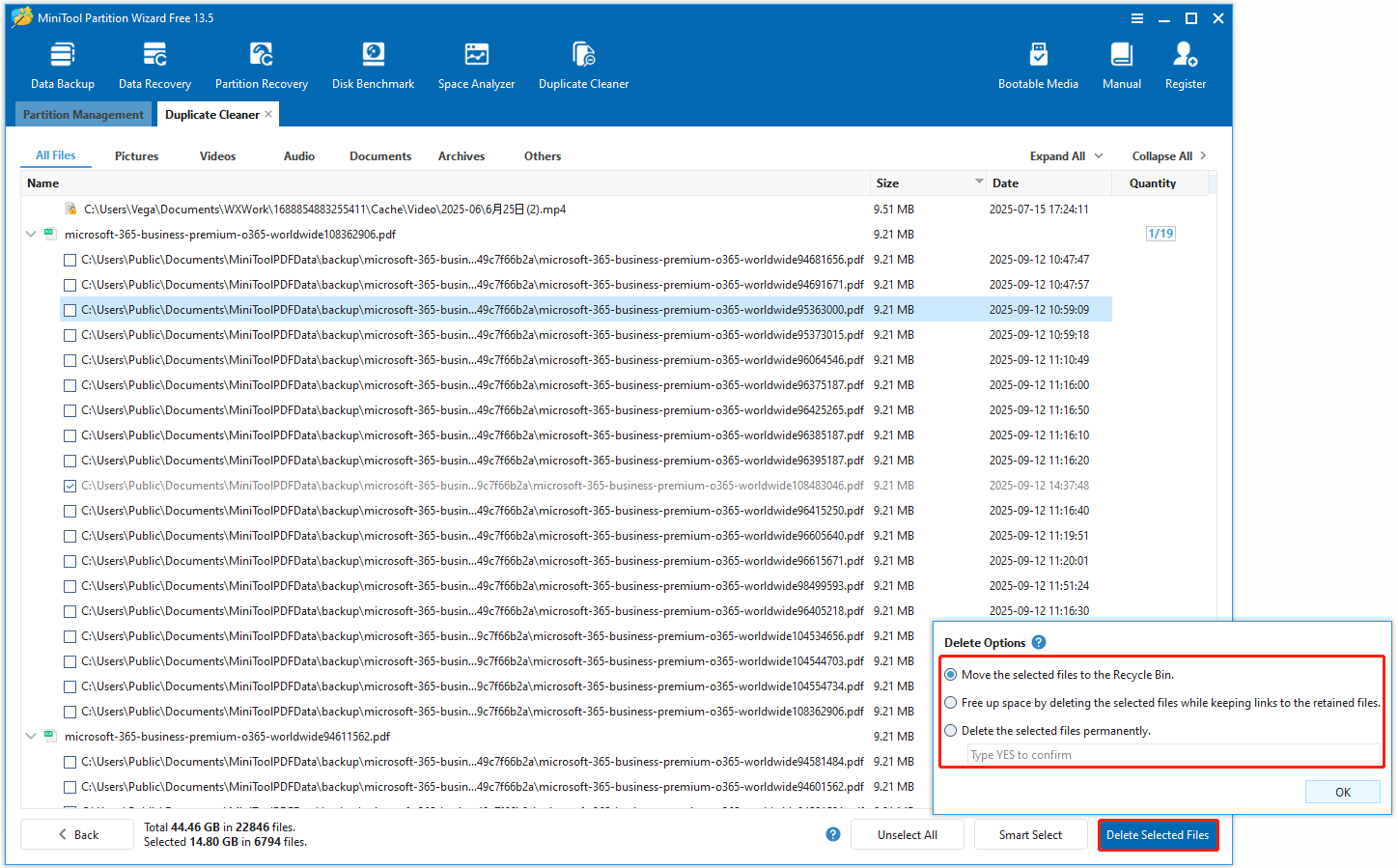
Step 4. After scanning, the results will show all duplicate files with their size and quantity. To view the full path of all duplicate files, click Expand All.
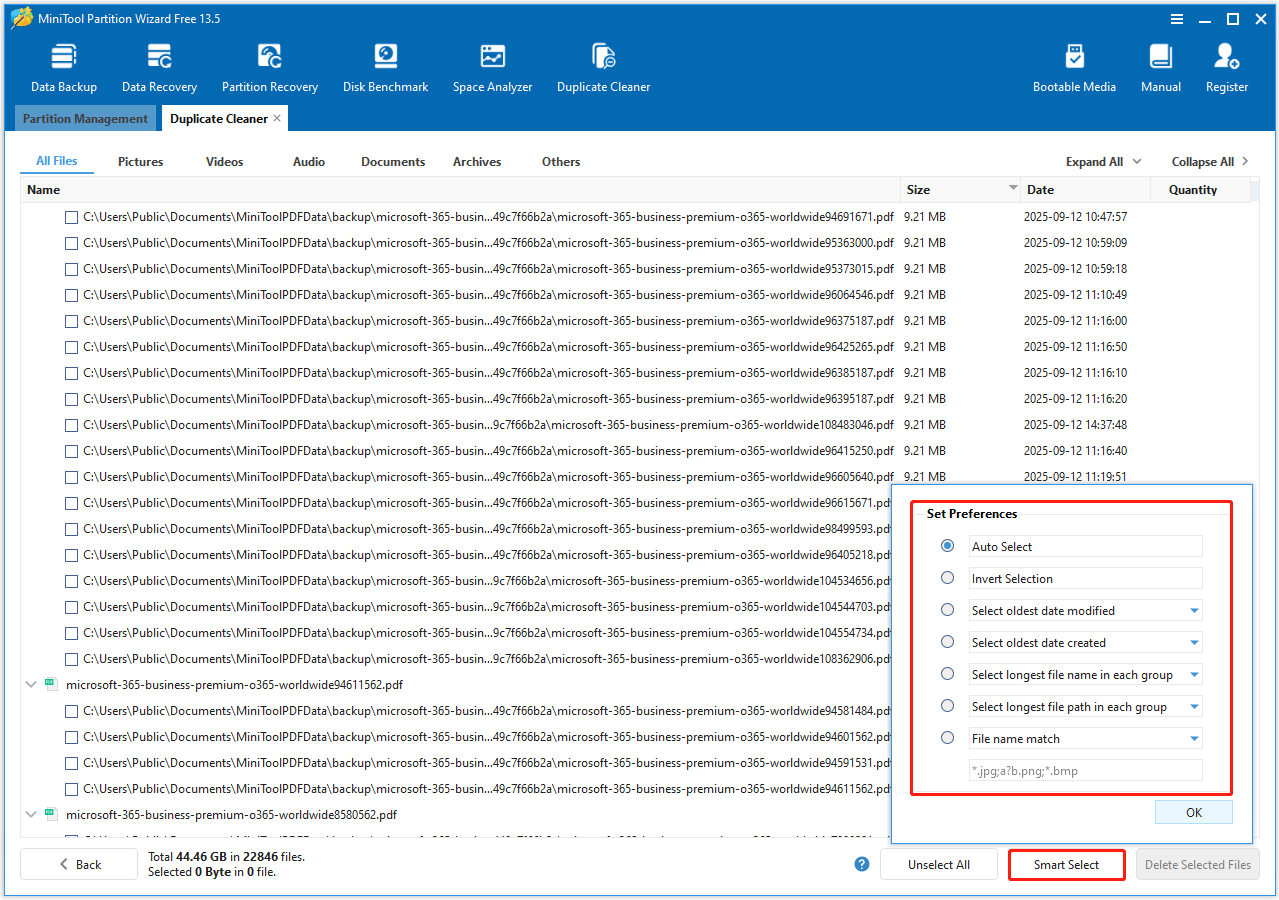
Step 5. Click Smart Select and then select different selection methods according to your needs.
Step 6. Click Delete Selected Files to choose different deletion options. Then click OK to start the deletion of duplicate files.
Method 2. File Explorer
File Explorer is Windows’ default file management tool. Its search and sorting capabilities let you manually identify redundant files. This method works best for specific folders rather than the entire hard drive.
This method is time-consuming and prone to errors.
- Open File Explorer by pressing Win + E.
- Navigate to the folder you want to scan (e.g., C:\Users\YourName\Downloads).
- Click the View tab at the top, then select Details to display file attributes like size, type, and date modified.
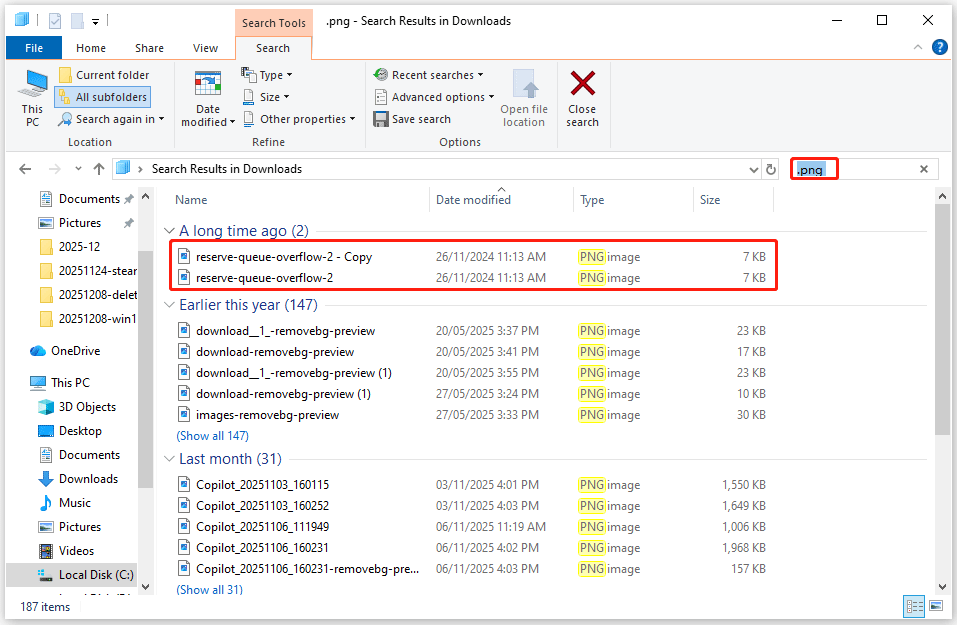
- Use the search bar to filter by file extension (e.g., .jpg, .docx, .pdf).
- Click the Size column header to sort files by size. Duplicates are often the same size, so grouping files this way makes them easier to spot.
- For files of the same size, check their names, dates modified, and content.
- Once confirmed, select the duplicate(s) (hold Ctrl to select multiple files), right-click, and choose Delete to move them to the Recycle Bin.
Method 3. PowerShell
For tech-savvy users, PowerShell offers a more powerful way to find duplicates by file content (using hash values) and generate a report of redundant files.
This method uses PowerShell to search the specified directory, calculates a unique hash value for each file to identify duplicates, and skips the first instance of each file.
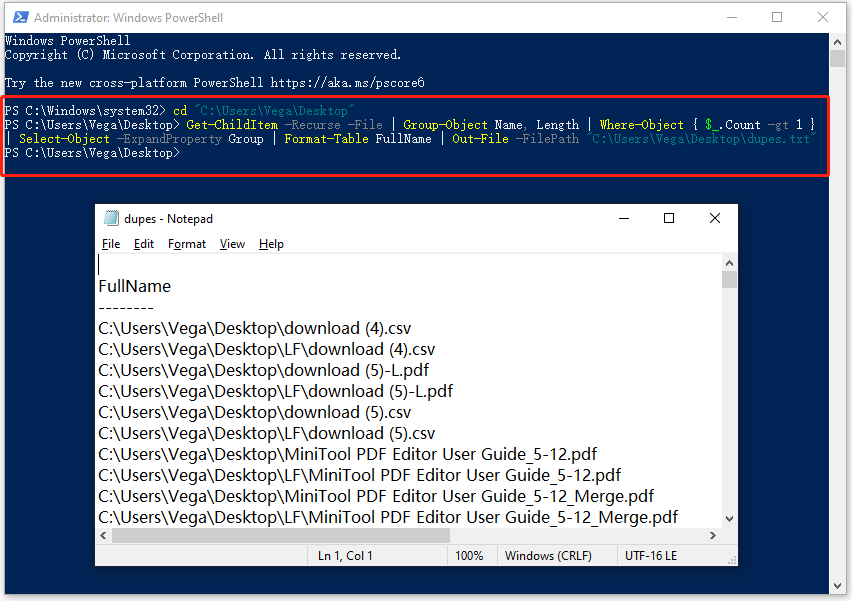
Step 1. Right-click the Windows Start button and select Windows PowerShell (Administrator).
Step 2. Type the cd “folder path” command and press Enter. Replace the folder path with your actual folder path that contains duplicate files, such as C:\Users\Vega\Desktop.
Step 3. Type the following command to scan for duplicates and generate a text file containing duplicate file paths to the desktop.
Get-ChildItem -Recurse -File | Group-Object Name, Length | Where-Object { $_.Count -gt 1 } | Select-Object -ExpandProperty Group | Format-Table FullName | Out-File -FilePath “C:\Users\username\Desktop\dupes.txt”
Step 4. The process will take some time to complete. When it finishes, open the dupes.txt file to identify the location of the duplicate files and manually delete them. Make sure you have typed the correct commands. Incorrect commands may output different results, letting you delete the wrong files.
Here is a table to show the difference between the three methods:
| MiniTool Partition Wizard | File Explorer | PowerShell | |
| Method | Automated GUI tool | Manual review | Automated scripting |
| Ease of Use | High (Point-and-click interface) | Medium (Manual sorting/searching) | Low (Requires scripting knowledge) |
| Accuracy | High | Low | High |
| Speed | Fast | Slow | Slow |
Delete Duplicate Files FAQ
1. Compress large files
2. Disable hibernation
3. Manage Windows storage settings
4. Extend the Partition
5. Upgrade to a larger hard drive
However, it is usually safe to manually check and then delete duplicate personal files.
To do that, use Edit > Line Operations > Remove Duplicate Lines for simple removal, or use Ctrl + H (Find & Replace) with regular expressions to find and clear duplicates.
Bottom Line
Duplicate files consume storage space and performance on Windows computers. Making duplicate file cleanup part of your routine computer maintenance can ensure performance.
To do that, you can choose a third-party duplicate cleaner or built-in tools like File Explorer and PowerShell.
If you have any questions or suggestions on how to use MiniTool Partition Wizard, do not hesitate to contact us via [email protected]. We’ll reply to you as soon as possible.
User Comments :