
Quick answer: To compare two folders and find duplicate files on Windows, you can compare file names, sizes, and dates manually in File Explorer, list differences with Robocopy, or compare file hashes with PowerShell. For the most accurate and least manual result, use the Duplicate Cleaner in MiniTool Partition Wizard to scan both folders, group identical files by content, and delete the extra copies after review.
Why Compare Two Folders and Find Duplicate Files
Duplicate files accumulate when you copy folders, restore backups over existing data, download attachments twice, or merge photo libraries. Comparing folders is the fastest way to find and remove them. Here are the most common reasons to compare folders:
- Free up disk space: Identify unnecessary copies of large files, videos, photos, and documents.
- Check backups: Find files that exist in both the original and backup folders.
- Organize files: Locate duplicate downloads and files scattered across multiple directories.
- Verify file transfers: Check whether files exist in both the source and destination folders.
- Reduce clutter: Keep your folders organized without accidentally removing important files.
It helps to separate two related tasks. Comparing folders shows what differs between them. Finding duplicate files tells you what is identical. Most real-world cleanups need both.
What’s the Best Method to Compare Two Folders and Find Duplicate Files
The best method depends on how many files you have and how accurate the result needs to be.
| Method | Compares by | Content-accurate | Skill level | Best for |
| MiniTool Partition Wizard | File content (hash) with filters | Yes | Beginner | Large folders, safe review and cleanup |
| File Explorer | Name, size, date (manual) | No | Beginner | Small folders, quick checks |
| Robocopy (list-only mode) | Name, size, timestamp | No | Intermediate | Finding differences and missing files |
| PowerShell (Get-FileHash) | File content (hash) | Yes | Advanced | Scripted, repeatable comparisons |
How to Compare Two Folders and Find Duplicate Files Automatically via MiniTool Partition Wizard
MiniTool Partition Wizard includes a Duplicate Cleaner feature that scans selected storage locations and identifies duplicate files. It compares file content, shows the results in one list, and lets you decide what to delete before anything is removed.
This method is useful when two folders contain many files or when duplicate files may have different names.
MiniTool Partition Wizard FreeClick to Download100%Clean & Safe
Download and install MiniTool Partition Wizard on your computer. Then use these steps to find duplicate files in two folders:
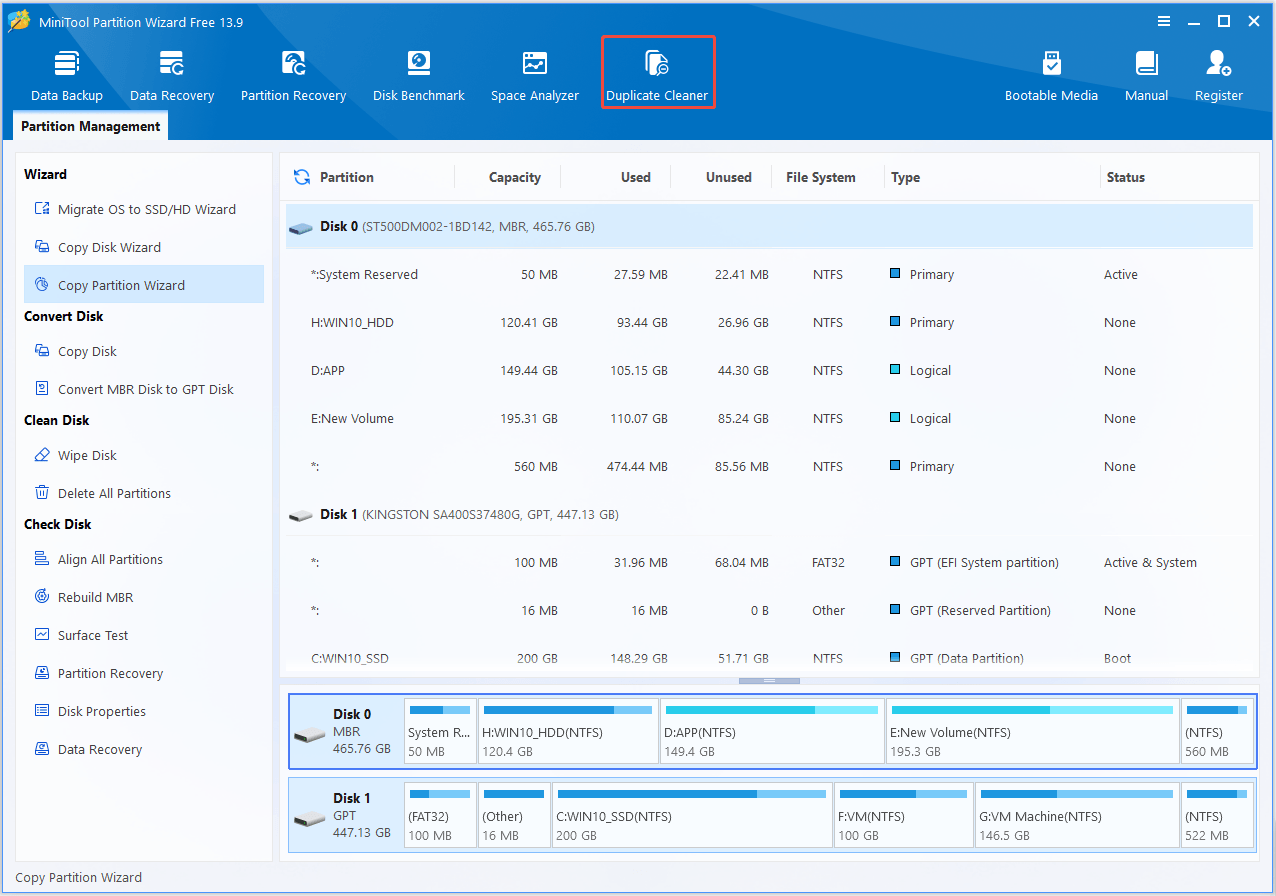
Step 1. Open the Duplicate Cleaner
Launch the program and click Duplicate Cleaner from the top toolbar.
Step 2. Set the Scan Locations to Your Two Folders
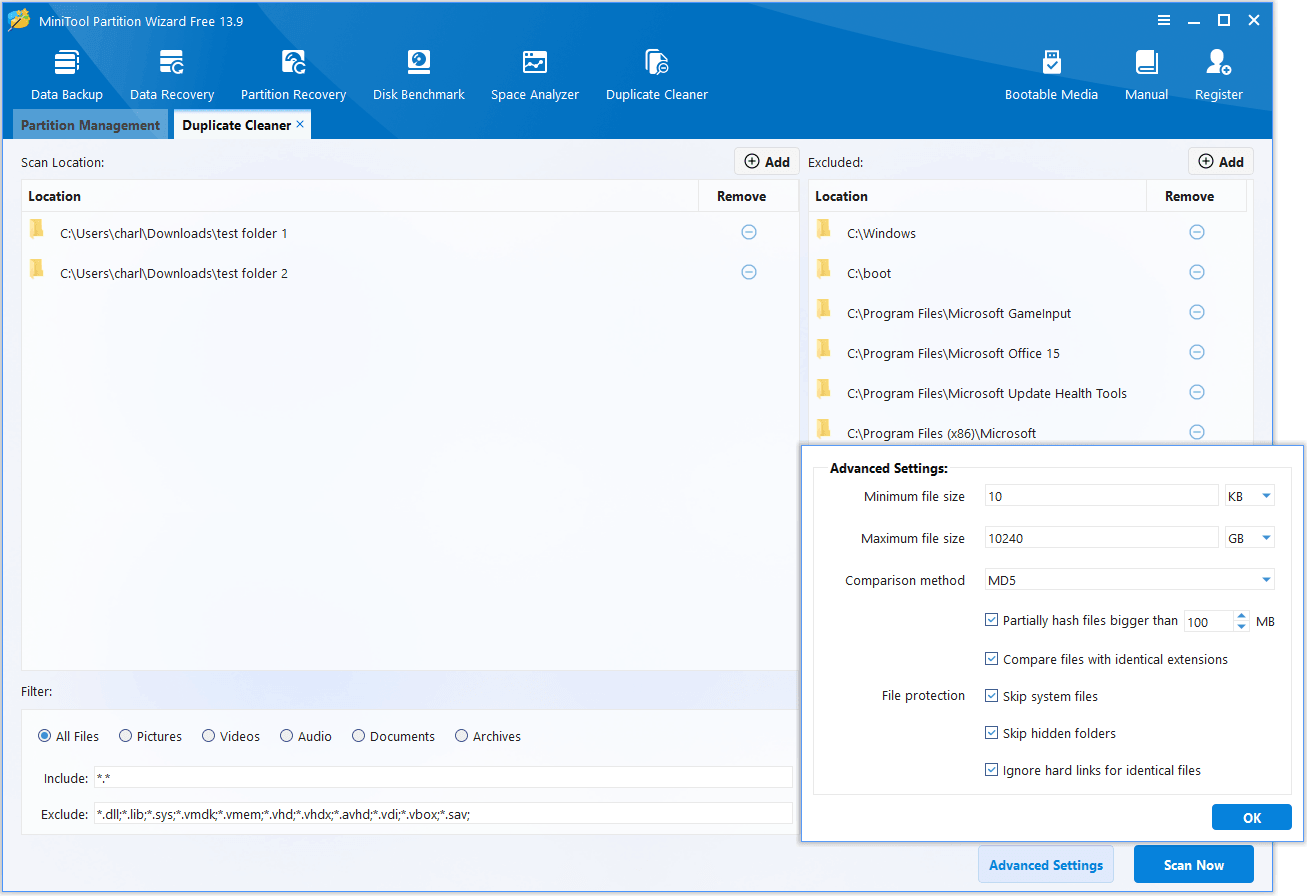
Under Scan Location, remove unwanted paths and click Add to select your two folders. If one folder is on an external drive or USB drive, connect it first to make it appear in the list.
Step 3. Configure Scan Settings
By default, all file types are scanned. If you want to scan specific file types, such as photos or videos, you can use the Filter feature.
For deeper customization, click Advanced Settings to adjust file size limits, choose a hash comparison method, and configure file protection rules for a more precise scan.
Step 4. Scan and Review Duplicate Files
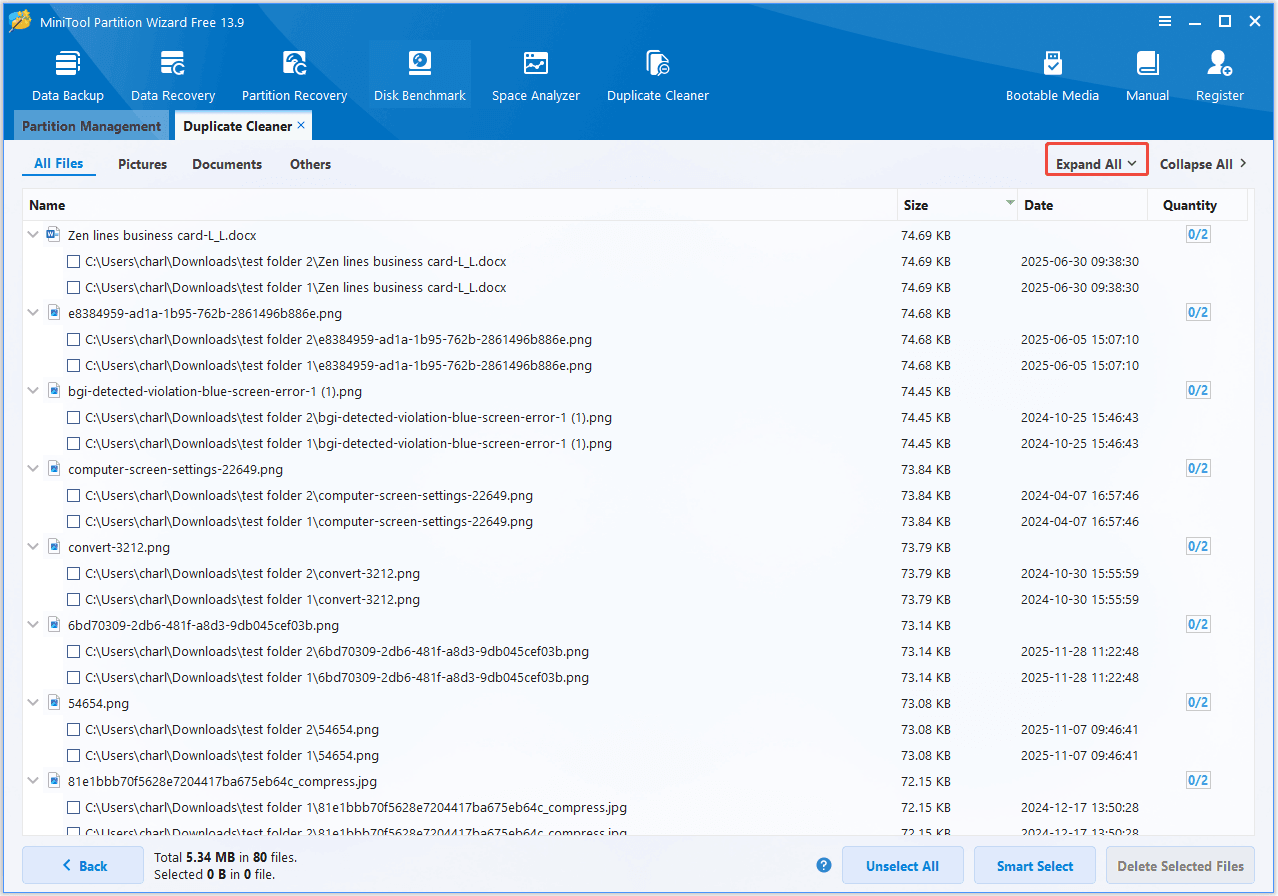
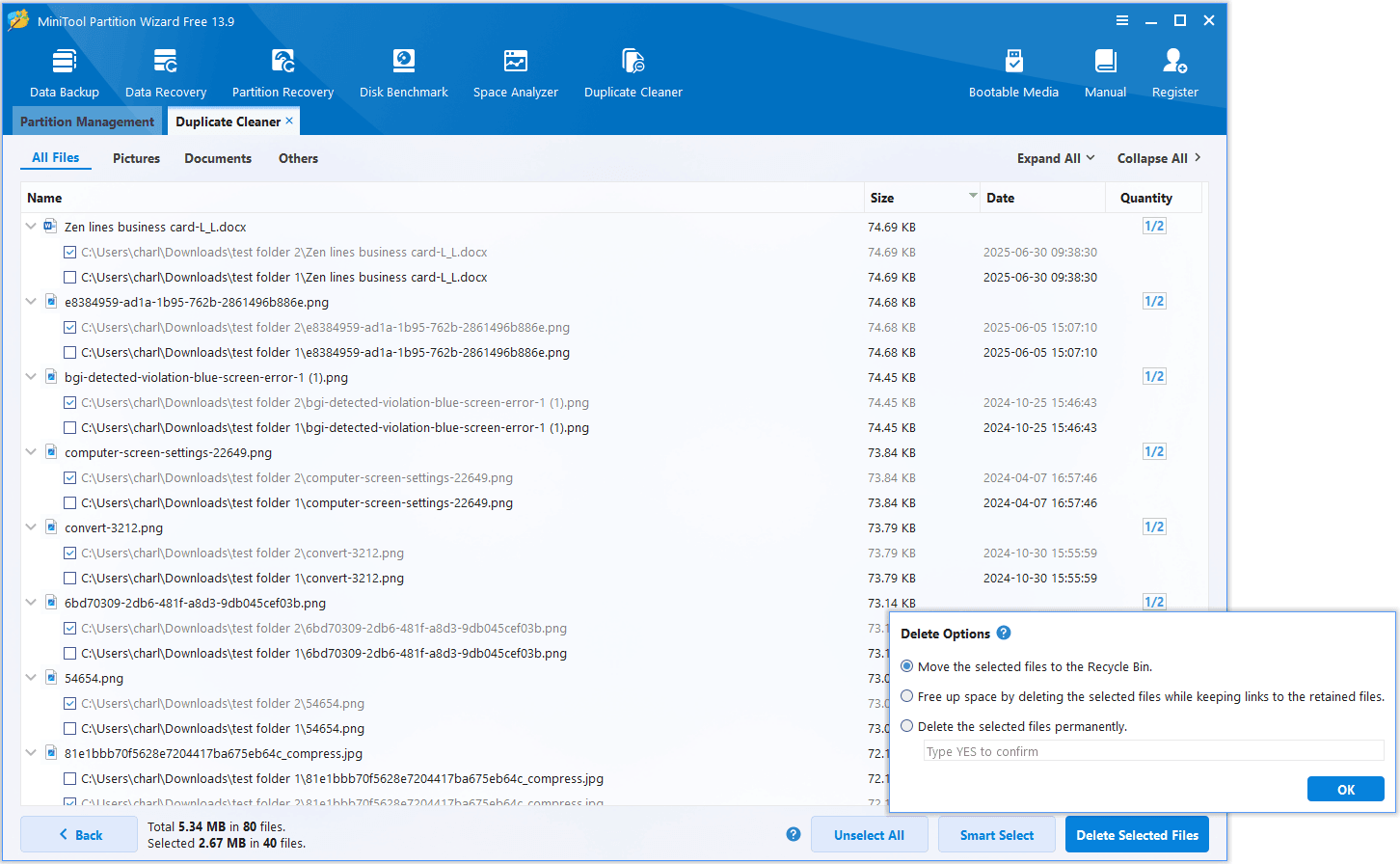
After configuring the settings, click Scan Now and wait for the scan to finish. The results display groups of duplicate files along with information such as file size and quantity.
Click Expand All to view the full paths of the duplicate files. Review the file paths and contents before deciding which copies to keep.
Step 5. Select and Remove Unwanted Duplicate Files
Click Smart Select, choose your preferred method, and click OK. Remember to manually review the selected files in each group to prevent accidental data loss.
After selecting all the unwanted duplicate files, click Delete Selected Files. For safety, choose Move the selected files to the Recycle Bin, then click OK to confirm.
How to Compare Two Folders and Find Duplicate Files Manually with Built-in Tools
If you do not want to install additional software, Windows includes built-in tools that can compare folders out of the box. While ideal for small jobs, each has limitations detailed in the three methods below.
Method 1. Compare Two Folders Manually in File Explorer
File Explorer is the simplest option for small folders with a manageable number of files. It allows files to be sorted by name, size, type, and modification date.
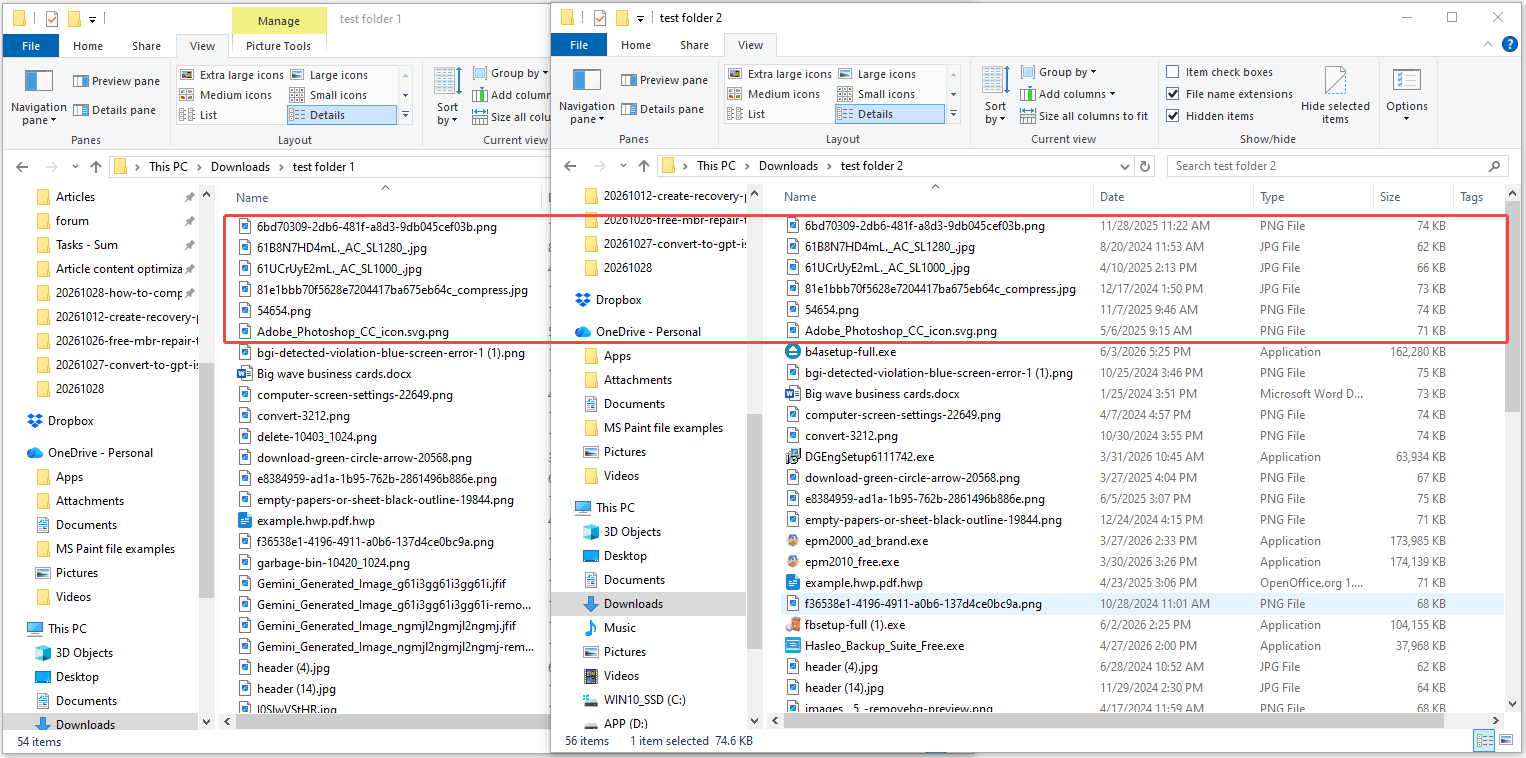
By opening both folders side-by-side and sorting them identically, you can easily spot matching or missing files with a quick visual scan.
Here is how to do a quick visual comparison:
Step 1. Press Win + E to open File Explorer and navigate to the first folder.
Step 2. Change the view to Details. Right-click a column heading if necessary to display useful fields such as Name, Date modified, Type, and Size.
Step 3. Open the second folder in another File Explorer window and apply the same view and sorting order.
Step 4. Compare the two lists. Look for files with matching names and sizes, files that appear in only one folder, and files with different modification dates.
Step 5. Open suspicious files or inspect their properties to determine whether they contain the same information.
Method 2. Compare Folder Contents with Robocopy
Robocopy is a built-in Windows command-line tool designed to copy files and directories. Its list-only mode can help you inspect which files would be copied from a source folder to a destination without actually copying them.
This can be useful when checking two folders after a file transfer or backup.
Robocopy is a command-line tool built into Windows. With the right options, it can list the differences between two folders without copying or deleting anything.
Step 1. Press Win + R, type cmd, and press Enter to open Command Prompt.
Step 2. Run the following command, replacing the paths with your own folders:
robocopy “C:\FolderA” “D:\FolderB” /L /E /NJH /NJS /NP /NDL /FP
What the options do:
- /L lists what would happen without actually copying, deleting or changing any file.
- /E includes subfolders, even empty ones.
- /NJH and /NJS hide the job header and summary.
- /NP hides the progress percentage.
- /NDL hides the directory list so only files are shown.
- /FP shows the full path of each file.
In the output, New File marks a file that exists in the first folder but not in the second. *EXTRA File marks a file that exists only in the second folder. Entries labeled Newer or Older show files that exist in both folders but have different timestamps, and same marks files that match in size and timestamp.
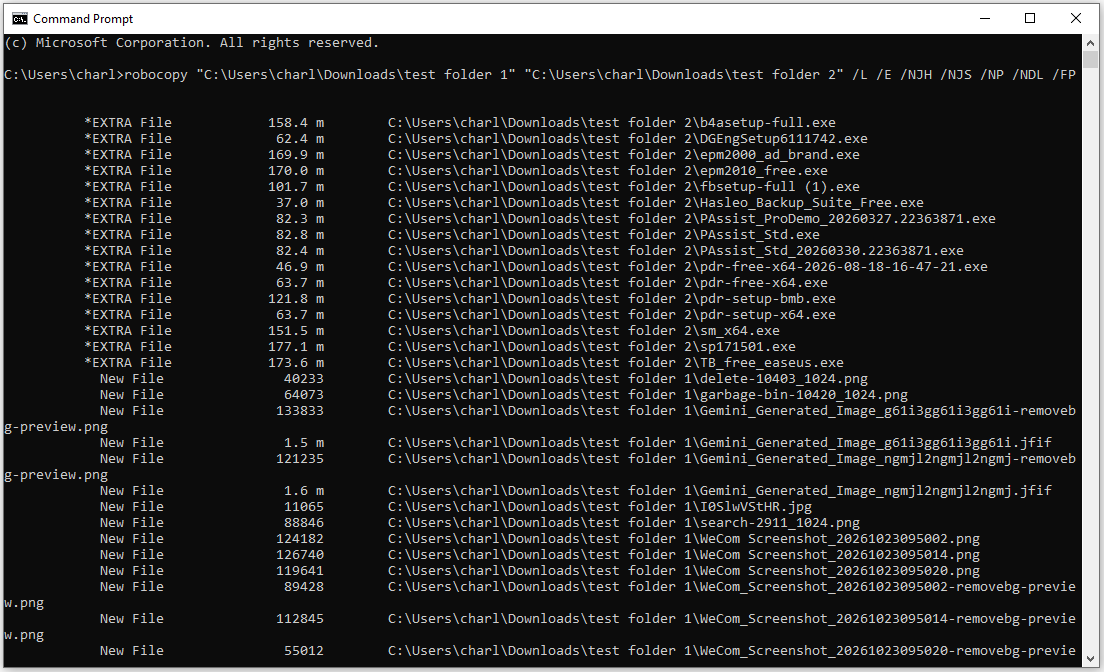
Robocopy is fast and reliable for finding what differs, but it compares only name, size and timestamp. It cannot detect renamed duplicates, nor can it delete them for you.
Method 3. Compare Two Folders with PowerShell
PowerShell can compare file lists and calculate file hashes. A file hash is a value calculated from file content. Matching SHA-256 hashes provide strong evidence that two files contain identical data.
This method is more precise than comparing filenames alone, although it requires additional commands.
Step 1. Right-click the Start button and choose Windows PowerShell or Terminal.
Step 2. Paste the following script, replacing the paths with your own folders:
$folderA = “C:\FolderA”
$folderB = “D:\FolderB”
$hashA = Get-ChildItem $folderA -Recurse -File | Get-FileHash -Algorithm SHA256
$hashB = Get-ChildItem $folderB -Recurse -File | Get-FileHash -Algorithm SHA256
$hashA | Where-Object { $hashB.Hash -contains $_.Hash } | Select-Object Hash, Path
Step 3. Press Enter. Each line in the result is a file in Folder A whose content also exists in Folder B, even if the file names are different.
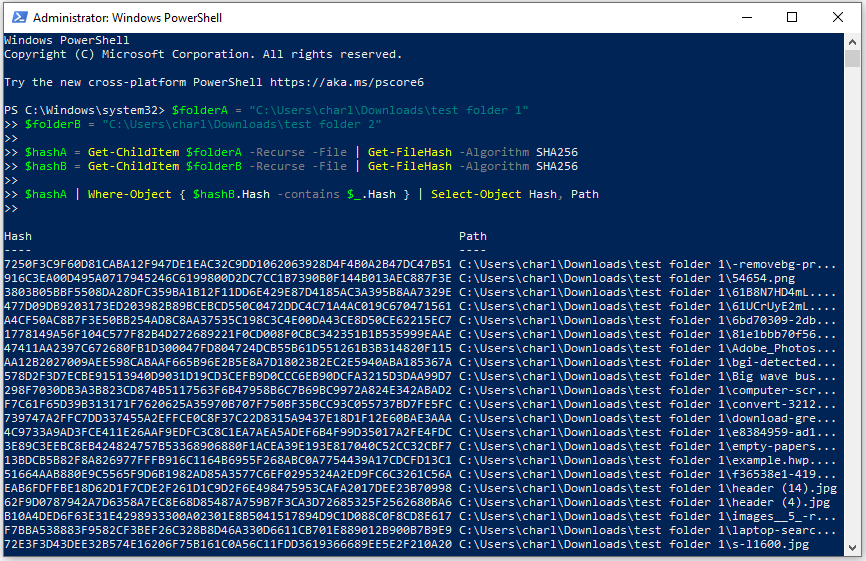
To see the files that exist in only one folder, change the last line to $hashA | Where-Object { $hashB.Hash -notcontains $_.Hash } | Select-Object Path.
This method is accurate, but hashing large folders can take a while, and the output is only a text list. You still have to delete files manually or write extra commands, so double-check every path before removing anything.
Tips for Safely Removing Duplicate Files
Deleting the wrong file can be hard to undo, so follow these precautions:
- Back up your files first. Always create a backup of your important and irreplaceable data before cleaning up duplicates.
- Check full file paths. Review where each file is stored to ensure an identical file isn’t part of an active project or a separate backup.
- Don’t rely on filenames alone. Use content-based comparison to verify duplicates, as files with the same name can contain different data.
- Be cautious with backups. Keep in mind that duplicates in backup folders may be intentional for version history or recovery.
- Use reversible deletion. Move files to the Recycle Bin first so you can recover them if needed, avoiding permanent deletion.
- Protect system files. Do not delete files required by Windows or installed apps just because a tool flags them as duplicates.
How to Compare Two Folders and Find Duplicate Files FAQ
Conclusion
Comparing folders and file hashes helps identify duplicates, verify backups, and free storage. Use File Explorer for small collections, Robocopy for source–destination checks, or PowerShell for hash comparisons.
MiniTool Partition Wizard Duplicate Cleaner offers a convenient way to scan selected folders or drives—always review file paths before deleting anything. If you run into any problems while using MiniTool Partition Wizard, contact our support team via [email protected].
About The Author

Position: Columnist
Charlotte is a technology columnist with a strong focus on the Windows operating system, specializing in disk management, backup, and data recovery. She is passionate about analyzing computer errors, identifying root causes, and delivering practical solutions. In her free time, she stays updated on the latest developments in computer systems and hardware while continuously learning new technologies to broaden her expertise. Her writing style is clear and easy to understand, making complex technical topics accessible even to users with limited computer knowledge.
User Comments :