
Duplicate files inside ZIP archives can waste storage space, and Windows does not provide a built-in tool to identify them automatically.
This guide explains why they stay hidden, what Windows can and cannot do about them, and how to find and remove them safely after extraction, either with MiniTool Partition Wizard’s Duplicate Cleaner or by hand.
Why Duplicate Files Hide in ZIP Archives
ZIP archives may contain duplicate files for several reasons:
- Repeated downloads: The same files may appear in multiple downloaded archives.
- Overlapping folders: Different folders may contain identical files.
- Repeated file additions: Files may be added more than once during archive creation.
- Multiple file versions: Original and renamed copies may exist in the same archive.
Duplicate files may have different names or locations, making them difficult to identify through a quick visual check.
Can Windows Find Duplicate Files Inside ZIP Files
No. Windows File Explorer lets you browse ZIP contents and extract files, but it does not offer a built-in content-based duplicate file finder for ZIP archives.
Scanning ZIP files for duplicates more reliably requires extracting the files first, followed by a manual comparison or a folder scan with MiniTool Partition Wizard’s Duplicate Cleaner.
How to Find and Remove Duplicate Files After Extracting ZIP Archives
Extracting ZIP archives makes their contents accessible as ordinary files and folders. The extracted files can then be compared manually or scanned with a duplicate file finder.
Method 1. Use MiniTool Partition Wizard to Find and Remove Duplicate Files
MiniTool Partition Wizard is best known as a disk and partition manager, but it also includes a Duplicate Cleaner tool. It compares the extracted files in the folders you choose, lists the copies it finds, and lets you delete the ones you do not need.
This is much faster than checking files one by one, especially when the archives hold thousands of files.
MiniTool Partition Wizard FreeClick to Download100%Clean & Safe
Here’s how to check duplicate files in ZIP files via MiniTool Partition Wizard after extracting.
Step 1. Extract the ZIP archives.
Right-click each ZIP file, choose Extract All, and pick a separate folder for each archive.
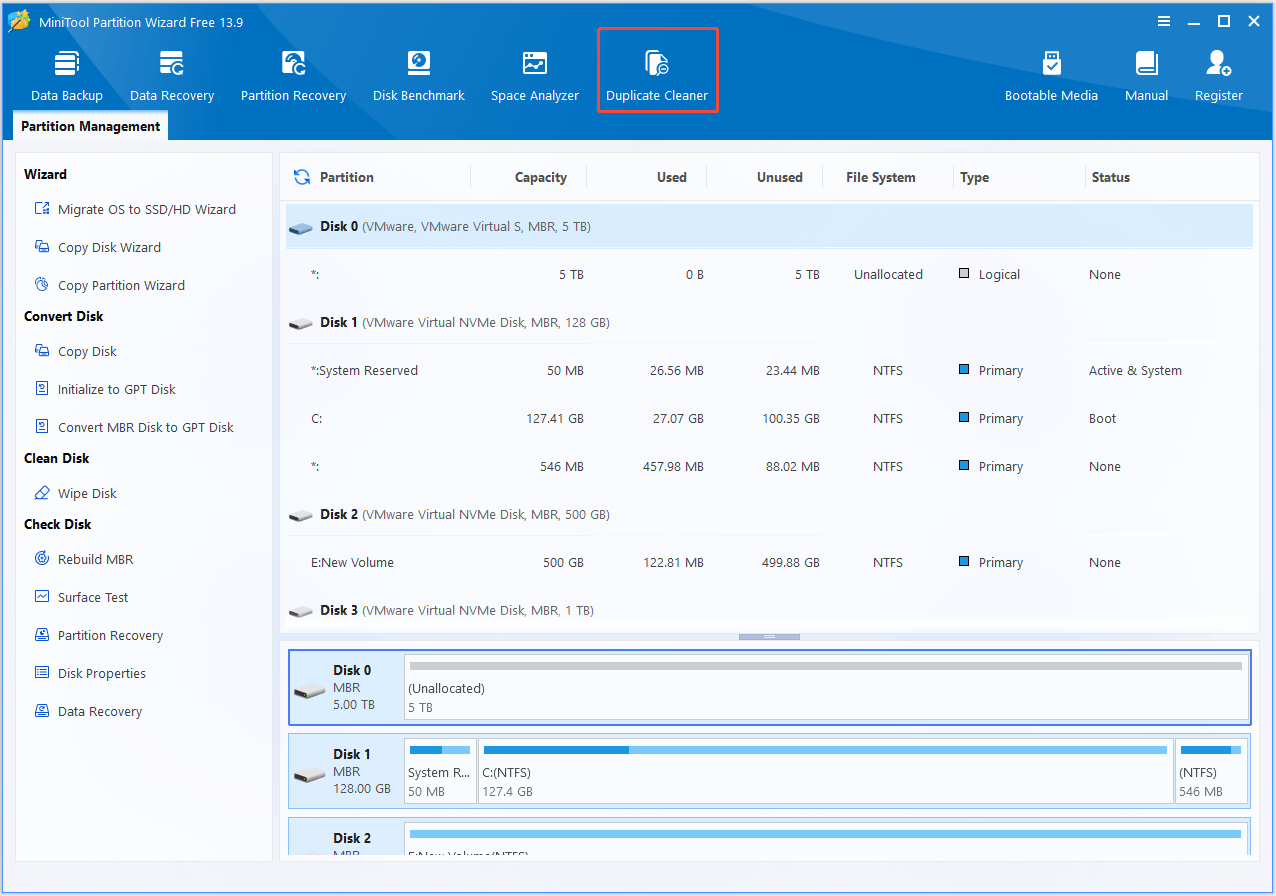
Step 2. Open Duplicate Cleaner.
Launch MiniTool Partition Wizard and click the Duplicate Cleaner feature.
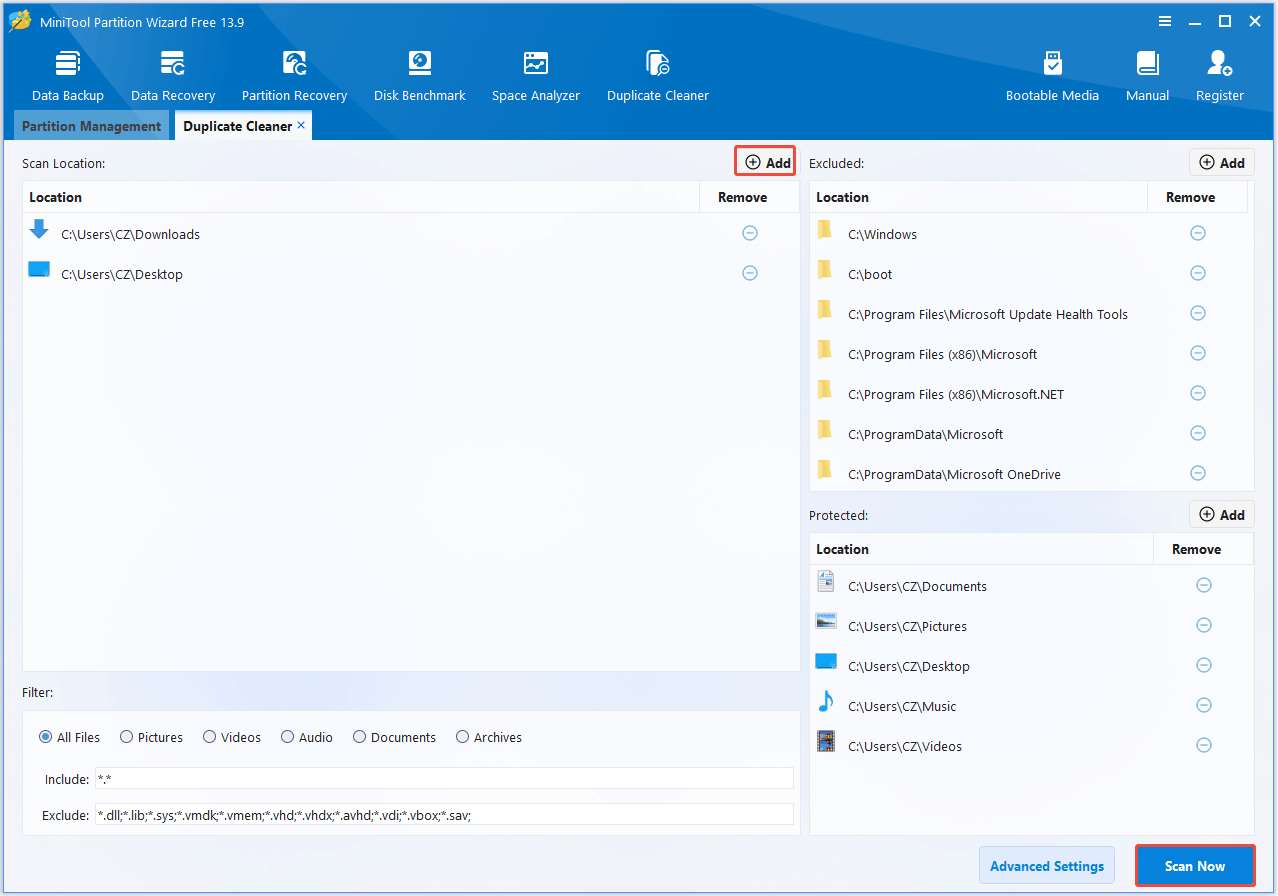
Step 3. Scan the extracted files.
In the Scan Location section, remove the selected locations and click Add to add the target folders that contain your extracted files. Then, click Scan Now to start the scan.
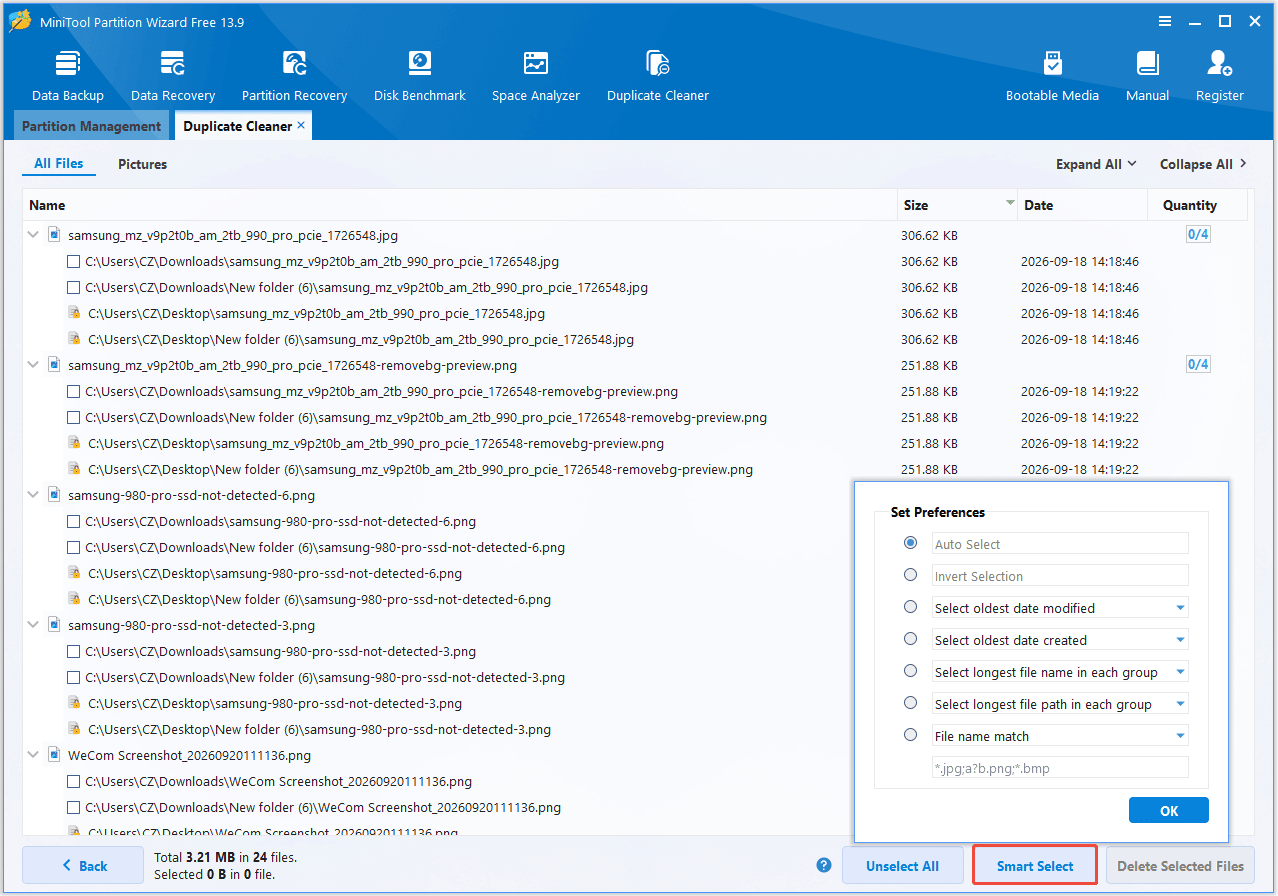
Step 4. Select all the unwanted duplicate files.
Click Smart Select, and choose a selection method based on your needs. Be sure to manually review the selected files in each group to ensure no important data is mistakenly marked for deletion. Then, click OK to continue.
Step 5. Delete the extra copies.
After selecting all the unwanted duplicate files, click Delete Selected Files. We recommend choosing the Move the selected files to the Recycle Bin option for safety. Then click OK to confirm.
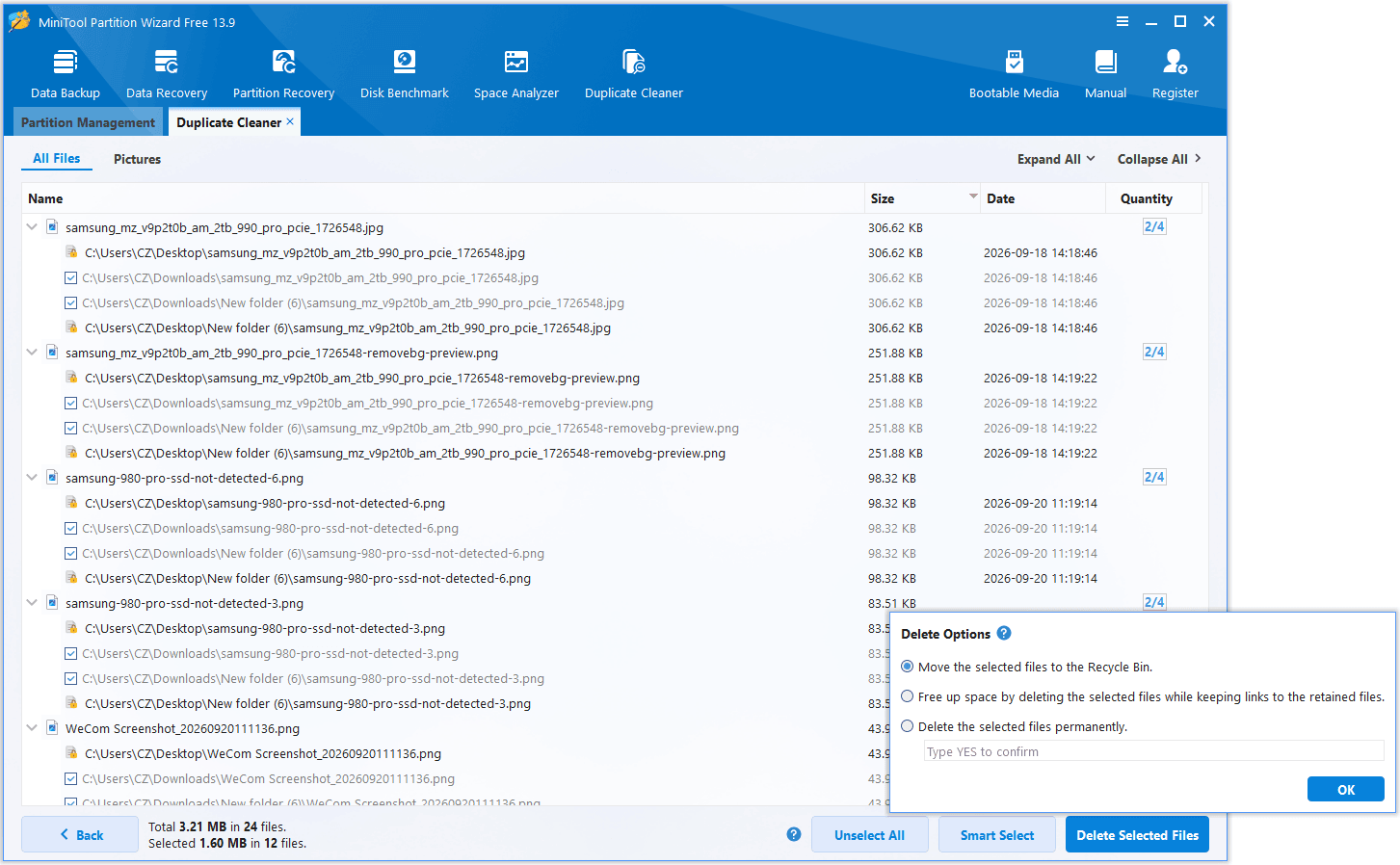
Review each group of identical files and delete the ones you do not need. Always keep at least one copy in every group.
After the cleanup, you can delete the extracted folders you no longer need, or keep the original ZIP files as a backup until you are sure nothing important was removed.
Method 2. Manually Find and Remove Duplicate Files
If you only have a few archives, you can compare files by hand. This takes longer and is easier to get wrong, but it needs no extra software.
- Extract all the target Zip files into one big folder
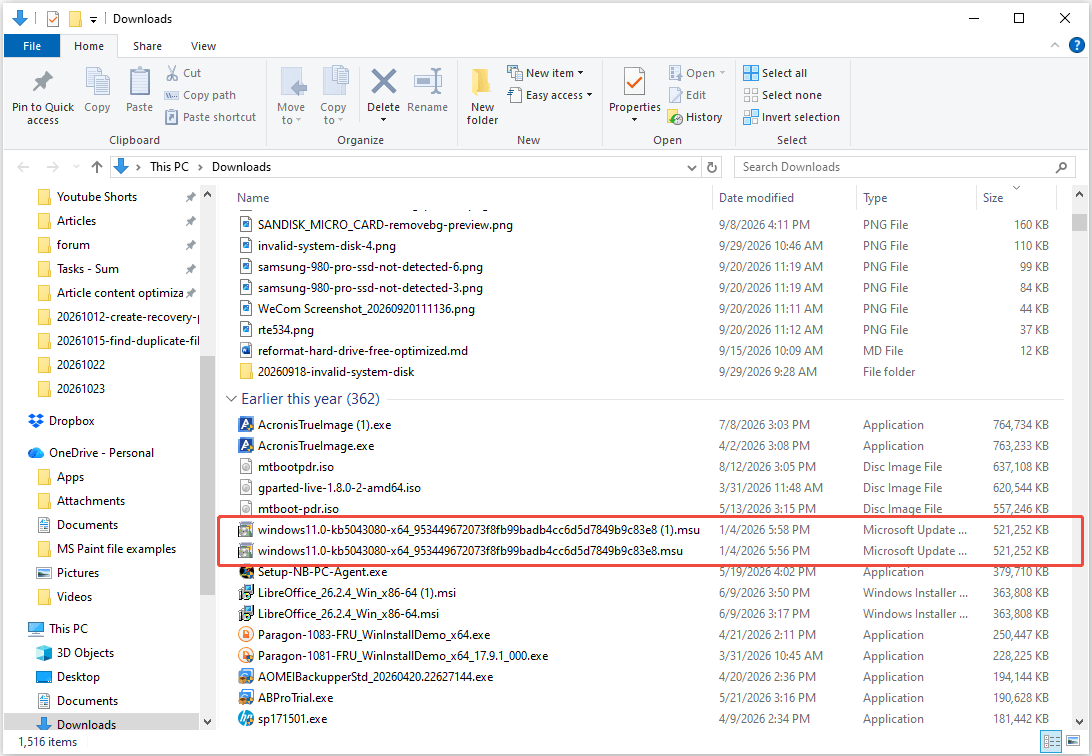
- Open the extracted folder in File Explorer and switch to Details view.
- Sort by Name, Size, or Type to bring likely matches together.
- For multiple extracted folders, open them in separate windows and compare their contents side by side.
- Open suspected duplicates with the appropriate application and inspect their contents.
- Delete only the copies you have confirmed.
Which Method Should You Choose?
| Situation | Recommended method |
| Many archives or thousands of files | MiniTool Partition Wizard’s Duplicate Cleaner |
| A few small archives | Manual comparison in File Explorer |
| You only want to inspect an archive before extracting | An archive tool that shows CRC values |
If you want speed and less risk of human error, use MiniTool Partition Wizard’s Duplicate Cleaner. If you only have a handful of files and prefer to stay in Windows, manual comparison is enough.
Tips for Safely Removing and Preventing Duplicate Files in ZIP Archives
Deleting files is hard to undo, and duplicates tend to come back if you do nothing about their source. These tips cover how to clean up safely and how to keep your files tidy afterward.
Part 1: Tips for Safely Removing Duplicates in ZIPs
Follow these tips to avoid deleting something you still need:
- Keep the original ZIP files until you finish. If you delete the wrong file, you can extract it again.
- Do not rely on names alone. Two files can share a name but have different content. Compare size, date, and ideally the hash.
- Keep one copy in every group. Never delete all the copies of a file.
- Be careful with system and program folders. Scan only your own documents, downloads, and backup folders.
- Send files to the Recycle Bin first. Empty it only when you are sure everything works as expected.
- Back up important data. Copy irreplaceable files to another drive before a large cleanup.
Part 2: Tips for Preventing Future Duplicates
These habits help keep duplicates from piling up again:
- Use clear archive names. Include the project, date, or version, such as photos_2026-10.zip.
- Extract into dedicated folders. Give each archive its own destination folder instead of dumping everything in one place.
- Delete redundant archives. After you extract and verify an archive, remove it if you no longer need it.
- Avoid repeated downloads. Check your Downloads folder before downloading the same archive again.
- Make incremental backups. Back up only new or changed files instead of full copies each time.
- Scan regularly. A quick duplicate scan every few months keeps clutter from building up.
Find Duplicate Files in ZIP Archives FAQ
Conclusion
To find duplicate files in ZIP archives on Windows, extract the contents into separate folders and review them manually or scan them with MiniTool Partition Wizard’s Duplicate Cleaner. Focus on content and file paths rather than filenames alone.
Remove only unnecessary copies, keep the original archives as a fallback, and create a new ZIP if you want to preserve the cleaned collection in archive form. Verify that replacement before discarding the original.
For issues related to MiniTool Partition Wizard, contact us via [email protected].
About The Author

Position: Columnist
Charlotte is a technology columnist with a strong focus on the Windows operating system, specializing in disk management, backup, and data recovery. She is passionate about analyzing computer errors, identifying root causes, and delivering practical solutions. In her free time, she stays updated on the latest developments in computer systems and hardware while continuously learning new technologies to broaden her expertise. Her writing style is clear and easy to understand, making complex technical topics accessible even to users with limited computer knowledge.
User Comments :