
Over time, using an SD card may accumulate duplicate files, including photos and videos. These duplicate files on the SD card will slow down performance. This post shows detailed steps to find and delete duplicate files on SD card using File Explorer and MiniTool Partition Wizard.
SD cards are essential for expanding storage space in cameras, smartphones, drones, and portable devices. However, frequent transfers, backups, and downloads inevitably lead to duplicate files (photos, videos, documents, and audio clips).
Duplicate files typically form when:
- Files are transferred multiple times between devices.
- Older versions are not overwritten when backing up the SD card.
- The same file is downloaded or saved with slightly different filenames, such as “IMG_123.jpg” and “IMG_123(1).jpg”.
- Cloud storage (OneDrive, Google Drive) is synced with the SD card.
These duplicate files consume storage space, slow down access, and complicate file management.
Therefore, regularly cleaning up duplicate files is crucial for maintaining optimal performance and preventing storage space from becoming depleted.
This guide explores two effective methods for deleting duplicate files on your SD card in Windows 10/11. With manual deletion and an advanced automation tool, you can optimize your storage space without losing data.
Method 1. Delete Duplicate Files on SD Card Manually
This method is best for a small number of files because they allow you to easily spot duplicate files by name or size. Follow these steps for safe manual deletion:
Step 1. Access the SD card in your computer.
- Insert your SD card into your computer’s card reader. If your PC doesn’t have a built-in reader, use an external card reader.
- Press the Windows + E key on your keyboard to open File Explorer.
- In the left pane, click This PC.
- In the right pane, locate your SD card under Devices and drives. Double-click to open it.
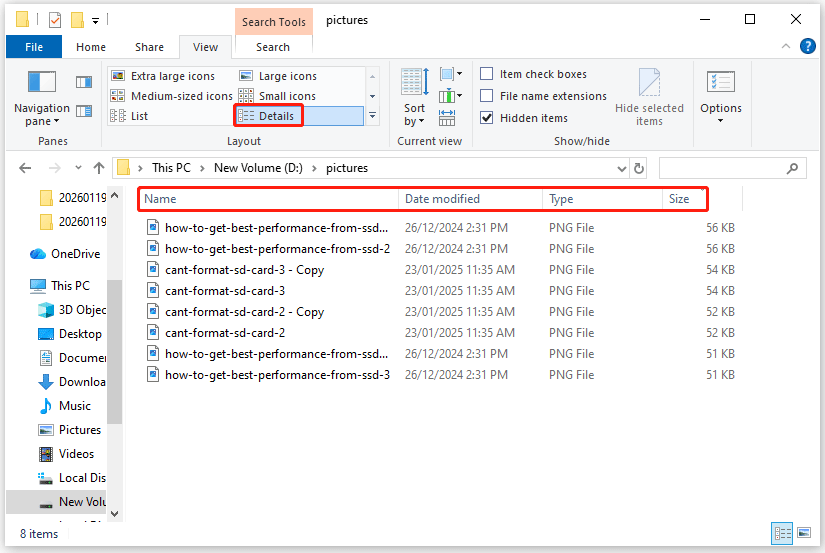
Step 2. Change the View to Details to see duplicate files easily. This will display file properties such as size, date modification, and type.
- For Windows 10, go to the View tab at the top of the File Explorer window. In the Layout section, select Details.
- For Windows 11, click View at the top toolbar, and then select Details from the drop-down menu.
Step 3. Sort the duplicate files by clicking the Name, Date modified, or Size column. Sorting makes it easier to spot potential duplicates, which often have similar names (e.g., “IMG_123.jpg” and “IMG_123 (Copy).jpg”) or identical sizes.
- Click the Name column to group identical or similar filenames.
- Click the Date modified column to identify duplicate files resulting from recent duplicate transfers.
- Click the Size column to sort files by size. Duplicates are often the same size.
You can also use the search bar to filter by file type (e.g., .jpg, .docx, .pdf, .mp4), size, or name.
Step 4. Identify and delete duplicates.
- Manually review the files to confirm which ones are duplicates.
- Right-click the duplicate files and choose Delete. To select multiple non-consecutive files, hold down the Ctrl key while clicking on them.
Method 2. Delete Duplicate Files on SD Card Automatically
For SD cards with hundreds or thousands of files, third-party duplicate file finders are the most efficient choice. MiniTool Partition Wizard is a free duplicate file cleaner, which uses advanced algorithms (hash values) to compare file content rather than just names or sizes.
Now, try the steps below to find and delete duplicate files on SD card.
MiniTool Partition Wizard FreeClick to Download100%Clean & Safe
Step 1. Ensure your SD card is properly connected to your computer.
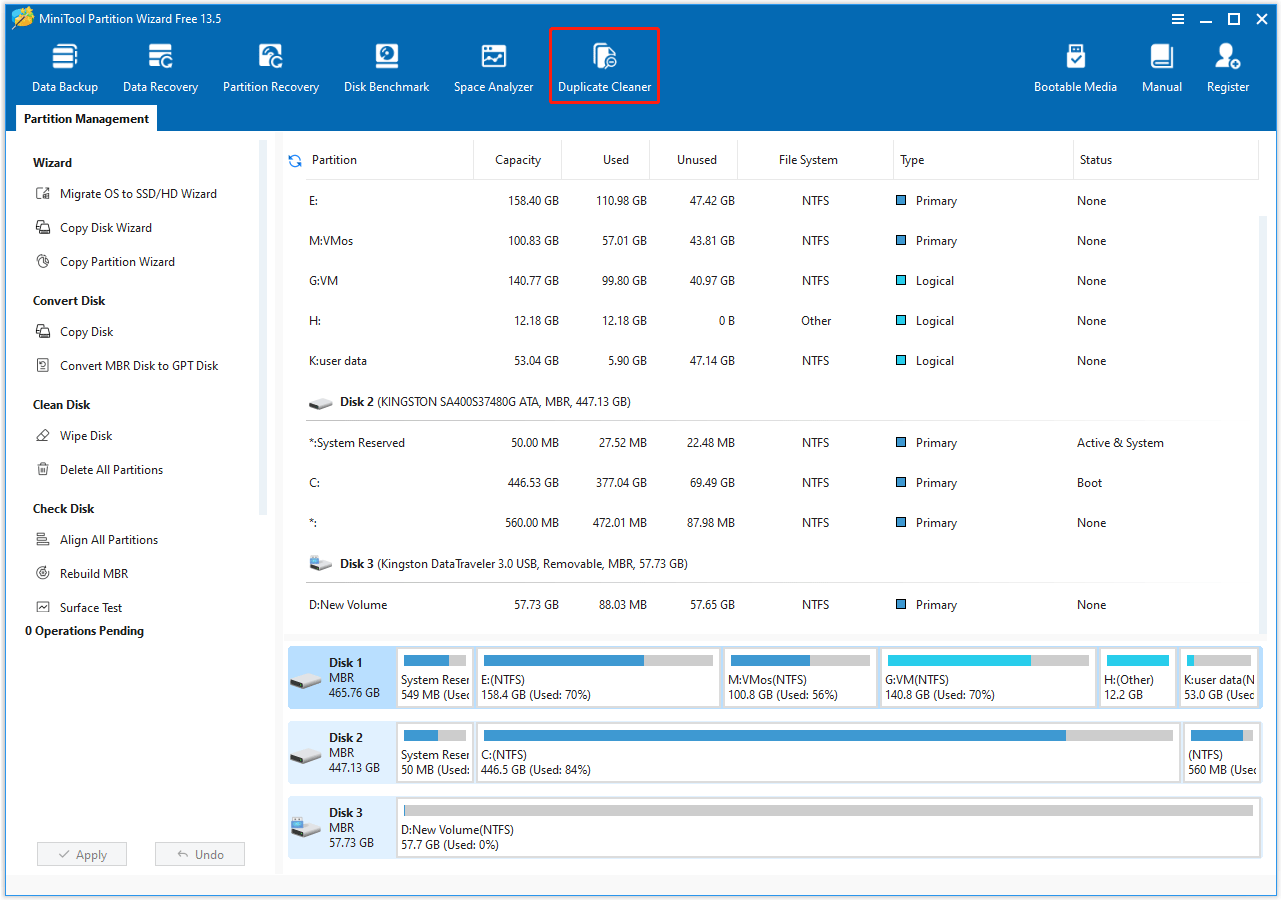
Step 2. Download and install this software on your computer. Then launch it. On the top toolbar of the main interface, select the Duplicate Cleaner feature.
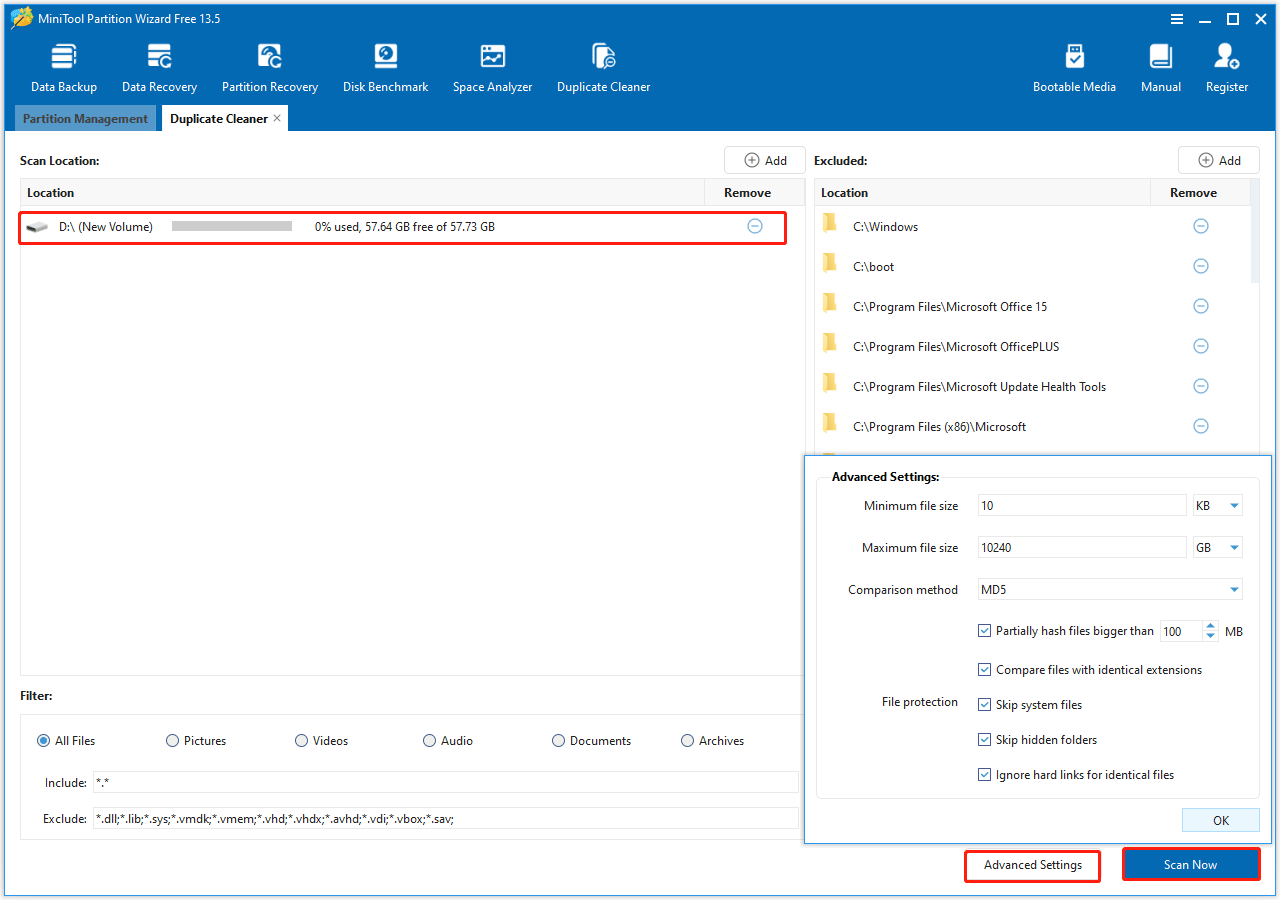
Step 3. In the following interface, all detected partitions with drive letters are displayed. To only remove duplicate files on SD card, click the Remove icon under Location to remove other partitions.
Then click Scan Now. The software automatically excludes important system files from the scan.
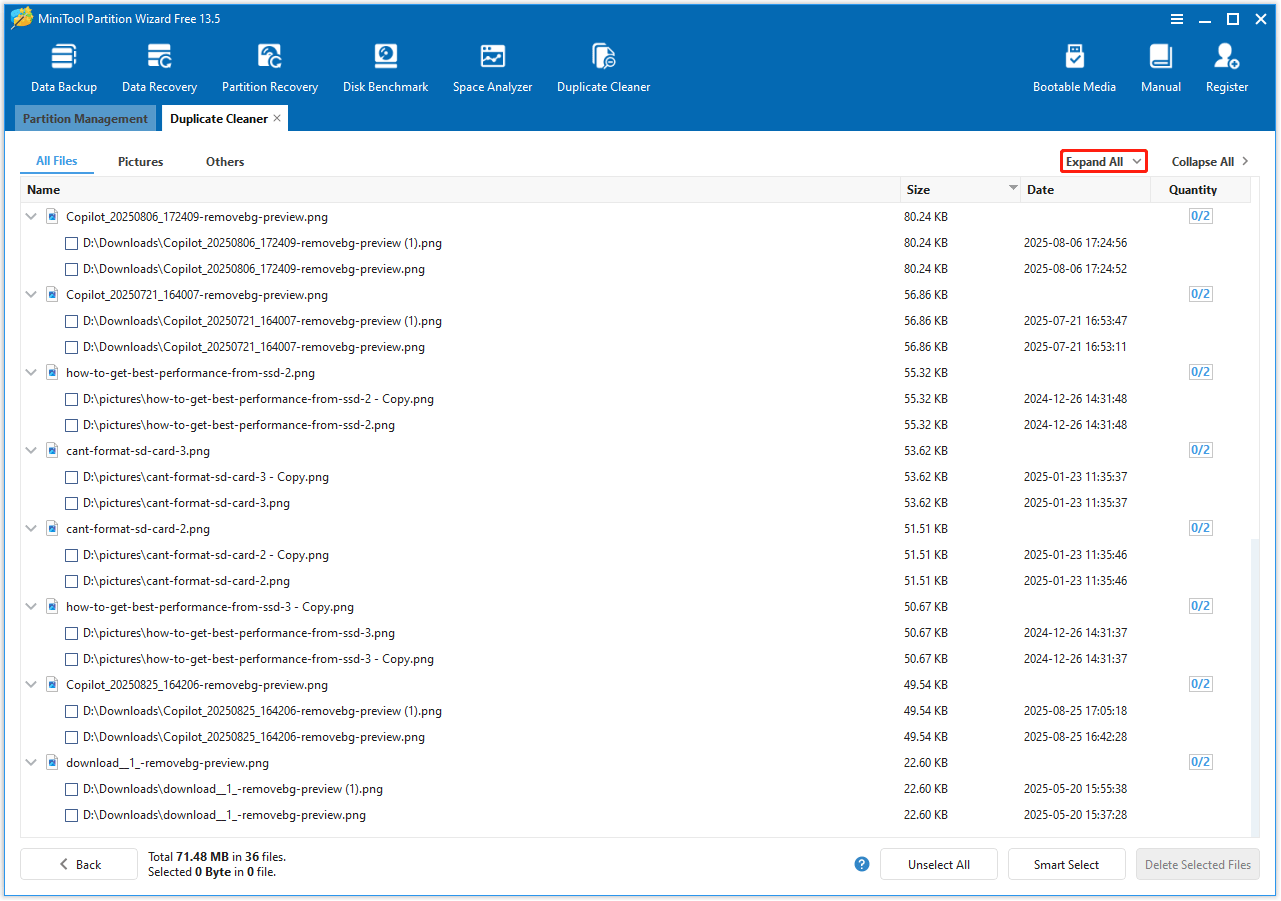
Step 4. Once the scan is complete, the results will show all duplicate files with their size and quantity. To view the full path of all duplicate files, click Expand All.
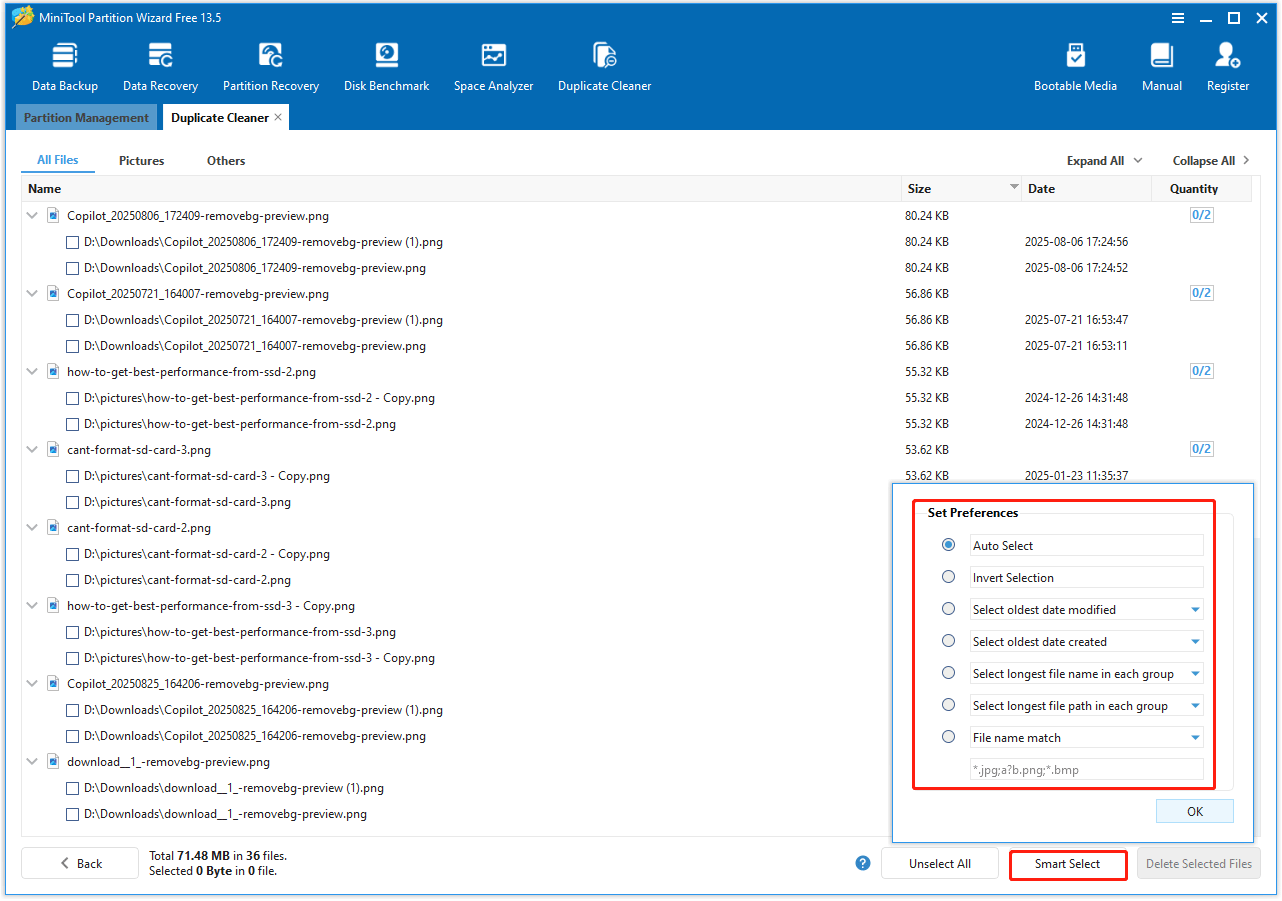
Step 5. Click Smart Select and then select different selection methods according to your needs.
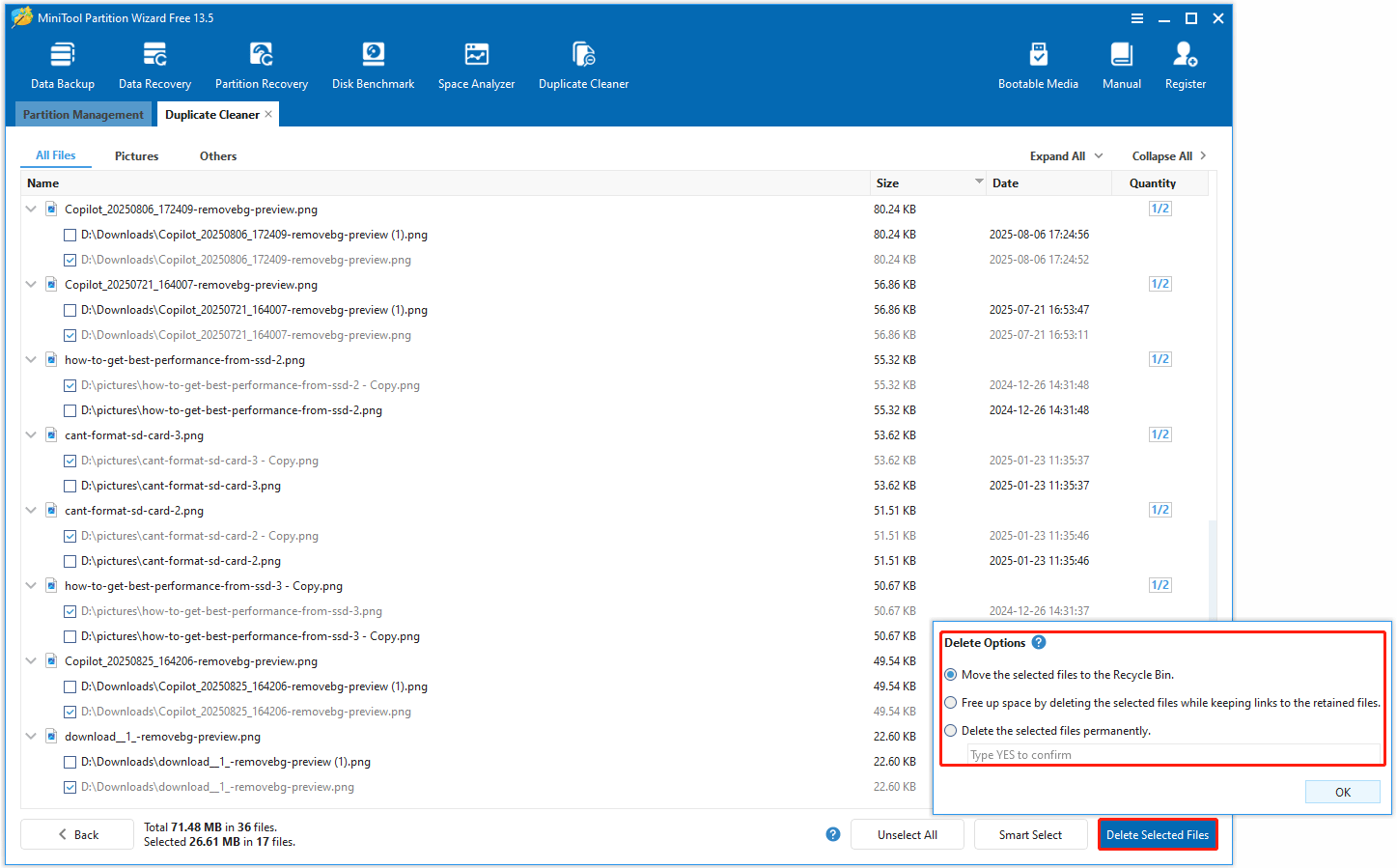
Step 6. Click Delete Selected Files to choose different deletion options. Then click OK to start the deletion of duplicate files. By default, they are often moved to the Recycle Bin for safety, but you may have an option for permanent deletion.
What’s the difference between Windows File Explorer and MiniTool Partition Wizard? The primary difference lies in automation, accuracy, and efficiency.
| Feature | Windows File Explorer | MiniTool Partition Wizard |
| Method | Manual | Automatic |
| Accuracy | Low | High |
| Speed | Slow | Fast |
Obviously, MiniTool Partition Wizard is the superior method because it automates the process and compares file content more accurately.
How to delete duplicate files on SD card? This post offers 2 effective approaches.Click to Tweet
Delete Duplicate Files on SD Card FAQ
1. Use consistent file-naming conventions (e.g., “2026-01-Vacation-IMG123.jpg”).
2. Use cloud storage sync tools with “replace duplicates” enabled.
Bottom Line
Deleting duplicate files from SD cards in Windows can free up storage space, provide faster access times, and organize data.
For small-scale cleanups, manual deletion suffices. For large file detection, third-party software like MiniTool Partition Wizard offers efficiency and safety.
If you have any questions or suggestions on how to use MiniTool Partition Wizard, do not hesitate to contact us via [email protected]. We’ll reply as soon as possible.
User Comments :