
This article will help you delete duplicate files on external hard drive. It explains the common reasons and provides step-by-step instructions for deleting duplicate files on an external hard drive using File Explorer and MiniTool Partition Wizard.
External hard drives are commonly used to back up photos, videos, and work files, but over time, duplicate files can accumulate.
These duplicate files not only take up a significant amount of storage space but also reduce file search efficiency and can even lead to backup disorganization.
Therefore, it’s essential to promptly delete duplicate files from your external hard drive.
Below, this post will explain the common reasons for duplicate files appearing on external hard drives and how to delete them.
Why Do External Hard Drive Often Have Duplicate Files?
When using external hard drives in daily life, duplicate files are often created unintentionally. The common reasons include:
1. Multiple backups of the same set of files.
To avoid data loss, many users perform regular backups, but if old files are not cleaned up beforehand, the same content may be repeatedly saved to the external hard drive.
2. Keeping old files during manual copy and paste.
When transferring or organizing files, if the system prompts that a file already exists and the user chooses to “keep both files”, duplicate files will be automatically generated.
3. Repeatedly importing files from different devices.
When users import data from multiple devices, such as computers, mobile phones, or cameras, to an external hard drive, it’s easy to re-import files that already exist.
4. Automatic creation of copies by the system or synchronization software.
Some synchronization or backup software may automatically create file copies when updating, synchronizing, or restoring data.
In summary, these operations can inadvertently increase the number of duplicate files on the external hard drive.
Well, how to remove duplicate files on external hard drive? Here are two methods for you.
Method 1: Use File Explorer to Delete Duplicate Files on External Hard Drive
File Explorer is a built-in tool in Windows systems, so you don’t need to install any additional software.
This method is best suited for situations where there are a small number of files on the external hard drive and duplicate files are easily identifiable, such as files with the same filename.
By using File Explorer’s sorting and search functions, you can manually find and delete duplicate files on an external hard drive.
Here are the steps:
Step 1: Open your external hard drive on your PC.
- Connect your external hard drive to your computer via an M.2 to USB adapter or a SATA to USB adapter.
- Click the File Explorer icon to open it.
- In the left pane, click This PC.
- Under the Devices and drives section from right side, double-click your external hard drive to open it.
Step 2: Switch the View to Details to make it easier to spot duplicate files on the external hard drive.
- In Windows 10, click the View tab at the top of the File Explorer window, then choose the Details option under the Layout section.
- In Windows 11, choose the View > Details option.
Step 3: You can find the duplicate files on an external hard drive by clicking on the Name, Date Modified, Type, or Size column.
- Choose a way to find files, such as sorting by name, modification date, type, or size, and then click the corresponding column.
- You can also use the search bar to filter by file type (e.g., .pdf, .mp3), size, or name.
Step 4: Find your target duplicate files on the external hard drive and delete them.
- Manually check the files to verify which ones are duplicates.
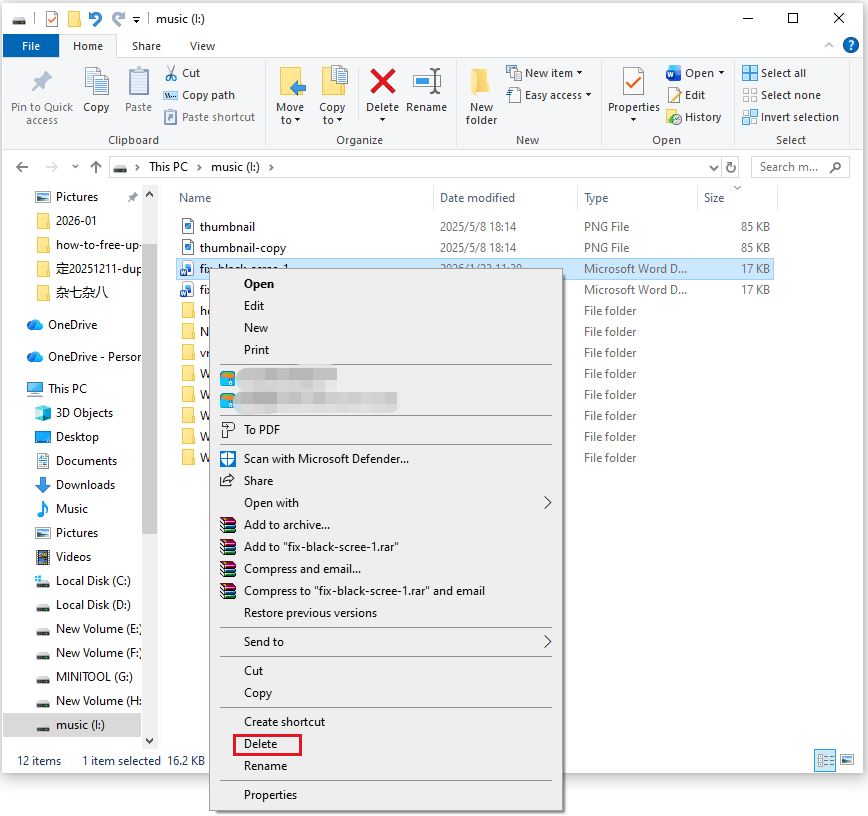
- Once you’ve identified the duplicates, select them, right-click, and choose Delete.
Method 2: Use MiniTool Partition Wizard to Delete Duplicate Files on External Hard Drive
Although Windows File Explorer can help you find and delete some duplicate files, its functionality is quite limited, especially when dealing with a large number of files.
For more efficient file management on external hard drives, using a professional tool like MiniTool Partition Wizard would be a better option.
MiniTool Partition Wizard not only supports deleting duplicate files on external hard drive/USB/SD card, but also provides many powerful disk management features, such as recovering data from external hard drive, formatting external hard drive, etc.
The following are detailed steps for deleting duplicate files on an external hard drive using MiniTool Partition Wizard:
MiniTool Partition Wizard FreeClick to Download100%Clean & Safe
Step 1: Download and install MiniTool Partition Wizard on your computer. Connect your external hard drive on PC.
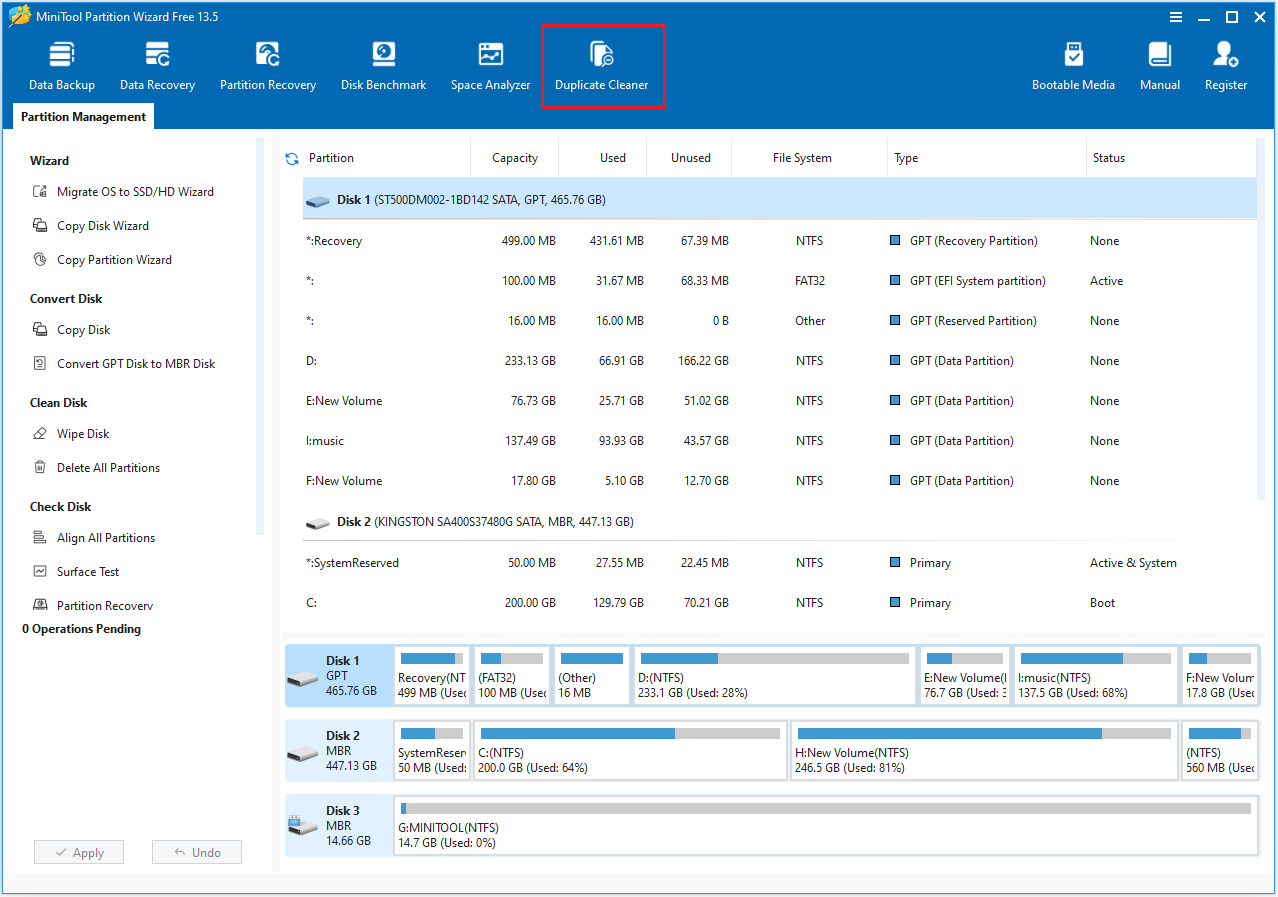
Step 2: Launch it to its main interface, check the drive letter of the external hard drive, and then click Duplicate Cleaner.
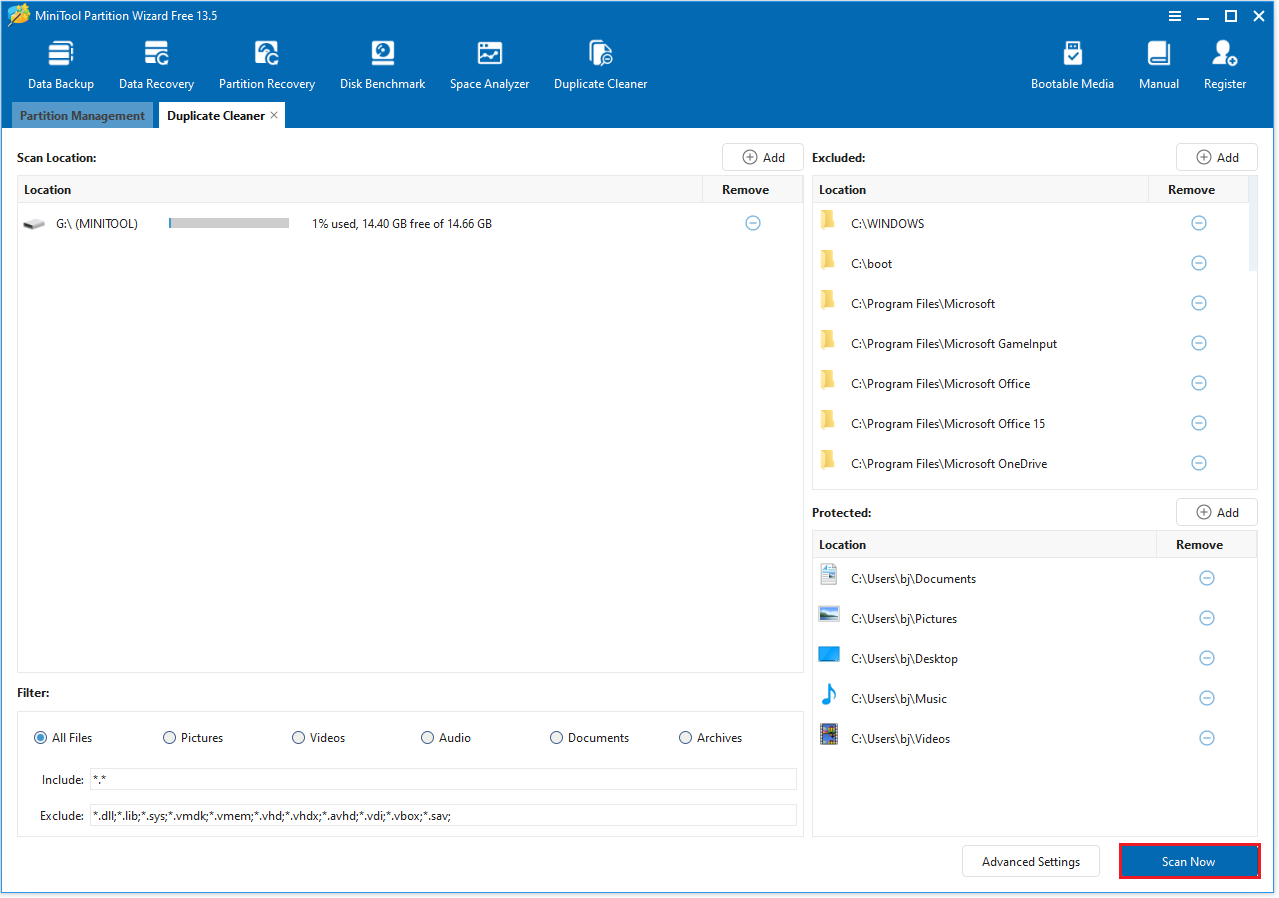
Step 3: On the new tab, under Scan Location, click the minus signs to remove all drives except for the external hard drive. Then click Scan Now. This will only find and delete duplicate files on the external hard drive.
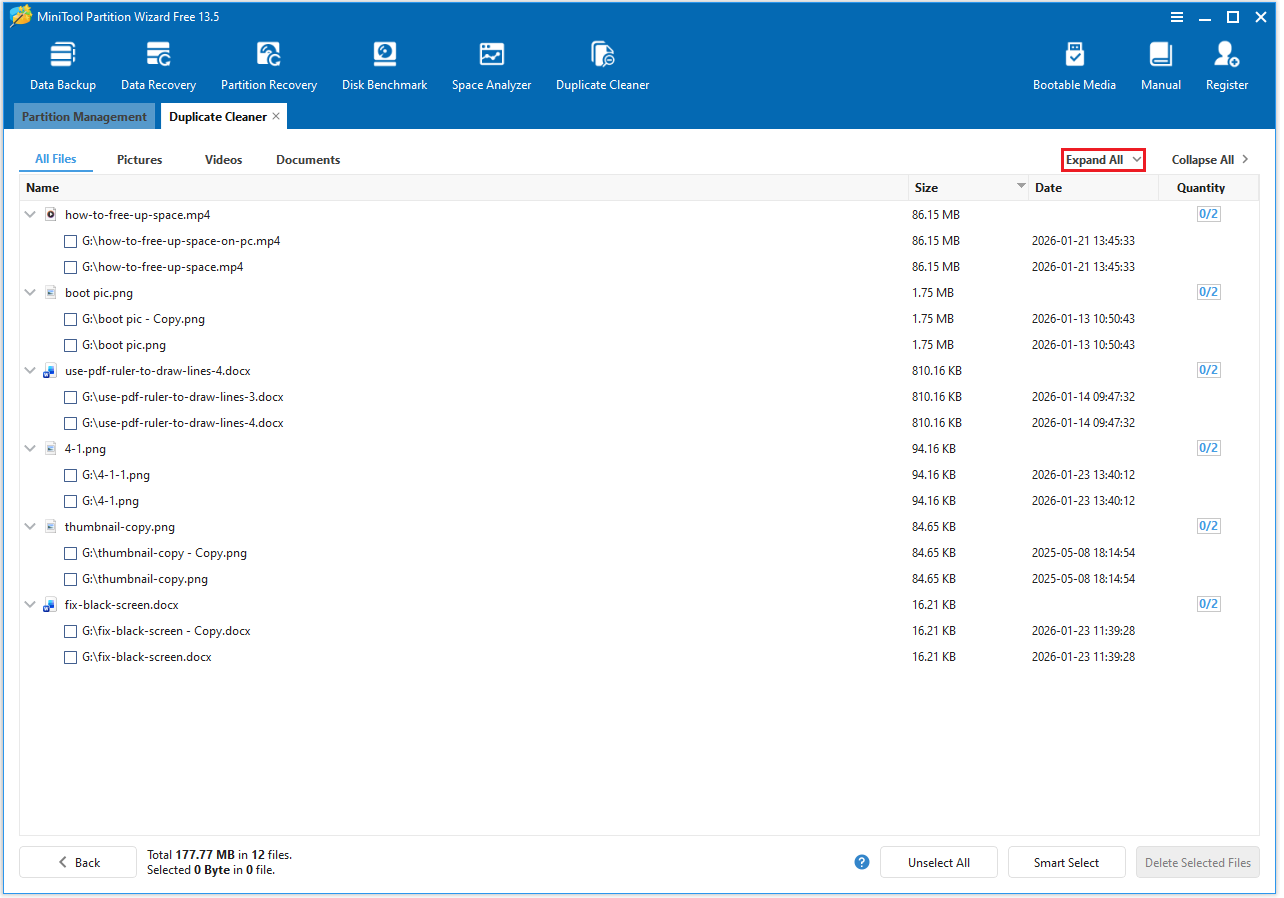
Step 4: After the scan is complete, to view the full paths of all duplicate files, click Expand All.
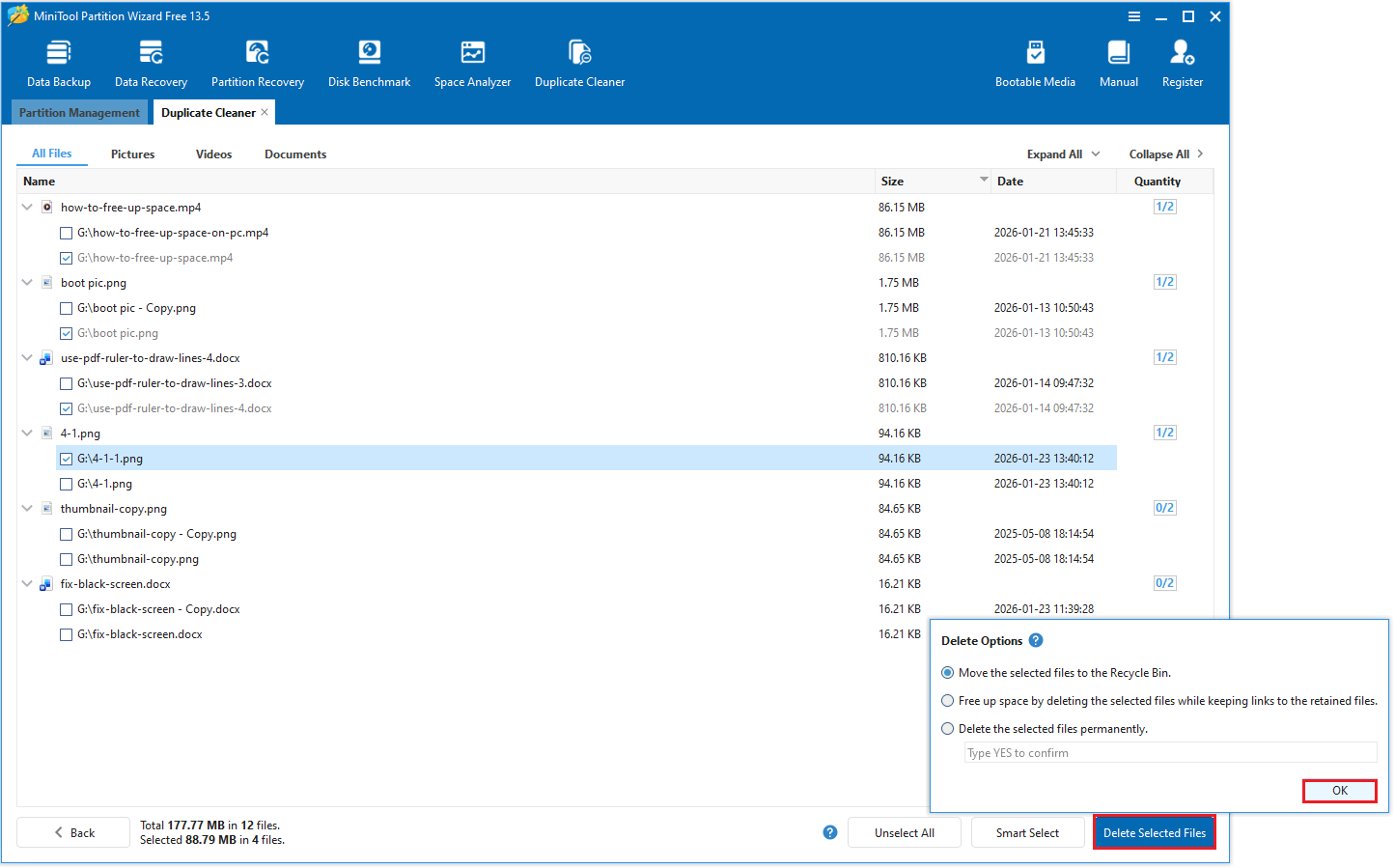
Step 5: After choosing the duplicate files you want to delete, click the Delete Selected Files button and select one of the options. Then click OK.
1. Move the selected files to the Recycle Bin: This option will move the files to the Recycle Bin.
2. Free up space by deleting the selected files while keeping links to the retained files: Duplicate files will be deleted, and hard links will be created.
3. Delete the selected files permanently: This option means that the selected files will be permanently deleted. You will need to enter YES again to confirm.
How to Prevent Duplicate Files on External Hard Drive in the Future?
To prevent duplicate files from appearing on your external hard drive in the future, you can take several preventative measures.
Here are some effective strategies:
- Use special synchronization software: Some tools can compare files by content, automatically skipping identical files during the synchronization process. An example is the FreeFileSync tool.
- Use “move” instead of “copy”: Use cut and paste (Ctrl + X then Ctrl + V) to move files from your computer to the drive, instead of copying (Ctrl + C then Ctrl + V), as copying itself creates a duplicate.
- Regularly clean up files: Regularly run a dedicated duplicate file finder to scan and delete any duplicate files. It’s best to adopt a consistent file naming convention and folder structure.
Delete Duplicate Files on External Hard Drive FAQ
2. Using a tool: Duplicate file finder tools automatically scan and list duplicate files. You can delete them with a single click, saving time and ensuring accuracy.
Bottom Line
This article explains why external hard drives often have duplicate files and teaches you use MiniTool Partition Wizard and File Explorer to find and remove the duplicate files on an external hard drive.
If you have any questions or feedback about MiniTool Partition Wizard, feel free to contact our support team at [email protected] for additional help.
User Comments :