

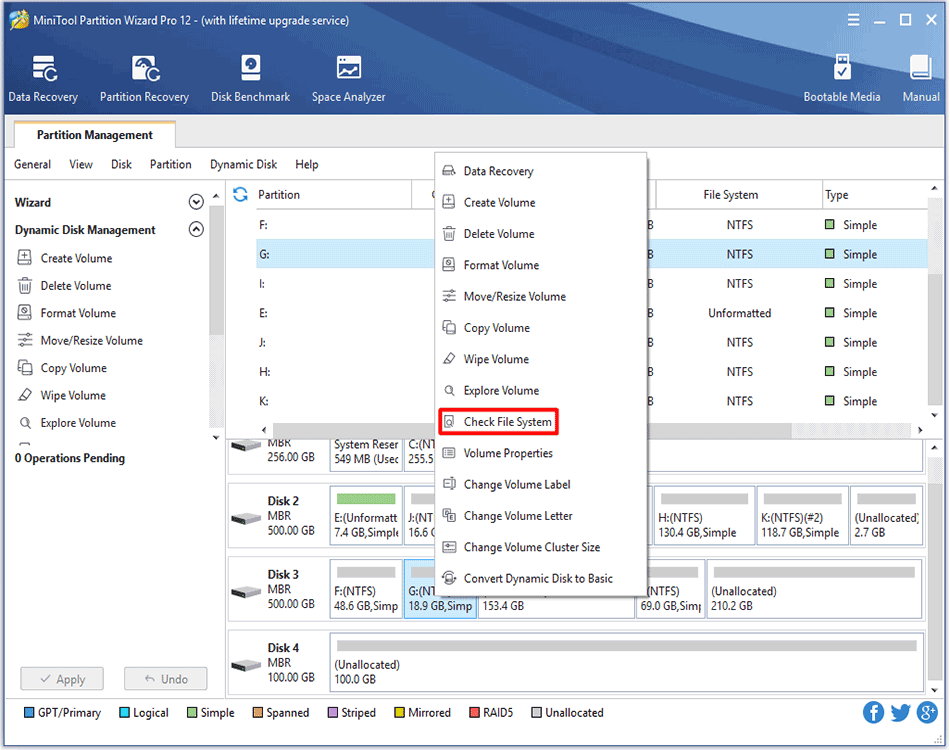
How to Check Volume File System | MiniTool Partition Wizard Guide
MiniTool Partition Wizard can help users to check file system easily and safely on dynamic disks.
By Rodin
MiniTool Partition Wizard can help users to check file system easily and safely on dynamic disks.
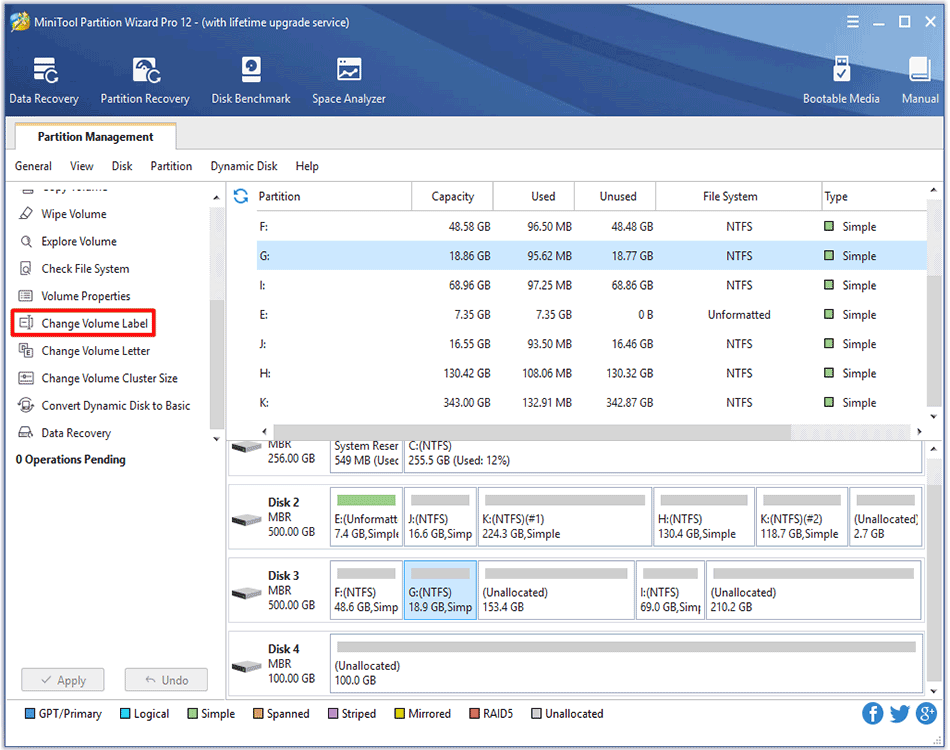
Windows users can easily change volume label on dynamic disk with MiniTool Partition Wizard without data loss.
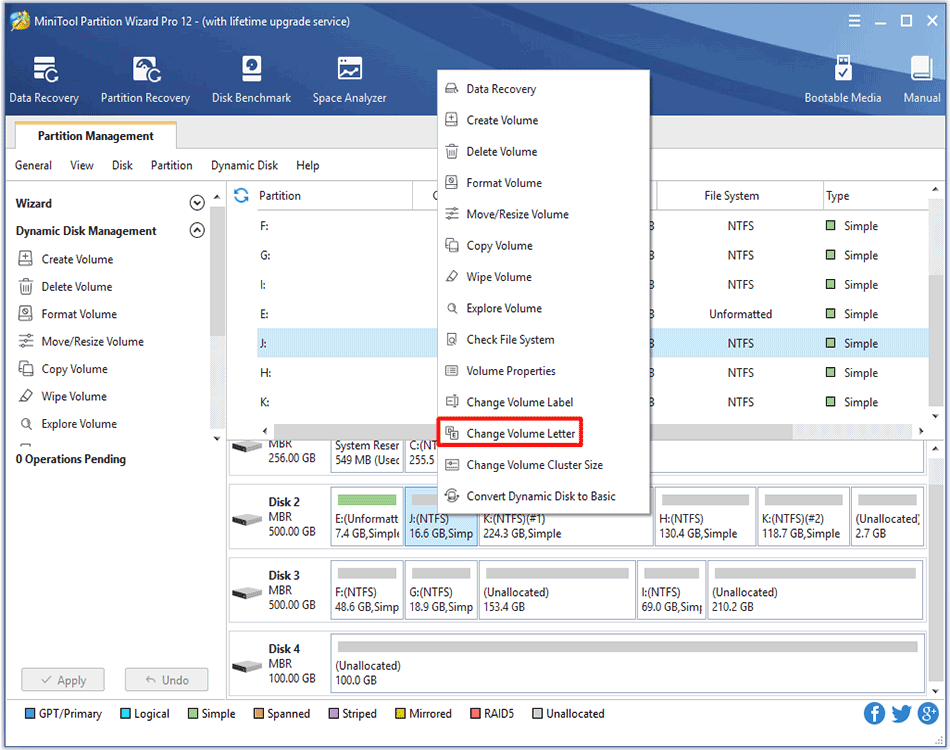
To change volume letter with a professional partition manager - MiniTool Partition Wizard is a good choice without data loss.
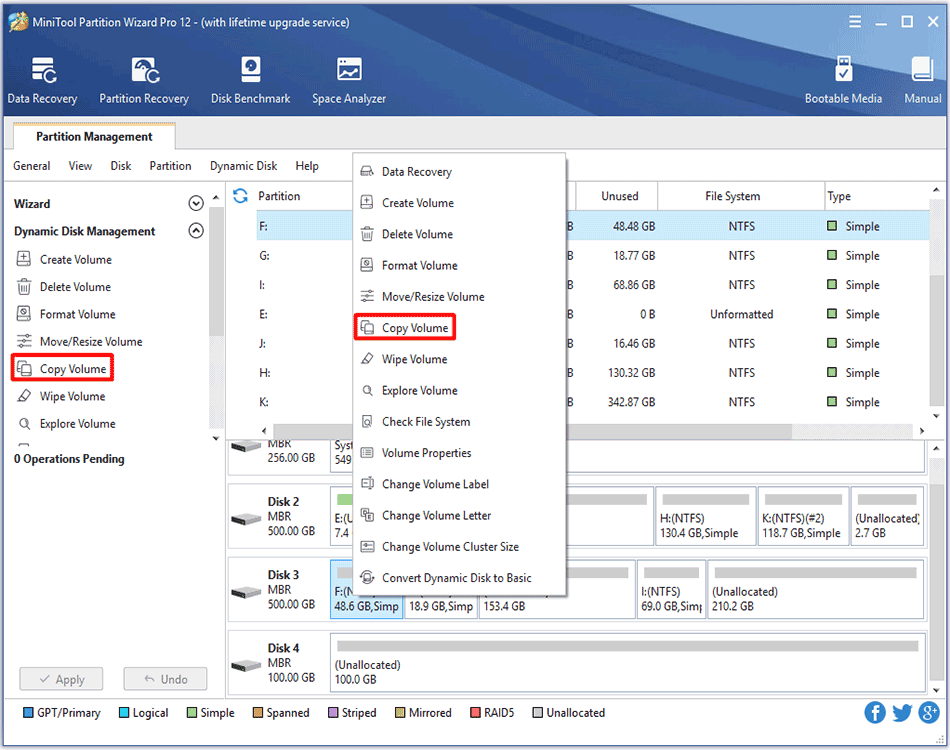
For detailed steps to copy dynamic volume, users can turn to the MiniTool Partition Wizard tutorial shown in this article.
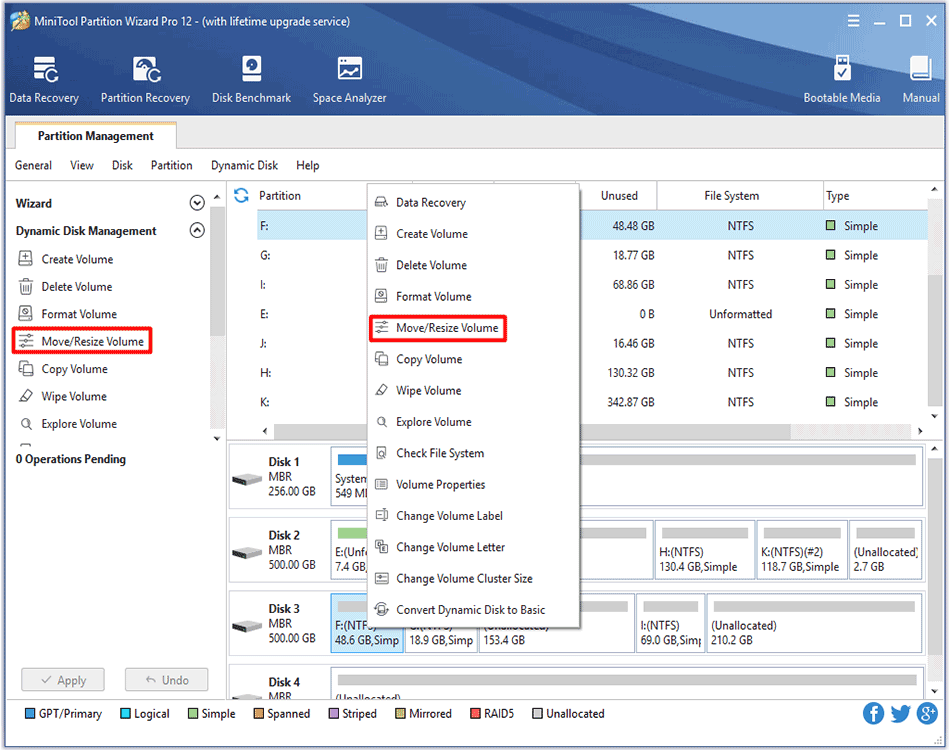
Move/Resize Volume feature in MiniTool Partition Wizard helps extend, shrink or move a dynamic volume with ease. See detailed steps here.
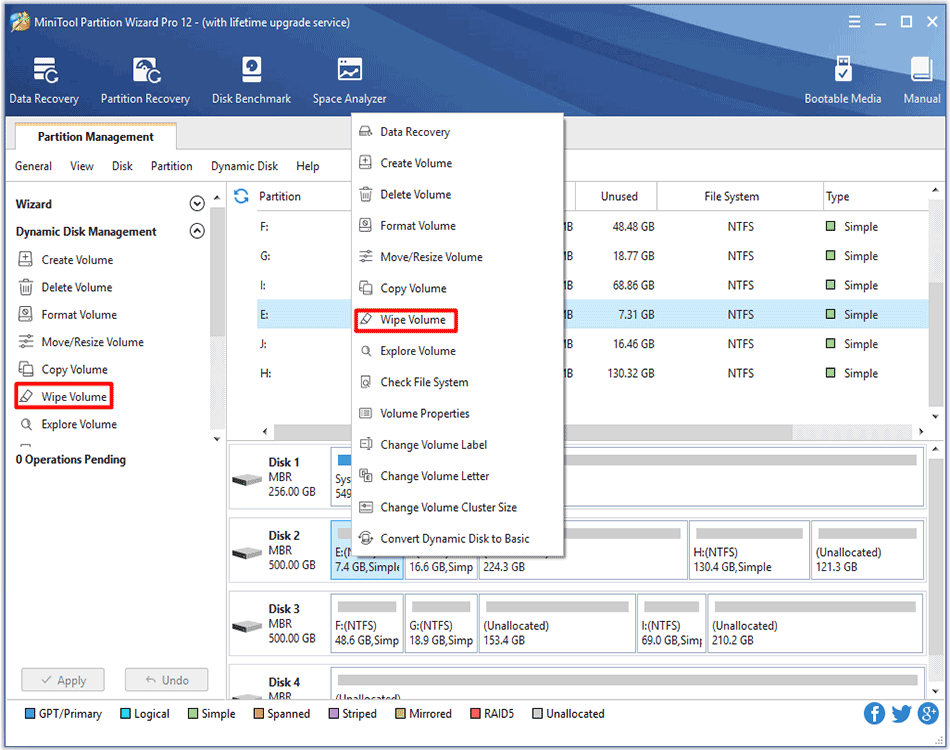
Need to wipe volume so as to erase data permanently? MiniTool Partition Wizard can complete this job with its Wipe Volume feature.
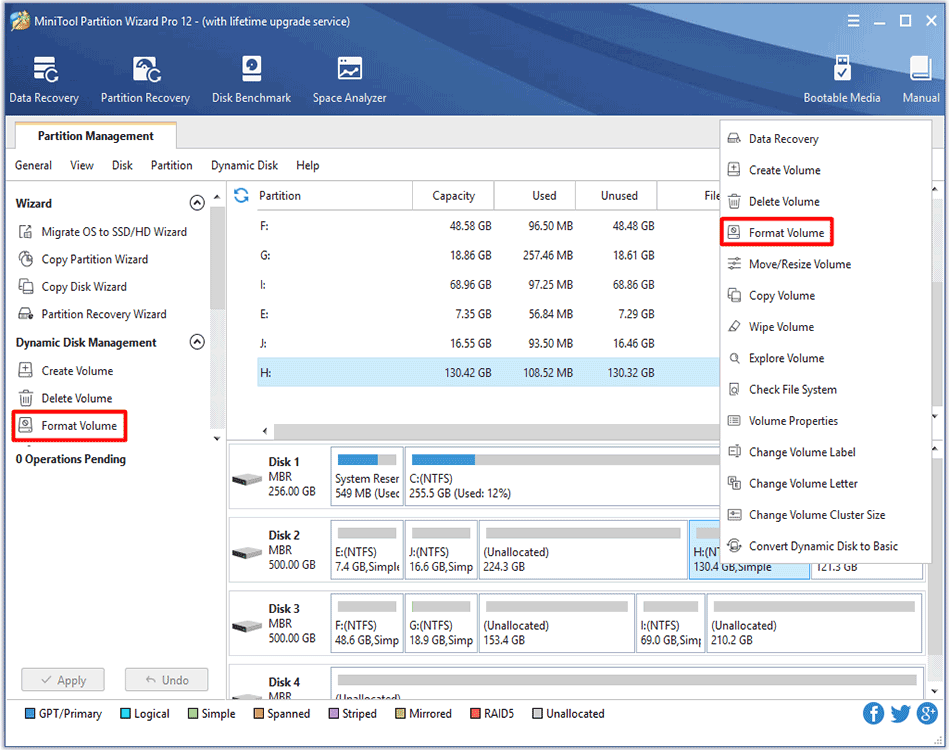
Format Volume feature provided by MiniTool Partition Wizard is very helpful to delete excessively redundant data on the volume.
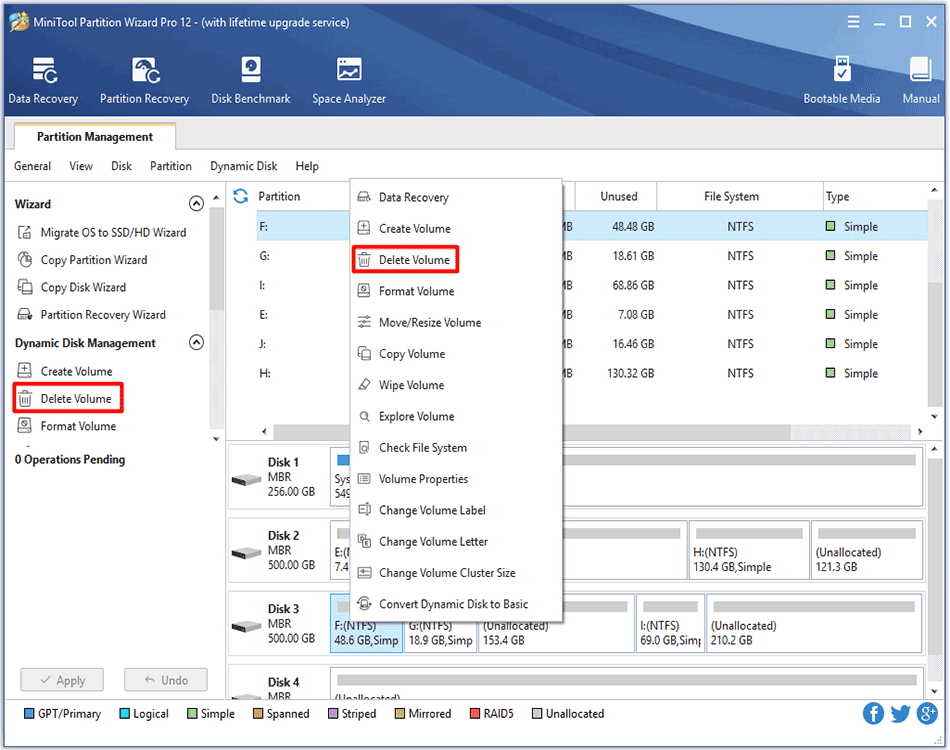
Delete Volume feature provided by MiniTool Partition Wizard can help users to delete dynamic volume so as to gain more unallocated space.
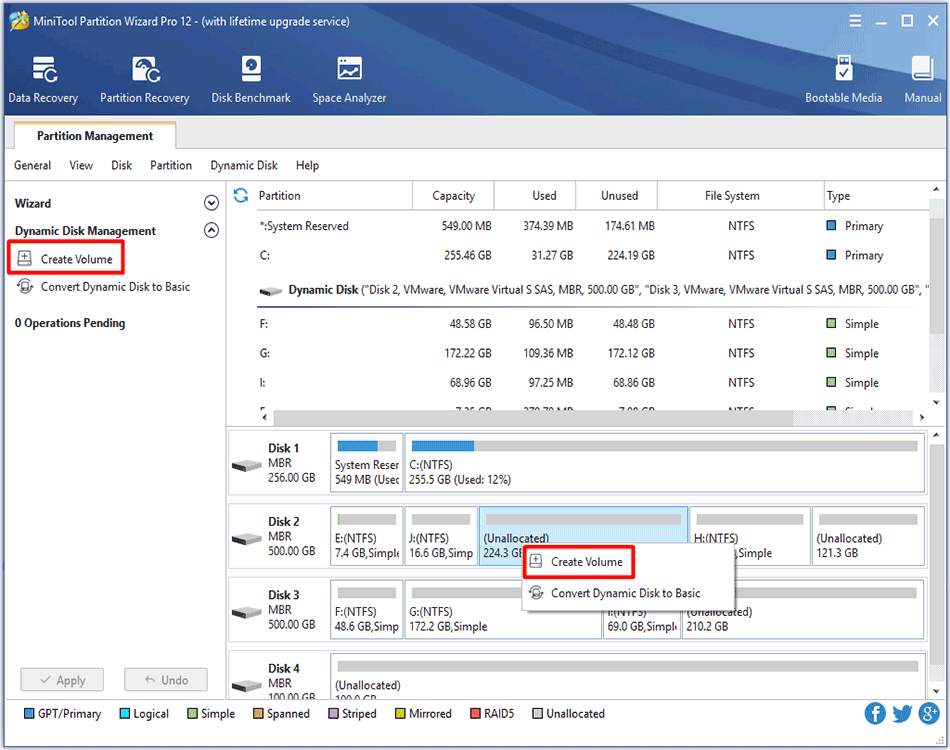
To create volume is easy to perform with the help of MiniTool Partition Wizard supporting multiple volume types such as Stripped Volume, Spanned Volume, etc.
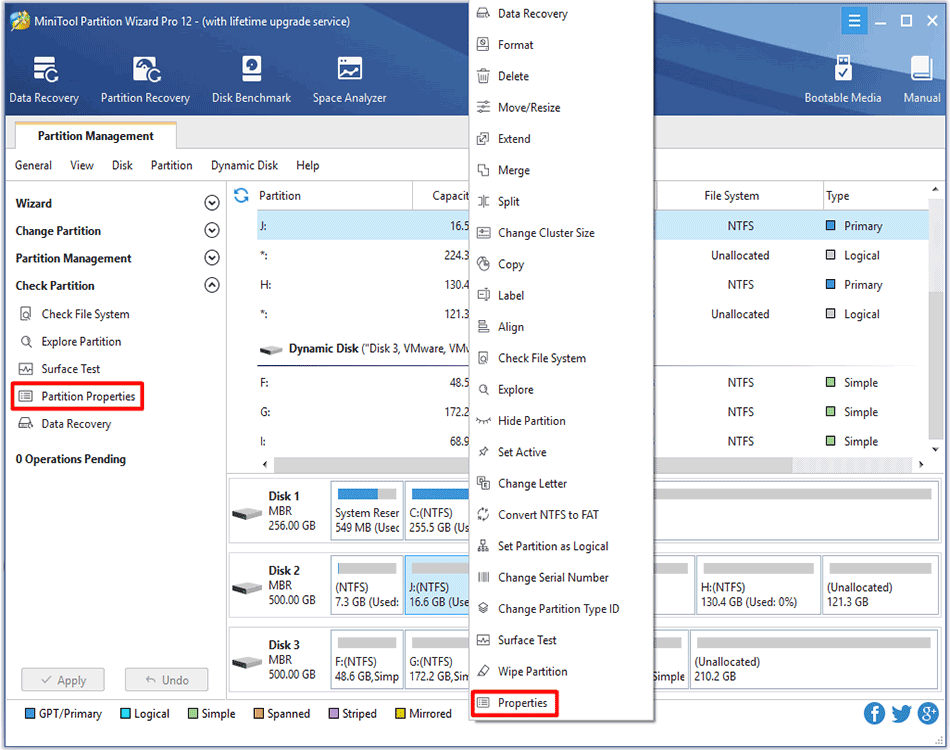
See how to view partition properties with partition magic and then users can easily and clearly view partition properties information.
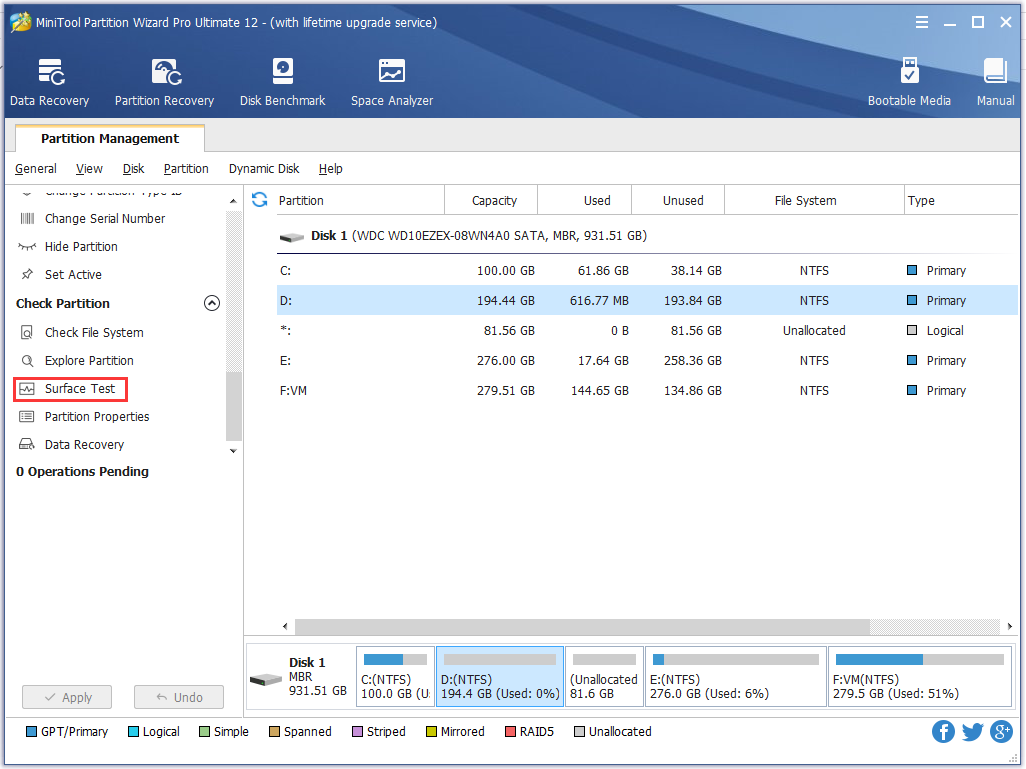
How to identify if there are bad sectors on the partition? Partition surface test tool - MiniTool Partition Wizard is suggested to scan partition sector status.
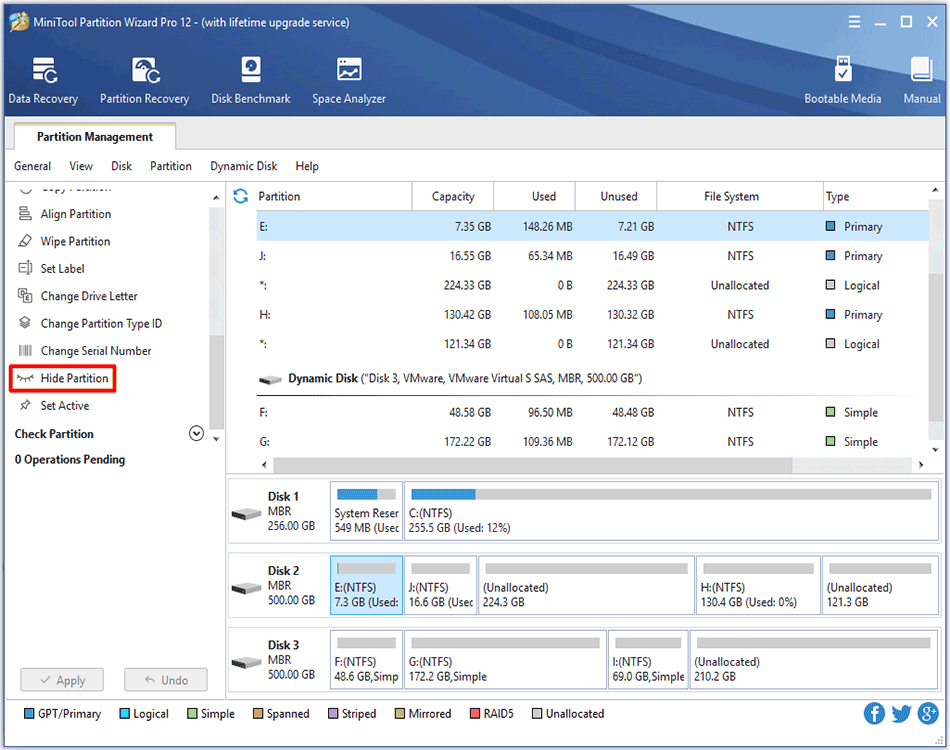
The work to hide/unhide partition will become easier than users originally expected with the help of MiniTool Partition Wizard.