
What Is Volume Shadow Copy Service Error?
Volume Shadow Copy Service (VSS) is a Windows component that creates snapshots of files, volumes, and system data while applications continue running.
Windows uses VSS for:
- System Restore
- Windows Backup
- System Image Backup
- Third-party backup software
If VSS fails, backups and restore operations may stop working correctly.
You may receive a Volume Shadow Copy Service error when trying to create a Windows backup, system image, or restore point.
Common error messages include:
- Volume Shadow Copy Service error 0x80042302
- Volume Shadow Copy Service Operation failed (0x807800A1/0X800423F4)
- Volume Shadow Copy Service error 0x81000202
Error Code | Likely Cause |
0x80042302 | Service disabled |
0x800423F4 | VSS Writer error |
0x807800A1 | Hard drive errors |
0x81000202 | VSS disabled |
In most cases, these errors occur because the VSS service is disabled, a VSS Writer has failed, system files are corrupted, or third-party backup software is interfering with Windows backup operations.
VSS errors are various according to different Windows operating systems (PC OS and Server) and situations. Here we will show you some common errors in Windows 11/10 when creating a Windows system image and doing a system restore.
Error 1. Volume Shadow Copy Service Error 0x80042302 During Backup
Some users reported that when backing up Windows to a new external hard drive but failed with error message 0x80042302. The details are as follows:
“The backup application could not start due to an internal error:
A Volume Shadow Copy Service component encountered an unexpected error. Check the Application event log for more information. (0x80042302).”
This error typically indicates that the VSS service is disabled, not running, or that system files are corrupt. This error prevents Windows from creating snapshots required for backups or system restore points.
To fix it, enable and restart VSS services. Here is the guide:
- Press Win + R, type msc, and hit Enter.
- Locate Volume Shadow Copy.
- Right-click it, select Properties, set Startup type to Automatic, and click Start.
- Repeat this for Microsoft Software Shadow Copy Provider.
- Restart your computer.
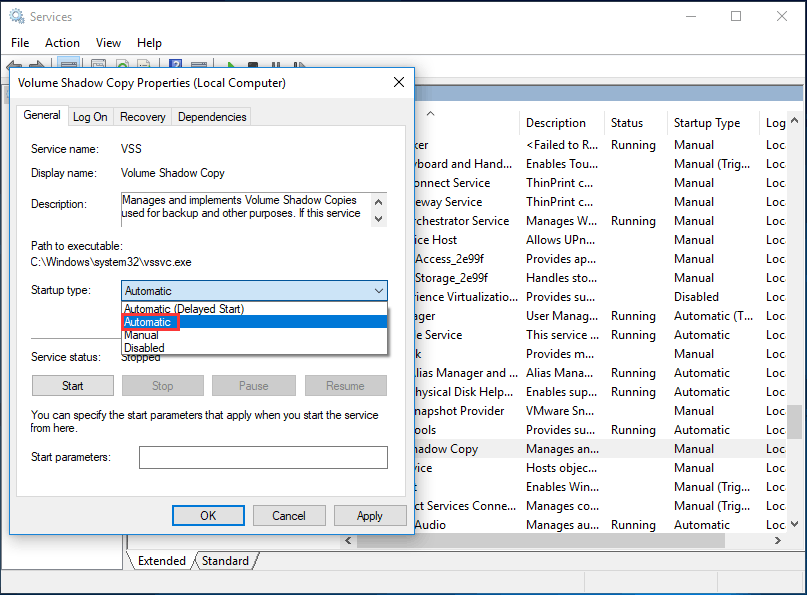
After that, you can try to back up your computer to check whether Volume Shadow Copy Service error 0x80042302 still exists.
Error 2. A Volume Shadow Copy Service Operation Failed 0x807800A1/0X800423F4
The error codes 0x807800A1 (a VSS/SPP failure) and 0x800423F4 (a non-transient VSS writer error) typically occur during Windows Backup or System Image creation.
The information is as shown below:
“A Volume Shadow Copy Service operation failed. Please check “VSS” and “SPP” application event logs for more information. (0x807800A1).
Additional Information:
The writer experienced a non-transient error. If the backup process is retried, the error is likely to reoccur. (0X800423F4).”
This indicates that an application or background service rejected the snapshot request.
Method 1. Identify the Failing Writer
Before troubleshooting blindly, you should check which specific VSS writer or service caused the error.
- Open Event Viewer by pressing Win + R, typing eventvwr, and hitting Enter.
- Navigate to Applications and Services Logs > Microsoft > Windows > Backup > Operational.
- Alternatively, check the Application log for errors from sources named VSS or SPP around the time the backup failed.
After that, enable the Volume Shadow Copy service. The steps are the same as above.
Method 2: Disable Antivirus and Windows Firewall
For antivirus, right click this program to choose Disable.
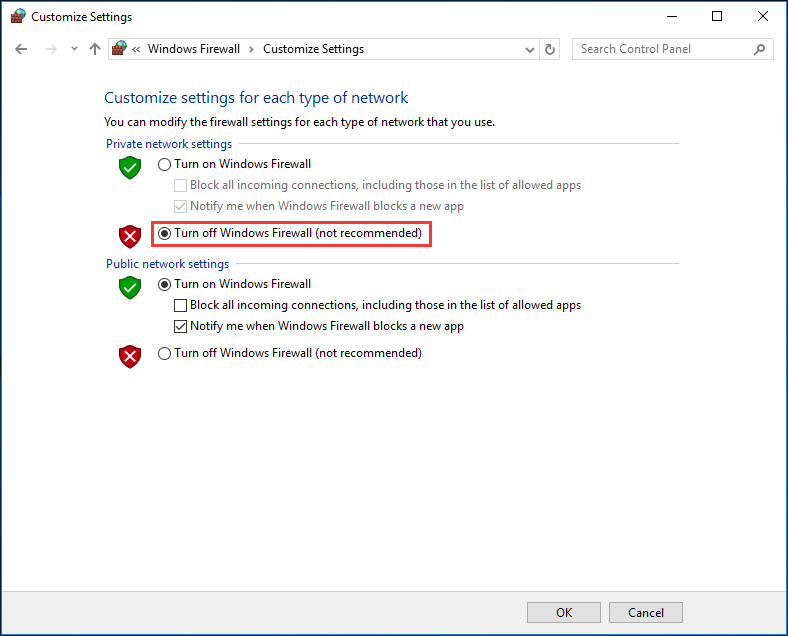
For Windows firewall, go to Control Panel > System and Security > Windows Firewall. Then, click Turn Windows firewall on or off option and choose Turn off Windows Firewall (not recommended) from Private/Public network settings. Finally, click OK.
Method 3: Check Hard Drive Errors
- To do this, you can enter Windows Explorer, right-click one partition you want to check for errors (usually C) to choose Properties.
- Under the Tools tab, click the Check(Windows 10/8) or Check Now (Windows 7) button followed by Scan drive.
- Then, follow the instructions to perform a check.
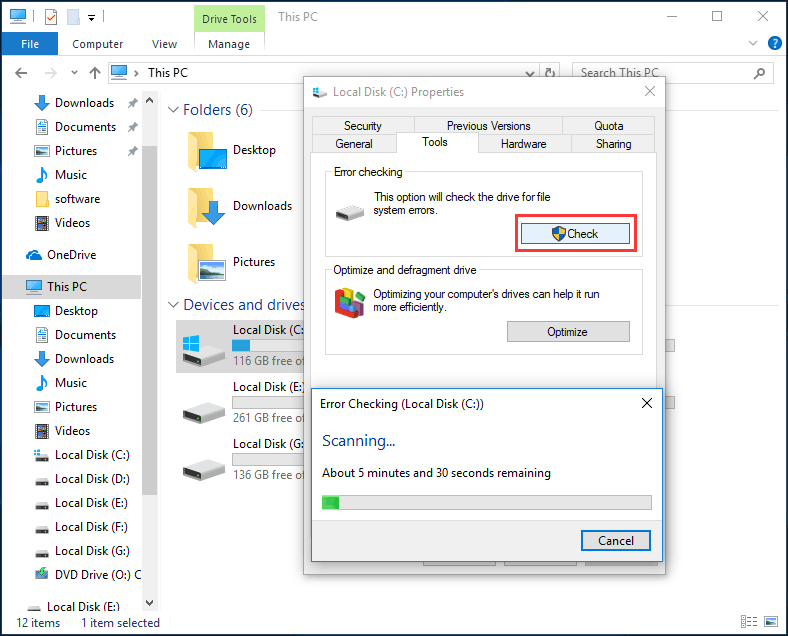
Also, use the command prompt “chkdsk” to do this work.
MiniTool Partition Wizard FreeClick to Download100%Clean & Safe
If you are getting the message – a Volume Shadow Copy Service operation failed, just try these three solutions to fix this Windows VSS error.
Error 3. Volume Shadow Copy Service Error 0x81000202
This VSS error occurs when restoring the system. The full error message is shown below:
“There was an unexpected error in the property page:
The Volume Shadow Copy service used by System Restore is not working. For more information view the event log…”
If you close the property page and try again, this system restore error 0x81000202 will appear again.
Now, try the methods below to fix it.
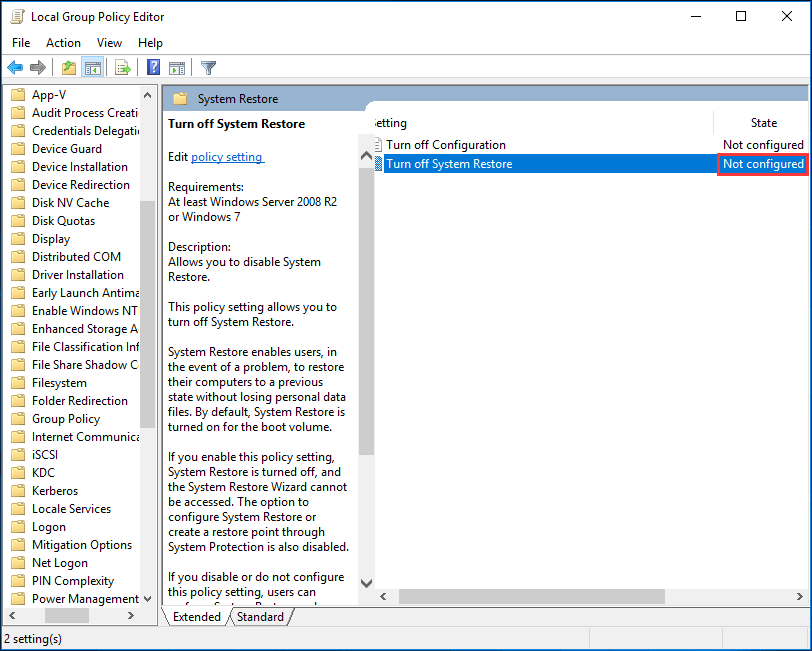
Method 1: Change System Restore Setting
- Input msc in the Run window.
- Go to Computer ConfigurationAdministrative TemplateSystemSystem Restore.
- In the right pane, set the Turn off System Restore policy to Not configured.
Method 2: Enable Volume Shadow Copy
The steps are simple and we have mentioned this solution which is the same as the above Volume Shadow Copy Service errors. Thus, here we won’t repeat it.
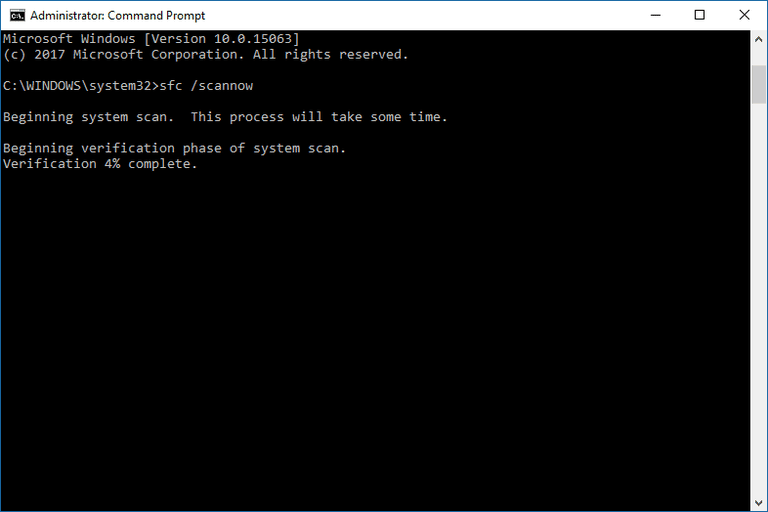
Method 3: Perform a System File Checker Scan(SFC)
SFC tool can help you to scan system files, and replace incorrect versions of the system files with the correct versions. To perform a system file check can be helpful to fix Shadow Copy Service error 0x81000202.
- Run CMD as administrator.
- Type sfc /scannow.
Error 4. Volume Shadow Copy Service Error 0x80042302 During System Restore
Sometimes, you fail to restore the system with the error message “System Restore does not appear to be functioning correctly on this system. A Volume Shadow Copy Service component encountered an unexpected error…(0x80042302)”.
When encountering a system image restore failed volume shadow copy service issue, you can still try:
- Set Volume Shadow Copy Service to Automatic
- Run SFC Scan
These two methods are the same as those for error code 0x81000202. Thus, we won’t repeat them.
Besides, you can try to perform a Clean Boot.
Related article: 4 Solutions to System Restore Does Not Appear to Be Functioning
In this part, we have shown you four VSS errors which happen when you are creating a system image or performing a system restore with the Windows built-in backup and restore utility. By following the corresponding solution, probably you can fix it.
Use MiniTool ShadowMaker as Shadow Copy Service Alternative
If Windows Backup repeatedly fails because of VSS issues, you can do the following things with MiniTool ShadowMaker:
- System backups
- Disk image backups
- Incremental backups
- Differential backups
MiniTool ShadowMaker, the reliable and free backup software, is specialized in backing up the Windows operating system, partition and the entire disk for Windows 11/10/8/7 users.
As an excellent backup solution, this freeware lets you not only create scheduled backups at a specific time but also configure incremental and differential backups for only changed or newly added data.
In the event of system accidents, the image file is available to restore the system to its previous state with simple clicks.
As an alternative to Windows built-in backup utility using Volume Shadow Copy Service, MiniTool ShadowMaker is worth recommending.
MiniTool ShadowMaker TrialClick to Download100%Clean & Safe
Back up Windows 11/10
Here is the guide on how to back up Windows to an external drive/USB drive:
Step 1: First, connect an external hard drive or USB drive to your computer.
Step 2: On the Backup page, the current OS is auto-selected as the source.
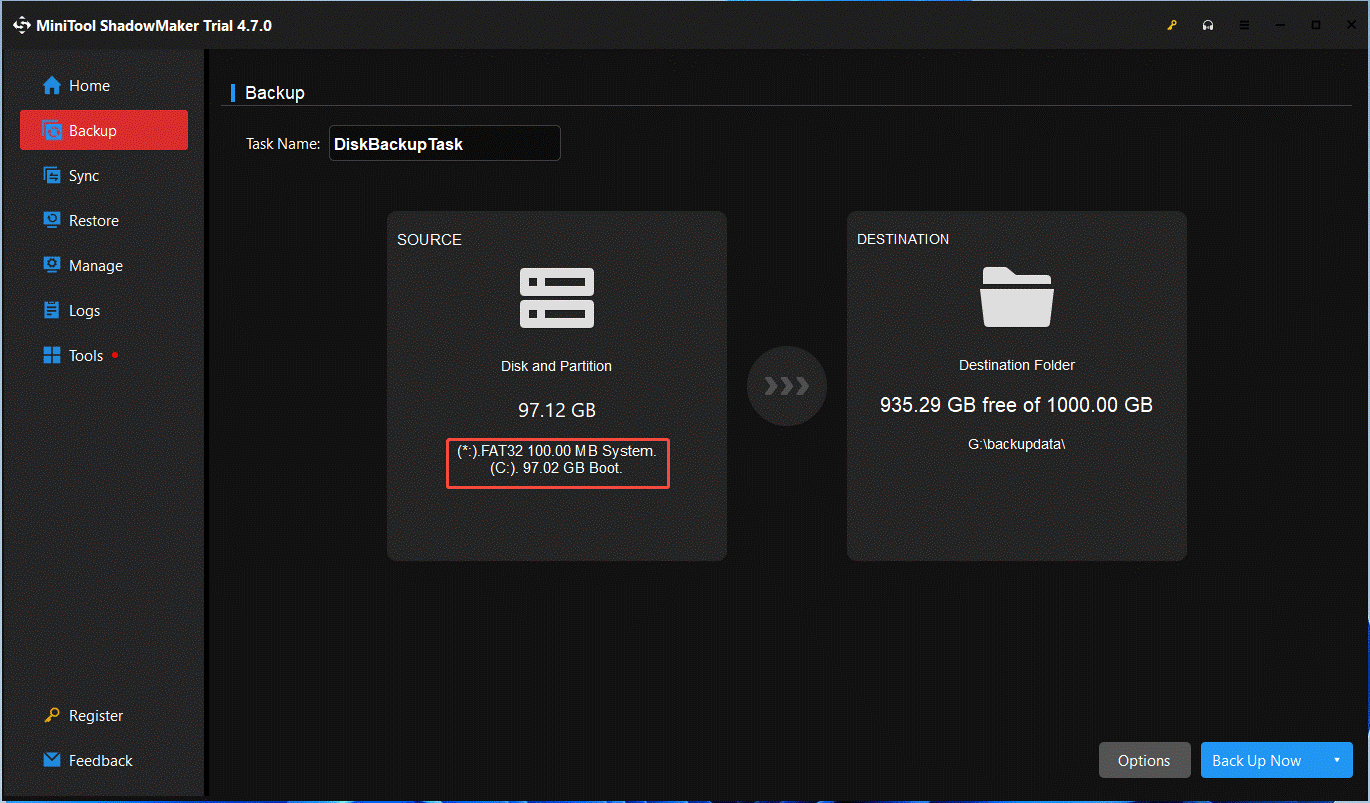
To create a system image for Windows, navigate to DESTINATION > Computer. Then, choose the connected device as the target.
To back up files, head to SOURCE > Folders and Files. Then, check the box of the files you want to back up. Next, choose a target path to save the backups.
Step 3: Finally, perform the backup immediately by clicking Back Up Now.
Before proceeding to the last step, you can click Options to configure advanced settings for the Windows backup.
- Backup Options:Configure the software to run a sector-by-sector backup; choose a compression level; add a comment for the backup; enable email notification, etc.
- Backup Scheme: Set a backup type like incremental, and meanwhile, delete old versions.
- Schedule Settings: Set scheduled backupsfor your important data.
2. In addition, the incremental and differential backup can also be created in Manage page by this free backup software. For more information, read 3 Types of Backup: Full, Incremental, Differential – MiniTool.
Restore System from an External Hard Drive
To do a system restore well, it is recommended to enter WinPE by creating a bootable USB flash drive with the Media Builder feature. Then, boot the computer from the bootable disc to the main interface of MiniTool ShadowMaker.
Just connect the bootable USB disk you have created to your PC and configure the BIOS to boot the system from it.
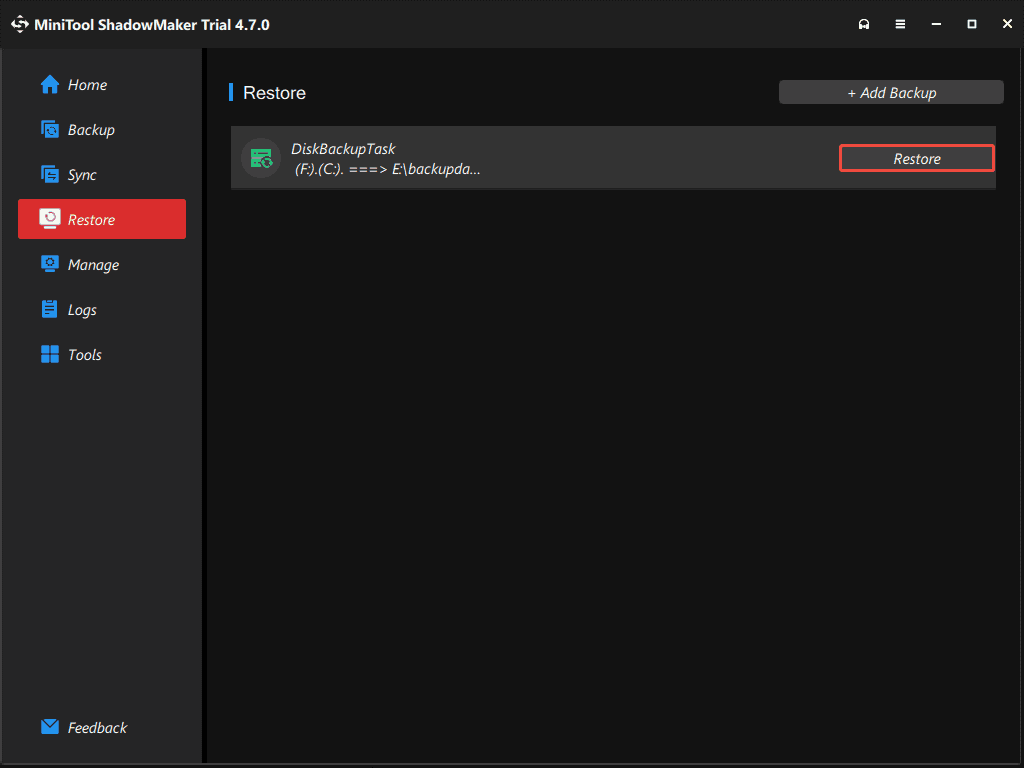
Step 1: Go to the Restore interface, click Add Backup, select the system backup image you want to restore, and click OK. Now the system backup is displayed there, and you can click Restore to continue.
Step 2: Select a backup version you want to restore. Then click Next to continue.
Step 3: Choose all the partitions you need to restore from the selected backup file. The MBR and Track 0 option is essential for the restore. Otherwise, the system will fail to boot after restoration. Therefore, please be sure to check it.
Step 4: Select a disk to which you want to restore the system and then click Next to continue. Then, MiniTool ShadowMaker will show you which partition will be overwritten while restoring an image.
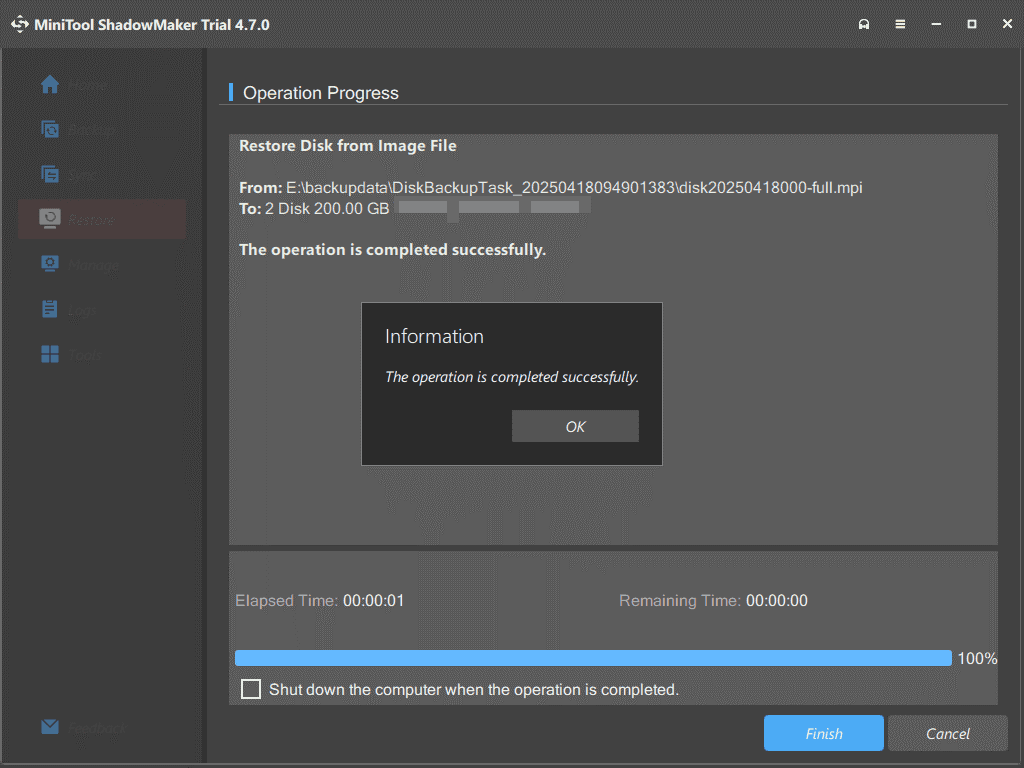
Step 5: Then you will enter the interface of the operation progress. Please wait patiently. After finishing the system image recovery, click Finish.
Volume Shadow Copy Service Error? Causes, Error Codes, and FixesClick to Tweet
Volume Shadow Copy Service Error FAQ
Microsoft notes that specific VSS Writers may fail and cause backup operations to stop.
Conclusion
Volume Shadow Copy Service errors usually indicate a problem with VSS services, VSS Writers, system files, or disk health.
This post offers the corresponding solutions to the different Volume Shadow Copy Service errors.
To avoid Microsoft Volume Shadow Copy errors during PC backup and restore using the Windows built-in tool, use MiniTool ShadowMaker to back up your PC.
Of course, if you have any questions or suggestions on how to use MiniTool ShadowMaker, do not hesitate to contact us via [email protected].
User Comments :