
The EFI System Partition (ESP) stores essential boot files that your computer needs to start Windows in UEFI mode. However, you may need to move the EFI partition when extending a drive or preparing to remove an old drive. This post shows you how to do that step by step.
Why Do You Need to Move the EFI Partition?
An EFI System Partition (ESP) is a small FAT32 partition on a GPT disk. It is created automatically by Windows at the beginning of the disk during installation on a UEFI-based system.

This partition contains Windows Boot Manager, boot configuration data, and other boot files needed to start a computer using UEFI (Unified Extensible Firmware Interface).
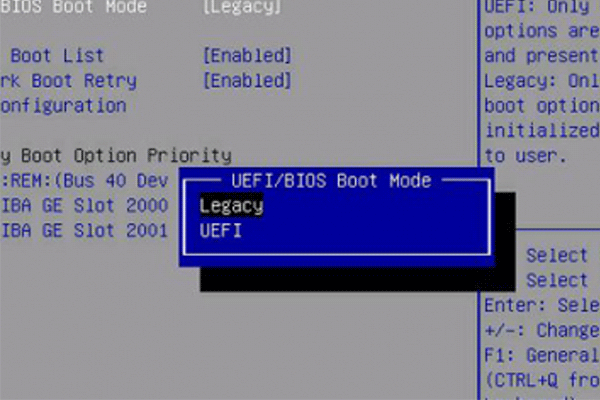
It plays an essential role in the Windows startup process. When you turn on your PC, the UEFI firmware reads the boot files from it and uses them to launch Windows.
You may need to move the EFI partition for the following reasons.
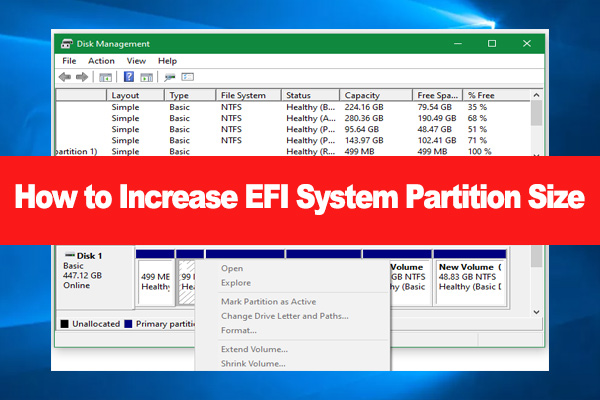
- The EFI partition is located between the C drive and unallocated space, preventing you from extending the C drive.
- The EFI partition and the C drive are located on different disks. This situation typically occurs after you have set up a dual-boot configuration or performed an improper system clone or migration.
How to Move EFI Partition in Windows 10/11
To move EFI partition, the common approach is to create a new EFI partition at your desired location, and then delete the old EFI partition. With this method, you can:
- Move the EFI partition to another disk.
- Move the EFI partition to the beginning of the disk.
- Move the EFI partition to the end of the disk.
- Move the EFI partition before C.
- Move the EFI partition to any location.
The specific steps are as follows.
#1: Make Room for the New EFI Partition
To make room for the new EFI partition, it is recommended that you use the Move/Resize function in MiniTool Partition Wizard.
| Goal | Move/Resize Operations |
| Move EFI partition before C/Move EFI partition to beginning of disk | Shrink the C partition to create unallocated space to its left. |
| Move EFI partition to end of disk | Shrink the Recovery partition. Or shrink the partition preceding the Recovery partition and then move the unallocated space to the end of the disk. |
MiniTool Partition Wizard can move partition locations and also shrink many partitions that Disk Management cannot shrink. It can also copy partitions and disks, migrate OS, convert an MBR disk to GPT disk without data loss, recover lost partitions and data, etc. It’s worth trying.
MiniTool Partition Wizard FreeClick to Download100%Clean & Safe
Here is how to move/resize a partition using this software.
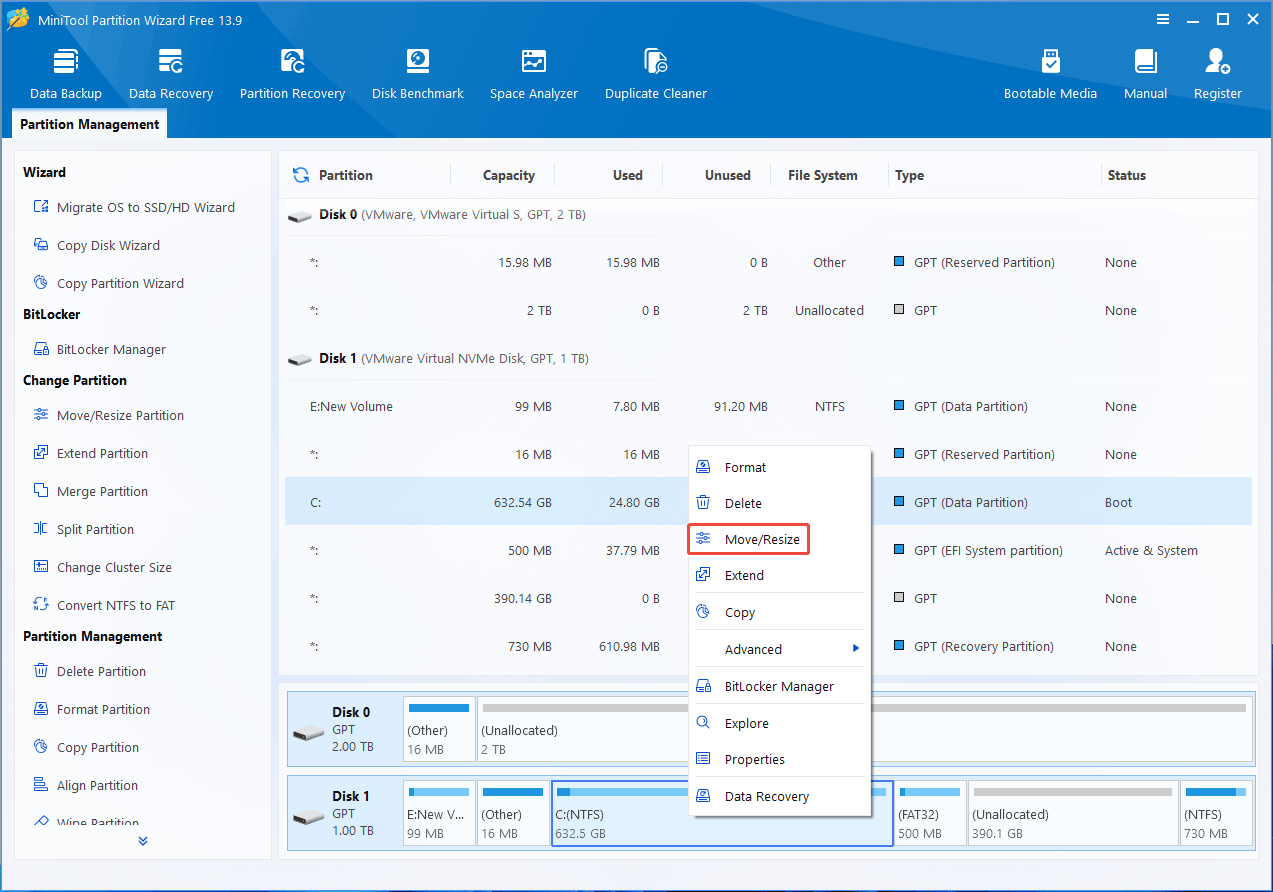
Step 1: Right-click the C drive and choose Move/Resize. If you want to shrink or move the Recovery partition, right-click it and choose this feature.
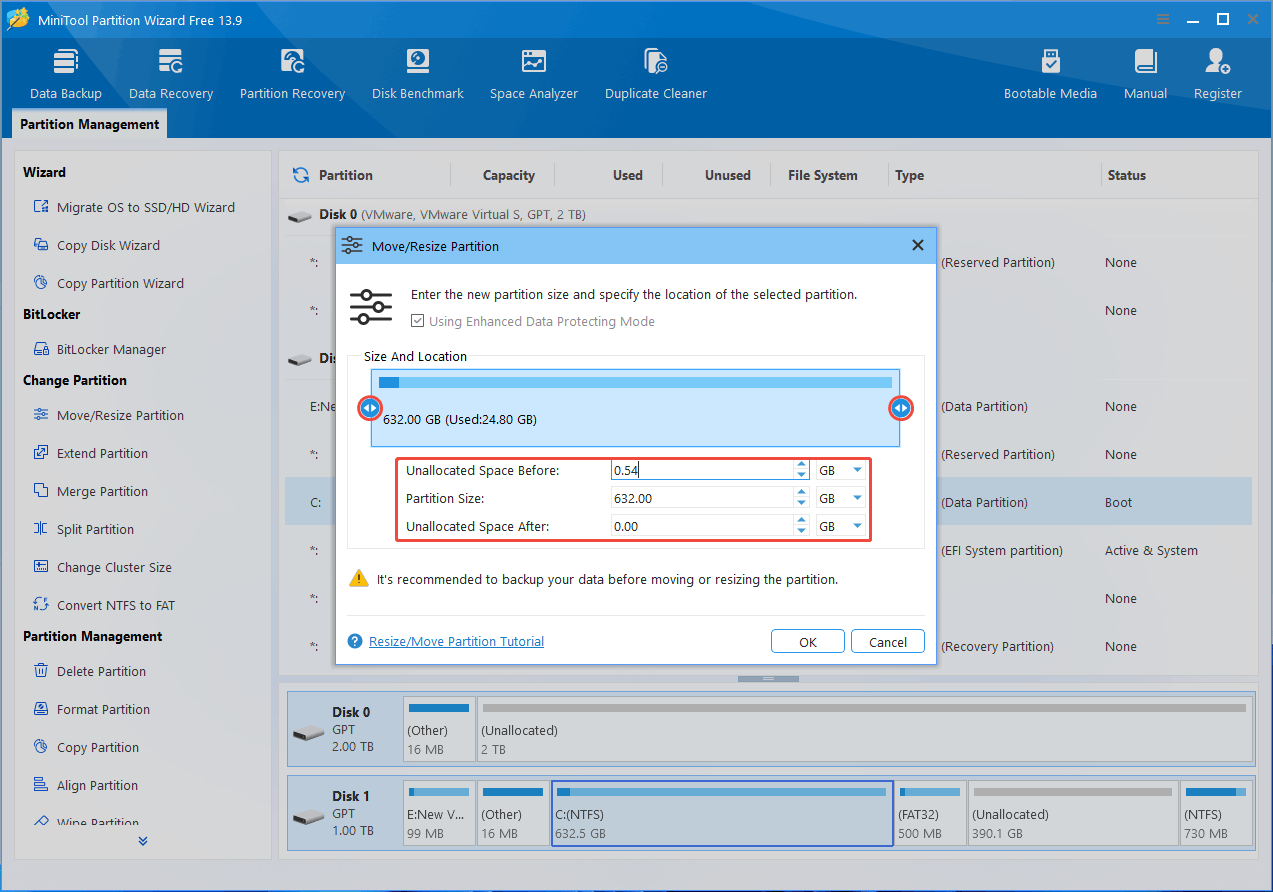
Step 2: On the pop-up window, shrink the partition using the following two methods to create unallocated space. Then, click OK.
- Drag the two arrow icons to the center. To create unallocated space to the left of a partition, drag the arrow icon on the left. For the right side, drag the arrow icon on the right.
- For greater precision regarding the size of unallocated space, you can enter specific numerical values. First, input the desired Partition Size after it has been shrunk. To have the unallocated space appear to the left of the partition, then change the Unallocated Space After value to 0.
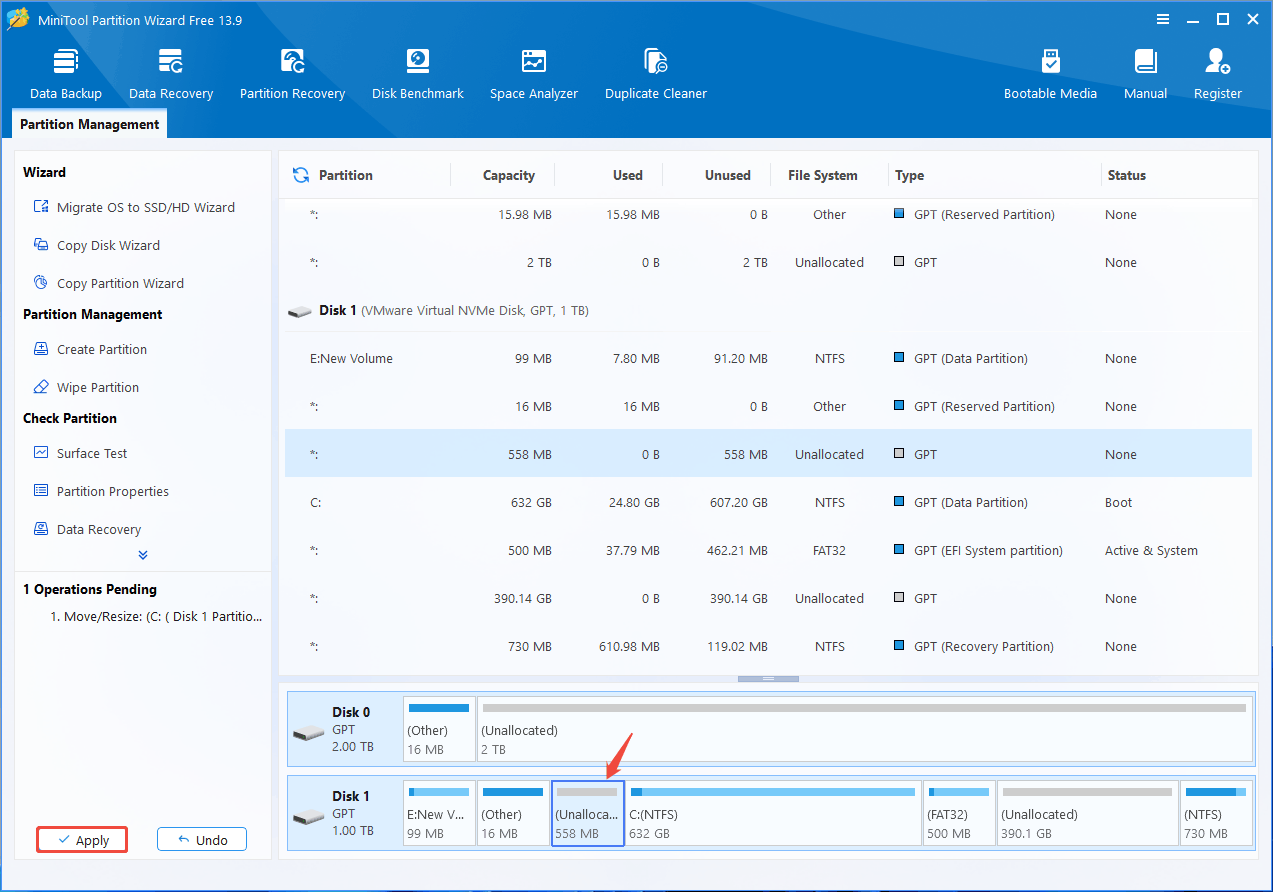
Step 3: Check the disk layout. Then, click Apply to execute the pending operation.
#2. Create a New EFI Partition
To create an EFI partition, you can continue using MiniTool Partition Wizard. Here are the steps.
MiniTool Partition Wizard DemoClick to Download100%Clean & Safe
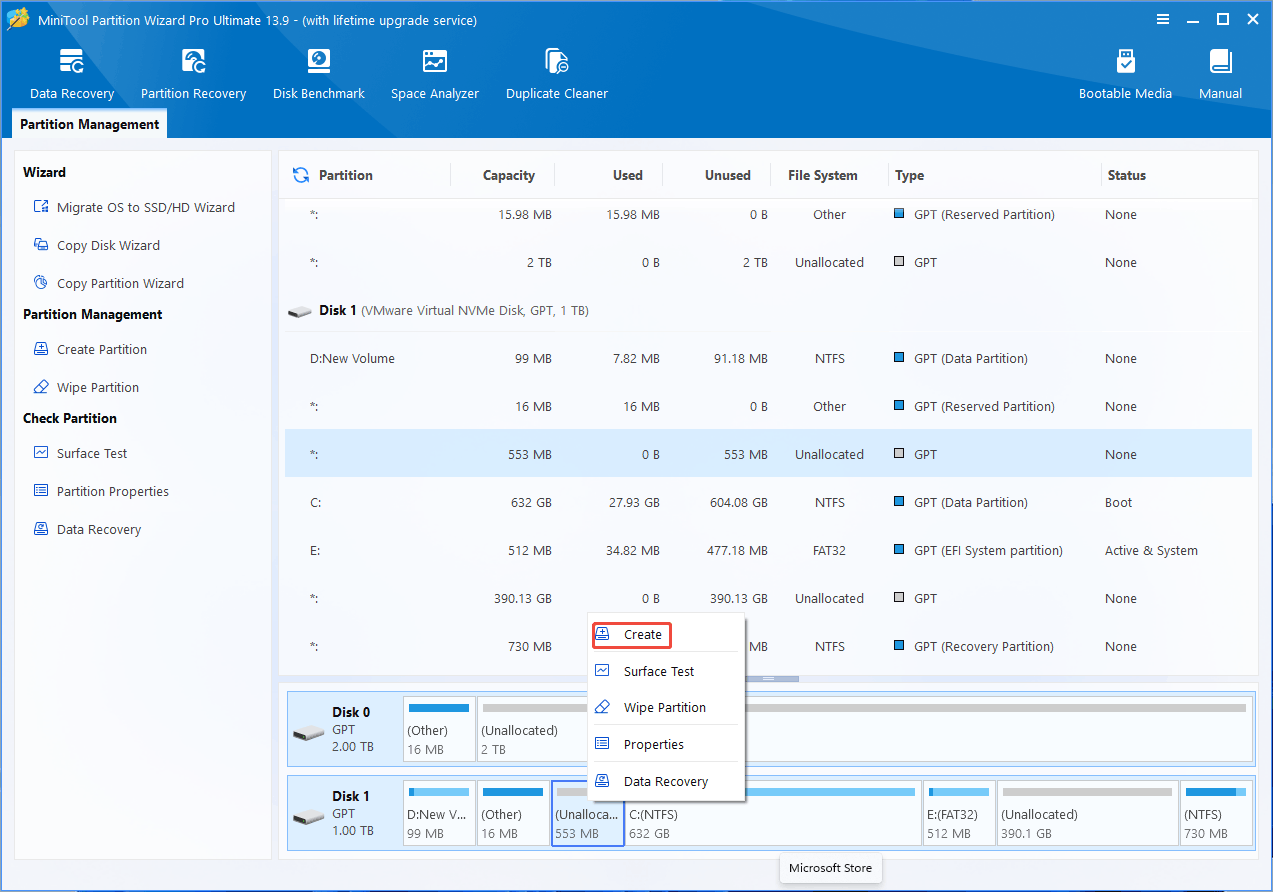
Step 1: Launch MiniTool Partition Wizard. Right-click the unallocated space created just now. Choose Create.
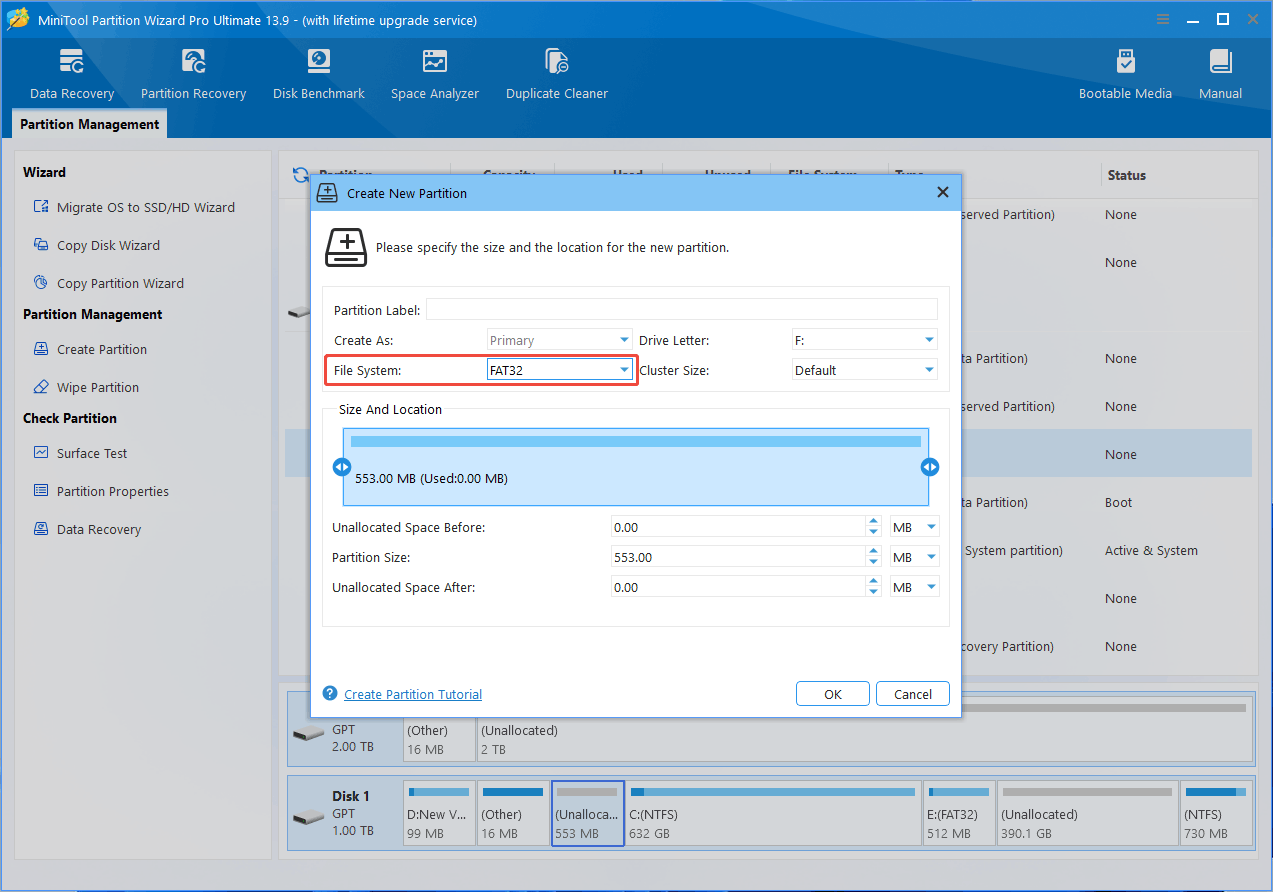
Step 2: On the pop-up window, change the File System to FAT32. Then, click OK. Take a look at this partition and note its drive letter. You’ll need it later.
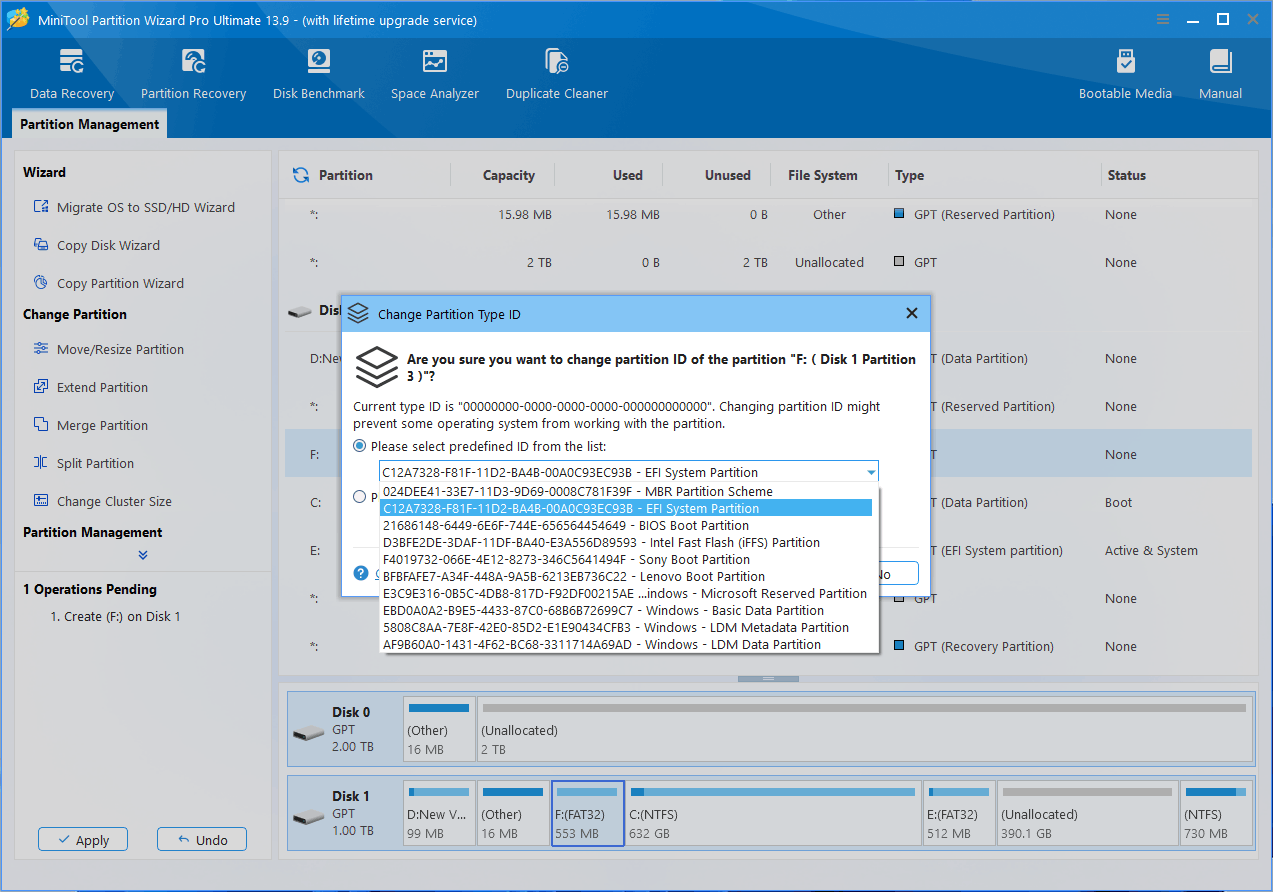
Step 3: Right-click the FAT32 partition and choose Advanced > Change Partition Type ID. Expand the drop-down menu and choose the EFI System Partition option. Click Yes. Then, click Apply to execute all pending operations.
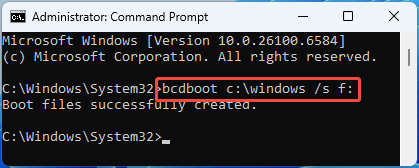
Step 4: Search for “cmd” in the Windows Search bar. Right-click Command Prompt in the results list and choose Run as administrator. Then, type “bcdboot c:\windows /s f:” to write boot files to the EFI system partition. F should be replaced according to your condition.
Further Reading:
You can also use Command Prompt to create an EFI partition. Here is the guide.
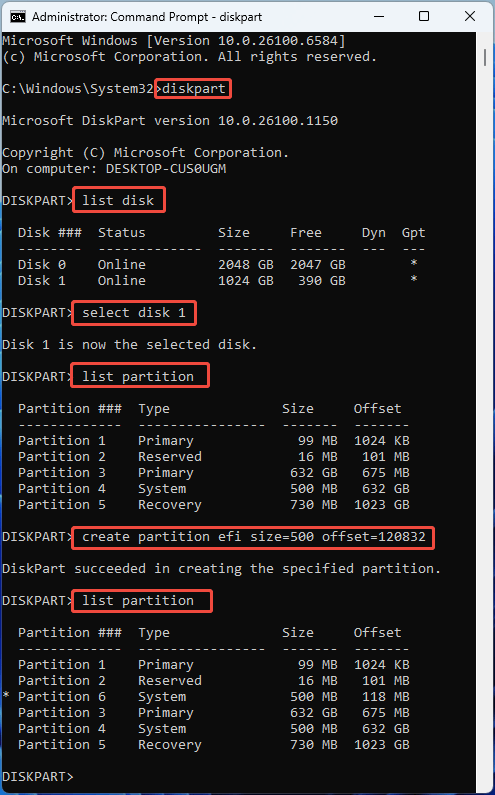
Step 1: Open Command Prompt as administrator. Then, run the following commands one by one to create an EFI partition.
- diskpart (It calls out the DiskPart command-line tool.)
- list disk
- select disk * (* is the disk number of the GPT system disk.)
- list partition (View the size and offset of each partition.)
- create partition efi size=N1 offset=N2 (The unit for size is MB, and the unit for offset is KB. Offset determines the start location of the EFI partition. If there is only one unallocated space on the disk, no offset is also OK.)
- list partition (Check if the EFI partition location is correct.)
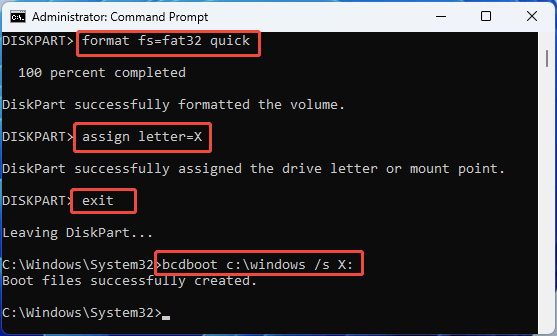
Step 2: Run the following commands to format the EFI partition and write boot data to it.
- format fs=fat32 quick
- assign letter=X (Ensure that this drive letter is different from any existing drive letters.)
- exit (exit diskpart)
- bcdboot C:\windows /s X:
#3. Delete the Original EFI Partition
Now, you need to delete the original EFI partition so that the computer will use the new EFI partition. Here are the steps.
Step 1: Create a Windows installation USB drive.
Step 2: Boot the computer from the USB drive.
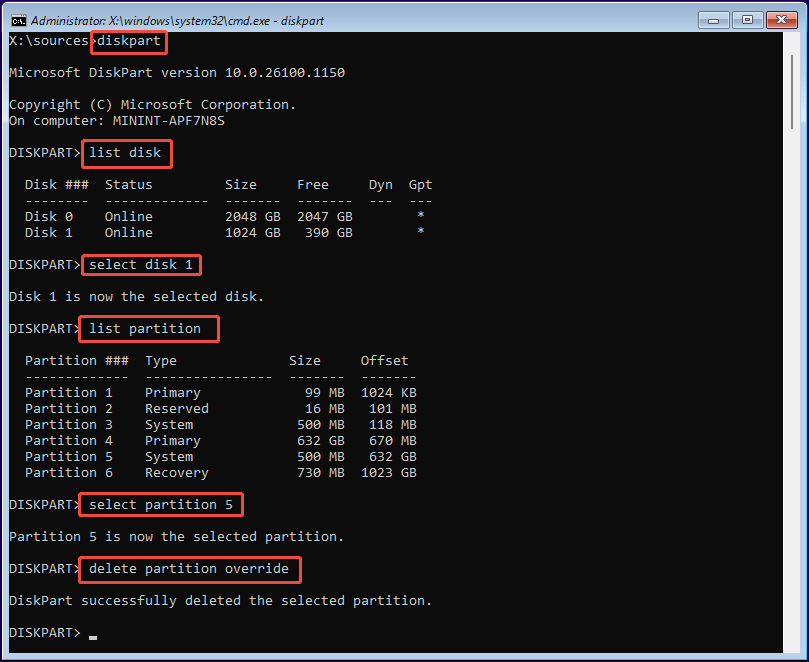
Step 3: Once you see the Windows Setup interface, press Shift + F10 to open Command Prompt. Then, run the following commands to delete the original EFI partition.
- diskpart
- list disk
- select disk * (* is the disk number of the GPT system disk.)
- list partition
- select partition # (# is the partition number of the original EFI System partition.)
- delete partition override
Step 4: Restart the PC to see if it can boot up.
Move EFI Partition FAQ
In addition, C:\Windows is the Windows installation folder, and S: is the assigned letter of the new EFI partition. Drive letters may differ in the recovery environment, so verify both volumes before running the command.
Bottom Line
Moving the EFI partition can help resolve issues with disk layout, partition expansion, or disk upgrades. However, because the EFI System Partition stores essential Windows boot files, moving or deleting it incorrectly can prevent Windows from starting. This article provides a detailed guide to help you avoid these issues.
If you encounter issues when using MiniTool Partition Wizard, send an email to [email protected] for help.
About The Author

Position: Columnist
Linda has been an editor at MiniTool for seven years. She continuously learns about computers and puts her knowledge into practice. Moreover, she is particularly knowledgeable in disk management, data recovery, system installation, and PDF editing. Her articles typically reference multiple examples or are based on her own experience, providing users with the most suitable solutions.
User Comments :