
Will converting MBR to GPT erase all the disk partitions? It depends on what method you use. If you use Disk Management or DiskPart to convert MBR to GPT, all partitions must be deleted. If you use MiniTool Partition Wizard or MBR2GPT to do that, the partition deletion can be avoided.
Will Converting MBR to GPT Erase All the Disk Partitions
Compared to GPT style, MBR has two main disadvantages: it renders disk space beyond 2TB unusable and prevents the disk from creating more than 4 primary partitions. In addition, Windows 11 requires UEFI boot mode, which is only supported by GPT disks. Therefore, converting MBR to GPT has become increasingly necessary in modern systems.
Will converting MBR to GPT erase all the disk partitions? It depends on the method you use. In general, there are 4 methods for converting MBR to GPT. The following table summarizes their differences:
| Method | Whether to Delete Partitions | Applicable Scenarios |
| Use Disk Management | Yes | Data disks containing no important data. |
| Use DiskPart | Yes | Disks containing no important data. |
| Use MBR2GPT | No | A system disk that meets certain conditions. |
| Use MiniTool Partition Wizard | No | Both the system and data disks. |
Because Disk Management must be used while Windows is running, it cannot be used to convert the system disk from MBR to GPT.
DiskPart can be used in both Windows and WinPE. When it is used in WinPE, it can convert the system disk from MBR to GPT for a new Windows installation.
MBR2GPT is available for 64-bit Windows 10 version 1703 or later, and can only convert the system disks from MBR to GPT. In addition, the MBR system disk should meet the following requirements.
- There should be 16 KB + 2 sectors at the front and 16 KB + 1 sector at the end of the disk.
- There are at most three primary partitions and no extended/logical partitions.
- All partitions on the disk are of MBR types recognized by Windows or have a mapping specified using the /map command-line option.
- The system and each volume can work normally.
If any of these conditions are not met, MBR2GPT will not run successfully.
As for MiniTool Partition Wizard, it can convert both system and data disks from MBR to GPT without data loss. But it also has limitations. When it converts a system disk from MBR to GPT, Windows should be running so that it can create a working EFI partition. In addition, the system disk conversion is not free. Only the data disk conversion is free.
Convert MBR to GPT by Deleting Partitions
If there is no important data on the MBR disk, you can use Disk Management or DiskPart commands to convert the disk to GPT. Here are the guides.
#1. Use Disk Management
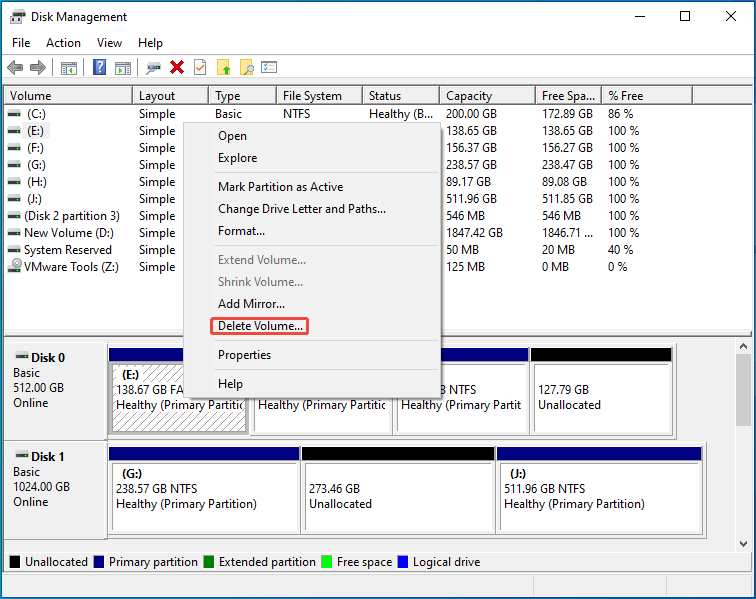
Step 1: Delete all partitions on the MBR disk.
- Press Win + X and select Disk Management to open it.
- Right-click a partition on the MBR disk and then select Delete Volume. Click Yes to confirm this operation.
- Repeat this process to delete all partitions on the MBR disk.
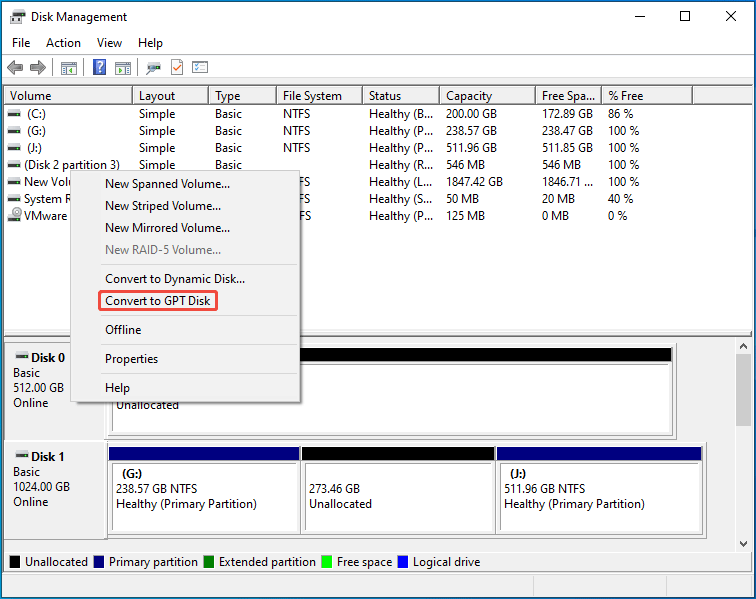
Step 2: Right-click the MBR disk and then choose Convert to GPT Disk. Then, you can create new volumes on this GPT disk.
#2. Use DiskPart
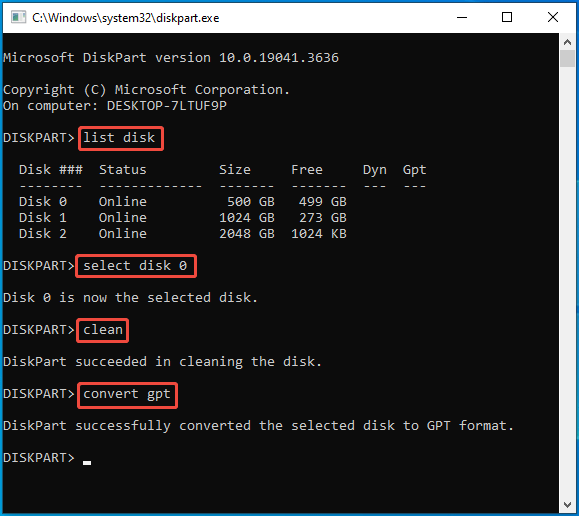
- Press Win + R to open Run, type “diskpart” and press Enter to open DiskPart. If you want to open DiskPart during Windows installation (in WinPE), just press Shift + F10, then type “diskpart” and press Enter.
- Once DiskPart opens, type “list disk” and press Enter.
- Type “select disk *” and press Enter. * is the number of the MBR disk to be converted to GPT.
- Type “clean” and press Enter. This will delete all partitions on the selected disk.
- Type “convert gpt” and press Enter.
Convert MBR to GPT Without Data Loss
If you want to convert MBR to GPT without data loss, you should use MBR2GPT or MiniTool Partition Wizard.
#1. Use MiniTool Partition Wizard
MiniTool Partition Wizard DemoClick to Download100%Clean & Safe
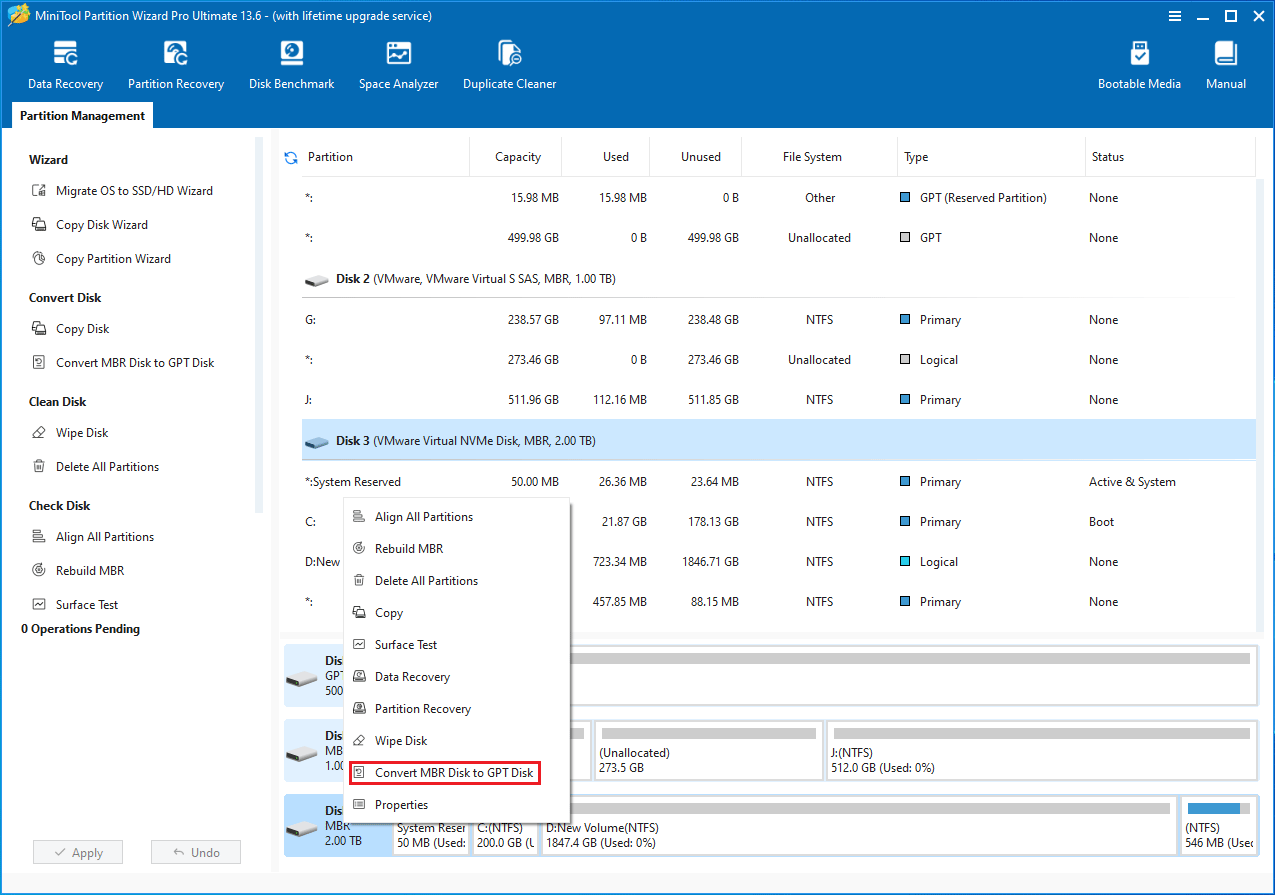
- Launch this software, right-click an MBR disk (regardless of system disk or data disk), and then choose Convert MBR Disk to GPT Disk.
- If you are converting a system disk, read the warning information and click OK.
- Click Apply and then Yes to start the conversion. If you are converting a system disk, MiniTool Partition Wizard will ask you to restart the PC. Click Restart Now to continue the conversion.
- Wait until the conversion completes. After the conversion, the computer won’t boot up unless you change the boot mode to UEFI.
#2. Use MBR2GPT
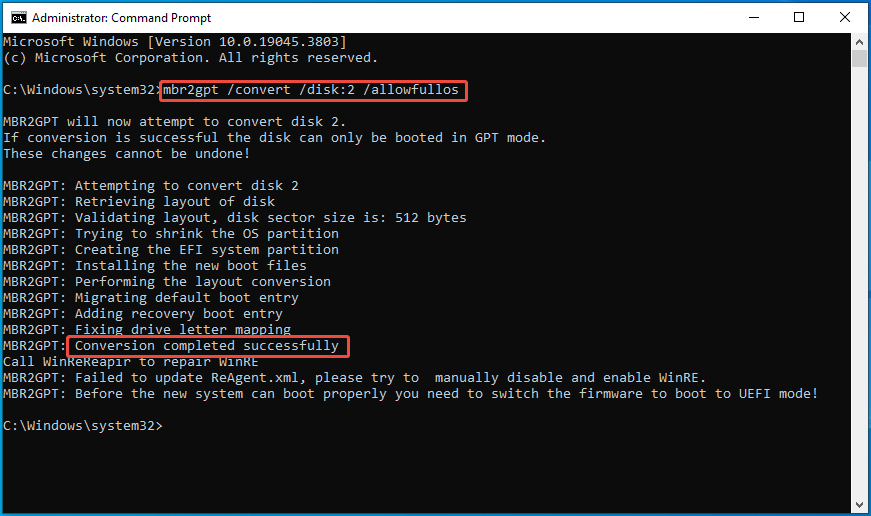
- Open Disk Management and check the number of the system disk (Disk 0 in most cases, but Disk 2 in my case).
- From the Windows Search bar, open Command Prompt as administrator.
- type “mbr2gpt /convert /disk: * /allowfullOS” and press Enter. * is the number of the system disk. MBR2GPT will then verify the disk layout and convert it to GPT automatically. Similarly, you need to change the boot mode before the next startup.
How to convert MBR to GPT without data loss? This post offers 2 methods for you.Click to Tweet
Bottom Line
This post shows you how to convert MBR to GPT using Disk Management, DiskPart, MiniTool Partition Wizard, and MBR2GPT. Among them, MiniTool Partition Wizard is recommended because it can convert both system and data disks from MBR to GPT without data loss and with nearly no limitation. If you encounter issues when using this software, contact our support team via [email protected] for help.
About The Author

Position: Columnist
Linda has been an editor at MiniTool for seven years. She continuously learns about computers and puts her knowledge into practice. Moreover, she is particularly knowledgeable in disk management, data recovery, system installation, and PDF editing. Her articles typically reference multiple examples or are based on her own experience, providing users with the most suitable solutions.
User Comments :