
How big is Valorant? If you are a Valorant player, you need to know this information. In this post, you can find how many GB Valorant is, its system requirements, and how to free up space or get more disk space for this game.
Valorant, Riot Games’ globally successful first‑person shooter, has grown into one of the most widely played competitive titles worldwide. As its player base continues to expand, many prospective players want to know how big Valorant is before downloading and installing it on their PC.
This article provides a clear breakdown of Valorant’s file size and the system requirements needed for installation. Additionally, if you need to free up disk space to accommodate the game, you’ll find practical solutions and recommendations here.
How Big Is Valorant in 2026?
First, we will give a quick answer.
On a Windows PC:
- Valorant download installer size: 71.3 MB.
- Valorant install size: about 25.7 GB.
- Valorant game size while playing: 45-55 GB.
You can see that the Valorant installer size is small because it is just the game installer. It will take only seconds to download the Valorant installer file.
After you install it on your PC, it will take up much more space, mostly around 25.7 GB. This will take longer (usually several minutes) to complete the installation.
Once you launch the game, it will pull down the full game and take up 45-55 GB on your PC. The exact size varies depending on the latest game updates and patches Riot releases.
So, we think you should reserve at least 60 GB of free space on your disk for this game.
Valorant System Requirements
Here are the official minimum/recommended system requirements for downloading Valorant:
Minimum System Requirements:
- OS: Windows 10 (64-bit, Version 2004 / Build 19041 or higher)
- Processor: Intel Core 2 Duo E8400 (Intel), Athlon 200GE (AMD)
- Memory: RAM 4GB
- Graphics: Intel HD 4000, Radeon R5 200
Recommended System Requirements:
- OS: Windows 10/11 (64-bit)
- Processor: Intel i3-4150 (Intel), Ryzen 3 1200 (AMD)
- Memory: RAM 4GB
- Graphics: GeForce GT 730, Radeon R7 240
Below are the official minimum/recommended/high-end system requirements for downloading and installing Valorant:
| Minimum Specs | Recommended Specs | High-end Specs | |
| 30 FPS | 60 FPS | 144+ FPS | |
| OS | Windows 10 (Build 17134+) | Windows 10 (Build 17134+) Windows 11 | Windows 10 (Build 17134+), Windows 11 |
| OS ARCHITECTURE | x64 | x64 | x64 |
| CPU | Intel Core i3-540 AMD Athlon 200GE | Intel Core i3-4150 AMD Ryzen 3 1200 | Intel Core i5-9400F AMD Ryzen 5 2600X |
| GPU | AMD Radeon R5 220 Intel HD Graphics 4000 | NVIDIA GeForce GT 730 AMD Radeon R7 240 | NVIDIA GeForce GTX 1050 Ti AMD Radeon R7 370 Intel Arc A310 |
| GPU FEATURES | DirectX 11, Shader Model 5.0 | DirectX 11, Shader Model 5.0 | DirectX 11, Shader Model 5.0 |
| VRAM | 512MB | 2GB | 6GB |
| FREE STORAGE SPACE | 25GB | 25GB | 25GB |
| RAM | 4GB | 8GB | 16GB |
| RECOMMENDED GFX SETTING | LOW | Medium | High |
| RECOMMENDED RESOLUTION | 1600×900 | 1920×1080 | 1920×1080 |
Understanding these factors is crucial for anyone who wants to dive into the competitive and exciting game world of Valorant.

Free Up Disk Space for Valorant Installation
As mentioned above, we recommend that you reserve at least 60 GB of free space for the full Valorant experience on PC. If your PC doesn’t have enough free space, you can free up disk space, expand the partition to get more space for games, or even upgrade the hard drive.
For that, you can try a professional and all-in-one partition manager, MiniTool Partition Wizard. Its Space Analyzer feature can help you analyze and delete files on the hard drive; the Extend Partition feature can help you take free space from other partitions; the Copy Disk feature can help you copy all data from one disk to another disk when upgrading the hard drive.
What’s more, MiniTool Partition Wizard offers lots of useful features for partition/disk management to help you create/format/extend/move/resize/merge/split/delete/wipe partitions, partition a hard drive, convert MBR to GPT, recover data from a hard drive, and more.
Now, try the following ways to increase the free space with the help of MiniTool Partition Wizard. First, download this software on your PC and then run it.
MiniTool Partition Wizard FreeClick to Download100%Clean & Safe
Way 1. Delete Unnecessary Files
To free up the disk space, you can delete some unnecessary files. Follow the steps below with the help of MiniTool Partition Wizard.
Step 1: Launch this software to enter its main interface.
Step 2: Select the Space Analyzer feature on the top toolbar.
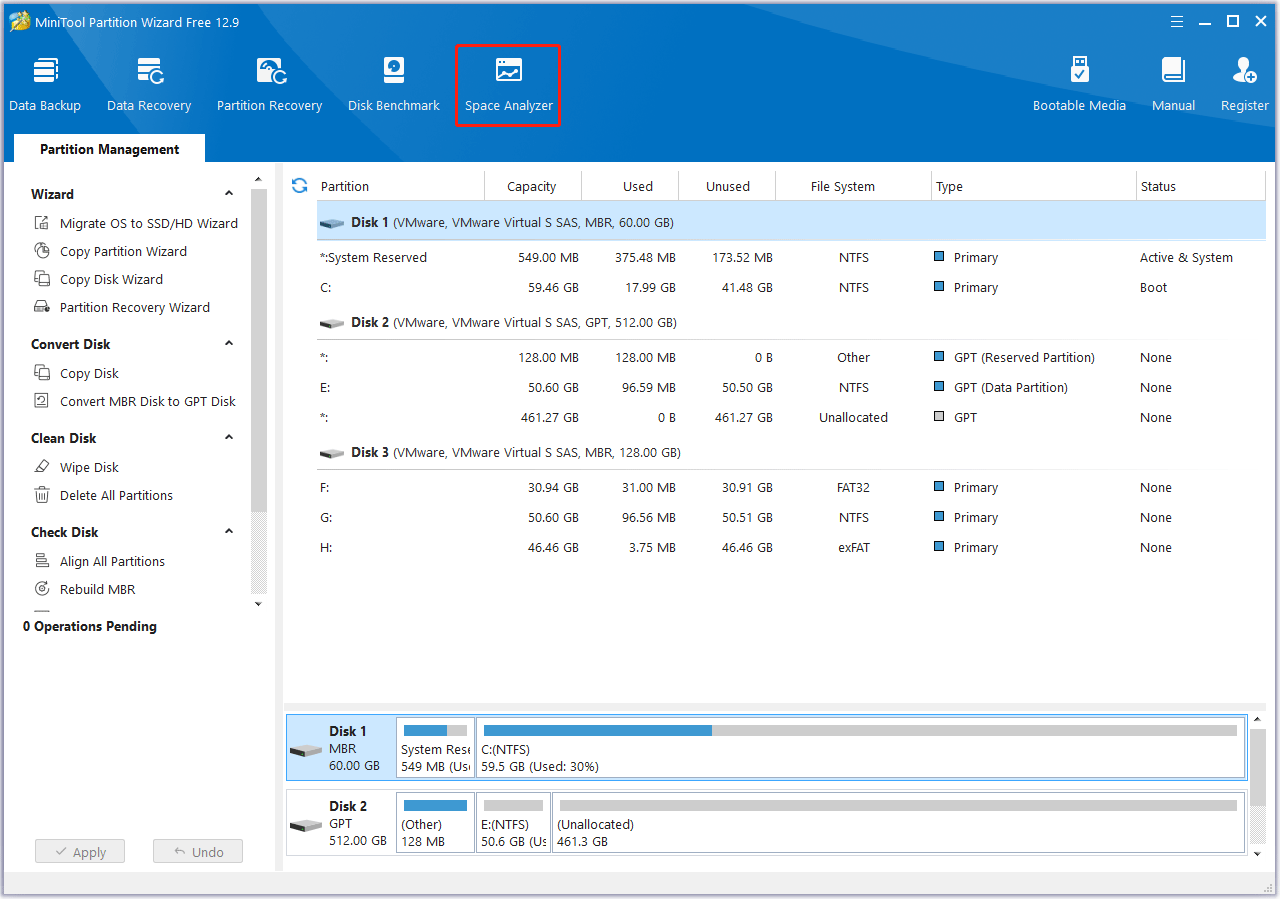
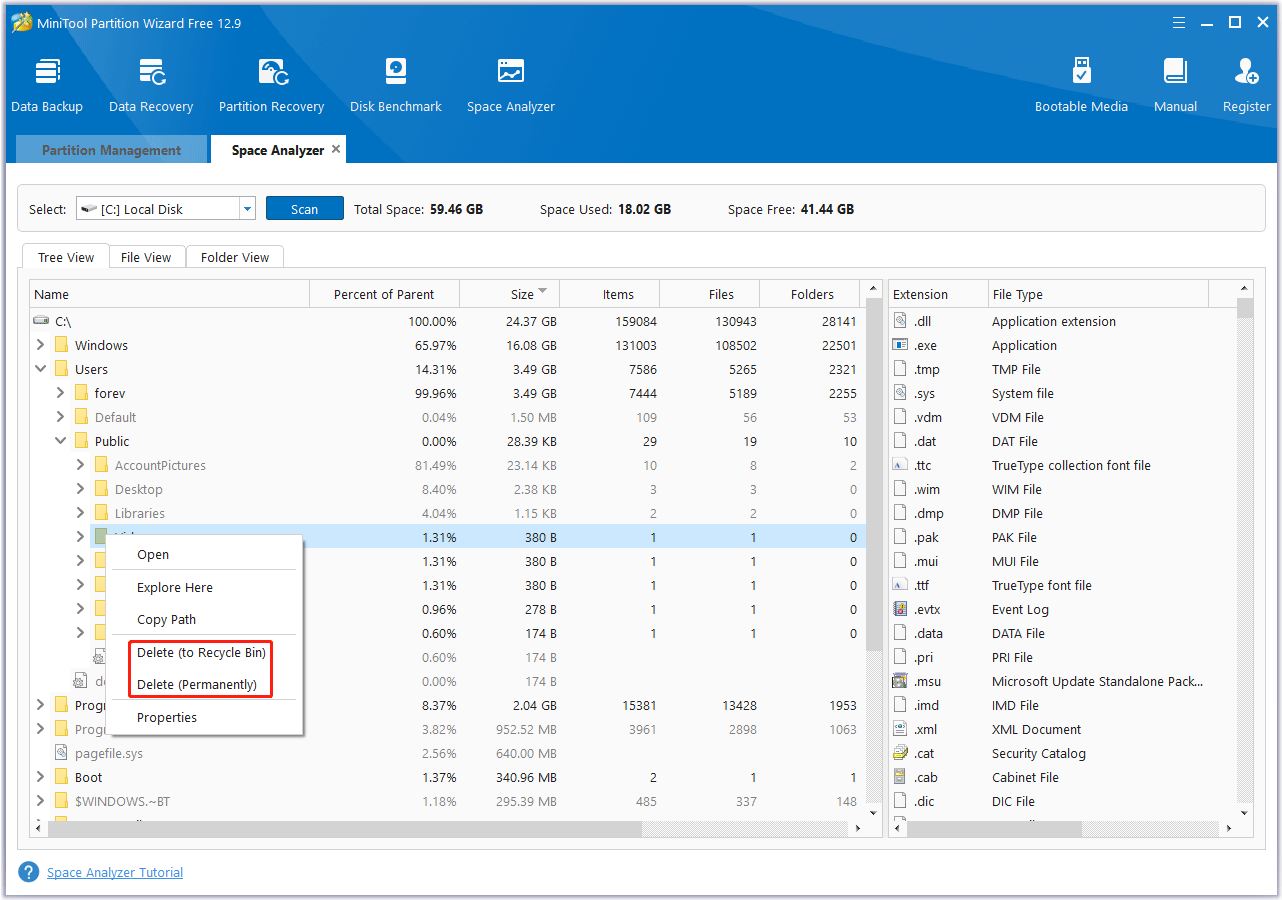
Step 3: Select a local disk or a folder and click Scan. You can select the place where you want to install the game. Then, wait until the analysis process is completed.
Step 4: MiniTool Partition Wizard will list all files in this partition, including hidden files. In addition, large files will be displayed in the top part. You can decide whether to delete these large files. If you want to delete a file or folder, right-click it and select Delete (to Recycle Bin) or Delete (Permanently).
Way 2. Extend the Game Partition
If you don’t want to delete files and there is unallocated space on the drive or unused space in other partitions, you can expand the partition by taking space from the drive. This way, the partition where you want to install Valorant will have enough free space.
To extend the game partition, you can use the Extend Partition feature of MiniTool Partition Wizard. Here is the guide:
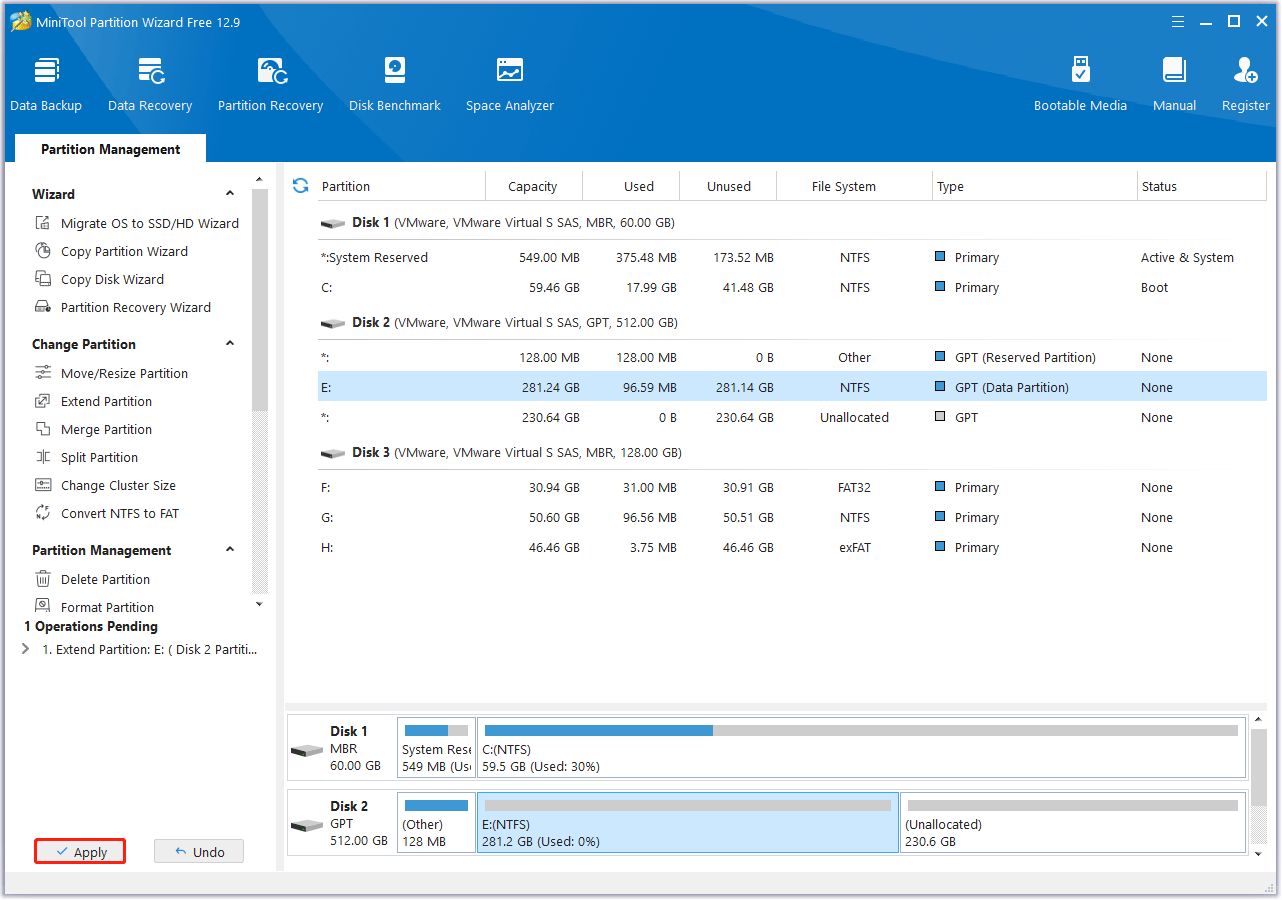
Step 1: Launch MiniTool Partition Wizard to enter its main interface.
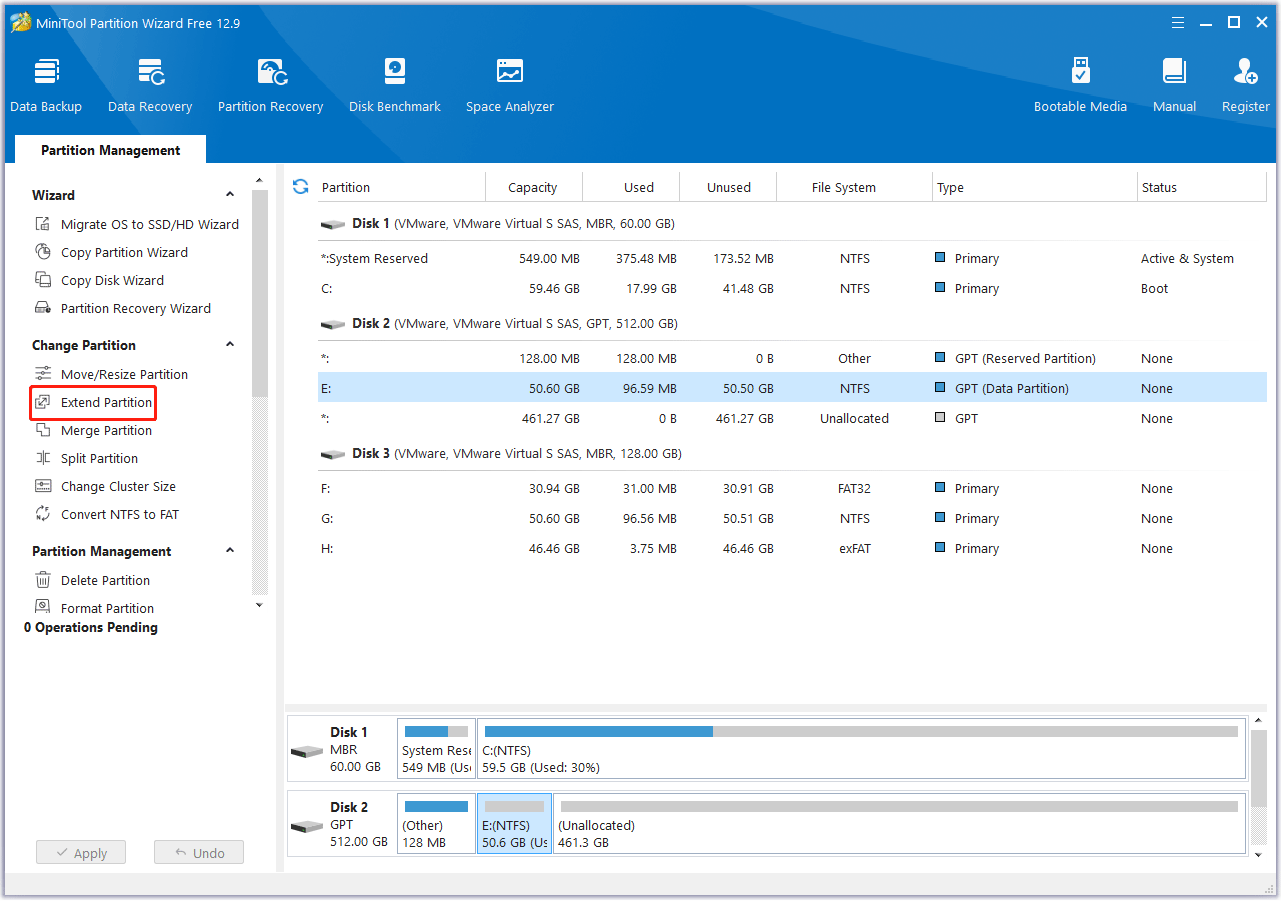
Step 2: Highlight the partition you want to extend and then select Extend Partition from the left action panel.
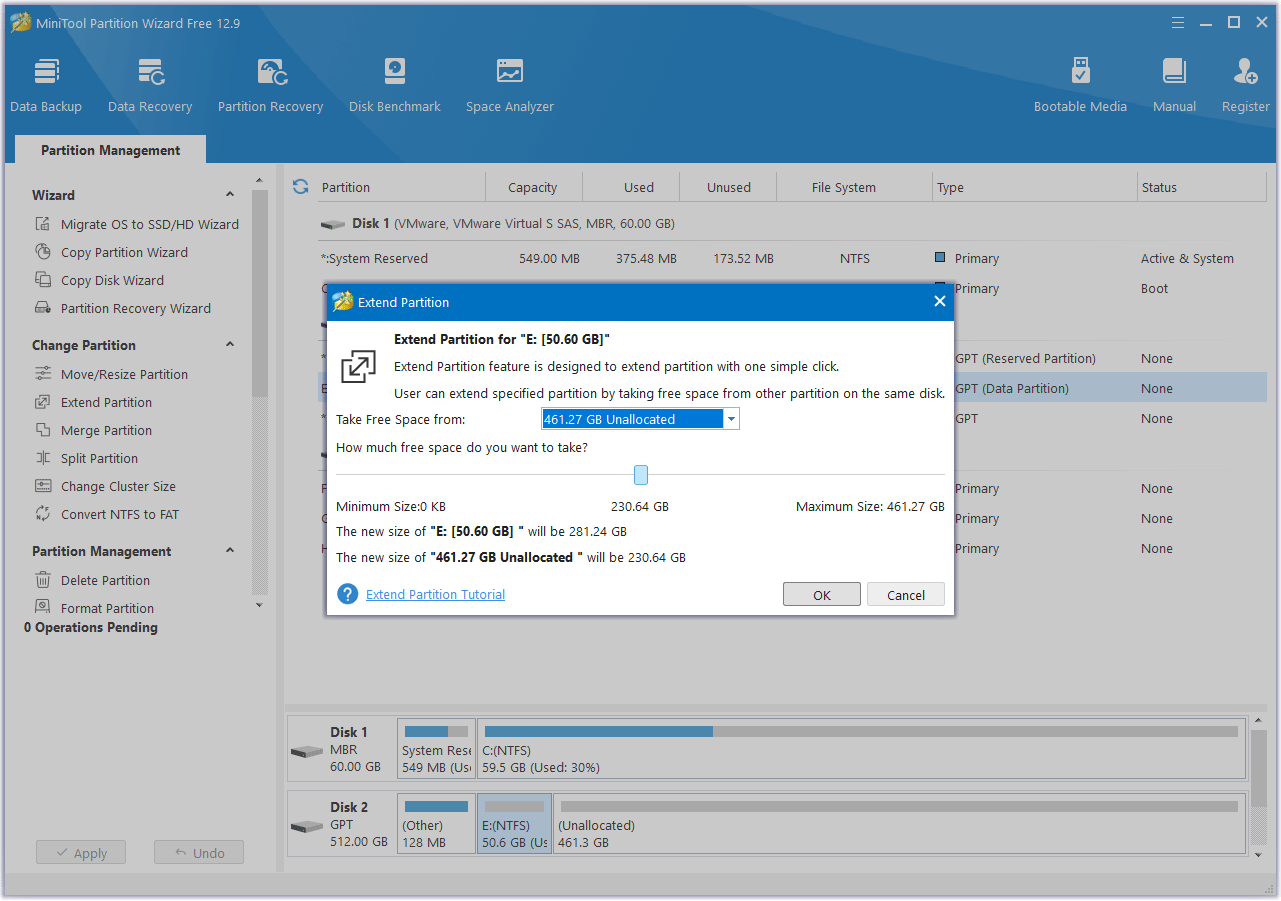
Step 3: In the pop-up window, choose where to take space from. You can choose unallocated space or an existing partition. Then, drag the blue block to decide how much space you want to occupy. After that, click OK.
Step 4: Click the Apply button to perform the pending operation.
Way 3. Upgrade to a Larger SSD
In addition to the above two methods, you can also choose to upgrade to a larger hard drive. This not only solves the problem of insufficient disk space but also gives you a smoother gaming experience.
When upgrading to a larger SSD, you can clone the disk to another drive if you don’t want to lose all the files and applications on the old drive. The Copy Disk feature can help you clone the original drive data to the larger SSD. Here’s the guide:
Step 1: Connect the larger SSD to your computer via a USB adapter. After SSD cloning, replace the original SSD with a larger SSD. Of course, if the computer has a vacant hard drive bay, you can directly install the SSD into the computer and then do SSD cloning.
Step 2: Launch MiniTool Partition Wizard to enter its main interface. Select Copy Disk Wizard from the left action panel. Then click on Next to continue.
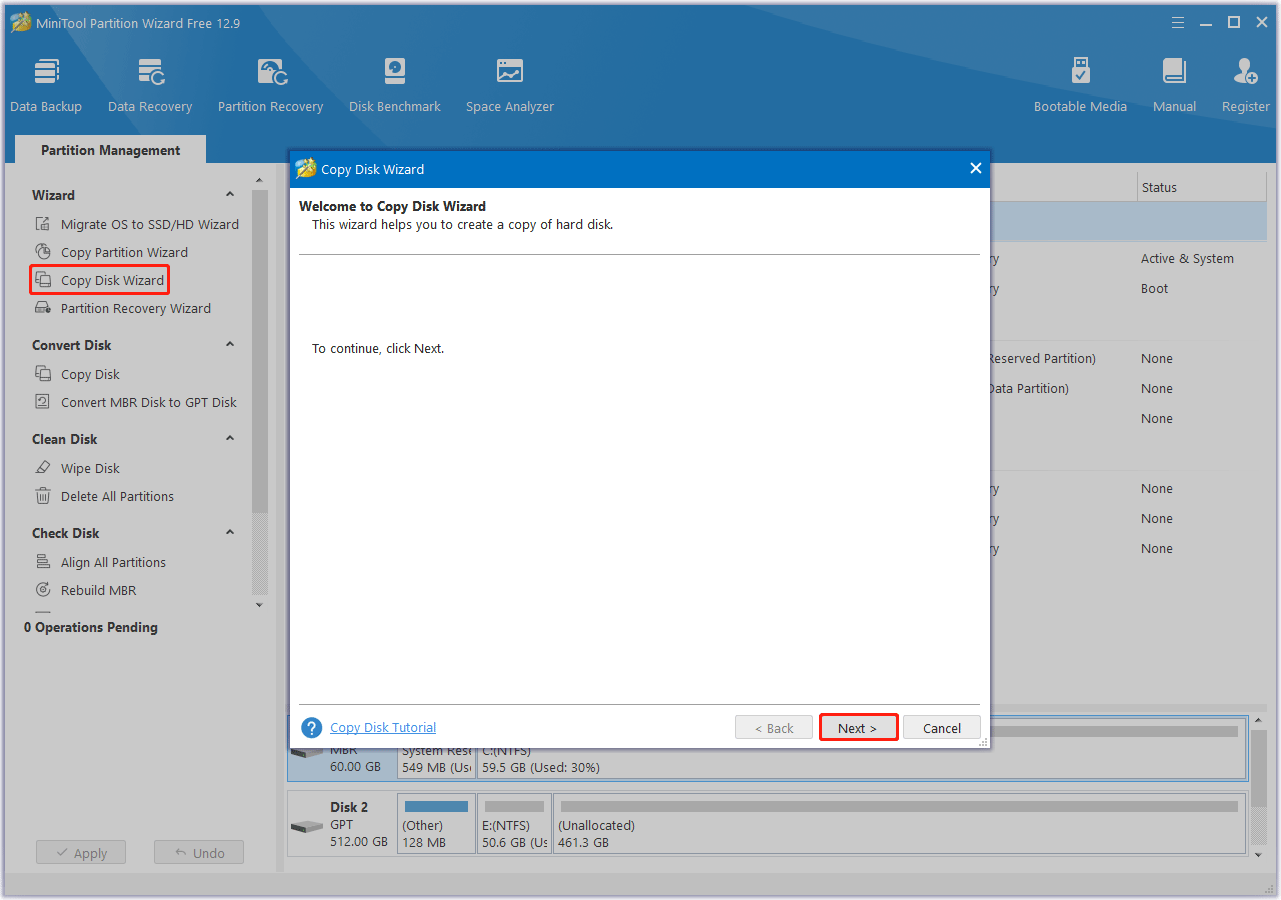
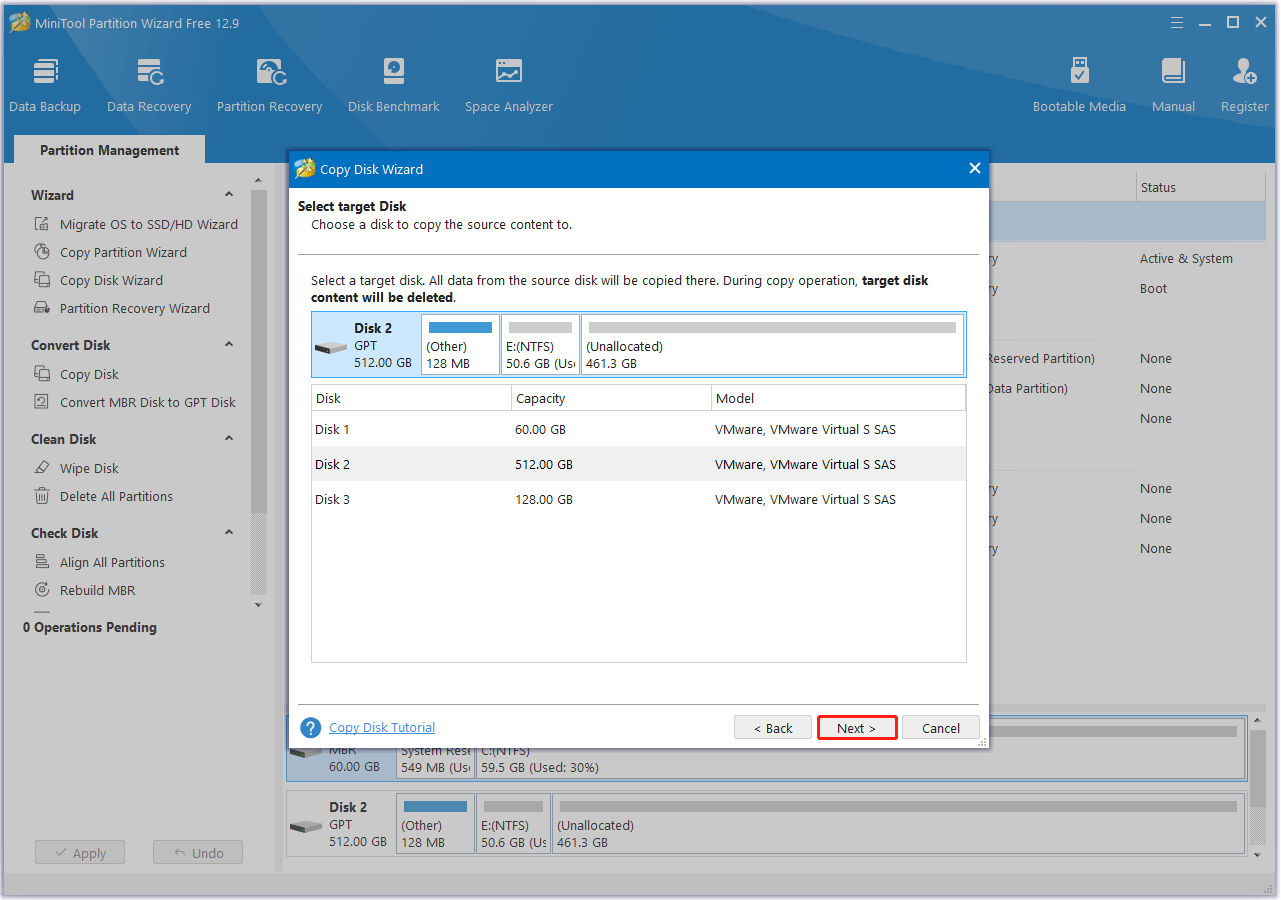
Step 3: In the next window, choose the original disk to copy and click on Next.
Step 4: After that, select the larger SSD as the target disk and click on Next. If you are warned that all the data on the disk will be destroyed, click on Yes to confirm.
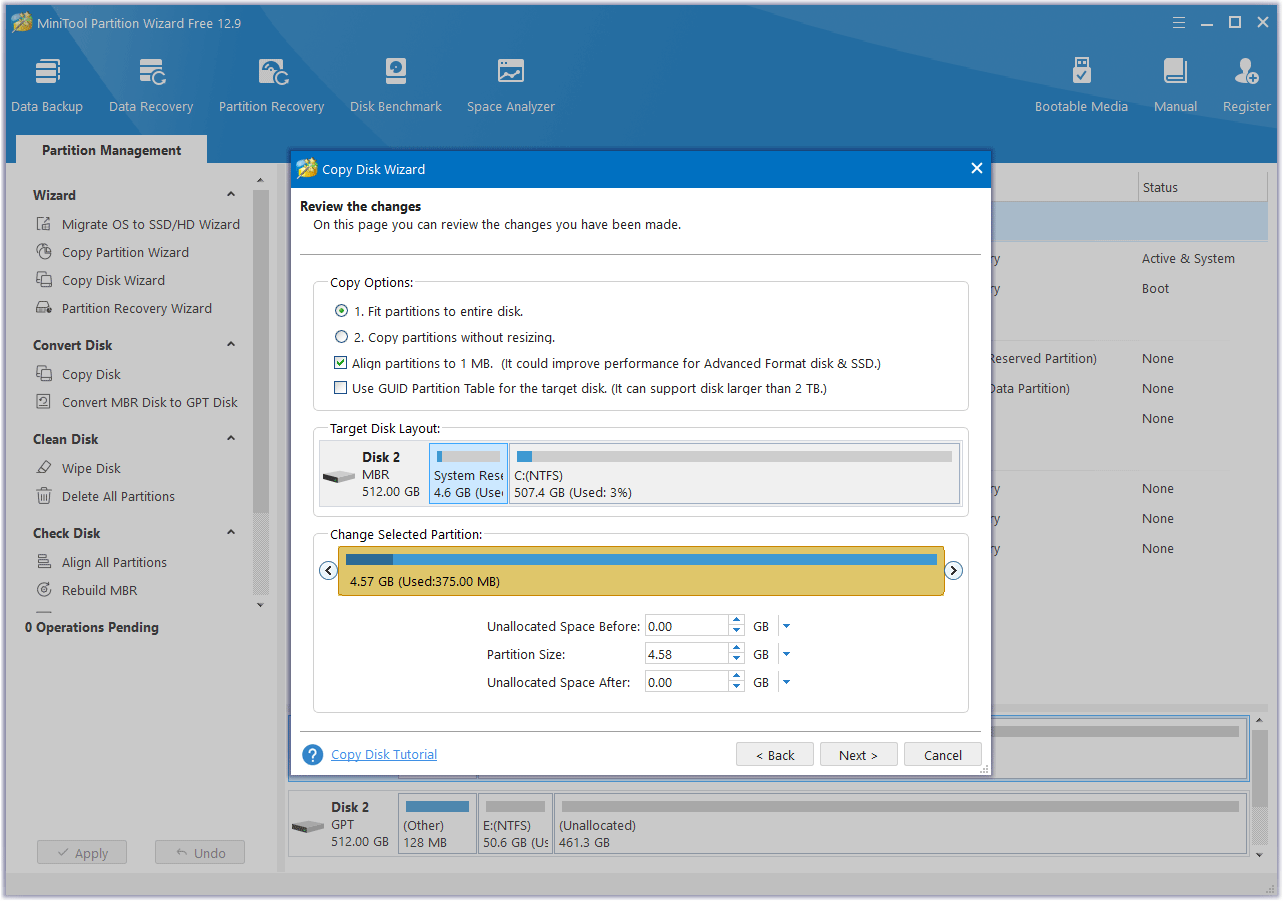
Step 5: Review the changes. You can resize the partitions here. If everything looks good, click Next.
- Fit partitions to entire disk: The partitions on the original SSD will be expanded in equal proportions to fill the entire target SSD.
- Copy partitions with resizing: All partitions on the original SSD are copied to the target SSD without changing size or location.
- Align partitions to 1 MB: Recommended for improving computer performance.
- Use GUID Partition Table for the target disk: Checking this option will change the target disk to GPT partition style.
Step 6: Read the NOTE information and then click Finish. Then, click the Apply button to execute the pending operation. Wait until the cloning process is completed.
Additionally, you can add a second hard drive to increase disk space.
If there is insufficient space on the PlayStation 5 and Xbox Series X|S, you can upgrade the storage. For detailed steps, you can refer to these articles:
- How Much Storage Does the PS5 Have & How to Increase Space
- How Much Storage Does Xbox Series X Have & How to Expand Space
- Xbox Series S Storage Expansion | Xbox Series S SSD Upgrade
How Big Is Valorant FAQ
Bottom Line
How big is Valorant? Now, we believe you have found the answer. To increase the storage space on your PC, we also offer you a professional partition manager – MiniTool Partition Wizard.
If you encounter certain issues while using MiniTool Partition Wizard, you can send us an email via [email protected]. We’ll get back to you as soon as possible.
About The Author

Position: Columnist
As an English editor with almost 15 years of experience, Stella has worked for MiniTool Software and has written articles for 8+ years, mainly covering the fields of data recovery from different storage medium, partition management on Windows, video downloading, and video & audio format conversion.
User Comments :