
Running out of storage space on a Windows partition? Extending a partition can help increase available space by adding unallocated space to an existing volume. This guide explains how to extend a partition in Windows 11/10 using Disk Management, DiskPart, and MiniTool Partition Wizard.
Extending a partition means increasing its size by adding available unallocated space from the same disk. You may need to expand a partition because the C drive is full, Windows updates need more space, applications cannot install, improve system performance, etc.
To extend a partition in Windows 11/10, you can use Disk Management, DiskPart, and MiniTool Partition Wizard. Their differences are as follows.
| Comparison | MiniTool Partition Wizard | Disk Management & DiskPart |
| Price | Free for partition extend | Free |
| Premise | The partition to extend and the unallocated space must be on the same physical disk. | 1. Unallocated space must be after the partition that you want to extend. 2. There should no partition between the partition to extend and the unallocated space. 3. The partition to extend and the unallocated space must be on the same physical disk. |
| Applicable Disk Scenarios | 1. Partition | Unallocated Space 2. Partition | Other Partitions | Unallocated Space 3. Unallocated Space | Partition | Partition | Unallocated Space |
| Extend Special Partitions | Can extend System Reserved, ESP, Recovery, OEM, and FAT32 partitions. | Only NTFS and ReFS partitions. |
In addition, MiniTool Partition Wizard partition extend feature can also extend a partition by taking free space from another partition. This is more convenient.
How to Extend a Partition Using MiniTool Partition Wizard
MiniTool Partition Wizard can not only extend a partition, but also move a partition, merge partitions, copy a partition or disk, convert MBR to GPT, migrate OS, recover lost partitions and data, etc. It’s worth trying.
MiniTool Partition Wizard FreeClick to Download100%Clean & Safe
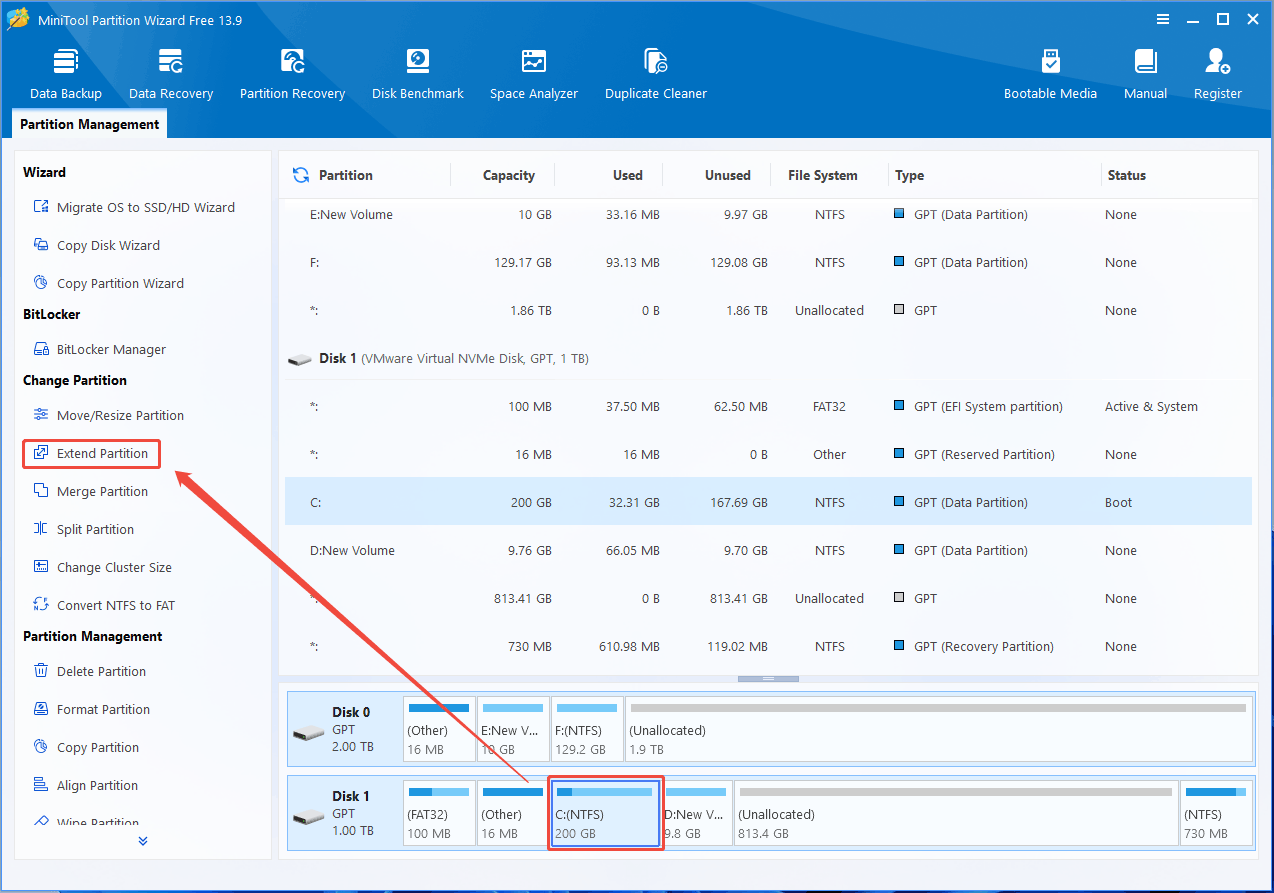
Step 1: Launch MiniTool Partition Wizard, select the partition you want to extend, and click Extend Partition from the left action pane.
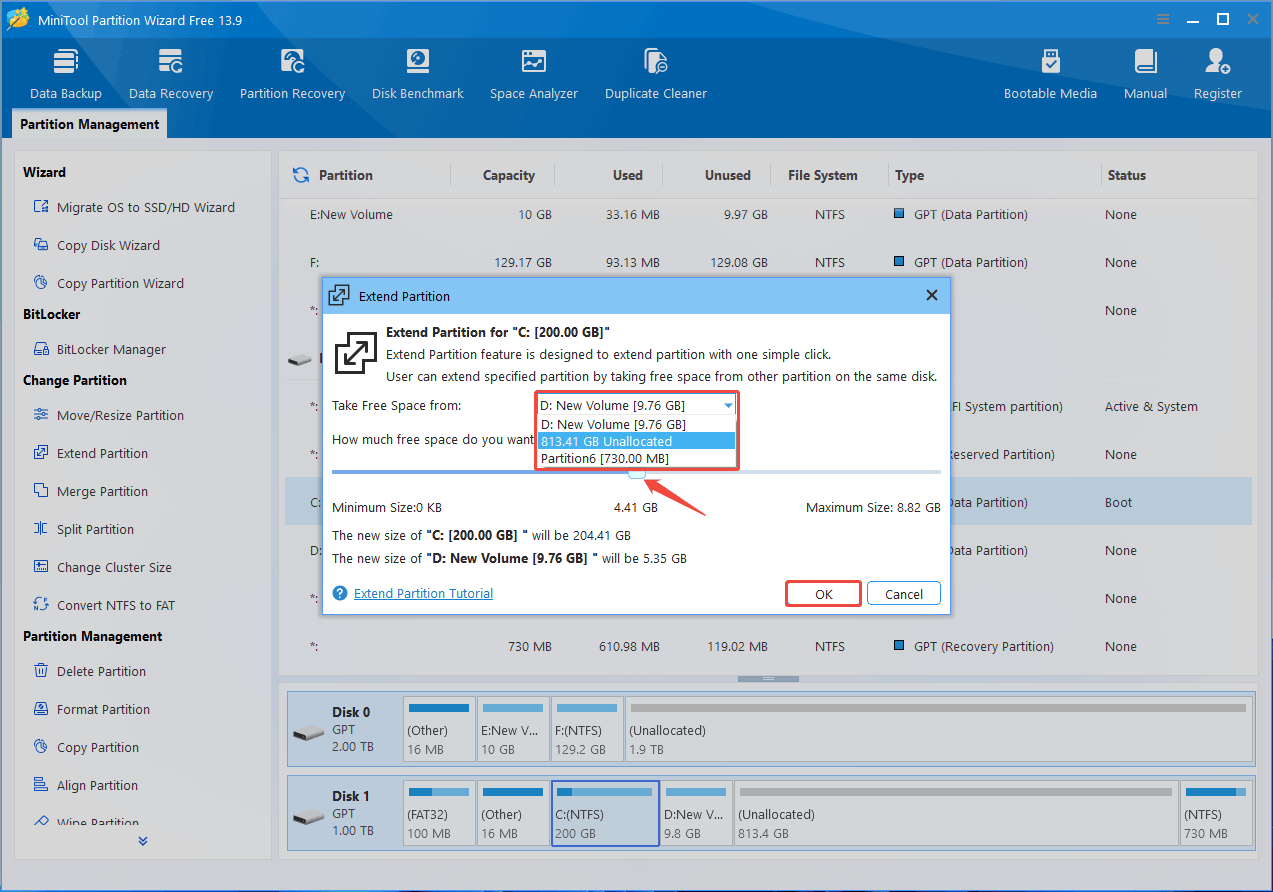
Step 2: Click the down arrow from “Take Free Space From” and choose a partition or unallocated space. You can drag the sliding handle leftwards or rightwards to decide how much of the available space it takes up. After that, click OK to go back to the main interface.
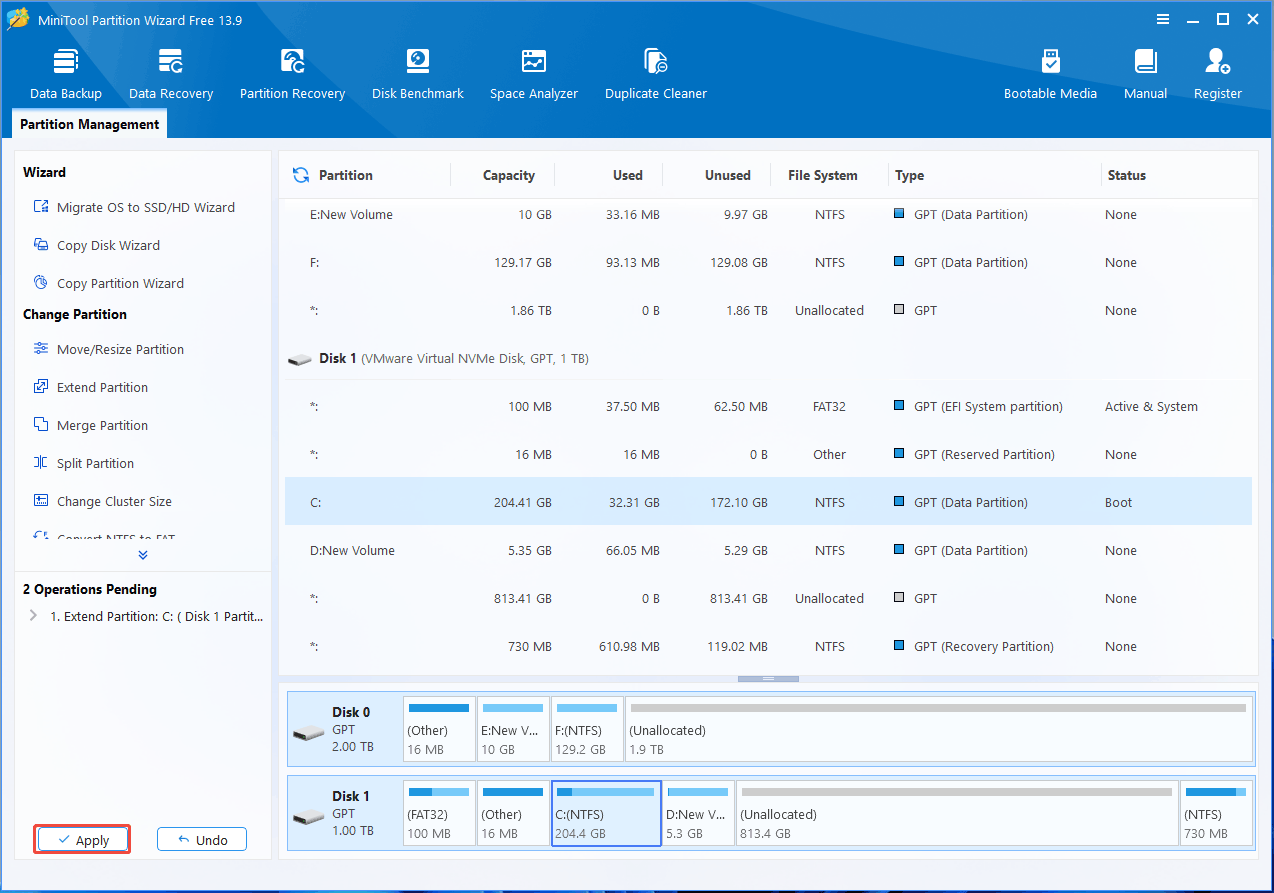
Step 3: Now you can see the system partition is extended, but this effect has not been applied to the computer. So, you need to click the Apply button to execute all changes.
How to Extend a Partition Using Disk Management
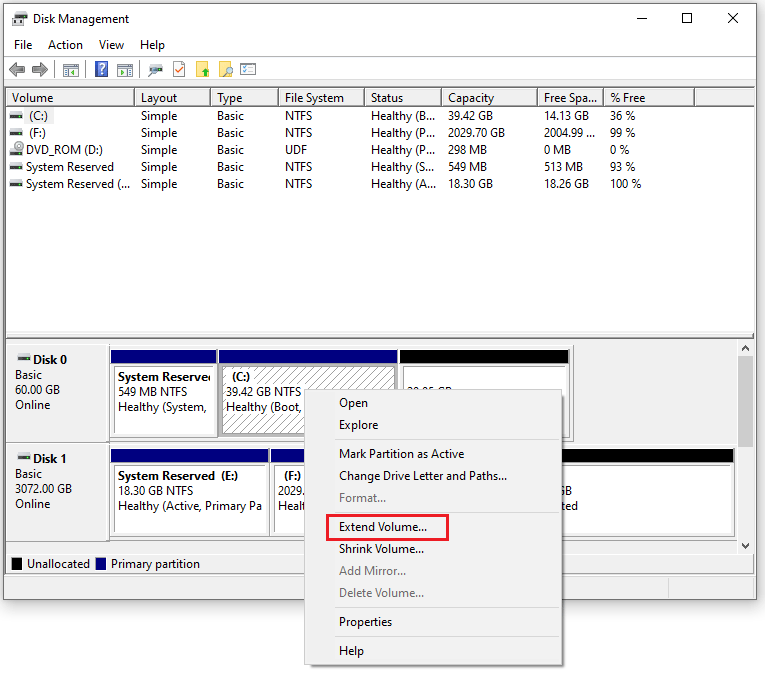
Step 1: Press the Win + X keys to select Disk Management and the disk and partition information will be demonstrated on the main interface.
Step 2: Right-click on the C partition you want to extend and choose the option Extend Volume.
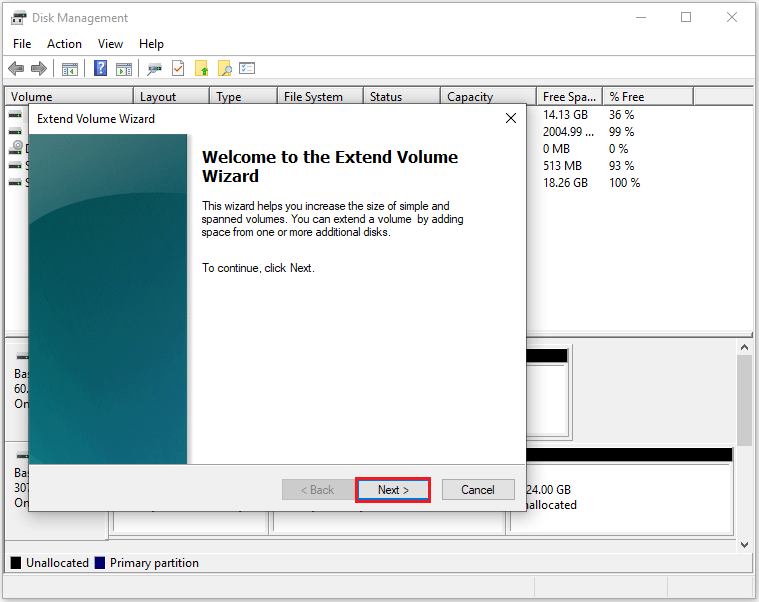
Step 3: In this pop-up window, click Next to continue.
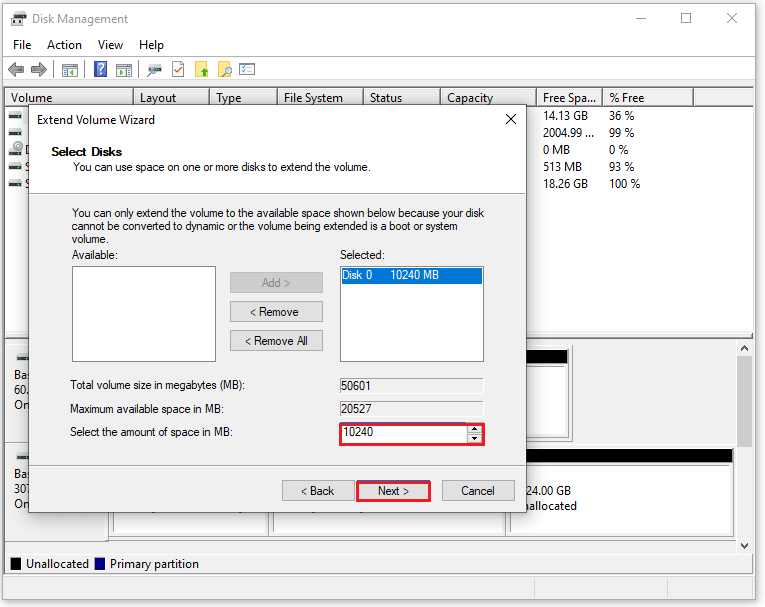
Step 4: Set the amount of disk space you would like to add to the C partition. After fulfilling the requirements, click the Next button.
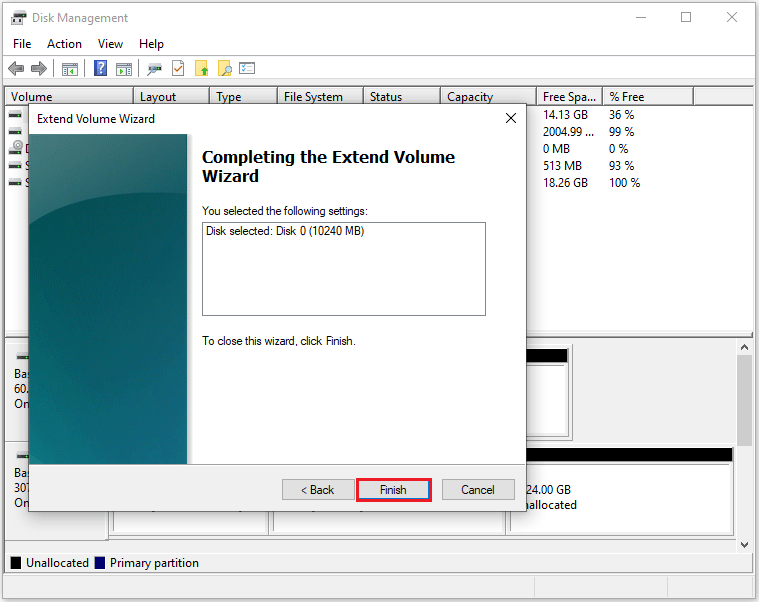
Step 5: Complete the process by clicking the Finish button and you’ll return to the Disk Management tool where you can see the partition’s changes.
How to Extend a Partition Using DiskPart
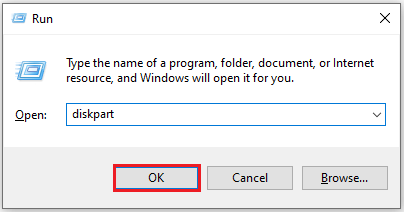
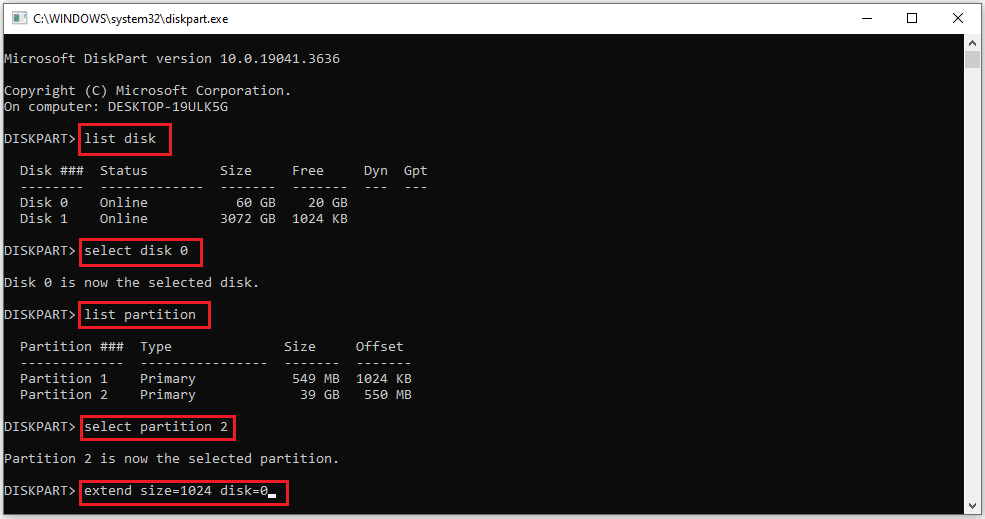
Step 1: Press the Win + R keys to open the Run box, and type diskpart to click OK.
Step 2: Type the following commands and each one ends with the Enter key:
- list disk
- select disk 0 (0 is the number of the target disk)
- list partition
- select partition 2 (2 is the partition number of the target disk)
- extend size=x (x means a specific space size of the unallocated space or free space on the target disk you want to use, and x is in MB unit)
In summary, you can use third-party software and Windows built-in tools to extend a partition. But in comparison, MiniTool Partition Wizard can do this without losing any data. Windows built-in tools have certain limitations and may also cause data loss and affect the computer startup. It is not recommended to use the Windows built-in tools.
Bottom Line
This article ends here. The article describes in detail how to extend partition Windows 10 in 3 ways. You can choose the method you prefer to expand partition Windows 10. I hope this article is helpful to you.
If you have any questions or suggestions while using MiniTool Partition Wizard, you can contact us via [email protected] to get a quick reply.
Extend Partition Windows 10 FAQ
Right-click the Windows partition and click Extend.
Take some free space from another drive or the unallocated space.
Click Apply.
About The Author

Position: Columnist
Linda has been an editor at MiniTool for seven years. She continuously learns about computers and puts her knowledge into practice. Moreover, she is particularly knowledgeable in disk management, data recovery, system installation, and PDF editing. Her articles typically reference multiple examples or are based on her own experience, providing users with the most suitable solutions.
User Comments :