
Quick Answer
If your 128GB flash drive is only showing 32GB, the drive may have a 32GB partition while the remaining space is unallocated or assigned to another partition.
Open Disk Management to check the drive’s total capacity and partition layout. If Windows detects the full drive but only 32GB is usable, you can usually extend the partition or recreate it to use the remaining space.
If the entire USB drive is detected as only 32GB, check it on another computer and consider testing its actual capacity for possible hardware, firmware, or counterfeit-drive issues.
Why Is My 128GB Flash Drive Only Showing 32GB?
A 128GB flash drive showing only 32GB in File Explorer usually indicates a partition, formatting, or drive-recognition issue rather than normal capacity loss.
To determine the specific cause, you need to check whether Disk Management shows the full 128GB drive (approximately 119GB in Windows) or displays the entire disk as only 32GB.
#1. If Disk Management Shows the Full 128GB Drive
The USB disk layout should be 32GB partition + around 87GB unallocated space/unrecognized partitions.

Then, the causes could be:
- Only a 32GB partition was created. Other space is unallocated.
- The USB drive was previously used as bootable media. Only 32 GB of space is used when creating the bootable drive.
- The USB drive was used with another operating system, computer, game console, camera, or other devices. Therefore, it has multiple, hidden, and unrecognized partitions.
- The drive was formatted or partitioned incorrectly, resulting in only part of the flash drive being available.
To restore the USB to full capacity, you can try the following methods.
- Extend the partition using MiniTool Partition Wizard.
- Delete the partition and create a new one using Disk Management.
- DiskPart clean the USB drive and create a new partition.
#2. If Disk Management Also Shows Only 32GB
If Disk Management itself reports the entire USB drive as approximately 32GB, rather than showing a 119GB disk with a 32GB partition, the problem is different.
Possible causes include:
- USB drive hardware or firmware problems.
- Connection or USB-port issues.
- Incorrect device information.
- A counterfeit flash drive.
In this case, try connecting the drive to another USB port or computer.
If it consistently reports only about 32GB, use software like H2testw to test if it is a fake USB. Some counterfeit USB drives are programmed to report a capacity larger than their actual flash memory. A drive advertised as 128GB may contain substantially less physical storage.
How to Restore 32GB USB to 128GB
Is your 128GB USB only showing 32GB? If it is caused by partition or formatting issues, then try the following 3 methods to restore the full capacity.
Method 1. Extend the Partition to the USB Full Capacity
To extend a partition, you can use MiniTool Partition Wizard. This free partition software supports extending both NTFS and FAT32 partitions. Here is the guide.
MiniTool Partition Wizard FreeClick to Download100%Clean & Safe
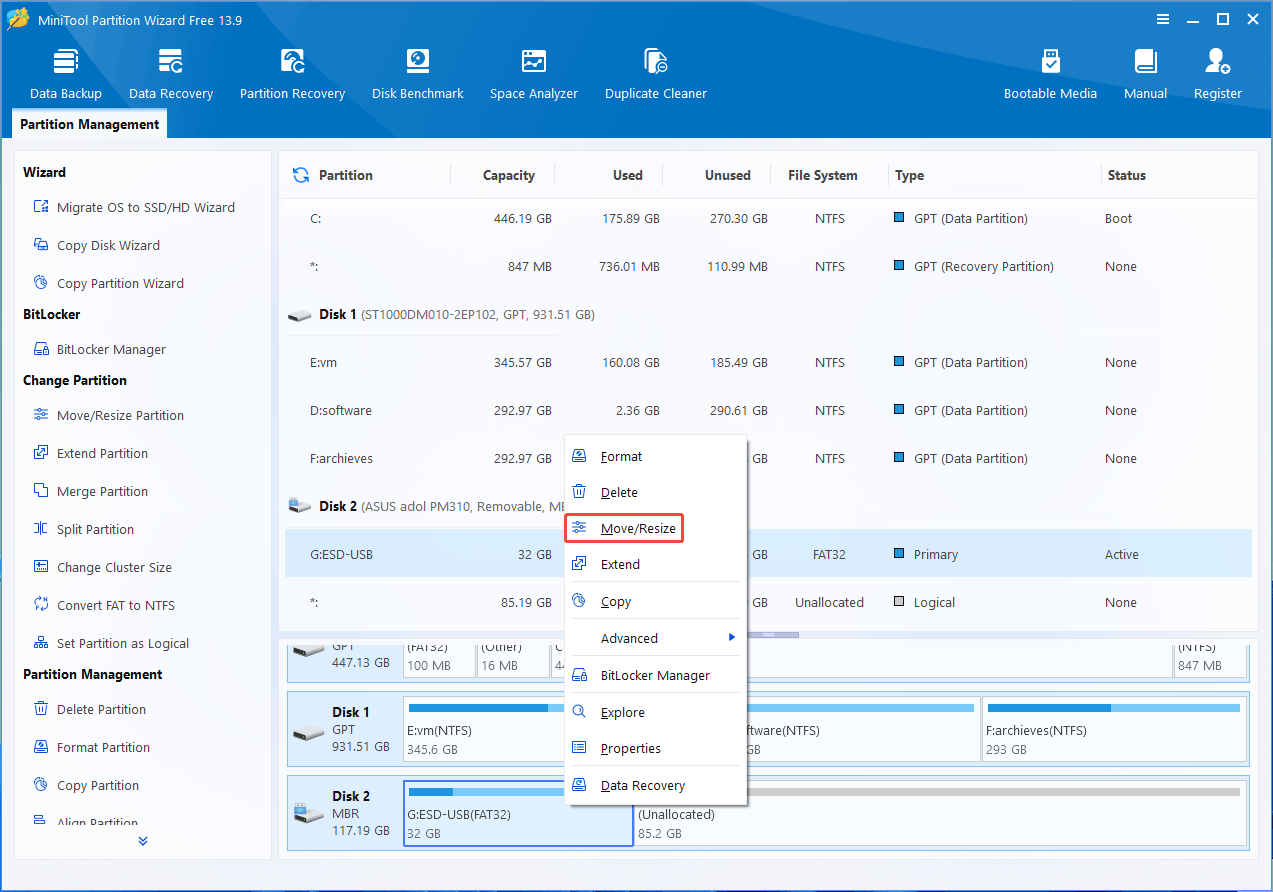
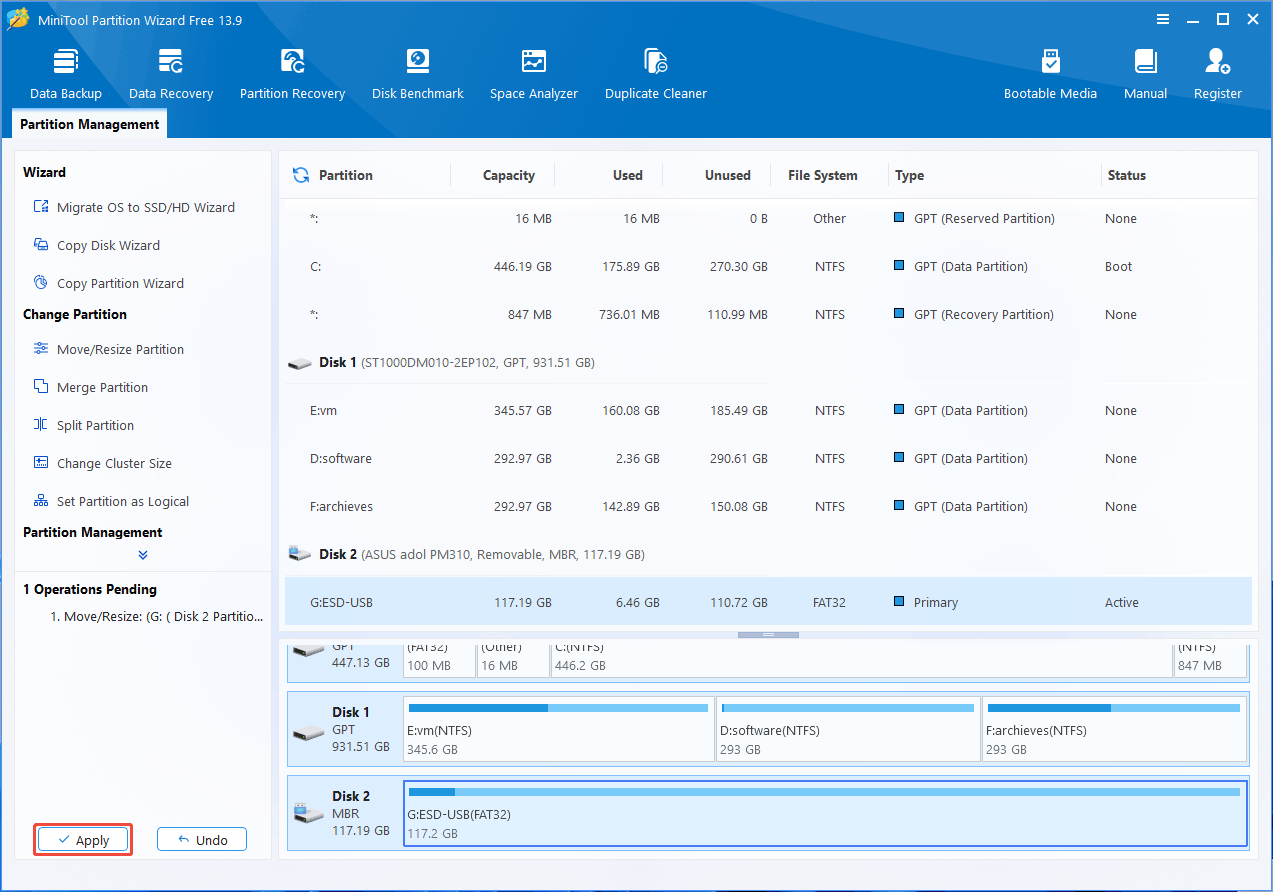
Step 1: Launch MiniTool Partition Wizard. Right-click the 32GB partition on the USB drive and choose Move/Resize.
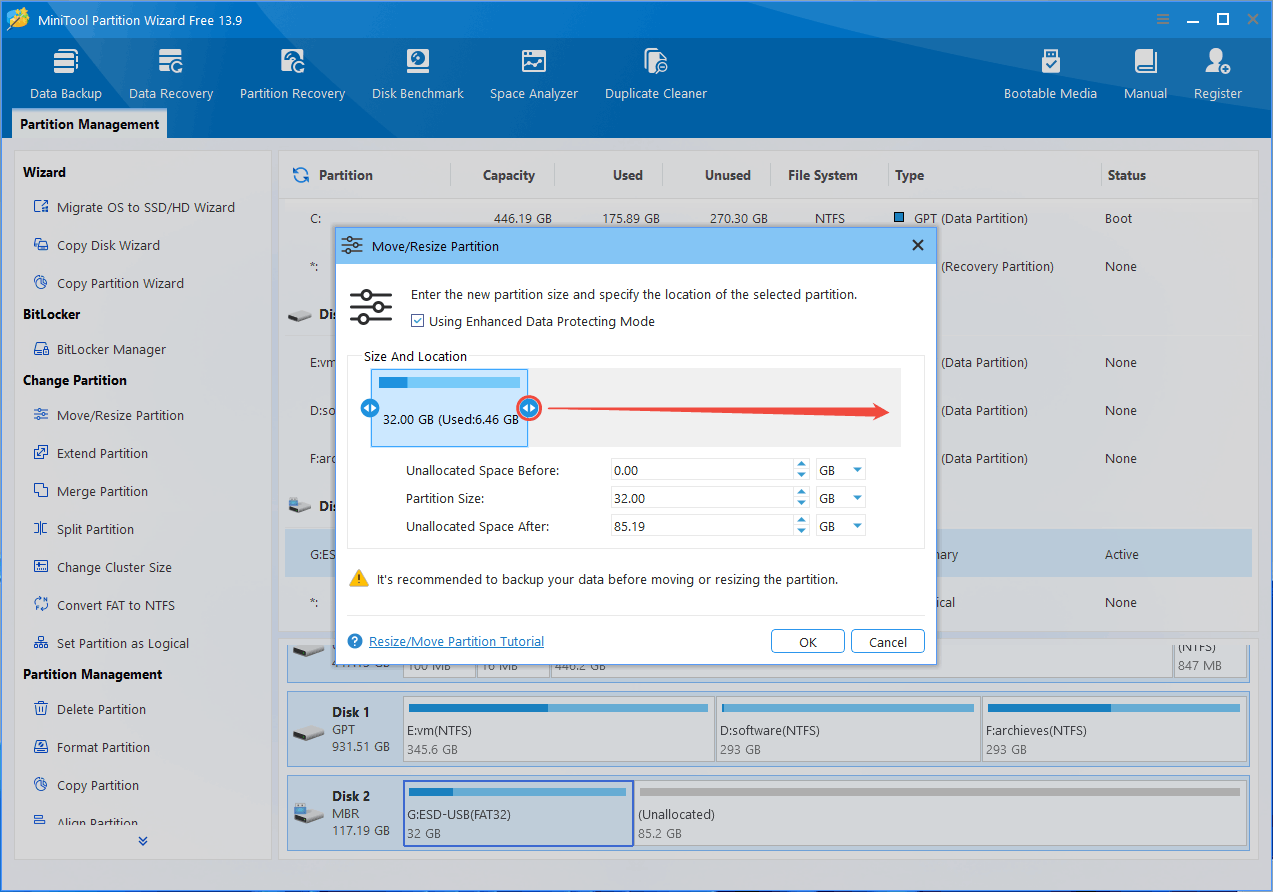
Step 2: On the pop-up window, drag the arrow symbol on the right to the far right. Then, click the OK button.
Step 3: Click the Apply button to execute the extending operation.
![[Quick Fix] The USB Flash Drive Showing Wrong Size](https://images.minitool.com/partitionwizard.com/images/uploads/2023/08/flash-drive-showing-wrong-size-thumbnail.png)
Method 2. Delete and Recreate the Partition
Disk Management, the Windows built-in disk and partition GUI tool can help you do that easily. Here is the guide.
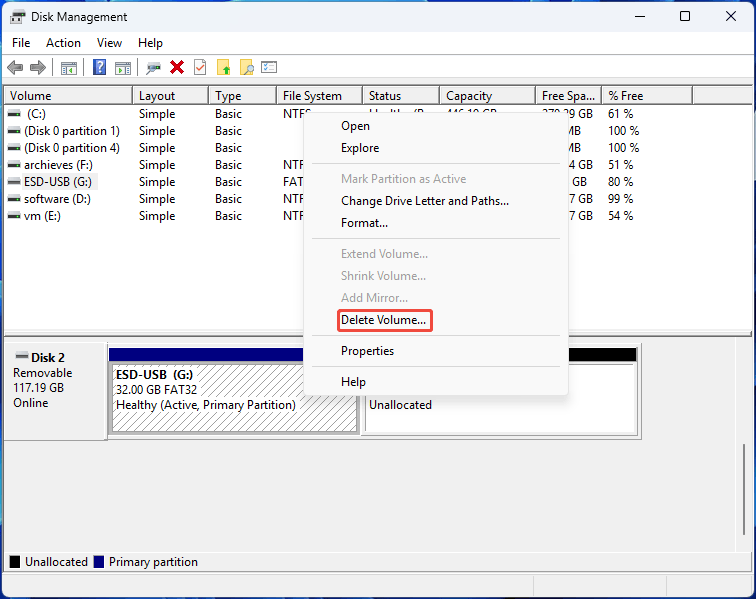
Step 1: Delete the partition.
- Press Win + X and select Disk Management to open it.
- Right-click the 32GB USB partition and choose Delete Volume. Then, click Yes to confirm.
- If there are other partitions, delete them also, until the entire USB drive becomes unallocated.
Step 2: Create a new partition.
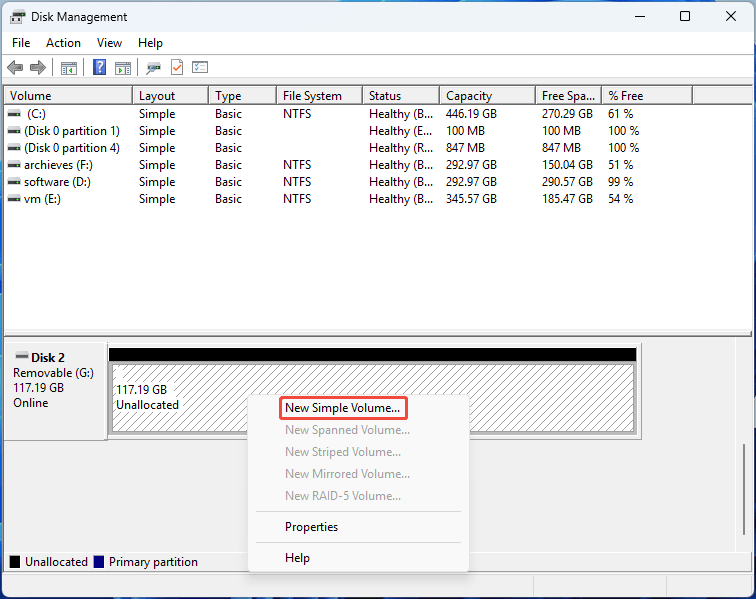
- Right-click the Unallocated space and choose New Simple Volume.
- Click Next all the way and then Finish. This will use all the unallocated space to create an NTFS partition by default.
Method 3. DiskPart Clean the USB Drive and Create a New Partition
If all the above methods fail, this method may work. It will delete all partitions on the USB flash drive and completely clean up its partition information. Here are the steps.
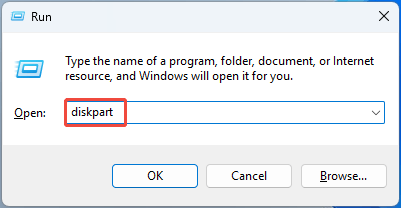
Step 1: Press Win + R, type “diskpart”, and then press Enter to open it.
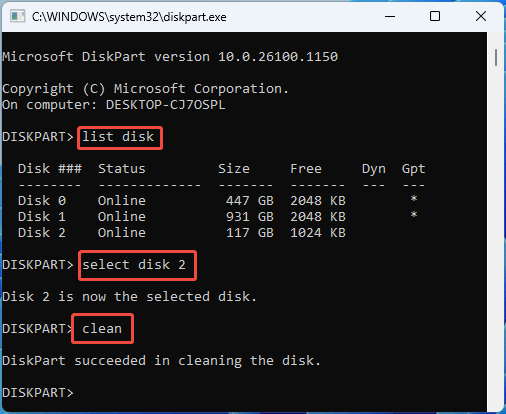
Step 2: Run the following commands one by one to clean the USB drive.
- list disk
- select disk * (* is the disk number of the USB drive)
- clean
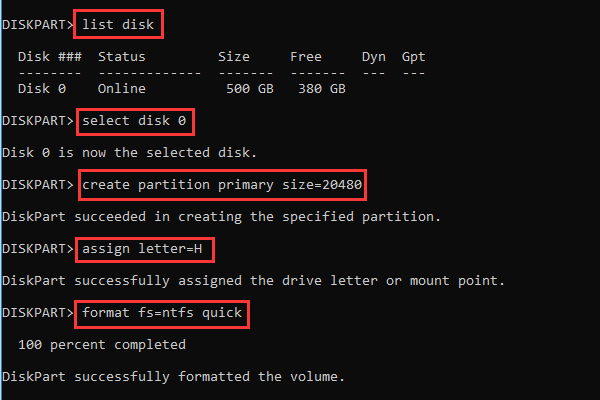
Step 3: Run the following commands to create a new partition.
- create partition primary
- assign letter = #
- format fs=ntfs quick
128GB Flash Drive Only Showing 32GB FAQ
Bottom Line
Is your USB drive only showing 32GB? If so, check Disk Management first. If Windows detects the full drive but only a 32GB partition is available, you can usually restore the missing space by extending or recreating the partition.
To extend a partition, MiniTool Partition Wizard is recommended. If you encounter issues when using this software, contact our support team via [email protected] for help.
About The Author

Position: Columnist
Linda has been an editor at MiniTool for seven years. She continuously learns about computers and puts her knowledge into practice. Moreover, she is particularly knowledgeable in disk management, data recovery, system installation, and PDF editing. Her articles typically reference multiple examples or are based on her own experience, providing users with the most suitable solutions.
User Comments :