
If you’re looking to locate duplicate files and photos in a folder, this article can guide you. It explains the common causes of duplicate files in a folder and offers step-by-step instructions on how to remove duplicate files in a folder using MiniTool Partition Wizard.
Duplicate files in a folder refer to copies of files with identical or highly similar content. They typically originate from the following common sources:
- Duplicate downloads: The same file is downloaded multiple times and then placed in folders.
- Backup conflicts: Repeated backups of the same directory result in files in the folder being saved multiple times.
- Automatically generated versions by software: Some editing tools save new files in a folder instead of overwriting the originals
- Accidental copying and pasting: Accidentally copying files or entire folders.
These duplicate files in a folder consume disk space, create chaos in file management, and reduce work efficiency.
Well, how to remove duplicate files in a folder? The following will introduce 2 methods to quickly find and delete duplicate files in a folder.
| Feature | MiniTool Partition Wizard | File Explorer |
| Installation Method | Software download and installation required | Windows comes pre-installed, no installation required |
| Duplicate File Detection | Automatically scans and identifies duplicate files | Manual search required |
| Scanning Efficiency | Fast batch scanning of large numbers of files | Efficiency is lower when there are many files |
| Filtering Function | Supports filtering by file type, size, location, etc | Limited filtering options |
| Smart Cleanup | Offers intelligent selection for easy batch deletion | Manual selection and deletion required |
| Applicable Scenarios | Clean up large amounts of duplicate files | Clean up small amounts of files |
| Main Disadvantages | Requires additional software installation | Time-consuming and prone to missing duplicate files |
| Cost | Free | Free |
Remove Duplicate Files in a Folder via MiniTool Partition Wizard
Duplicate files can take up a lot of storage space and make folders cluttered. To free up disk space and keep your files tidy, you can delete duplicate files regularly.
MiniTool Partition Wizard’s Duplicate Cleaner feature can help you remove duplicate files from your folders.
Here are some of the advantages of this feature:
- Precise identification: Employs hash comparison technology to verify file content, resulting in more accurate scan results.
- Flexible scanning: Supports customizable scan partitions, folders, file types, and file sizes.
- Wide compatibility: Supports Windows systems and various storage devices.
MiniTool Partition Wizard FreeClick to Download100%Clean & Safe
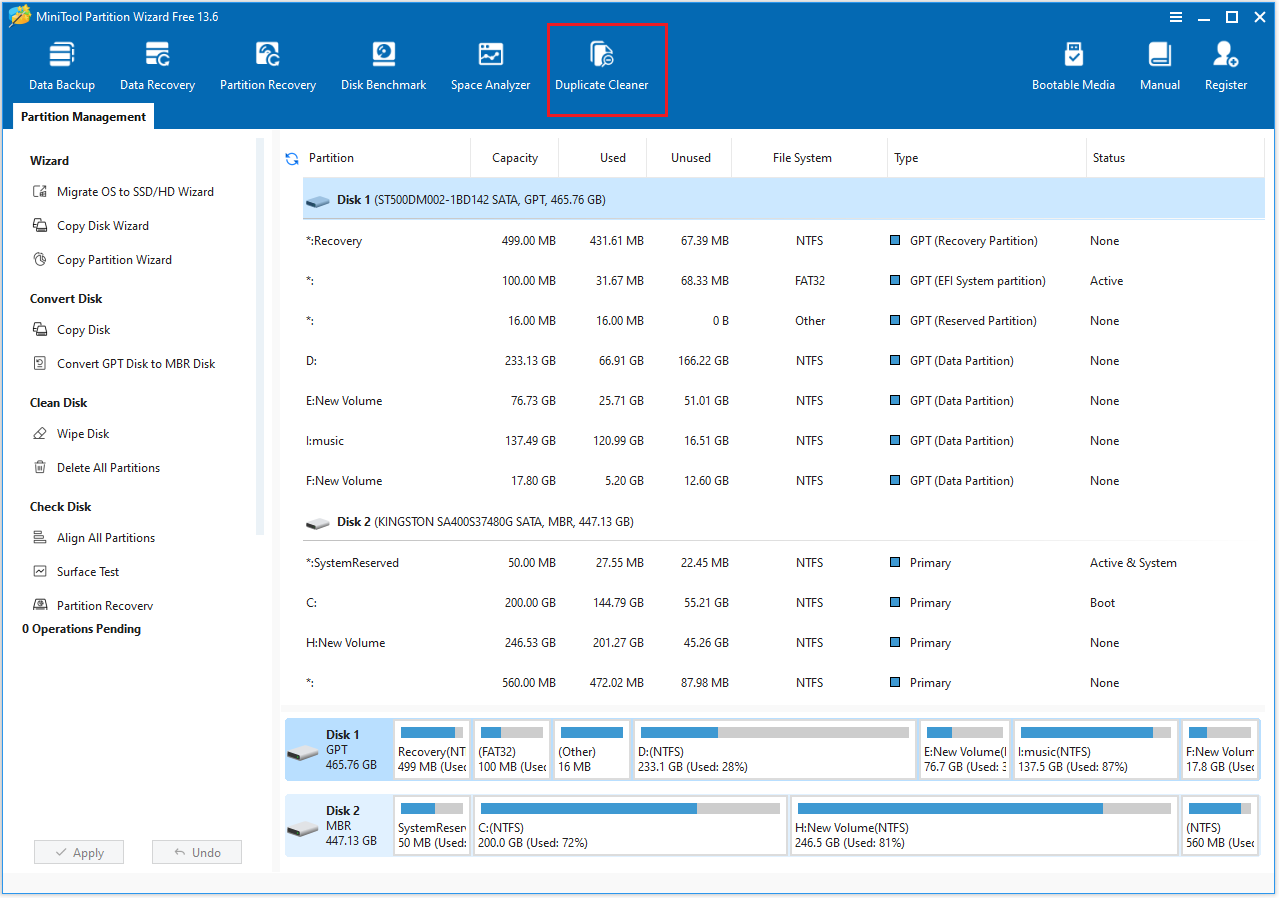
Step 1: Launch MiniTool Partition Wizard to its main interface and click the Duplicate Cleaner feature on the toolbar.
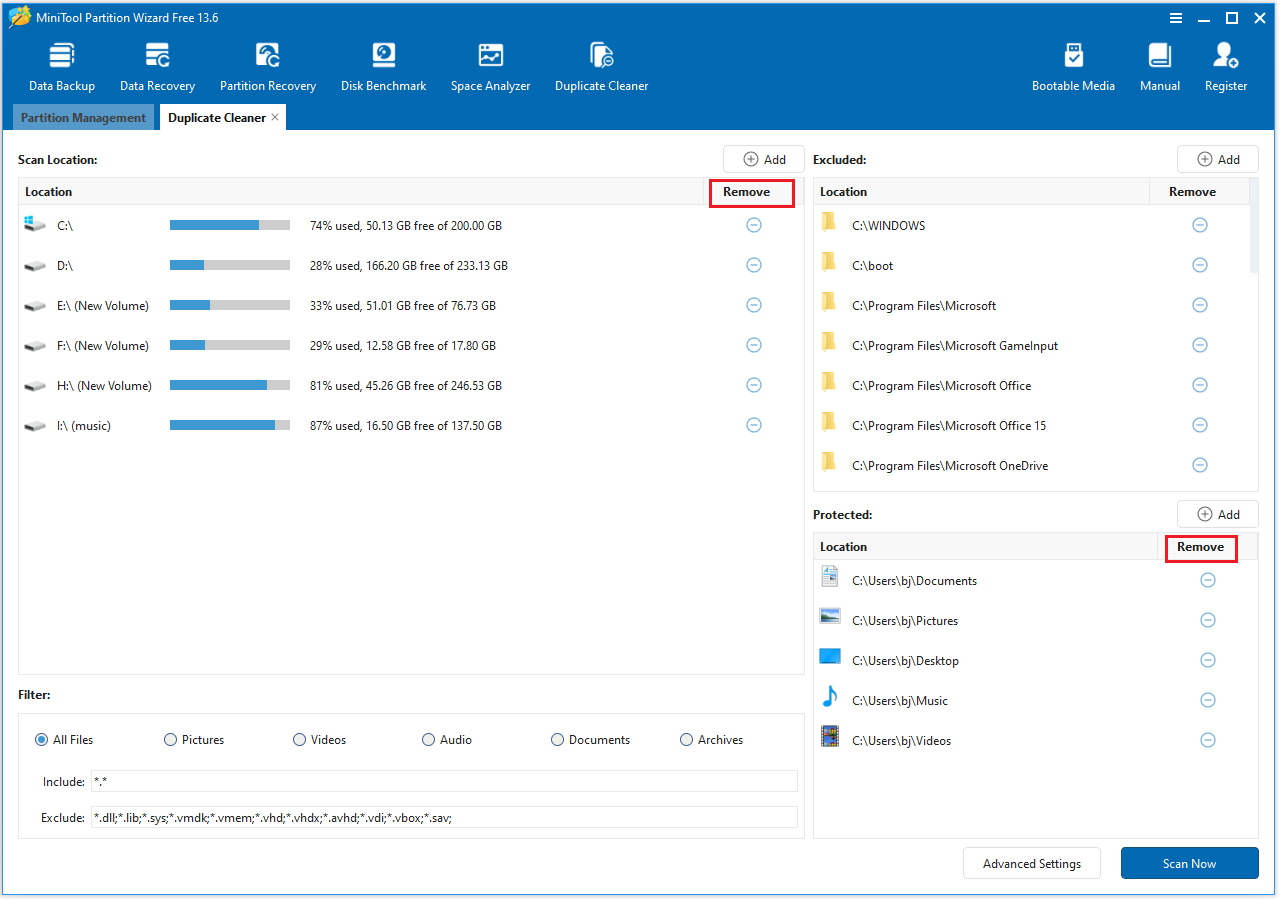
Step 2: In the Scan Locations section, click the Remove icon to delete all disks and partitions. In the Protected section, remove protected folders.
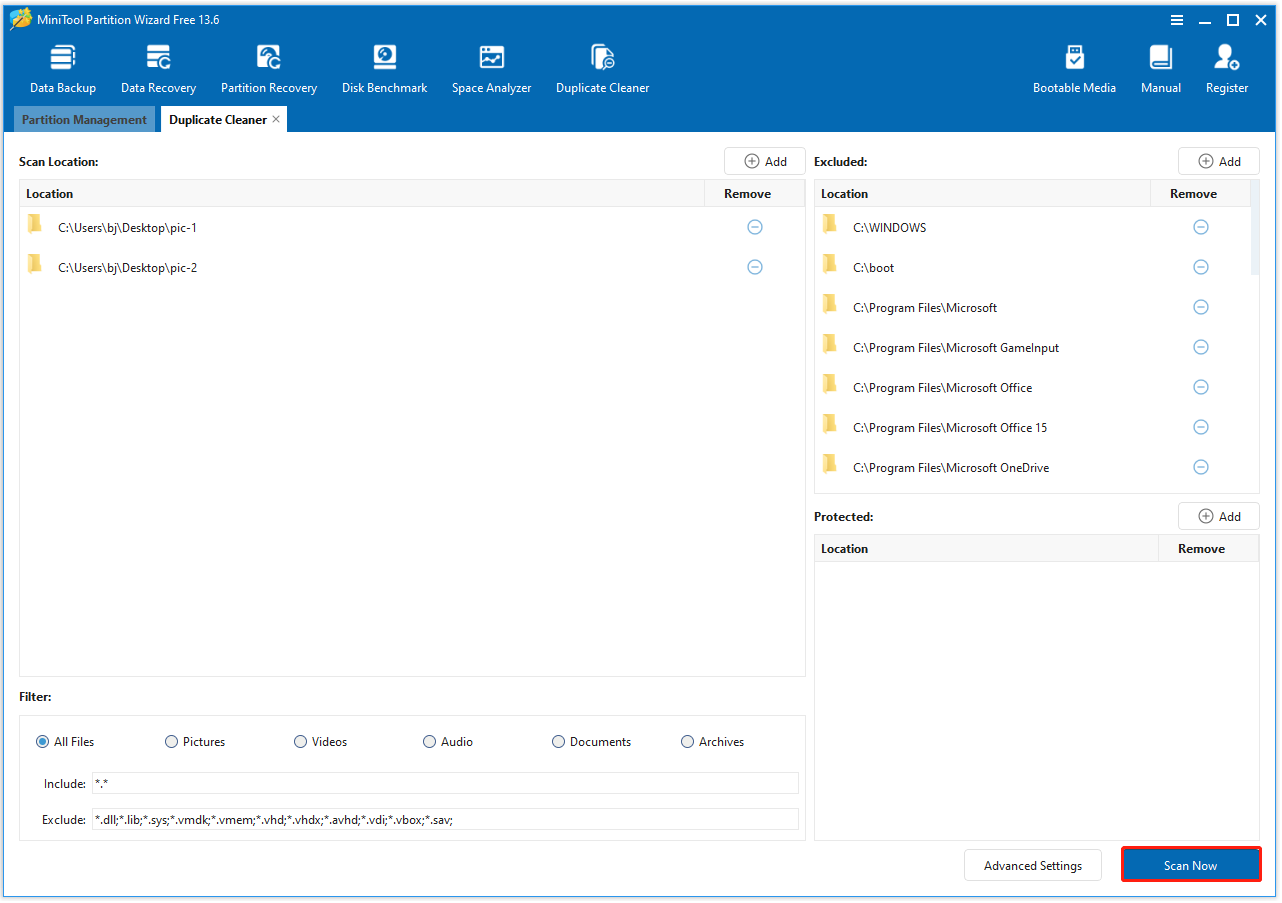
Step 3: Click the Add icon to add the folder you want to scan. By default, all file types will be scanned, but you can also select a specific category (such as Pictures). Once you’ve set it up, click Scan Now to start scanning.
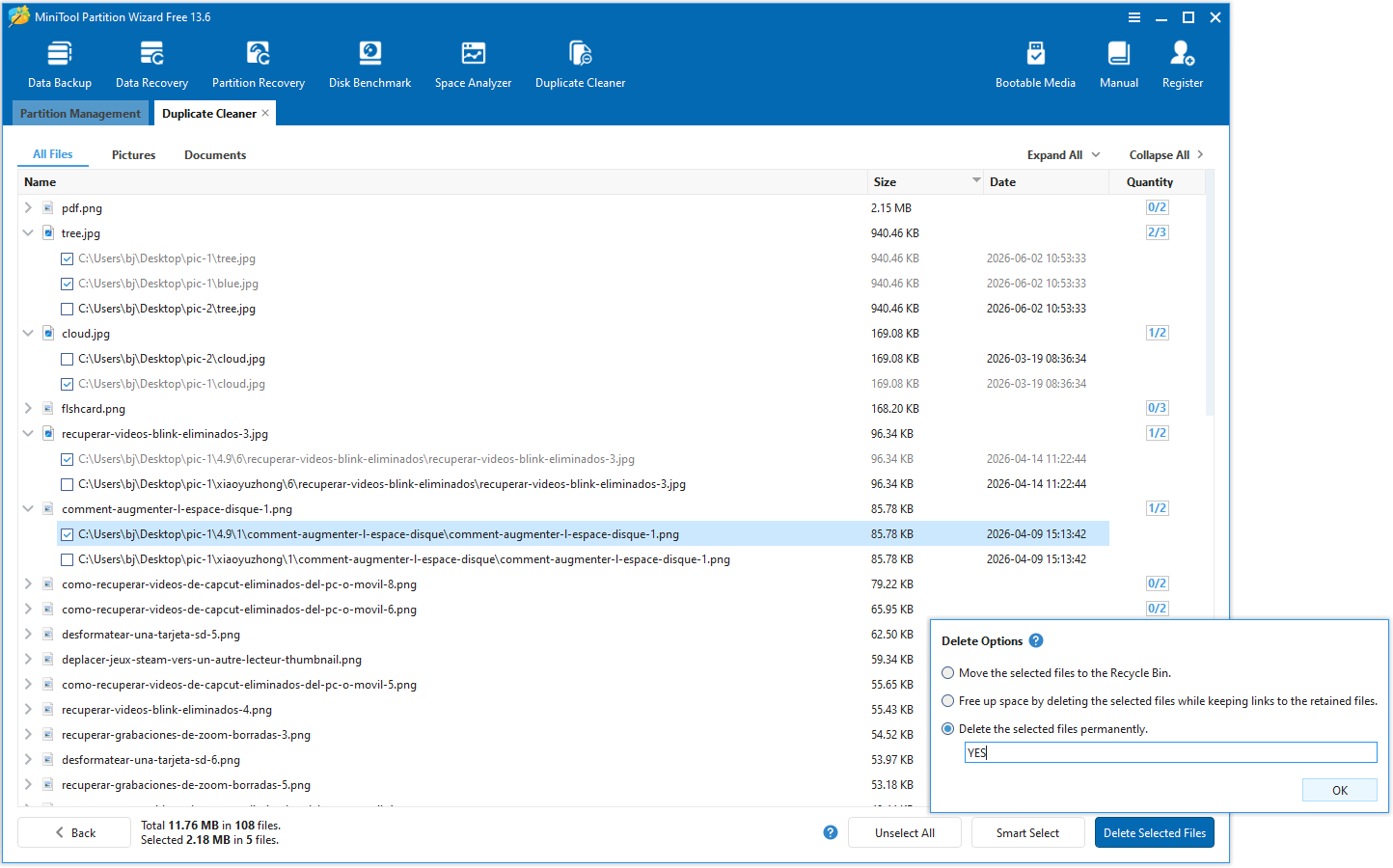
Step 4: After the scan is complete, all duplicate files or photos will be listed. Expand each item to view these duplicate files in a folder. Select the files you want to delete, then click Deleted Selected Files in the bottom right corner. The Delete Option window will appear. Choose one delete option and then click OK.
Remove Duplicate Files in a Folder via File Explorer
Windows does not include a built-in tool specifically designed for scanning duplicate files. However, you can manually locate and remove duplicate photos in a folder using File Explorer.
The specific steps are as follows:
- Click the File Explorer icon to open File Explorer.
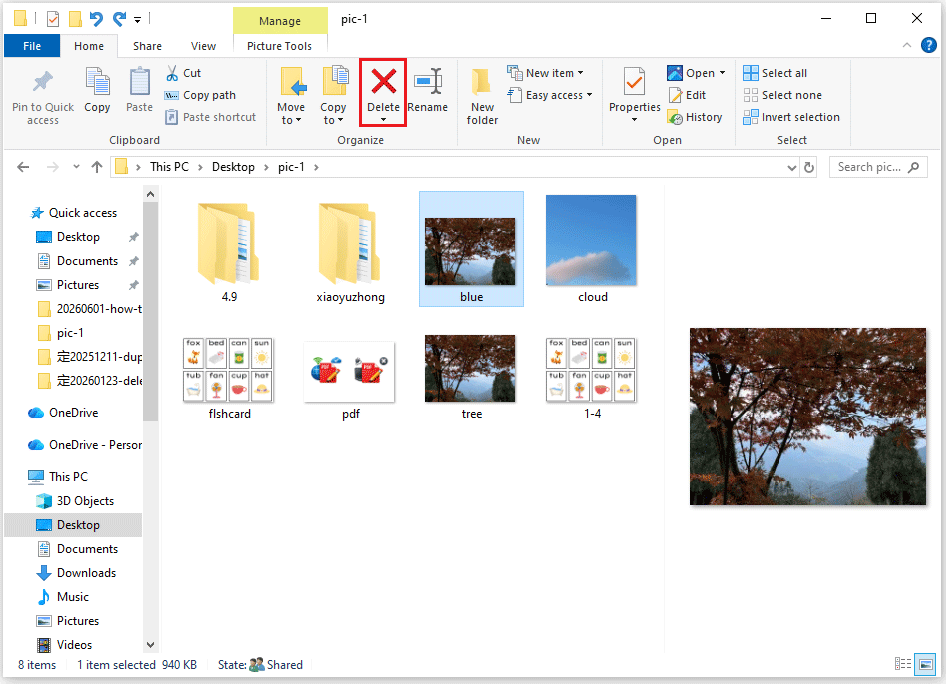
- Here you can click Desktop to locate your folder, and then click a folder to open it.
- Manually review the listed files in a folder. Look for files or photos with the same or different names, and similar modification dates.
- After confirmation, select the photos and select the Delete icon at the top.
Tips to Avoid Duplicate Files in Your Folders
To keep your folders tidy and improve work efficiency, here are some simple practices to help you avoid creating duplicate files.
Here are a few useful tips:
- Use consistent naming: Give files a consistent name or add version numbers.
- Organize by category: Folders are organized according to type or date.
- Avoid duplicate downloads/copying: Check if the same file already exists before saving.
- Use cloud synchronization: Utilize cloud storage and version control to reduce duplication.
- Regular cleanup: Regularly scan and delete duplicate files.
- Cite source: Record the source or purpose of files when saving for easier management.
How to remove duplicate photos in a folder? This post offers you 2 methods.Click to Tweet
How to Remove Duplicate Files in A Folder FAQ
Bottom Line
This post offers 2 methods to delete duplicate files/photos in a folder with File Explorer and MiniTool Partition Wizard. If you have any questions or feedback about MiniTool Partition Wizard, feel free to contact our support team at [email protected] for additional help.
User Comments :