
You may need to extend volume to non contiguous space but failed in Disk Management of Windows. So, how to extend partition to non contiguous space easily and safely? Don’t worry. This article from Partition Magic shows you ways to extend partition to non contiguous space without data loss.
Can Disk Management Extend a Partition to Non-Contiguous Space?
Windows Disk Management cannot normally extend a partition into non-contiguous unallocated space. The Extend Volume will become greyed out.
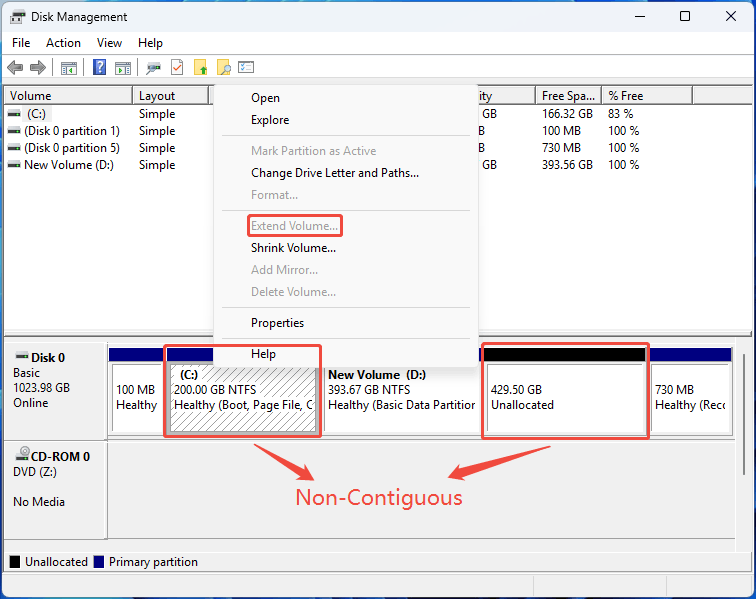
To extend a partition in Disk Management, the unallocated space must be immediately adjacent to the right of the partition you want to extend and on the same physical disk.
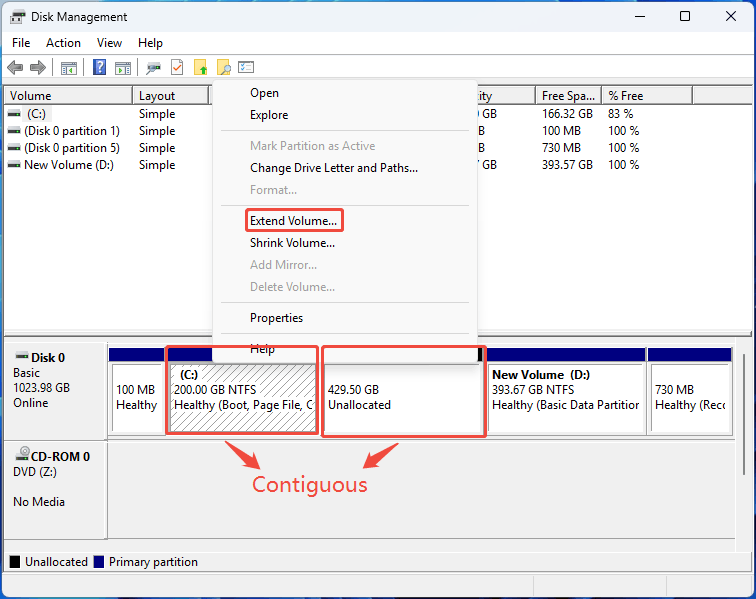
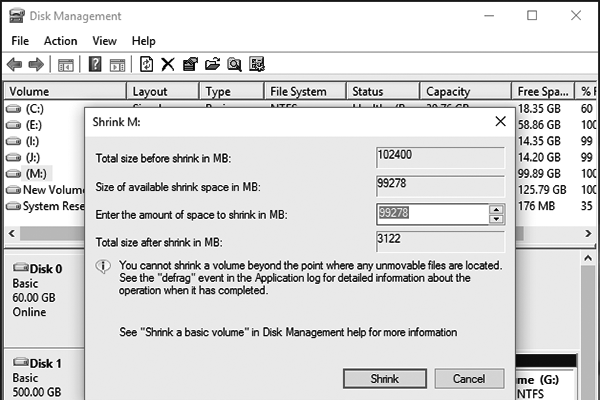
If you still want to extend volume to non-contiguous space in Disk Management, you can delete the blocking partition. Back up data before proceeding.
How to Extend Partition to Non Contiguous Space Without Data Loss
If you want to extend volume to non contiguous space without data loss, MiniTool Partition Wizard is a great choice. Its Extend Partition feature can help you extend NTFS and FAT32 partitions using unallocated space, regardless of the intervening partitions.
Furthermore, if there is no unallocated space on the disk, it can also extend a partition by taking free space directly from another partition.
As a professional third-party partition manager, it provides extensive functions related to partitions and disks. For example, it not only can create/format/split/merge partitions, but also can perform most complex operations such as migrate OS, recover data from hard drive, and convert MBR to GPT.
Now, you can click the download button below to download it to your computer and complete the operation of extending the volume to non-contiguous space.
MiniTool Partition Wizard FreeClick to Download100%Clean & Safe
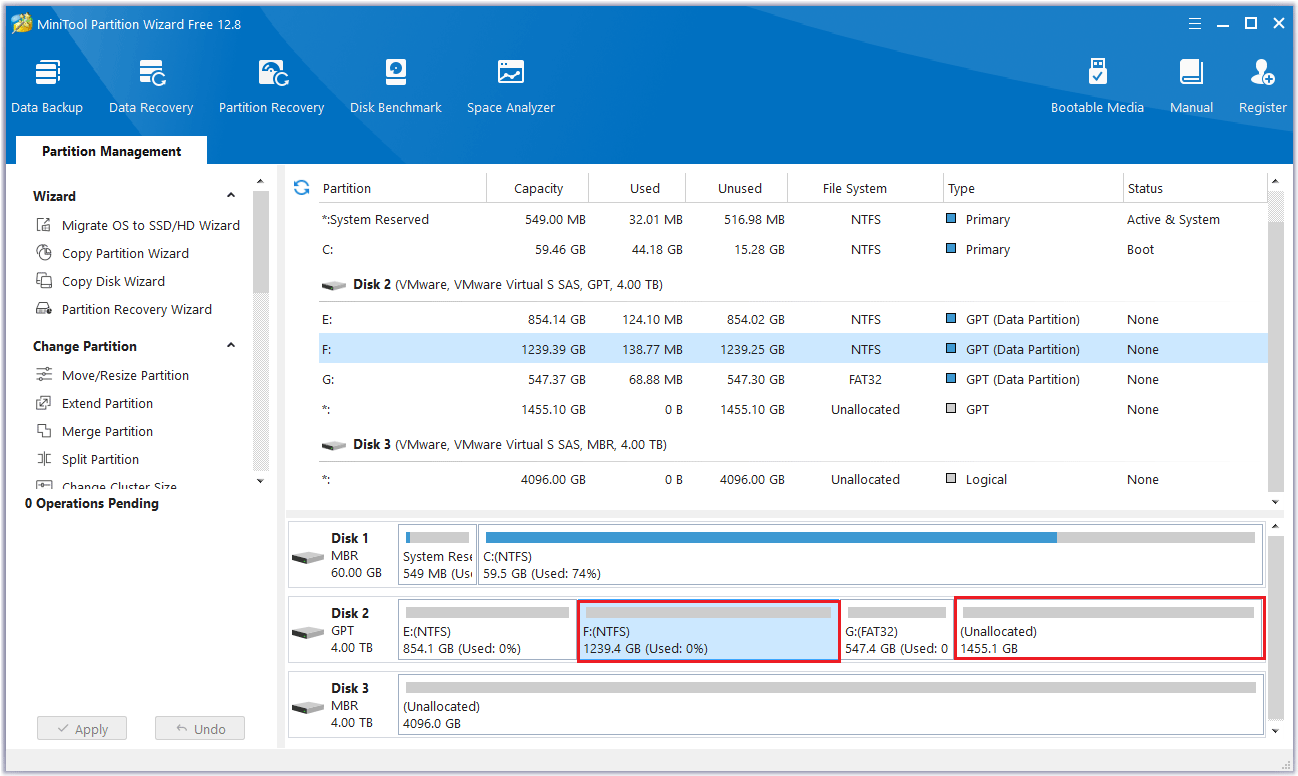
Step 1: Launch MiniTool Partition Wizard and view the disk layout. As you can see, I want to expand the F partition with the unallocated space, but there is a G partition in the middle.
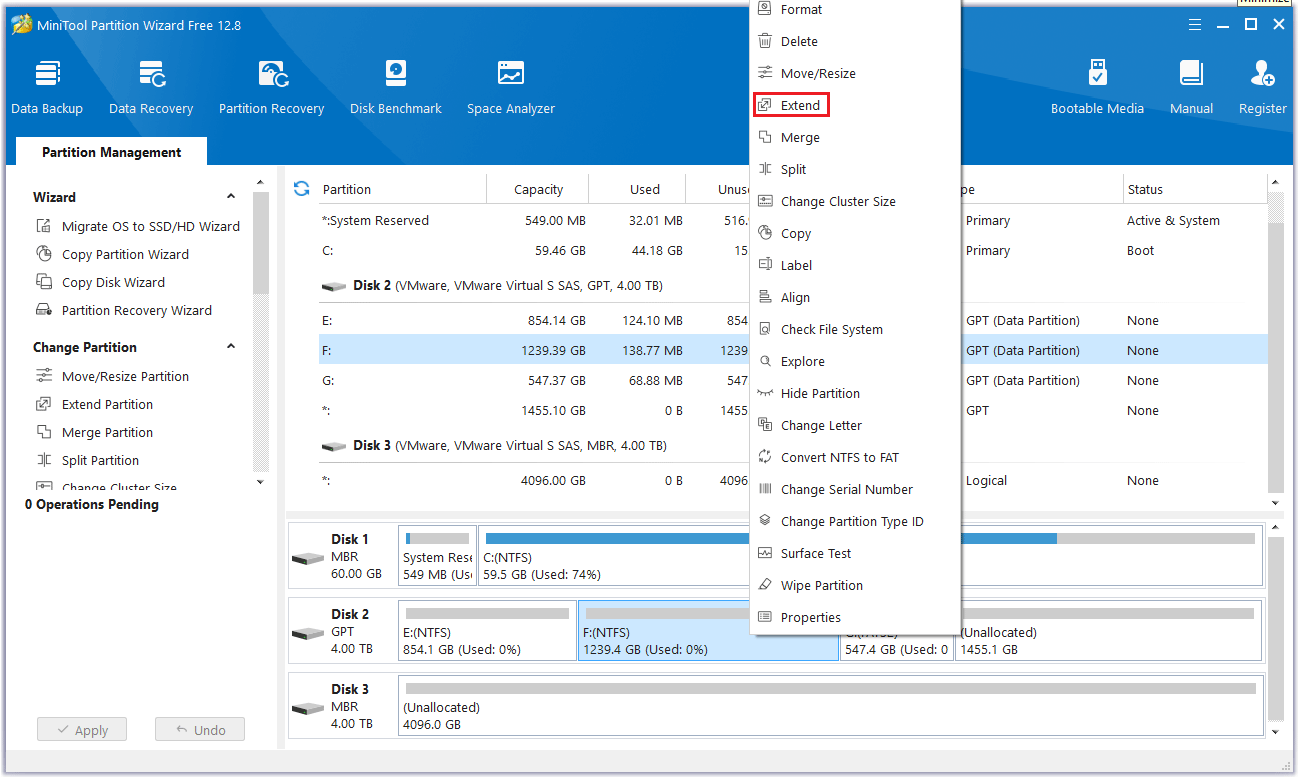
Step 2: Right-click the F partition and select Extend.
Step 3: Click the down arrow from “Take Free Space From” and select the unallocated partition to get expansion space. You can drag the sliding handle to decide how much of the available space it takes up. Then click OK to return to the main interface.
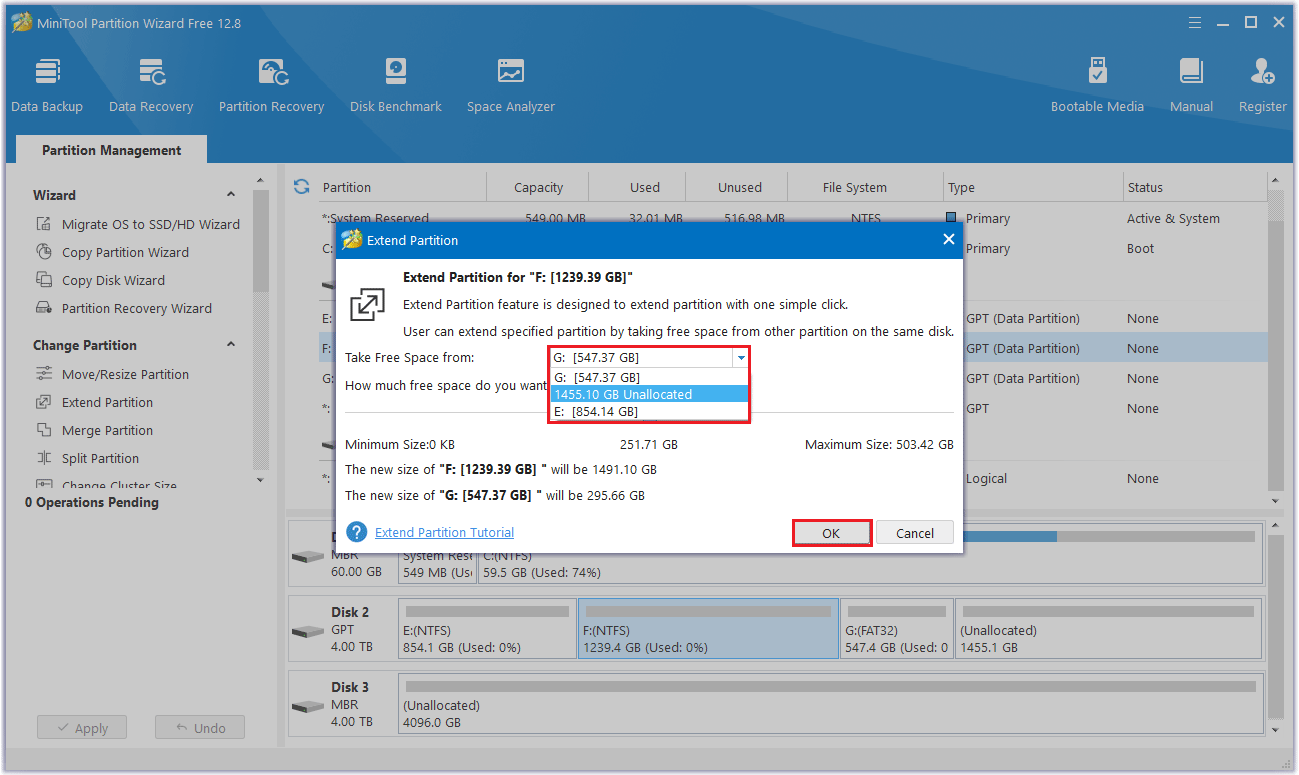
Step 4: You can see that the F partition has been expanded to a non-contiguous space. But it has not been applied to the computer yet, so you need to click the Apply button to perform all changes.
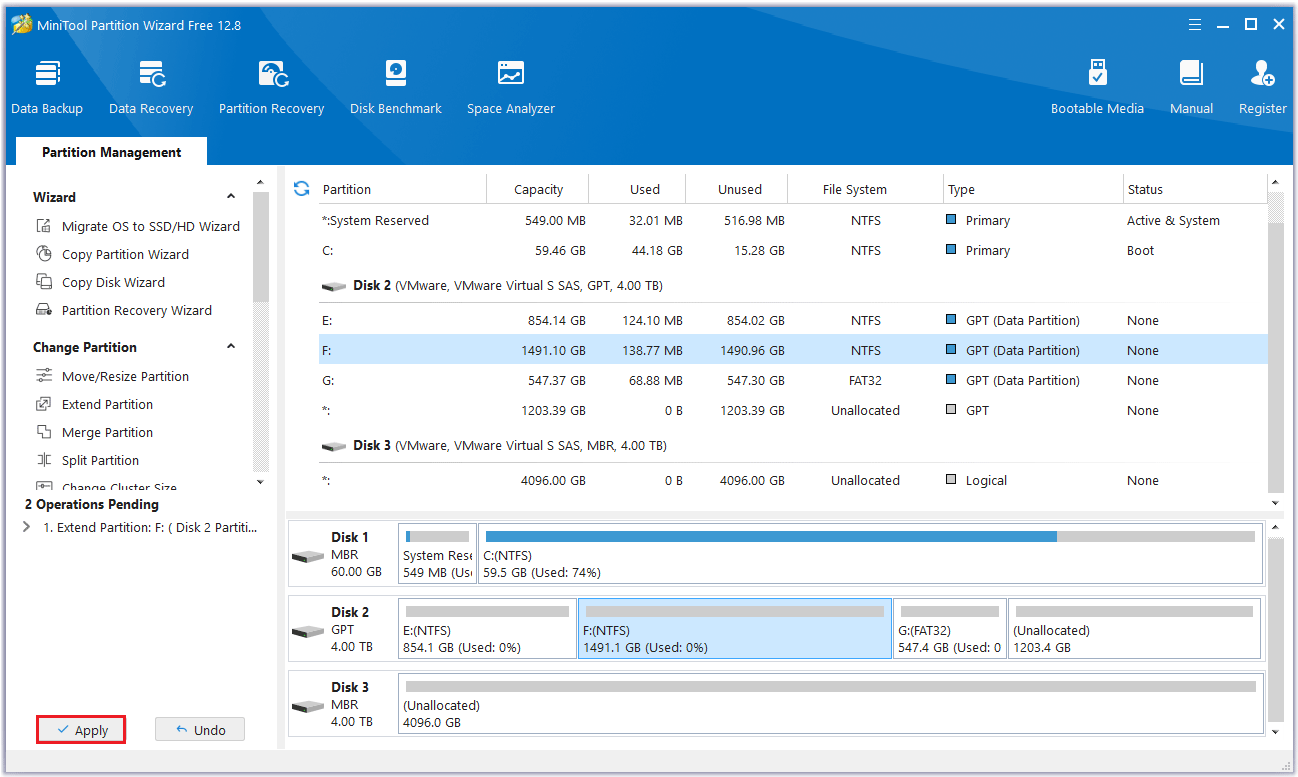
That’s all the steps on how to extend partition into non adjacent space with MiniTool Partition Wizard. Using MiniTool Partition Wizard is easier and faster than using Disk Management to extend a partition. When you extend a volume to non-contiguous space, all your data will be safe.
After finishing all the operations, you can return to Windows Explorer to check the new condition of the disk.
Bottom Line
In this article, we show you how to extend partition to non contiguous space. When Windows built-in tool Disk Management cannot extend partition to non contiguous space, you can choose MiniTool Partition Wizard to do that without data loss. It is very powerful, reliable, and safe. You can have a try.
If you encounter certain issues while using MiniTool Partition Wizard, you can send us an email via [email protected] to get a quick reply.
About The Author

Position: Columnist
Linda has been an editor at MiniTool for seven years. She continuously learns about computers and puts her knowledge into practice. Moreover, she is particularly knowledgeable in disk management, data recovery, system installation, and PDF editing. Her articles typically reference multiple examples or are based on her own experience, providing users with the most suitable solutions.
User Comments :