
If one partition is short of free space, you may want to know how to transfer space from one drive to another. This post from Partition Magic provides corresponding solutions for two cases.
Quick Answer
Yes, you can transfer space from one drive to another in Windows 11/10, but the method depends on whether the drives are partitions on the same physical disk or are on different disks.
- Same Disk: Use MiniTool Partition Wizard to transfer space from one drive to another directly.
- Different Disks: Use Disk Management to shrink a volume and then extend another volume using the unallocated space, creating a spanned volume. However, this will convert the two disks to dynamical disks.
Before changing partitions, back up important data and make sure you understand which physical disk each partition belongs to.
What Does “Transfer Space from One Drive to Another” Mean?
Free space refers to unused capacity inside an existing partition, such as D. “Move storage from one drive to another” means reallocating storage capacity from one partition to another, usually by shrinking a partition with enough available space and using the resulting unallocated space to extend another partition.
For example, if the D drive has plenty of unused space but the C drive is running low, you may want to transfer space from D to C to increase the available capacity on C.
How to move free space from one partition to another? The table below outlines the measures to be taken based on specific circumstances.
| Cases | MiniTool Partition Wizard | Disk Management |
| Two partitions are on the same disk | Use the Extend Partition feature to move free space to directly. | Cannot move space. |
| Two partitions are on different disks | Cannot move space. | Shrink a volume, and then extend another volume to the unallocated space, creating a spanned volume. |
| Specific Examples | Move space from D drive to C drive, move space from E, F, etc. to C. | N/A |
Case 1. The Two Drives Are on the Same Disk
If the two drives are on the same disk, you can use MiniTool Partition Wizard to move free space from one partition to another easily and for free. This software is able to take free space from a partition directly regardless of the distance.
In addition, this software can help you do many other things. For example, partition hard drives, format FAT32 on USB drives and SD cards of more than 32GB, clone hard drives, etc. You can try it.
How to transfer space from one drive to another when the 2 drives are on the same disk? Here is the guide:
MiniTool Partition Wizard FreeClick to Download100%Clean & Safe
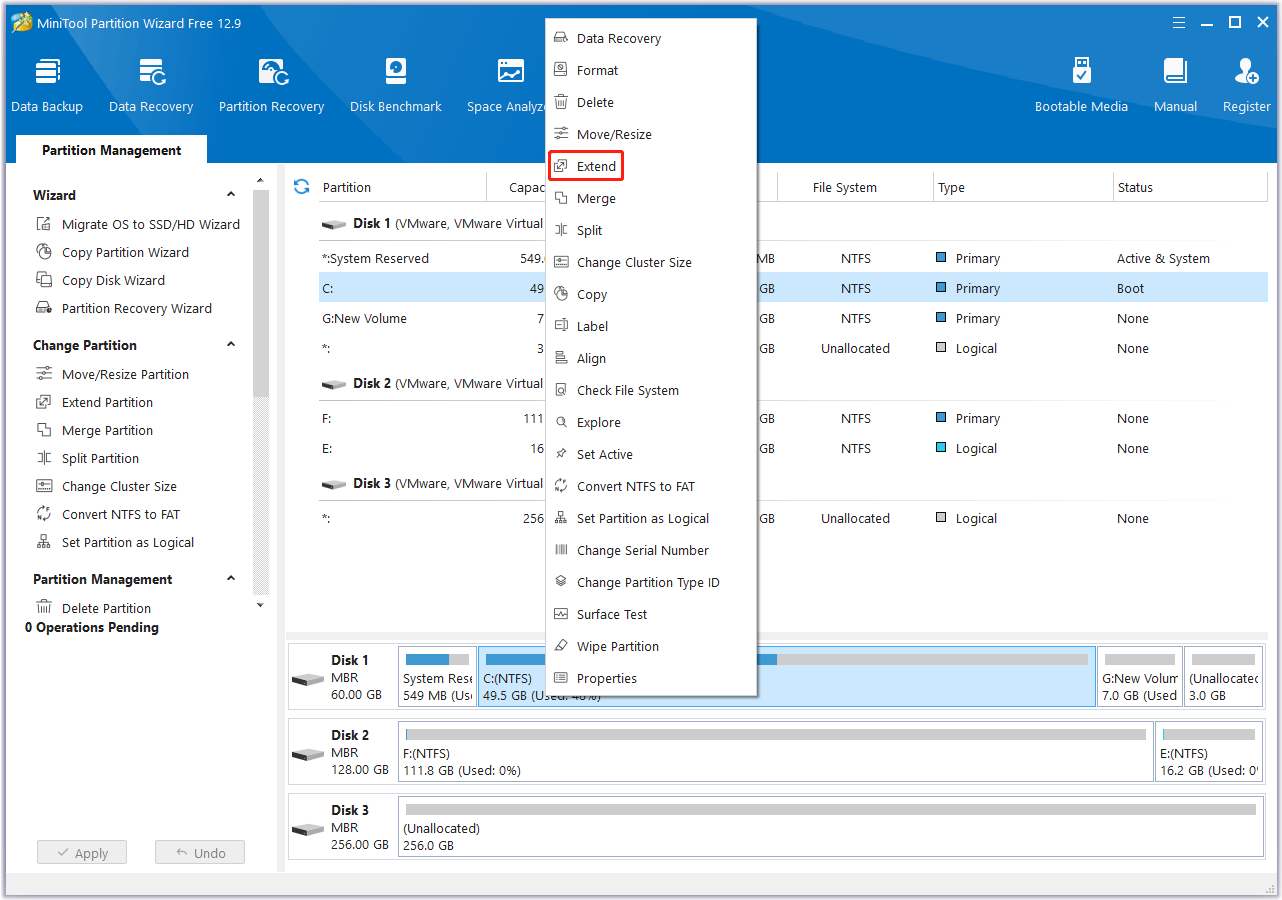
Step 1: Launch MiniTool Partition Wizard and right-click the partition that you want to extend. Choose Extend from the context menu.
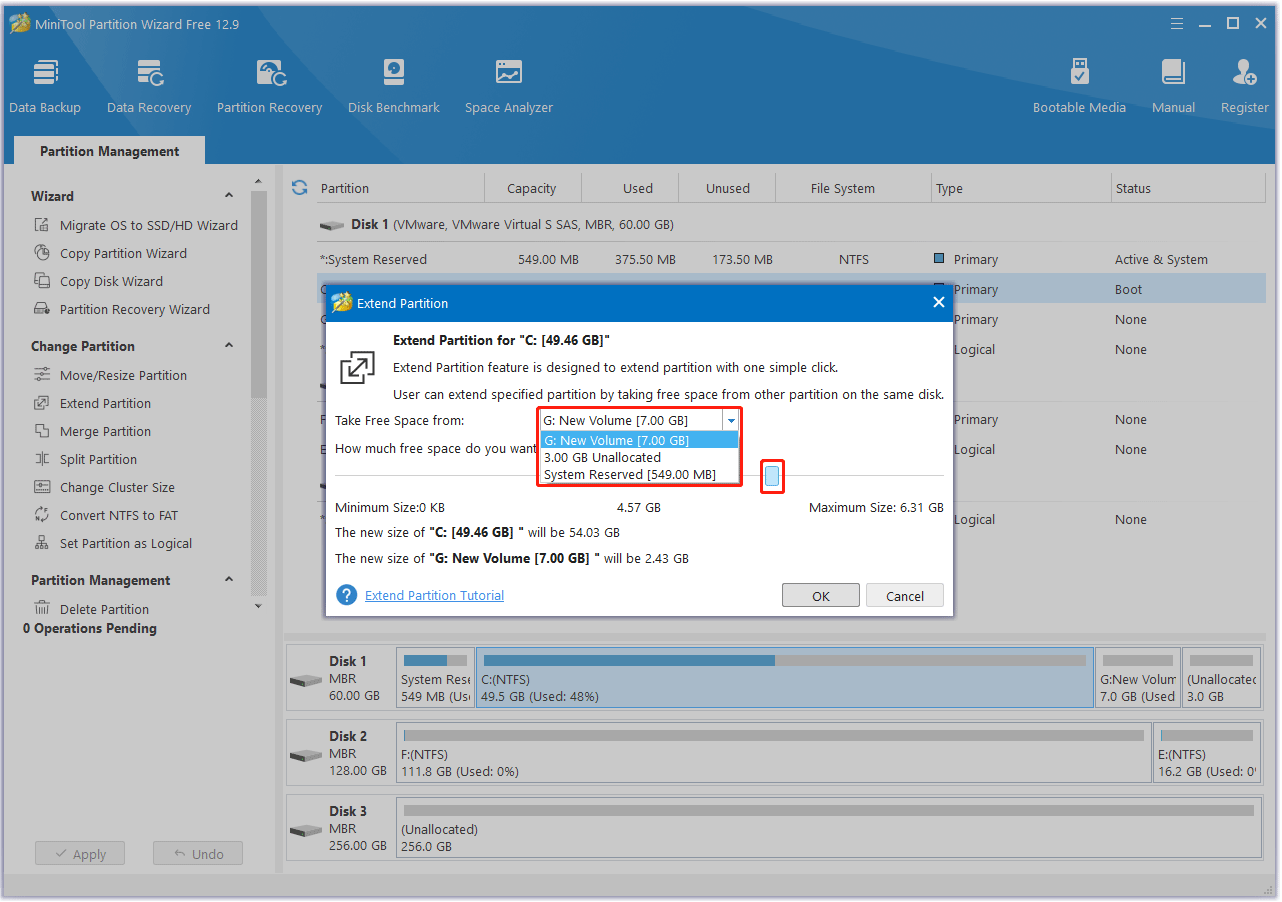
Step 2: On the pop-up window, determine where to take free space from – an existing partition or unallocated space on the same disk. Then drag the blue block to determine how much free space to take. Then, click OK.
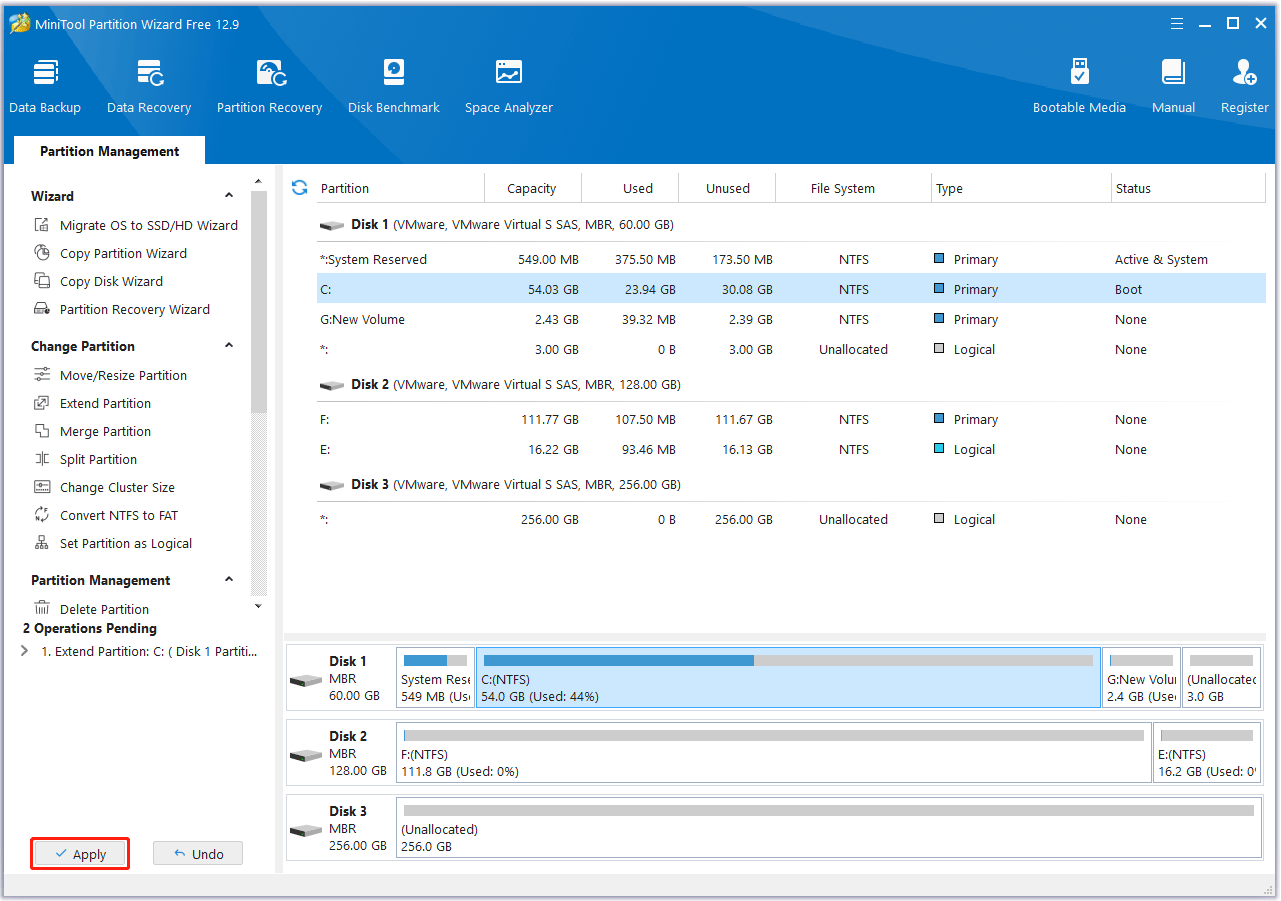
Step 3: Click the Apply button to execute the pending operation.
Case 2. The Two Drives Are on Different Disks
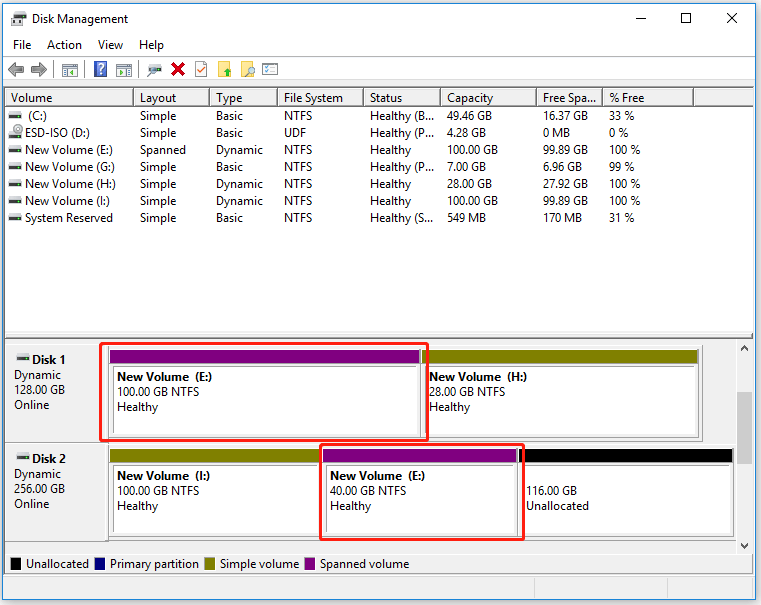
If the two drives are on different disks, to transfer free space from one hard drive to another directly, you need to convert the disk to a dynamic disk. Here is the guide:
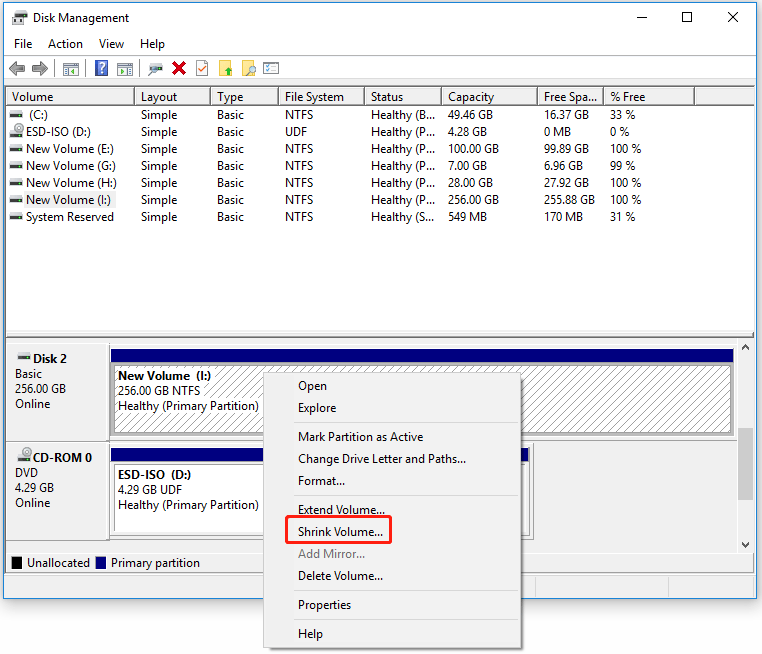
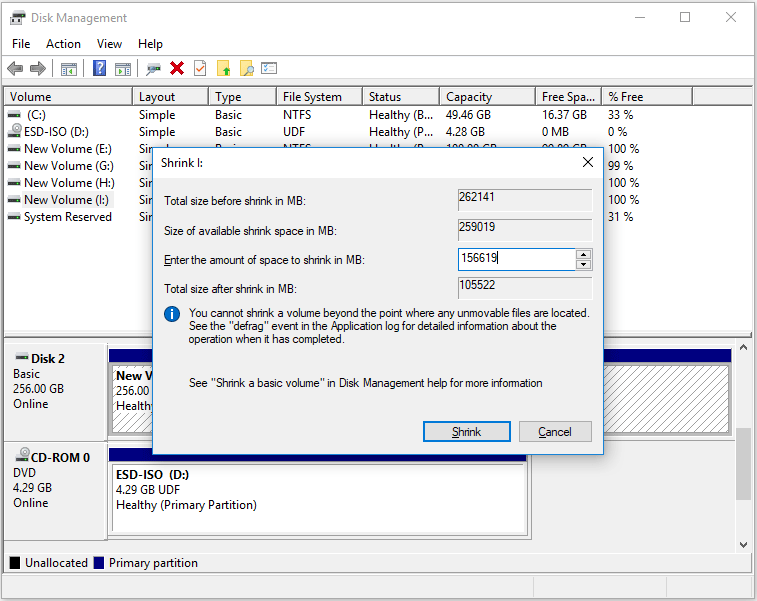
Step 1: Press the Windows logo key + X and then select Disk Management from the pop-up menu to open it. On the tool, right-click the drive whose free space you want to take and then click Shrink Volume.
Step 2: On the pop-up window, enter the amount of space to shrink in MB and then click Shrink.
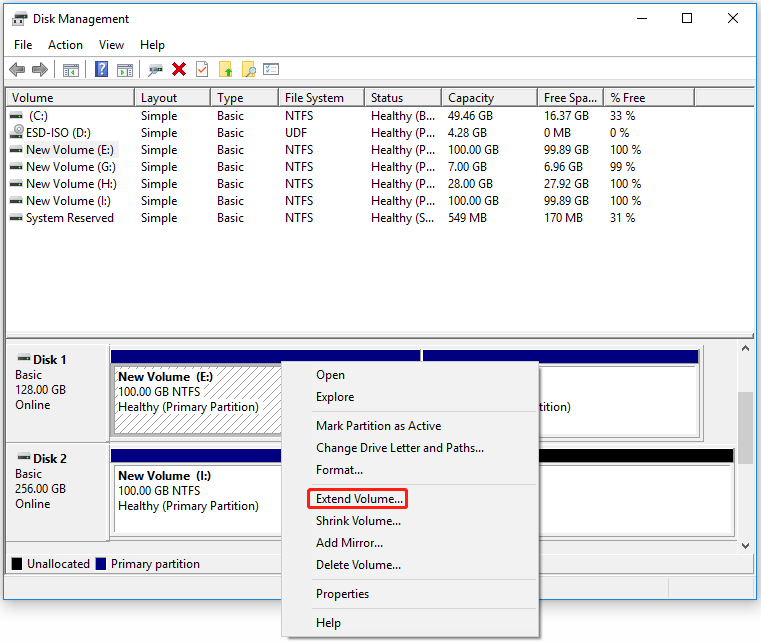
Step 3: After the drive is shrunk, its free space will become unallocated space. Then, you can use it to increase the space of the other drive on a different disk. Right-click the drive you want to extend and select Extend Volume from the context menu.
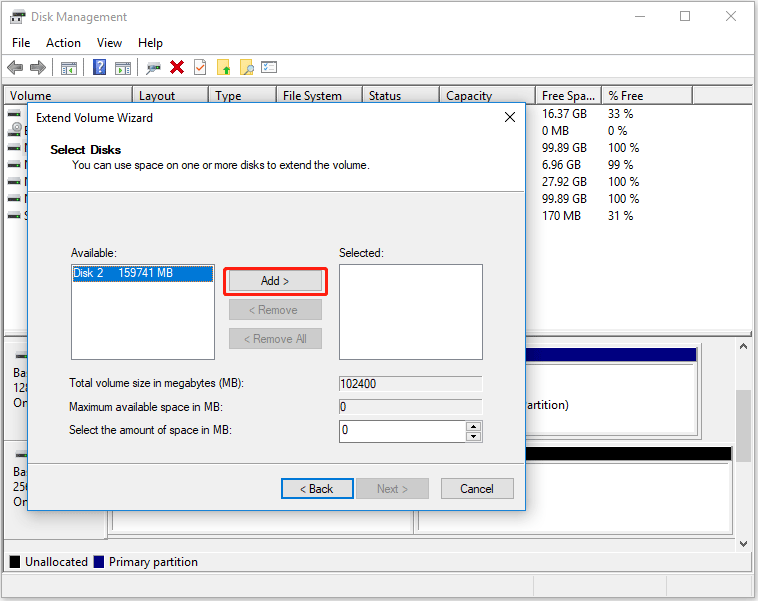
Step 4: On the pop-up window, click Next and then add the disk where you shrunk the volume just now to the Selected box.
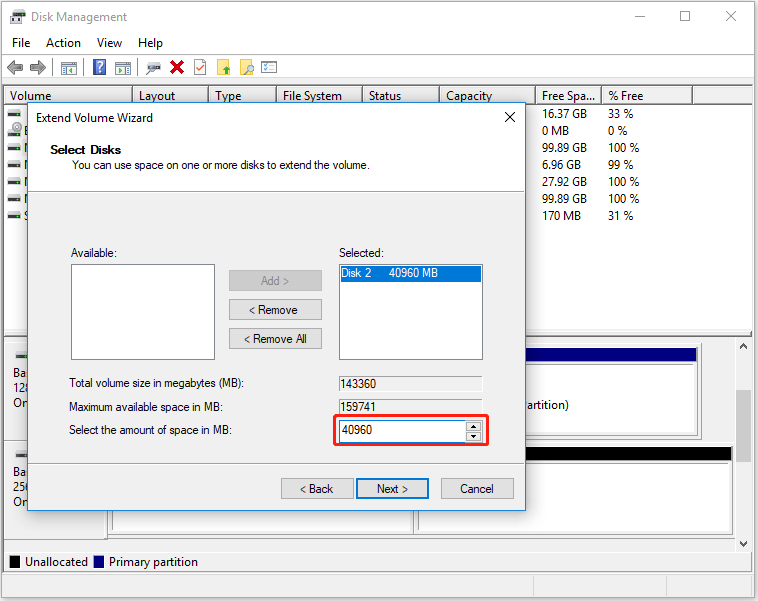
Step 5: Select the amount of space you want to take in MB and then click Next. Then, click Finish. A warning window will pop up telling you the disks will be converted to dynamic disks. Read it and then click Yes.
Step 6: After the conversion, you can see the drive has been extended by taking free space on a different disk.
Further Reading:
If the two drives are on different disks while the drive you want to extend is on a system disk, you can’t transfer free space from one hard drive to another. This limitation is made by Microsoft to protect your system because making the system partition become a spanned volume will increase the risk of system corruption.
Even if you have converted the system disk to a dynamic disk, its Extend feature is the same as that of the basic disk. This feature will be grayed out unless there is adjacent unallocated space behind the drive you want to extend.
Bottom Line
This post shows you how to transfer space from one drive to another in 2 cases. You can have a try. MiniTool Partition Wizard can move free space from one partition to another. If you encounter issues when using this software, contact us via [email protected]. We will get back to you as soon as possible.
FAQ
About The Author

Position: Columnist
Linda has been an editor at MiniTool for seven years. She continuously learns about computers and puts her knowledge into practice. Moreover, she is particularly knowledgeable in disk management, data recovery, system installation, and PDF editing. Her articles typically reference multiple examples or are based on her own experience, providing users with the most suitable solutions.
User Comments :