
You may need to do Windows 11 shrink partition for another partition, a dual-boot setup, or storage reorganization. This post offers 5 approaches to do that with Disk Management, DiskPart, PowerShell, Storage Settings, and MiniTool Partition Wizard.
In most cases, the hard drives in a computer are already partitioned by the PC or disk manufacturers, leaving no unallocated space available. However, you may still need to shrink a partition in Windows 10/11 for several reasons:
- Your computer may only have the C drive, or the existing partitions may not be sufficient, so you want to create a new partition for storing personal files. In this situation, you need to shrink a partition in Windows 11/10 to generate unallocated space for the new partition.
- You may want to set up a dual-boot system with Windows and another operating system. To do this, you need to shrink a partition in Windows 10/11 to free up space for the second operating system.
Shrinking a partition reduces its size and creates unallocated space. You can do that using built-in tools like Disk Management, DiskPart, PowerShell, Storage Settings, or MiniTool Partition Wizard.
For most users, Disk Management is the easiest method. However, some partitions cannot be shrunk because of file system limitations or unmovable files.
MiniTool Partition Wizard may help when Windows tools cannot shrink FAT32 partitions or move unallocated space.
Here is a table to help you choose the best suitable methods.
| Method | Best for | Difficulty |
| Disk Management | Most users | Easy |
| DiskPart | Advanced users | Medium |
| PowerShell | Automation/scripts | Medium |
| Storage Settings | Basic users | Easy |
| MiniTool Partition Wizard | FAT32 or complex partitions | Easy |
Now, follow the methods below to get more details.
Method 1. Shrink a Partition Using Disk Management
Disk Management is a built-in Windows partition tool. You can use it to shrink a partition if:
- The partition uses NTFS
- You only need basic resizing
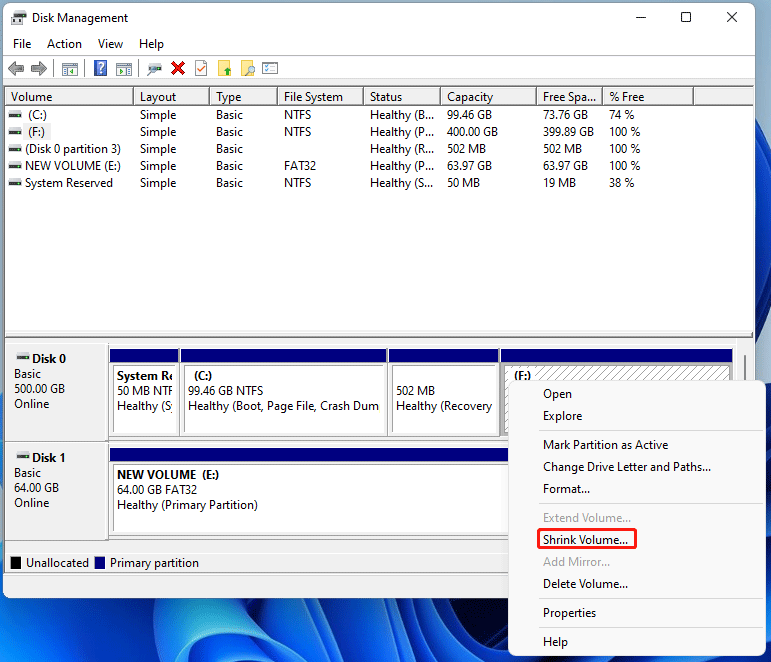
Step 1: Press the Windows logo key + X and then select Disk Management from the menu. The Disk Management tool will open. Now, right-click on an NTFS partition, including the C drive, and then select Shrink Volume.
Step 2: After querying shrink space, you can enter the amount of space to shrink in MB. After that, click the Shrink button to start the shrinking process.
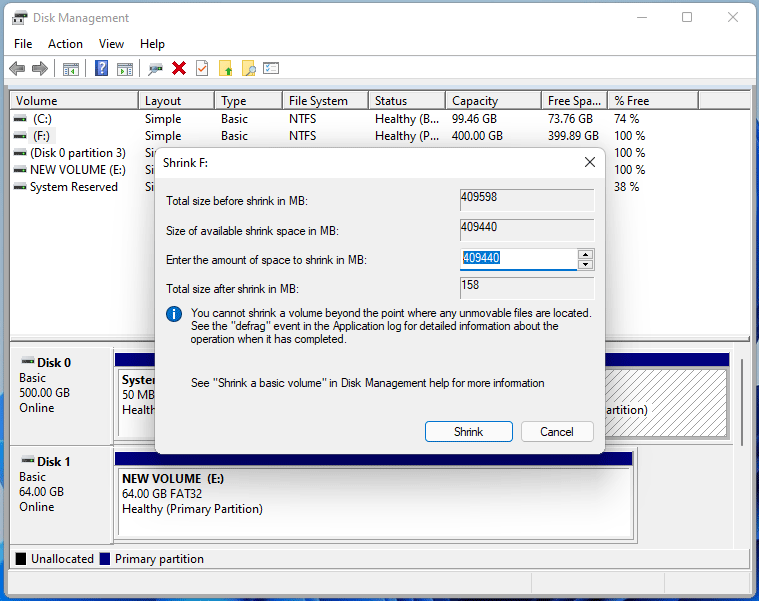
After that, Windows will create unallocated space after shrinking the partition.
Further reading:
Sometimes, you may encounter the Windows 11 shrink partition not working issue. This problem can occur for several reasons, including the following (In the first two cases, the Shrink Volume option will appear greyed out.):
- Unsupported file system: Disk Management can only shrink NTFS partitions. If the partition uses another file system, the Shrink Volume option may become unavailable.
- Special system partitions: The Shrink Volume feature cannot be used on certain partitions, including System Reserved, EFI System, Recovery, and OEM partitions.
- Insufficient available shrink space: Sometimes, you may not be able to shrink the partition to the desired size even when there seems to be enough free space available.
- Unmovable files on the partition: The available shrink size does not always equal the total free space because some unmovable files or disk fragments may exist near the end of the partition. Unmovable files may prevent Windows from shrinking a partition.
Method 2. Shrink a Partition Using DiskPart
DiskPart is a command-line partition management tool. You can use it if:
- You prefer command-line tools
- Disk Management fails
- You need scripting support
Step 1: Press the Windows logo key + R and type “diskpart”. Then, press Enter and click Yes to open the diskpart.exe input window.
Step 2: On the window, execute the following commands one by one to shrink a partition.
- list disk (it will list all disks connected to the PC)
- select disk * (* is the disk number of the hard drive where the volume you want to shrink is located)
- list partition (it will list all partitions located on the selected disk)
- select partition # (# is the volume number of the partition that you want to shrink)
- shrink desired = xx (the unit of the number is MB and the command means that the partition will be shrunk by xx MB)

Method 3. Shrink a Partition Using PowerShell
PowerShell is a task automation and configuration management program, consisting of a command-line shell and the associated scripting language.
Although it is a dedicated disk manager, it can be used to shrink a partition. Here is the guide:
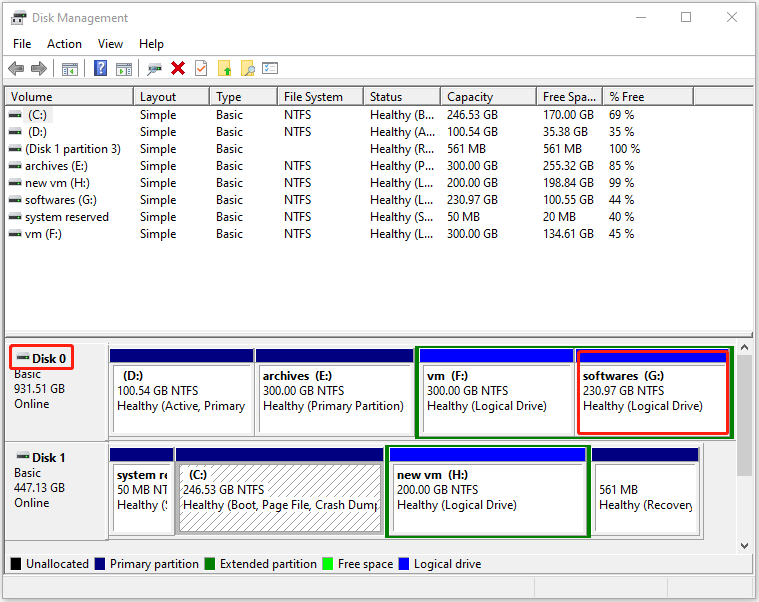
Step 1: Open Disk Management to check the disk number of the hard drive where you want to resize partition Windows 10/11. You need to write down it. In my case, I want to resize the G drive on Disk 0.
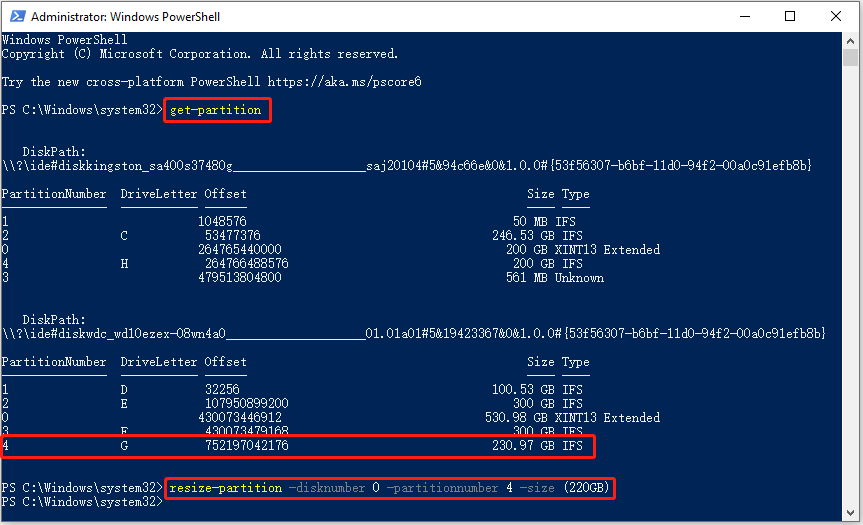
Step 2: Press the Windows logo key + X and then select Windows PowerShell (Admin) from the menu. Then, execute the following commands one by one:
- Get-Partition (this will list all partitions and display their details. You can write down the volume number of the partition that you want to shrink or extend. In my case, the partition number of the G drive is 4)
- Resize-Partition -DiskNumber * -PartitionNumber # -Size (XX) (* is the disk number you wrote down before, # is the volume number you wrote before, and XX is the final size you want the partition to be)
2. If you want to use this command to extend a partition (the final size is larger than the current size), you should ensure there is adjacent unallocated space to the right of the partition. Otherwise, the command may fail.
Method 4. Shrink a Partition Using Windows Storage Settings
Changing partition size in Settings is a feature introduced in Windows 11. Therefore, this method is only available for Windows 11 resize partition. It can’t work on Windows 10. How to change partition size Windows 11 via Settings? Here is the guide:
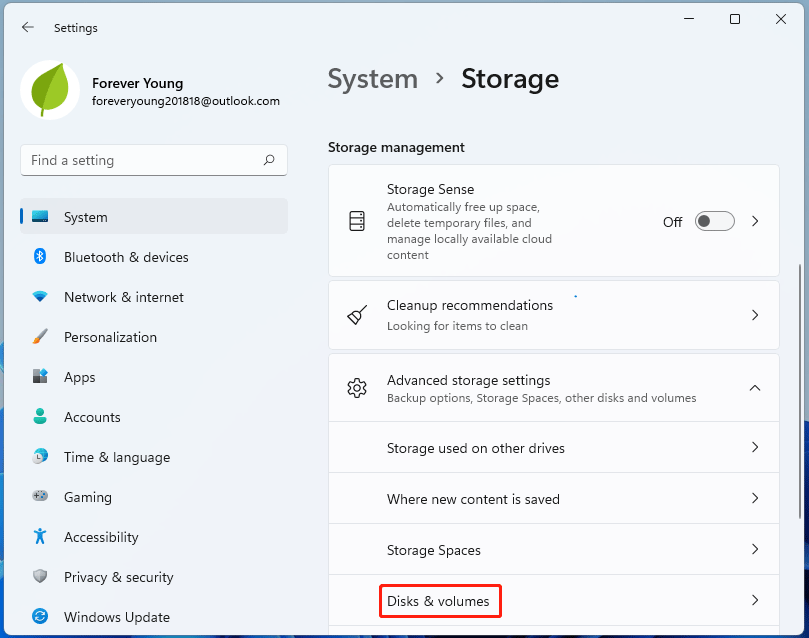
Step 1: Press the Windows logo key + I to open Settings. Go to System > Storage. Under Storage management, expand Advanced storage settings, and then click Disks & volumes.
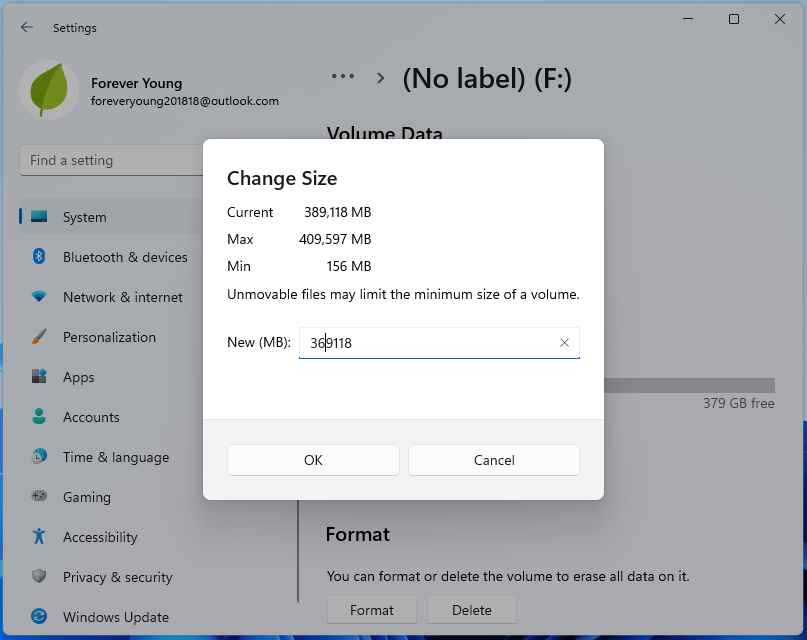
Step 2: Click the partition that you want to resize and then click the Properties button. Click the Change size button. On the pop-up window, type the new size of the partition in MB. You can see the Max size and Min size you can enter. Then, click OK.
Method 5. Shrink a Partition Using MiniTool Partition Wizard
MiniTool Partition Wizard is a professional disk and partition management tool. It has a Move/Resize feature to help you do a Windows 11 resize partition without losing data.
When do you choose this software? Here are some cases:
- You encountered the Windows 11 shrink partition not working issue.
- You want to resize the FAT32 partition. MiniTool Partition Wizard can change the size of both FAT32 and NTFS partitions. In addition, if there is enough unallocated space behind the FAT32 partition, it can increase the FAT32 partition to up to 2TB.
- You want to move the location of the partition while resizing it. MiniTool Partition Wizard can move the location of the FAT32, NTFS, exFAT, and EXT partitions.
- You want to shrink multiple partitions and gather the unallocated space. Sometimes, one partition can’t have enough free space. Then, you need to shrink multiple partitions to get enough unallocated space. Then, MiniTool Partition Wizard can move the location of the unallocated space.
Besides, MiniTool Partition Wizard has many useful features. For example, it can help you partition a hard drive, format FAT32 on various storage media, convert MBR to GPT, recover data from hard drives, etc. It’s worth trying.
How to change partition size Windows 11/10 using MiniTool Partition Wizard? Here is the guide:
MiniTool Partition Wizard FreeClick to Download100%Clean & Safe
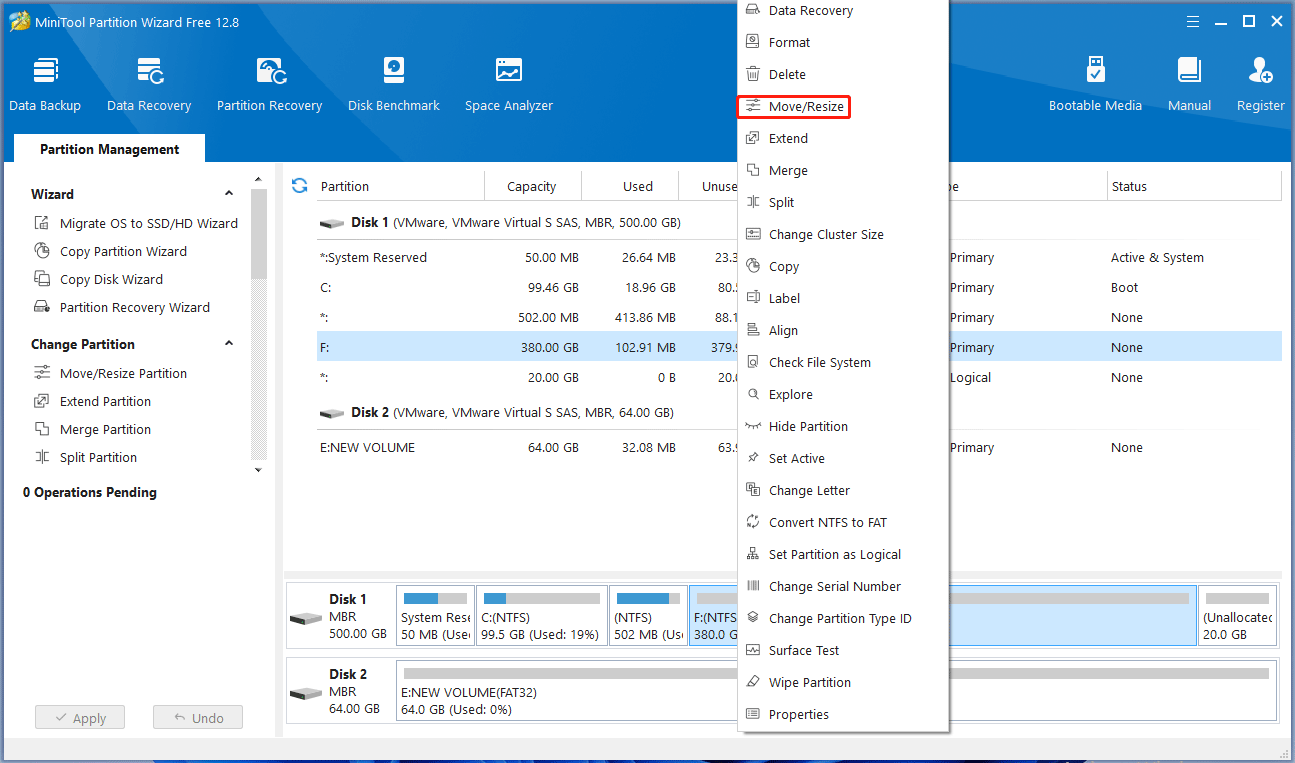
Step 1: Download, install, and launch MiniTool Partition Wizard. Right-click on the partition that you want to resize and then select the Move/Resize option from the menu.
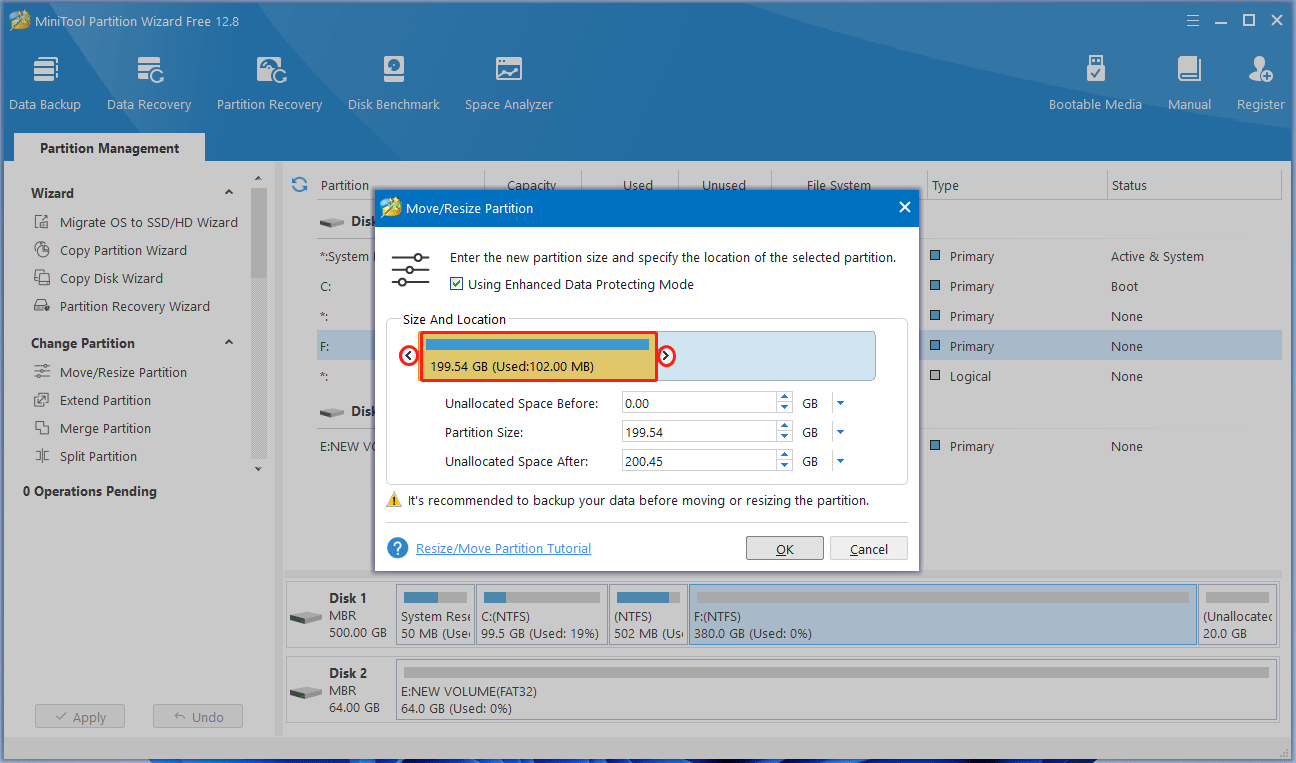
Step 2: On the pop-up window, you can drag the arrow icons on the two sides of the partition to resize it. You can also drag the block of the partition to the left or right to move its location. Then, click OK.
Step 3: Click the Apply button to execute the pending operation. If you resize the C drive, a PC restart may be required.
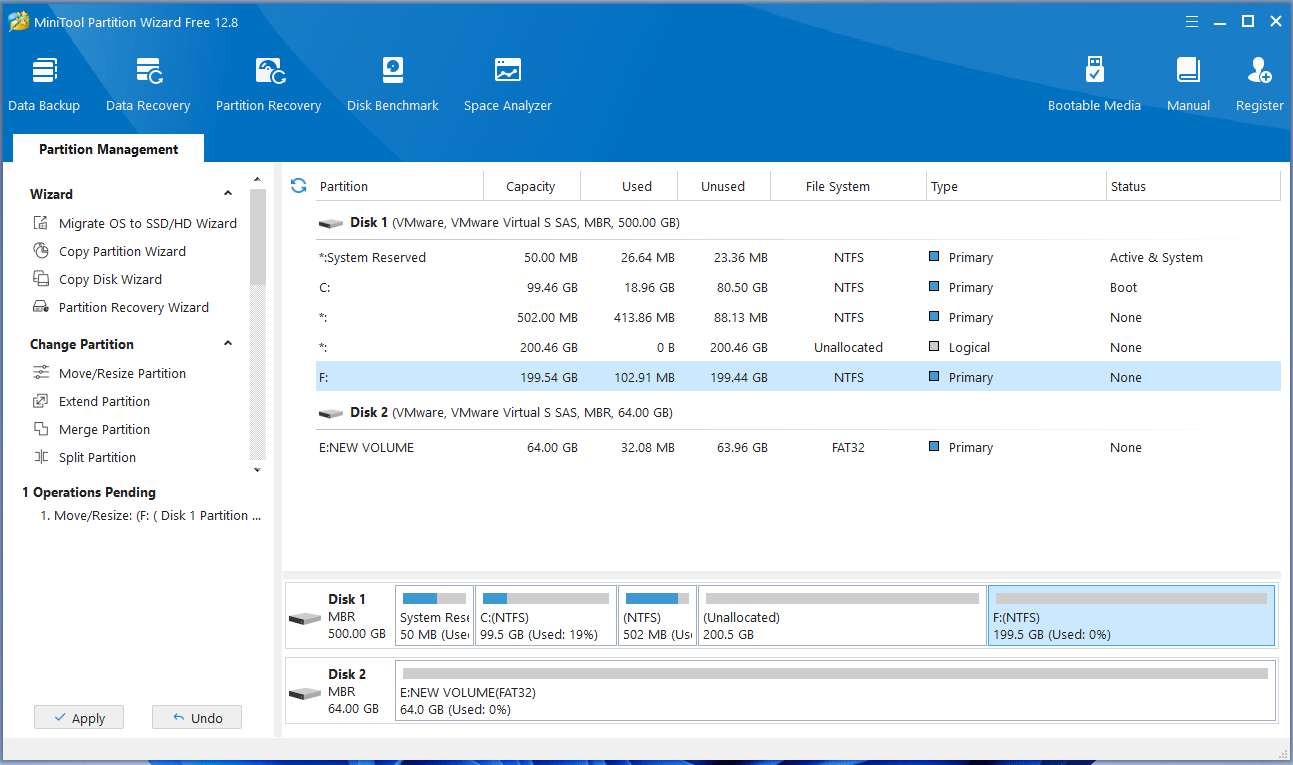
Sometimes, according to your conditions, MiniTool Partition Wizard can offer you better methods to do Windows 11 resize partition without losing data. For example:
- If you want to shrink a partition and then create a new partition using the unallocated space, MiniTool Partition Wizard’s Split Partition feature is recommended. It can split a FAT32 or NTFS partition into two partitions.
- If the reason why you want to shrink a partition is to add the unallocated space to another partition, MiniTool Partition Wizard’s Extend Partition feature is recommended. It can extend a partition by taking free space from other partitions or unallocated space directly, regardless of the distance.
Windows 10/11 Shrink Partition FAQ
But avoid reducing the system partition too aggressively.
Before you begin, always back up your important files in case of an unexpected power outage or system error during the process.
Bottom Line
Shrinking a partition in Windows 11 or Windows 10 is usually straightforward to create space for another partition, perform a dual-boot, or reorganize oversized partitions.
For most users:
- Disk Management is the easiest method.
- DiskPart works well for advanced users.
- MiniTool Partition Wizard helps with FAT32 and complex layouts.
If Windows cannot shrink a partition properly, try MiniTool Partition Wizard. For any questions or suggestions about MiniTool Partition Wizard, contact us via [email protected]. We will get back to you as soon as possible.
About The Author

Position: Columnist
Vega enjoys helping people with computer problems, including disk management, data recovery, data backup, and more. She is constantly expanding her knowledge in related fields. And she will continue to bring more easy-to-understand professional articles to help people solve various problems on the PC.
User Comments :