
You can merge the C drive and D drive in Windows 10/11 if they are on the same physical disk. This post shows you how to do that without data loss using Windows Disk Management and MiniTool Partition Wizard.
Quick Answer
You can merge the C drive and D drive in Windows 10/11 to increase the C drive space as long as they are on the same physical disk. Windows Disk Management requires you to back up D, delete the D partition, and then extend C into the resulting unallocated space. If you want to merge C and D without deleting the files on D, use MiniTool Partition Wizard.
You can merge C and D drives in Windows 11/10, but the basic premise is as follows:
- C and D must normally be partitions on the same physical disk.
- D should not be a system-critical EFI/Recovery partition.
To combine C and D drive for free, you can use MiniTool Partition Wizard and Disk Management.
Here is a table showing the comparison of the two methods.
| Scenario | Disk Management | MiniTool Partition Wizard |
| C: | D: | Delete D drive, merge C drive with unallocated space. | Merge C and D with no partition deletion and no data loss. |
| C: | Unallocated/Free space | D: | Delete D drive, extend C drive with unallocated space. | Move D drive next to C drive, and then merge them. |
| C: | Recovery | D: | Delete Recovery and D drives, extend C drive, and then create a new Recovery partition. | Shrink D drive, move Recovery partition, and then merge C and D drives. |
| C: | EFI | D: | Cannot merge. | Shrink C drive, move EFI partition to the left of the C drive, and then merge C and D drives. |
| C: | OEM | D: | Cannot merge. | Shrink D drive, move OEM partitions, and then merge C and D drives. |
| Price | Free | Free |
After understanding the differences between them, choose one merging method based on your own situation.
How to Merge C And D Drives via MiniTool Partition Wizard
MiniTool Partition Wizard is professional disk and partition management software. It allows you to merge two NTFS partitions without data loss, and also enables you to extend, move/resize partitions, recover lost partitions and data, and more.
Here is how to combine C and D drive using this software.
MiniTool Partition Wizard FreeClick to Download100%Clean & Safe
Step 1: Install MiniTool Partition Wizard Free on your computer and launch it.
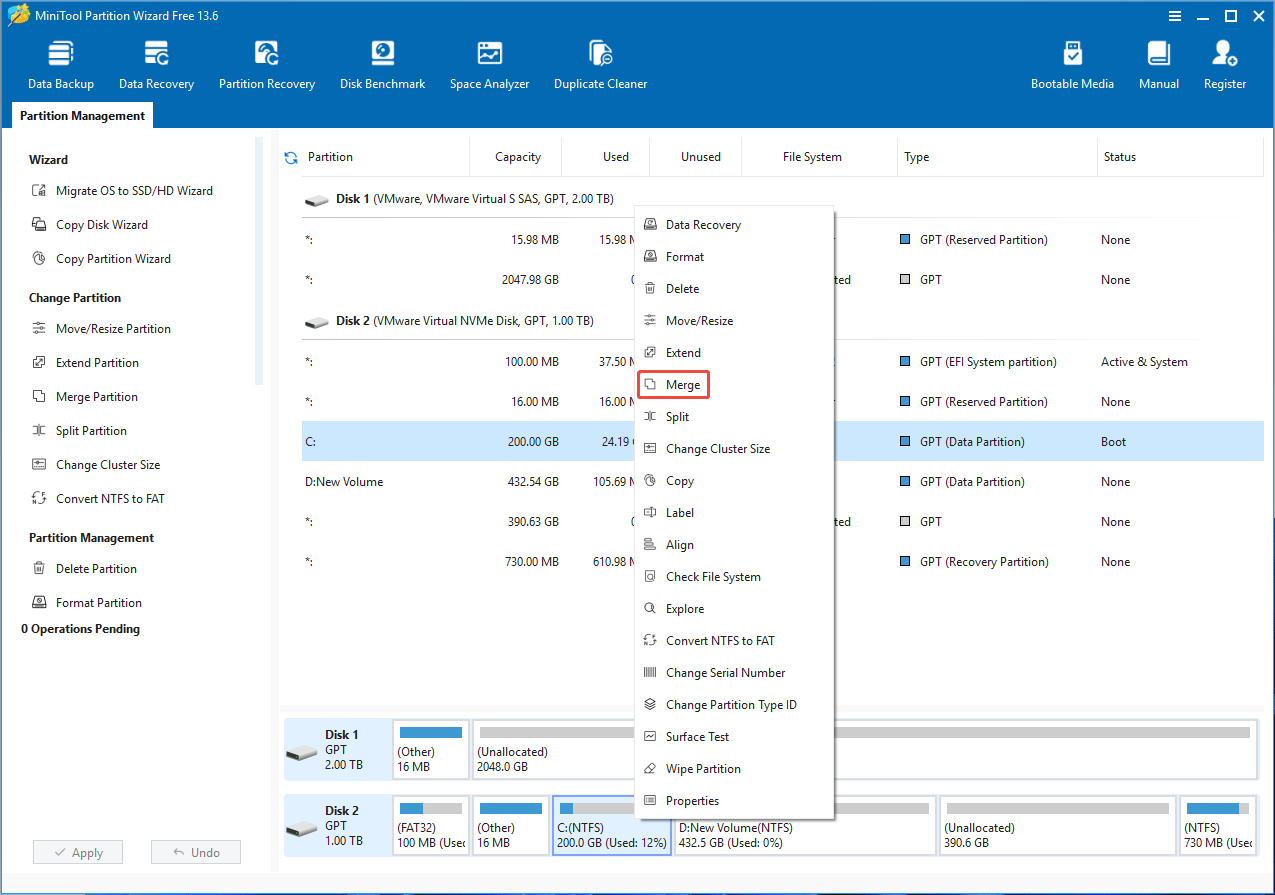
Step 2: Right-click the C drive and choose Merge.
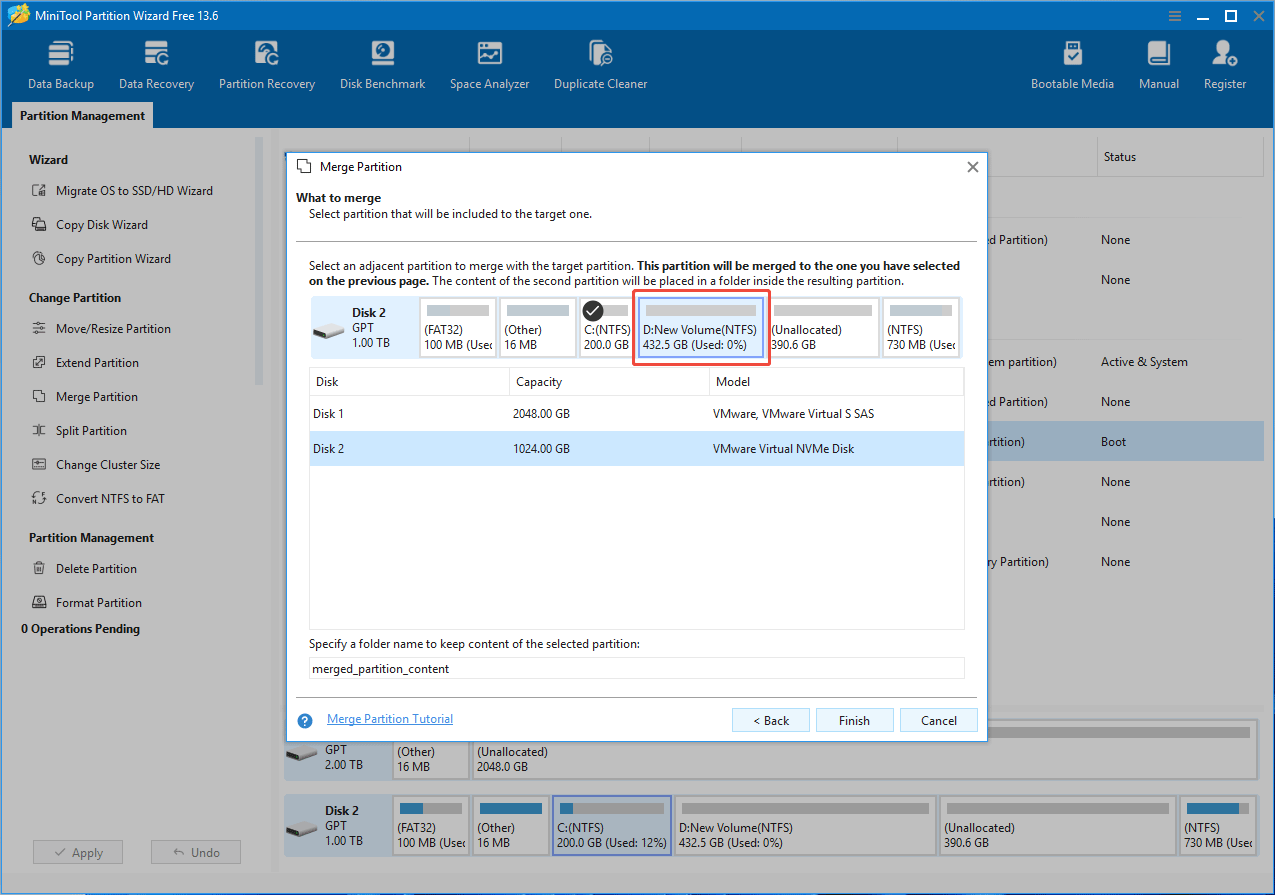
Step 3: On the pop-up window, click Next. Then, select the D drive and click Finish.
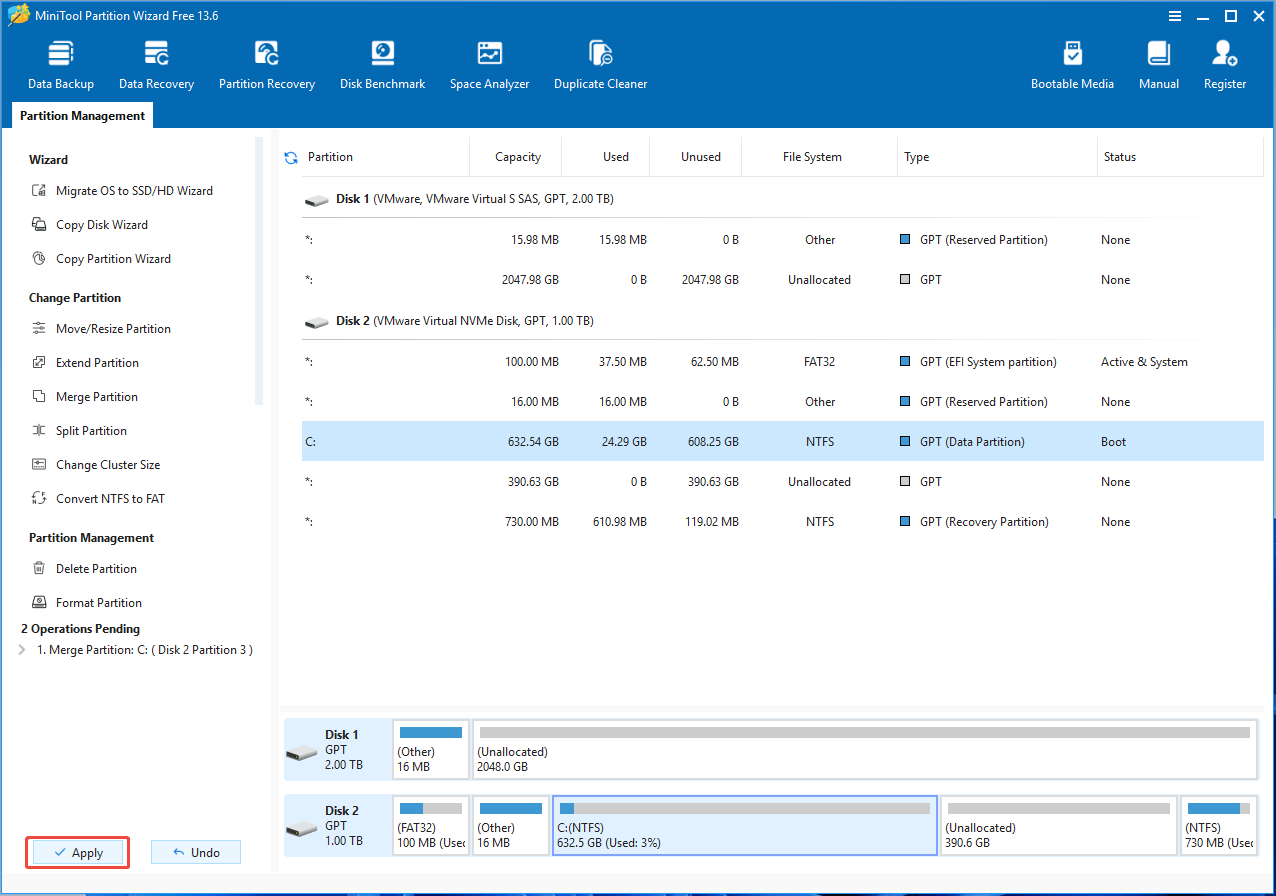
Step 4: Click Apply to execute the merging operation.
Here is a video guide:
How to Merge C And D Drives via Disk Management
Disk Management is a Windows built-in GUI tool used to manage hard drives and partitions. You can use it to initialize new drives, create partitions, format partitions, delete partitions, change drive letters, shrink partitions, and extend partitions with unallocated pace.
Here is how to use this tool to merge C and D drive without data loss.
Step 1: Back up any important files currently sitting on your D drive to an external hard drive or cloud storage.
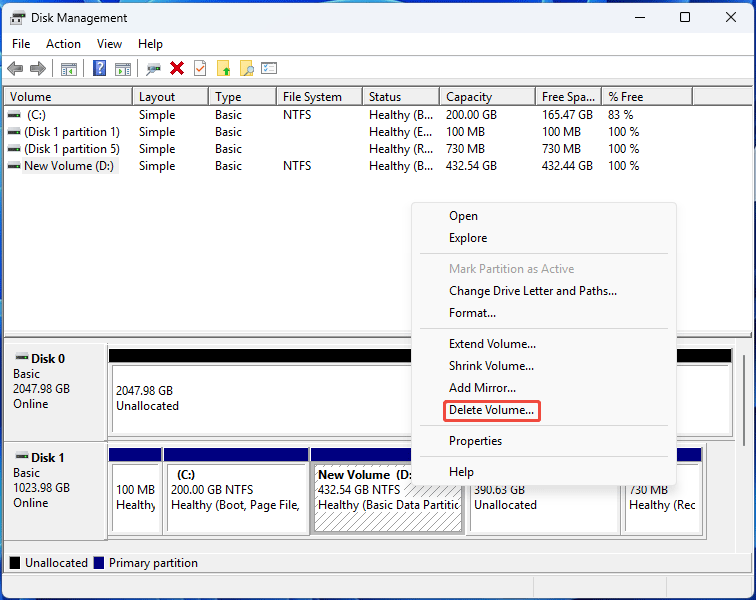
Step 2: Press Win + X and select Disk Management. Right-click the D drive and choose Delete Volume. Confirm the prompt. This will turn the D drive into unallocated space.
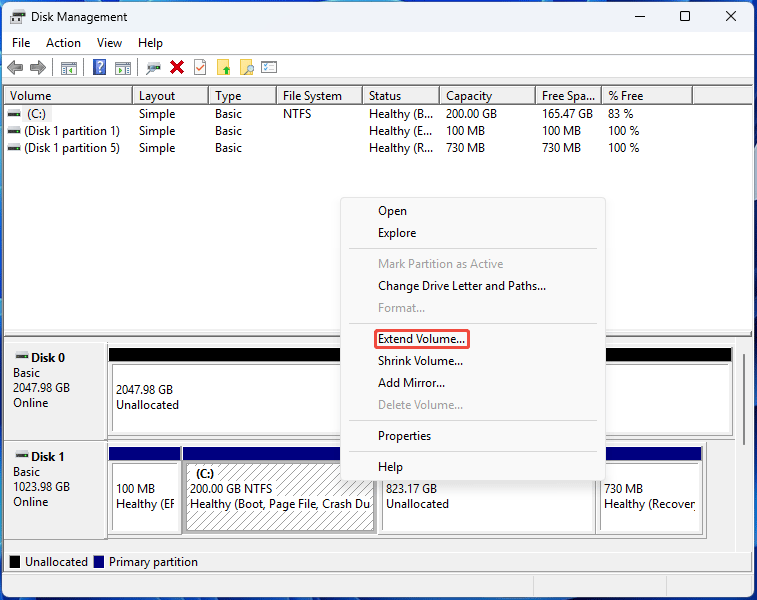
Step 3: Right-click the C drive and choose Extend Volume. Click Next, Next, and then Finish. C and D drives combining is done.
Troubleshooting C And D Drive Merging Issues
Issue 1. C: and D: Are on Different Physical Disks.
Windows does not support merging partitions across different physical disks.
Instead, move files from one drive to the other or migrate your operating system to a larger drive if you need additional system storage.
Issue 2. Extend Volume Is Greyed Out.
Windows Disk Management can only extend a partition when there is adjacent unallocated space immediately to the right of the C: drive. If a recovery partition or another partition is in between, the option will be unavailable.
How to Merge C And D Drive FAQs
Bottom Line
This post shows how to merge C and D drive Windows 11 using MiniTool Partition Wizard and Disk Management, respectively. It also provides solutions to some problems that may be encountered when merging the C drive and the D drive.
If you have any questions about using MiniTool Partition Wizard, welcome to send us an email via [email protected]. Thanks in advance!
About The Author

Position: Columnist
Linda has been an editor at MiniTool for seven years. She continuously learns about computers and puts her knowledge into practice. Moreover, she is particularly knowledgeable in disk management, data recovery, system installation, and PDF editing. Her articles typically reference multiple examples or are based on her own experience, providing users with the most suitable solutions.
User Comments :