
Disk Management fails to extend the C drive even when unallocated space is available? In this article, MiniTool Partition Wizard explains why you can’t extend the C drive and provides practical solutions to help you extend your system partition safely without losing data.
Why Can’t I Add Unallocated Space to C Drive?
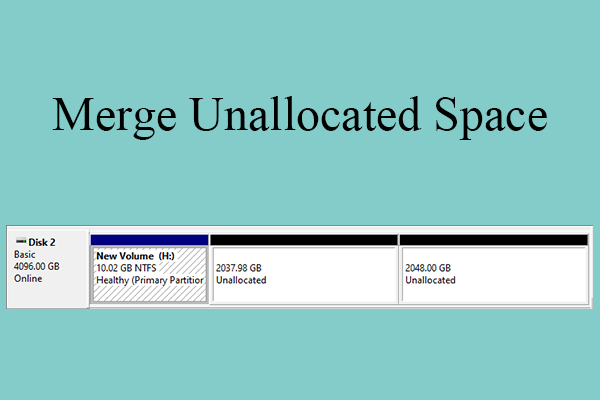
You are unable to extend the C drive in Windows 10/11 using Disk Management unless there is unallocated space immediately to its right. Here list the correct and wrong locations of the unallocated space.
Correct Location:
- The unallocated space is immediately to the right of the C drive.
Wrong Location:
- The unallocated space is to the left of the C drive.
- The unallocated space is not adjacent to the C drive. It is blocked by the Recovery partition or another partition.
- The unallocated space is on a different disk.
How to Fix C Drive Extend Volume Greyed Out Issue in Windows 10/11
If the unallocated space is on a different disk, you can convert the disk to a dynamic one to extend the C drive. However, if you can’t extend C drive with unallocated space for other reasons, try the following solutions.
Method 1. Add Unallocated Space to C drive with MiniTool Partition Wizard
This is the best solution. MiniTool Partition Wizard can help you extend the C drive using non-adjacent unallocated space. It can also use the unallocated space to the left of the C drive to expand the C drive.
MiniTool Partition Wizard FreeClick to Download100%Clean & Safe
How to extend the C drive with this software? Here is the guide.
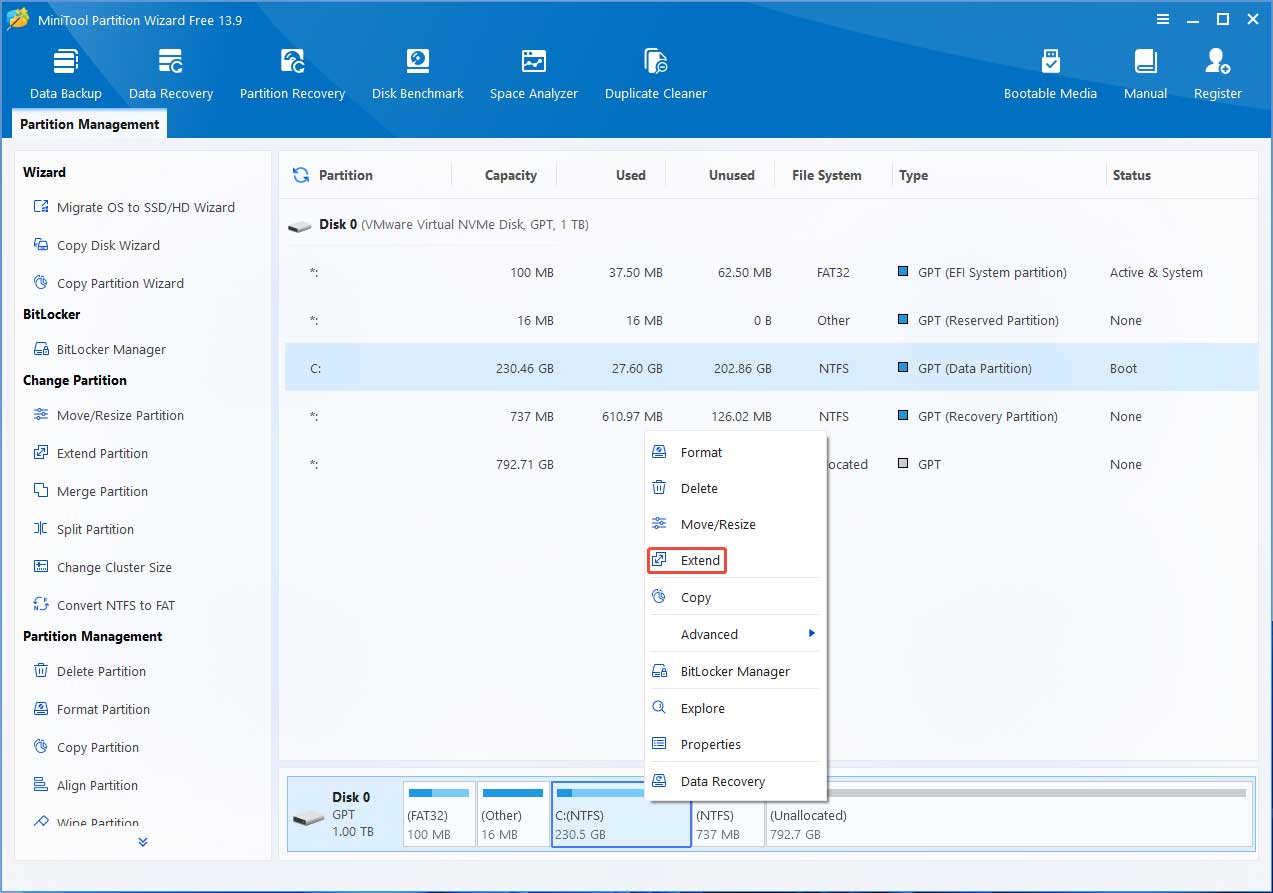
Step 1: Launch MiniTool Partition Wizard. Right-click the C drive and choose Extend.
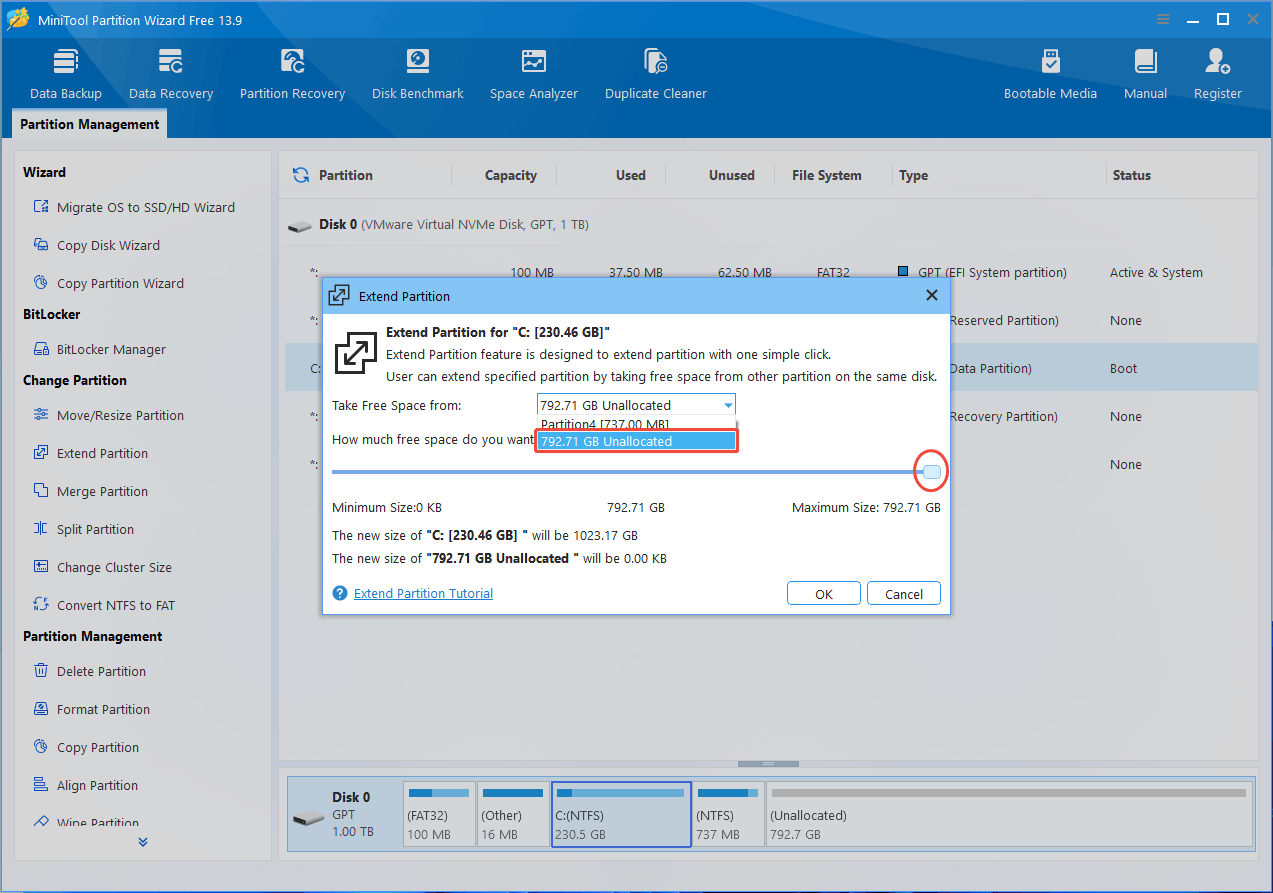
Step 2: On the pop-up window, expand the drop-down menu and choose your unallocated space. Drag the blue slider to the far right. Then, click OK.
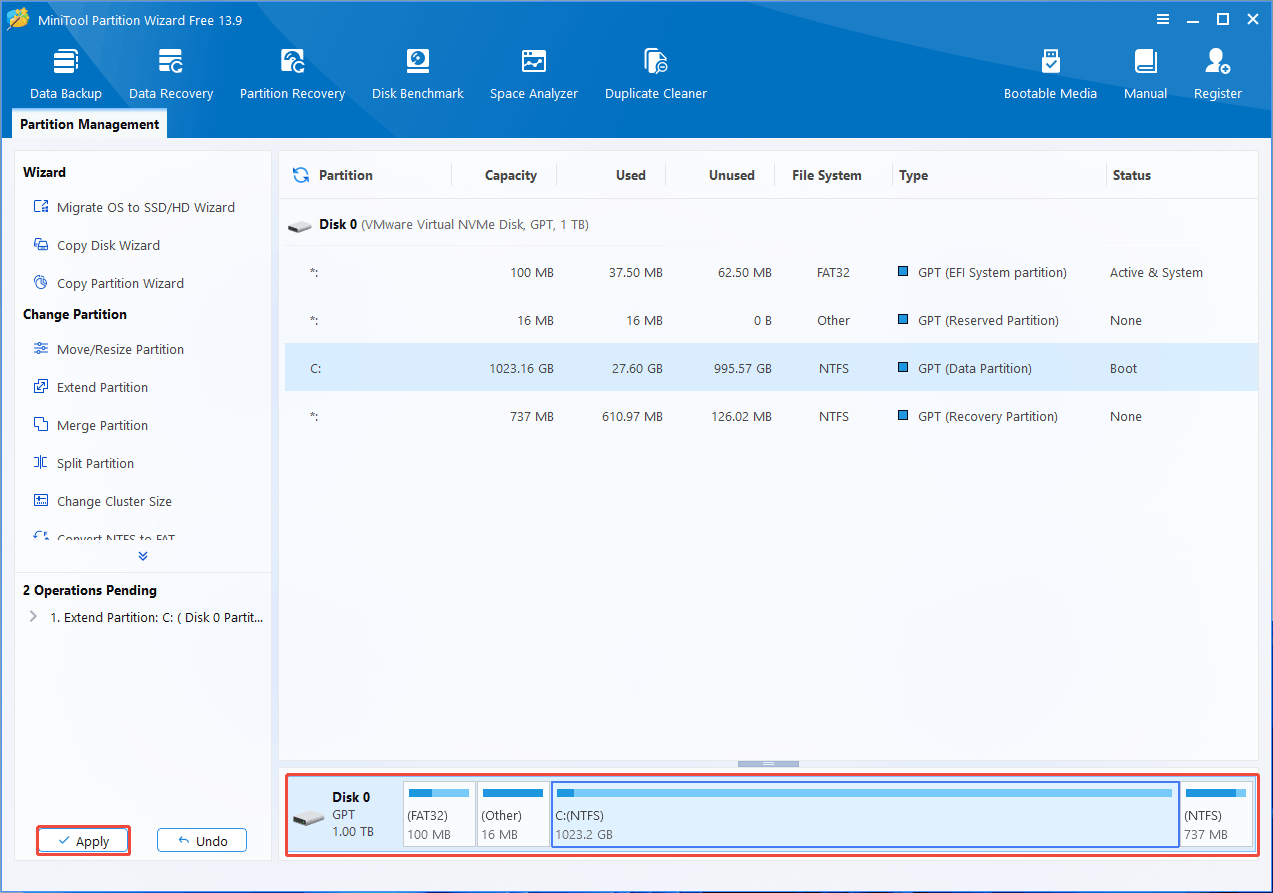
Step 3: View the new disk layout. Then, click Apply and Yes to start the extending process.
Method 2. Move the Unallocated Space Next to the C Drive
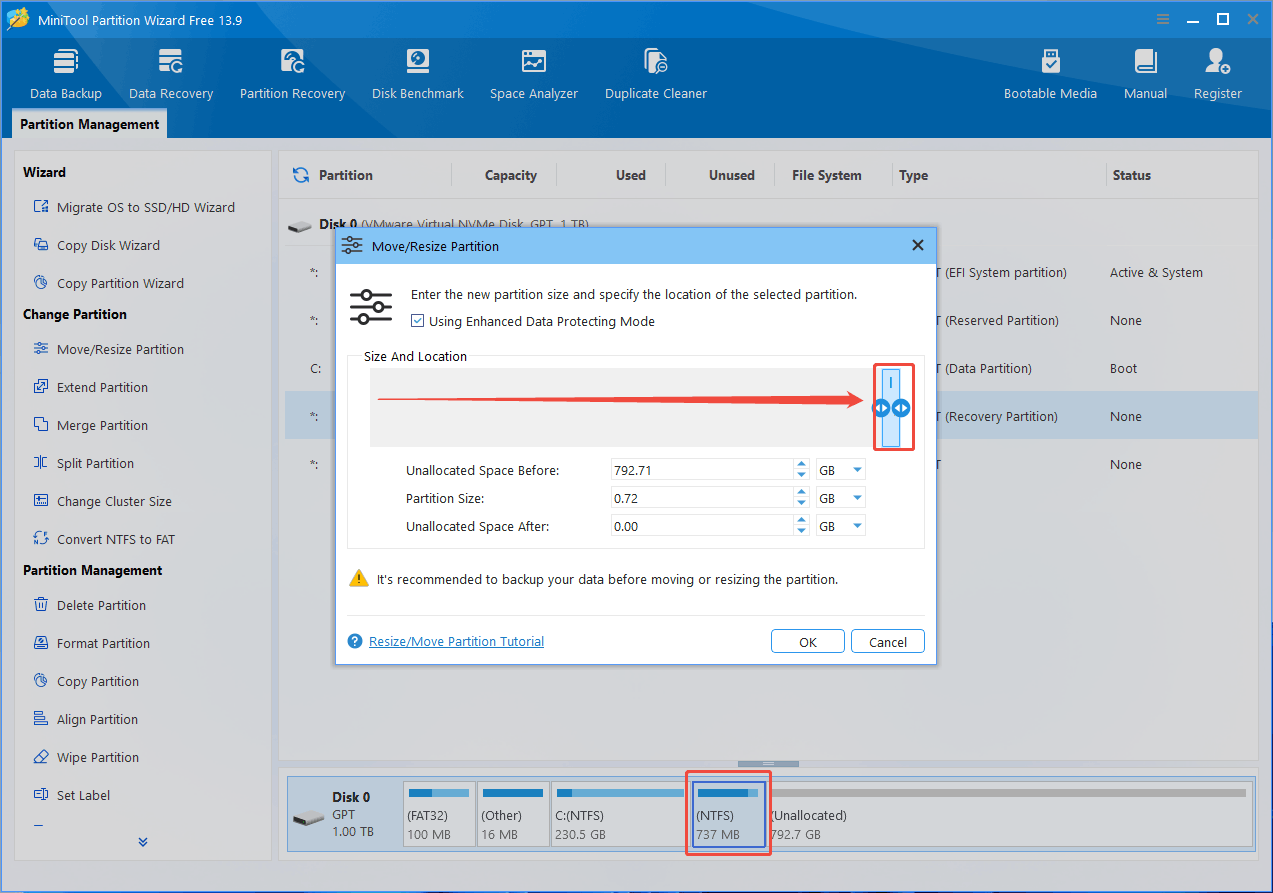
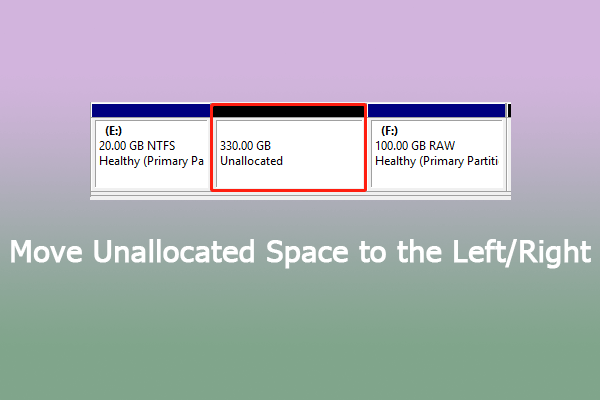
If the unallocated space is to the left of the C drive or not adjacent to it, you can move it to the position immediately to the right of the C drive. Then, you can extend the C drive with the unallocated space.
How to move unallocated space next to the C drive? MiniTool Partition Wizard can help you do that for free.
- Right-click the blocking partition.
- Choose Move/Resize.
- On the pop-up window, drag the partition to the far right and click OK.
- Click Apply. Then, try extending the C drive in Disk Management again to see if the issue has been solved.
Method 3. Back up and Delete the Blocking Partition (D:)
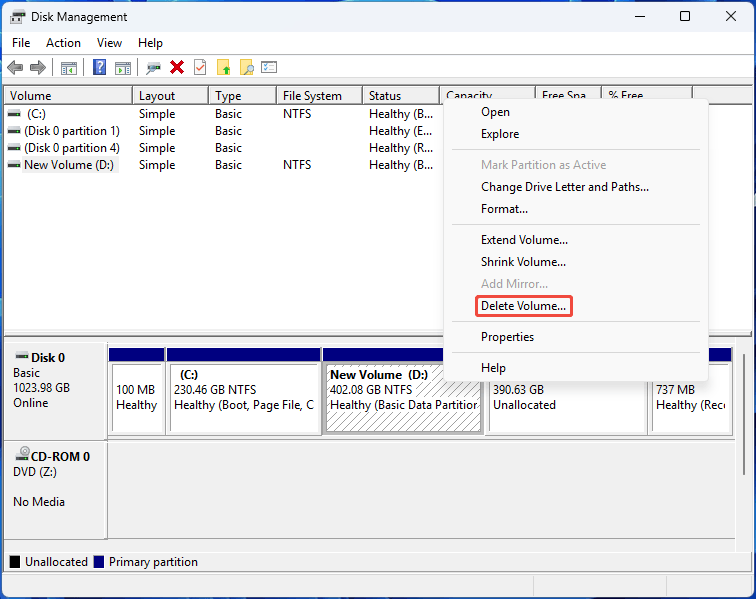
If the D drive is blocking the unallocated space, you could consider backing up the data on the D drive and deleting it in Disk Management. Then, you can use the unallocated space to extend the C drive. Follow the process below:
- Back up files on the D drive.
- Open Disk Management, right-click the D drive, and choose Delete Volume.
- Click Yes to confirm. Then, you can right-click the C drive and choose Extend Volume to expand it.
Method 4. Delete the Recovery or MSR Partition with DiskPart
If a Recovery partition or MSR partition (Microsoft Reserved Partition) is blocking the unallocated space, you can delete and re-create them to resolve the issue.
The Recovery and MSR partitions cannot be deleted in Disk Management. You need to use DiskPart.
Press Win + R, type “diskpart”, and press Enter. Once the tool opens, run the following commands to delete the MSR or Recovery partition, or both of them.
- list disk
- select disk * (* is the sequence number of the system disk, usually 0.)
- list partition (At this step, you need to confirm whether the Reserved partition is located after the C drive. If it is, you can delete it.)
- select partition # (# is the sequence number of the MSR partition or Recovery partition, depending on which partition you want to delete.)
- delete partition override
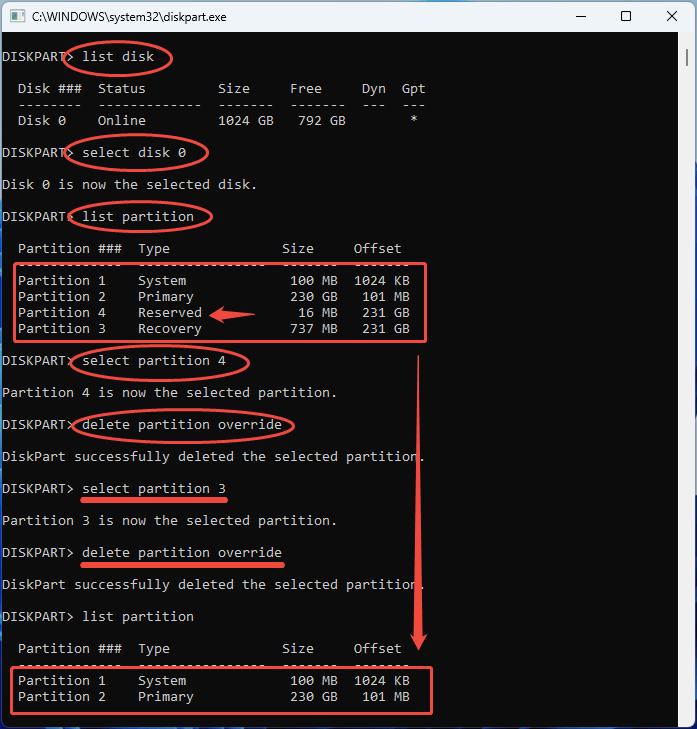
Then, you can try extending the C drive to see if the issue has been solved.
MSR and Recovery partitions can be re-created manually. To create an MSR partition, use this DiskPart command: Create Partition MSR (Size=*) (Offset=*). Size is in MB, while offset is in KB. If you want to re-create a Recovery partition, you can view the steps in this post: How to Move Recovery Partition.
Can’t Extend C Drive FAQ
1. If you wish to keep the D partition, you can use the “Extend” function to expand the C partition using the free space from the D partition.
2. If you do not need to keep the D partition, you can use the “Merge” function to combine the D partition—along with its files—into the C drive.
Bottom Line
If you can’t extend the C drive in Windows 10/11, first check whether there is enough unallocated space immediately to its right. If Extend Volume is greyed out because another partition is in the way, you may need to move or delete the partition using MiniTool Partition Wizard. Or, you can use this software to extend the C drive more flexibly.
If you have any questions about this software, send an email to [email protected] for assistance.
About The Author

Position: Columnist
Linda has been an editor at MiniTool for seven years. She continuously learns about computers and puts her knowledge into practice. Moreover, she is particularly knowledgeable in disk management, data recovery, system installation, and PDF editing. Her articles typically reference multiple examples or are based on her own experience, providing users with the most suitable solutions.
User Comments :