
Over time, duplicate local files in Dropbox can consume disk space on your computer. This post shows detailed steps to find and remove duplicate files in Dropbox using MiniTool Partition Wizard and Windows File Explorer.
Why Does Dropbox Create Local Duplicate Files?
Dropbox is one of the most popular cloud storage services for syncing files across devices. It allows you to store documents, photos, videos, and other data in the cloud.
The Dropbox desktop app will create local duplicate files during multi-device syncing or when a naming conflict occurs. These duplicates will be stored locally inside your designated Dropbox folder on your hard drive. The default path is C:\Users\[Your Windows Account Username]\Dropbox.
For example, you may find files such as: Project.docx, Project (1).docx, Project – Copy.docx, Project (Conflicted Copy).docx.
Several situations can lead to local duplicate files in Dropbox.
- Conflicting copies: If two users edit the same file simultaneously, or if you edit a file offline on two different devices, Dropbox saves both versions as “Conflicted Copy.”
- Syncing errors: Reinstalling the desktop app without properly linking to the original folder can create a secondary Dropbox folder (e.g., “Dropbox (Personal)”).
- Selective syncing issues: Modifying sync settings or accidentally duplicating local folders can lead to repeated file downloads.
Over time, these duplicates can consume disk space, complicate file management, and create confusion about which version is the latest.
Now, it’s time to find and remove duplicate files in Dropbox using the following tools.
Remove Duplicate Files in Dropbox with MiniTool Partition Wizard
MiniTool Partition Wizard features a built-in Duplicate Cleaner tool designed to clear out repeated files across local drives and external devices.
Because it operates directly on your local hard drive, it can easily target your local Dropbox folder to find identical files and delete them.
Besides duplicate cleanup, MiniTool Partition Wizard integrates a full disk partition management toolkit. You can optimize Windows disk space allocation after Dropbox cleanup without installing extra independent disk tools.
Now, let’s see how to find and remove duplicate files in Dropbox using MiniTool Partition Wizard.
MiniTool Partition Wizard FreeClick to Download100%Clean & Safe
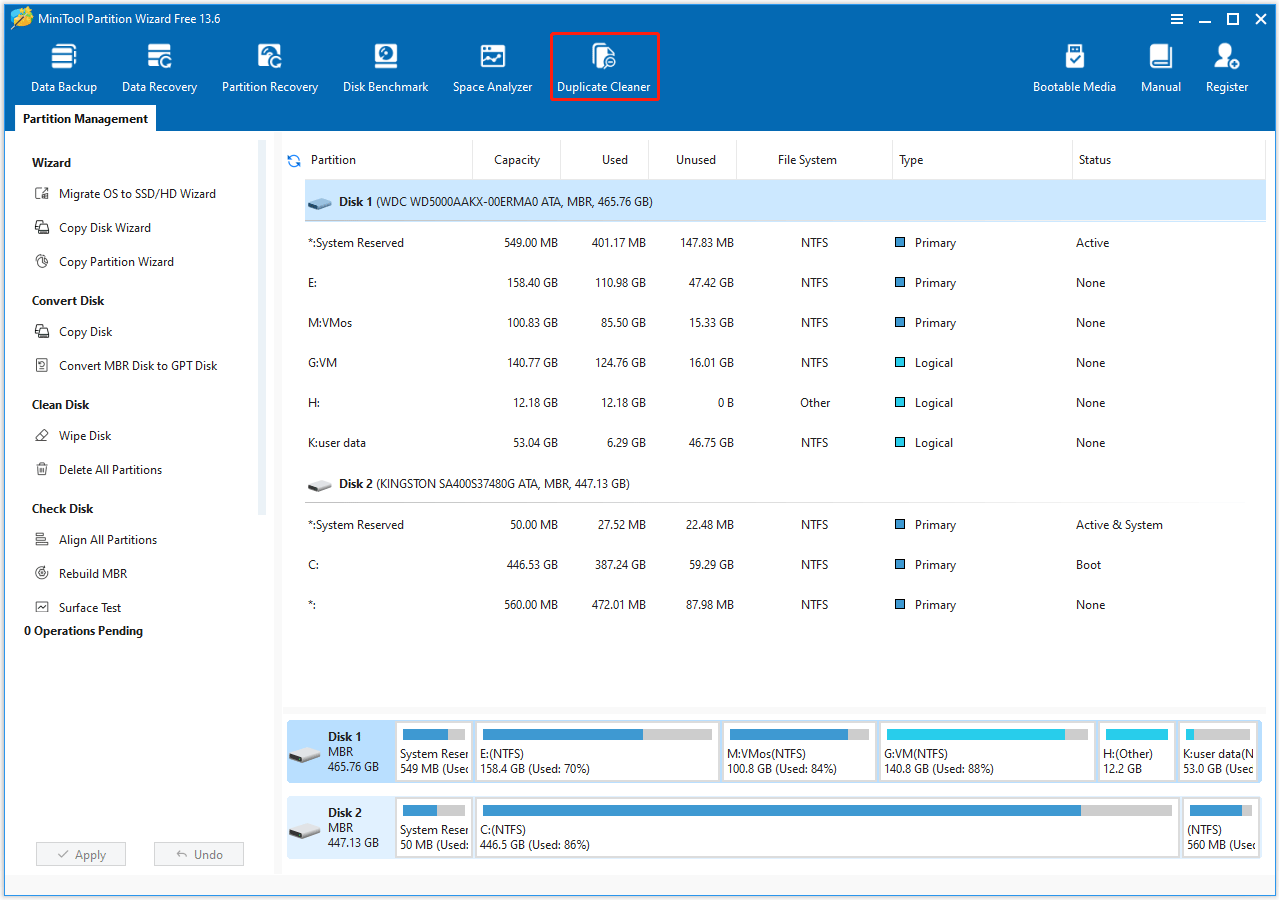
Step 1. Launch this free duplicate file cleaner to enter its main interface. Then click Duplicate Cleaner on the top toolbar.
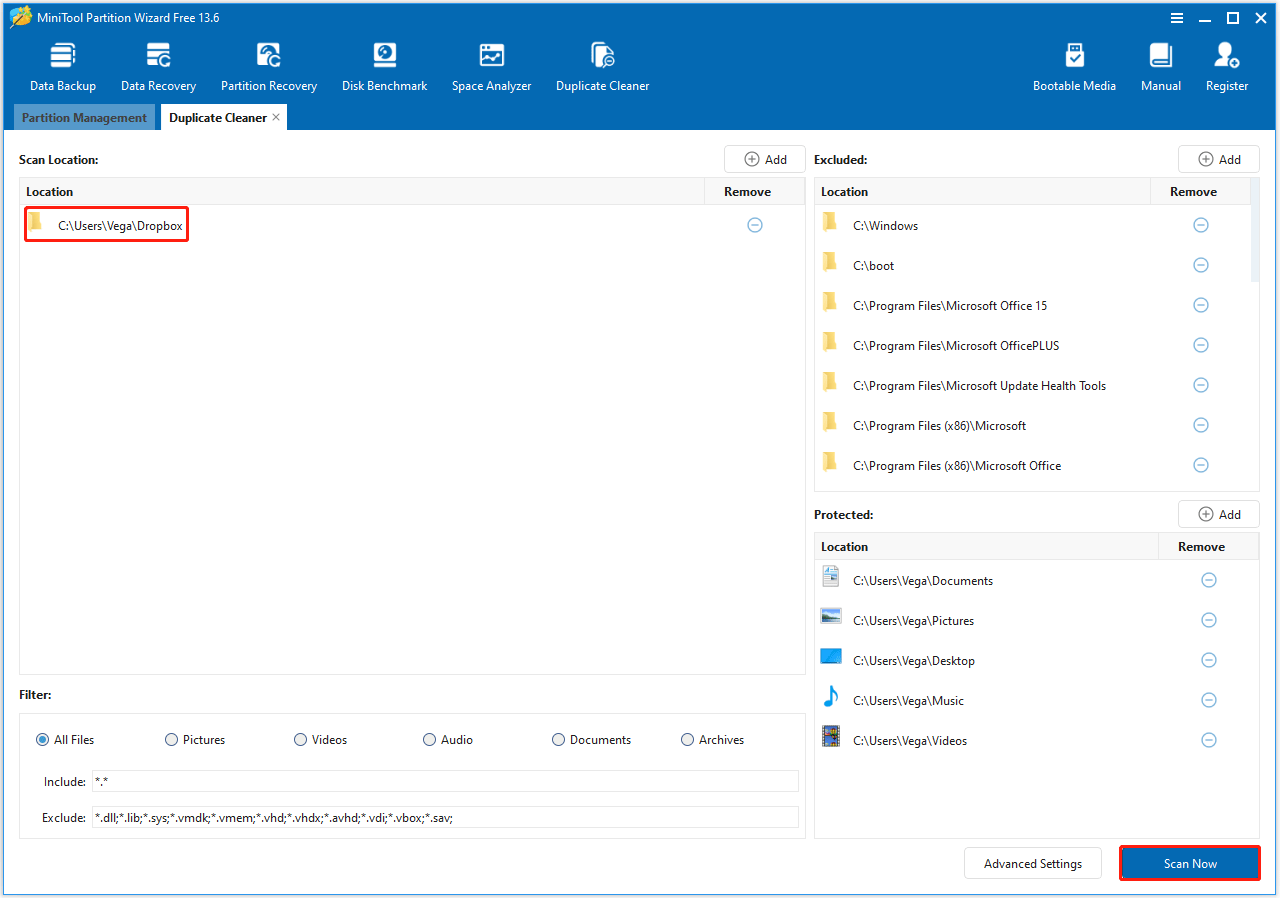
Step 2. In the new window, clear all pre-selected local disk partitions under the Scan Location column by clicking the Remove icon beside each drive. Then tap the Add button, select the local Dropbox folder to add to the scan queue.
Here, you can configure auxiliary scan parameters on the right-side setting panel:
- Excluded: Add confidential Dropbox subfolders needing to be skipped to the excluded list to block directory scanning entirely.
- Protected: Add core Dropbox archive folders into the protected list, matched duplicates inside will display in scan results, but get locked against deletion operation.
- Advanced Settings: Switch between MD5 and SHA-1 hash check algorithms, set minimum/maximum scanned file size, and target file extension filters to narrow scanning scope.
After all parameter configuration finishes, click Scan Now.
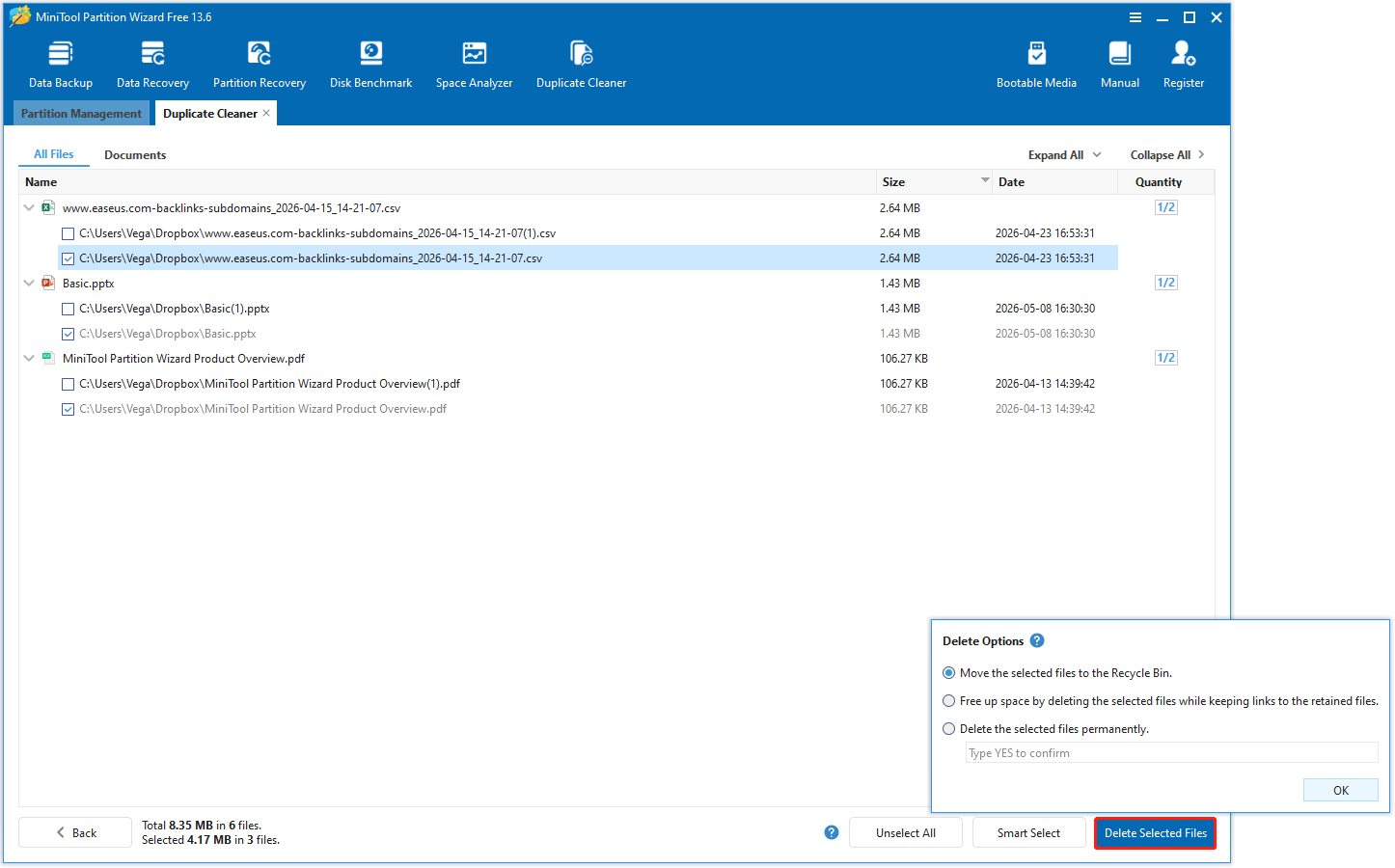
Step 3. Once scanning finishes, all Dropbox duplicate sets are grouped orderly on the result page with complete file storage path, individual file size, and total occupied storage capacity displayed.
Then click Smart Select and choose a selection method. To view the full path, click Expand All.
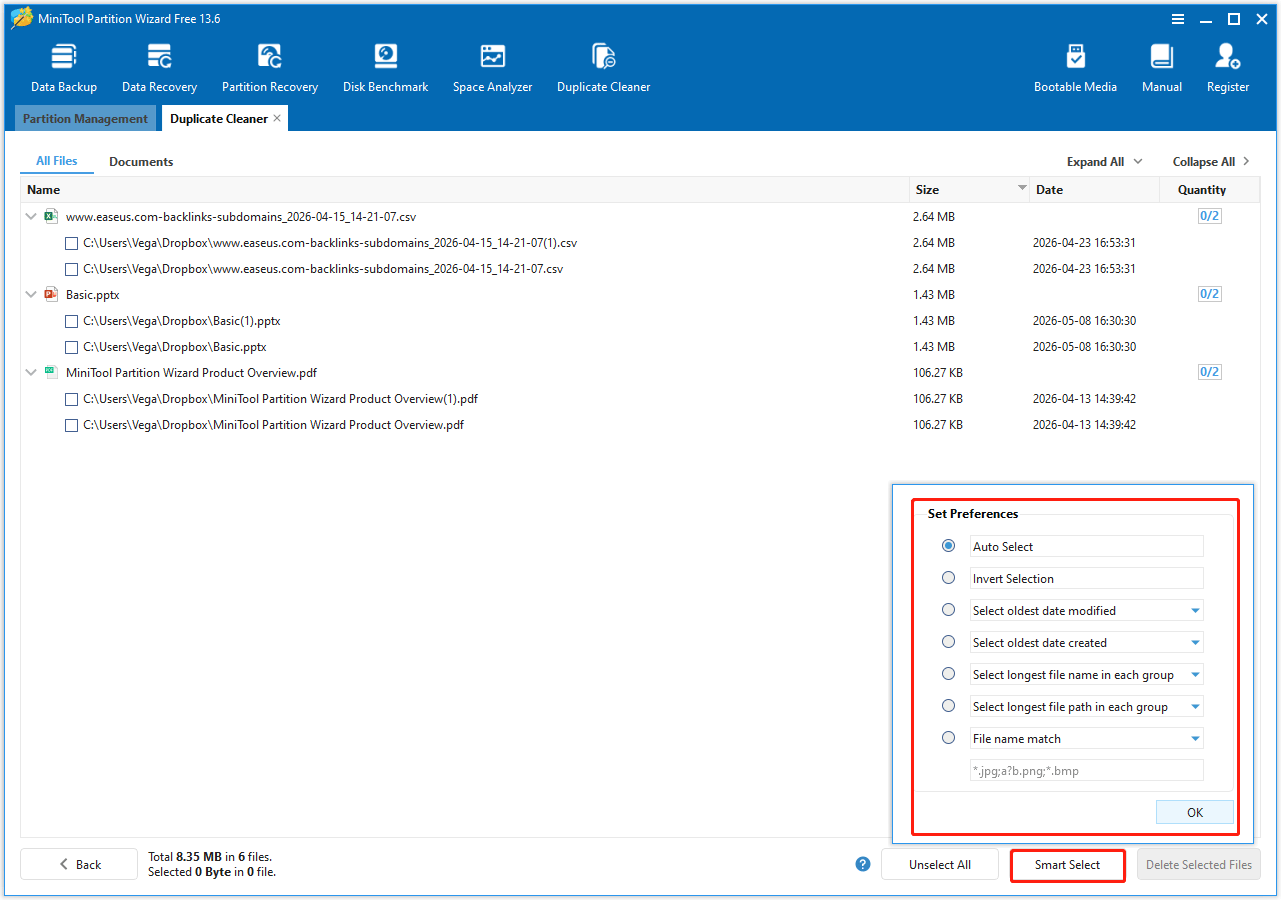
Step 4. Click Delete Selected Files to choose different deletion options. Then click OK to remove local duplicate files in Dropbox.
Remove Duplicate Files in Dropbox with File Explorer
Windows File Explorer can help you remove duplicate files in the Dropbox folder by comparing filename, file size, and modification time without extra tools. This free native method works for users with a small Dropbox folder.
Here are the steps to delete duplicate files in Dropbox:
Step 1. Open File Explorer and navigate to the Dropbox folder.
Step 2. Click the View tab at the top and select Details. Then click column headers including Name, Size, and Date modified to sort all files sequentially, grouping same-named or same-sized files together.
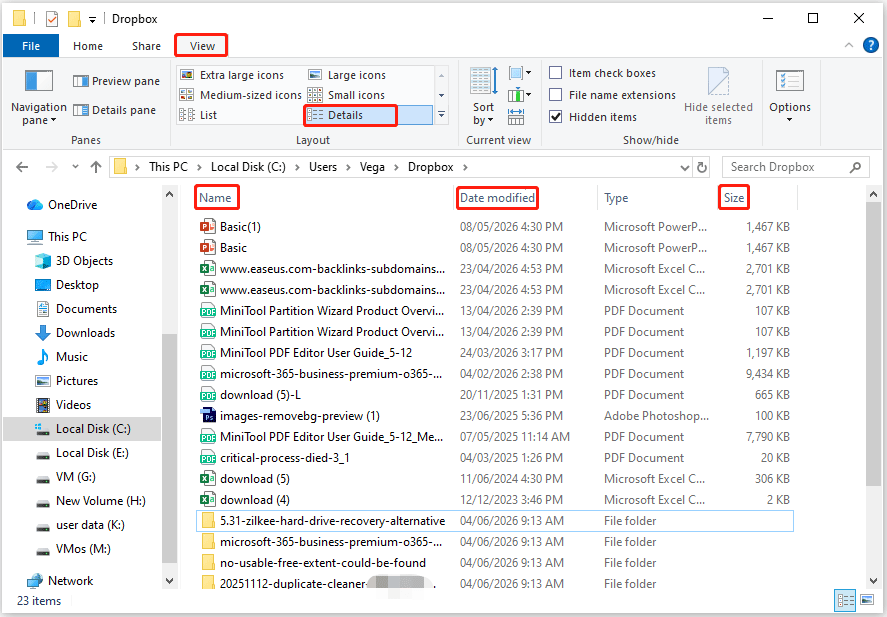
Step 3. Manually check file previews for grouped candidates: files carrying (conflicted copy) or (1) suffixes are confirmed redundant duplicates. Cross-check file size and open previews for same-size items with different filenames to confirm identical content.
Step 4. Right-click verified useless duplicates and select Delete to move items into the Windows Recycle Bin.
Remove Duplicate Files in Dropbox FAQ
Step 1. Log in to Dropbox on your browser.
Step 2. Click the settings icon next to All files or a specific folder, then select Organize > Find duplicates.
For Dropbox local, use a data recovery program like MiniTool Partition Wizard to recover the deleted Dropbox local files.
Bottom Line
Duplicate files in Dropbox can accumulate over time. This wastes storage space and makes it harder to locate important documents.
This post offers 2 methods to Dropbox find duplicate files with File Explorer and MiniTool Partition Wizard. Among them, MiniTool Partition Wizard is a better choice with fast and simple operation.
For any questions or suggestions about MiniTool Partition Wizard, contact us via [email protected]. We’ll reply as soon as possible.
User Comments :