
This article guides you on “how do you remove duplicate songs”. It outlines the common causes of duplicate files and offers detailed, step-by-step methods to delete them using File Explorer and MiniTool Partition Wizard.
During everyday computer use, many users discover that their computers contain a large number of duplicate music files.
Why do duplicate music files occur? How should you delete these duplicate music files?
The following will answer the two questions.
Why Are There So Many Duplicate Songs in Windows?
Music lovers or collectors often end up with duplicate music files because their music libraries are large and come from diverse sources.
Below are some of the reasons why duplicate music files occur.
- Downloading the same song multiple times: They might forget that they’ve already downloaded the song, or they might save it repeatedly from different platforms. This can lead to the same song existing with different filenames or formats.
- Device or software synchronization and backup: When syncing and backing up data from the phone, tablet, old computer, or cloud storage to a new device, the system may create duplicate copies.
- Differences in music format or sound quality: The same song may exist in different formats, such as MP3 or FLAC, or with different sound qualities. Although they appear different, the song content is actually the same.
How Do You Remove Duplicate Songs
As the number of music files on your computer increases, the same song may be downloaded repeatedly, taking up valuable computer space.
To address this, you can use MiniTool Partition Wizard or Windows File Explorer to quickly find and delete duplicate music files.
Below is a comparison of the two tools. You can choose the method that suits your needs.
- MiniTool Partition Wizard: Suitable for users with a large number of music files. It can quickly and automatically scan and delete duplicate music files, saving time and effort.
- File Explorer: Suitable for users with fewer music files or those who don’t want to use third-party software. It involves manually viewing and deleting duplicate music files, which is simple but less efficient.
Method 1: Via MiniTool Partition Wizard
MiniTool Partition Wizard not only supports deleting duplicate music files in Windows, but also can remove duplicate videos and other duplicate files. It can also help you delete files on external hard drive.
The following are detailed steps for deleting duplicate music files using MiniTool Partition Wizard.
MiniTool Partition Wizard FreeClick to Download100%Clean & Safe
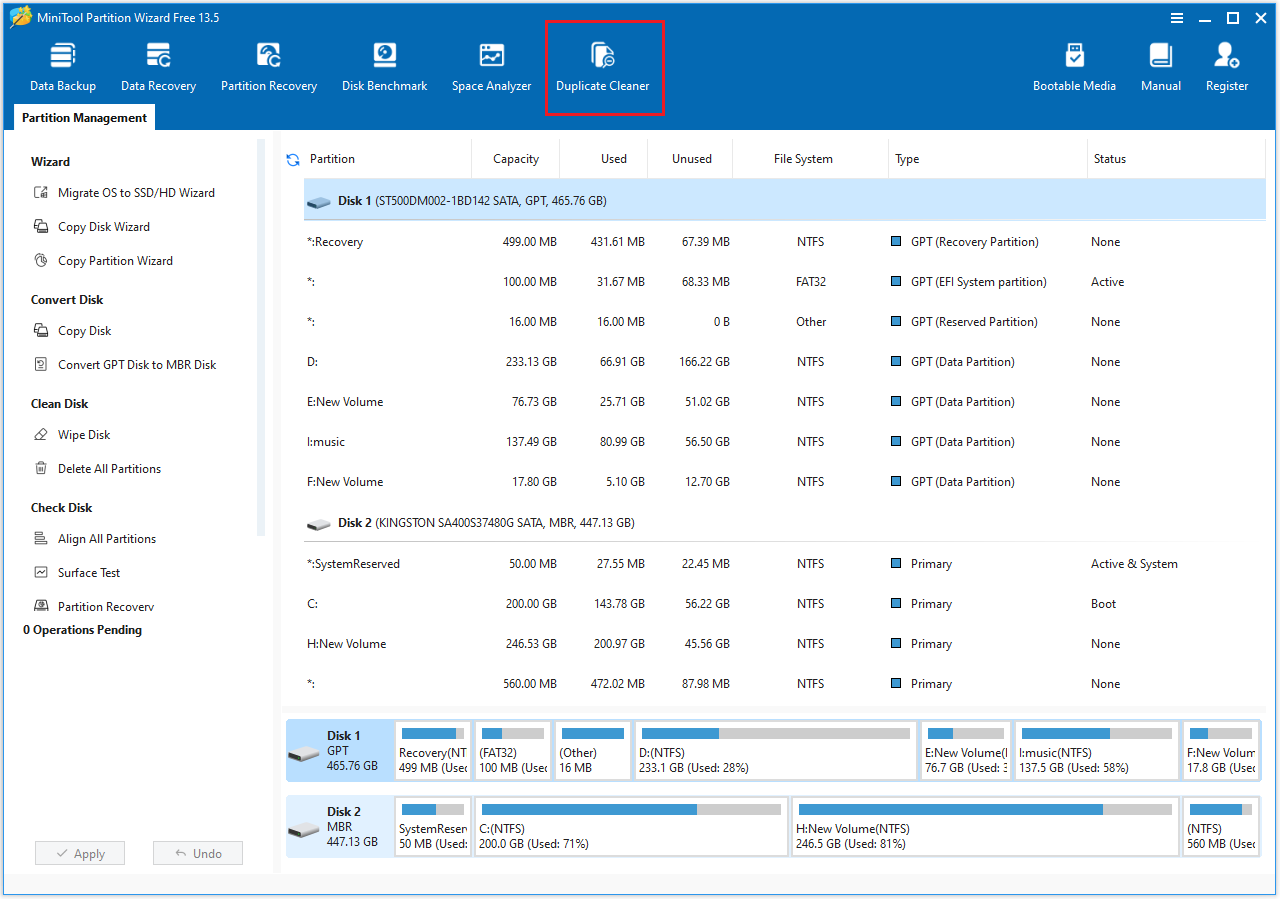
Step 1: Launch MiniTool Partition Wizard to its main interface and click the Duplicate Cleaner feature on the toolbar.
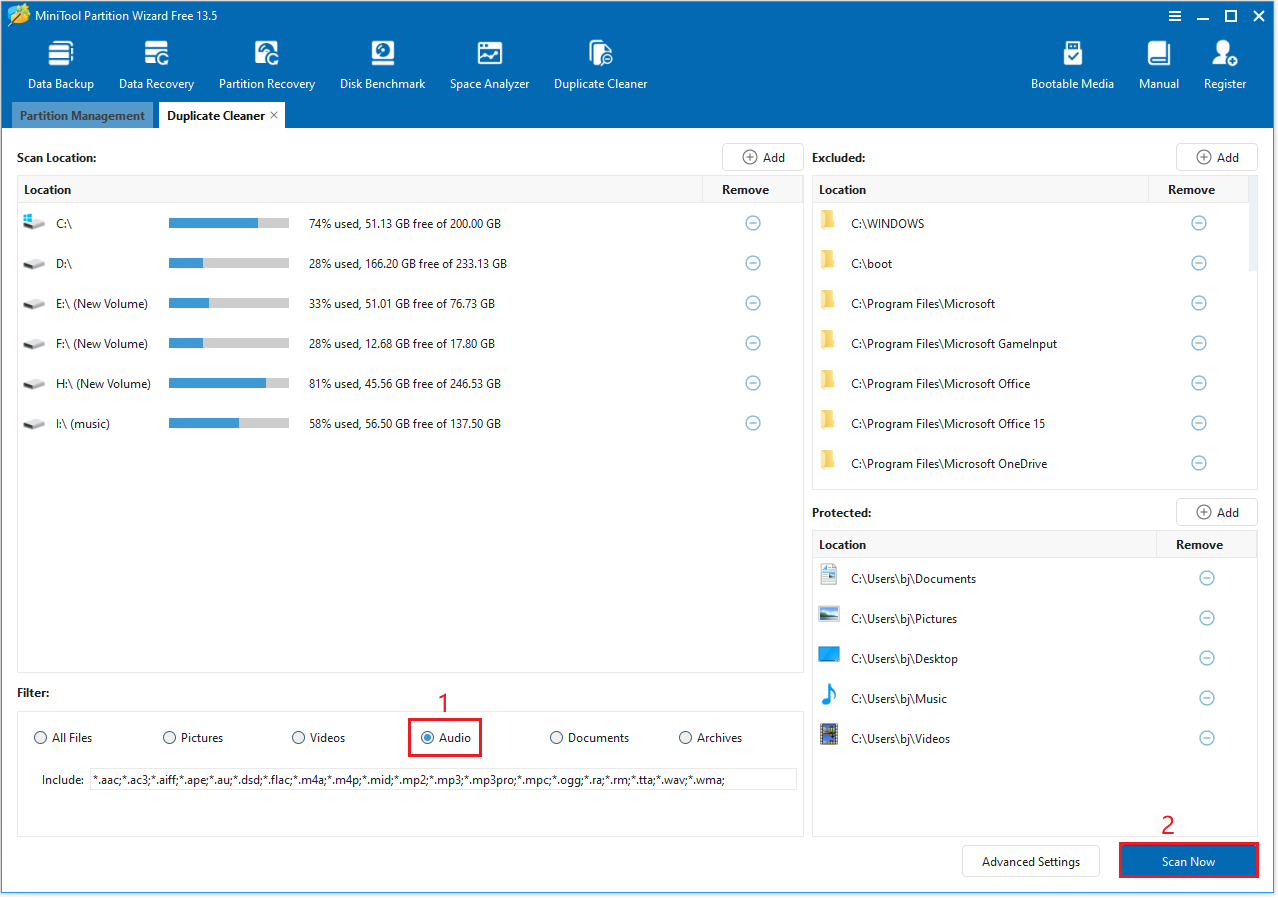
Step 2: In the new pop-up window, you can adjust the settings to choose the disks, file types, and other parameters to scan. After making your selections, simply click Scan Now to begin.
- Scan Location: By default, all detected partitions with drive letters will be displayed.
- Filter: By default, all file types will be scanned. Here, you need to select the Audio option in the Filter bar.
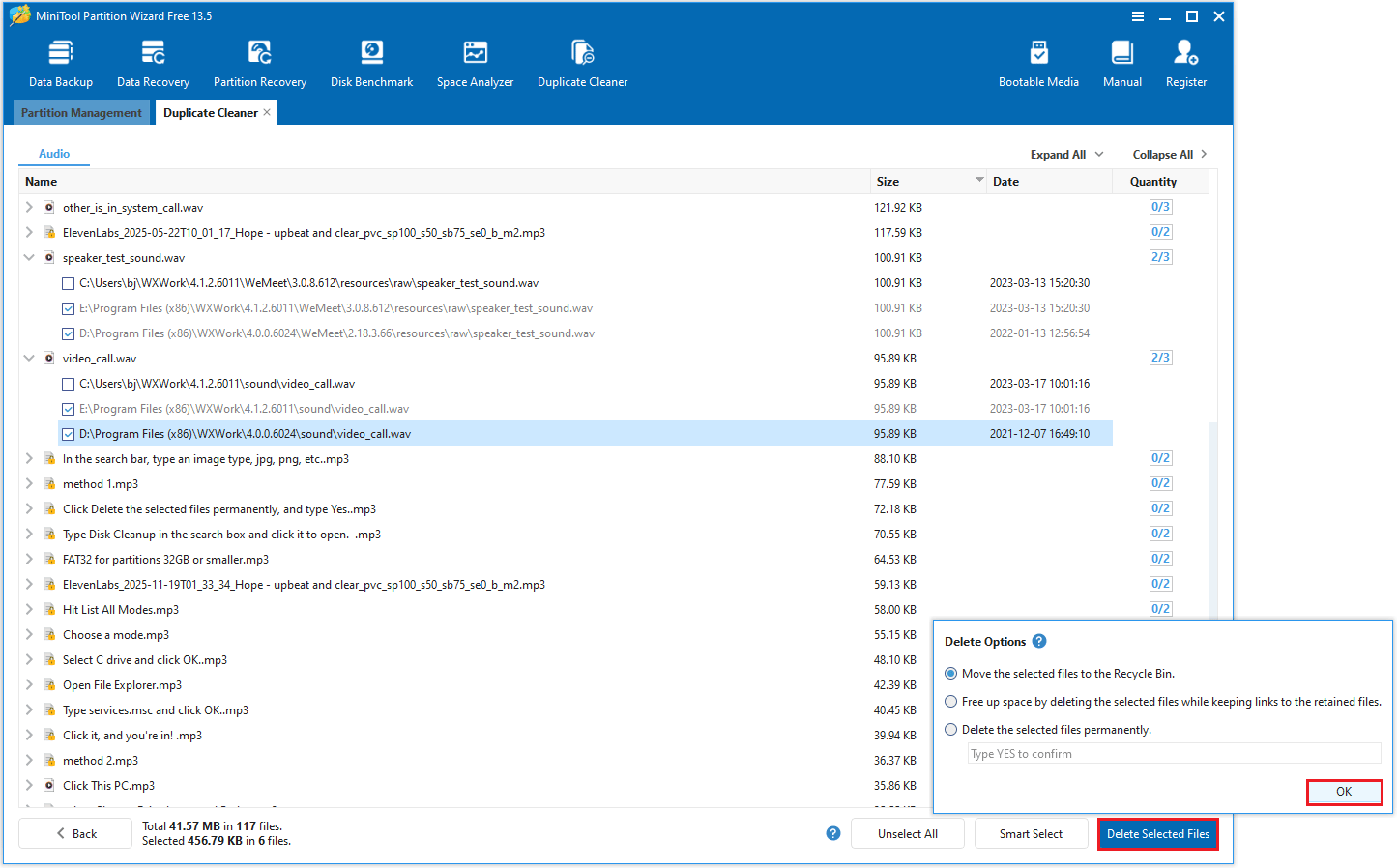
Step 3: Once the scan is finished, a list of all duplicate audio files will be displayed. Expand each entry to see the duplicate music files. Choose the music files you wish to delete, then click Delete Selected Files in the bottom right. A delete options window will pop up. Pick a deletion option and click OK.
Method 2: Via File Explorer
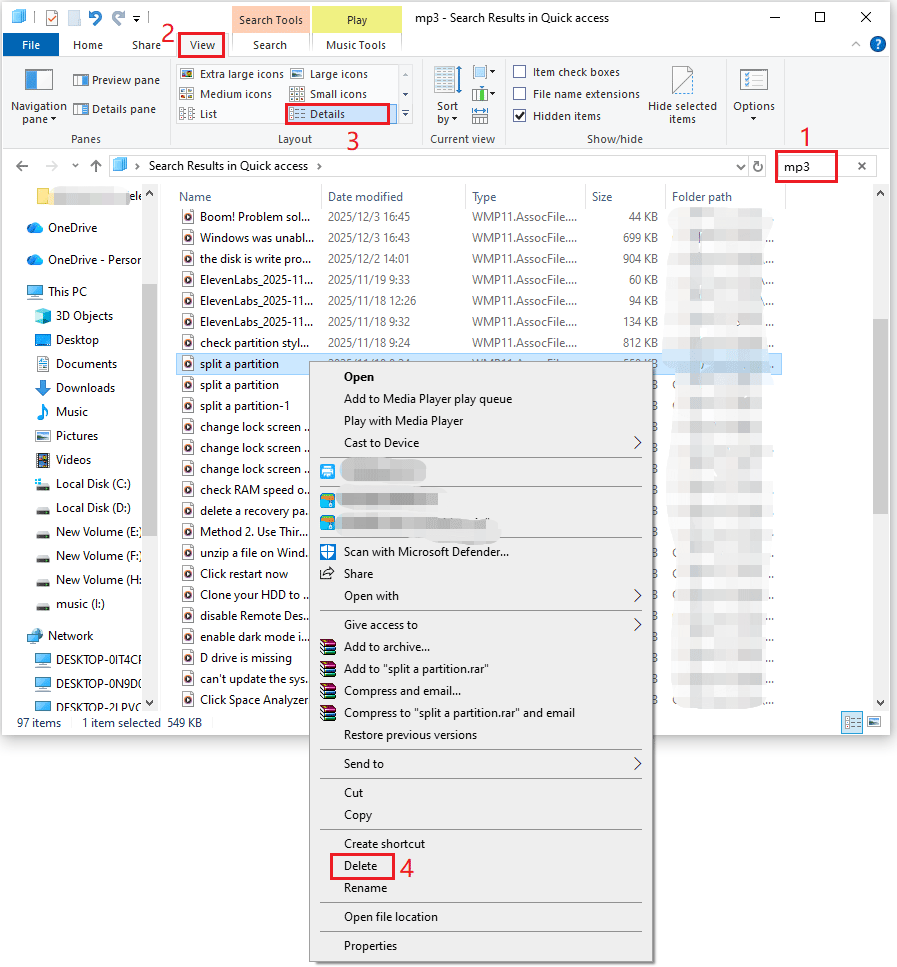
File Explorer is a built-in tool in the Windows system, and it also functions as a duplicate MP3 finder. You don’t need to install any additional software to delete duplicate song files.
The specific steps are as follows:
- Click the File Explorer icon to open File Explorer.
- In the Search bar in the upper right corner, enter an audio file extension. For example, mp3, mp2, flac, etc. (mp3 is used as an example here). Finally, press Enter.
- In Windows 10, go to the View tab and select Details. In Windows 11, choose the View > Details option.
- Manually review the listed audio files. Look for audio files with the same name, size, and similar modification dates.
- Open the duplicate audio files to listen to and check them again. After confirmation, select the audio file, right-click, and select Delete.
How Do You Remove Duplicate Songs FAQ
If your computer has a large number of duplicate songs, especially high-bitrate or lossless formats (such as FLAC or WAV), deleting duplicates will usually free up a significant amount of space.
For compressed formats (such as MP3 or AAC), individual files occupy relatively small spaces, so the space freed up may be limited.
2. When importing music from your phone, USB flash drive, or external hard drive to your computer, avoid copying the same batch of files multiple times.
3. Regularly check and clean up the music on your computer, and promptly delete duplicate songs.
Bottom Line
This article introduces two methods to help you delete duplicate music files: one is using the MiniTool Partition Wizard, and the other is using File Explorer.
If you have any questions or feedback about MiniTool Partition Wizard, feel free to contact our support team at [email protected] for additional help.
User Comments :