
If you want to find duplicate videos, this article will help you. It discusses common reasons for duplicate video in Windows systems, the advantages of duplicate video finder tools, and provides specific steps on how to find and delete duplicate videos with MiniTool Partition Wizard.
Many users find that a large number of duplicate video files have accumulated on their computer hard drives.
These redundant videos not only take up valuable disk space but can also affect computer performance. Managing and cleaning up these duplicate videos is especially important for video enthusiasts and professionals.
So, why do duplicate video files appear in Windows systems? What problems do they cause? And how can we efficiently find and delete these duplicate video files?
This article will provide you with detailed answers to help you easily find duplicate videos in Windows.
Common Causes of Duplicate Videos in Windows
Duplicate video files are not uncommon in Windows systems. Here are some common reasons why video files may appear repeatedly in Windows:
1. Manually copying or moving video files.
One of the most common reasons is accidentally copying or moving video files manually while managing them. This results in multiple copies of the same video file.
2. Downloading multiple copies.
When downloading videos, you may not realize that you have downloaded the same file, especially when the download source is unstable or the file name is similar.
3. Video editing and conversion.
Video editing and conversion operations are also a common cause of duplicate files. You may create multiple copies during the editing process.
4. Backup and synchronization issues.
Duplicate video files may also be accidentally created during file backup and synchronization.
5. Program and system errors.
Sometimes, system or program errors can also lead to the generation of duplicate video files.
Benefits of Duplicate Video Finder
Using a video duplicate finder can offer numerous benefits, especially when managing large numbers of video files. Here are some of the key advantages:
1. Save storage space.
Duplicate video files often consume significant amounts of hard drive space, especially high-definition videos. By finding and deleting these redundant files, a duplicate video finder can significantly free up hard drive space.
2. Improve file management efficiency.
Manually checking and deleting duplicate video files is time-consuming, while a duplicate video finder can automatically scan the entire system and quickly identify all duplicate files.
3. Avoid accidentally deleting important files.
Duplicate video finders typically offer preview and selection functions, ensuring you only delete genuine duplicate files, rather than accidentally deleting important ones.
4. Works with different video file formats.
Duplicate video finders usually support multiple video formats, such as .mp4, .mkv, .avi, .mov, etc., enabling comprehensive scanning and cleaning of various video file types.
Having learned about so many advantages of duplicate video finders, I recommend the MiniTool Partition Wizard, which can help you quickly find and delete duplicate video files via the Duplicate Cleaner feature.
How to Find and Delete Duplicate Videos in Windows
MiniTool Partition Wizard is a free duplicate file cleaner that helps you find and delete duplicate videos stored on your computer, external hard drive, SD card, and other devices.
Here are the steps you can follow to find and remove duplicate videos.
MiniTool Partition Wizard FreeClick to Download100%Clean & Safe
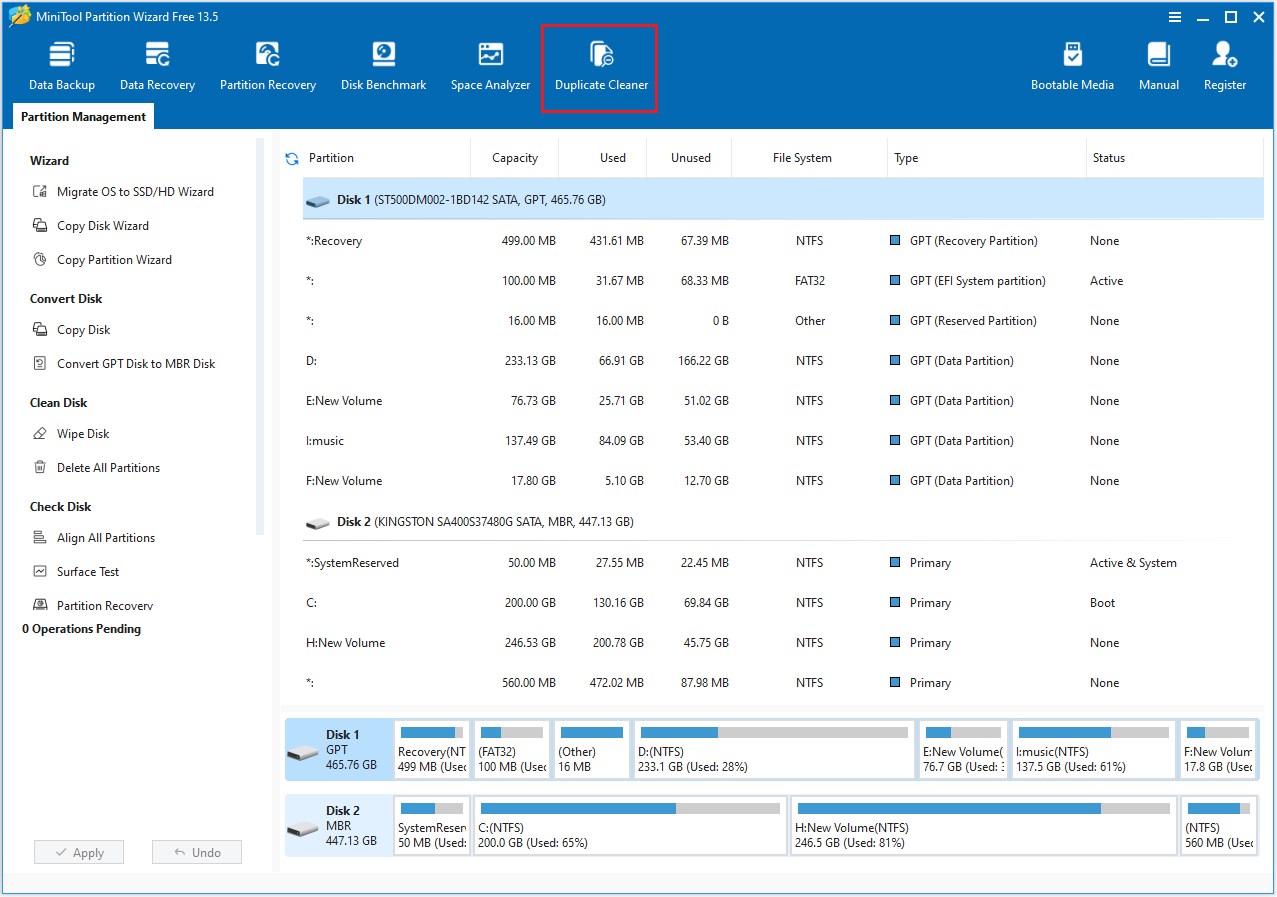
Step 1: Launch MiniTool Partition Wizard to its main interface and click the Duplicate Cleaner feature on the toolbar.
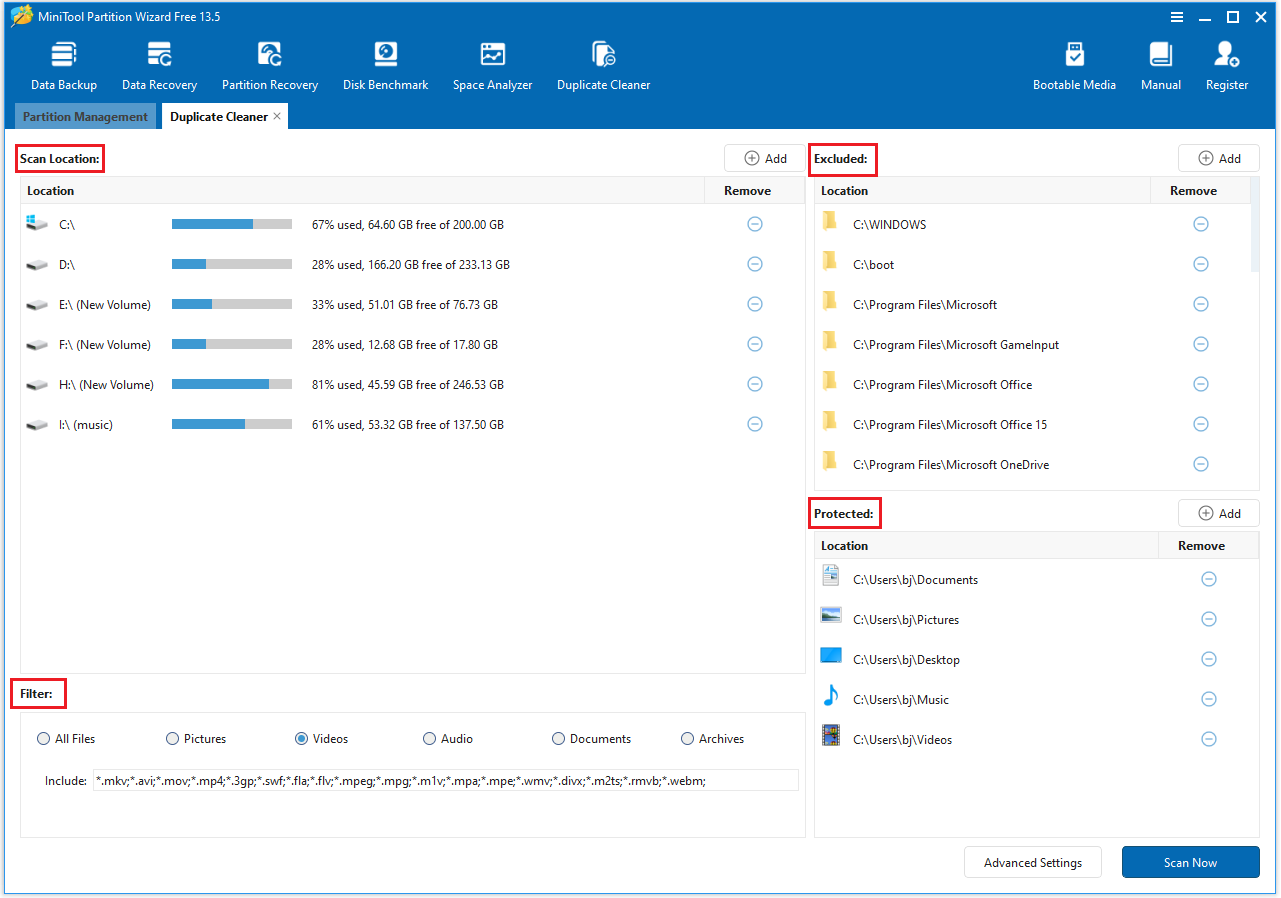
Step 2: In the new pop-up window, you can customize the configuration to select the disks, file types, etc., to be scanned. Once the settings are complete, you can click Scan Now.
- Scan Location: By default, all detected partitions with drive letters will be displayed. Click the “Add” icon to add a partition or folder. Click the “Delete” icon to delete the selected partition or folder.
- Excluded: Certain system folders (such as C:\Windows, C:\boot, and C:\Program Files\Microsoft, etc.) will be automatically excluded.
- Protected: You can mark important folders or partitions as protected. Files in these folders will be scanned, but will appear locked on the results page and cannot be deleted.
- Filter: By default, all file types will be scanned, but you can also select specific categories (Here, you need to select the Video option in the Filter bar).
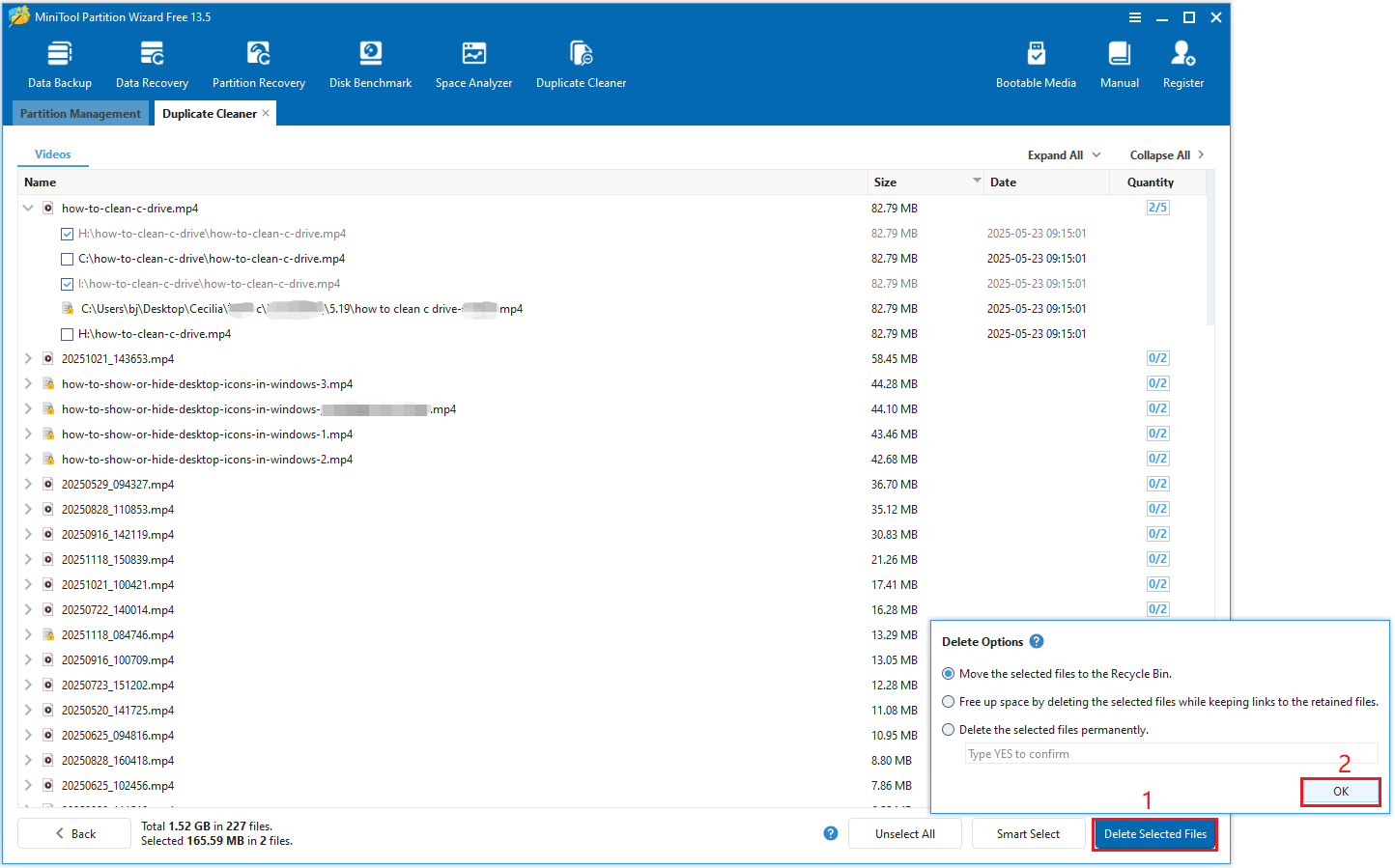
Step 3: After the scan is complete, all duplicate videos will be listed. Expand each item to view these duplicate videos. Select the video you want to delete, then click Deleted Selected Files in the bottom right corner. The Delete Option window will appear. Choose one delete option and then click OK.
1. Move the selected files to the Recycle Bin: This option will move the files to the Recycle Bin.
2. Free up space by deleting the selected files while keeping links to the retained files: Duplicate files will be deleted, and links to the retained copies will be created.
- For duplicate files on the same NTFS drive, a hard link will be created.
- For duplicate files on different NTFS/ReFS drives, a symbolic link will be created.
3. Delete the selected files permanently: This option means that the selected files will be permanently deleted. You will need to enter Yes again to confirm.
Further Reading:
File Explorer is the default file manager application for Windows, allowing you to manually find and delete duplicate videos.
Here are the steps to delete duplicate videos using File Explorer:
- Open File Explorer and navigate to the folder where you suspect the duplicate videos are located (e.g., your Videos, This PC, Downloads, etc).
- Use the search bar in the top-right corner to filter for common video file extensions. For example, type mp4 and press Enter.
- Go to the View tab, then select Details. Manually review the listed videos. Look for videos with the same name, size, and similar modification dates.
- Open the duplicate file to check it again.
- Select the duplicate videos you want to remove, then right-click on the selected videos and choose Delete.

Bottom Line
This article explains why you might have duplicate videos on your computer and teaches you use the duplicate video remover (MiniTool Partition Wizard) to find and remove the duplicate videos.
If you have any questions or feedback about MiniTool Partition Wizard, feel free to contact our support team at [email protected] for additional help.
User Comments :