
Duplicate photos accumulate due to transfer errors, sync conflicts, and disorganization. This post explains how to delete duplicate photos on Windows 10/11 using File Explorer, MiniTool Partition Wizard, and Windows Terminal to free up disk space.
Why Does Your PC Contain Duplicate Photos?
Duplicate photos on a Windows PC usually come from the following four causes.
- File Transfer or Download Issue: When importing images from a mobile phone or USB flash drive to PC, improper operation can easily lead to importing the same image repeatedly. When downloading images from the internet, an unstable network may lead to downloading them multiple times.
- Automatic Backup or Cloud Synchronization Issue: When synchronizing or processing files, the automatic backup function of cloud services may malfunction, resulting in different versions or multiple backups of the same photo.
- Image Saving Mess: After editing a photo, it may be saved directly as a different file or saved in the original location. Sometimes, you may save an original version and multiple edited versions.
- Chaotic Folder Management: In general, organizing the images in one place is recommended. If you scattered them across different folders, the same image may be stored repeatedly.
How to Find and Remove Duplicate Photos on Windows
To save storage and organize your photo library, find and delete duplicate photos. For a few known images, use File Explorer. For larger or scattered libraries, try MiniTool Partition Wizard’s Duplicate Cleaner. Windows Terminal is an option for those comfortable with commands.
Here are 3 methods to remove duplicate photos on Windows 11/10.
| Method | Best for | Accuracy | Speed |
| File Explorer | A few images in known folders | Low (visual check) | Slow |
| MiniTool Partition Wizard | Large or scattered photo libraries | High (hash-based) | Fast |
| Windows Terminal | Users comfortable with commands | Medium (name and size) | Medium |
Here is a video guide:
Method 1. Use File Explorer
File Explorer, the default file manager in Windows, can also help you find duplicate pictures manually. However, this method is only suitable when there are a limited number of images and their storage locations are known.
Here is how to delete duplicate photos via File Explorer:
- Press the Windows logo key + X and then select File Explorer to open it.
- Navigate to the folder where the photos are stored.
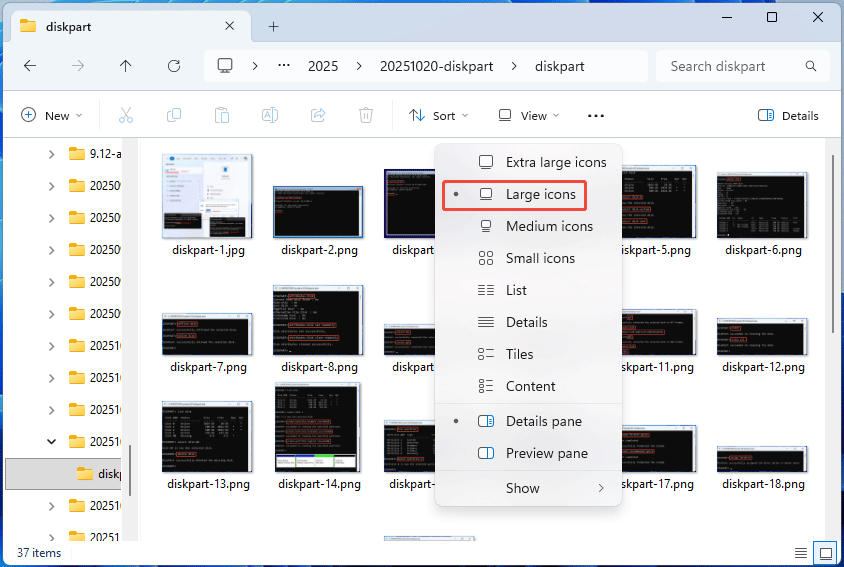
- Click View and select Large icons.
- Check the thumbnails to spot similar photos. If necessary, open them to compare carefully.
- Hover over each similar image to view its type, dimensions, and size. Same parameters often indicate duplicates.
- If necessary, right-click the image and select Properties. Under the General tab, check the Modified date. This may help you determine which image to keep.
- Delete duplicate photos that you don’t need.
2. Sometimes, the image file name may also be a reference.
3. When deleting duplicate images, carefully distinguish between true and false duplicates (such as edited versions and original images) to avoid accidental deletion.
Method 2. Use MiniTool Partition Wizard
If you need to find duplicate photos across multiple folders or drives, manually comparing every image can be time-consuming. MiniTool Partition Wizard includes a Duplicate Cleaner feature that helps scan for duplicate files, including pictures, documents, videos, audio files, and archives.
Before deleting any files, review the results and confirm that the selected copies are no longer needed.
Here is how to remove duplicate photos using this software.
MiniTool Partition Wizard FreeClick to Download100%Clean & Safe
Step 1: Find duplicate images.
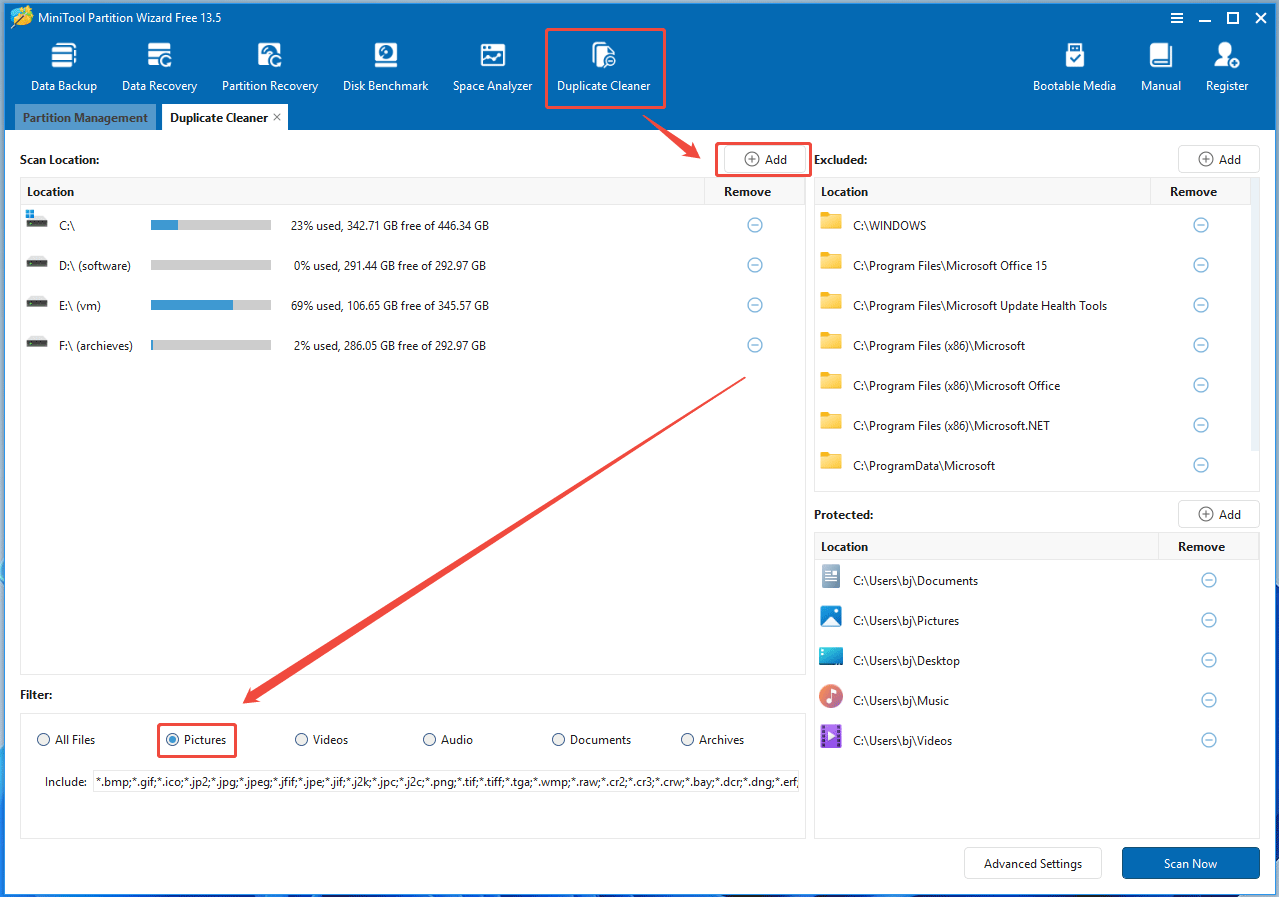
- Launch MiniTool Partition Wizard and click Duplicate Cleaner.
- Determine the scan location. The default scan location is the entire computer. If you just want to scan a specific location, remove these drives and then click the Add button to add the specific location.
- In the Filter section, select Pictures.
- Click Scan Now.
Step 2: Delete duplicate images.
- After the scanning process is completed, all duplicate photos will be listed. Expand each item to view the matched photos.
- Select duplicate images that you want to delete and then click Delete Selected Files. Determine which image to keep or delete based on the path and date information.
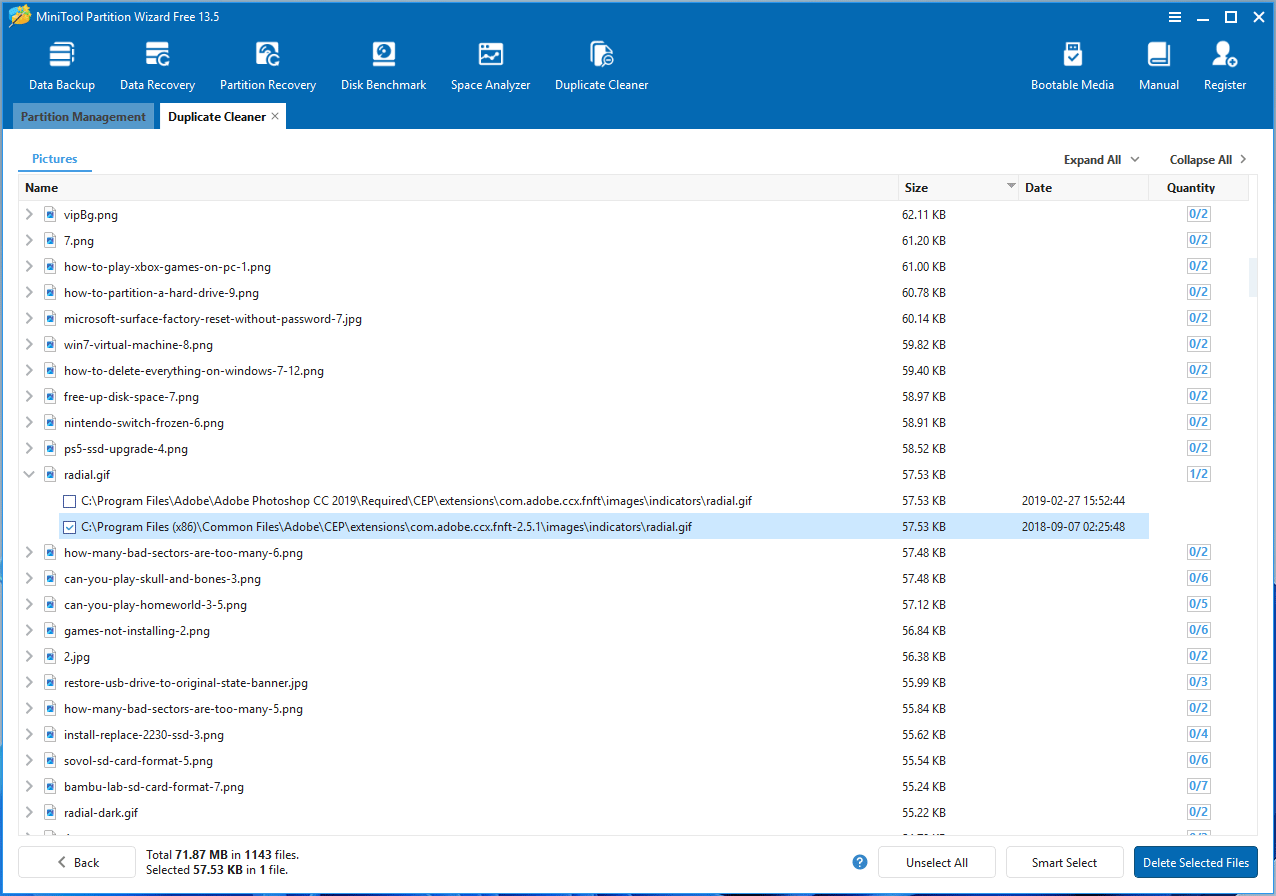
MiniTool Partition Wizard uses hash values to detect duplicate files, which is much more reliable than visual inspection. In addition, it finds duplicate files faster, improving work efficiency.
Method 3. Use Windows Terminal
If you want to find duplicate pictures on Windows via commands, try this method.
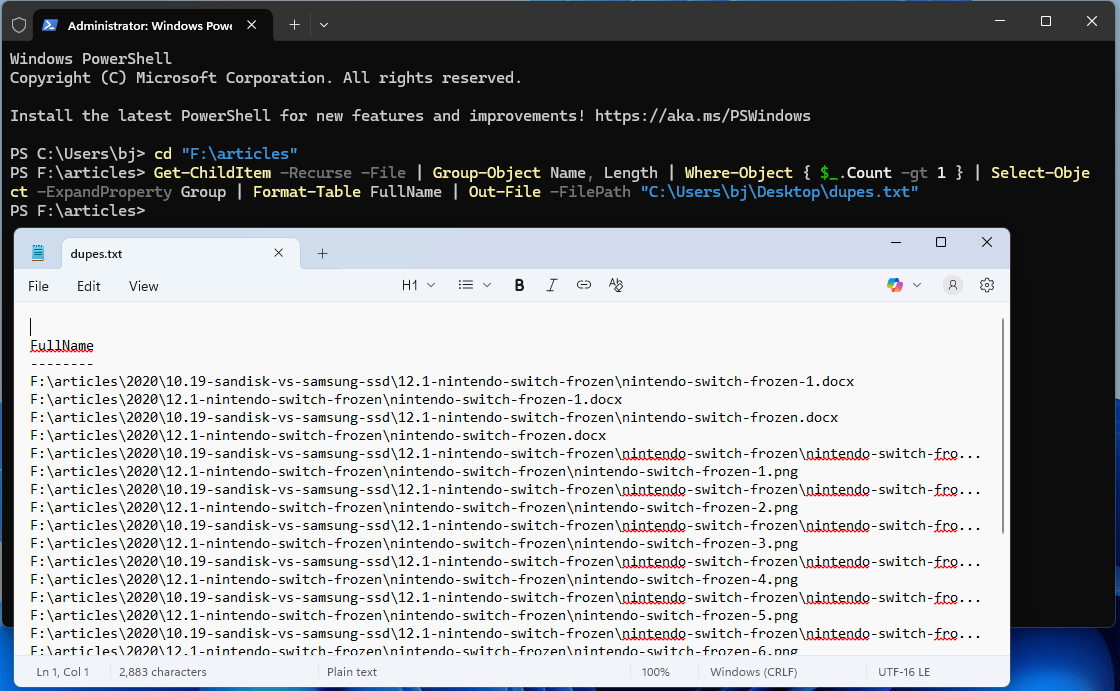
- Press Win + X and then select Terminal (Admin). If you see Windows PowerShell (Admin) instead, select that.
- Type cd “F:\articles” and press Enter. The path is the directory where duplicate images are located. You should replace it accordingly.
- Type Get-ChildItem -Recurse -File | Group-Object Name, Length | Where-Object { $_.Count -gt 1 } | Select-Object -ExpandProperty Group | Format-Table FullName | Out-File -FilePath “C:\Users\username\Desktop\dupes.txt” and press Enter. This will output a txt file containing the paths of duplicate files to Desktop.
- Open the txt file to check the path of duplicate files (including duplicate images).
- Navigate to the path to check if it is a picture. If it is, delete the duplicate image.
However, this method also has disadvantages. Firstly, you need to run these commands multiple times if your images are stored in scattered locations. Secondly, it doesn’t help you filter the duplicate images.
Bottom Line
This post explains why your computer has duplicate photos and offers 3 methods to find and remove them.
File Explorer suits small collections, Windows Terminal suits command-line users, and MiniTool Partition Wizard, a professional duplicate photo finder, offers efficient and accurate hash-based detection.
If you encounter issues when using this software, contact our support team at [email protected] for help.
About The Author

Position: Columnist
Charlotte is a technology columnist with a strong focus on the Windows operating system, specializing in disk management, backup, and data recovery. She is passionate about analyzing computer errors, identifying root causes, and delivering practical solutions. In her free time, she stays updated on the latest developments in computer systems and hardware while continuously learning new technologies to broaden her expertise. Her writing style is clear and easy to understand, making complex technical topics accessible even to users with limited computer knowledge.
User Comments :