
USB flash drives may produce duplicate files when used on different devices. This post shows you how to find and delete duplicate files in a USB drive using Windows File Explorer, MiniTool Partition Wizard, and dupeGuru.
USB flash drives are prone to generating duplicate files when used on various devices. For example, Windows computers, macOS computers, smart TVs, car navigation systems, set-top boxes, and game consoles. The main reasons for duplicate files appearing on a USB drive are as follows:
- A USB drive is commonly used to transfer files between different devices. If you frequently copy and paste between different devices, you might accidentally copy an existing file.
- You might have downloaded the same movie or song from different sources, generating numerous duplicates on the USB drive.
- Power outages or improper unplugging can cause incomplete file writing, resulting in corrupted or duplicate temporary files.
Now that you know the reasons for the duplicate files on the USB drive, it’s time to find and delete duplicate files in the USB drive. Here is the guide.

Method 1. Use the Windows File Explorer
Windows File Explorer is the file management tool built into the Windows operating system, enabling users to browse, organize, search, copy, and delete files through a graphical interface. You can also use it to manually find duplicate files in a USB drive. Then, delete them directly.
Here is the guide:
Step 1: Connect the USB drive to your computer and then open it in Windows File Explorer. In the search box, type a file extension, and then all files of this type in the USB drive will be listed. Here are some common file extension types.
- For documents: DOCX, PDF, TXT, RTF, etc.
- For images: JPG/JPEG, PNG, GIF, TIFF, SVG, BMP, RAW, HEIC, etc.
- For audio files: MP3, AAC, M4A, WAV, FLAC, OGG, WMA, etc.
- For videos: MP4, MOV, WMV, MKV, AVI, WebM, FLV, F4V, etc.
- For archive files: ZIP, RAR, 7Z, TAR, ISO, GZ, etc.
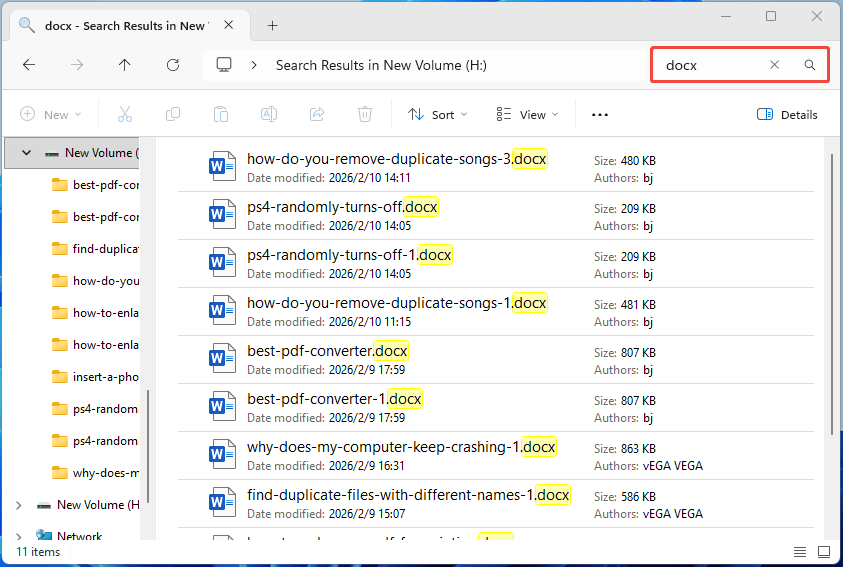
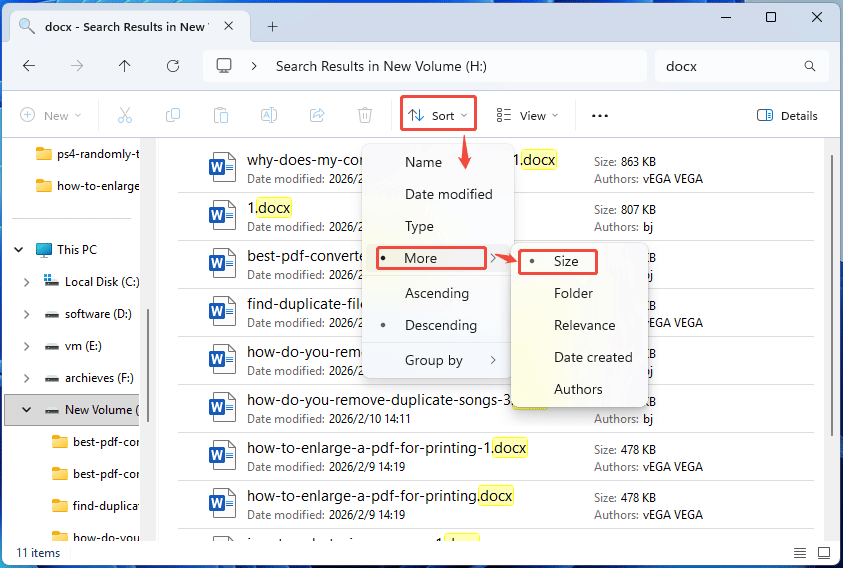
Step 2: Sort these files by size. In most cases, duplicate files have the same file size. Find files with the same size and then open them to view the content. Once find the duplicate files, delete them directly.
- In Windows 11: Click Sort > More and select Size.
- In Windows 10: Go to the View tab. On the ribbon, click Sort by > Size.
Method 2. Use MiniTool Partition Wizard
Manually deleting duplicate files with Windows File Explorer can be slow and inefficient. It’s recommended to use MiniTool Partition Wizard to find duplicate files in a USB drive automatically and quickly. Then, delete them with just a few clicks.
MiniTool Partition Wizard FreeClick to Download100%Clean & Safe
Here are the steps:
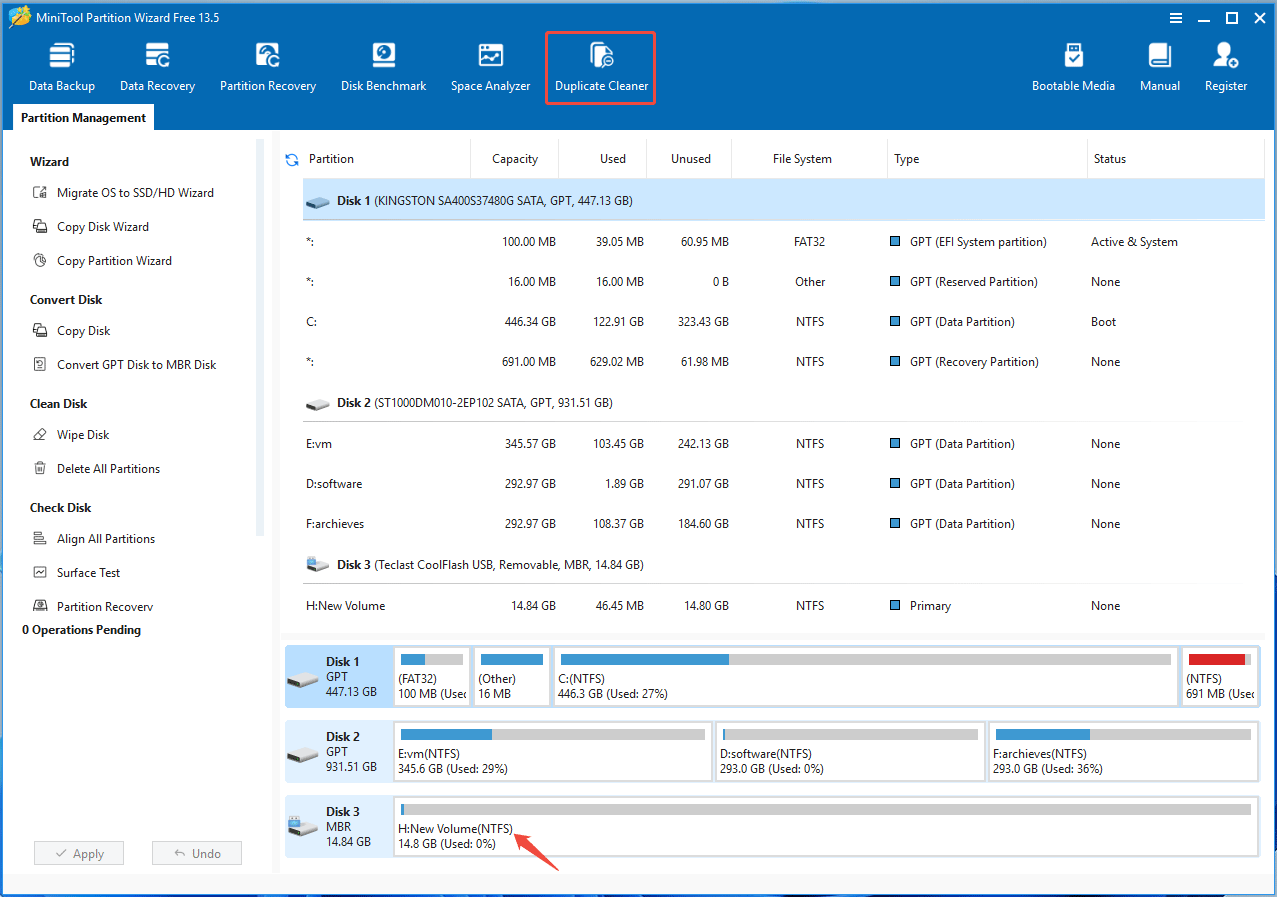
Step 1: Connect the USB drive to your computer and launch MiniTool Partition Wizard. Then, note the drive letter of your USB drive and click Duplicate Cleaner on the toolbar.
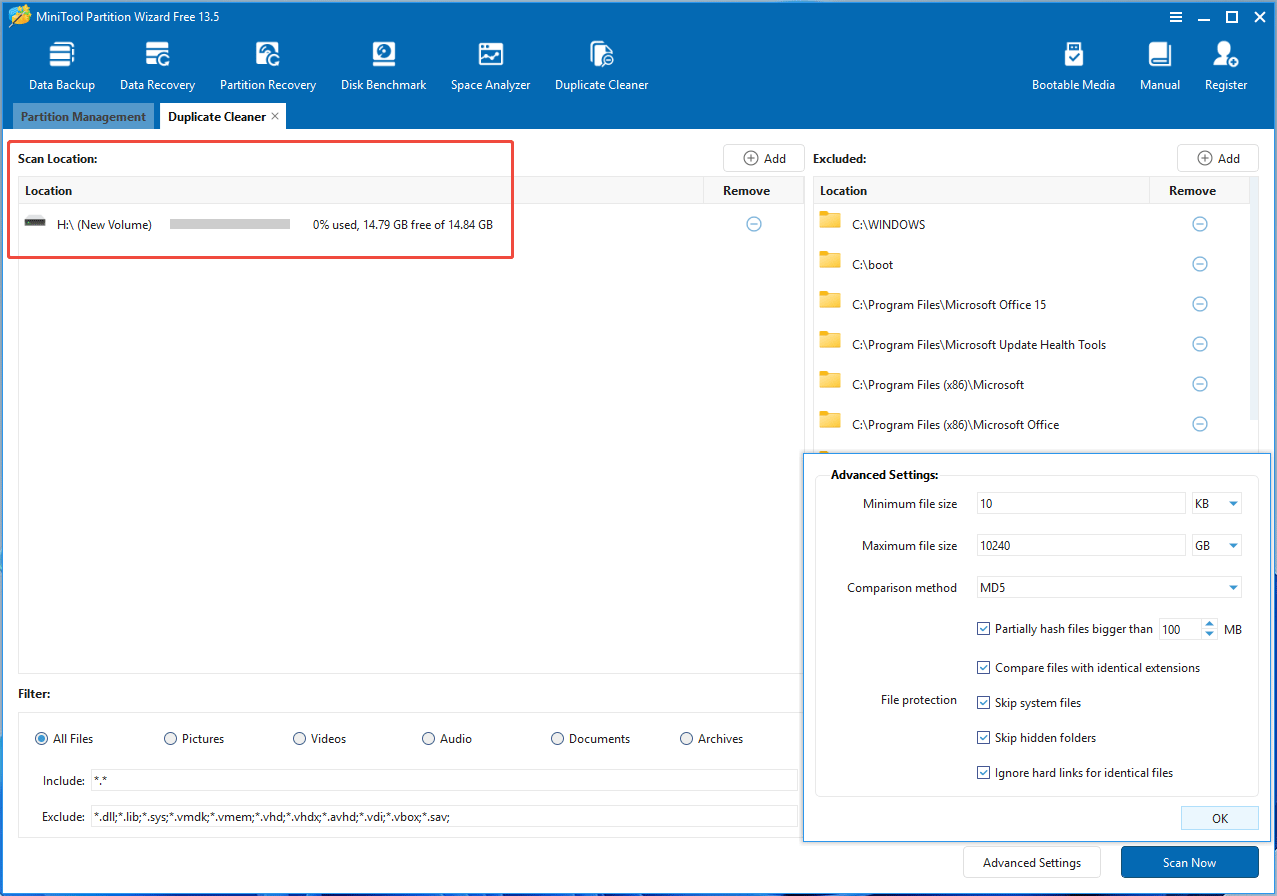
Step 2: Under Scan Locations, remove all drives except for the USB drive. Then, click Scan Now.
2. To find duplicate files with different extensions, uncheck Compare files with identical extensions in Advanced Settings.
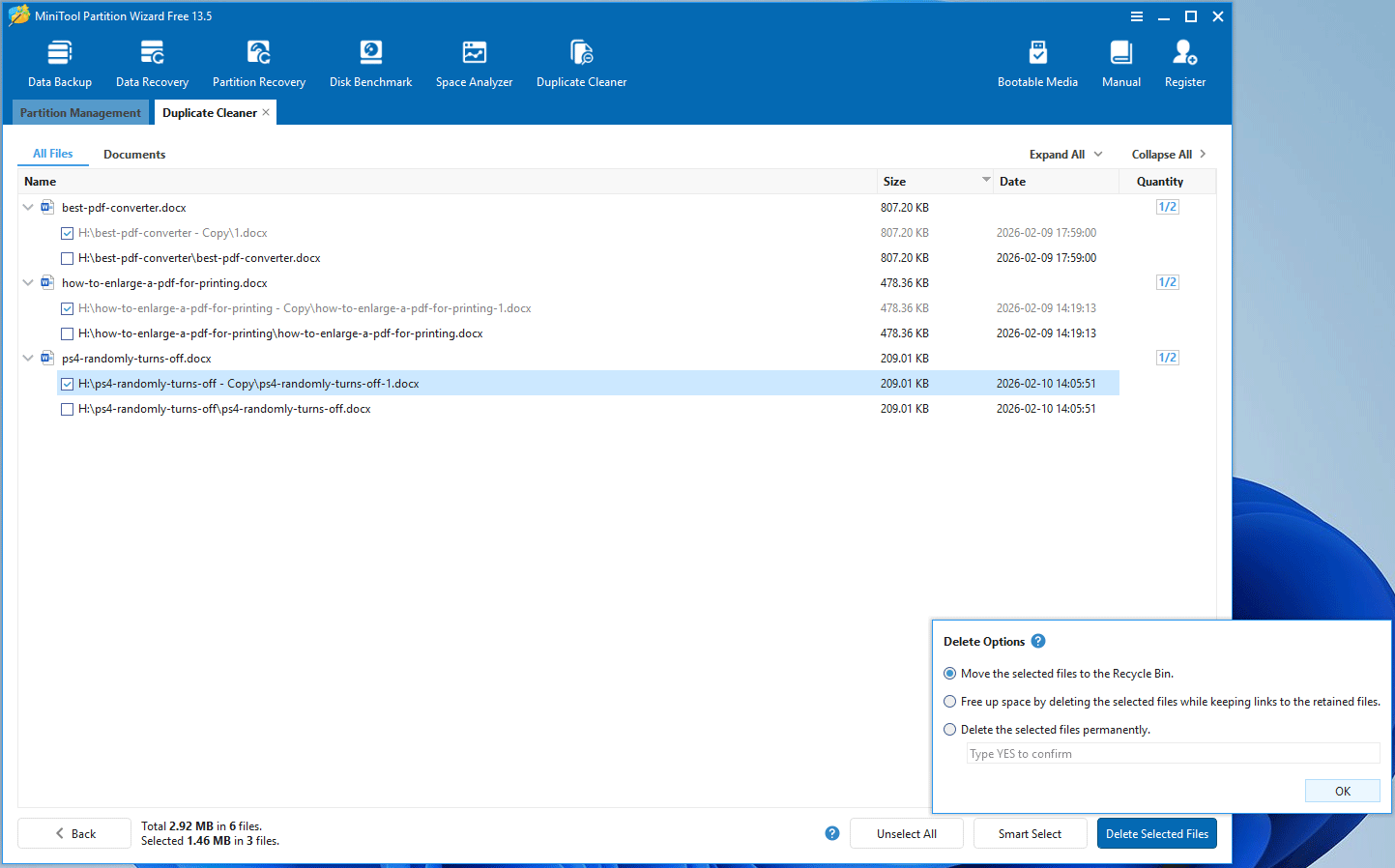
Step 3: This software will compare file hash values to find identical files, even if they have different filenames. All the duplicate files in the USB drive will be listed here. Expand these items, select the duplicate files, and then click Delete Selected Files.
Method 3. Use DupeGuru
DupeGuru is a cross-platform (Linux, OS X, Windows) GUI tool to find duplicate files. It excels at analyzing file names or content through fuzzy matching algorithms to identify and clean up duplicate music, pictures, and general documents in minutes. Here is the guide:
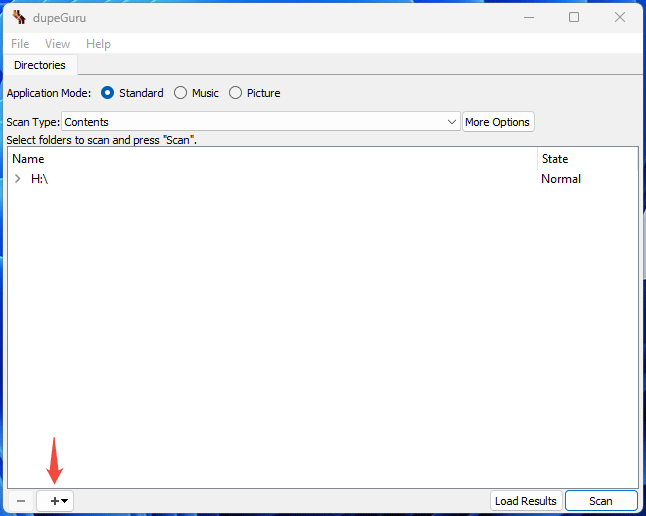
Step 1: Launch this software, and select Application Mode (Standard, Music, or Picture) and Scan Type (Contents is recommended). Then, click the plus icon at the bottom to add the USB drive. After that, click Scan.
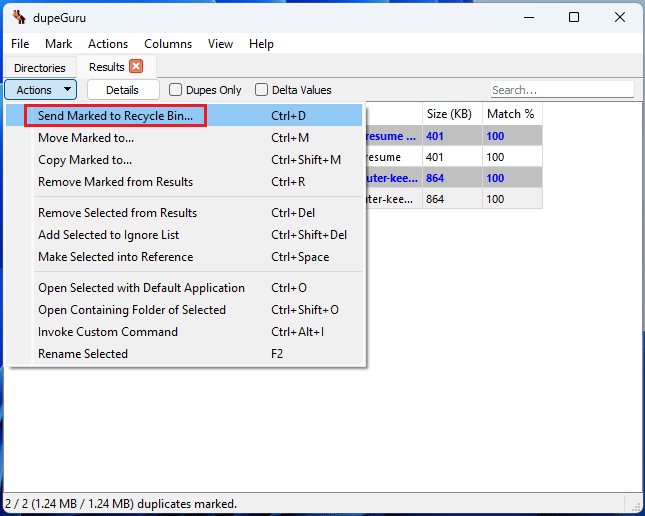
Step 2: Check the Dupes Only option. Then, select all duplicate files and click Actions > Send Marked to Recycle Bin.
Further Reading:
How to prevent duplicate files from being generated in a USB drive? Here are some suggestions:
- Avoid copying a file if a file with the same name already exists on the USB drive.
- Establish good folder organization habits and avoid piling all files in the root directory for easy searching and management.
- Duplicate files are often the result of virus replication. Use antivirus software to regularly check the USB drive and remove hidden virus files.
- If there are too many duplicate and abnormal files on the USB drive, you can back them up and then format the drive.
How to delete duplicate files in a thumb drive? This post offers 3 free methods.Click to Tweet
Bottom Line
This post explains why duplicate files will be generated in a USB drive and how to prevent them. It also shows how to delete duplicate files in a USB drive using Windows File Explorer, MiniTool Partition Wizard, and dupeGuru.
If you have problems with MiniTool Partition Wizard, send an email to [email protected] for help.
About The Author

Position: Columnist
Linda has been an editor at MiniTool for seven years. She continuously learns about computers and puts her knowledge into practice. Moreover, she is particularly knowledgeable in disk management, data recovery, system installation, and PDF editing. Her articles typically reference multiple examples or are based on her own experience, providing users with the most suitable solutions.
User Comments :