
What Is T-CREATE EXPERT P34F Find My External SSD?
The T-CREATE EXPERT P34F Find My External SSD was released on September 4, 2025, by Team Group Inc., a computer hardware company founded in Taiwan, China. This company specializes in computer memory, SSDs, cards, USB drives, and peripherals.
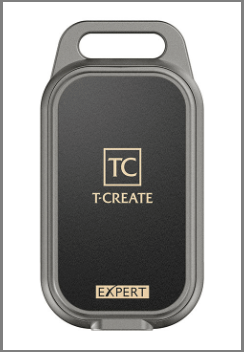
T-CREATE EXPERT P34F Specs
According to the official website, its specs and features are listed in the following sheet:
| Capacity | 512GB, 1TB, 2TB |
| Interface | USB 3.2 Gen 2×1 (10Gbps) |
| Speeds | Up to 1000 MB/s sequential read and 900 MB/s sequential write |
| Voltage | DC +5V |
| Operation Temperature | 0˚C ~ 45˚C |
| Storage Temperature | -20˚C ~ 60˚C |
| Weight | 70g |
| Dimensions | 81.3(L) x 43.0(W) x 16.5(H) mm |
| Accessories | A USB Type-C to USB Type-C cable and a CR2032 button cell battery (replaceable) |
| System Compatibility | For the external SSD, Windows 7 or later, Mac OS 10.5 or later, Linux 2.6 or later, and iOS 17.1.2 or later are compatible. The tracking feature requires an Apple account with iOS 17.1.2 or later. |
| Warranty | 3-year warranty for the external SSD 1-year warranty for the USB Type-C to Type-C cable |
![USB Types and Speeds [An Overall Introduction with Pictures]](https://images.minitool.com/partitionwizard.com/images/uploads/2020/07/usb-speeds-thumbnail.jpg)
T-CREATE EXPERT P34F Key Features
The key features of the T-CREATE EXPERT P34F Find My External SSD are as follows:
- World’s First External SSD with a Positioning and Searching Function: Bind the external SSD with Apple devices, and then you can use the Find My app to locate it. It also has a built-in speaker that can play sounds, helping you quickly locate your device.
- Ultra-Fast Transfer Speed: Equipped with USB 3.2 Gen 2 x1 interfaces, the T-CREATE EXPERT P34F delivers transfer speeds of up to 1,000 MB/s and is compatible with Thunderbolt interfaces. You can transfer your photos or videos at a fast speed.
- Stable Multi-Platform Support: The T-CREATE EXPERT P34F ensures stable and seamless compatibility on both Windows and macOS systems, boosting work efficiency and minimizing delays.
- Compact and Lightweight Design: Owing to the 73% zinc alloy construction, the external SSD is smaller than a credit card and weighs only 70g, making it lightweight and portable. In addition, the convenient keychain hole design also makes it easy to carry because you can attach it to a key ring, a backpack, or other accessories.
- Multiple Capacity Options: Three capacities are available to meet a variety of needs. You can pick 512GB, 1TB, or 2TB accordingly.
- Aluminum Heat Dissipation Solution: The aluminum heat sink fin provides a fast heat dissipation feature, which can maintain high performance.
- Graphene Heat Dissipation Solution: Equipped with a special ultra-thin graphene heat sink fin with rigorous and burn-in testings passed, it can maintain high performance under a stable state at low temperature.
- FSC-Certified Packaging: The EXPERT P34F uses FSC-certified eco-friendly packaging materials, reducing electronic waste and resource wastage.
Owing to the powerful features and fast speed, the T-CREATE EXPERT P34F Find My External SSD is much suitable for creators and professionals who need portable, high-speed storage with built-in loss prevention, particularly for Mac users.
How to Find the Lost T-CREATE EXPERT P34F Find My External SSD
With the surge of mobile work and digital content creation, external SSDs have become essential tools for creators, photographers, and professionals on the move. Furthermore, the demand for faster and lighter external SSDs continues to grow.
As devices become thinner and lighter, the risk of losing them grows, leading to irreplaceable losses. The T-CREATE EXPERT P34F Find My External SSD relieves this issue by adding a position and search function.
Here is the guide on how to use this feature:
Step 1: Bind the external SSD to an Apple device.
- Open the Find My app on your Apple device.
- Tap Add Item > Other Supported Item.
- Once the item is found, tap Connect.
- Name your item and select an emoji to represent this item.
- Agree to link the item to your Apple account and then wait for the setup to finish.
Step 2: Once the setup is completed, you can locate the item on your phone via the Find My app. It shows the direction of the external SSD in maps and offers the play sound feature. The sound range is limited to 40m in a direct unobstructed line, enough for you to hear it.
How to Format T-CREATE EXPERT P34F Find My External SSD on Windows
If you want to use the T-CREATE EXPERT P34F Find My External SSD on Windows, you may need to format it to NTFS. In general, you can do that directly in Windows File Explorer. Alternatively, you can use another tool – MiniTool Partition Wizard.
MiniTool Partition Wizard FreeClick to Download100%Clean & Safe
This software can format the external SSD to NTFS, exFAT, FAT32, or EXT2/3/4. Here is the guide:
- Connect the external SSD to your computer.
- Launch MiniTool Partition Wizard.
- Right-click on the partition of the external SSD and choose Format.
- On the pop-up window, select a file system and click OK.
- Click the Apply button to carry out the operation.
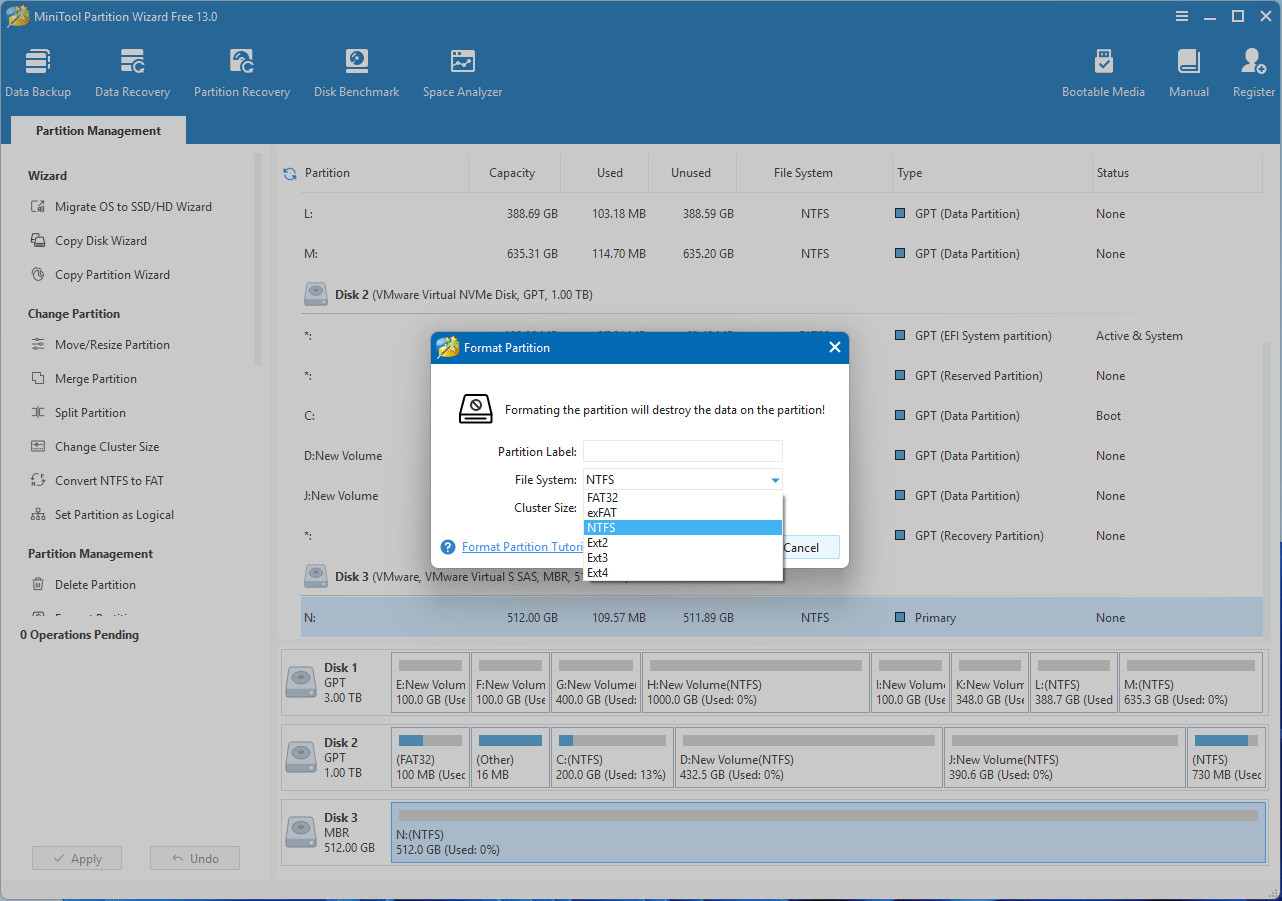
MiniTool Partition Wizard is worth using because it is also able to resize the partition, copy partitions or disks, recover lost partitions or data, etc.
Bottom Line
The T-CREATE EXPERT P34F Find My External SSD stands out with its innovative positioning and search function, ultra-fast transfer speeds, and compact, lightweight design. Frequent travelers, content creators, and mobile professionals can use it with confidence to store, locate, and manage data efficiently.
Additionally, Windows users can format the SSD easily using MiniTool Partition Wizard, ensuring optimal performance and compatibility.
About The Author
Position: Columnist
Linda has been an editor at MiniTool for seven years. She continuously learns about computers and puts her knowledge into practice. Moreover, she is particularly knowledgeable in disk management, data recovery, system installation, and PDF editing. Her articles typically reference multiple examples or are based on her own experience, providing users with the most suitable solutions.
User Comments :