
Cloning a hard drive to an SSD is a convenient way to migrate Windows without reinstalling the operating system and applications. However, you may find that the cloned SSD won’t boot after the cloning process. This post offers 7 solutions and recommends a reliable SSD cloning program—MiniTool Partition Wizard.
Why Is Your SSD Not Booting After Clone?
If your cloned drive won’t boot into Windows. The most common reasons, symptoms, and recommended fixes are as follows.
| Possible Cause | What You May See | How to Fix It |
| Wrong boot order | The PC boots from the old drive instead of the cloned SSD | Set the cloned SSD as the first boot option |
| Old drive still connected | The PC boots into the old Windows installation | Disconnect the original drive and test the cloned drive by itself |
| UEFI/Legacy mismatch | The cloned drive is detected, but Windows won’t start | Match the firmware mode to the disk: GPT + UEFI or MBR + Legacy/CSM |
| Missing boot partition | Windows files are present, but the cloned drive isn’t bootable | Make sure the EFI System Partition or System Reserved partition was cloned |
| Storage driver issue | Windows displays INACCESSIBLE_BOOT_DEVICE or a similar error | Check storage-controller settings and drivers |
Cloned SSD Won’t Boot? Try These Fixes First
To make cloned drive bootable, try the following fixes in order.
#1. Disconnect the Old Drive
If the original and cloned drives are connected simultaneously, your PC may continue booting from the original drive or use its existing boot configuration.
Shut down the computer and temporarily disconnect the old HDD or SSD. Leave only the cloned drive connected, then start the PC again. If Windows boots normally, you can reconnect the old drive after confirming that the cloned drive works independently.
#2. Check Whether the Cloned Drive Is Detected in BIOS/UEFI
Restart the computer and enter BIOS/UEFI setup. Check the storage or boot section to see whether the cloned SSD is detected.
- Drive not detected: Check the SATA or M.2 connection and slot compatibility.
- Drive detected: Continue to the boot-order settings and make sure the cloned drive is configured as the boot device.
#3. Set Windows Boot Manager on the Cloned Drive as the First Boot Option
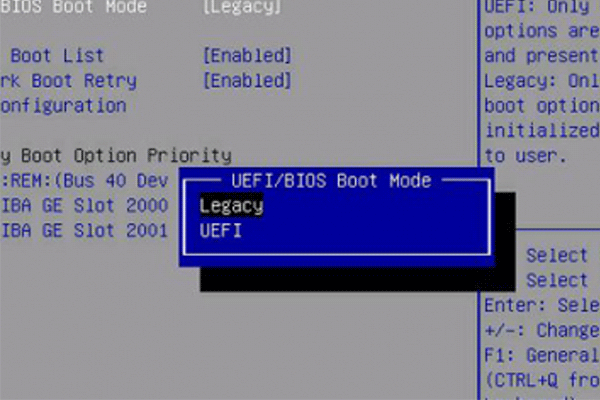
If the cloned SSD appears in BIOS/UEFI but Windows doesn’t start, check the Boot menu. Set the cloned SSD as the first boot device or move it to the top of the boot priority list. Then, save the changes and restart the PC.
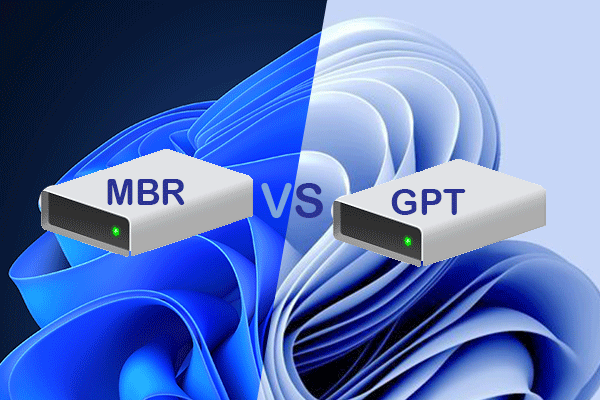
#4. Check GPT/MBR and UEFI/Legacy Mode
The cloned drive’s partition style should be compatible with the firmware boot mode.
GPT → UEFI
MBR → Legacy BIOS/CSM
A mismatch can cause the cloned drive to be detected but prevent Windows from booting.
You can check the partition style from another Windows installation by opening Disk Management, right-clicking the cloned disk, and selecting Properties > Volumes.
#5. Make Sure the EFI or System Reserved Partition Was Cloned
Did you clone only the C partition without cloning the EFI or System Revered partition? If so, that is the problem.
Cloning only the Windows C: partition may not produce a bootable drive. A Windows installation can also require a boot partition, such as the EFI System Partition (ESP) on a GPT/UEFI system or the System Reserved partition on some MBR/Legacy installations.
If the required boot partition is missing from the cloned disk, reclone the entire system disk rather than copying only the Windows partition.
#6. Check for Storage Driver or Controller Issues
If Windows begins to load but displays INACCESSIBLE_BOOT_DEVICE, the problem may involve the storage controller configuration or required drivers. This issue usually occurs when moving Windows to a different computer or changing storage hardware.
In this case, boot into BIOS and switch to Advanced or Integrated Peripherals. Then, find SATA Configuration or a similar option. Change it to AHCI mode.
#7. Re-clone the Drive
If none of the fixes work, the clone itself may not contain everything required for Windows to boot. This can happen when the wrong cloning method is used, the EFI/System Reserved partition isn’t copied, or the cloning process encounters errors.
Before recloning, check the source disk for errors and make sure the cloning method copies the entire system disk and required boot partitions.
Use Reliable Hard Drive Cloning Software
If a cloned drive fails to boot, the problem may be related to the cloning process, boot configuration, or the way the source disk was copied. Using reliable hard drive cloning software can help ensure that the necessary system data and boot-related partitions are copied correctly.
MiniTool offers professional solutions for disk and partition management, system backup and restore, and data recovery. If you need to clone a Windows system drive and boot from the cloned HDD or SSD, you can choose from two MiniTool utilities.
Below, we’ll introduce both options so you can select the one that best fits your situation.
Case 1: To Clone Hard Drive and Use It on the Same Computer
If you want to upgrade laptop’s HDD to SSD or a larger hard drive, use MiniTool Partition Wizard Free Edition to help you. Generally speaking, it is a professional disk cloning software that is frequently used to clone hard drive for hard drive upgrade and disk backup. When you have used it to clone a live system disk, the target disk is bootable.
Get the free hard drive cloning software by hitting the button below.
MiniTool Partition Wizard FreeClick to Download100%Clean & Safe
Before you do:
Connect the target hard drive/SSD to your PC (for laptop users, a USB to SATA adaptor is necessary), go to Windows Explorer and check if there are important files saved on this drive. If so, get them backed up or transfer them to a safe location.
Then it is time to make cloned drive bootable Windows 10 using this free partition manager (also helps users running Windows 7/8/8.1).
Step 1. Run MiniTool Partition Wizard to get the main interface. Then select the current system disk and choose Copy Disk from the left action panel.

Step 2. In the pop-up window, you will be asked to choose a target disk. Here select the hard drive you have just prepared and click Next to go on. Note that all data (if there is any) on this disk will be destroyed. Once you have made the backup in advance, you can click Yes to continue.

Step 3. Then review the changes to be made on the target disk. Or, if you are not satisfied with the partition layout, make your own changes.
- Fit partitions to entire disk: this is the default copy option and will occupy all the disk space according to the original partition sizes.
- Copy partitions without resize: keep the original partition size on the target disk. Only works when the target disk is large enough to hold all the partitions located on the source disk.
- Align partitions to 1MB: improve performance for advanced format disk & SSD. Appears when you are cloning an MBR disk.
- Use GUID Partition Table for the target disk: turn the target disk to GPT disk. A paid feature if you are copying the system MBR disk to GPT. (Appears when you are cloning an MBR disk. Go to the official online store to get the Pro Edition).

Step 4. View the tip on how to boot from the target disk and click Finish.

Step 5. In the disk map area, you can preview the changes that will take effect on the target disk. Finally, don’t forget to press Apply on the toolbar. This operation will bring a system reboot. Please save your files and close all the running programs.
When MiniTool Partition Wizard completes, use the target hard drive/SSD to replace the original system disk. Then go to BIOS setup and boot your computer from the target drive. Your computer should be normally booted now.
The simple guide here:
- Create a bootable MiniTool Partition Wizard using the Bootable Media feature.
- Boot computer from the bootable MiniTool Partition Wizard.
- When you see the main interface of MiniTool Partition Wizard, repeat the process of disk copy explained above.
SSD Not Booting After Clone? Try These Fixes to Make It BootableClick to Tweet
Case 2: To Clone Hard Drive and Use It on Dissimilar Hardware
Dissimilar hardware is the main reason that is responsible for cloned drive will not boot. In such case, the best choice here is to use MiniTool ShadowMaker. Some of you might have already known that MiniTool ShadowMaker is professional Windows backup software that is most frequently used to create scheduled system backup, disk backup, and file backup.
In fact, MiniTool ShadowMaker also works well when it comes to cloning system disk and makes it bootable on computers with dissimilar hardware. This feature is available in the paid editions like MiniTool ShadowMaker Pro. However, you do have the chance to complete this task by using the 30-day free trial edition.
Get this hard drive cloning software by pressing the button below:
MiniTool ShadowMaker TrialClick to Download100%Clean & Safe
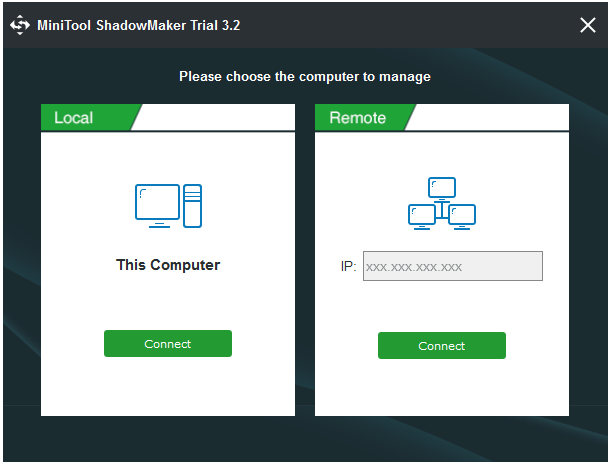
Step 1. Run this Windows disk cloning software. When you are asked to choose a computer to manage, you just need to select This Computer to connect.
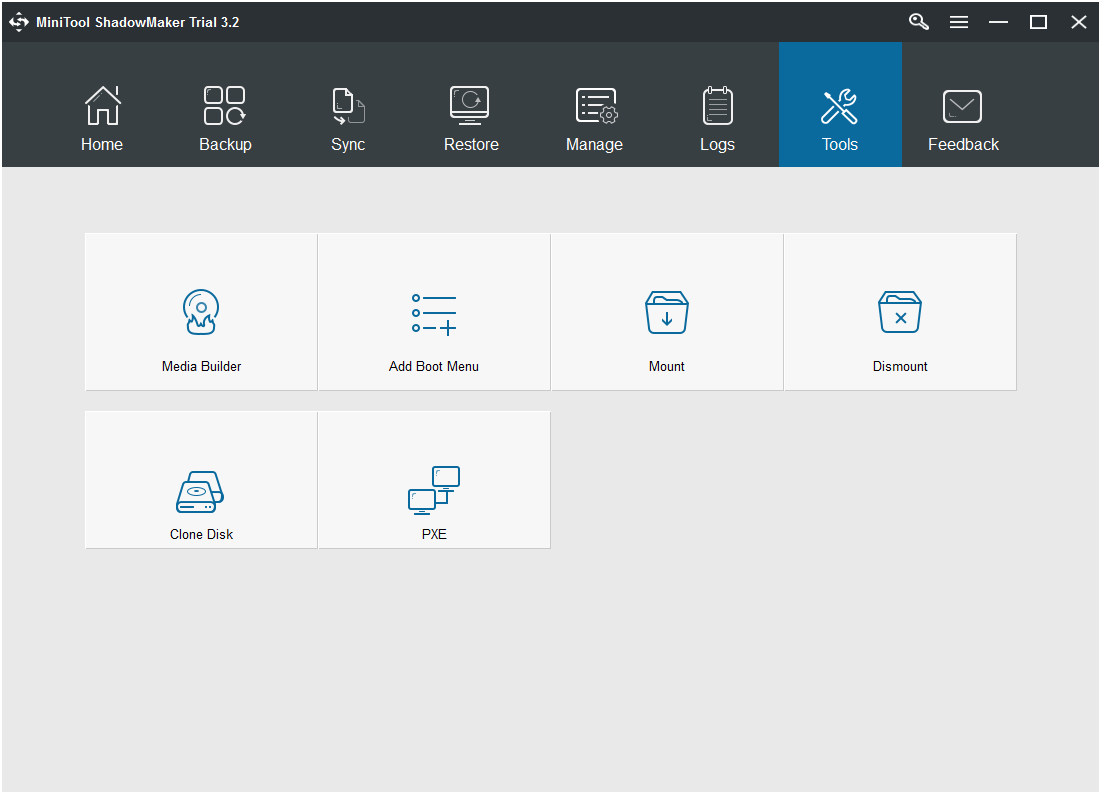
Step 2. When you are in the main interface of MiniTool ShadowMaker, go to Tools and choose Clone Disk.
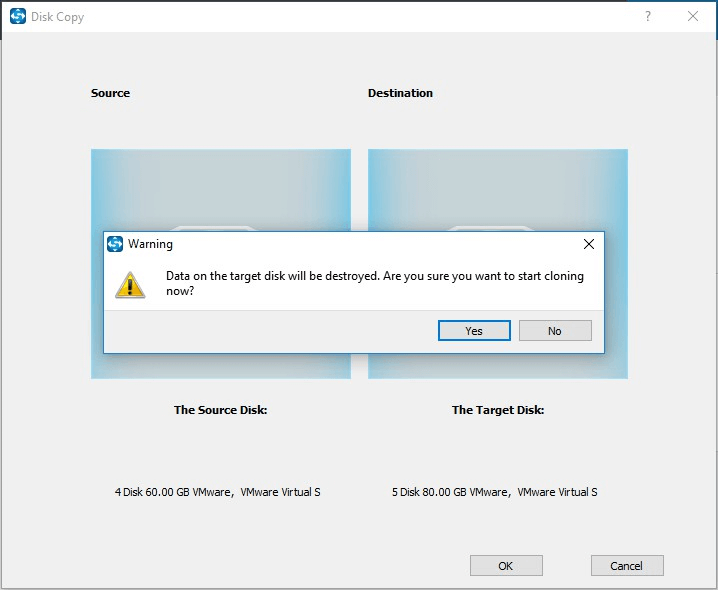
Step 3. Next, you need to enter the Source tab to choose the system disk and then enter the Destination tab to select the target disk. When you click OK to continue, you will be prompted that data on the target disk will be destroyed. Click Yes to continue.
Step 4. The copy process begins. You will be able to see the elapsed time, remaining time as well as the progress bar.
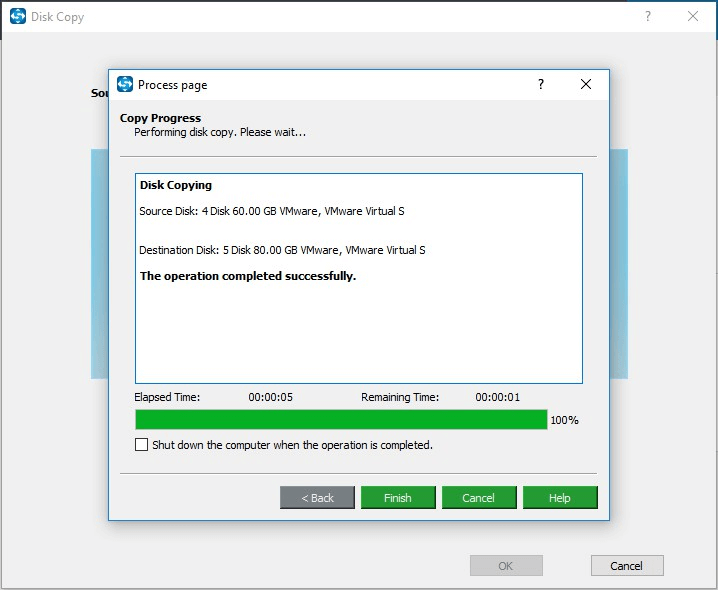
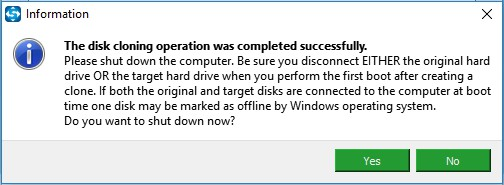
Step 5. Once the disk copy completes, you will see the following long information. Simply put, now your source disk and target disk have the same signature. Windows will mark one as offline to avoid booting from the wrong disk. But since you are going to use the targeted disk to another computer, you just need to shut down PC and then remove the target disk.
Now it is time to create a bootable media to get the rest steps. Here are the tutorials that will lead you through all the steps easily.
Before you do:
Also, follow the universal guidance above to create a bootable media of MiniTool ShadowMaker, put the target disk to the computer that has dissimilar hardware and use MiniTool ShadowMaker Bootable to boot that PC.
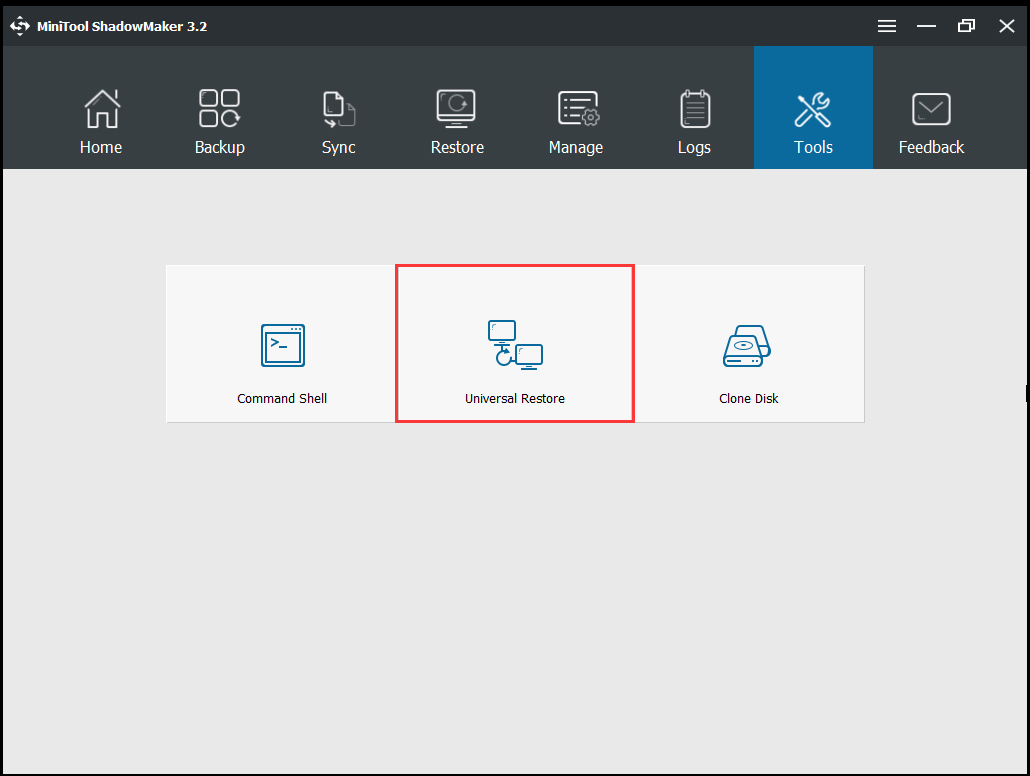
Step 1. Also, go to Tools but choose Universal Restore this time.
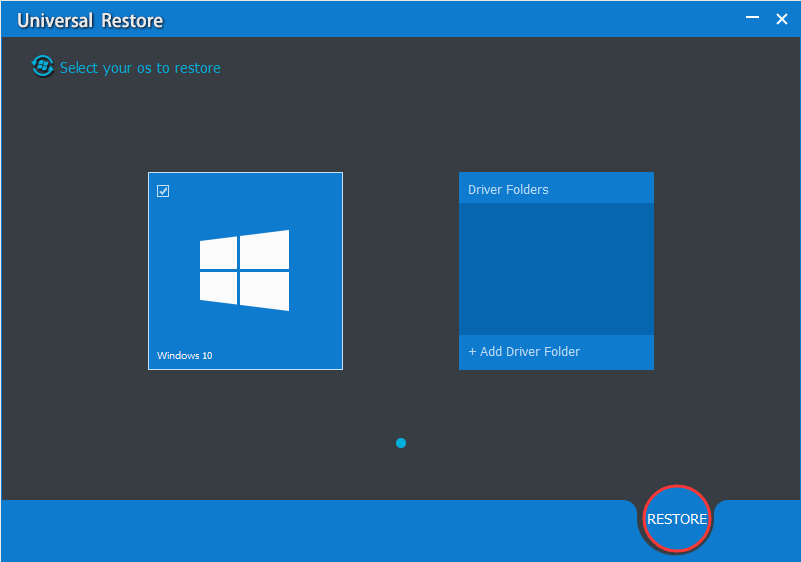
Step 2. Then this tool will automatically detect the operating system installed on the disk. At this time you can click the Restore button directly or you can add some drivers to the system before you click Restore.
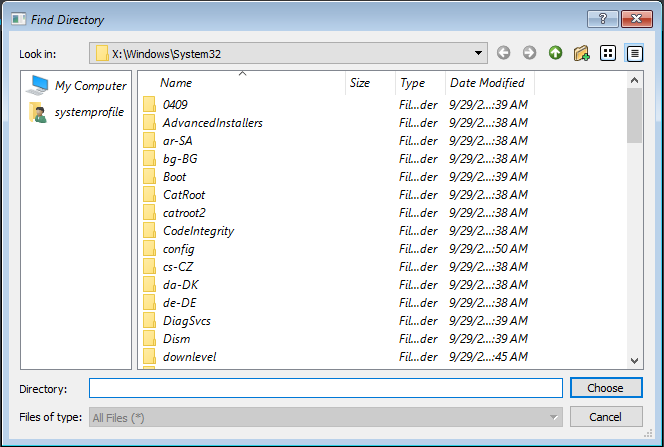
Step 3. When you see a green mark appear on the operating system, you can exit MiniTool Universal Restore.
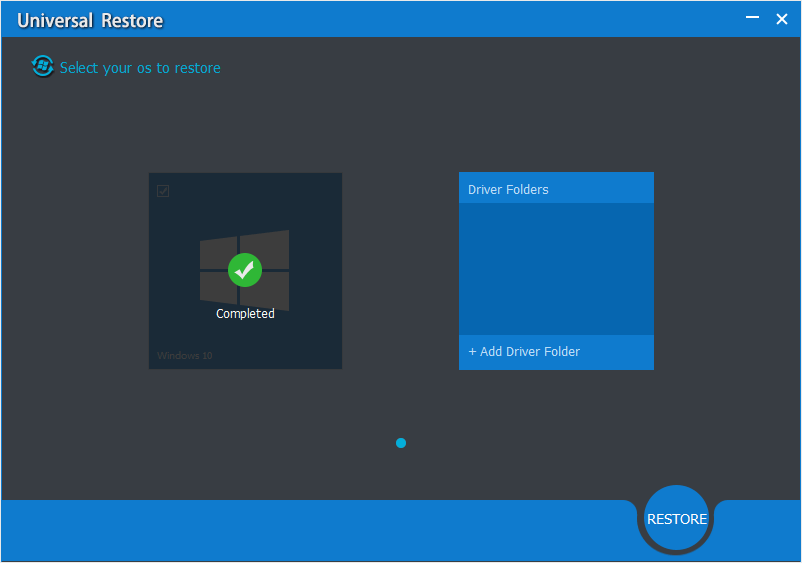
Now remove MiniTool ShadowMaker Bootable media and try to boot your PC from the target disk. Amazing! You get a bootable operating system!
SSD Not Booting After Clone? Try These Fixes to Make It BootableClick to Tweet
The Worst Situation
If you have tried all the solutions here but the cloned drive won’t boot Windows 10/8/7, you may have to do a clean install. As to how to install Windows, you can read our previous guide How to Install Windows 10 on a New Hard Drive (with Pictures).
Summary
Reading here, we believe you have learned the way to fix cloned drive won’t boot issue as well as learned the best disk cloning software that helps clone hard drive easily. Now it is your turn to try these solutions out if your cloned drive won’t boot.
If you have come across some other suggestions, welcome to leave it in the comment zone. For any questions towards using MiniTool software, don’t hesitate to contact us by sending an email to [email protected] with your issue stated clearly.
Cloned Hard Drive Won’t Boot FAQ
About The Author

Position: Columnist
Linda has been an editor at MiniTool for seven years. She continuously learns about computers and puts her knowledge into practice. Moreover, she is particularly knowledgeable in disk management, data recovery, system installation, and PDF editing. Her articles typically reference multiple examples or are based on her own experience, providing users with the most suitable solutions.
User Comments :