
Can You Upgrade a Laptop HDD to SSD?
For laptops equipped with an HDD, upgrading to an SSD is relatively easy. To replace an HDD with an SSD, you first need to purchase a compatible SSD.
If the laptop uses an older 2.5-inch SATA HDD, a compatible 2.5-inch SATA SSD is typically the simplest replacement. Newer laptops may instead use an M.2 SATA or NVMe SSD.
Upgrade Method: Clone HDD to SSD vs. Clean Install Windows
When upgrading a laptop HDD to an SSD, you can either clone the existing HDD to the SSD or perform a clean installation of Windows. The right method depends on whether you want to preserve your existing Windows environment or start fresh.
- Clone HDD to SSD: Disk cloning creates a copy of the source HDD on the SSD, including Windows, applications, personal files, and supported system partitions. After replacing the HDD with the cloned SSD, you can generally continue using Windows without reinstalling your programs.
- Clean Install Windows: A clean installation installs Windows from scratch on the SSD. You will need to reinstall applications and restore your personal files from a backup.
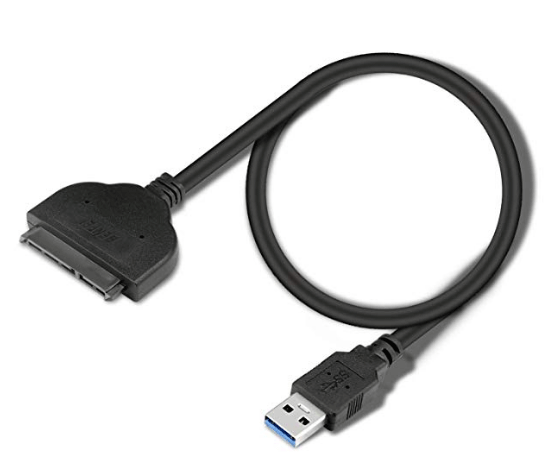
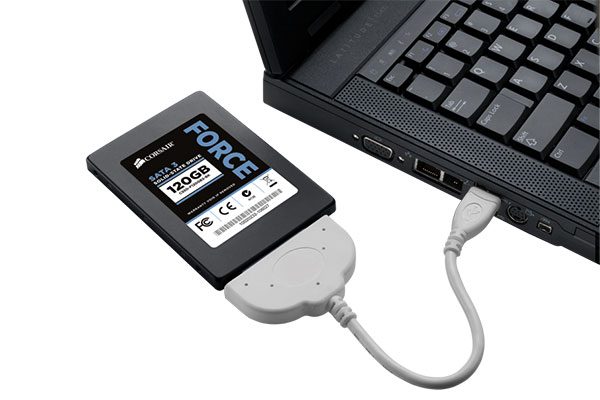
However, to clone HDD to SSD laptop, you may need to buy an extra SATA to USB adapter. For laptops that have only one slot, this is necessary, so that you can connect the SSD to the laptop to perform the cloning.
How to Clone HDD to SSD
If you want to upgrade laptop HDD to SSD without reinstalling Windows, you can use MiniTool Partition Wizard to clone HDD to SSD.
Its Migrate OS to HD/SSD feature allows you to clone the entire disk or just migrate the OS. You can pick one according to your needs.
Here is the tutorial on cloning HHD to SSD.
Step 1: Connect your SSD to your laptop computer through the SATA to USB adapter.
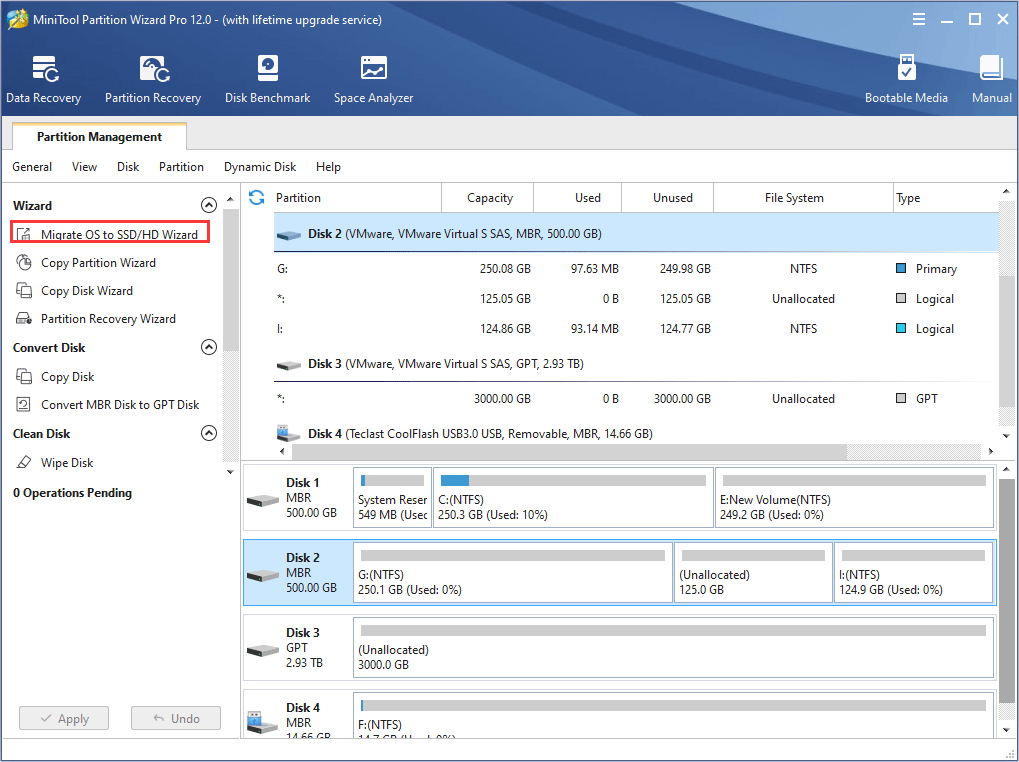
Step 2: Buy MiniTool Partition Wizard and launch it to get its main interface. Then click on Migrate OS to SSD/HD Wizard on the action panel.
Step 3: Click Next button to continue and then choose the system disk to copy. Then, click Next button again.
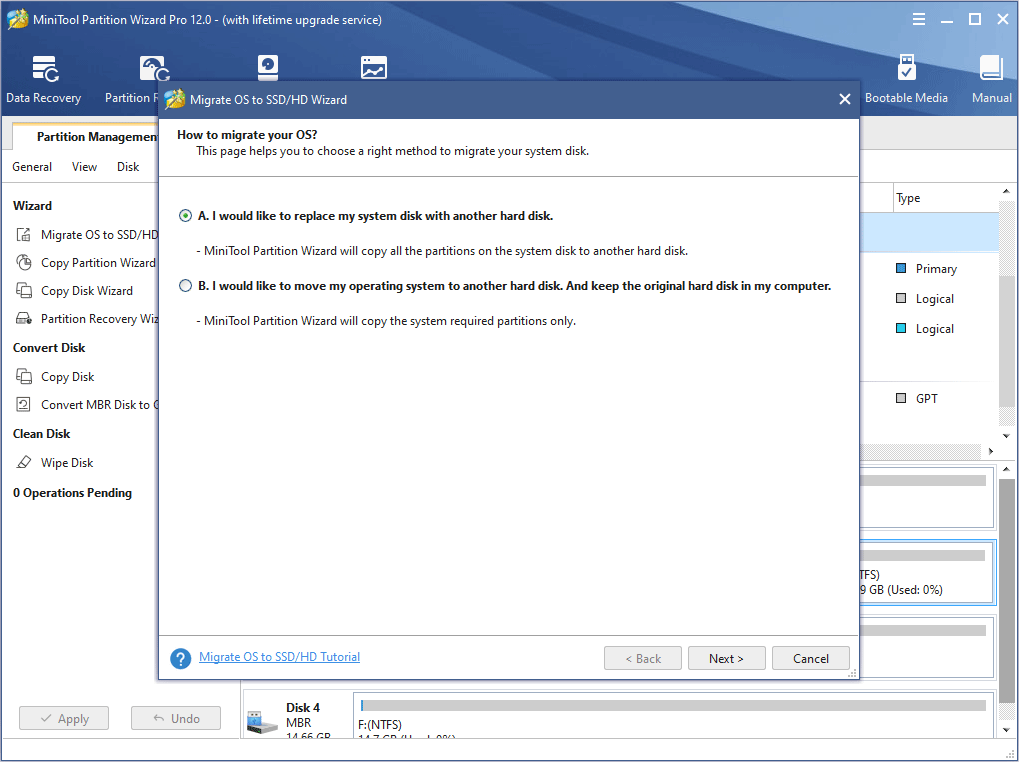
Step 4: Select the target disk (SSD) to clone HDD to and click Next to continue.
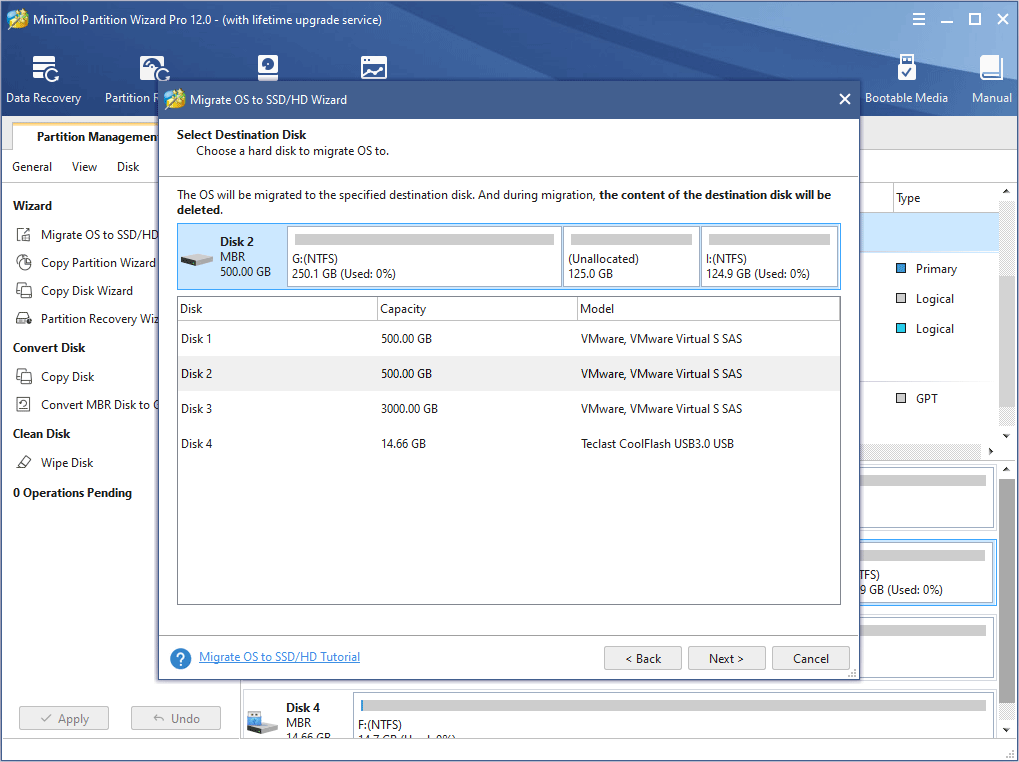
Step 5: Choose right copy options and adjust the target disk layout. Then, click Next button.
- Fit partitions to entire disk: All the partitions on the HDD are shrunk or extended by an equal proportion to fill the entire SSD.
- Copy partitions without resizing: All the partitions on the HDD are copied into the SSD without changing size.
- Align partitions to 1 MB: It is 4K alignment, which is good for improving computer performance.
- Use GUID partition table for the target disk: If the HDD is an MBR disk while the SSD is a GPT disk, you should choose this option, otherwise your laptop can’t boot from the SSD. This feature is not free. Click MBR vs. GPT to know more about them.
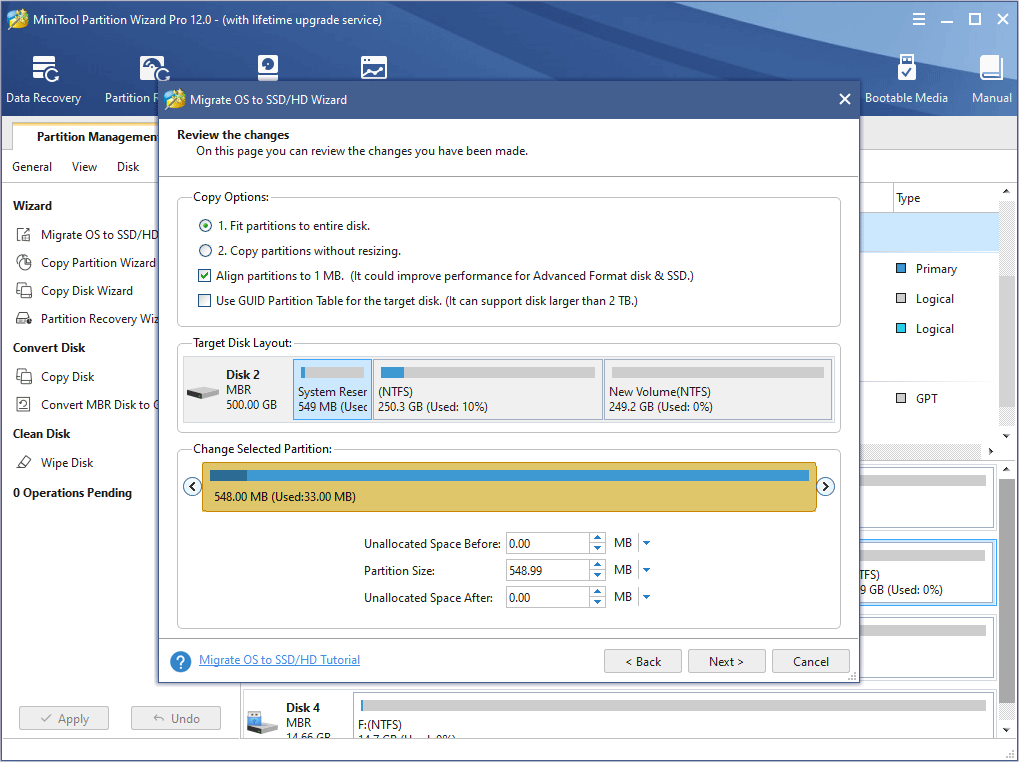
Step 6: Carefully read a popup boot note and click Finish button to go back to the main window of Partition Wizard.
Step 7: Click Apply button to make all changes finally performed.
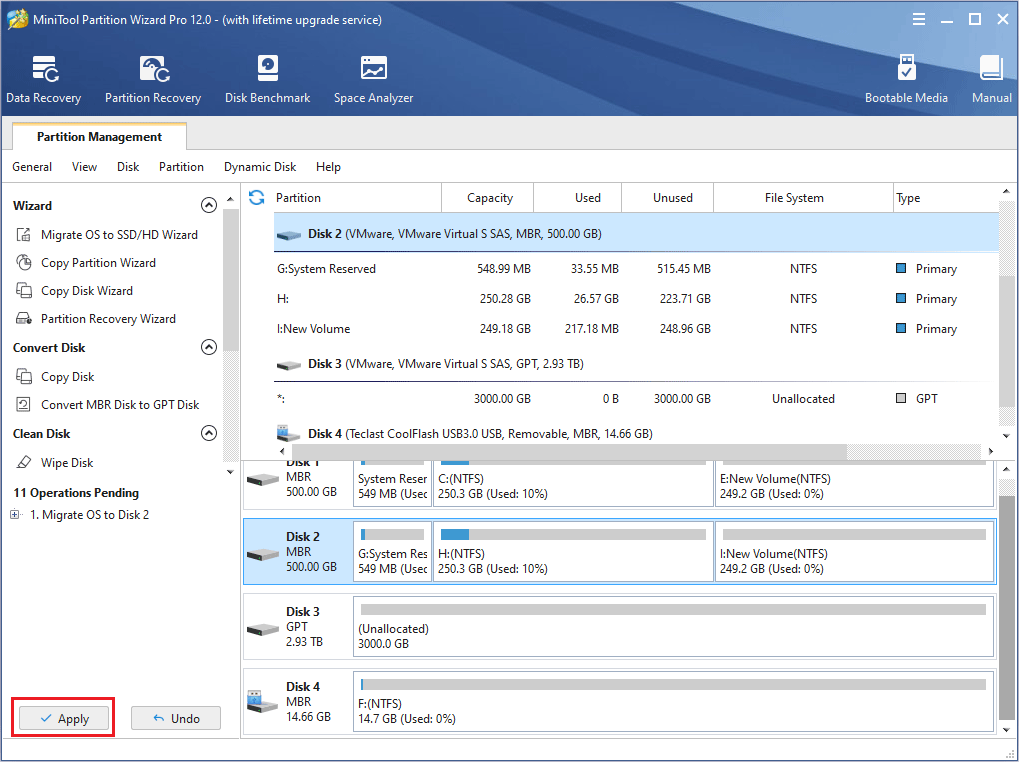
After the cloning, you need to install the SSD, which usually involves removing the computer’s bottom panel and the hard drive. It’s difficult and dangerous because you may ruin your computer.
Of course, if you have confidence to do this, just do it by following tutorials on the internet, but keep in mind: DON’T FORCE THINGS!
If you want to clean install Windows, view this post: How to Install Windows 10 on a New Hard Drive (with Pictures).
Upgrade Laptop HDD to SSD FAQ
Bottom Line
Do you have any problem about SSD upgrade after reading this guide? Do you have any other ideas on how to upgrade laptop HDD to SSD or on how to utilize the old HDD? If so, please leave a comment below to give us feedback or to share your thought.
Of course, if you have any problem in performing the above SSD upgrade steps, please also leave a comment or email us at [email protected]. We will reply to you as soon as possible.
About The Author

Position: Columnist
Linda has been an editor at MiniTool for seven years. She continuously learns about computers and puts her knowledge into practice. Moreover, she is particularly knowledgeable in disk management, data recovery, system installation, and PDF editing. Her articles typically reference multiple examples or are based on her own experience, providing users with the most suitable solutions.
User Comments :