
To fix a Lenovo stuck on boot screen, try force restarting, disconnecting external devices, or using Startup Repair, etc. This post also tells you how to recover lost data from the unbootable Lenovo PC via MiniTool Partition Wizard.
If your Lenovo laptop is stuck on the boot screen or frozen on the Lenovo logo, the problem may be caused by Windows errors, BIOS issues, hardware failures, or connected devices.
You can usually fix it by force restarting the laptop, running Windows Startup Repair, checking BIOS settings, or performing other troubleshooting steps.
However, if your Lenovo laptop cannot start and you need to access important data, using a reliable data recovery tool can help recover files before further repairs.
This guide explains why a Lenovo laptop gets stuck on the boot screen and provides step-by-step solutions to fix the problem.
Why Is Lenovo Stuck on Boot Screen?
A Lenovo laptop can get stuck on the boot screen for several reasons, including Windows errors, hardware problems, BIOS settings, or connected devices.
The table below lists the common causes, symptoms, and possible solutions.
| Possible Cause | Symptoms | Solution |
| Corrupted Windows files | Lenovo logo freezes | Run Startup Repair |
| Failed update | Endless restart loop | Enter Recovery Environment |
| Hard drive failure | Slow boot or clicking sound | Check disk health |
| BIOS issue | Cannot detect system | Reset BIOS settings |
| External devices | Stuck after USB connection | Remove peripherals |
7 Fixes for Lenovo Laptop Stuck on Lenovo Screen Error
Now that we understand the causes, here are simple solutions you can try at home without tools or technical skills.
Fix 1: Force Restart
A force restart can quickly fix a Lenovo laptop stuck on the boot or restarting screen by clearing temporary system glitches.
- Press and hold the Power button for 10–15 seconds until the device turns off.
- Wait a few seconds, then press the Power button again to restart the laptop.
You can use this method if the system is frozen or stuck during startup.
Fix 2: Disconnect External Devices
USB devices or peripherals may cause boot conflicts, causing Lenovo laptops to get stuck on the boot or restart screen.
This can be resolved by disconnecting the external device.
- Turn off the laptop completely.
- Disconnect all external devices (USB drives, external hard drives, printers, etc.).
- Turn the laptop back on and check if it boots normally.
Fix 3: Run Lenovo Diagnostics Tool
Lenovo Diagnostics Tool can help identify hardware issues when a Lenovo laptop is stuck on the boot screen.
It scans key components such as memory, storage, and the motherboard to detect faults that may prevent the system from starting properly.
This allows you to quickly locate and troubleshoot the root cause of the issue.
Case 1. You are using a ThinkPad computer.
The Lenovo Diagnostics tool has been embedded in the system firmware of some ThinkPad PCs, including L430, L530, T430, T430i, T430s, T430si, T530, T530i, W530, X131e, X230, X230 Tablet, and X1 Carbon (Type 34xx).
You can launch this tool by pressing F10 during the boot sequence, or pressing F12 during the boot sequence to access the Boot Menu, pressing Tab to select Application Menu, and then selecting Lenovo Diagnostics to run it.
Case 2. You are NOT using a ThinkPad computer.
If your PC is not ThinkPad, you can create a bootable Lenovo Diagnostics tool using a USB drive. Then, run the tool on your PC to troubleshoot your PC. Click Lenovo’s Create Bootable USB with UEFI Diagnostics page. Then, follow the guide to download and create the bootable tool.
Fix 4. Reset BIOS to Default Settings
BIOS is the firmware embedded in your motherboard. It’s the first software that runs during the computer booting. However, if the BIOS is corrupted due to a failed update or malware attack, the Lenovo laptop stuck on boot screen issue may also occur.
In this case, you can try resetting the BIOS to solve the issue. Here is the guide:
- Shut down your Lenovo PC.
- Power on your PC, and then press F1 or F2 key once you see the Lenovo logo screen to enter BIOS. Sometimes, you may need to hold the Fn key and then press F1 or F2 to enter BIOS.
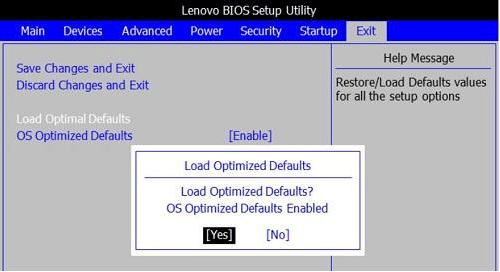
- Go to the Exit tab and select Load Optimal Defaults or press F9.
- Press F10 to save and exit.
- Reboot your PC to see if the issue is solved.
Fix 5. Disable Lenovo Service Engine From BIOS
Lenovo PCs with a manufacture date of 10/23/14 through 4/10/15 and manufactured with Windows 8 or
The Lenovo Service Engine (LSE) is a BIOS utility found on some older Lenovo systems that were manufactured with Windows 8 or 8.1.
In rare cases, it may cause startup problems, including a Lenovo laptop stuck on the boot screen.
To fix this issue, you can disable Lenovo Service Engine (LSE) in the BIOS settings to prevent it from interfering with the boot process.
Here is the guide:
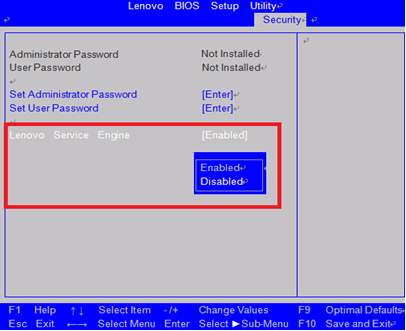
- Enter BIOS and go to the Security tab.
- Find Lenovo Service Engine and set it to Disabled. If you do not see an option for Lenovo Service Engine in your desktop system’s BIOS, it is not enabled in your system.
- Press F10 to Save and Exit.
In addition, Lenovo also recommends consumers remove the Lenovo Service Engine because it is not consistent with security guidelines on how to best implement Microsoft Windows Platform Binary Table (WPBT) capability (LSE uses this feature).
To remove LSE, you just need to delete the following 2 files manually:
- C:\windows\system32\LSEDT.exe
- C:\windows\system32\LSEPreDownloader.exe
Fix 6. Use Windows Installation Media to Run Automatic Repair and Repair BCD
When a Lenovo laptop stuck on boot screen, you may not be able to access Windows Recovery Environment (WinRE) to perform repairs.
In this case, you can use a Windows installation USB drive to boot the system and run automatic repair, or fix boot-related issues such as the boot sector or BCD.
This method helps restore normal startup when built-in recovery options are not available.
Step 1: Create a Windows installation USB drive on a well-working PC. As for how to do that, you can refer to the following 2 posts:
- A Complete Guide to Windows 10 Media Creation Tool: How to Use
- How to Create Windows 11 Installation Media on PC, Mac, or Linux
Step 2: Insert the Windows installation USB drive into your Lenovo PC and make the PC boot from the USB drive.
- Shut down your PC and wait for a few seconds.
- Power on your PC, and then press the F12 key immediately as the Lenovo logo appears.
- There should be a pop-up menu with a list of choices. Select the USB drive using the arrow key and press Enter. The system should now boot from the USB drive.
Step 3: Perform Startup Repair. This can fix most common issues that prevent your computer from loading correctly.
- In the Install Now interface, click Repair your computer in the bottom left corner to enter the WinPE.
- Go to Troubleshoot > Advanced options > Startup Repair. Then, follow the on-screen prompts to finish the repair operation.
Step 4: Repair the Boot Sector and BCD. If the boot sector and BCD are corrupt, the Windows can’t be loaded normally. Then, the Lenovo laptop stuck on boot screen issue may occur. You can follow the steps below to repair them:
- Enter WinPE and go to Troubleshoot > Advanced options > Command Prompt.
- Execute the following commands one by one: bootrec /fixmbr; bootrec /fixboot; bootrec /scanos; bootrec /rebuildbcd.
![[Fixed] The Boot Configuration Data Store Could Not Be Opened](https://images.minitool.com/partitionwizard.com/images/uploads/2022/07/the-boot-configuration-data-store-could-not-be-opened-thumbnail.png)
Fix 7: Reset Your PC to Factory Settings
If all previous methods fail, resetting your Lenovo laptop to factory settings can resolve a persistent stuck-on-boot-screen issue.
In Windows 10, you can enter the WinRE and go to Troubleshoot > Reset this PC to restore the system.
Alternatively, some Lenovo devices support OneKey Recovery, which allows you to restore the system to its original factory state.
Recover Data from the Unbootable Lenovo PC
If you have tried the above methods but the Lenovo PC is still unbootable, you may need to recover data from the unbootable Lenovo PC. In this case, you can use MiniTool Partition Wizard, which is a multi-functional program that can recover data from hard drive, migrate OS, clone hard drive, etc. Here is the guide:
MiniTool Partition Wizard DemoClick to Download100%Clean & Safe
Step 1: Create a bootable USB drive using MiniTool Partition Wizard and then boot the Lenovo PC from the USB drive.
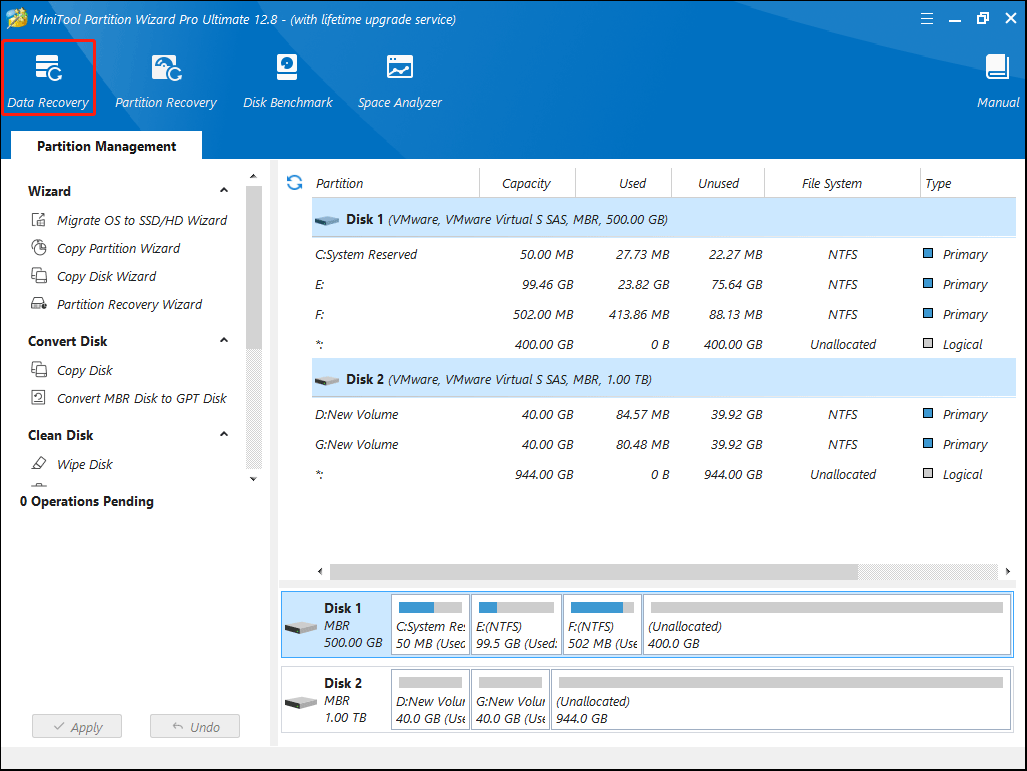
Step 2: Wait until MiniTool Partition Wizard opens automatically. Click Data Recovery on the toolbar.
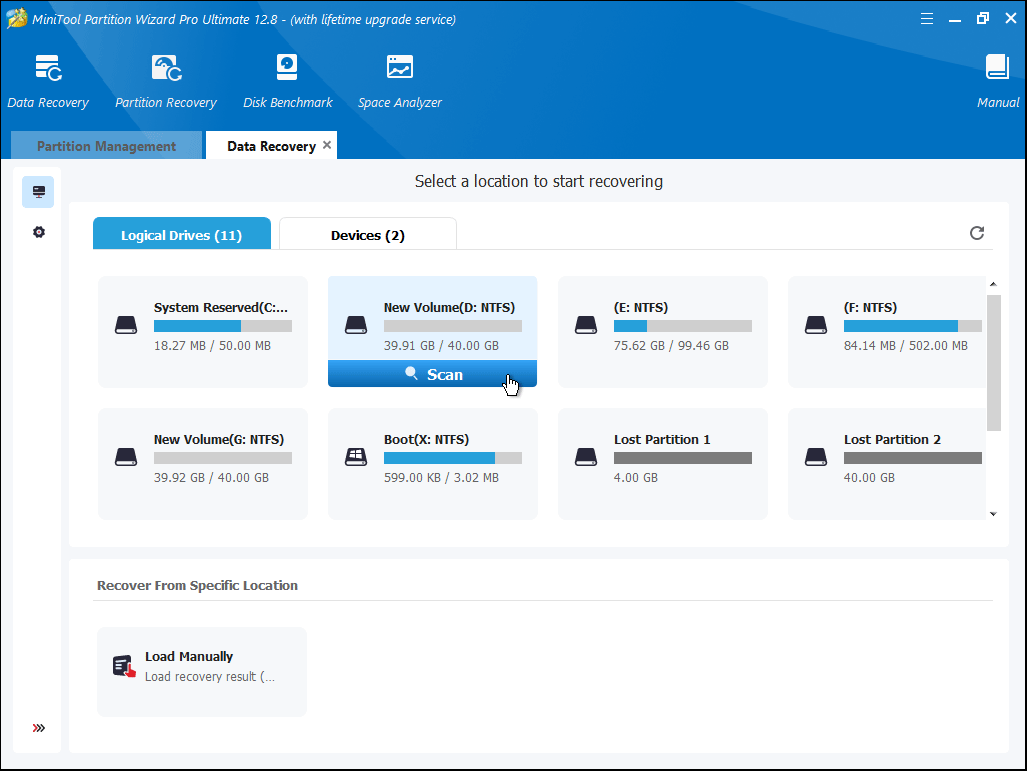
Step 3: Hover the cursor over a partition and click Scan.
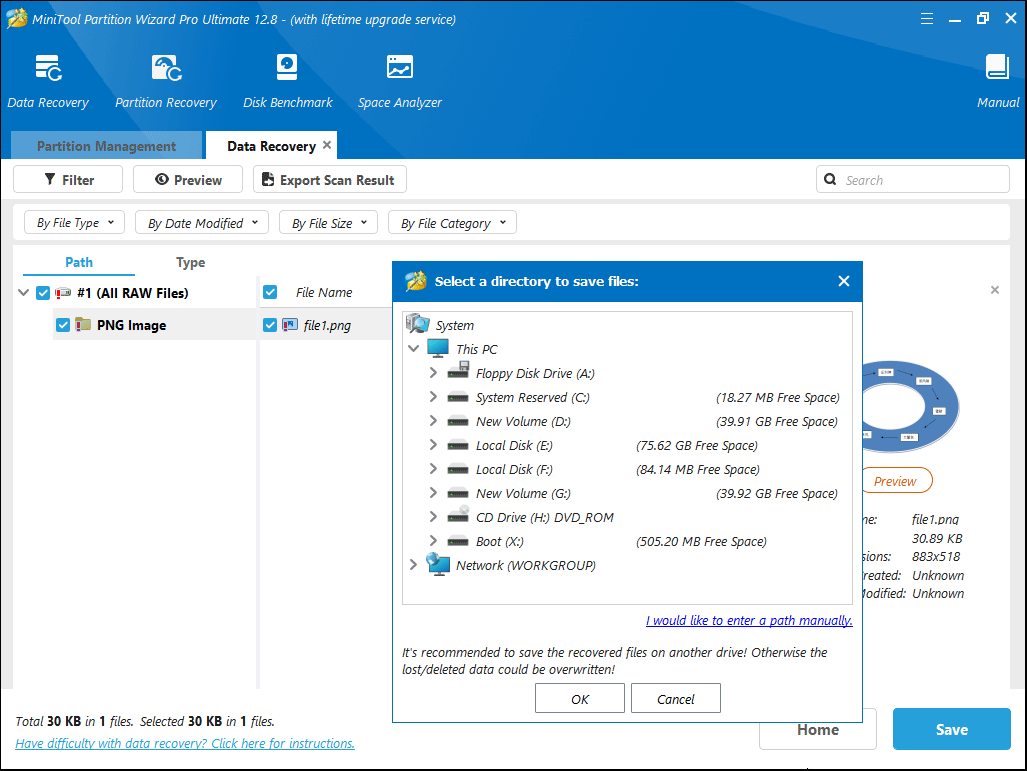
Step 4: Find the lost files using Path, Type, Filter, or Search tools. Check the box before the lost files and click Save. Then, select a safe place to recover these files.
Lenovo Stuck on Boot Screen FAQ
However, a factory reset may erase your files if you do not back them up first.
Bottom Line
Most Lenovo laptops stuck on the boot screen can be fixed with a force restart, Startup Repair, or BIOS reset. In severe cases, a Windows repair or factory reset may be required.
If you have any questions or feedback about MiniTool Partition Wizard, feel free to contact our support team at [email protected] for additional help.
User Comments :