
Seeing a “Hard Drive Not Installed” on your computer? Don’t worry. This guide explains the common causes and provides 7 practical ways to fix the problem, from checking BIOS/UEFI and drive connections to repairing boot issues and recovering your data via MiniTool Partition Wizard.
What Does “Hard Drive Not Installed” Mean
“Hard Drive Not Installed” usually means that the computer’s BIOS/UEFI cannot detect the internal HDD or SSD. It does not necessarily mean that the hard drive is physically missing or completely dead.
Different computers may display slightly different messages:
| Error message | What it usually means |
| Hard Drive Not Installed | BIOS/UEFI cannot detect the storage drive |
| Hard Drive Not Found | The system cannot locate the expected drive |
| No Hard Drive Detected | The storage device is not detected |
| Boot Device Not Found | The computer cannot find a bootable device |
Some people report that they have encountered the hard drive not installed issue. In most cases, this issue usually occurs on Dell PCs.
The hard drive not installed Dell issue has other varieties like Dell no hard drive detected and hard drive not found Dell.
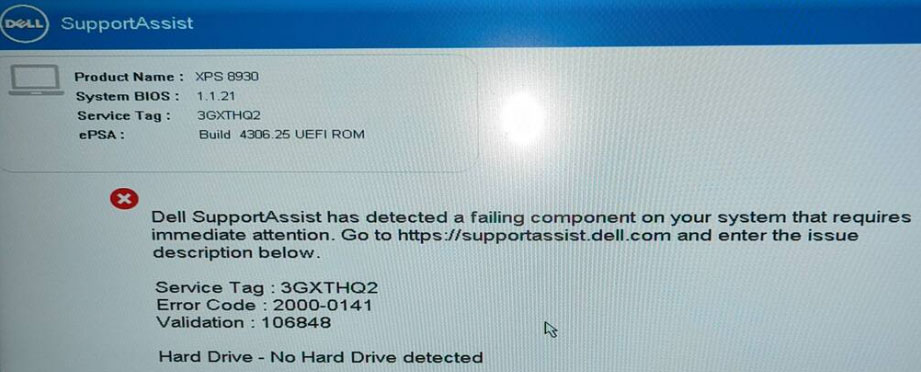
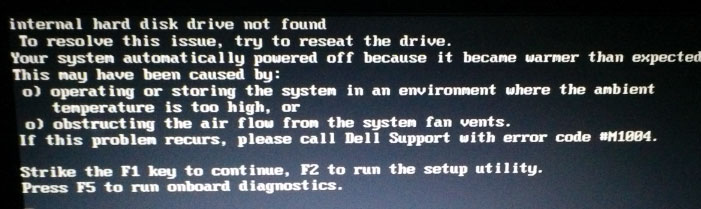
All these error messages indicate that the computer can’t find the boot hard drive. In addition, the hard drive not installed issue may also occur on other brands of PCs like ASUS, HP, etc., but the error message may be a little different.
If your hard drive is not listed in BIOS/UEFI, the next step is to determine why the system cannot detect it.
Why Is My Hard Drive Not Detected
Several issues can prevent your computer from detecting a hard drive.
The most common causes include connection problems, incorrect BIOS/UEFI settings, boot configuration errors, and drive failure.
- Loose or damaged SATA, power, or M.2 connections.
- Incorrect BIOS/UEFI settings or boot order.
- An incompatible UEFI/Legacy boot configuration.
- Incorrect storage controller settings such as AHCI, RAID, or Intel RST.
- Corrupted Windows boot files.
- A damaged partition or file system.
- A failing HDD or SSD.
- A faulty SATA/M.2 slot or motherboard storage controller.
The right solution depends on the cause. Try the following fixes to resolve the “Hard Drive Not Installed” issue.
How to Fix Hard Drive Not Installed on Windows
Try these solutions in order, starting with the simplest ones.
Way 1. Ignore This Error Temporarily
Sometimes, when the hard drive not installed error appears, you can press a specific key (like F1 on Dell laptops) or click the Continue button to continue to boot your PC. Then, the PC will boot into Windows normally. This will solve the hard drive not found Dell issue temporarily.
Way 2. Perform a Hard Reset
When the hard drive not installed issue occurs, you can also try performing a hard reset to solve this issue. Here is the guide:
- Press and hold the Power button for 10 seconds to turn off the computer.
- Disconnect the AC adapter or power cable from the computer. For laptops, you need to also remove the battery.
- Disconnect all external devices from the PC like USB drives, printers, webcams, and media cards (SD/xD), except for the keyboard and mouse.
- Press and hold the Power button for 15 to 20 seconds to drain residual power.
- Connect the power cable, AC adapter, and the battery.
- Turn on the computer to see if the issue is solved.
Way 3. Update BIOS
One user reported that the hard drive not installed issue happened to him but when he chose to continue to boot up Windows, the computer could work normally still. Then, he figured out that the issue was caused by the outdated BIOS. Updating the BIOS can solve the issue well. You can also have a try.
As for how to update BIOS, you can refer to the guide in this post: How to Update BIOS Windows 7 & Fix Issues in BIOS Update. It tells you how to update the BIOS when the computer can power on or not.
Way 4. Check the BIOS Settings
Sometimes, misconfigured BIOS settings may also cause the no hard drive installed HP or Dell issue. Therefore, you need to check the BIOS settings. Restart the computer and press the BIOS key (Del, Esc, F2, etc.) to enter the BIOS. Then, you need to check the following items:
- Check if the boot order is correct. Make sure the boot device is in the first place.
- Check if the hard drive or hard drive port is disabled. Some firmware may solve this feature. If it is disabled, enable it.
- Check if you have chosen the correct boot mode (UEFI or Legacy). UEFI is for GPT disks while Legacy is for MBR disks.
- And others.
If necessary, you can try resetting the BIOS to correct the BIOS settings.
Way 5. Check If the Hard Drive Is Connected Correctly
If the hard drive is not connected correctly, the HP or Dell no hard drive detected will also occur.
- For laptops, you need to check whether the pins of the hard drive are rusty. If so, you need to use the eraser to remove any rust.
- For desktops, you need to check if the hard drive is connected correctly, check if the hard drive cable is good, and change the jumpers on the hard drive to Cable Select if you connect 2 hard drives to one IDE port.
Further Reading:
If you connect 2 hard drives into one IDE port, you should set up the IDE hard drive jumper to Master, Slave, or Cable Select. The boot device should be the Master disk. However, many people may confuse Master and Slave. Then, changing all hard drive jumpers to Cable Select can get rid of this issue.
After that, you need to enter BIOS and go to IDE Configuration. Then, make sure Onboard IDE Control is Enabled, and then change Primary Master and Primary Slave to Auto.
Way 6. Fix MBR or Initialize the Disk
Some people report that they have solved the hard drive not installed Dell laptop issue by initializing the disk. However, the disk initialization process only deletes the partition table and file tables. Therefore, I guess that the issue is caused by the corrupt boot sector (Master Boot Record).
Then, I recommend you first try fixing MBR to solve the issue so that the data on the disk won’t be deleted. If you initialize the disk, the data on the disk will be deleted.
Here is how to fix MBR:
Step 1: On a well-running computer, create a Windows installation USB drive using the Windows Media Creation Tool.
Step 2: Insert the USB drive into the problematic computer and boot it into the firmware. In the firmware, change the boot drive to the USB drive. Save and exit the firmware.
Step 3: The PC will boot from the USB drive and you will see the Windows Setup window. On the Install Now window, click Repair my computer. Go to Troubleshoot > Advanced options > Command Prompt.
Step 4: Execute the following commands one by one.
- bootrec /fixmbr
- bootrec /fixboot
- bootrec /rebuildbcd
If this method doesn’t work, you need to start to initialize the disk. Before proceeding, if you have important files on the disk, you need to recover data first. As for how to do that, the last part of this post will show you all.
If you need to initialize the disk, you can refer to this guide:
Step 1: Create a Windows installation USB drive and boot the computer from the USB drive. Then, click Repair my computer and go to Troubleshoot > Advanced options > Command Prompt.
Step 2: Execute the following commands one by one.
- Diskpart
- List disk
- Select disk # (# is the disk you want to initialize)
- Clean
- Convert mbr or convert gpt
Then, you can reinstall Windows on the disk.
Way 7. Replace the Hard Drive
If all the above methods don’t work, you should consider that the hard drive or the hard drive port on the motherboard is damaged. When the hard drive port is damaged, you can get it repaired. When the hard drive is damaged, you can buy a new one and then replace it. If there are important files on the drive, you need to recover them.
How to Recover Data from an Unbootable Computer
If your computer cannot boot because the hard drive is not detected, recovering important files should be a priority before trying potentially risky fixes.
MiniTool Partition Wizard can help scan the affected drive and recover accessible files to another storage device.
Here is the guide:
MiniTool Partition Wizard DemoClick to Download100%Clean & Safe
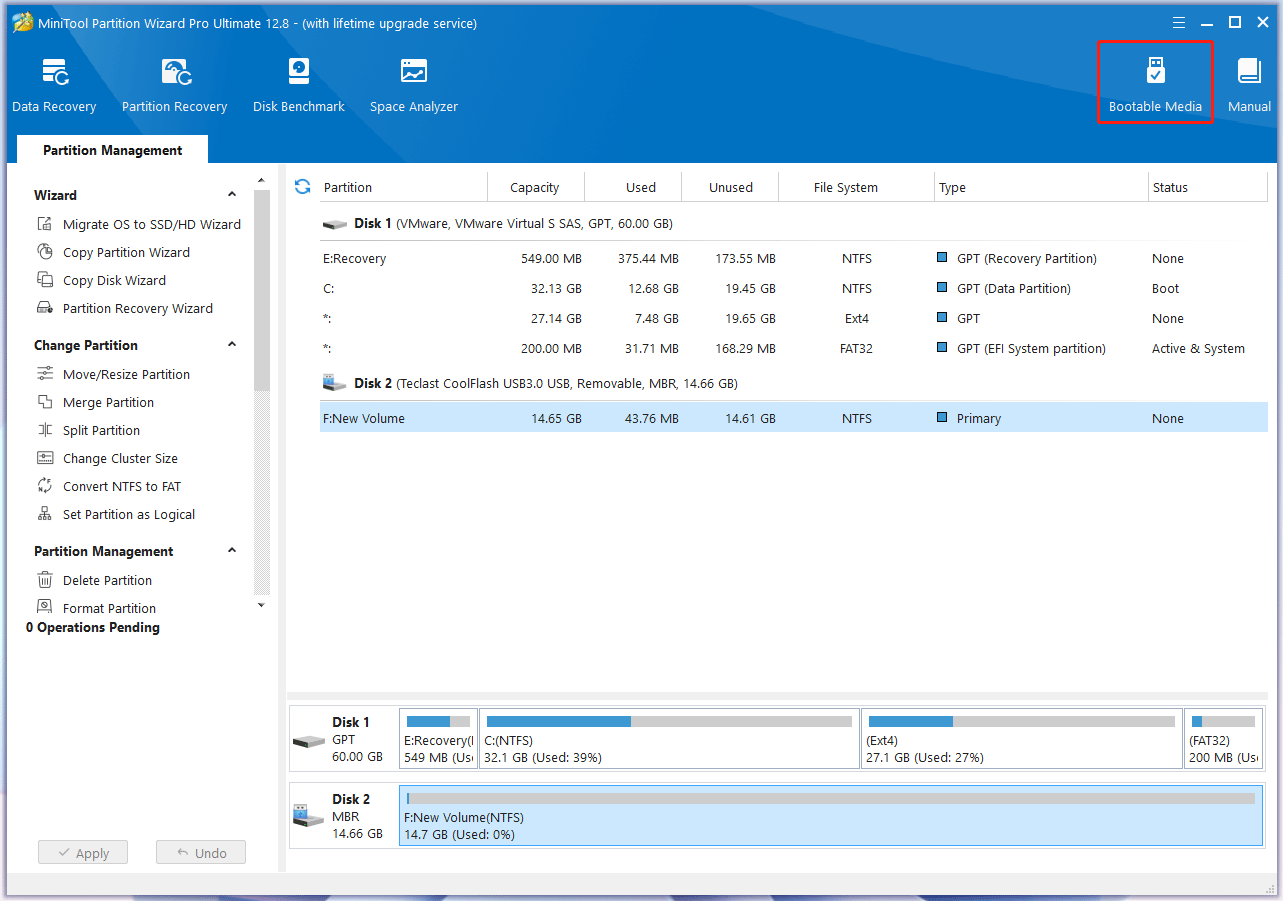
Step 1: Insert a USB drive into a normal PC. Launch MiniTool Partition Wizard and click Bootable Media.
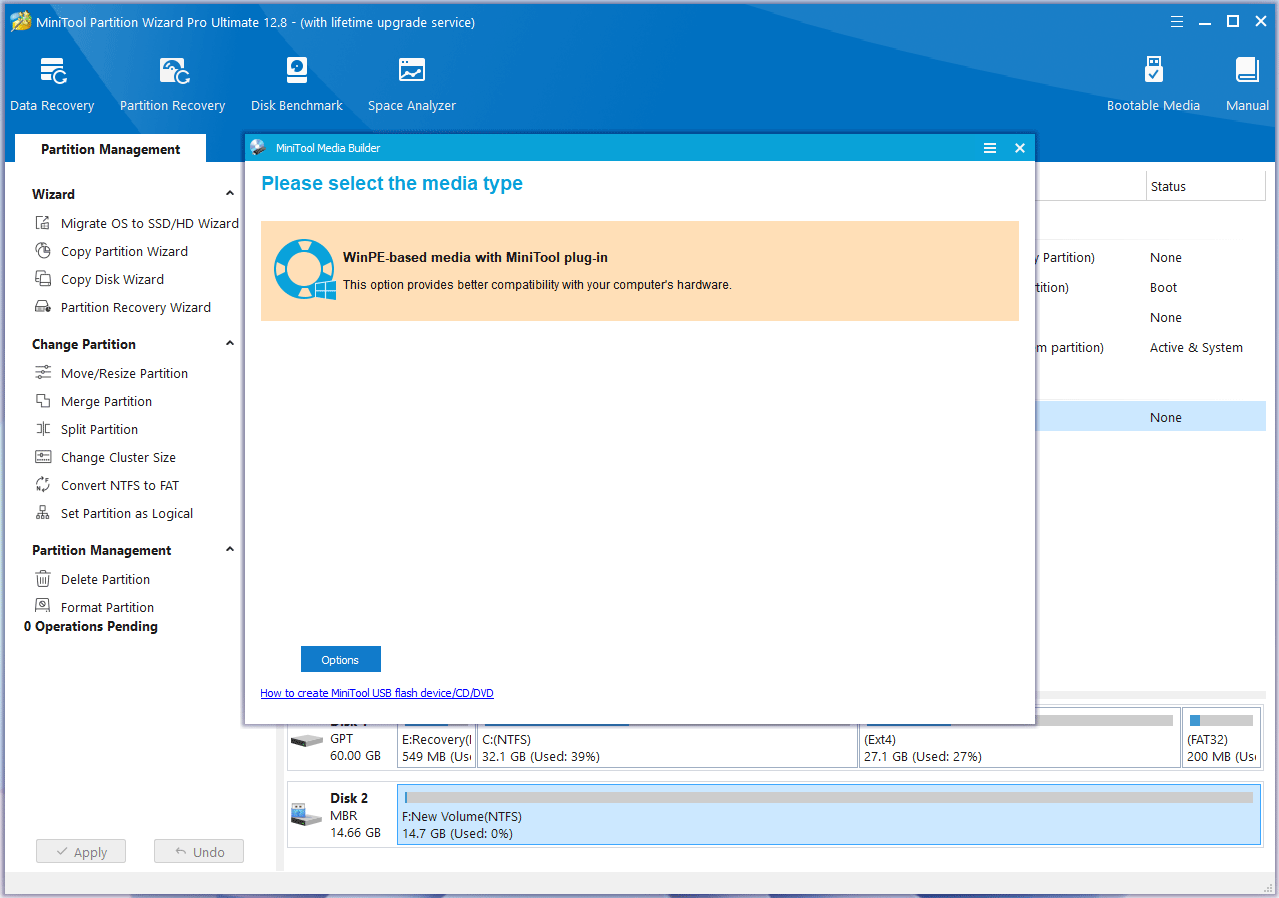
Step 2: Click WinPE-based media with MiniTool plug-in.
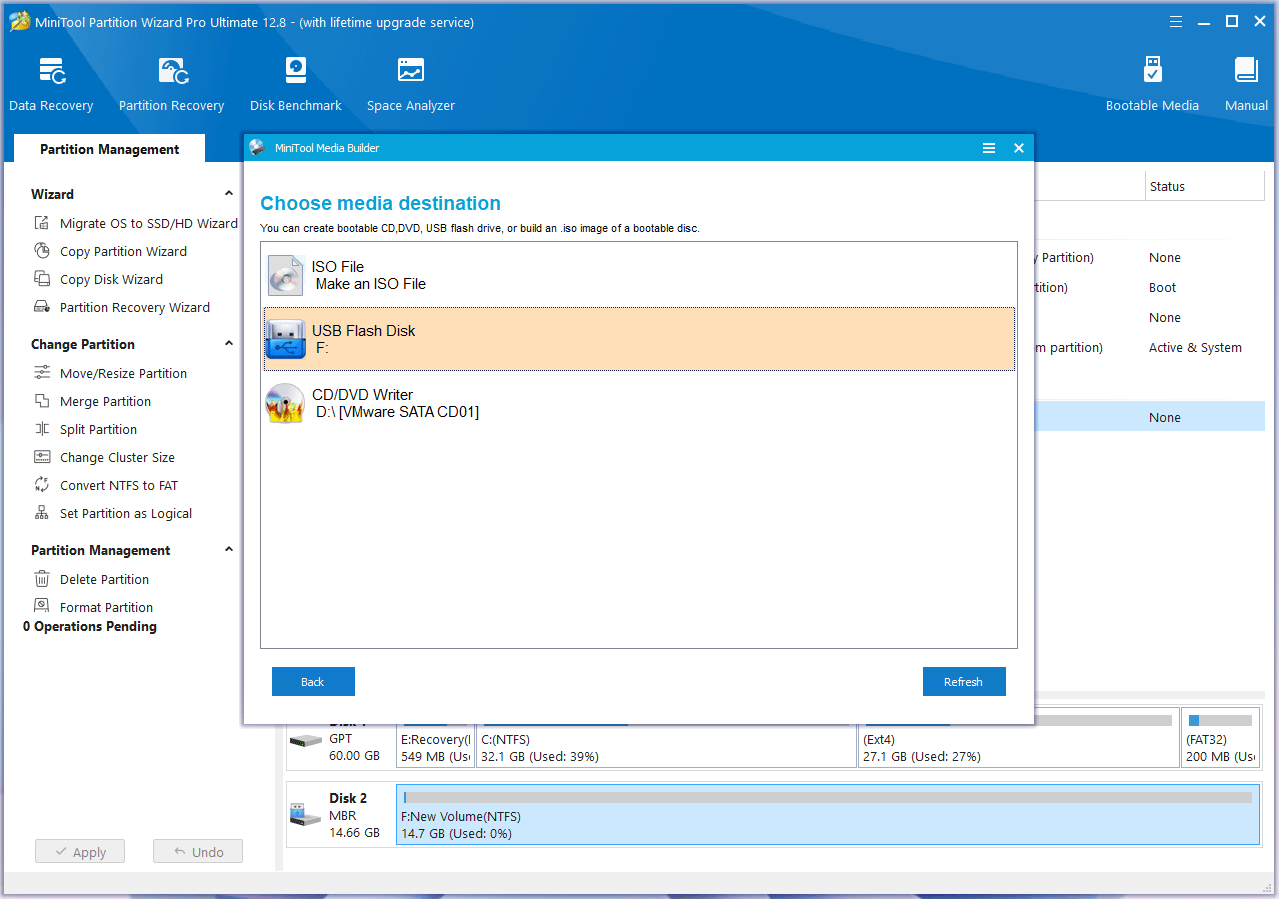
Step 3: Click the USB Flash Disk. You will be warned that the data on the USB disk will be destroyed. Click Yes and then MiniTool Partition Wizard will start to create a bootable drive.
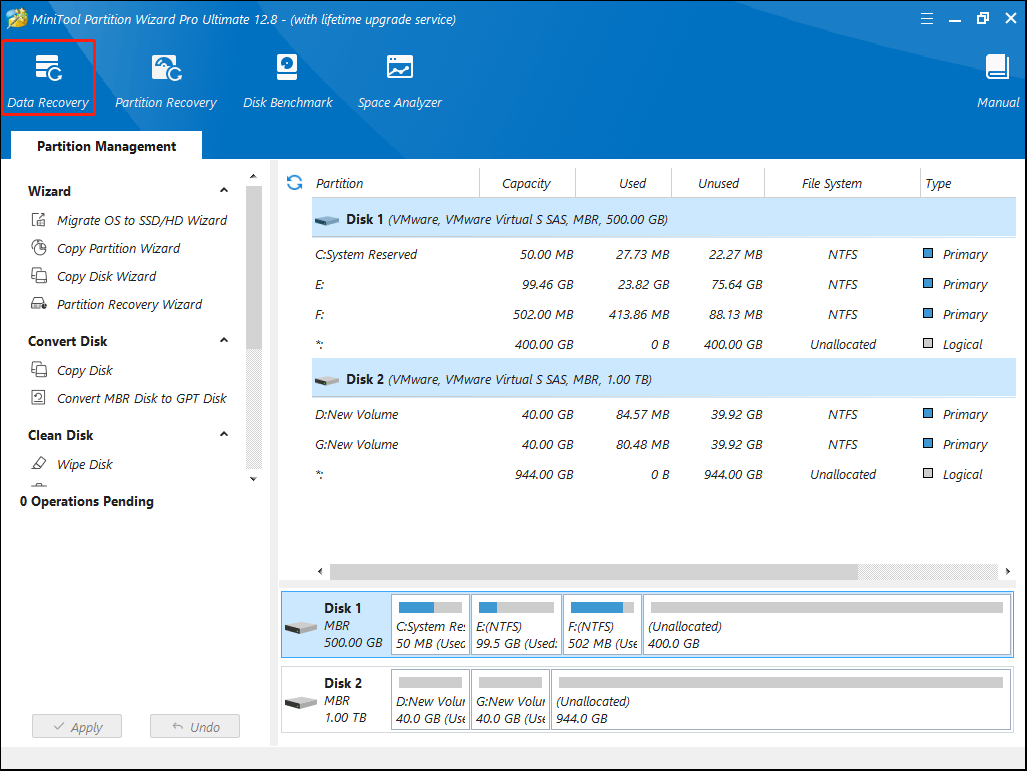
Step 4: Insert the bootable USB drive into the unbootable computer and boot the computer from the USB drive. After the PC boots from the USB drive, click OK twice and then you will see MiniTool Partition Wizard’s main interface. Click Data Recovery on the toolbar.
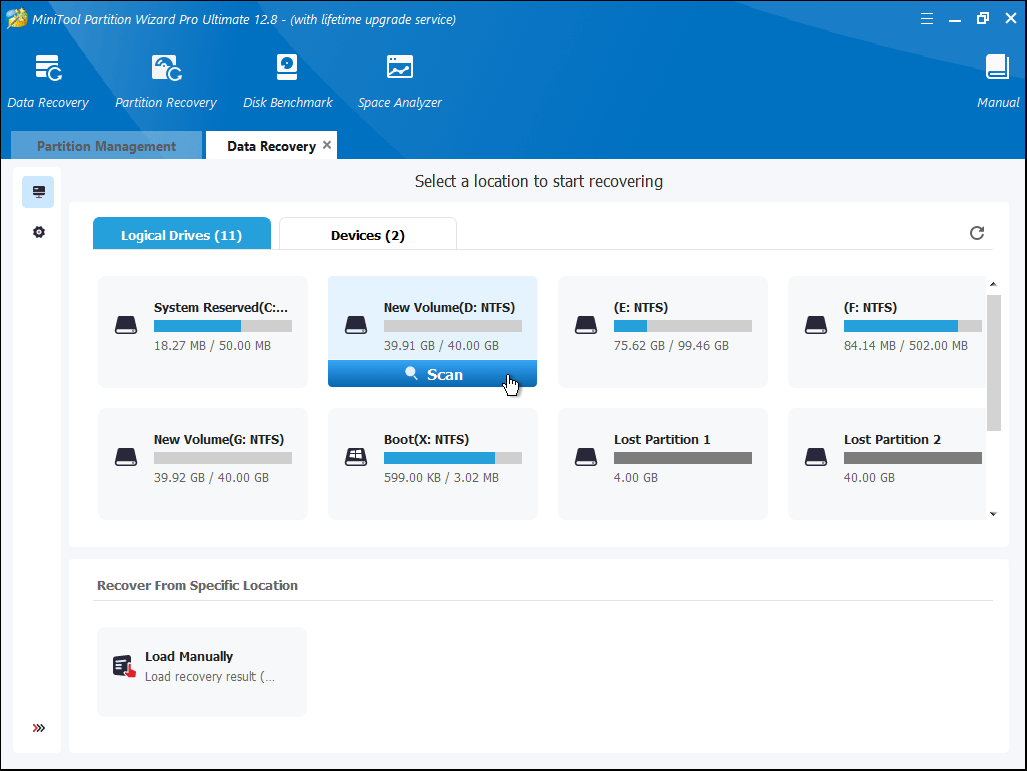
Step 5: Hover the cursor over a partition and click Scan. You can also click the Devices tab and then scan the entire disk.
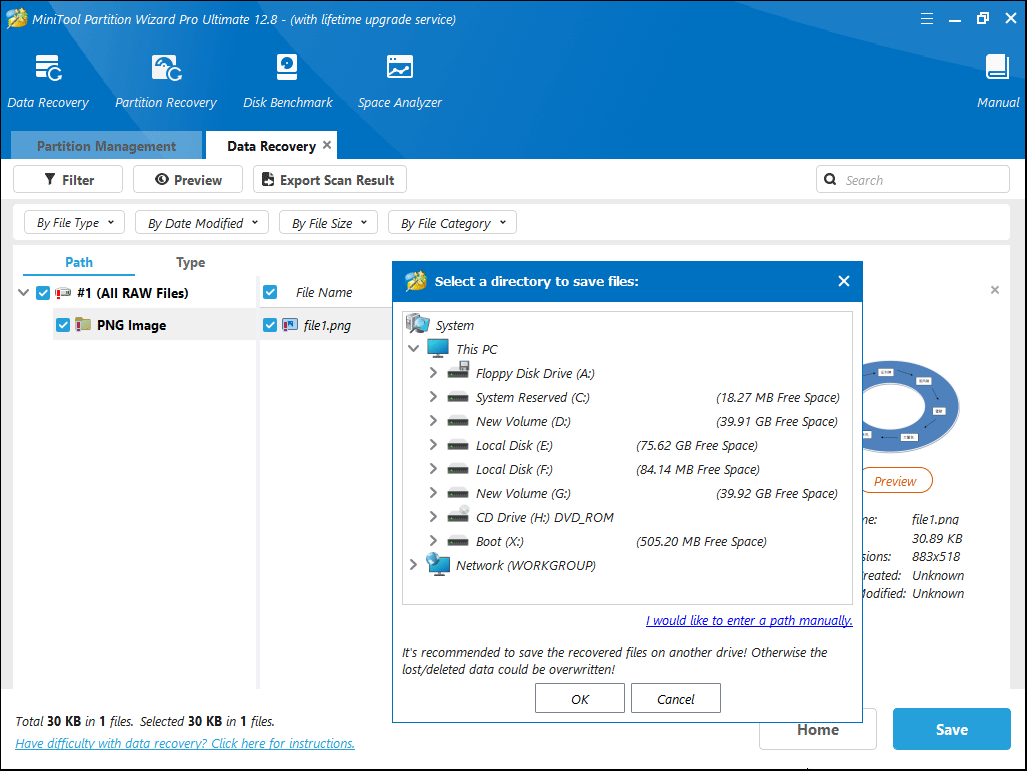
Step 6: Find the lost files using Path, Type, Filter, or Search tools. Check the box before the lost files and click Save. Then, select a safe place and click OK to save recovered files.
Bottom Line
Do you know other solutions to the hard drive not installed issue? Share them with us in the following comment zone. In addition, if you encounter problems when using MiniTool Partition Wizard, please feel free to contact us via [email protected]. We will get back to you as soon as possible.
User Comments :