
When the C drive on Windows Server runs out of space, you can extend the C drive partition to increase its capacity without reinstalling Windows. This guide explains how to extend C drive in Windows Server 2016, 2019, 2022, and 2025 using Disk Management and MiniTool Partition Wizard.
By default, the C drive in Windows Server stores the operating system, system files, applications, downloads, and other data. Over time, the C drive can run out of space as more files are added.
Deleting unnecessary files can free up some space, but the C drive may become full again. A better solution is to increase the C drive’s size by extending its partition.
This article explains two ways to increase the system partition size in Windows Server: using the built-in Disk Management tool or using third-party software, MiniTool Partition Wizard.
Extend C Drive in Windows Server with MiniTool Partition Wizard
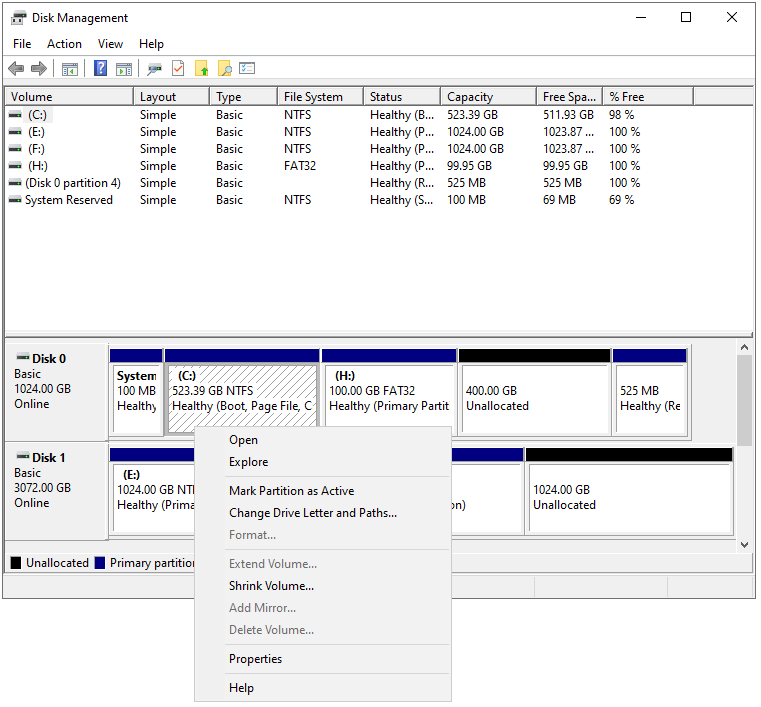
If there is no adjacent unallocated space behind the C drive, the Extend Volume option is grayed out. In this case, I recommend you use MiniTool Partition Wizard Enterprise to extend it.
MiniTool Partition Wizard provides the Extend Partition feature, which allows you to use the space of other partitions or non-adjacent areas to extend the partition. The Move/ Resize Partition also allows you to adjust the location of partitions on the disk to achieve the purpose of expansion.
In addition, it can handle all kinds of disk and partition jobs, such as convert MBR to GPT, hard drive data recovery, hard drive clone, etc.
MiniTool Partition Wizard FreeClick to Download100%Clean & Safe
Here we will tell you how to extend C drive partition in Windows Server 2016/2019/2022:
Use Extend Partition Feature of MiniTool Partition Wizard
Use the Extend Partition feature to extend your drive regardless of whether it has adjacent unallocated space.
Step 1: Launch MiniTool Partition Wizard to get the general disk partition map.
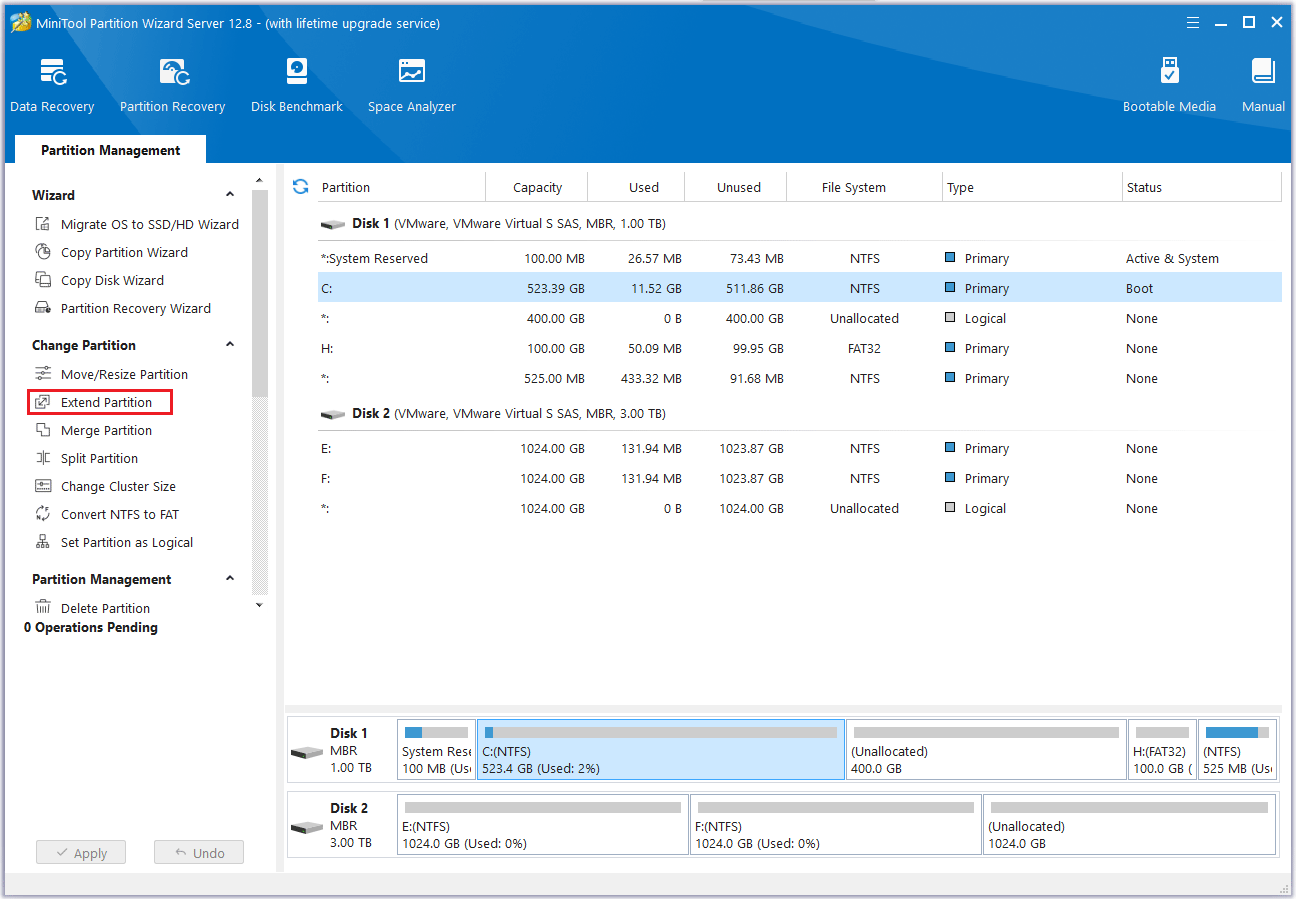
Step 2: Select the C drive you want to extend and choose Extend Partition from the left operation panel.
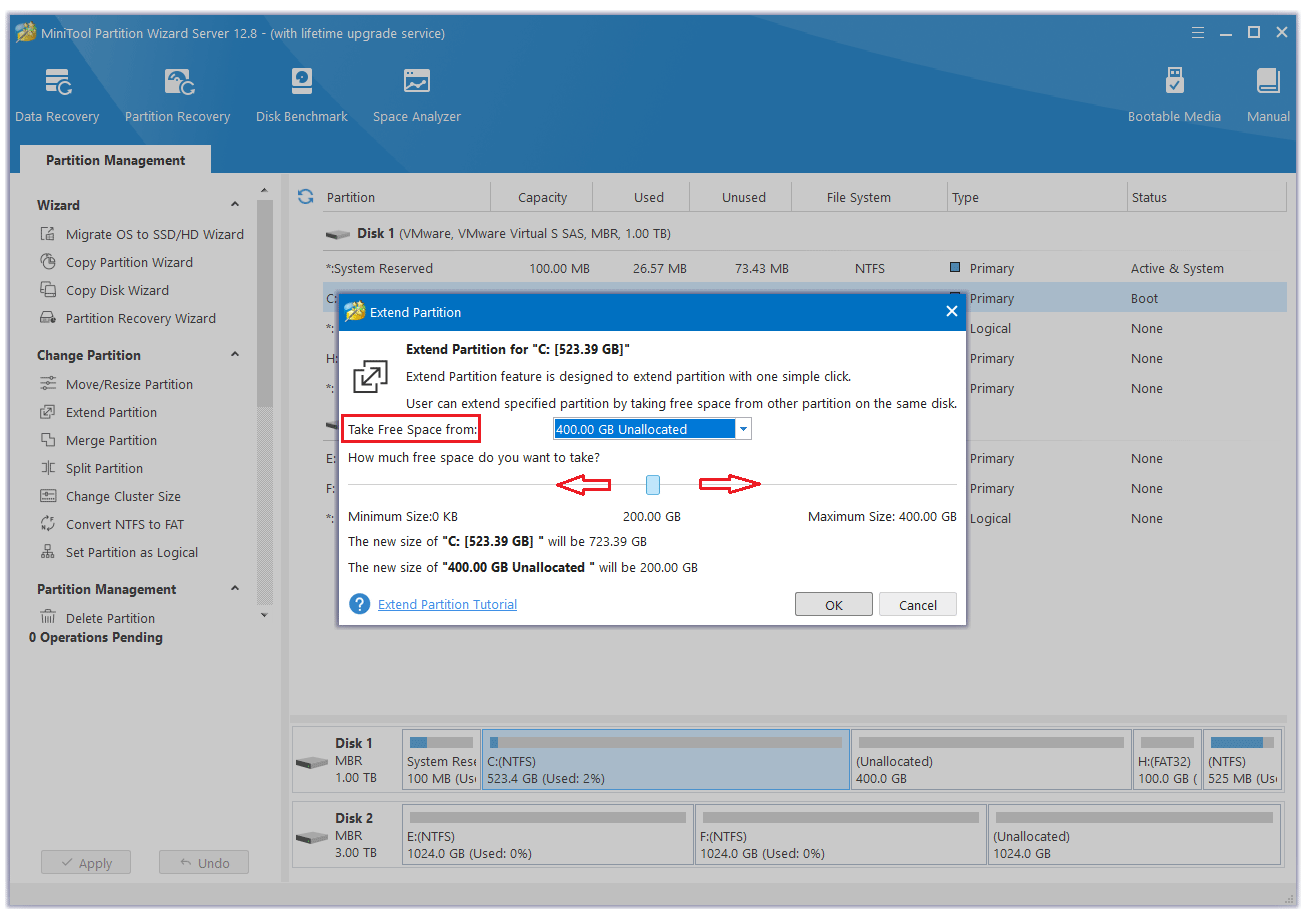
Step 3: Select a partition or unallocated space from the drop-down list to extend the C drive partition and drag the sliding handle leftwards or rightwards to decide how much of the available space it takes up. Then click OK to continue.
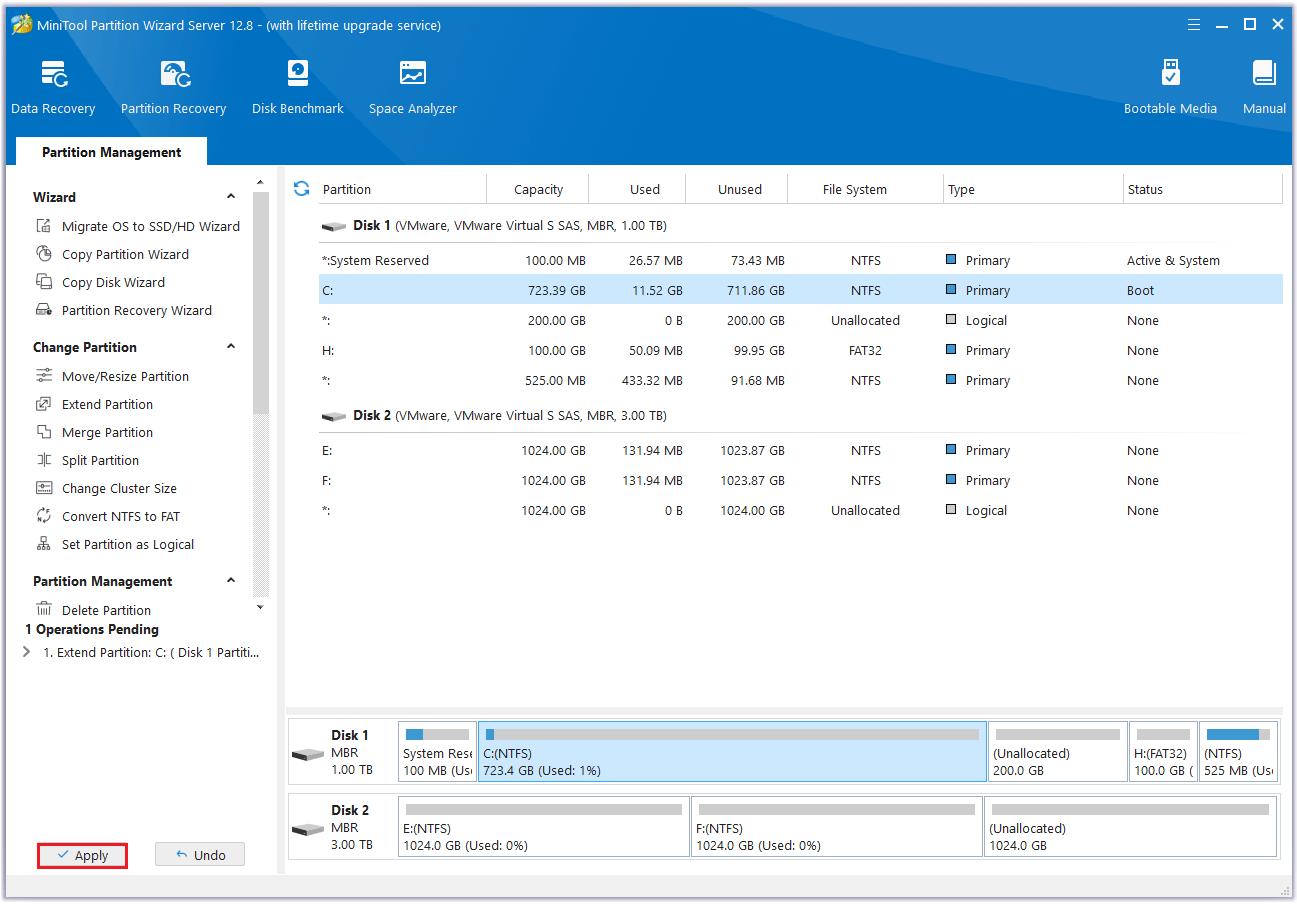
Step 4: In the main interface, you can preview the changes of the C drive and click Apply to save all changes. You can also check whether the C drive is extended through Disk Management.
Use Move/Resize Partition Feature of MiniTool Partition Wizard
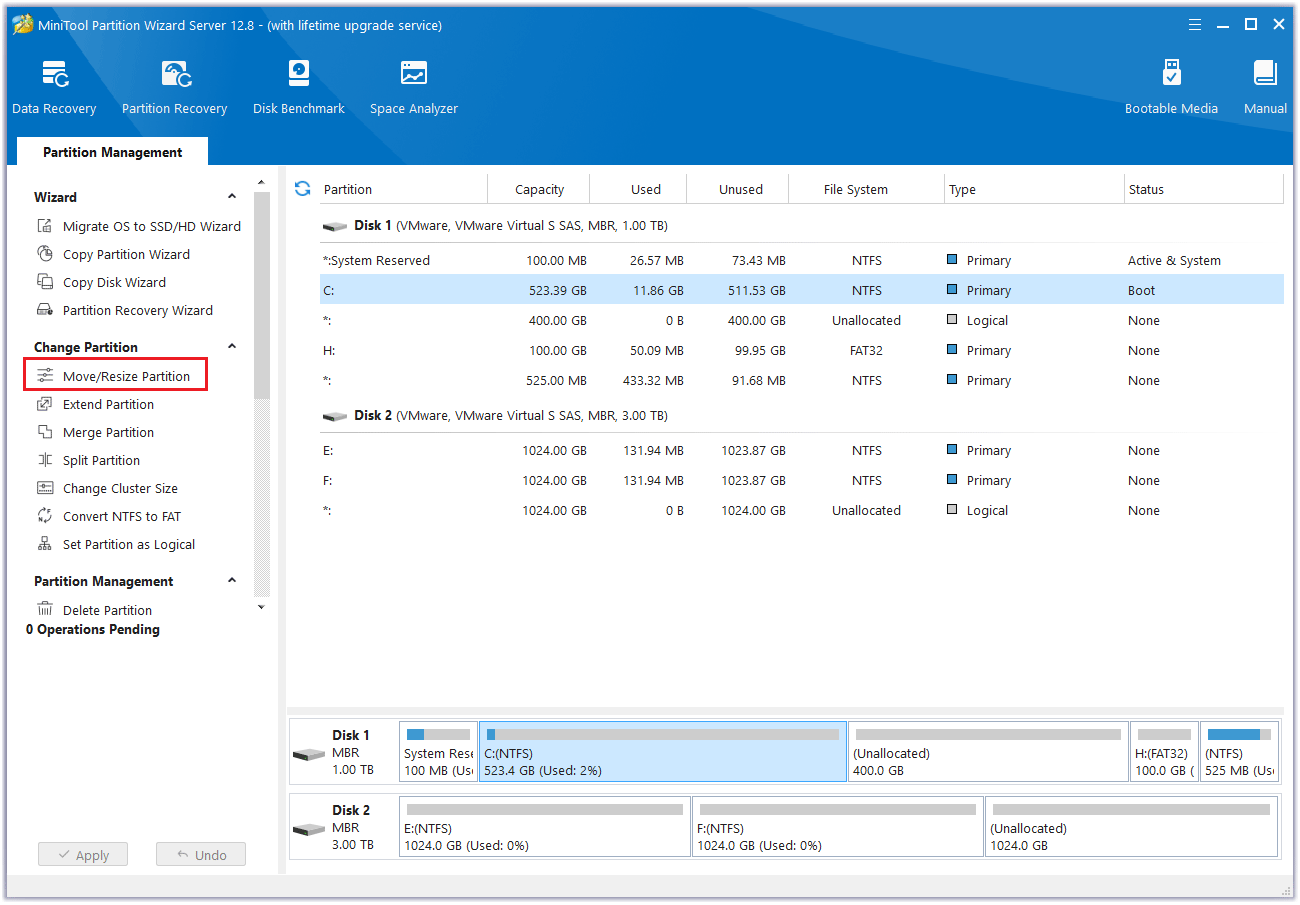
In addition to the Extend Partition feature, you can also use the Move/Resize Partition feature to extend C drive partition in Windows Server. Here’s how to do it:
Step 1: Launch MiniTool Partition Wizard and go to the main interface. Select the C drive and choose Move/Resize Partition on the left side. You can also right-click the C drive to be extended and select Move/Resize to increase the disk partition size.
Step 2: Move the arrow to the right to occupy the unallocated space. “Using Enhanced Data Protecting Mode” is checked by default here, which protects your data in the event of a sudden power outage. Then select OK.
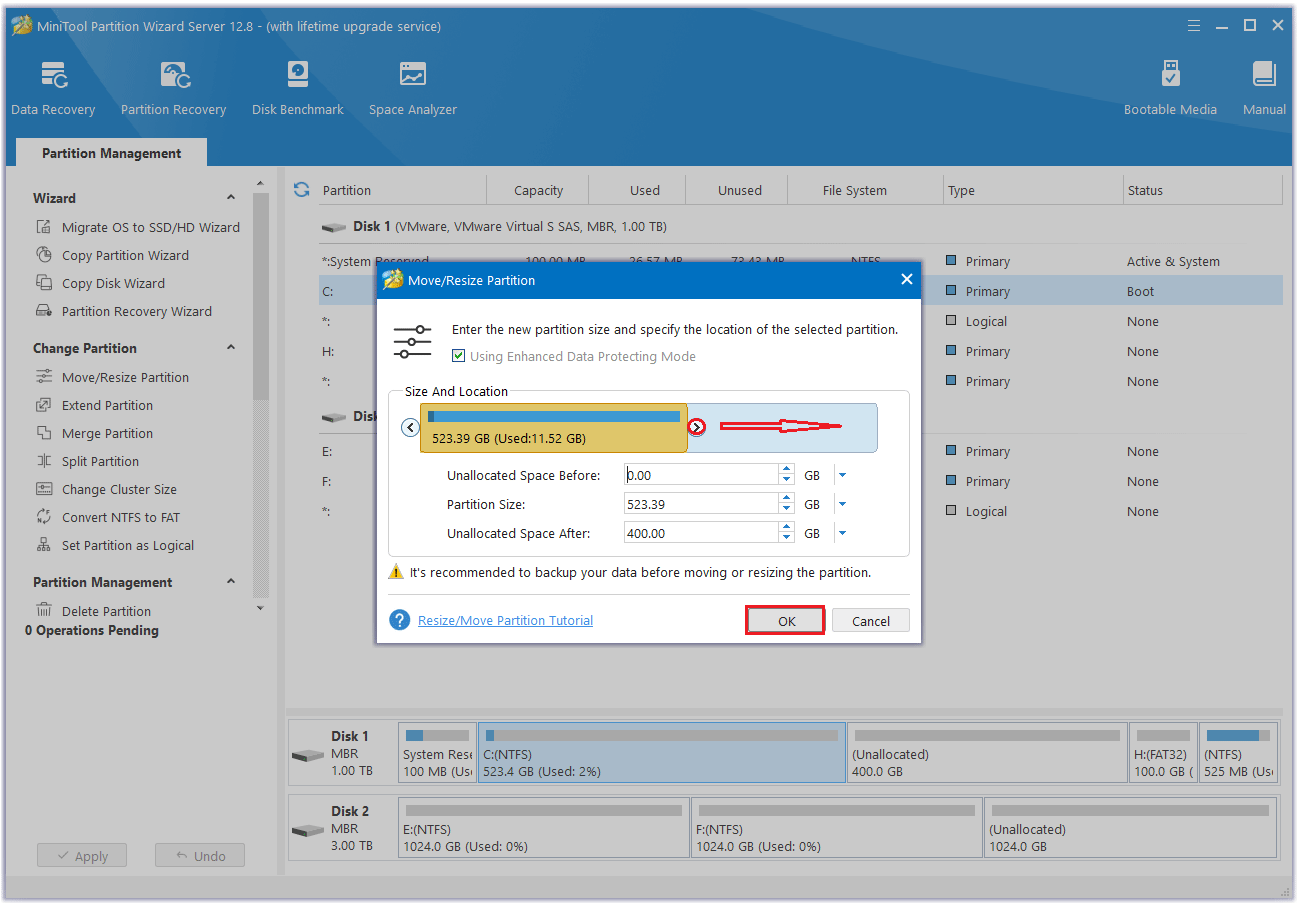
Step 3: Finally, click Apply and the disk partition expansion will be completed.
Extend C Drive in Windows Server with Disk Management
If there is adjacent unallocated space behind the C drive, you can extend it in Disk Management. Here is how to extend C drive in Windows Server using Disk Management.
Step 1: Right-click the Start icon and choose Disk Management to open.
Step 2: Right-click the C drive and select Extend Volume.
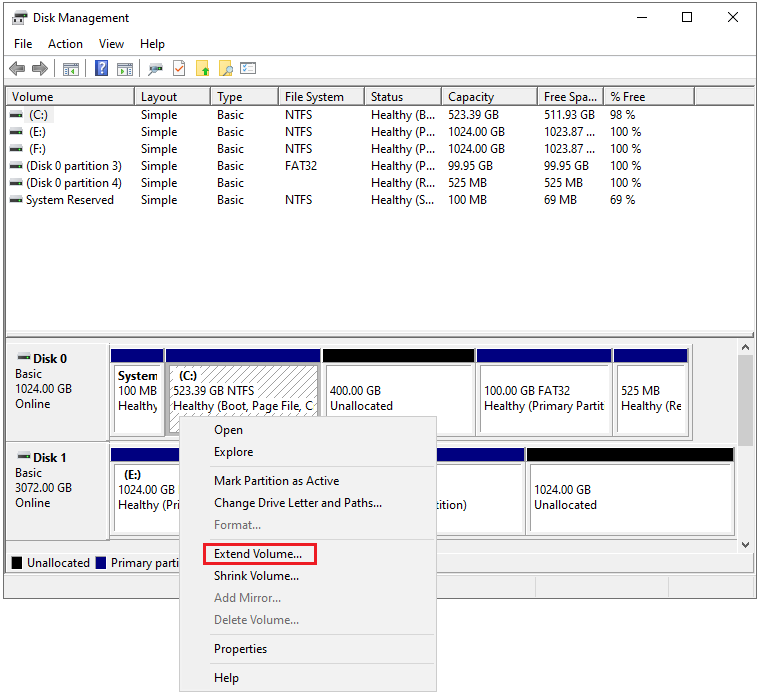
Step 3: Click Next in the Extend Volume Wizard.
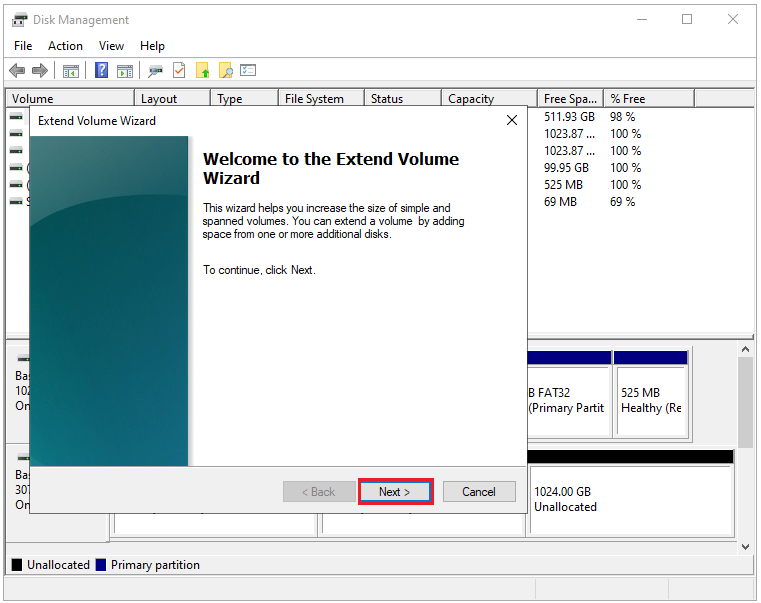
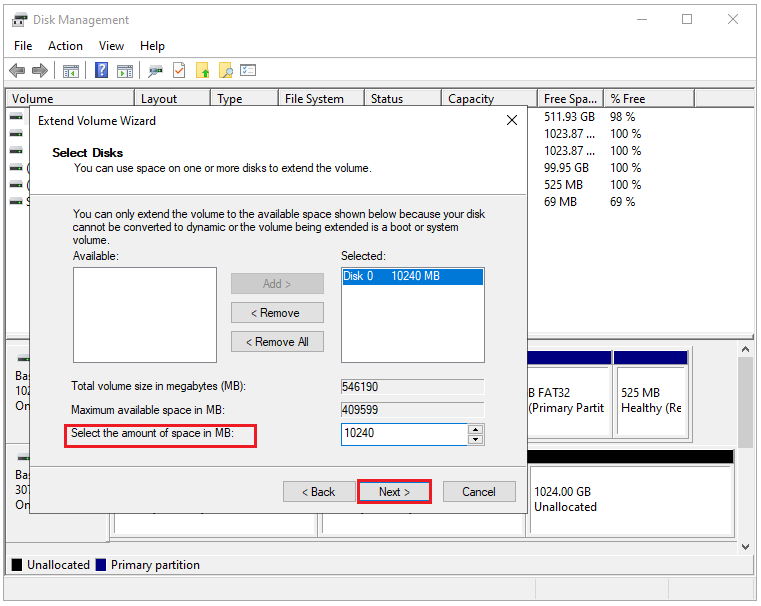
Step 4: You can enter the amount of space you want to extend the C drive partition in the text box next to Select the amount of space in MB and click Next.
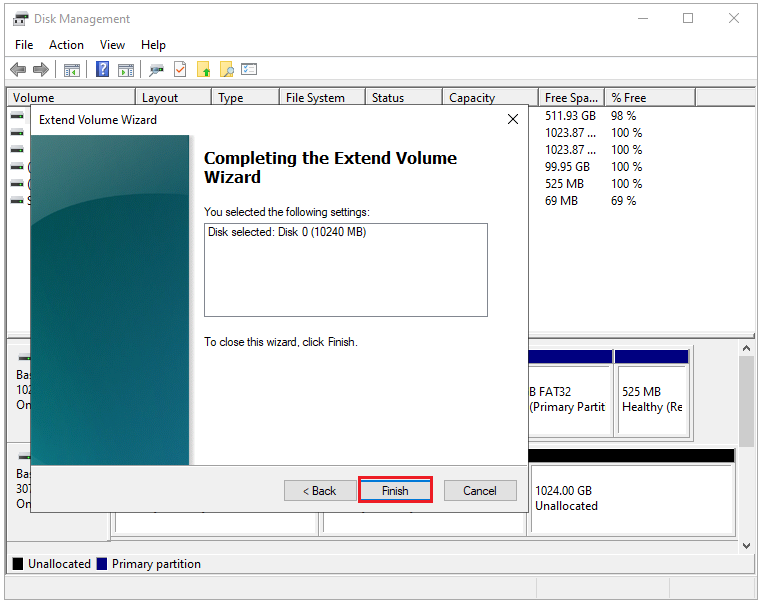
Step 5: Click Finish, and you can see that the unallocated space adjacent to the C drive has been added to the C drive.
Extend C Drive in Windows Server FAQ
Bottom Line
Here are 3 methods to extend C drive partition in Windows Server. Keep in mind that there isn’t always unallocated space adjacent to the C drive. The most effective way to increase system partition in Windows Server is to use MiniTool Partition Wizard. Its user-friendly interface and straightforward steps make it easy to resolve space shortages.
If you have any questions or suggestions while using MiniTool Partition Wizard, you can contact us via [email protected] to get a quick reply.
About The Author

Position: Columnist
Linda has been an editor at MiniTool for seven years. She continuously learns about computers and puts her knowledge into practice. Moreover, she is particularly knowledgeable in disk management, data recovery, system installation, and PDF editing. Her articles typically reference multiple examples or are based on her own experience, providing users with the most suitable solutions.
User Comments :