
To see what’s taking up space on your PC, just open Settings > System > Storage in Windows 11 or Windows 10. It will show how much storage is used by apps, temporary files, documents, and other categories.
To find individual large files, use a third-party storage analyzer or File Explorer.
How to See What’s Taking Up Space on PC Using Windows Settings
How to check storage on PC? Windows Settings provides a built-in way to check what’s taking up space on your PC without installing third-party software. It breaks down storage usage into categories such as installed apps, temporary files, documents, and system files, helping you identify where your disk space is going.
Follow these steps to check storage usage in Windows 11/10.
- Press Windows + I to open Settings.
- Select System > Storage.
- Wait for Windows to calculate and display the storage usage on your system drive.
- Click Show more categories if you want to see all categories.
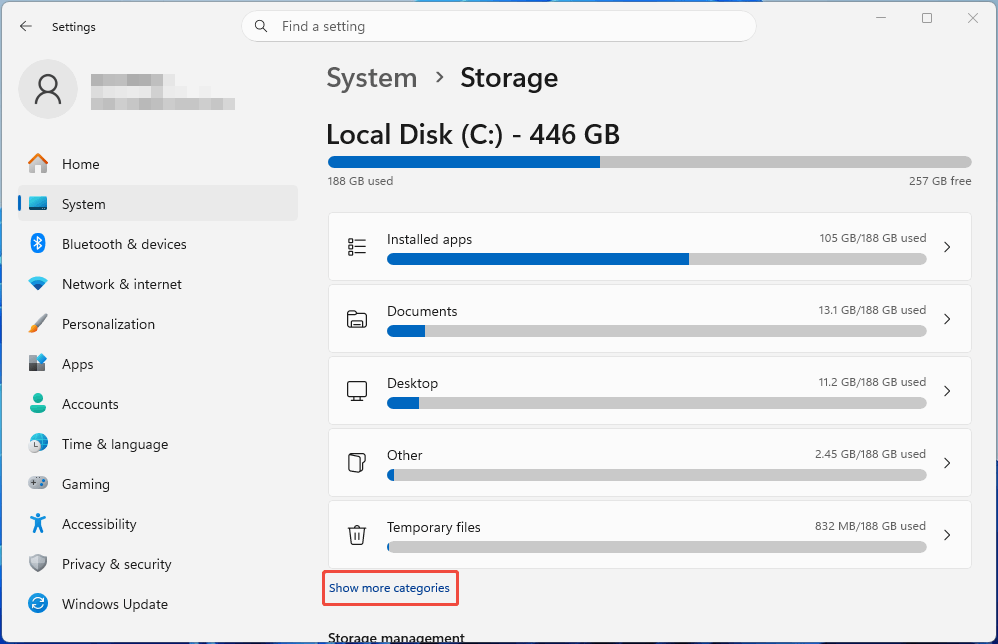
These categories may include: Installed apps, System & reserved, Documents, Desktop, Temporary files, Pictures, Mail, Music, Videos, OneDrive, Other, etc. Among these categories, there may be some that you are not familiar with. For example:
- System & reserved: Windows system files and storage reserved for system functions.
- Temporary files: Temporary data, thumbnails, and some Windows update cleanup files.
- Other: Files and folders that don’t fit into the other listed categories.
How to Free Up Space Using This Tool
Why is my C drive so full? Now you know the answer. Next, let’s look at how to free up space. This panel also provides a variety of tools. For example:
#1. Uninstall Apps
Just click the Installed apps category. You can now uninstall software that hasn’t been used for a long time.
#2. Clean Temporary Files
Click the Temporary files category. Now, you can clean up cache and other files just as you would using Disk Cleanup.
Select items you want to delete and click Remove files. If you want to remove system-related files, click Cleanup system files. Then, select files to delete.
#3. System & reserved
You can see how much space the virtual memory, hibernation files, and system restore files take up.
If System Restore takes up too much space, click the Manage system restore button. It can help you delete these files.
For specific measures, please refer to this article: System & Reserved Storage Too Large in Windows 11/10? Fix It Easily.
#4. Other Categories
Click Documents or other categories. You can see the relevant management measures that will help you delete items or free up space.
#5. Storage Sense
In the Storage panel, turn on Storage Sense. Then, click it and set what files you want to delete. It will periodically clean up these files for you.
To learn more measures to free up disk space on a PC, read this post: Free Up Disk Space: 10 Methods to Clear C Drive in Windows 11/10.
How to See What’s Taking Up Space on PC Using a Disk Space Analyzer
If Windows Storage Settings doesn’t provide enough detail, you can use a third-party disk space analyzer to find what’s taking up space on your PC.
Then, you can use MiniTool Partition Wizard. This free partition manager can help you analyze the disk space and delete unnecessary files.
MiniTool Partition Wizard FreeClick to Download100%Clean & Safe
Here is how to find what is taking up space on the C drive via MiniTool Partition Wizard.
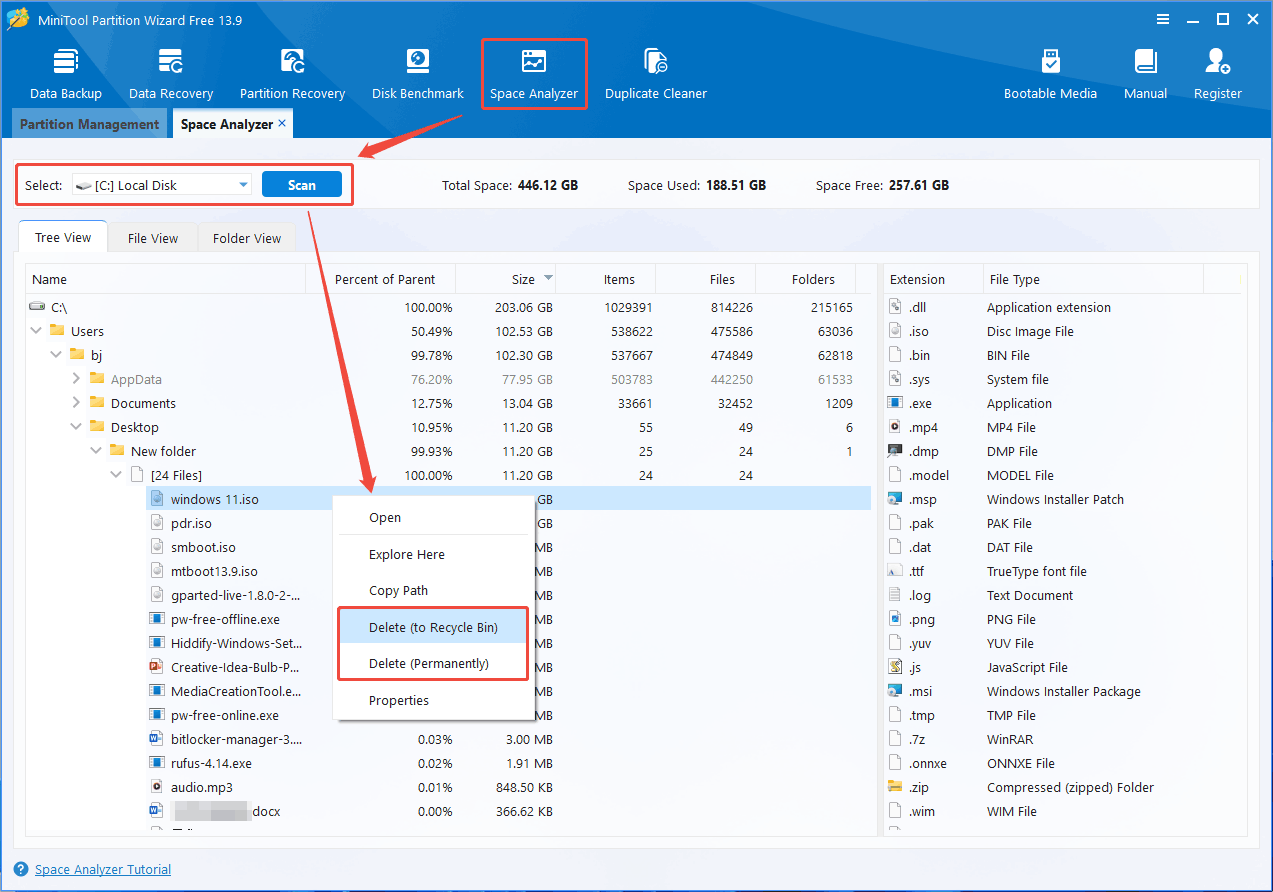
- Launch this software and click Space Analyzer in the toolbar.
- Expand the drop-down menu to select the C drive. Then, click Scan and wait for the disk analysis to complete.
- All files will be sorted by size in descending order. You can now see exactly which files are taking up your space.
- If you want to delete these files, right-click on them and select Delete.
2. Before deleting a file, you need to know whether it is safe to do so. Accidentally deleting certain files can cause issues with your system or applications.
How to See What’s Taking Up Space on PC Using File Explorer
File Explorer is a built-in Windows tool that lets you check drive usage, locate large files, and identify folders consuming too much storage. Here is how to see what is taking up space on the C drive using this tool.
- Press Win + E to open Windows File Explorer.
- Under This PC, click the Local Disk C.
- Click View > Show > Hidden items. Then, you can see those hidden files.
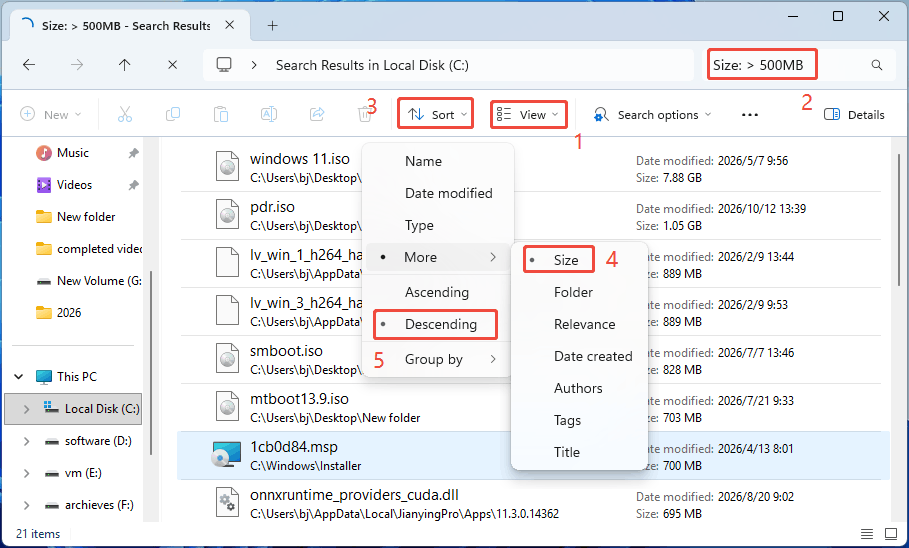
- Click the Search bar in the top right corner, type the Size: > *MB command (* should be a number, and you can change it accordingly).
- Press Enter. All files larger than *MB in the C drive will be listed.
- Click Sort in the ribbon and select More > Size.
- Select Descending in Sort. All the listed files will be rearranged in descending order of file size.
- If you see a file that you want to delete, first select it, right-click, and then choose Delete.
To learn more measures to increase disk space, read this post: How to Free Up and Add Disk Space on PC and Laptop.
Want to see what’s taking up space on PC or C drive? Try these 3 methods.Click to Tweet
How to See What’s Taking Up Space on PC FAQ
Open Settings > System > Storage to review storage usage by category. You can also use MiniTool Partition Wizard’s Space Analyzer feature to locate large files and folders that are difficult to find manually.
Bottom Line
If you want to see what’s taking up space on your PC, start with Windows Storage Settings to check disk usage by category. Then use File Explorer or MiniTool Partition Wizard to find large files or folders.
Once you know what’s consuming your disk space, you can delete unnecessary files, uninstall unused apps, or move data to another drive to free up storage.
If you encounter issues when using MiniTool Partition Wizard, contact our support team via [email protected].
About The Author

Position: Columnist
Linda has been an editor at MiniTool for seven years. She continuously learns about computers and puts her knowledge into practice. Moreover, she is particularly knowledgeable in disk management, data recovery, system installation, and PDF editing. Her articles typically reference multiple examples or are based on her own experience, providing users with the most suitable solutions.
User Comments :