
Quick Answer: To reformat a hard drive for free in Windows 11/10/8/7, right-click the partition in MiniTool Partition Wizard, Disk Management, or via the Diskpart command line and choose Format. If the drive doesn’t show up at all (common with drives previously used on an Xbox or PS5), you’ll need to initialize the disk and create a new volume first — see the section below.
What to Know Before Reformatting a Hard Drive
Backup data before reformatting hard drive:
No matter it’s the internal hard drive or external hard drive you’re gonna reformat, it’s suggested you backup your needed or important data in advance. You can use another hard drive or USB flash drive to backup data, upload needed files to cloud service, or use ShadowMaker to backup files in Windows 11/10/8/7.
Reformat vs. Wipe Disk:
If you want to sell or dispose the hard drive, you may turn to Wipe Disk to erase the data permanently. Reformatting hard drive doesn’t wipe the disk data thoroughly, and other people can recover data on it with some data recovery software like MiniTool Partition Wizard.
Recover lost data before reformatting hard drive:
If you want to reformat the hard drive for reuse because of a virus attack or a hard drive failure, you can first try to use the professional data recovery tool MiniTool Partition Wizard to recover the lost data.
If you want to reformat a Windows (10) hard drive:
To reformat the internal hard drive in Windows 11/10/8/7, please do not mistakenly reformat the partition with OS. If the OS partition is formatted, then your computer can’t be booted. Conversely, if you also want to reformat the system partition, you can firstly migrate OS to another SSD/HD.
How to Reformat Hard Drive for Free in Windows 11/10/8/7
Here’s a quick comparison of the three free methods covered below, so you can pick the one that fits you best:
| Method | Best for | System drive support | Difficulty |
| MiniTool Partition Wizard | Most users; more file system options | Yes, with Pro/Ultimate bootable edition | Easy |
| Disk Management | Quick, built into Windows | No | Easy |
| Diskpart | Advanced users, scripting, batch jobs | Yes (bootable media) | Moderate |
#1 Reformat Hard Drive for Free with MiniTool Partition Wizard
MiniTool Partition Wizard provides a graphical way to format partitions and manage disk layouts. Download and install it, and then follow the steps below to reformat the hard drive.
MiniTool Partition Wizard FreeClick to Download100%Clean & Safe
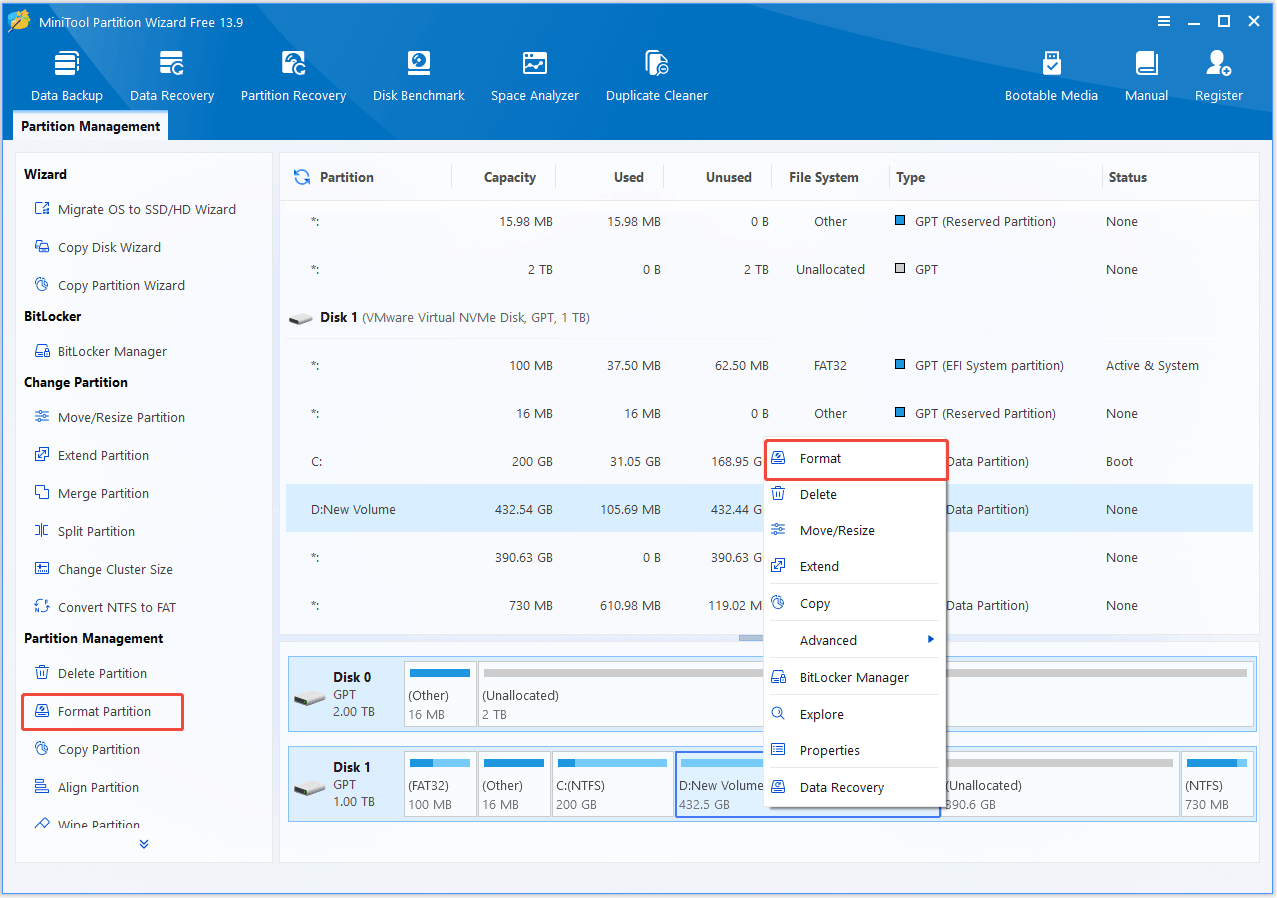
Step 1. Select the target partition.
Open MiniTool Partition Wizard and locate the partition you want to reuse.
Step 2. Format the partition.
Right-click it, select Format, choose a file system (need help choosing? See NTFS vs. FAT32 vs. exFAT), and click OK.
Step 3. Apply the operation.
Click Apply and Yes to complete the operation.
If you want to completely rebuild the disk, delete the existing partitions first, create a new partition, and then format it.
#2 Reformat Hard Drive for Free with Disk Management
Disk Management is a built-in Windows tool for managing partitions and volumes.
Step 1. Open Disk Management.
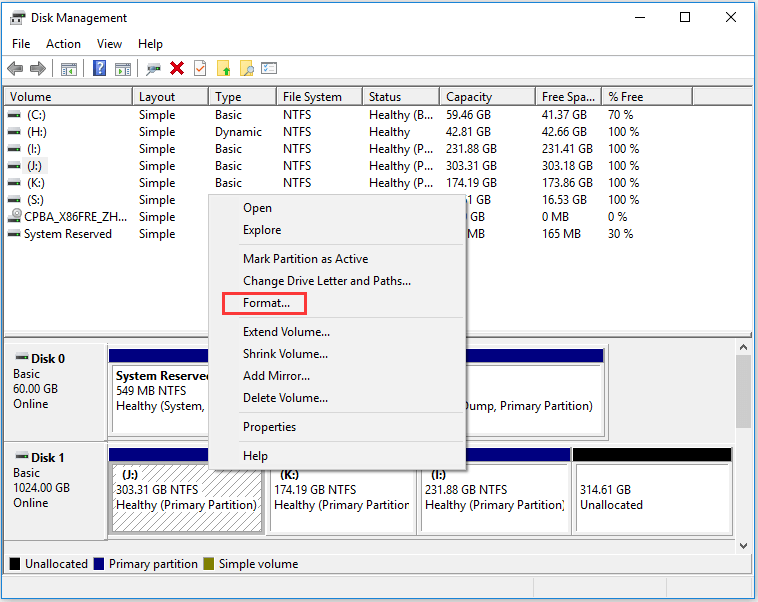
Press Win + X and select Disk Management.
Step 2. Format an existing volume.
Right-click the target volume, select Format, choose the file system, and confirm.
Step 3. Create a volume if necessary.
If the space is Unallocated, right-click it, select New Simple Volume, and follow the wizard to create and format the volume.
If the entire disk is shown as uninitialized, initialize it before creating a new volume. GPT is generally recommended for modern Windows PCs.
#3 Reformat a Hard Drive for Free with DiskPart
DiskPart is useful when you prefer command-line tools. If you only want to reformat an existing volume, use the first set of commands. If you want to reuse the entire hard drive with a new partition layout, use the second set.
DiskPart is useful when you prefer command-line tools. If you only want to reformat an existing volume, use the first set of commands. If you want to reuse the entire hard drive with a new partition layout, use the second set.
Reformat an Existing Volume
Press Win + R to open Run, type cmd, and click OK.
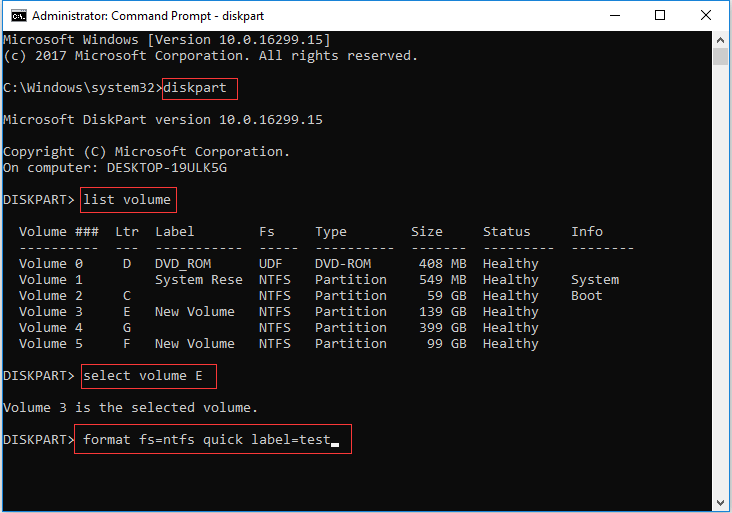
Open Command Prompt, type diskpart, and press Enter. Then run:
- list volume
- select volume X
- format fs=ntfs quick label=z (input a partition label)
Replace X with the number of the volume you want to reformat. This formats the selected volume with NTFS without removing other partitions on the same physical disk.
Reuse the Entire Hard Drive
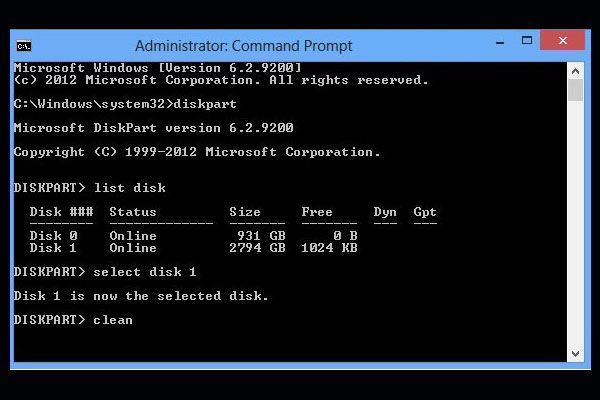
If you want to remove the existing partitions and start over with the entire disk, run:
- list disk
- select disk X
- clean
- create partition primary size=n (customize the partition size in MB)
- select partition 1
- format fs=ntfs quick label=z
- assign
- exit
Replace X with the correct disk number.
Reformat vs. Format: What’s the Difference?
“Format” and “reformat” are often used interchangeably, but they actually describe two different stages of disk management.
Formatting prepares a brand-new, unallocated drive by creating a file system so it can store data for the first time.
Reformatting means erasing and rebuilding the file system on a partition that has already been formatted before (for example, changing NTFS to exFAT, or wiping a used drive for reuse).
While the operating system tools and buttons look identical for both tasks, understanding this distinction helps you choose the correct approach for your specific drive.
How to Reformat External Hard Drive for Free in Windows 11/10/8/7
To reformat external hard drive for Windows, first check its status in Disk Management.
- Normal volume: Right-click the volume and select Format.
- Unallocated: Create a New Simple Volume, then format it.
- Incompatible or unwanted partitions: Delete the old partitions, create a new volume, and format it.
- RAW: Recover important data first if necessary, then format or recreate the partition.
- Not detected: Check the USB cable, port, power, and hardware before trying to reformat it.
If the external drive was previously used with another device, such as an Xbox, Windows may detect the drive but not show a usable volume in File Explorer.
If you no longer need the old data, you may need to remove the old partition layout, initialize the disk if required, create a new volume, and format it for Windows.
How to Fully Erase/Wipe a Hard Drive in Windows 11/10/8/7
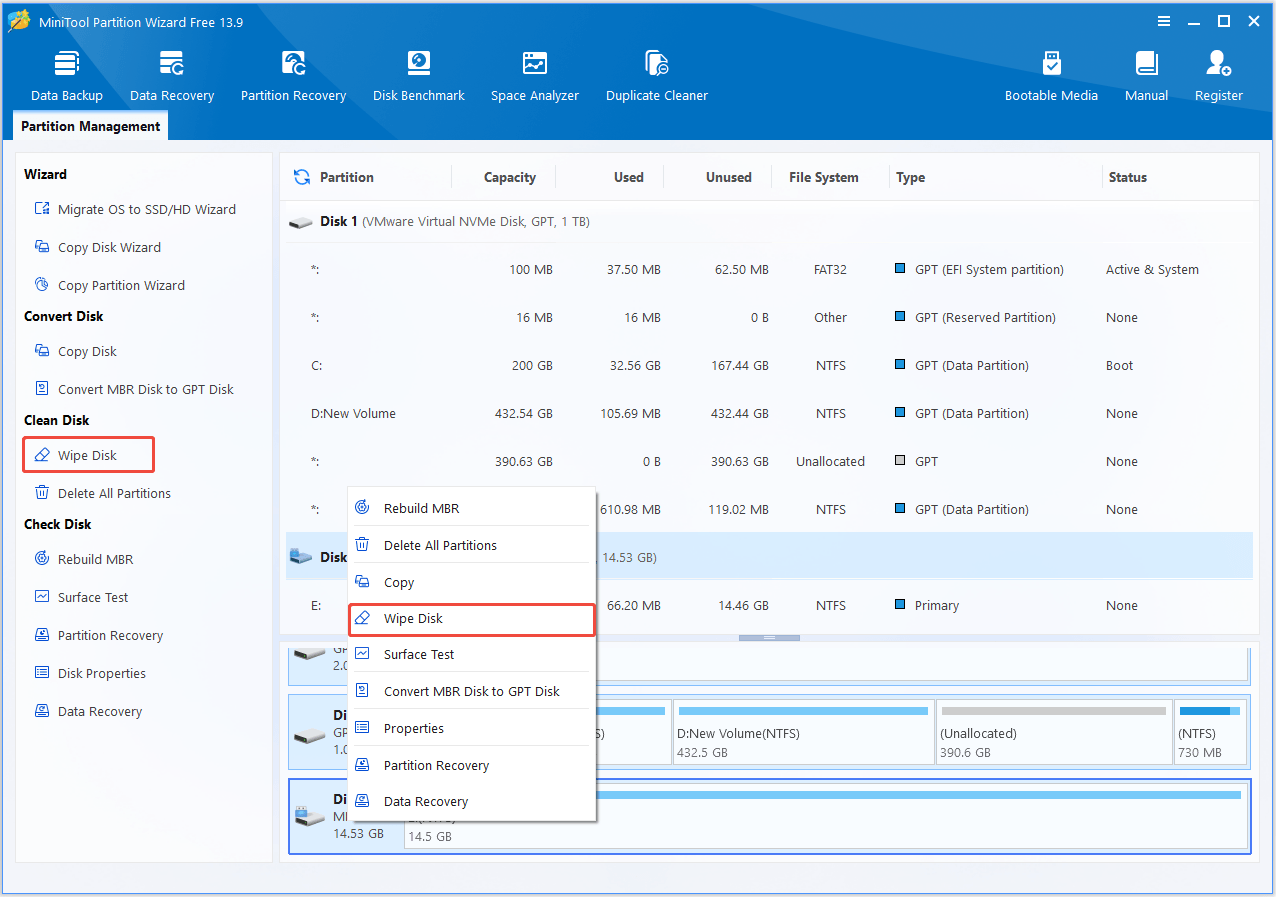
Reformatting doesn’t erase data for good — recovery software can often retrieve files from a reformatted drive. If you’re selling, donating, or disposing of a drive and need the data gone permanently, use Wipe Disk in MiniTool Partition Wizard, or the clean all command in Diskpart.
- Open MiniTool Partition Wizard, right-click the target disk in Disk Map, and choose Wipe Disk.
- Choose a wiping method and click OK.
- Click Apply and Yes to start wiping the drive.
Reformat Hard Drive Free FAQ
For a healthy drive, quick format is enough — use full format only if you suspect the drive has bad sectors.
If errors persist after reformatting, run chkdsk /r or check the drive's health with MiniTool Partition Wizard's Surface Test before continuing to use it.
Bottom Line
You can reformat hard drive in Windows with MiniTool Partition Wizard, Disk Management, or DiskPart. If the drive already has a usable partition, formatting it may be enough. If the disk is unallocated or has an unsuitable layout, create a new partition before formatting it.
Always back up important data and verify the target disk before performing any destructive operation.
If you have any questions about MiniTool software, contact us via [email protected].
About The Author

Position: Columnist
Charlotte is a technology columnist with a strong focus on the Windows operating system, specializing in disk management, backup, and data recovery. She is passionate about analyzing computer errors, identifying root causes, and delivering practical solutions. In her free time, she stays updated on the latest developments in computer systems and hardware while continuously learning new technologies to broaden her expertise. Her writing style is clear and easy to understand, making complex technical topics accessible even to users with limited computer knowledge.
User Comments :