
Is duplicate cleaner safe to use? This post introduces which duplicate files are safe to delete and the security mechanisms that a safe duplicate file deletion tool should have. It also recommends a trusted duplicate file finder – MiniTool Partition Wizard.
Is It Safe to Delete Duplicate Files?
To figure out this problem, you should learn why duplicate files are generated and which duplicate files are safe to delete.
Why Are Duplicate Files Generated on Your Computer?
Duplicate files refer to two or more files with identical content existing on computers or other storage devices. Even if their filenames, file formats, or storage paths (folders) are different, as long as the file content and size are completely identical, they are considered duplicate files.
Duplicate files on a computer are usually caused by accidental operations, mainly including:
- Accidental Copying: Repeatedly copy and paste the same file while organizing files between different folders.
- File Backup: Frequent or phased backups of the same data result in multiple old versions existing in the backup location.
- Data Import: Repeatedly import photos/documents from a phone’s album or external hard drive to the computer without selecting “skip existing files”.
- Cache and Updates: Browser downloads resume interrupted downloads, receive the same file in chat software, and application software automatically updates and generates backup or temporary files.
- Multiple Downloads: Download the same file with different names from multiple sources.
What Duplicate Files Are Safe to Delete?
Is it safe to delete duplicate files? In most cases, the answer is Yes. In addition, deleting duplicate files has many benefits.
It can free up significant storage space, significantly improve computer performance, making file searches and operations smoother, and make file management clearer, preventing copies from interfering with the management or modification of original files.
Which duplicate files can be safely deleted? In general, duplicate files created by you can be deleted without risk, such as documents, photos, and music files located in user-created folders like Documents or Downloads, etc.
On the other hand, duplicate files generated by the system or applications should be avoided from being deleted, as deleting them may cause system or app crashes. These duplicate files are usually located in C:\Windows or C:\Program Files, and have the following file extensions: .dll, .sys, .ini, .exe, etc.
Is Duplicate Cleaner Safe to Use?
You can delete duplicate files manually or use a duplicate cleaner to do that automatically. A duplicate cleaner is generally safe. It can find duplicate files accurately, mainly by comparing file attributes, hash values, or binary content.
#1. Compare File Attributes
Duplicate cleaner will first compare the file sizes, names, and creation or modification times. If two files are the same size and modification time, they are likely duplicate files. This method is extremely fast, but it cannot rule out cases where the filenames are different, but the content is the same.
#2. Compare Hash Values
Duplicate cleaner calculates a unique hash value for the file content. If two files have the same hash value, then their file content must be the same (even if the filenames are different). This method is extremely accurate and is the core principle of most tools.
#3. Compare Binary Content
For files with the same hash value, the duplicate cleaner will usually perform a complete “byte-to-byte” comparison to confirm that the content is identical and prevent accidental deletion caused by hash collisions.
The safety of a duplicate file deletion tool depends on the choice of tool and how it is used. For example:
- Professional duplicate file finders have security mechanisms, such as providing file previews, path filtering, allowing users to confirm before deletion, and even providing secure deletion mechanisms to prevent accidental deletion.
- On the other hand, blindly selecting and deleting all files automatically may delete duplicate files that the system depends on, causing application crashes or system errors.
Trusted Duplicate File Finder – MiniTool Partition Wizard
If you want to find a trusted duplicate file finder and cleaner, MiniTool Partition Wizard is a good choice. This free partition manager offers a Duplicate Cleaner tool to find and delete duplicate files on Windows PCs.
In addition, this tool offers the following security mechanisms.
- Use hash value comparison methods to accurately identify duplicate files.
- The Excluded section can exclude certain drives or folders from the scan. In addition, it skips system files and hidden folders by default.
- The Protected section can lock duplicate files in a specific drive or folder. They can be detected, but cannot be deleted.
- The duplicate files are deleted to the Recycle Bin by default. You can restore them easily if you discover that they were accidentally deleted.
How to use this software to delete duplicate files? Here is a guide:
MiniTool Partition Wizard FreeClick to Download100%Clean & Safe
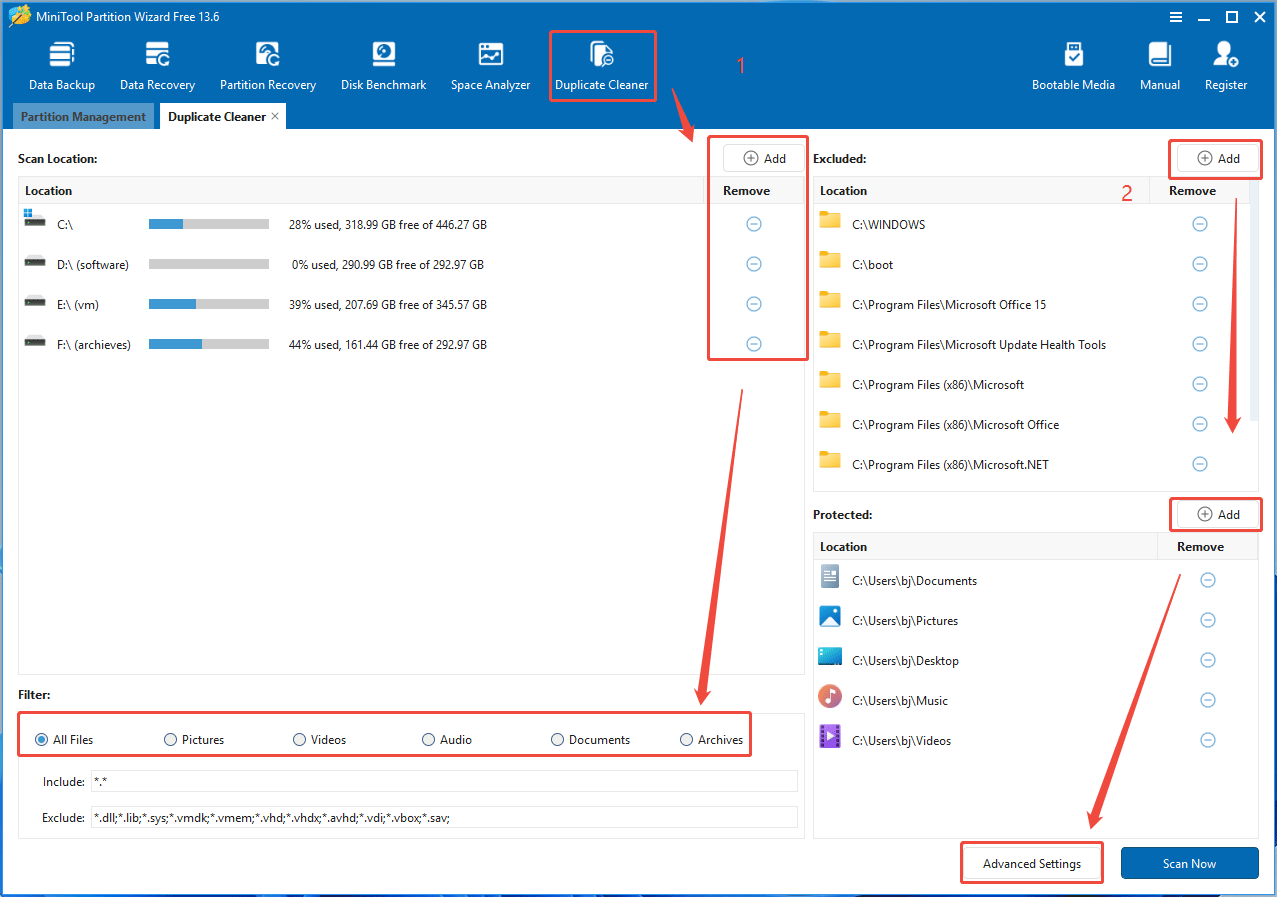
Step 1: Scan to find duplicate files.
- Install and launch MiniTool Partition Wizard.
- Click Duplicate Cleaner on the toolbar.
- Under Scan Locations, all drives are selected by default. You can remove them by clicking the minus icon. You can also add a drive or a folder using the Add button.
- Under Filter, select duplicate file types to scan.
- In the right section, under Excluded, use the Add button to select drives or folders for skipping the scanning.
- Under Protected, use the Add button to select drives or folders whose files will be locked.
- Click Advanced Settings to check the hash value comparison method and file protection options. MD5 hash value and options like “skip system files” and “skip hidden folder” are selected by default.
Step 2: Select duplicate files to delete.
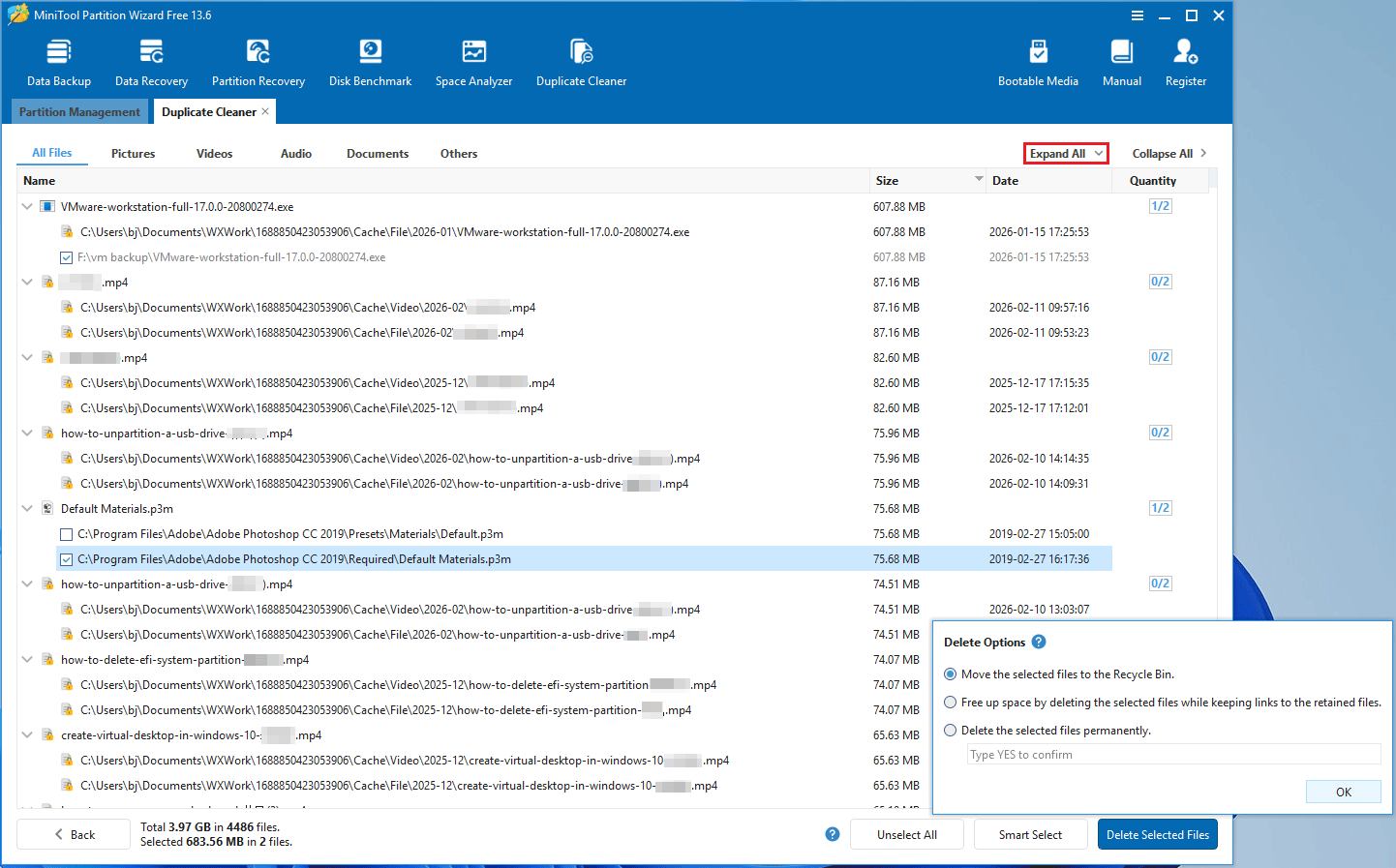
- After the scanning is completed, click Expand All in the top right corner. You can see each duplicate file.
- Select the duplicate files you want to delete and then click Delete Selected Files.
- Keep the default option (Move the selected files to the Recycle Bin) and click OK.
Bottom Line
Deleting duplicate files can free up disk space and improve computer performance. However, it’s important to know which duplicate files are safe to delete and use a reliable duplicate file finder. This post explains this issue and recommends MiniTool Partition Wizard to you.
If you have problems with MiniTool Partition Wizard, contact us via [email protected] for help.
About The Author

Position: Columnist
Linda has been an editor at MiniTool for seven years. She continuously learns about computers and puts her knowledge into practice. Moreover, she is particularly knowledgeable in disk management, data recovery, system installation, and PDF editing. Her articles typically reference multiple examples or are based on her own experience, providing users with the most suitable solutions.
User Comments :