
This article will show you how to delete unwanted files in laptop. It explains what unwanted files are and provides step-by-step instructions on using software such as MiniTool Partition Wizard, Disk Cleanup, and Storage Sense to delete them.
After prolonged computer use, unnecessary files inevitably accumulate in the system. You need to delete these unwanted files regularly.
Which Files Are Unwanted?
In general, unwanted files can be classified into the following types:
- Duplicate files: Duplicate files are multiple copies of the same file. They usually appear when the same file is downloaded multiple times, backup files are not properly organized, or files are transferred across devices.
- Temporary files and cache files: Temporary files typically refer to temporary data (generated during software installation) and cache files (generated while browsing the web).
- Old photos and videos: Photos and videos that are no longer needed are considered unnecessary files.
- Thumbnails: Thumbnails help to quickly preview images or videos, but they may still exist even if the file has been deleted.
- Files in the Recycle Bin: Deleted files are usually first stored in the Recycle Bin, and most files in the Recycle Bin are no longer needed.
After understanding these common types of unnecessary files, the next step is to use the appropriate methods to clean them up.
How to Delete Unwanted Files in Laptop
Cleaning up unnecessary files on your laptop not only frees up storage space but also makes your system run more smoothly.
Whether they are temporary files or duplicate files, properly deleting them can make your computer look brand new. Well, how to remove unwanted files from laptop?
Here are the specific steps:
Method 1: Use MiniTool Partition Wizard
Duplicate files are often a major problem when cleaning up unnecessary files on your laptop.
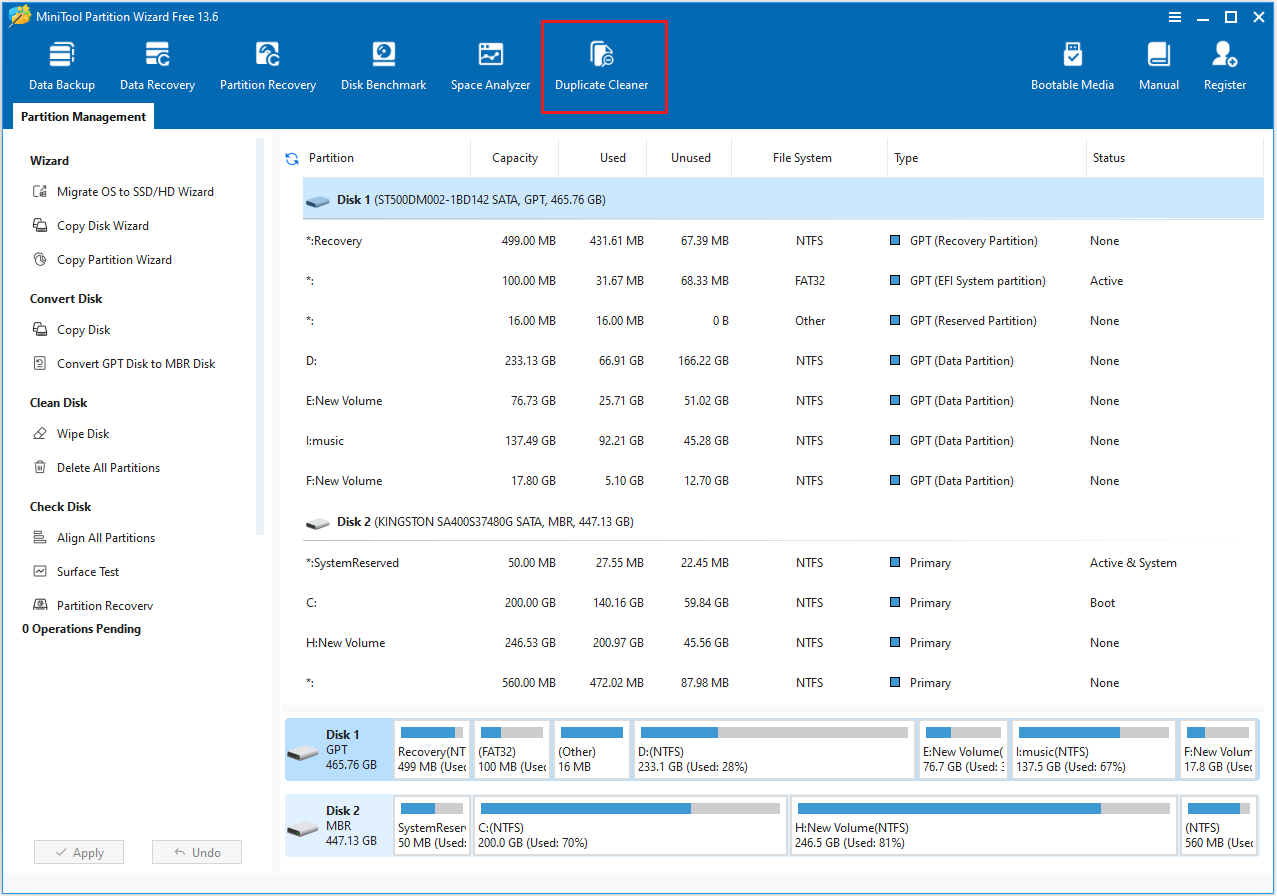
The Duplicate Cleaner function in MiniTool Partition Wizard can help you. It can quickly scan for and delete duplicate files.
In addition, MiniTool Partition Wizard not only supports deleting duplicate files from a laptop, but also provides many powerful disk management features, such as creating/deleting/extending partitions, cloning a hard drive, changing cluster size, etc.
MiniTool Partition Wizard FreeClick to Download100%Clean & Safe
Step 1: Open MiniTool Partition Wizard, go to the main interface, and select the Duplicate Cleaner tool from the toolbar.
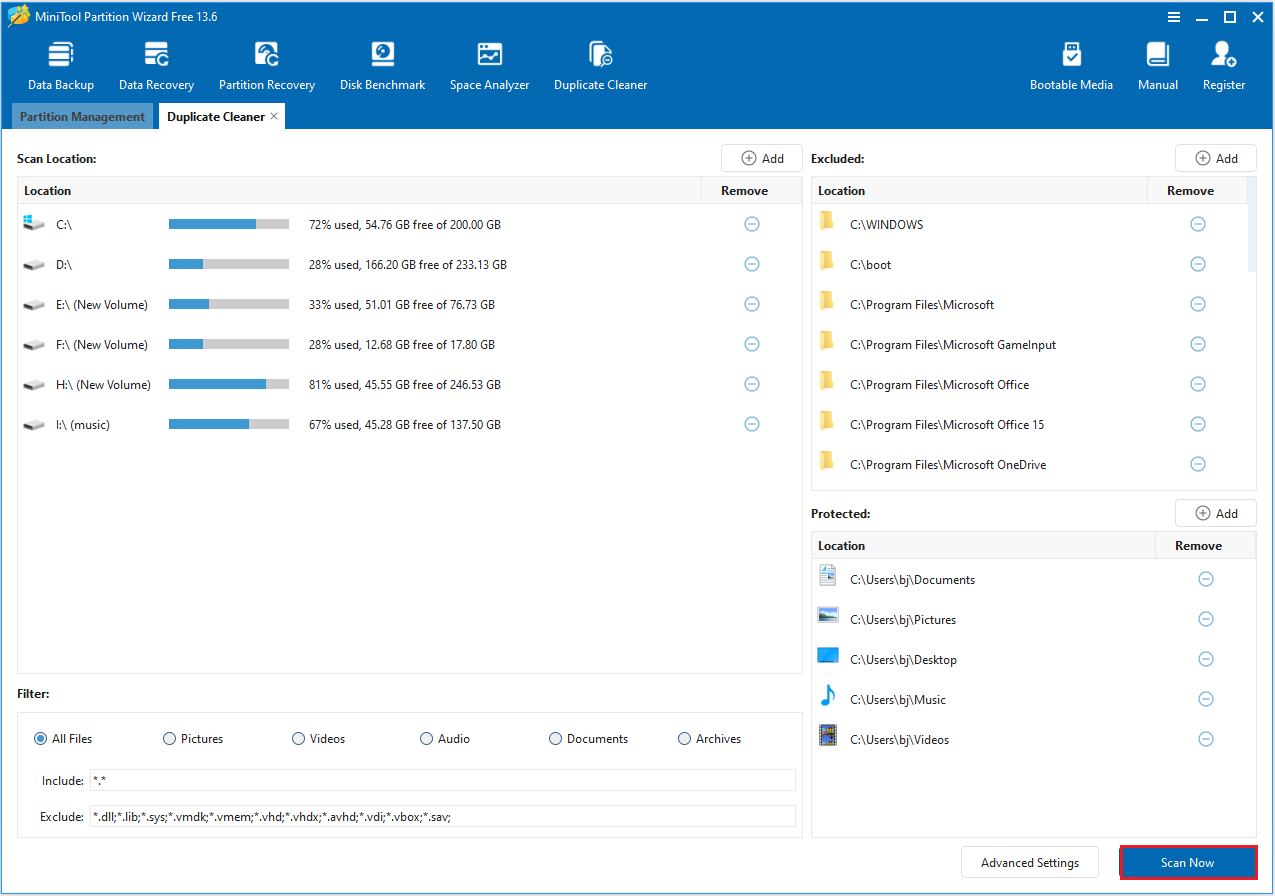
Step 2: When the new window pops up, it is recommended to keep the default options and select to scan all disks and all file types. After completing the settings, click Scan Now.
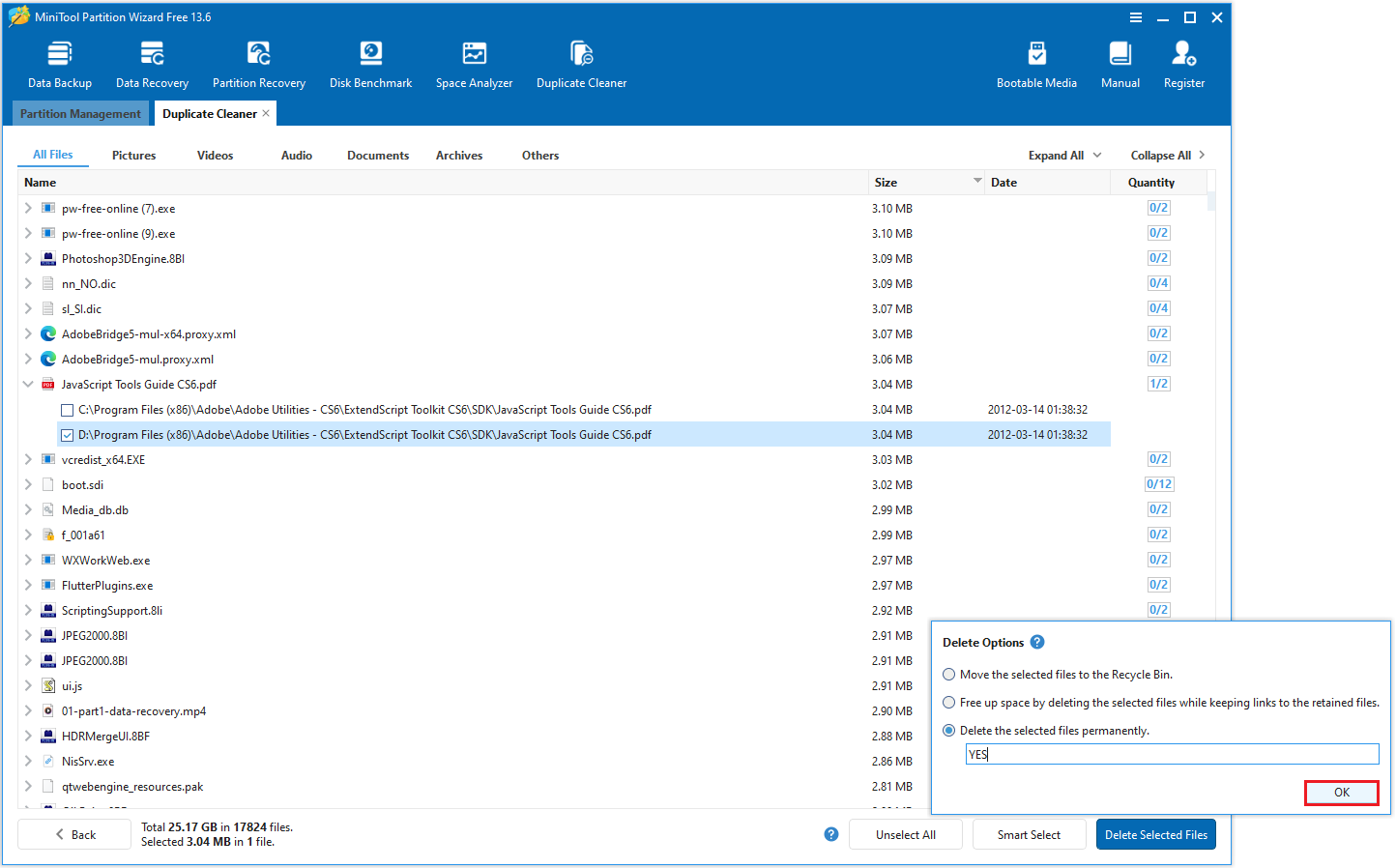
Step 3: After the scan is complete, all duplicate files will be listed. Expand each item to view these duplicate files. Select the files you don’t want, and then click Delete Selected Files. A new window will pop up, choose Delete the selected files permanently, then type YES and click OK.
Method 2: Empty Recycle Bin
When you delete files on your computer, they are usually moved to the Recycle Bin, still consuming disk space.
If you want to free up the disk space by deleting unwanted files, emptying the Recycle Bin is required.
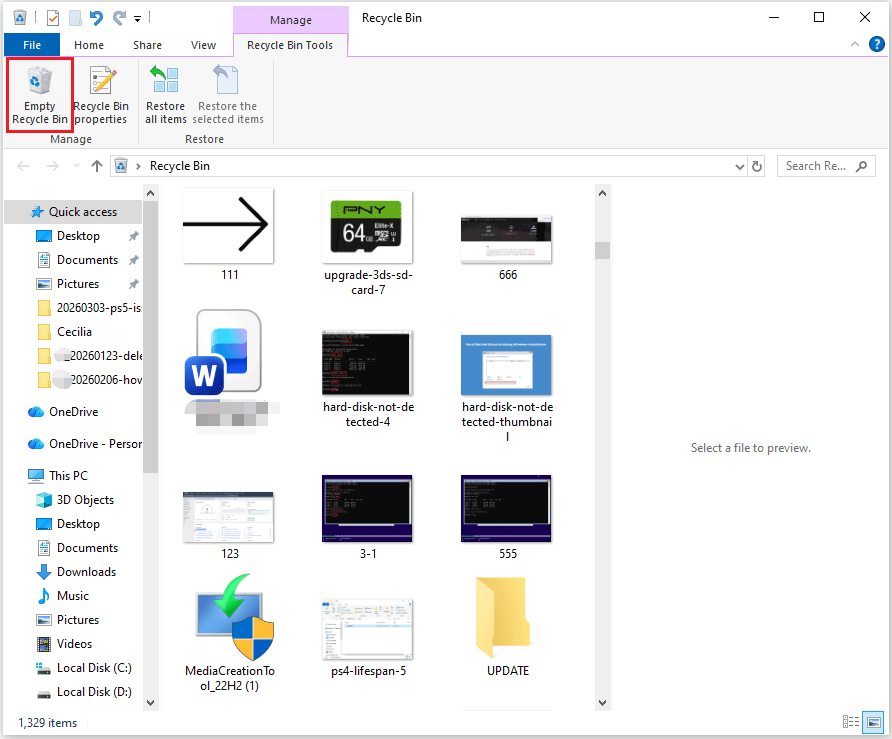
Step 1: Double-click the Recycle Bin icon on your computer desktop.
Step 2: In the new pop-up window, click Empty Recycle Bin from the top side. Then click Yes when you see the following prompt.
Method 3: Clearing Browser Cache
Over time, your browser stores various temporary files and cookies on your computer. These temporary files include web page content, images, etc., and cookies record your login information and browsing habits.
These files may improve the browsing experience in the short term, they can consume a significant amount of hard drive space in the long run.
Cleaning up these unnecessary files not only frees up storage space but also helps your browser maintain efficient operation.
Here’s how to delete unnecessary files from laptop:
Step 1: Open your browser. (This example uses Google Chrome.)
Step 2: Click the three dots in the upper-right corner of your browser and select Settings.
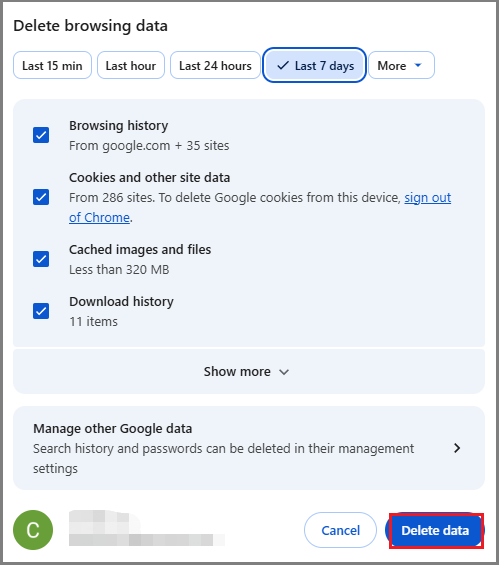
Step 3: Click Privacy and security, then select Delete browsing data.
Step 4: In the new pop-up window, select the time period and click Delete Data.
Method 4: Use Disk Cleanup
How to clear unwanted files in C drive? You can use Windows’ built-in tools – Disk Cleanup.
Disk Cleanup is a utility included in Windows systems designed to help you free up disk space by removing unnecessary files from your computer.
This tool scans the selected drive and identifies files that can be safely deleted, such as temporary files and cached data. By regularly cleaning up these files, you can not only prevent your C drive from filling up but also boost overall system performance.
Here are the steps to delete unnecessary files Windows 10.
Step 1: In the Windows search bar, search for Disk Cleanup and click Open from the right side.
Step 2: Select your C drive and click OK.
Step 3: After the scan finishes, a window will appear with all files that can be cleaned. Check the categories like Temporary Files, Downloaded Program Files, Thumbnails, etc., and click OK to proceed.
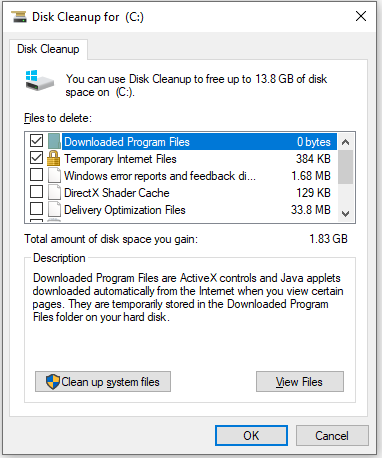
Step 4: You will see a confirmation message asking if you are sure you want to remove the selected files permanently. Click Delete Files to confirm. All selected files will be erased.
Method 5: Use Storage Sense
Storage Sense is a built-in storage management tool in Windows that helps you manage your disk space more effectively. It can clean up unnecessary files, including temporary files and system caches.
Here is how to use it to delete unwanted files in laptop:
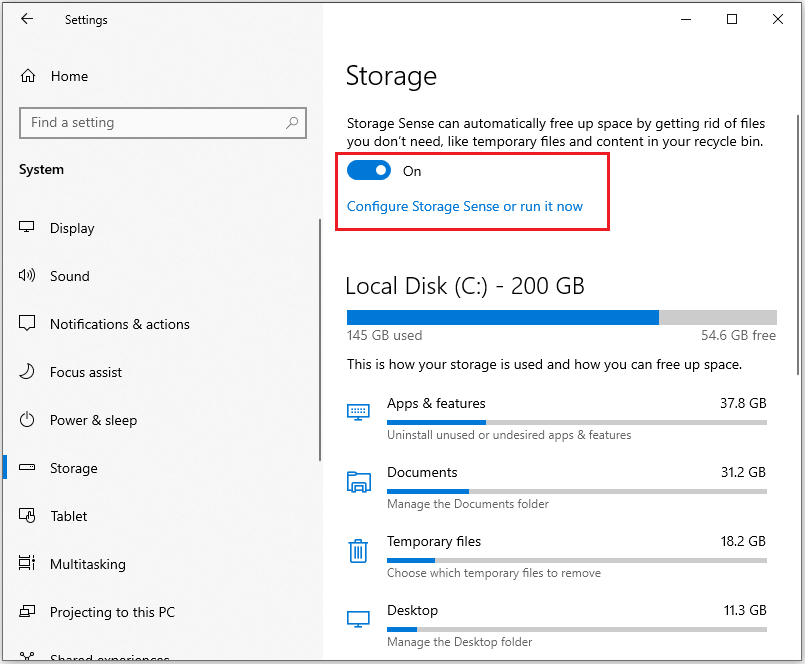
Step 1: Press Win + I to open Settings, then go to System > Storage.
Step 2: Locate the Storage section and toggle the switch to the On position. And click Configure Storage Sense or run it now.
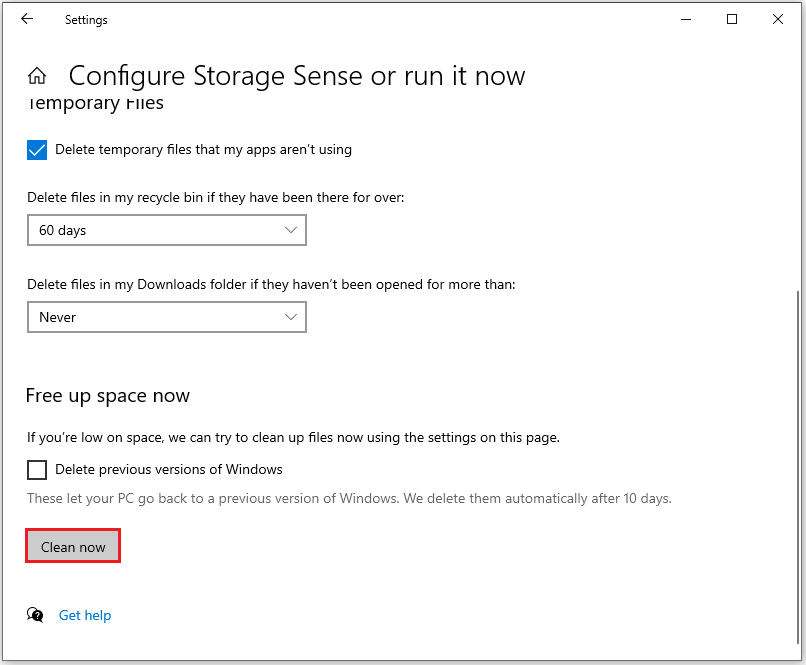
Step 3: In the Free up space now section, select Clean now. Windows will then begin removing temporary files, clearing the Recycle Bin, and performing other cleanup tasks.
How to Delete Unwanted Files in Laptop FAQ
At the same time, categorize and manage software and documents to ensure the system is well-organized. Develop a habit of regularly organizing and backing up your files.
1. Uninstall infrequently used software to free up a large amount of space.
2. Move files that haven't been used for a long time to cloud storage or an external hard drive.
3. Regularly clean up the recycle bin and browser cache.
Bottom line
This article explains 5 methods for removing unwanted files: MiniTool Partition Wizard’s Duplicate Cleaner, Windows’ Disk Cleanup and Storage Sense, emptying the Recycle Bin, and clearing browser cache.
If you have any questions or feedback about MiniTool Partition Wizard, feel free to contact our support team at [email protected] for additional help.
User Comments :