
Duplicate files with different names can accumulate on your computer, taking up disk space and slowing down your computer. This post shows detailed steps to find and delete duplicate files with different names using MiniTool Partition Wizard and Windows File Explorer.
What Are Duplicate Files with Different Names?
In the digital age, our computers can accumulate a large number of files, including work documents, photos, and installation packages. These files are likely to be duplicated.
Generally, duplicate files refer to files that have the same content, file size, and filename.
However, there is another situation where files are duplicates even if their filenames are different, but their content is identical.
These duplicate files can be caused by a variety of factors:
- Download the same file from multiple sources
- Rename a file to avoid overwriting
- Restore backups multiple times.
- Forget the original file after copying it between folders.
Unlike obvious duplicate files with the same filename, these duplicate files with different names are difficult to detect. They consume valuable storage space, degrade system performance, and cause clutter.
How to find duplicate files with different names in Windows? This guide will provide you with methods. This will free up disk space and improve system performance.
How to Find and Delete Duplicate Files with Different Names?
To find duplicate files with different names, here are two tools:
- MiniTool Partition Wizard: Automatically analyzes file content via hash algorithms.
- Windows File Explorer: Manual sort and compare.
Whether a built-in or third-party tool, rely on content-based comparison methods to find duplicates with different names.
Method 1. MiniTool Partition Wizard
MiniTool Partition Wizard provides the Duplicate Cleaner feature to find and remove duplicate files with different names.
At its core, Duplicate Cleaner uses content-based verification to identify duplicates. Instead of comparing filenames, it calculates unique hash values for each file using MD5 (default) or SHA-1 algorithms.
Even if two files have different names, their hash values will match if their content is identical.
Key safeguards include automatic exclusion of critical system folders (e.g., C:\Windows, C:\Program Files) and a “Protected” feature to lock essential directories, preventing accidental deletion of important files. These layers ensure thorough scanning without compromising system stability.
Now, download and install MiniTool Partition Wizard on your computer.
MiniTool Partition Wizard FreeClick to Download100%Clean & Safe
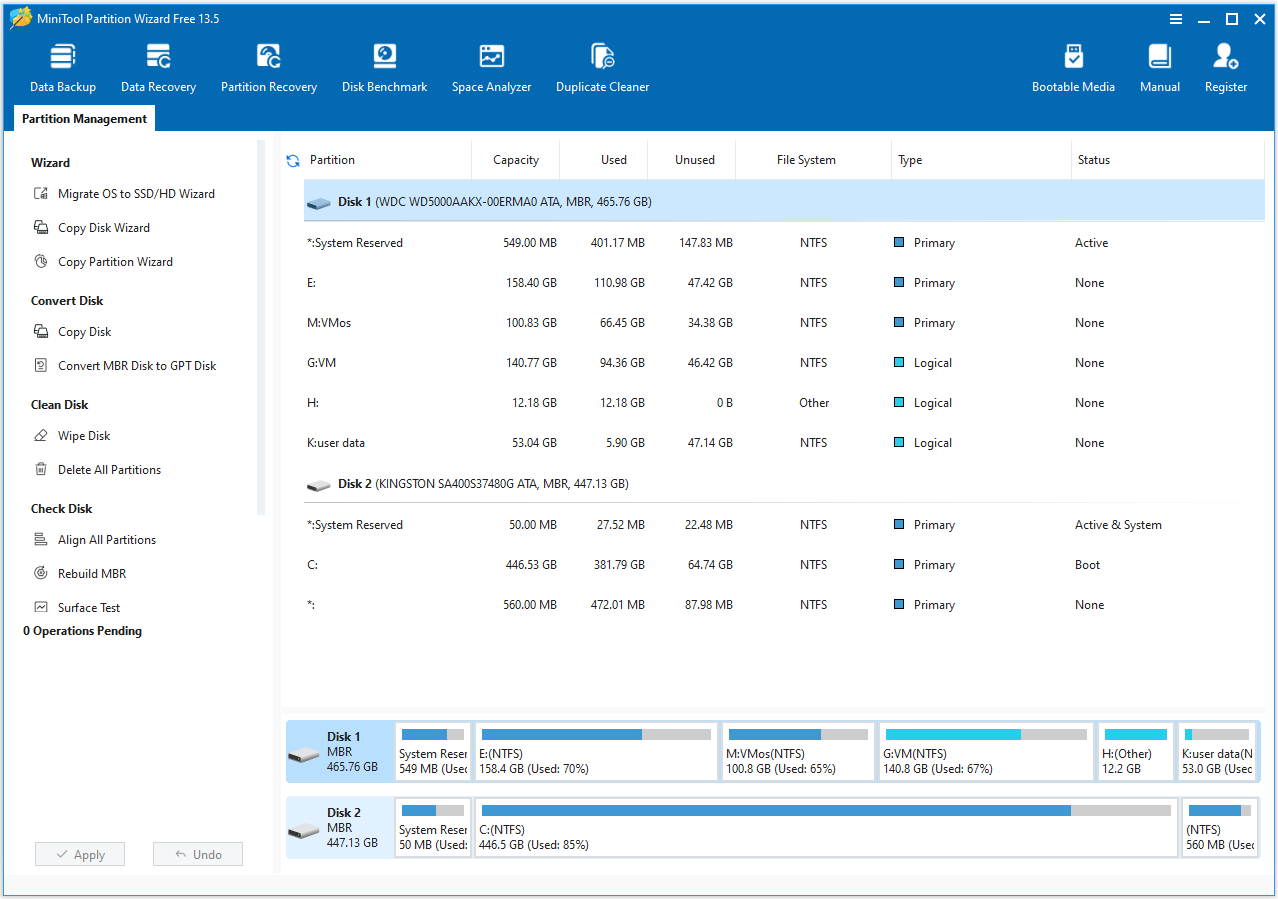
Step 1. Launch this software to enter its main interface. Then click Duplicate Cleaner on the top toolbar.
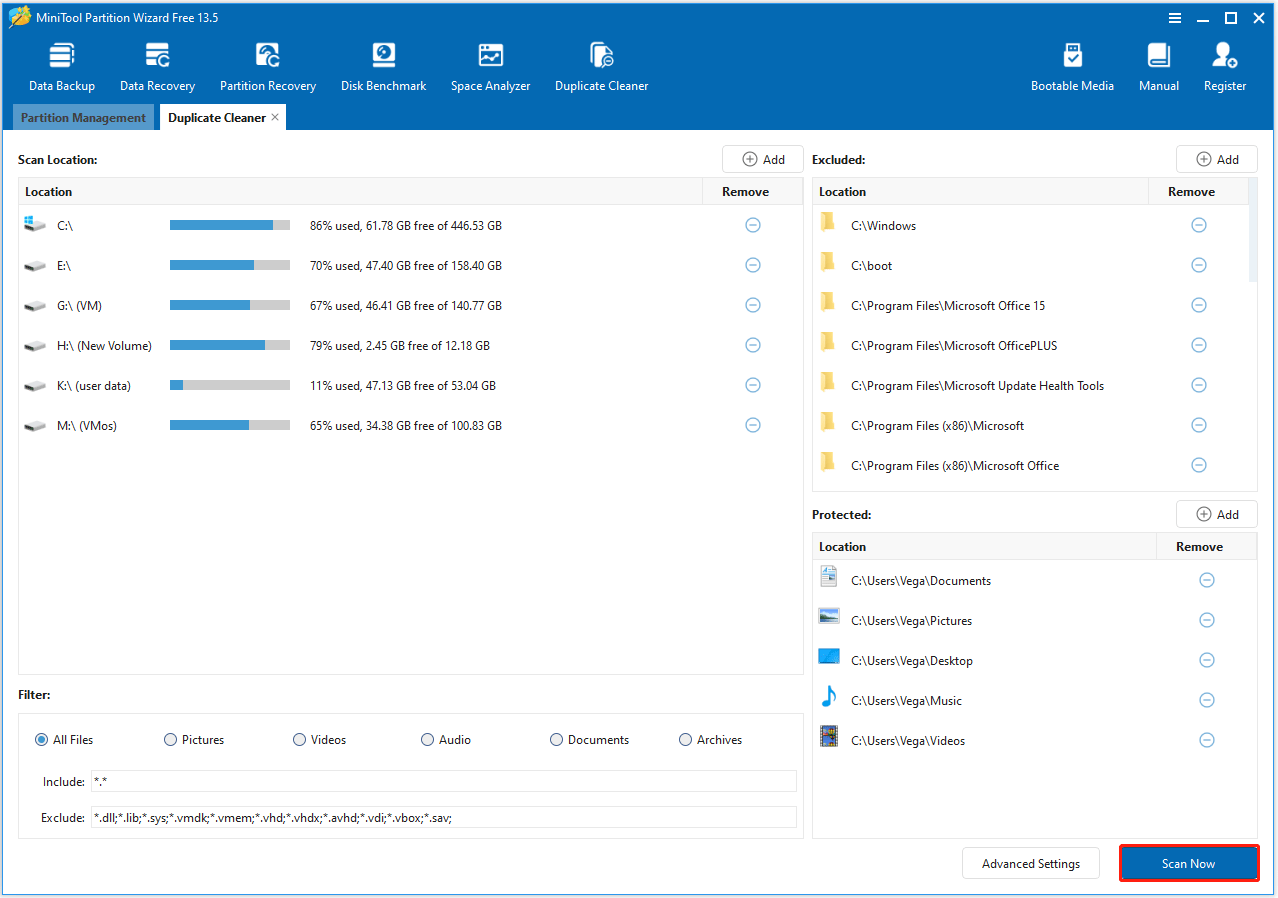
Step 2. In the new window, configure the following scan settings for precision, and then click Scan Now.
- Select Scan Location: By default, all detected partitions are listed. Use the “Add” icon to include specific folders (e.g., Documents, Pictures) or remove irrelevant drives via the “Remove” icon.
- Excluded/Protected Location: Add custom exclusions if needed or mark directories as “Protected” to lock their files (can be scanned but uneditable).
- Filter: While the tool scans all formats by default, narrow results by selecting categories (Pictures, Videos, Audio, Documents).
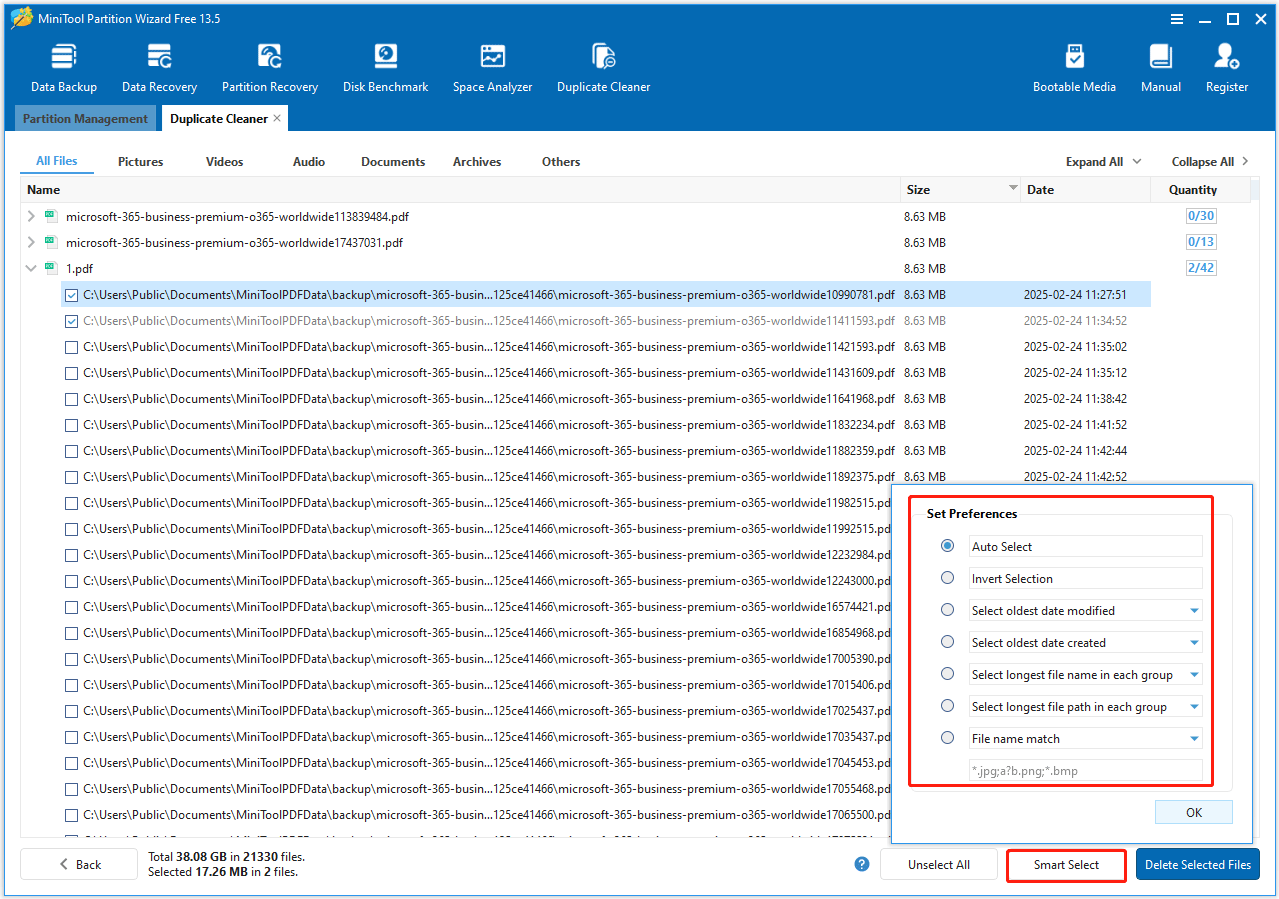
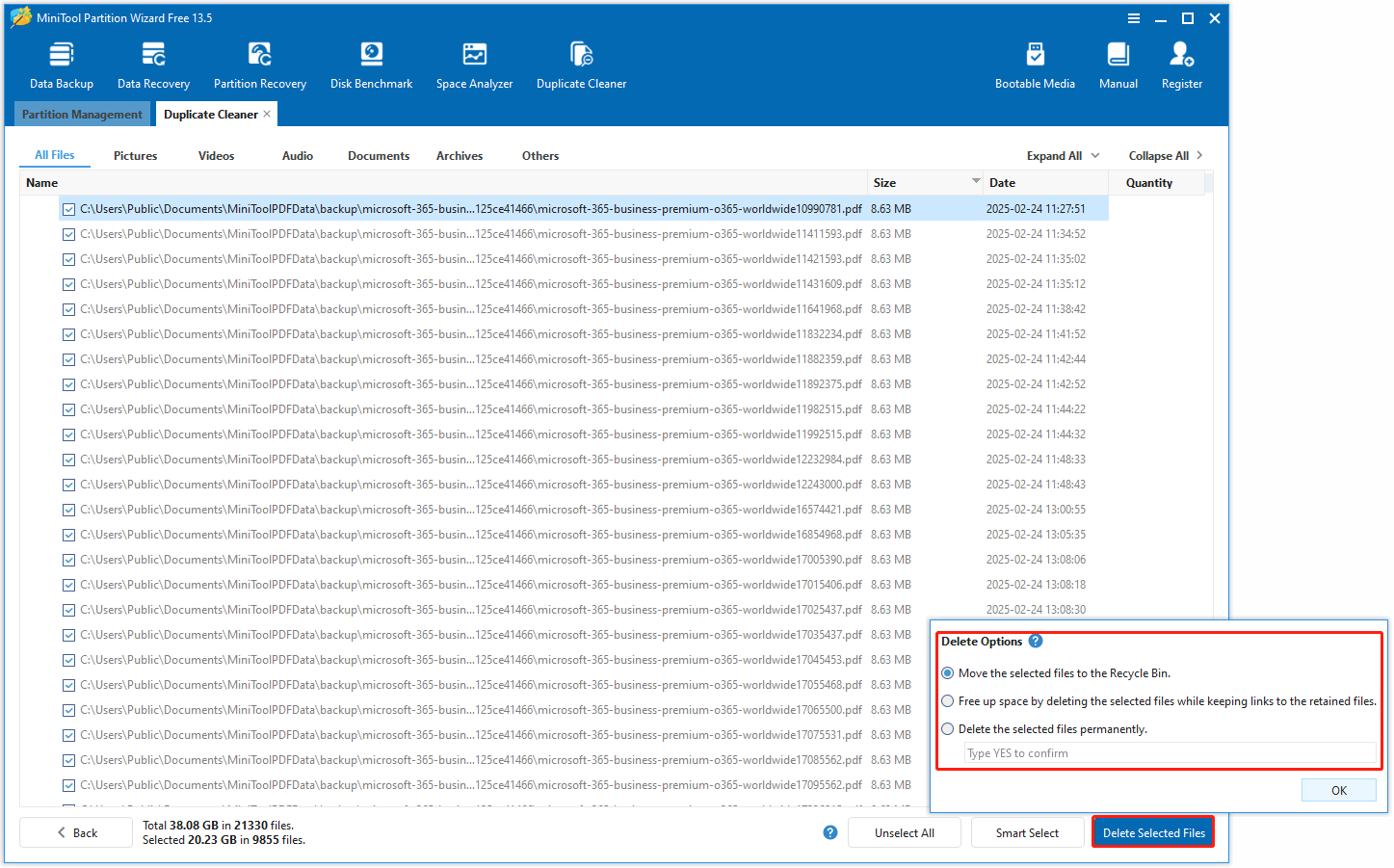
Step 3. Once complete, the results page displays duplicates grouped by content, even if their names and locations vary. Click Smart Select and then select different selection methods according to your needs.
Step 4. Click Delete Selected Files to choose different deletion options. Then click OK to start the deletion of duplicate files.
Method 2. Windows File Explorer
Windows File Explorer is ideal for users who prefer not to install additional software and is suited for scanning individual folders or small file collections.
To find duplicate files with different names using Windows File Explorer, you need to use the Size and Type filters to identify them.
Step 1. Open File Explorer and navigate to the folder or drive you want to search.
Step 2. In the search bar, type * and press Enter to display every file within that folder and its subfolders.
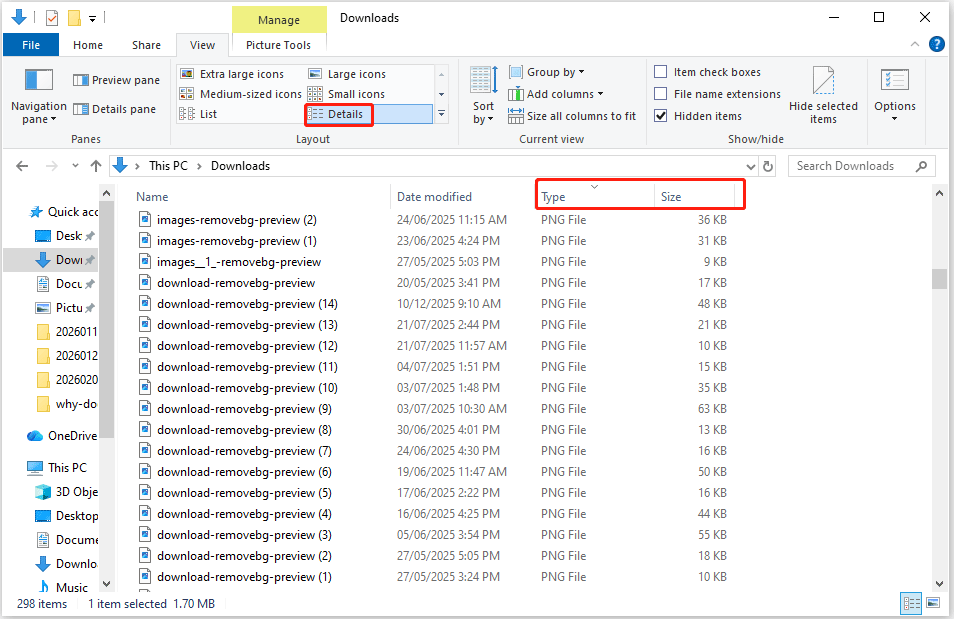
Step 3. Click the View tab at the top, and then select Details.
Step 4: Since the names are different, sorting by size is the most effective manual method:
- Sort by Size: Click the Size column header to sort files from largest to smallest. Identical files will almost always have the same byte count.
- Sort by Type: Click the Type column header to sort.
Step 5: Under the View section, click Preview pane to quickly see if two files with different names are actually the same image or document.
Step 6. Once confirmed, right-click the duplicate and select Delete.
While this method is native and free, it’s time-consuming and error-prone for large files.
How to find and delete duplicate files on Windows? This post provides 2 methods.Click to Tweet
Find Duplicate Files with Different Names FAQ
Bottom Line
Deleting duplicate files with different names can reclaim valuable storage space and speed up your computer. Among the two methods, MiniTool Partition Wizard is worth trying because it’s more precise and automatic.
For any questions or suggestions about MiniTool Partition Wizard, contact us via [email protected]. We’ll reply as soon as possible.
User Comments :