
You may need to format encrypted SD card because you forgot the password, the SD card is no longer recognized, etc. This post shows you how to do that without losing data. Among these methods, MiniTool Partition Wizard is recommended.
Why Would You Need to Format an Encrypted SD Card?
SD card encryption helps protect files from unauthorized access if the SD card is lost or stolen. Only someone with the correct password, PIN, recovery key, or authorized device can access the stored files.
However, you may need to format an encrypted SD card for the following reasons:
- You forgot the encryption password or lost the recovery key.
- The encrypted SD card is corrupt or no longer recognized.
- You plan to reuse or sell the SD card.
- And so on.
When the card is inaccessible or no longer functions correctly, or if you want to wipe encrypted data, formatting is often the quickest solution.
Things to Do Before Formatting an Encrypted SD Card
If you want to format encrypted SD card without losing data, you need to take a few precautions.
#1. Back Up Important Files
If you can still access the encrypted SD card, back up all important files before formatting. Copy photos, videos, documents, and other data to your computer, an external hard drive, or a trusted cloud storage service.
If the SD card is encrypted but can still be unlocked with the correct password or on the original device, decrypt and then copy your files. After that, verify that your backup files can open correctly.
#2. Decrypt the SD Card (If Possible)
When backing up data, you need to decrypt the SD card. Additionally, for certain specially encrypted SD cards (such as those locked to a specific mobile phone or camera), it is best to remove the encryption first. Otherwise, formatting them directly on a computer could lead to issues.
To decrypt the SD card, the process depends on how the card was encrypted. For example, if the SD card is encrypted by phones and cameras, decrypt it with the original device. If you encrypt removable drives using BitLocker, you should turn off BitLocker to decrypt the SD card.
#3. Check Whether the SD Card Is Write-Protected
Connect the SD card to your PC via a card reader. Open DiskPart from Windows Search. Then, run the following commands to check the SD card’s read-only status.
- List disk
- Select disk * (* is the disk number of the SD card)
- Attributes disk (check if the Current Read-only State and Read-only are Yes)
#4. Understand the Consequences of Formatting an Encrypted SD Card
Formatting an encrypted SD card will permanently delete all files stored on the SD card. Moreover, data recovery after formatting is much less likely if the card was locked, especially if you no longer have the encryption key.
How to Format an Encrypted SD Card in Windows
To format an encrypted SD card in Windows, connect it to your PC via an SD reader, and then try the following methods.
Method 1. Use MiniTool Partition Wizard
MiniTool Partition Wizard can format an encrypted SD card to NTFS, FAT32, exFAT, or EXT2/3/4 easily. In addition, it can also unlock and turn off BitLocker. Here is the guide.
MiniTool Partition Wizard FreeClick to Download100%Clean & Safe
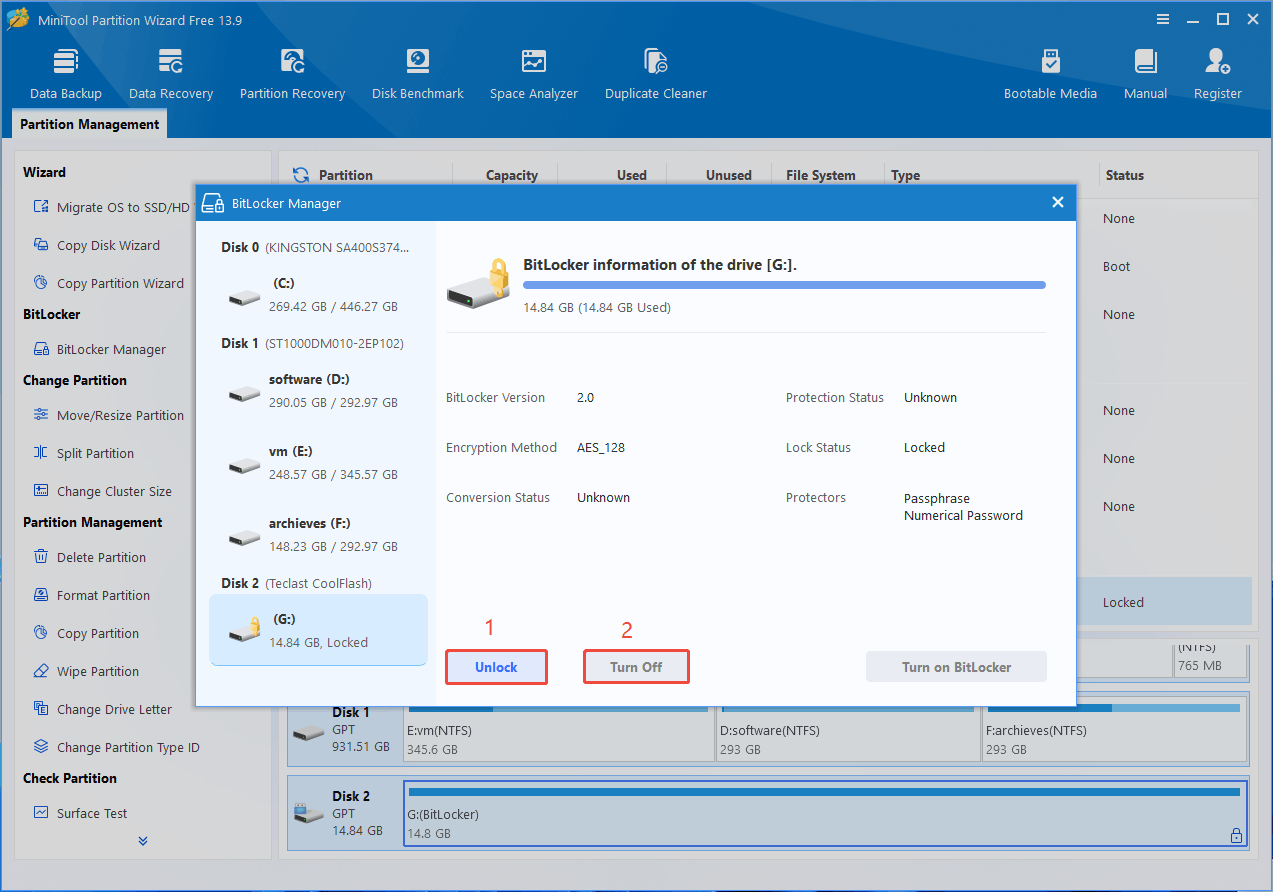
Step 1: Turn off BitLocker (Optional).
- Launch MiniTool Partition Wizard.
- Right-click the SD card and choose BitLocker Manager.
- Click Unlock and then enter the password to decrypt the SD card.
- Click Turn Off to remove the encryption.
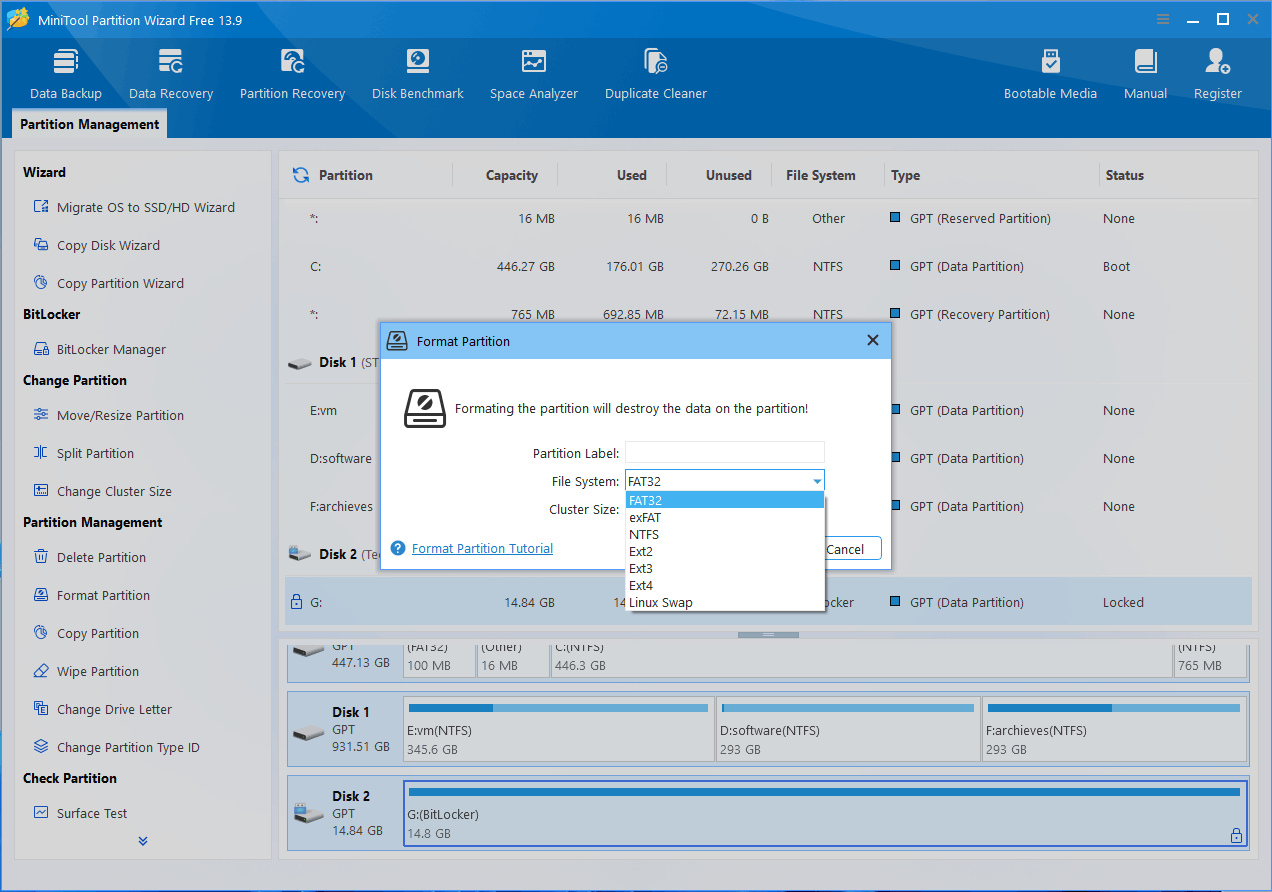
Step 2: Format the encrypted SD card. No matter whether the SD card is encrypted or not, MiniTool Partition Wizard can format it directly.
- Right-click the SD card and choose Format.
- Choose a File System. exFAT and FAT32 are recommended for their wide compatibility with devices.
- Click OK and then Apply.
Method 2. Use File Explorer
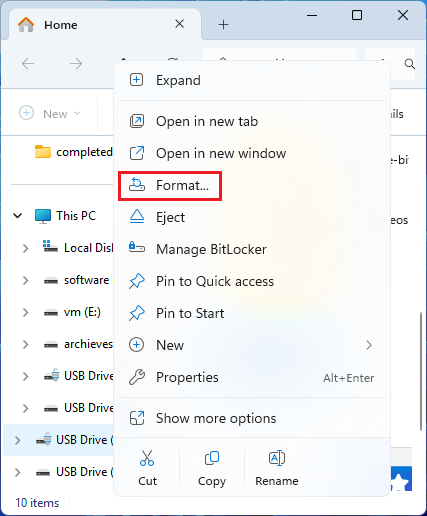
This method is the easiest one. To format the encrypted SD card, you just need to:
- Press Win + E to open Windows File Explorer.
- Under This PC, right-click the SD card.
- Select Format.
- Choose a file system.
- Click Start and then confirm the prompt.
Method 3. Use Disk Management
Disk Management is a Windows built-in GUI tool. You can also use it to format the encrypted SD card. The steps are as follows:
- Open Disk Management from Windows Search.
- Right-click the SD card and choose Format.
- Select a file system.
- Click OK and then confirm the prompt.
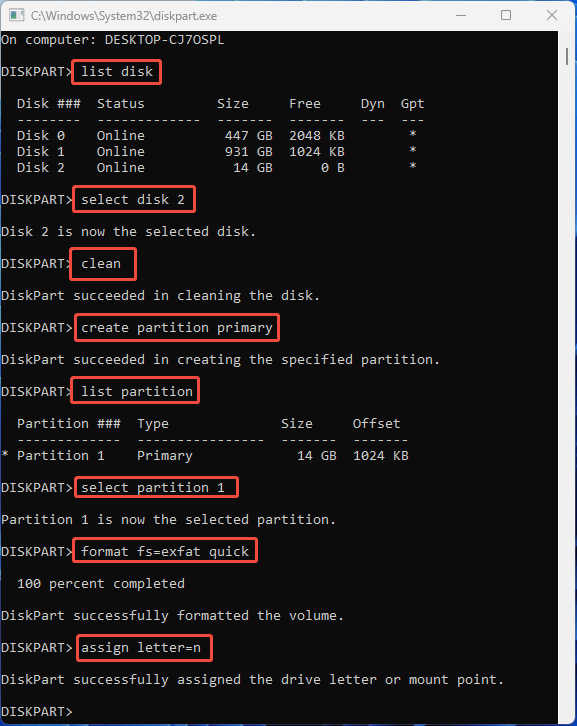
Method 4. Use DiskPart Commands
This method differs from others in that it primarily uses disk cleaning rather than formatting.
Open DiskPart and then run the following commands one by one to format an encrypted SD card:
- list disk
- select disk * (* is the disk number of the SD card)
- clean
- create partition primary
- list partition
- select partition 1
- format fs=exfat quick (you can also replace exfat with fat32 or ntfs)
- assign letter = # (# should be different from existing drive letters)
- exit
Format Encrypted SD Card FAQ
2. Operating System Encryption: Windows users may encrypt removable drives using tools like BitLocker, while macOS users can use encrypted APFS or third-party software.
3. Third-Party Encryption Software: Applications such as VeraCrypt or other encryption tools can secure an SD card with a password.
4. Hardware Encryption: Some secure SD cards include built-in encryption chips that automatically encrypt data.
Bottom Line
You may need to format an encrypted SD card. This post tells you things to do before the formatting and shows you how to perform the formatting. Among these formatting methods, MiniTool Partition Wizard is recommended.
If you encounter issues when using this software, send an email to [email protected]. We will get back to you as soon as possible.
About The Author

Position: Columnist
Linda has been an editor at MiniTool for seven years. She continuously learns about computers and puts her knowledge into practice. Moreover, she is particularly knowledgeable in disk management, data recovery, system installation, and PDF editing. Her articles typically reference multiple examples or are based on her own experience, providing users with the most suitable solutions.
User Comments :