
Duplicate Excel files can waste disk space and make it harder to manage your spreadsheets. This guide shows you how to find and delete duplicate Excel files from PC using MiniTool Partition Wizard or Windows File Explorer, with tips to verify files before deletion.
Duplicate Excel files can accumulate on your PC when you copy, download, share, or back up spreadsheets. These extra copies can waste disk space and make it harder to identify the correct version of a workbook.
To delete duplicate Excel files from PC, you can use MiniTool Partition Wizard to scan for duplicate files or use Windows File Explorer to find and remove copies manually.
Before deleting any file, check its contents and location to make sure it is an unnecessary duplicate rather than a version you still need.
Which Method Should You Choose?
Use File Explorer if you only need to check a few files in known folders. Use MiniTool Partition Wizard’s Duplicate Cleaner if duplicates are scattered across drives or may have been renamed. The table below compares the two methods.
| Best for | How it finds duplicates | Finds renamed duplicates | Third-party tool needed | |
| MiniTool Partition Wizard | Duplicates scattered across drives or deep subfolders | Compares file content with hashing (MD5/SHA-1) | Yes | Yes |
| File Explorer | A small number of files in known folders | Compares names, sizes, and dates manually | No | No |
Method 1. Delete Duplicate Excel Files Using MiniTool Partition Wizard
MiniTool Partition Wizard is a Windows disk management tool. Its Duplicate Cleaner feature compares files by their contents using file hashes (MD5/SHA-1), rather than just their filenames.
This lets it identify identical Excel files even if they’ve been renamed or saved in different folders, making it ideal for finding duplicates scattered across multiple drives or deep within subfolders.
Now, download and install MiniTool Partition Wizard on your computer.
MiniTool Partition Wizard FreeClick to Download100%Clean & Safe
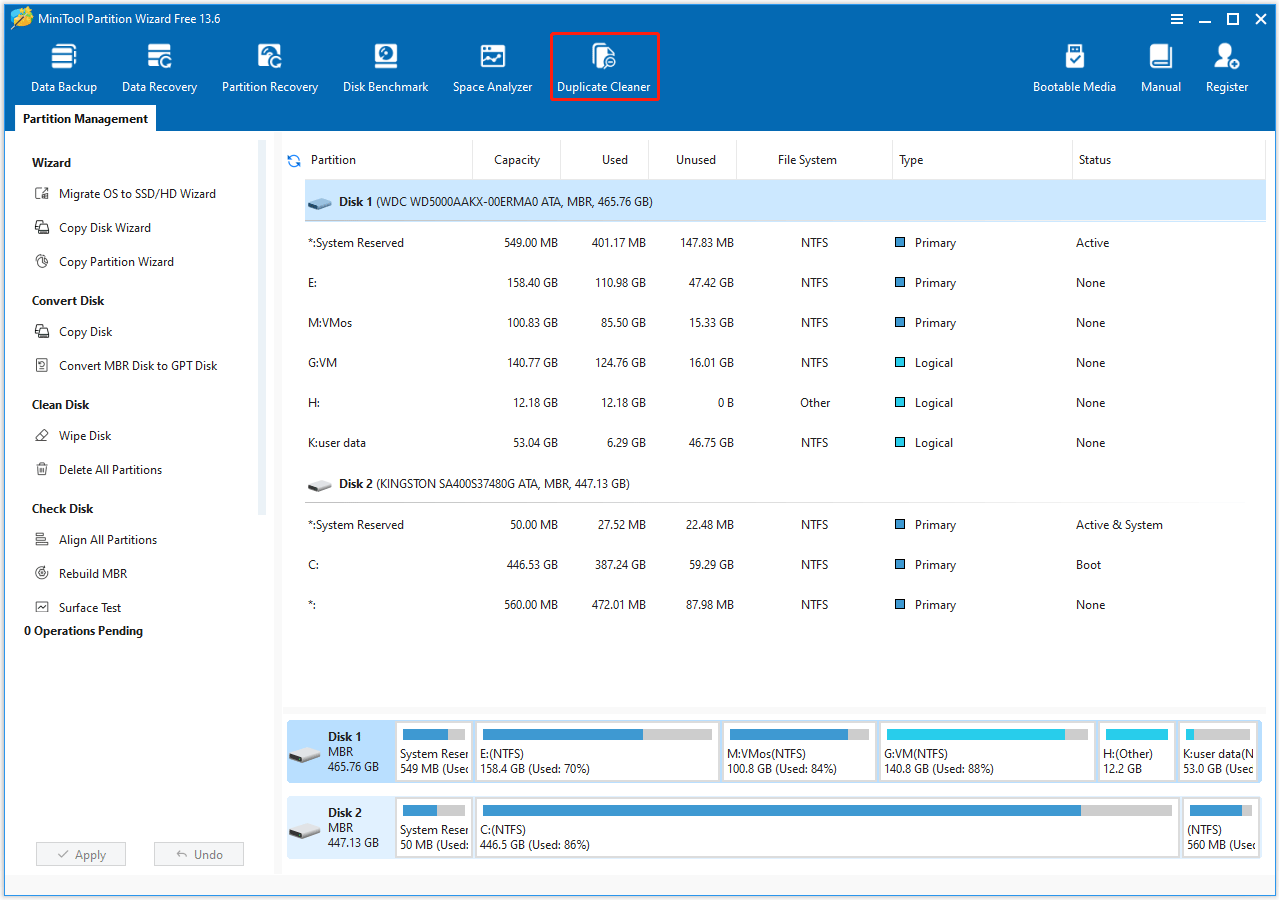
Step 1. Launch this software to enter its main interface. Then click Duplicate Cleaner on the top toolbar.
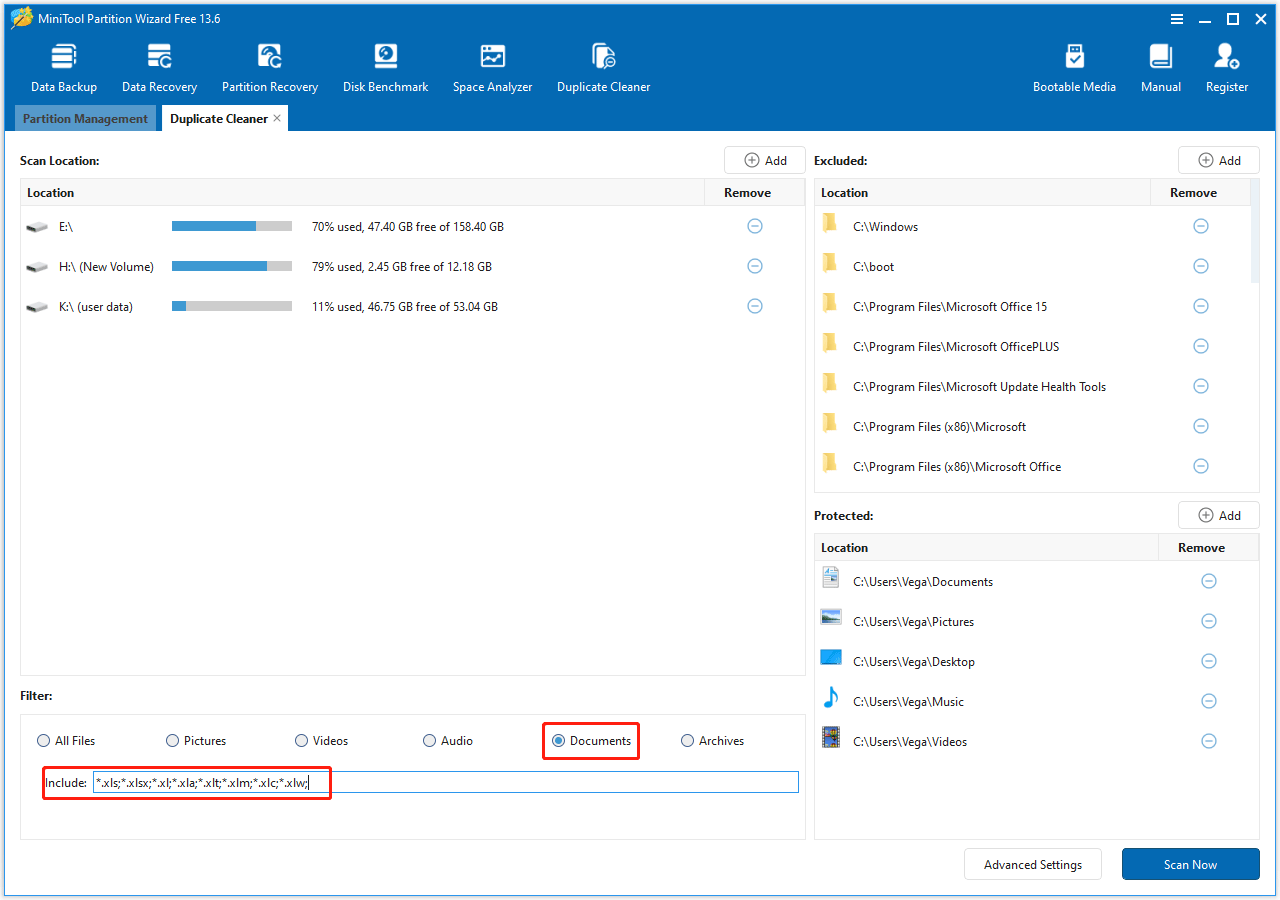
Step 2. In the new window, configure the following scan settings for precision, and then click Scan Now.
- Select scan locations: This tool will list all detected drives. You can click the Remove icon to remove drives you don’t want to scan or click the Add button to choose the specific folders for focused scanning.
- Filter for Excel file types: Under the Filter section, select Documents. In the Include section, select the Excel file extensions you want to scan. Common workbook formats include .xlsx, .xls, .xlsm, and .xlsb. If you also want to find Excel templates, include .xltx and .xltm, along with other supported formats you use.
- Advanced settings (optional): Set a file size range, choose a hash comparison method, and set file protection options.
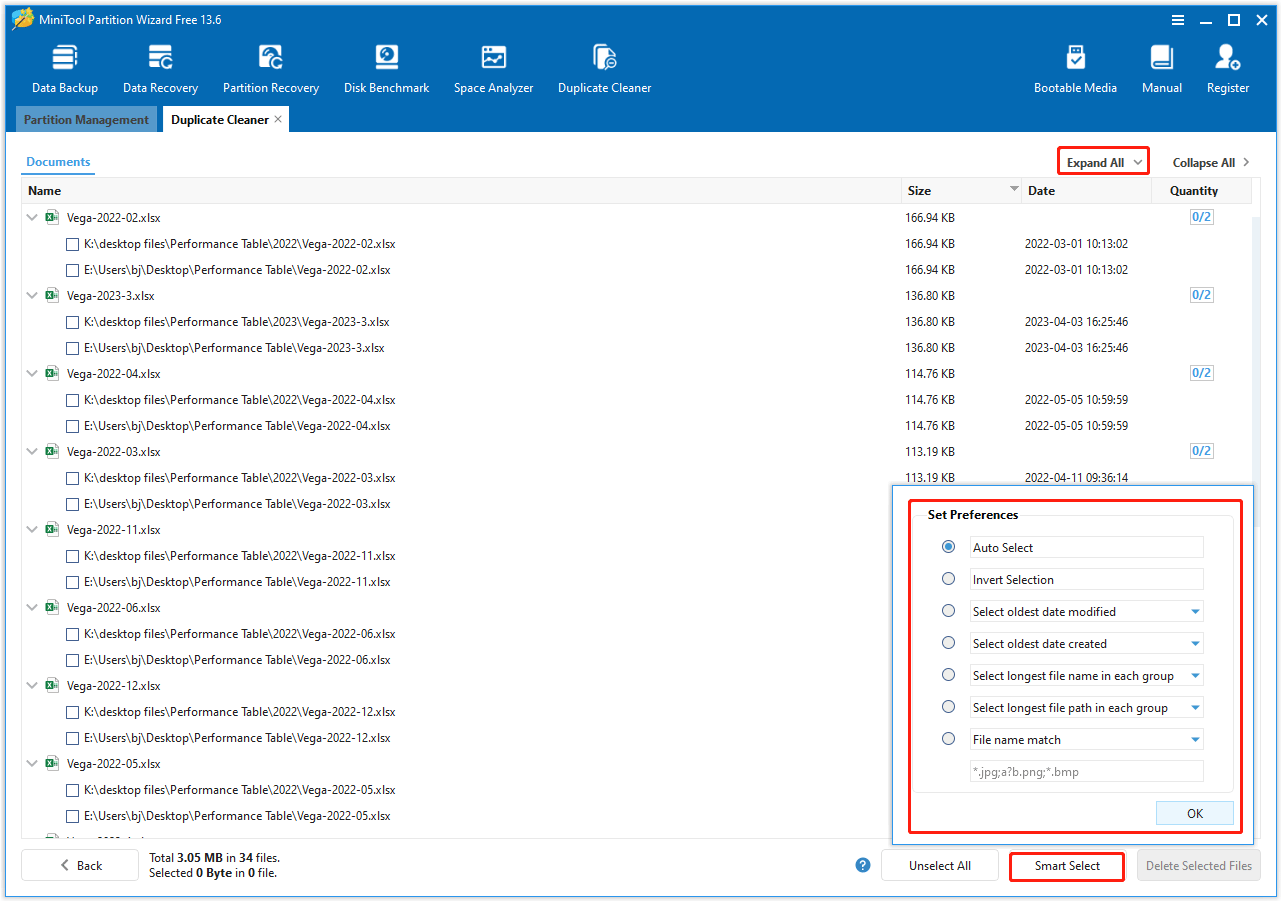
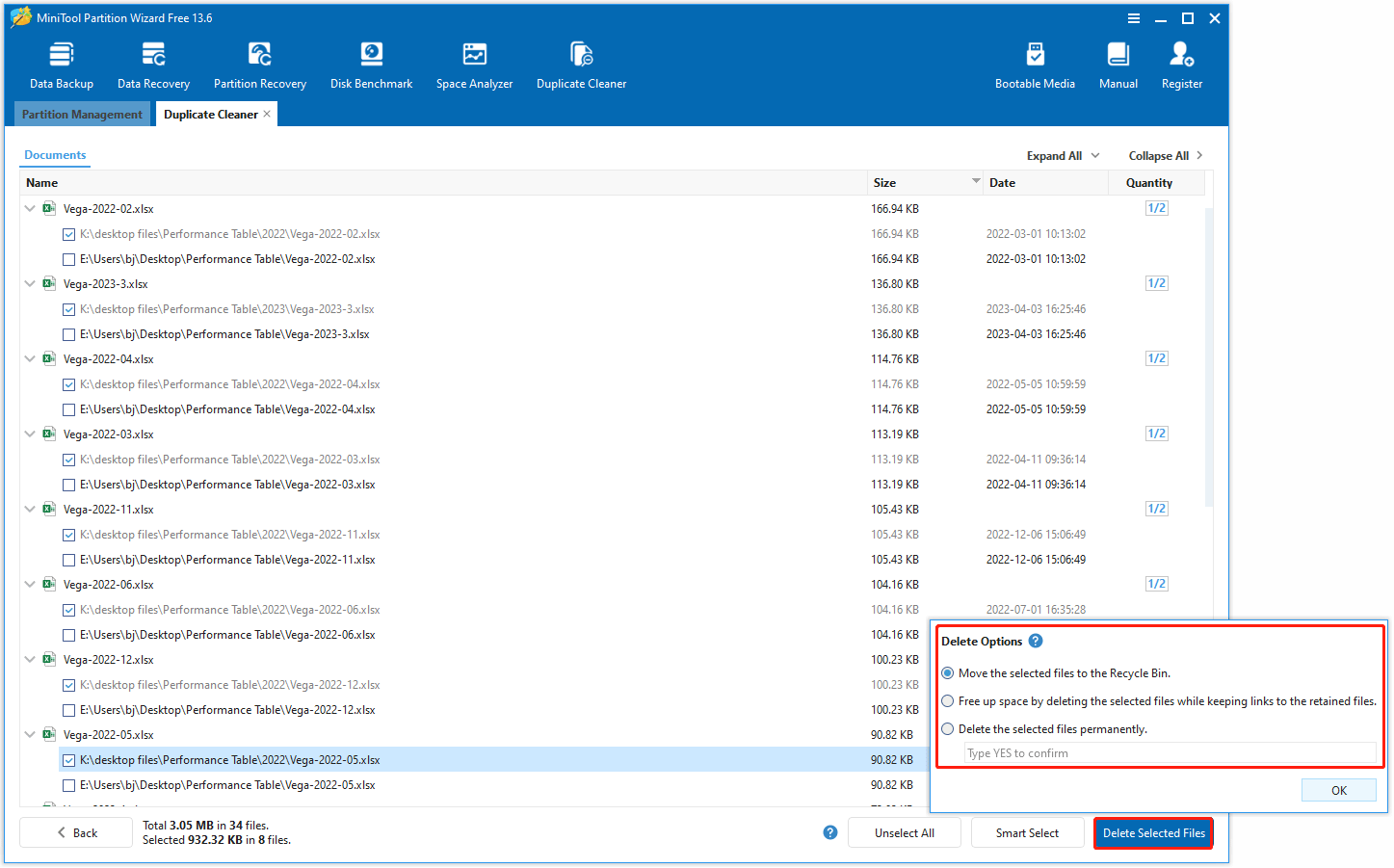
Step 3. Once the scan finishes, this tool displays all duplicate Excel files. You can click Expand All to see the full path. Then click Smart Select and select different selection methods according to your needs.
Before deleting the selected files, review their locations and open important workbooks to verify their contents. Files with similar names may contain different data, formulas, or updates, so check that the selected files are copies you no longer need.
Step 4. Click Delete Selected Files to choose different deletion options. Then click OK to start the deletion of duplicate files.
Review your selections carefully before confirming the operation. If you choose permanent deletion, the files may not be recoverable through the Recycle Bin.
Method 2. Delete Duplicate Excel Files Using File Explorer
If you have a small number of Excel files or don’t want to use third-party tools, manually finding and deleting duplicate Excel files using Windows File Explorer is a safe and convenient option.
Now, follow the steps below to delete duplicate Excel files using File Explorer:
- Press the Windows + E key to open File Explorer.
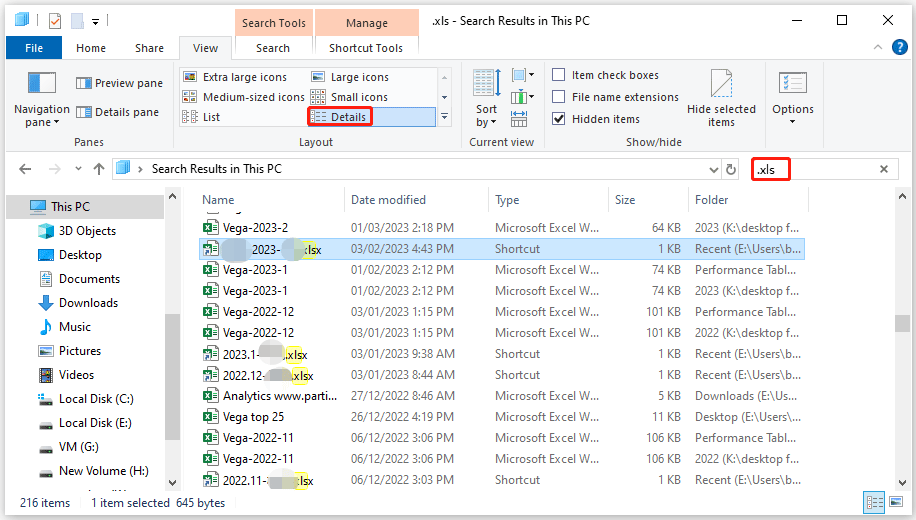
- Navigate to the drive or folder you want to check. In the Search box, enter .xlsx to find Excel workbook files with the .xlsx extension. Repeat the search with .xls, .xlsm, or .xlsb if you use those formats.
- Once the results appear, adjust the File Explorer view to spot duplicates easily. Click the View tab at the top, select Details, then click Sort by and choose Name. This group files with identical or similar names together.
- Look for files with the same name but different suffixes like “(1)” or “- Copy”. Check the Size and Date modified columns. If two files have the same size, they are likely duplicates.
- After finding the duplicate Excel file, right-click it and choose Delete.
Why Do Duplicate Excel Files Accumulate on Your PC?
Duplicate Excel files often accumulate on your computer for the following reasons:
- Manual copying and pasting: This is the most common reason. When you want to back up an Excel file or share it with others, you often copy the file to another folder, desktop, or drive without renaming it, thus immediately creating duplicate files.
- Multiple savings: People often save new versions of Excel files with minor modifications (e.g., “Report_2024_V1”, “Report_2024_V2”) instead of overwriting the original, leaving older versions unused but still saved.
- File sharing and downloading: Receiving the same Excel file via email, cloud storage, and USB drive, and then saving each copy separately, can result in identical files appearing in different locations.
- Backup and synchronization redundancy: If configured incorrectly, automatic backup software or cloud sync tools may save extra copies of Excel files, storing duplicate files locally or in sync folders.
- Temporary recovery files: When Excel crashes, it creates auto-recovery files. If you don’t properly remove these files after recovering your work, they will remain on your drive.
How to delete duplicate Excel files from PC? This post offers 2 methods to do that.Click to Tweet
Delete Duplicate Excel Files from PC FAQ
Bottom Line
Duplicate Excel files can waste storage space, reduce work efficiency, and put important data at risk. This post offers 2 methods to delete duplicate Excel files with File Explorer and MiniTool Partition Wizard. Among them, MiniTool Partition Wizard is a better choice with fast and simple operation.
For any questions or suggestions about MiniTool Partition Wizard, contact us via [email protected]. We’ll reply as soon as possible.
About The Author

Position: Columnist
Charlotte is a technology columnist with a strong focus on the Windows operating system, specializing in disk management, backup, and data recovery. She is passionate about analyzing computer errors, identifying root causes, and delivering practical solutions. In her free time, she stays updated on the latest developments in computer systems and hardware while continuously learning new technologies to broaden her expertise. Her writing style is clear and easy to understand, making complex technical topics accessible even to users with limited computer knowledge.
User Comments :