
Recovering data from BitLocker encrypted drive is possible with the correct password or recovery key. After unlocking the encrypted drive, you can restore lost or deleted files using MiniTool Partition Wizard. This article explains how to unlock a BitLocker drive and recover data effectively.
Can You Recover Data from BitLocker Encrypted Drive?
This depends on the cause of the data loss on the BitLocker partition and whether you have the BitLocker password or recovery key.
| BitLocker Drive Data Loss Cause | Have BitLocker Password or Recovery Key | No BitLocker Password or Recovery Key |
| Files are deleted or lost | Yes | Can recover data only if the BitLocker drive is unlocked |
| BitLocker drive is corrupted | Potentially | No |
| BitLocker drive is deleted | Potentially | No |
| BitLocker drive is formatted | Potentially | Potentially |
Obviously, you can’t recover data from BitLocker encrypted drive without key.
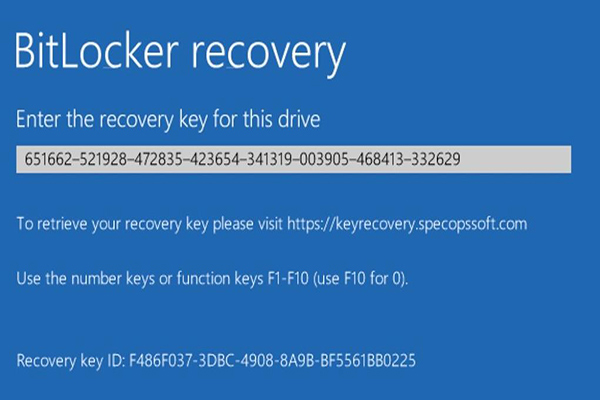
How to Recover Deleted Files from a BitLocker Encrypted Drive
Recovering data from a BitLocker drive generally involves two steps: unlocking the drive and recovering the data. This section explains how to perform these operations using MiniTool Partition Wizard.
Part 1. Unlock the BitLocker Drive
Before recovering data from a BitLocker-encrypted drive, you need to unlock the drive first. Once unlocked, you can access the drive and use BitLocker data recovery software to recover the data.
The BitLocker Manager feature in MiniTool Partition Wizard lets you easily enable/disable/lock, and unlock BitLocker-protected drives.
Follow the steps below to unlock a drive.
MiniTool Partition Wizard DemoClick to Download100%Clean & Safe
Step 1: Launch MiniTool Partition Wizard and locate the encrypted drive.
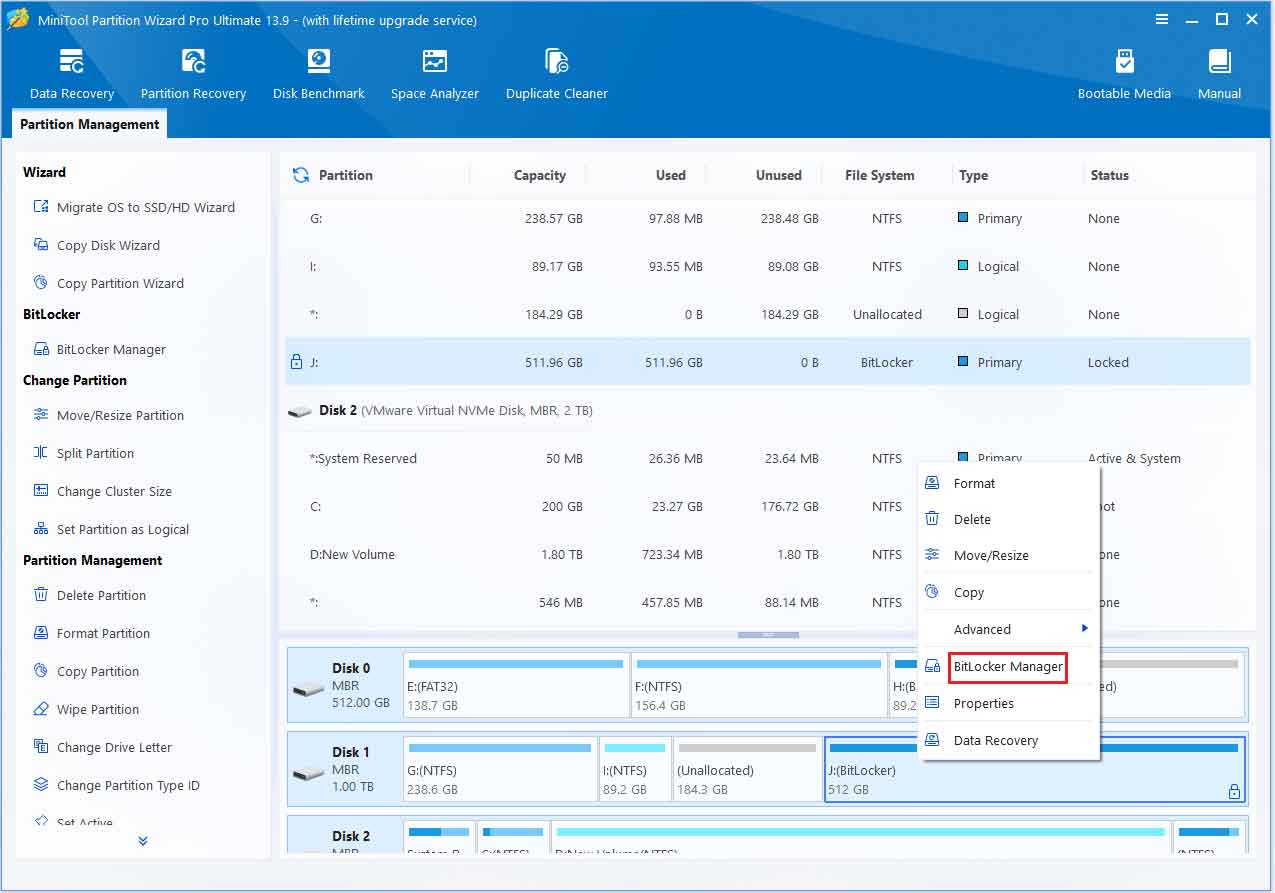
Step 2: Right-click the encrypted drive and select BitLocker Manager.
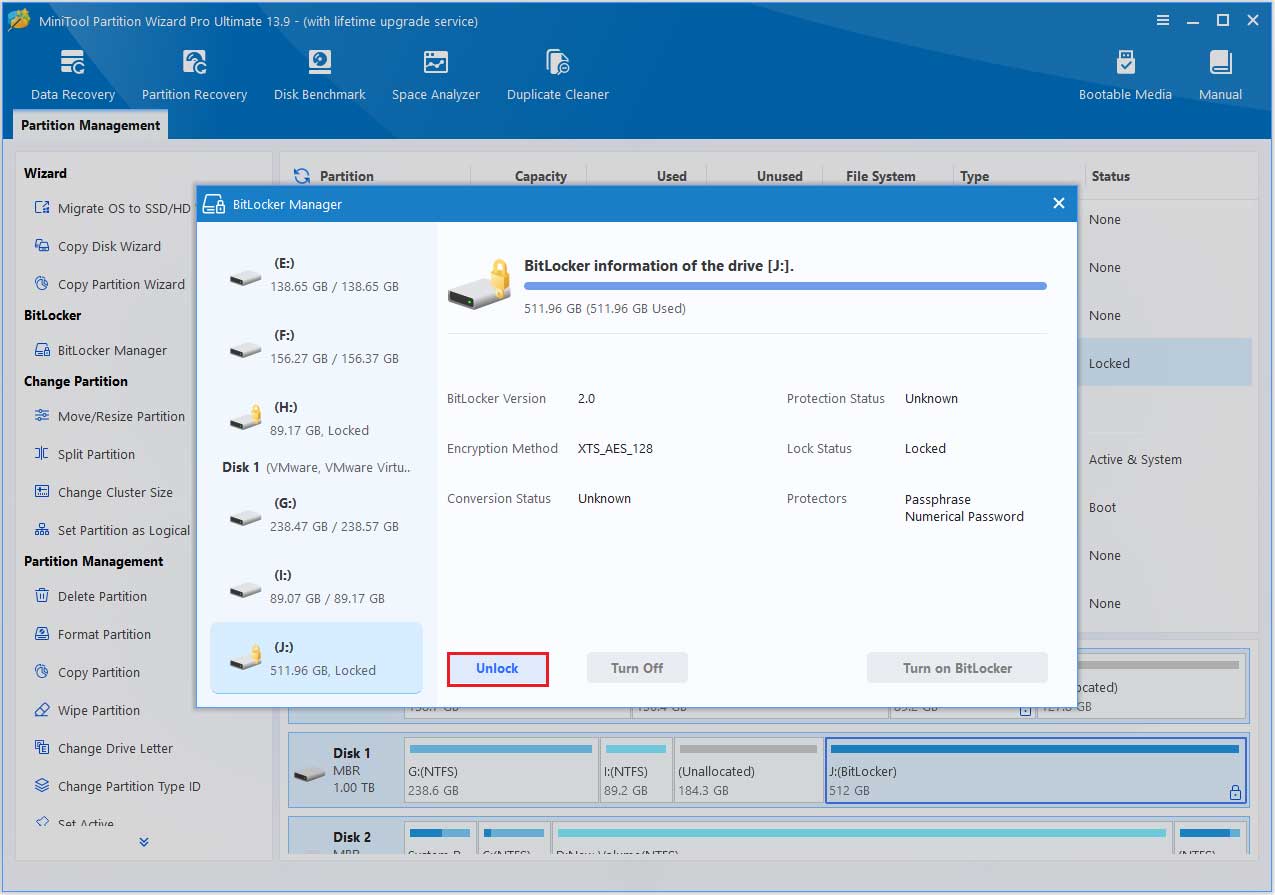
Step 3: Click Unlock in the pop-up window.
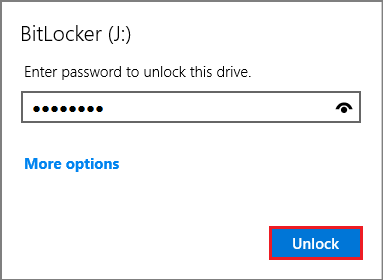
Step 4: In the small pop-up window, enter the password and click Unlock.
After that, click the refresh icon. The lock icon should now appear unlocked.
Part 2. Recover Data from the Unlocked BitLocker Drive
Once a BitLocker drive is successfully unlocked, Windows can access the data within it normally. If files on the drive have been lost due to accidental deletion, formatting, or file system corruption, you can use professional data recovery software to scan the unlocked drive and recover the lost files.
MiniTool Partition Wizard features a built-in Data Recovery function capable of scanning unlocked BitLocker-encrypted drives to recover various types of lost files, such as documents, images, and videos.
The following section explains how to use MiniTool Partition Wizard to recover data from an unlocked BitLocker drive.
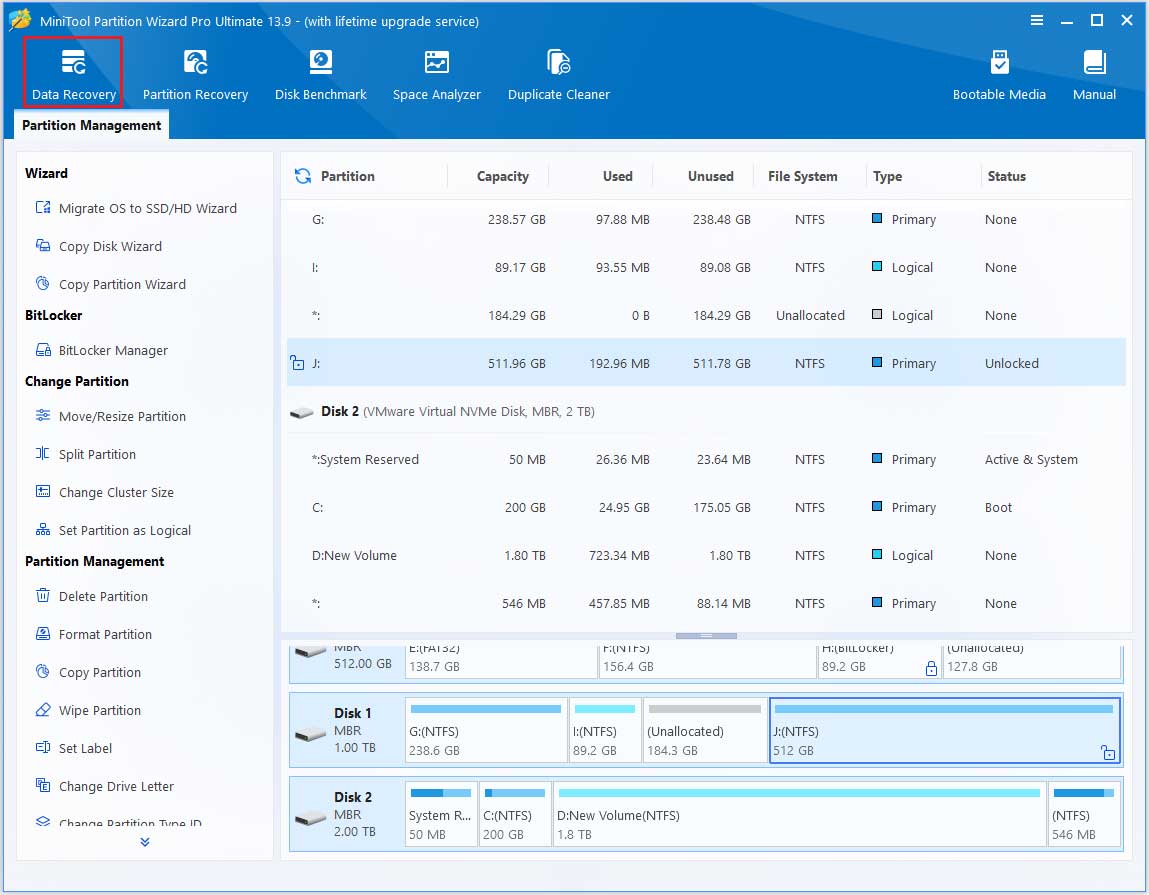
Step 1: Launch MiniTool Partition Wizard to its main interface, and click Data Recovery.
Step 2: Move your cursor to the unlocked hard drive and then click Scan to scan the selected drive.
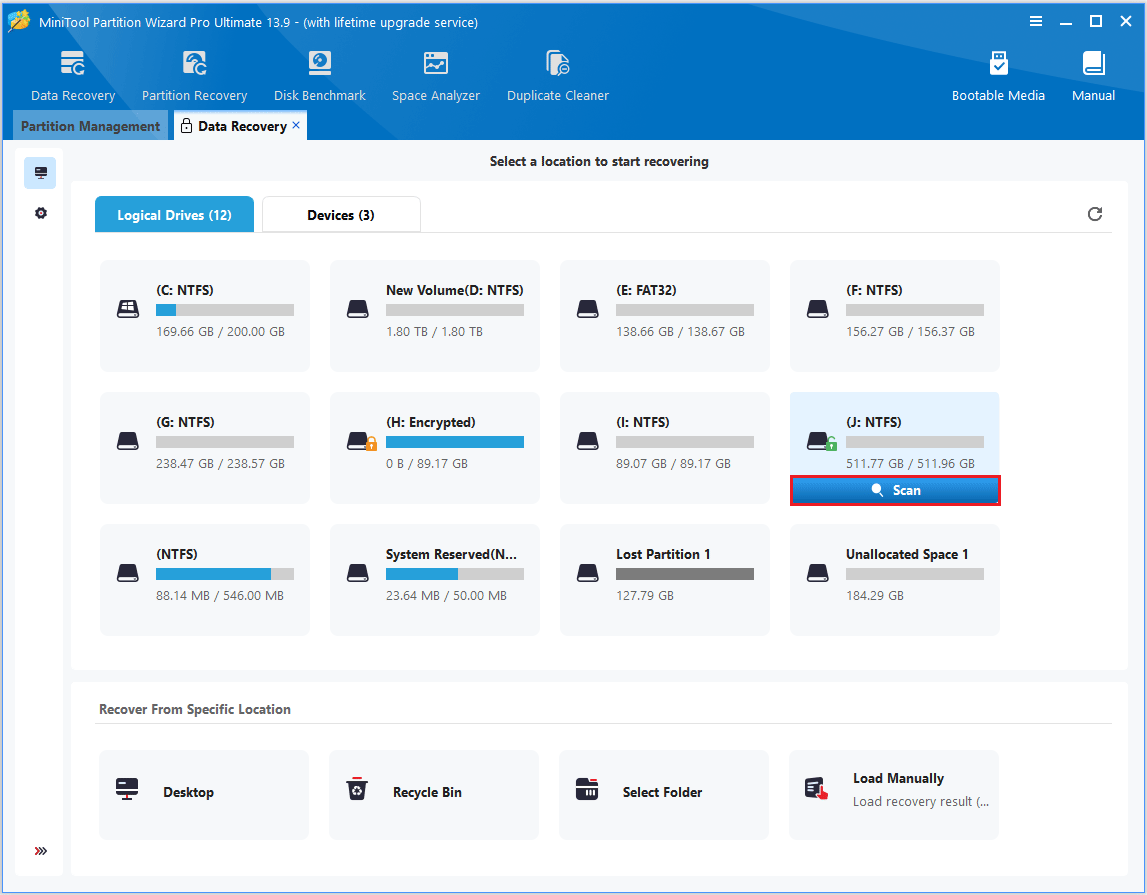
Step 3: If you find the wanted files during the process, you can click the Stop or Pause icon to end the scan.
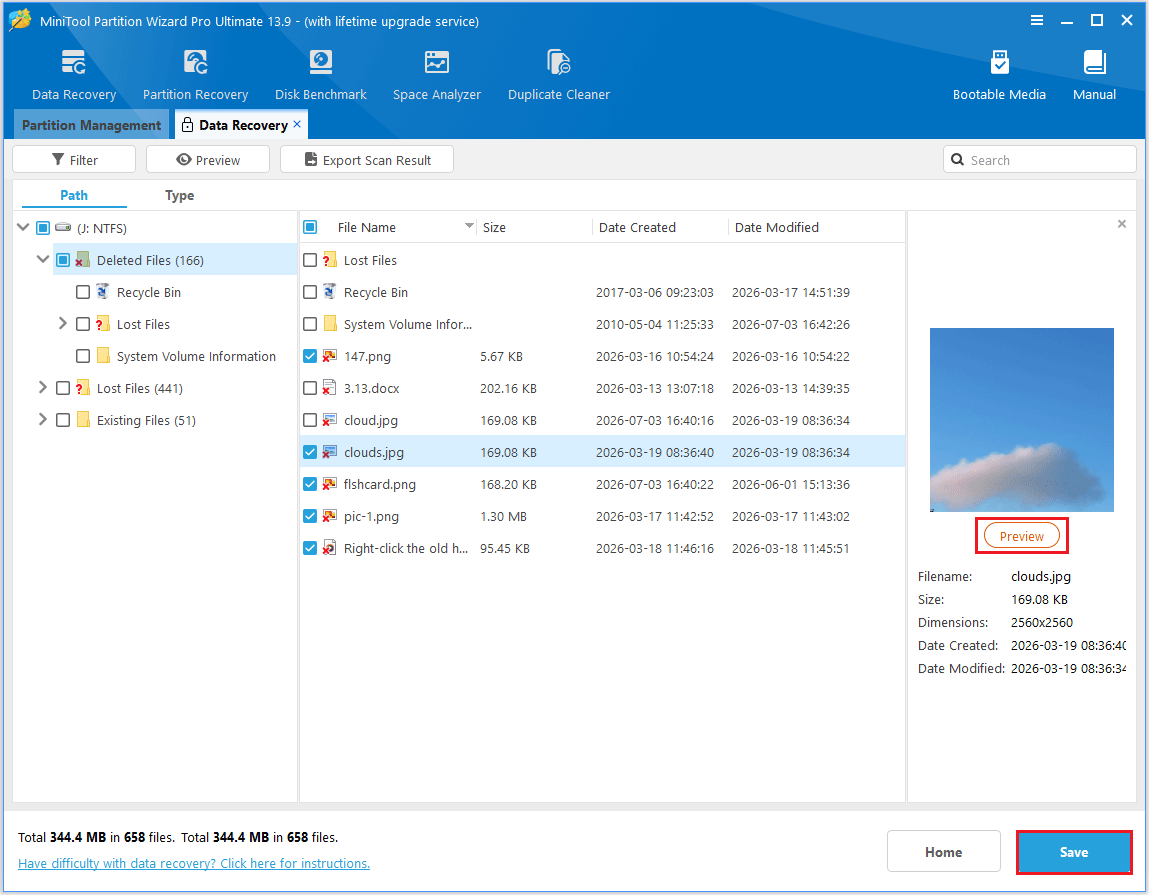
Step 4: Select the files you want to recover and click Save. You can use the Preview feature to verify that you’ve selected the correct files before saving them.
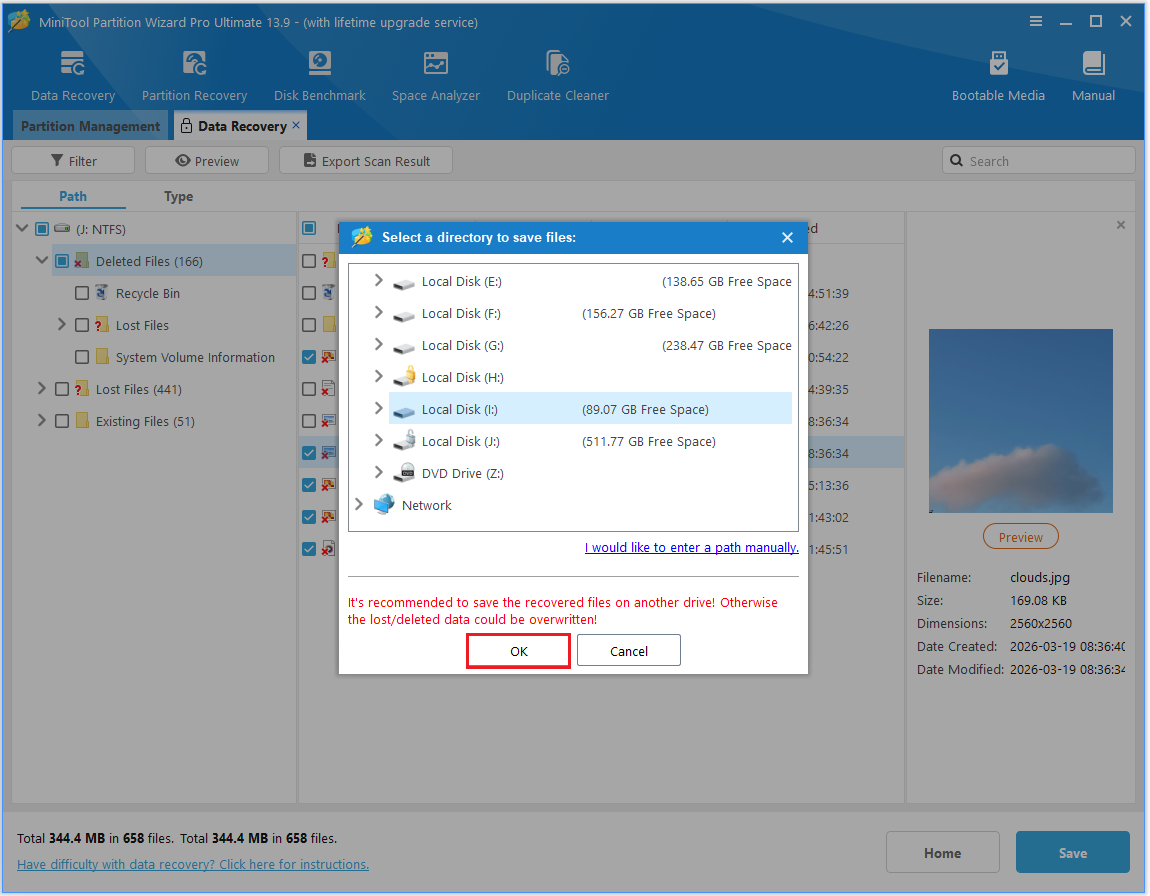
Step 5: Select a location to store the recovered files. Then click OK. Do not save them to the original drive, as this may overwrite recoverable data.
How to Recover Data from Corrupt BitLocker Drive
If a BitLocker-encrypted drive is corrupted and cannot be unlocked normally, you may still be able to recover its data if you have the BitLocker password or recovery key.
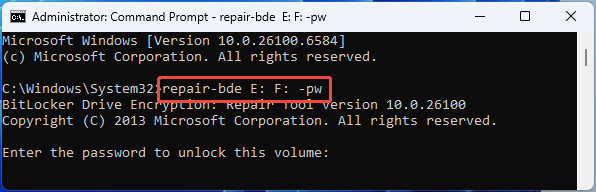
First, avoid formatting or writing new data to the drive. Then, use the repair-bde command to decrypt and extract data from the damaged BitLocker volume and copy it to another drive.
Open Command Prompt as Administrator and then run either of the following commands.
- If you use password, run: repair-bde drive1 drive2 -pw. Then, enter the password.
- If you use a recovery key, run: repair-bde drive1 drive2 -rp recovery_key.
Drive1 is the damaged BitLocker drive while drive2 is a different destination drive where repair-bde attempts to save recovered data.
How to Recover Data from Deleted BitLocker Drive
If you have mistakenly deleted a BitLocker drive, MiniTool Partition Wizard can help you recover it and data in it. Here is the guide.
MiniTool Partition Wizard DemoClick to Download100%Clean & Safe
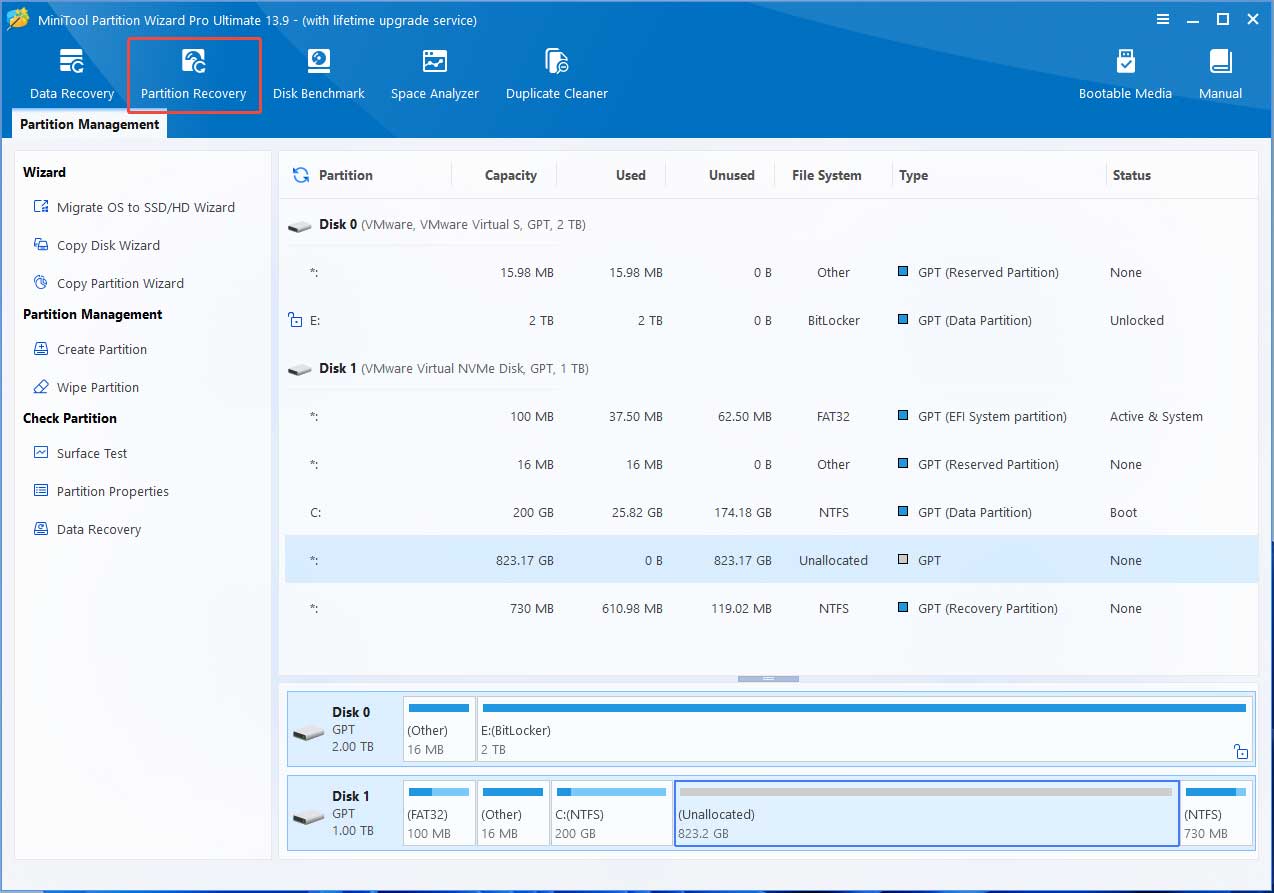
Step 1: Launch MiniTool Partition Wizard and click Partition Recovery.
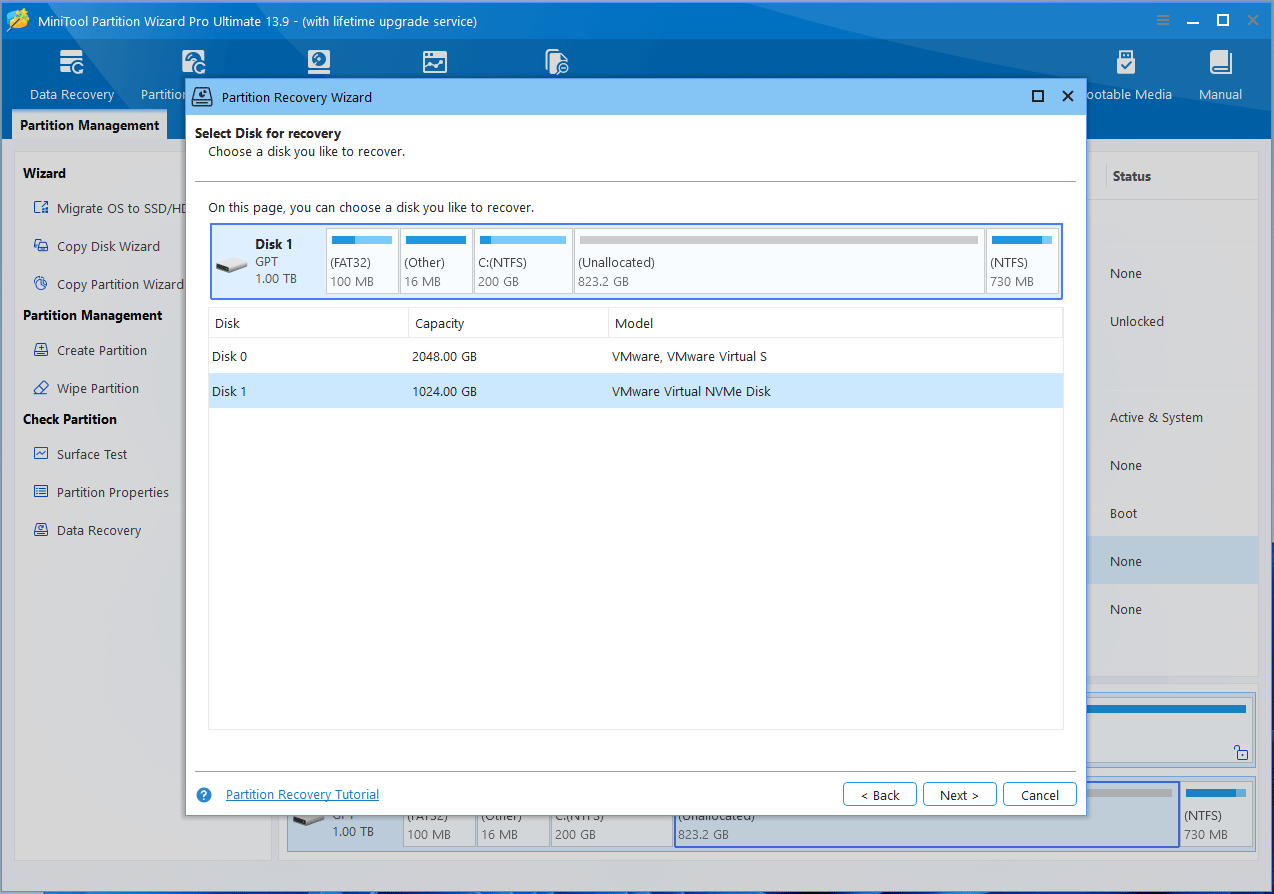
Step 2: Click Next. Then, select the disk where the BitLocker-encrypted drive is deleted. Click Next again.
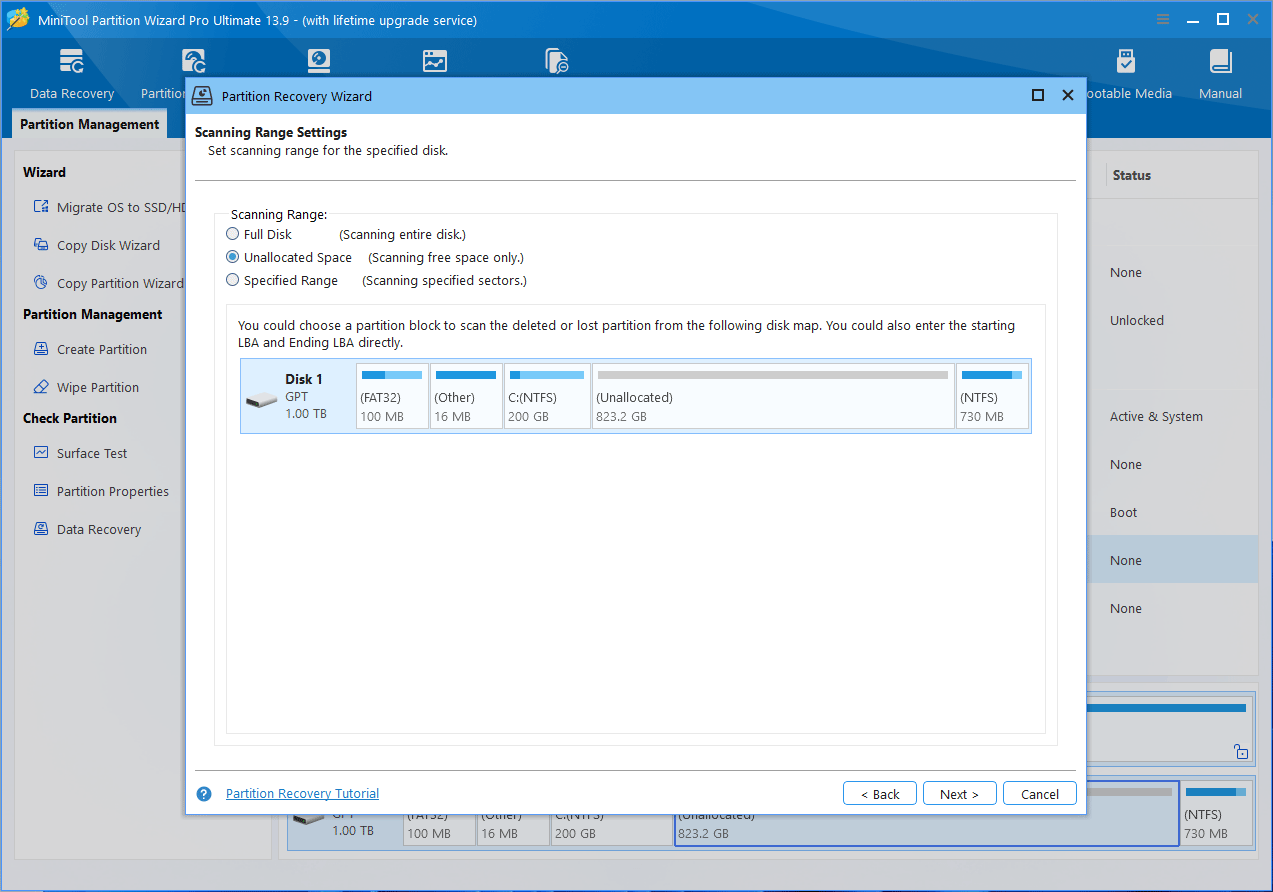
Step 3: Select the scanning range. Unallocated Space is recommended. Then, click Next.
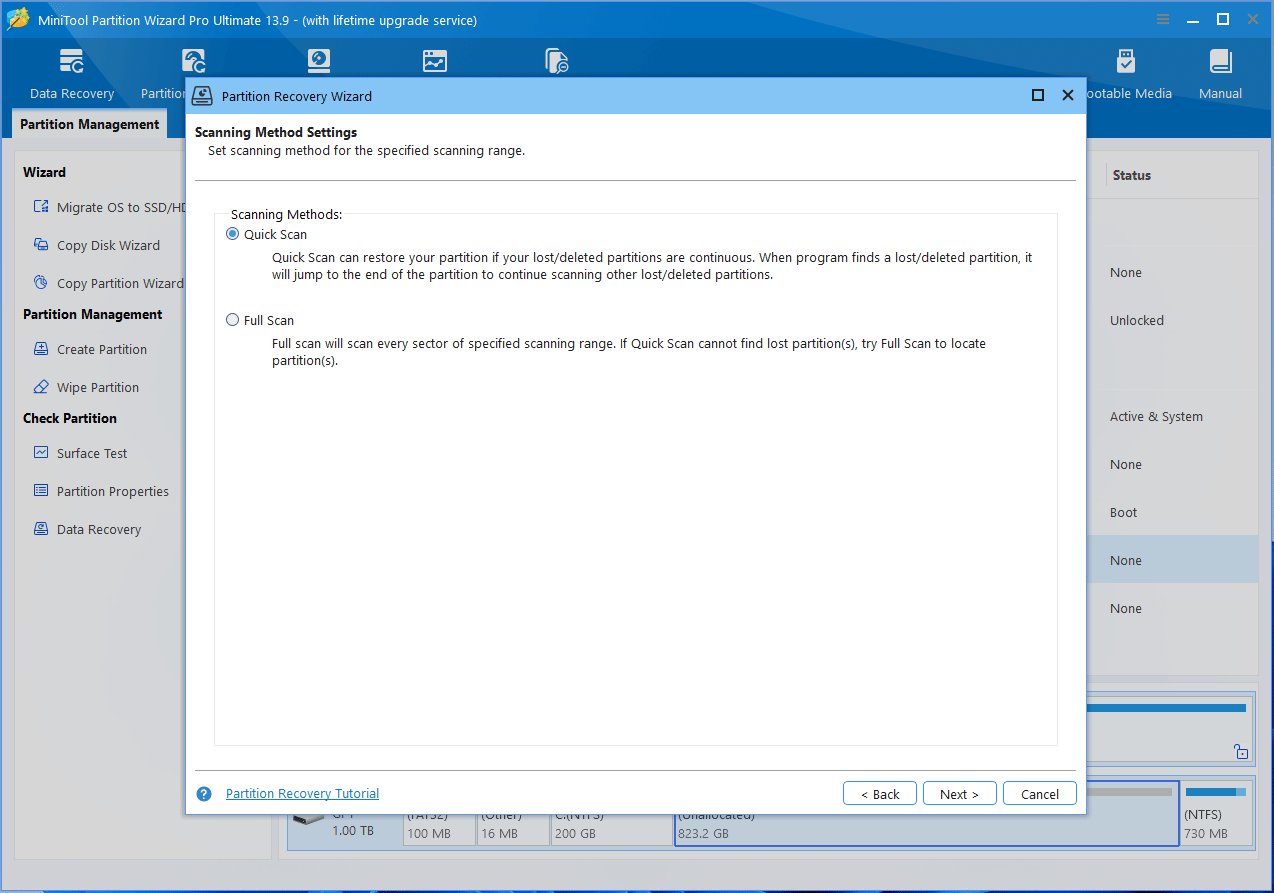
Step 4: Select a scanning method. Quick Scan is recommended. Then, click Next.
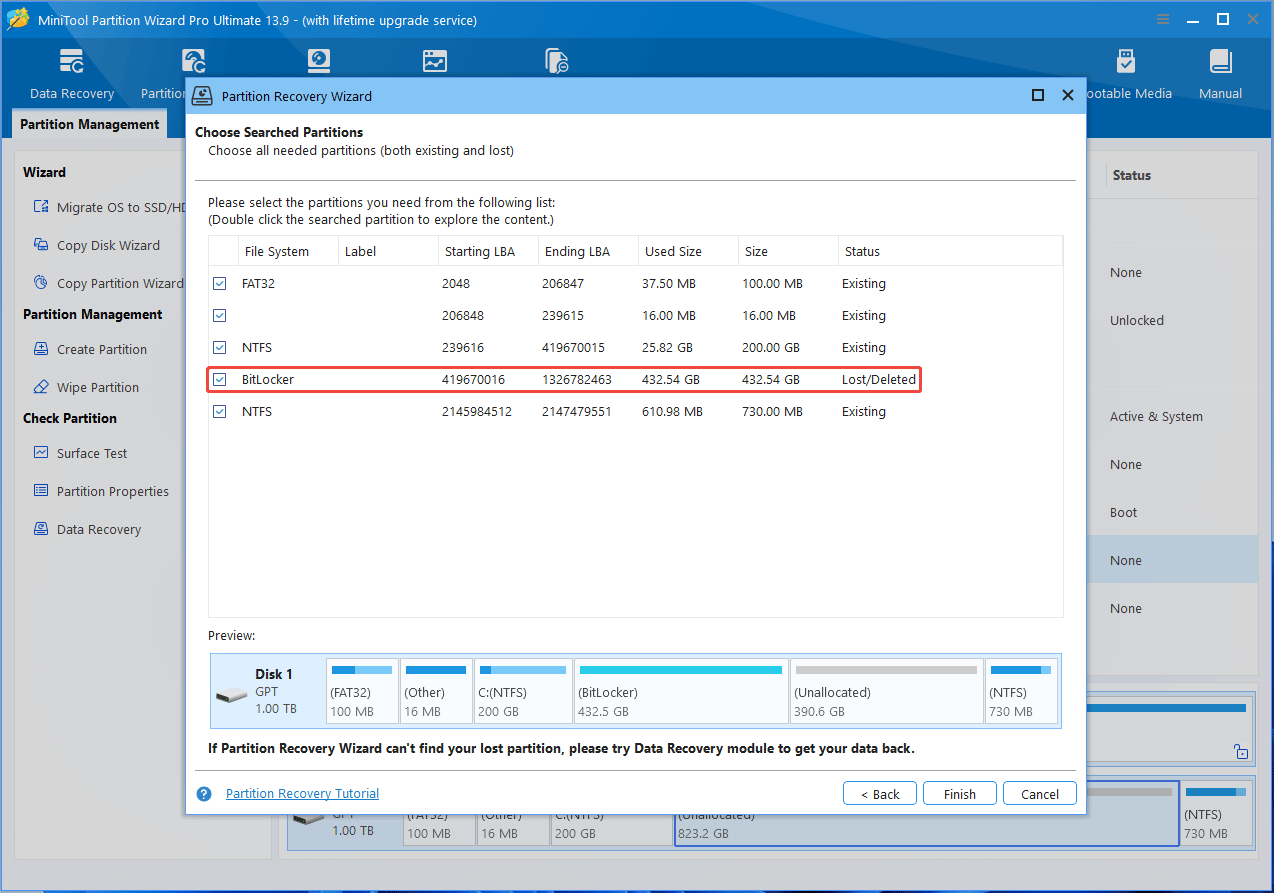
Step 5: After the scanning is completed, tick the Lost/Deleted BitLocker partition and click Finish.
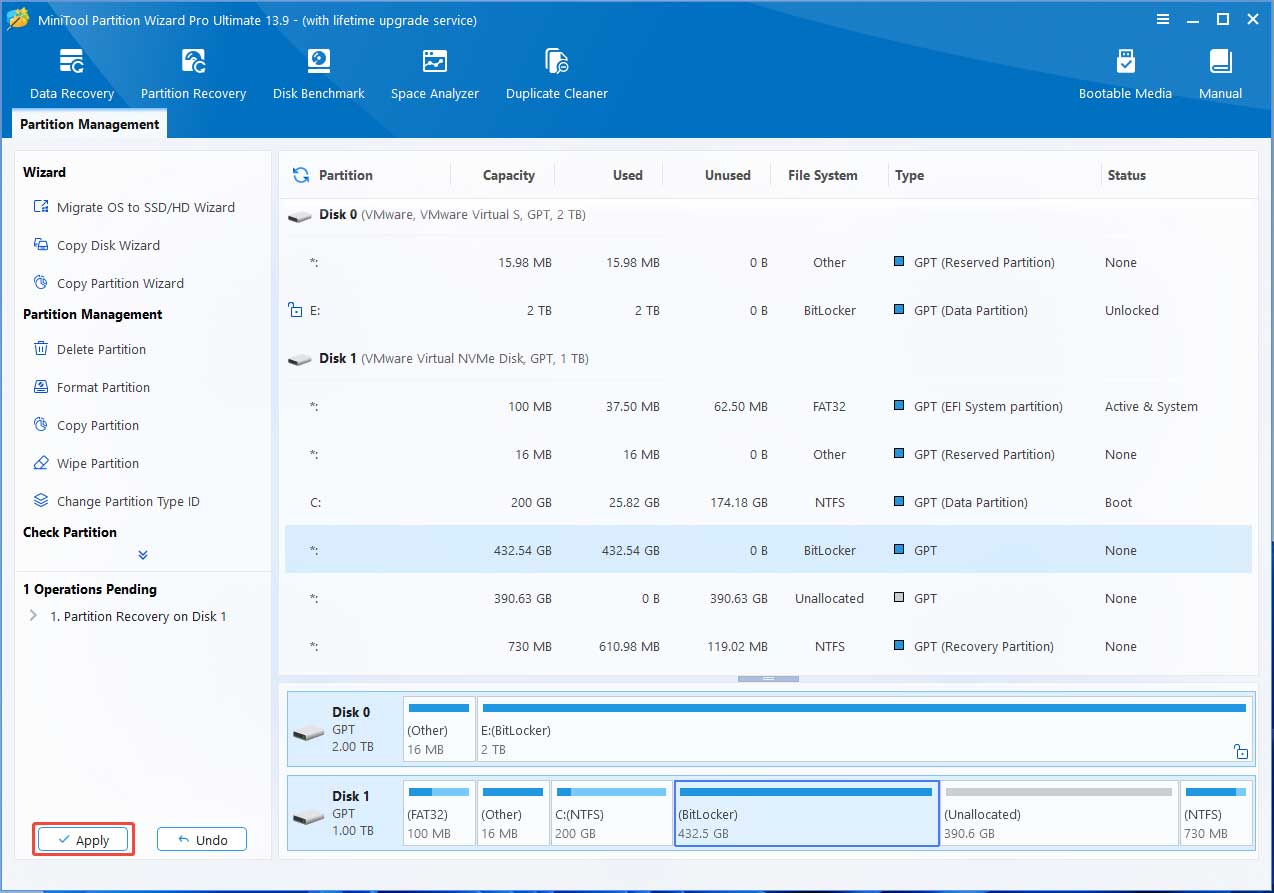
Step 6: Click Apply to execute the partition recovery operation.
Step 7: The recovered partition has no drive letter. You need to add one. Right-click it and choose Advanced > Change Letter. Click OK and then Apply.
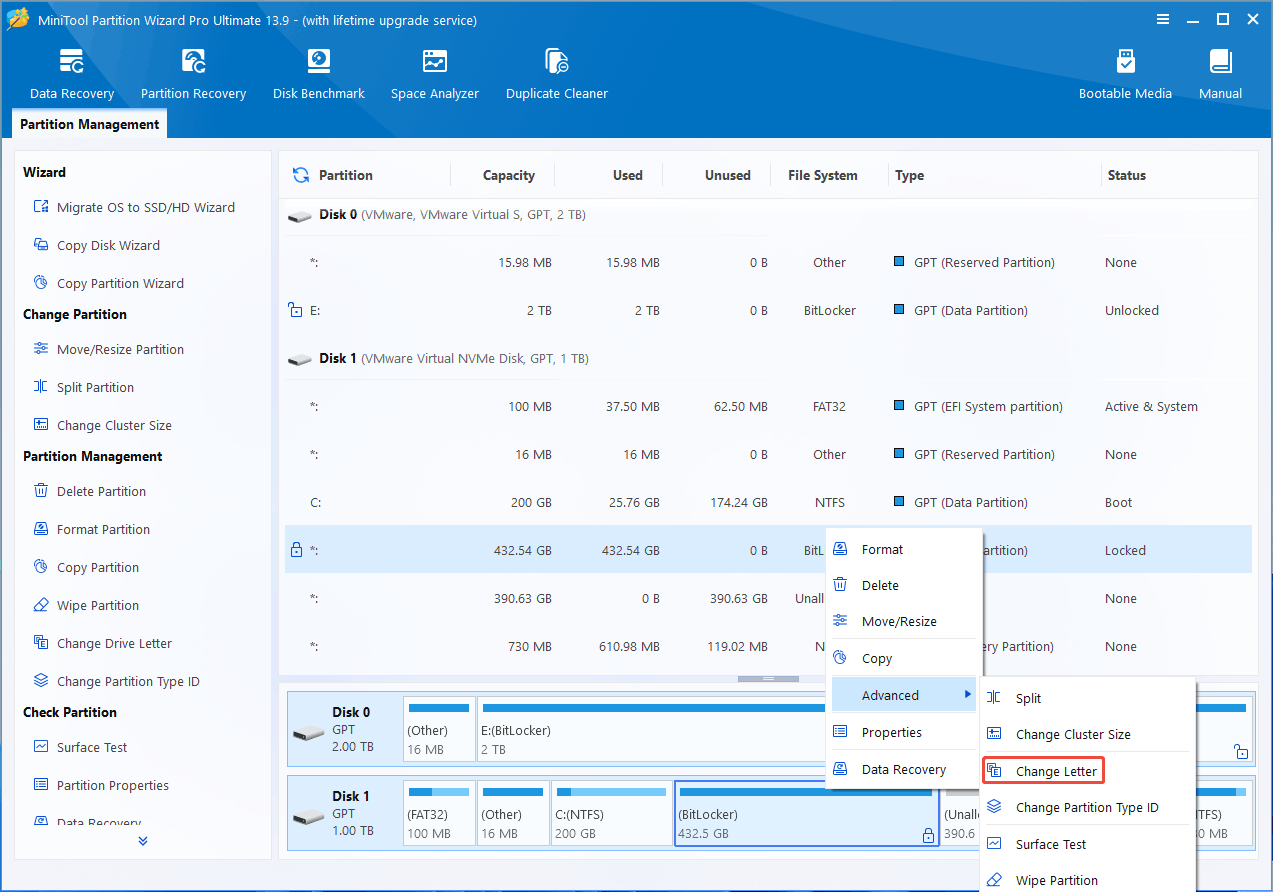
Step 8: The recovered BitLocker drive will become locked. You need to unlock it to access the files in it.
How to Recover Data from Formatted BitLocker Drive
Some software may allow you to recover data from the formatted BitLocker drive if the formatting is performed when the drive is unlocked.
Unfortunately, MiniTool Partition Wizard does not support this at the moment. You could try other data software.
Recover Data from Bitlocker Encrypted Drive FAQ
Bottom Line
Data recovery from a BitLocker-encrypted drive is usually possible if the drive can be unlocked using a password, recovery key, or TPM. Without these credentials, recover files from BitLocker drive is generally not possible due to strong encryption.
If you have any questions or feedback about MiniTool Partition Wizard, feel free to contact our support team at [email protected] for additional help.
About The Author

Position: Columnist
Linda has been an editor at MiniTool for seven years. She continuously learns about computers and puts her knowledge into practice. Moreover, she is particularly knowledgeable in disk management, data recovery, system installation, and PDF editing. Her articles typically reference multiple examples or are based on her own experience, providing users with the most suitable solutions.
User Comments :