
Fix the “Disk is Offline Because of Policy Set by an Administrator” error in Windows 11/10 with proven solutions. This guide from MiniTool Partition Wizard explains why your disk goes offline and shows how to bring it back online by changing the disk signature and using other effective methods.
The “Disk is Offline Because of Policy Set by an Administrator” error prevents Windows from accessing a disk normally. This guide explains the causes and provides simple solutions to bring your disk online and recover inaccessible data when needed.
What Causes the Disk Is Offline Because of Policy Set by an Administrator Error?
A disk offline error occurs when Windows prevents a disk from coming online due to SAN policies, disk conflicts, or administrator restrictions.
Common causes include:
Cause | Description | Common Scenario |
SAN Policy Restrictions | SAN settings force newly detected disks offline | SAN storage, Windows Server |
Disk Signature Conflicts | Duplicate disk signatures make Windows disable one disk | Disk cloning, system migration |
VM Restore or Migration | Virtual disks may go offline after VM changes | VMware/Hyper-V, VM recovery |
Group Policy or Registry Restrictions | Policies block storage devices from going online | Enterprise-managed PCs |
Disk Errors or Hardware Failures | Disk issues prevent normal detection | HDD/SSD failures, file system errors |
Improper Device Removal | Unsafe removal can cause disk offline errors | USB drives, external SSDs |
Now that you understand what causes the disk is offline policy set by administrator error, let’s look at how to fix it step by step.
Also read: What Is Disk Signature Collision and How to Fix It?
How to Fix “The Disk Is Offline Because of Policy Set by an Administrator” Error
There are 4 applicable methods to fix the disk offline error. Here you can choose one based on your own situation.
Fix 1. Change the Disk Signature
If you encounter the “this disk is offline because of a policy set by an administrator” error after a power outage or when you connect multiple drives to the server, this error could be caused by disk signature collision. In this case, you can use either Disk Management or DiskPart to change the disk signature. Here’s how to do that:
Change the Disk Signature Using Disk Management:
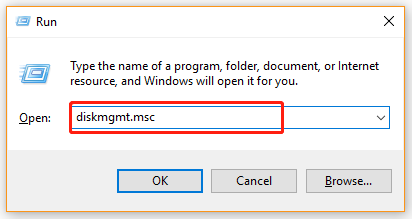
Step 1. Press Win + R keys to open the Run dialog box, and then type diskmgmt.msc in the box and hit Enter to open the Disk Management window.
Step 2. Right-click the Offline hard disk and select Online from the popped-up menu.
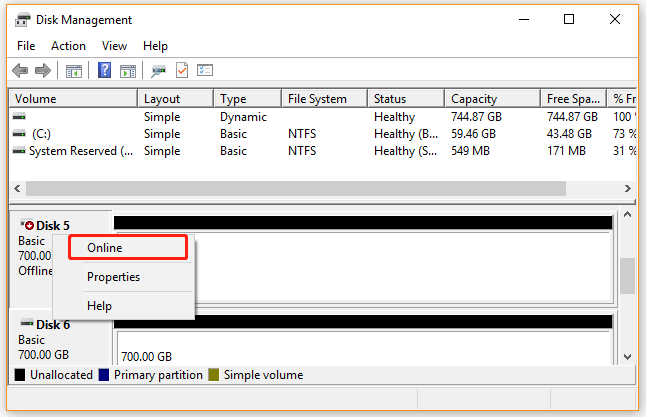
After that, Windows will assign a new disk signature for it automatically. If this method can’t help you fix the error, you can try using the Diskpart utility to change the disk signature.
Change the Disk Signature Using Diskpart:
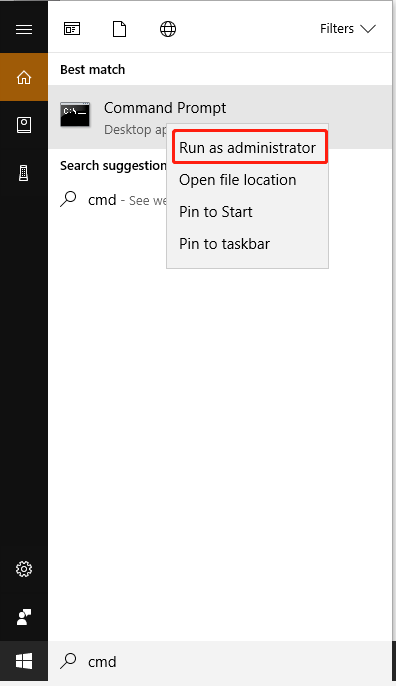
Step 1. Type cmd in the Search box, and then right-click the Command Prompt app from the top result and select Run as administrator. Then click on Yes in the UAC window to grant admin right to Command Prompt.
Step 2. In the elevated Command Prompt window, type the following commands in order and hit Enter after each one.
Make sure you give a correct format of ID, or you will receive the error message “The specified identifier is not in the correct format”.
- diskpart
- list disk (which show all available disks on your computer)
- select disk * (* represents the number of the Offline disk)
- unique disk id=New signature (If you are using an MBR disk, the new signature should be an ID in hexadecimal. If you are using a GPT disk, it should be in form of a GUID. For example, we can set the new id as uniqueid disk id=BEFBB4AA for the MBR disk)
- online disk (which change the status of the Offline disk to Online)
- list disk (see if the offline disk is online now)
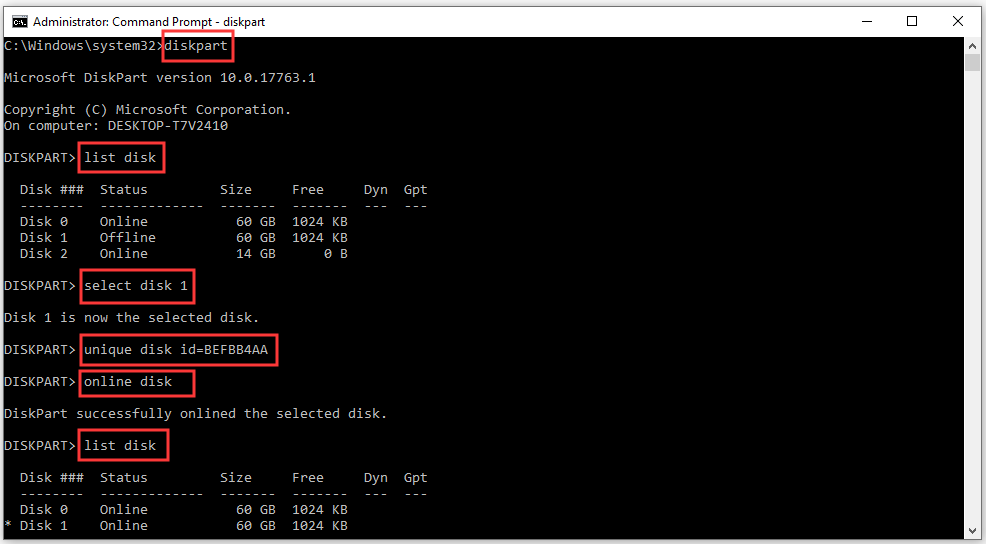
After you finish these steps, you can close Command Prompt and restart your computer to check if the “this disk is offline because of a policy set by the administrator” error gets solved.
Fix 2. Change the SAN Policy for the Disk to Online
As mentioned above, the main reason behind the Windows 10 disk offline issue is the Windows SAN policy. The Offline Shared policy is set for all SAN disks on Windows by default. Here you can change the SAN policy to OnlineAll using Diskpart.
Step 1. Open the elevated Command Prompt window again like Step 1 in Fix 1 and then run the diskpart command in it.
Step 2. In the Diskpart window, type the following commands in order and hit Enter after each one.
- san (which displays the current SAN policy on your computer. If there is an offline disk, it will display SAN Policy : Offline Shared)
- san policy=OnlineAll (which will change your SAN policy to Online All. If succeeded, you will see the message “DiskPart successfully changed the SAN policy for the current operating system”.)
- san (view the current SAN policy again)
- select disk * (* represents the number of the Offline disk)
- attributes disk
- attributes disk clear readonly (which will disable the Read-Only attribute in the selected disk)
- online disk (if succeeded, it will show the message “DiskPart successfully onlined the selected disk”.)

Now, you can close DiskPart and reboot your computer to see if the “disk is offline because of policy set by administrator” error is fixed.
Fix 3. Reconnect the External USB or SSD Drive
If you encounter the Windows 10 disk offline problem just when using an external drive like USB to reinstall Windows, you can try reconnecting the drive to your system or connecting the drive to another USB port on your computer. If it still doesn’t work, you may have to consider initializing the hard disk. To get more details, keep reading the following fix.
Fix 4. Initialize the Hard Disk
Some users report that they can’t access the offline disk and recover files in Disk Management when using a USB to install Windows. In this case, you can try initializing the disk and creating new partitions on it. For that:
Step 1. Right-click the Start menu and select Disk Management from the context menu.
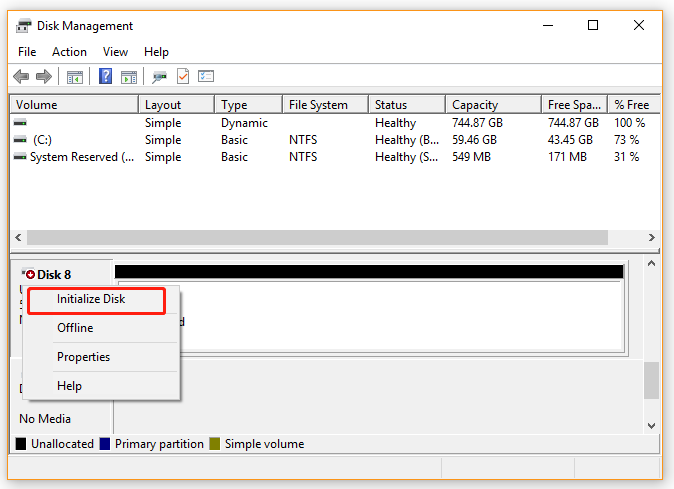
Step 2. In the Disk Management window, right-click the disk that you encountered the error on and select Initialize Disk.
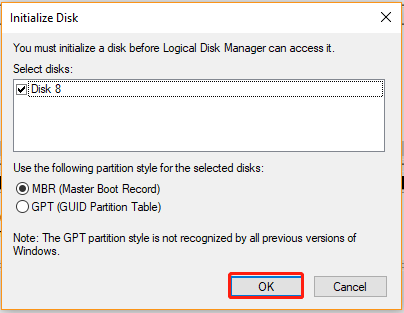
Step 3. Select a partition style (MBR or GPT) based on your situation and click on OK to save the change.
Now, you should create partitions and save files on them. However, if you are initializing a used hard disk, all the partitions and data on the disk will get lost. How to recover missing data due to the initialization process? The following part will explain it in detail.
Bonus Tip: Recover Lost Data Due to the Hard Drive Offline Error
When fixing the disk is offline because of policy set by an administrator Windows 10, you may choose to initialize the disk, which can lead to data loss.
However, the lost data may still be recoverable with a professional data recovery tool for Windows.
MiniTool Partition Wizard is a disk management and recovery tool that offers Data Recovery and Partition Recovery features, allowing you to recover files from an initialized or offline disk.
Below, I explain how to recover lost data using MiniTool Partition Wizard step by step.
MiniTool Partition Wizard DemoClick to Download100%Clean & Safe
Step 1: Launch MiniTool Partition Wizard into its main interface, and click the Data Recovery option.
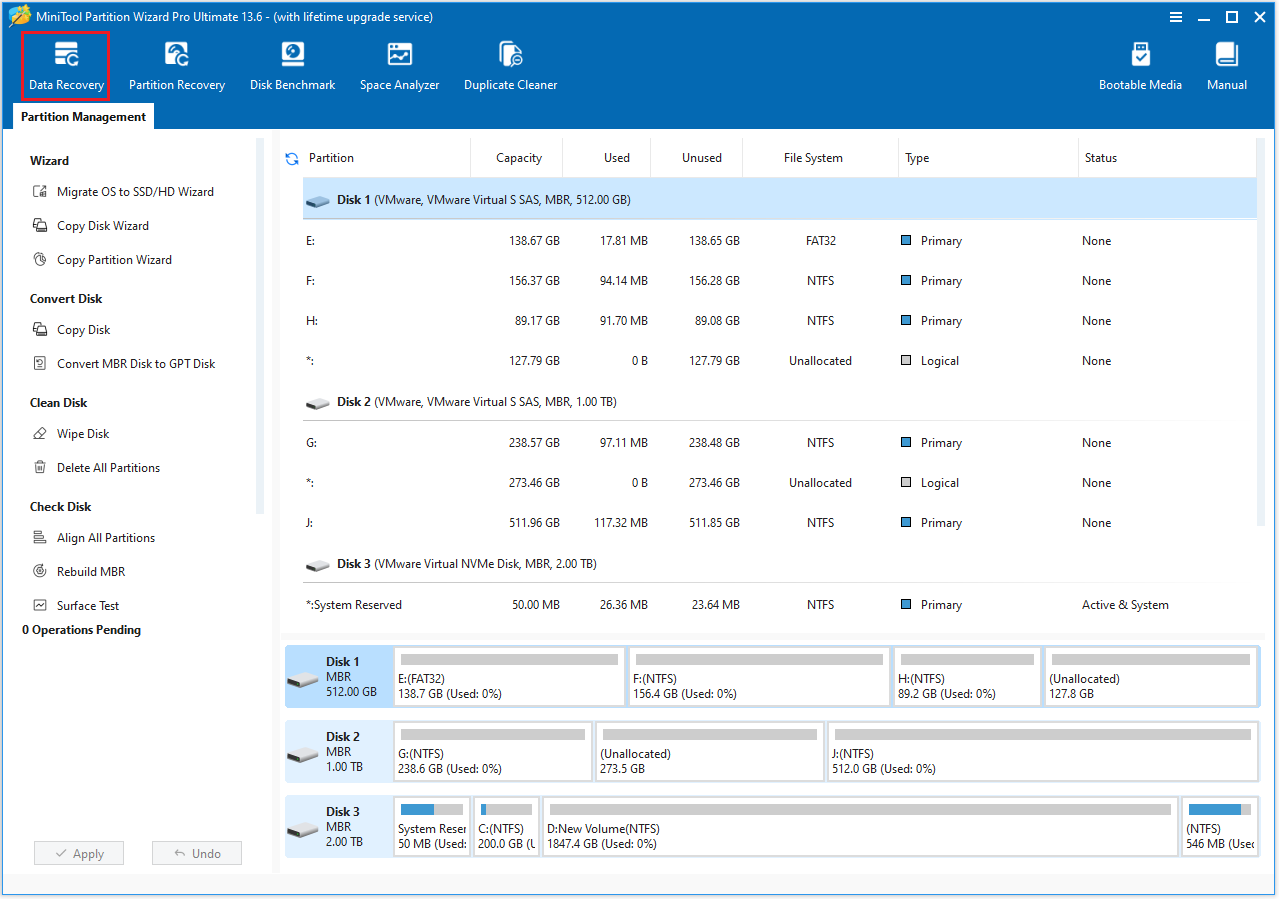
Step 2: Go to Devices, choose the disk with lost data, and click Scan.
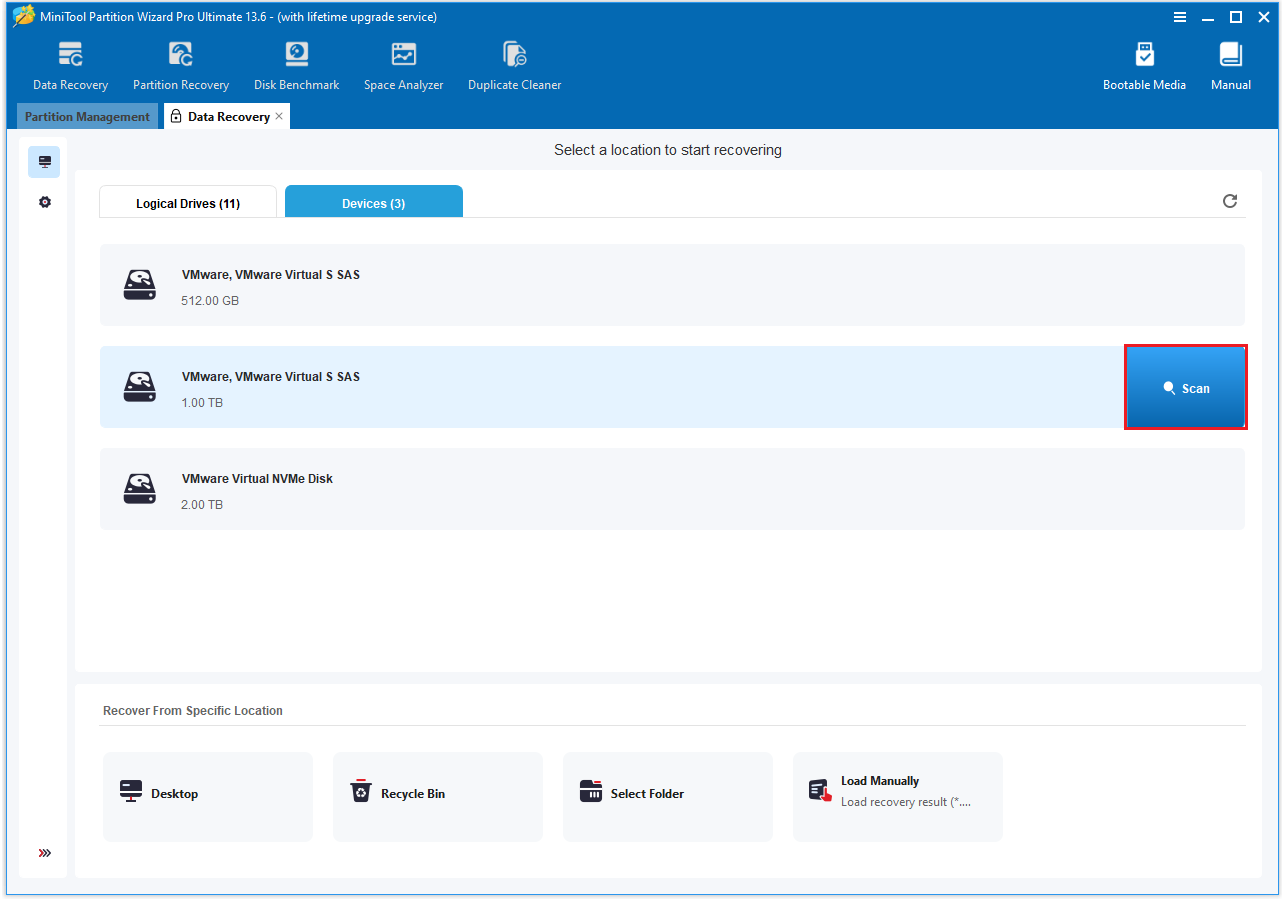
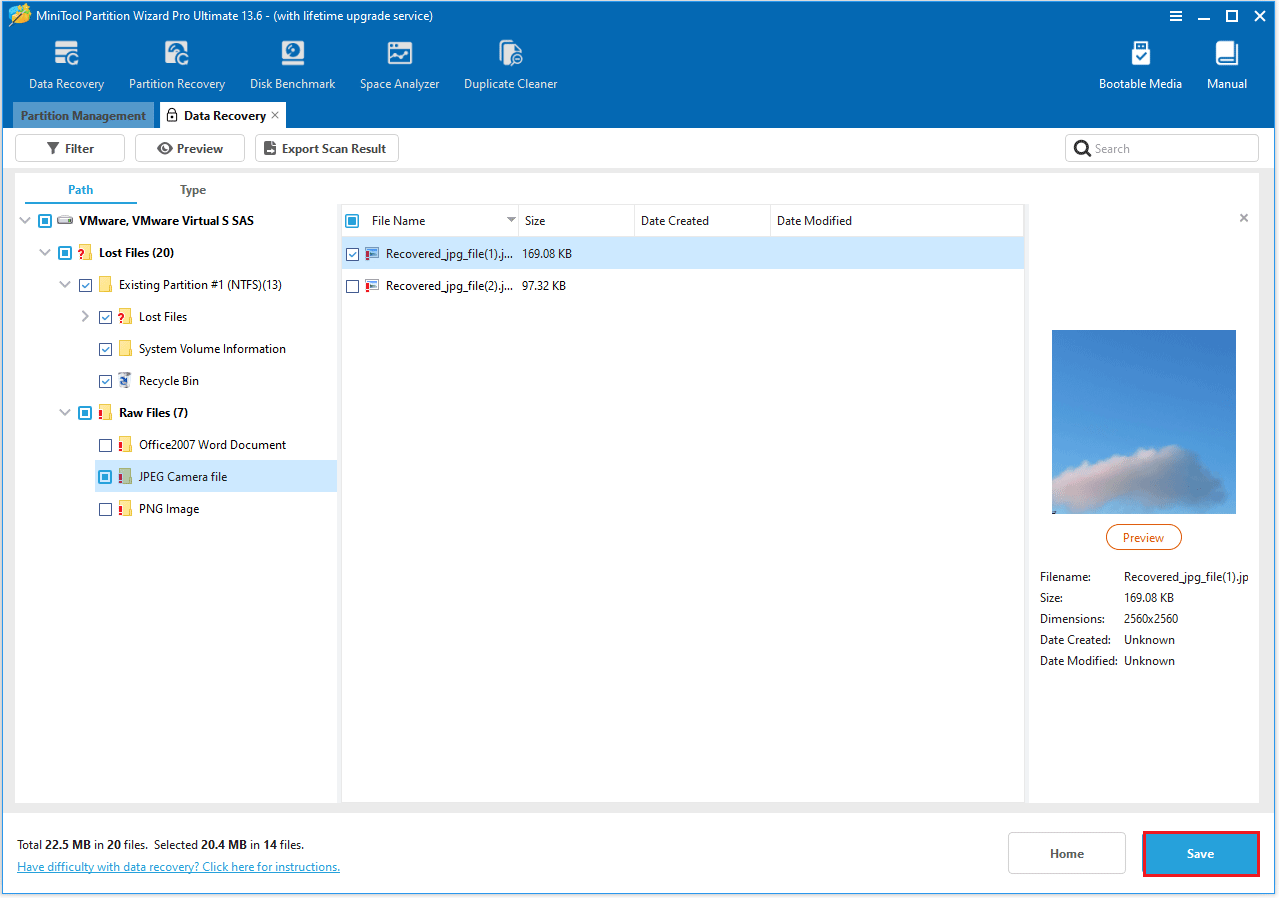
Step 3: Allow the scan to complete. Once you find the files you need, you can Pause or Stop it to recover them right away.
Step 4: Under the Path section, expand Lost Files and find the Existing Partition. Once you have found the lost files you need, click Save.
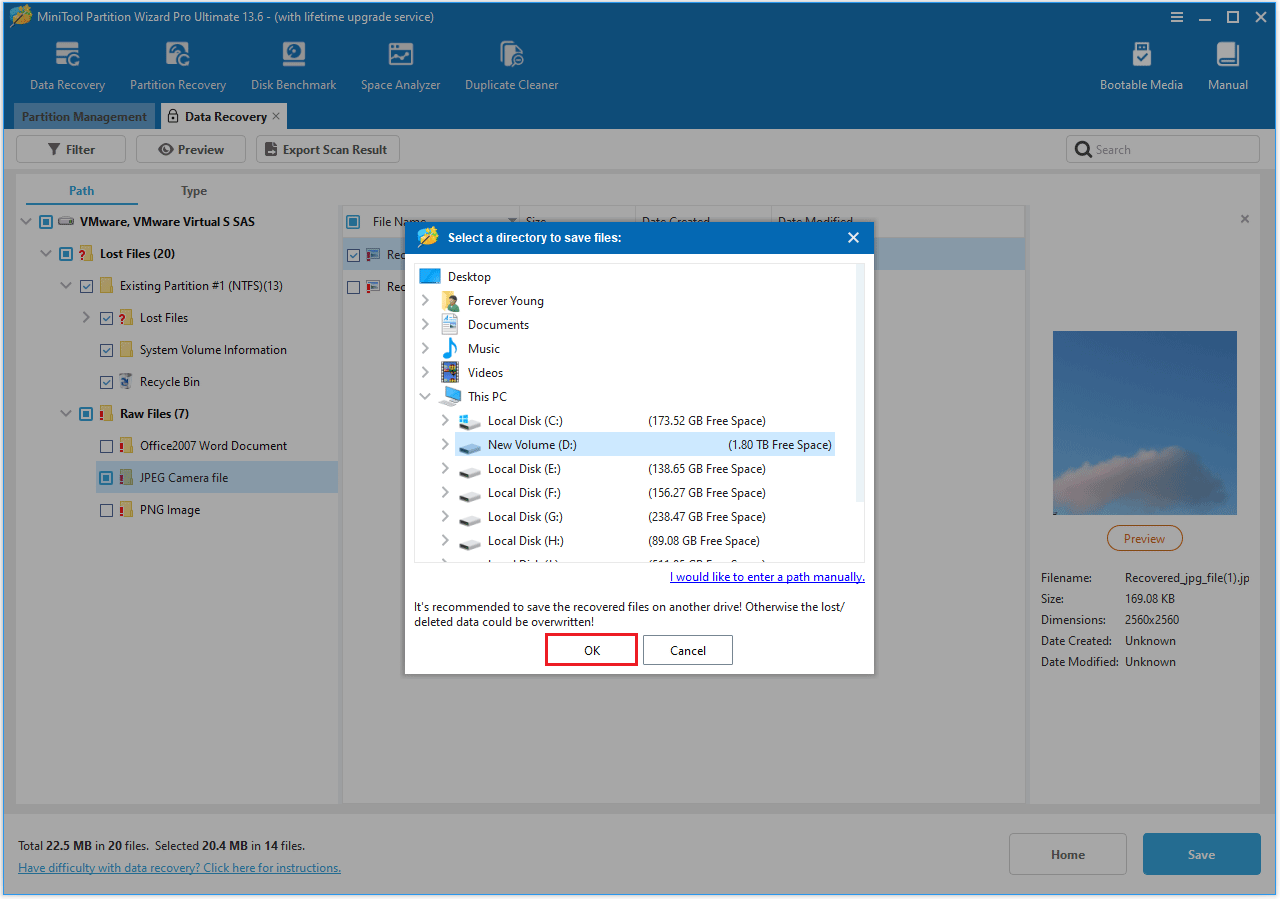
Step 5: Choose a different hard drive rather than the original hard drive to save the recovered files, so as to avoid overwriting. Then click OK to complete the process.
Disk is Offline Because of Policy Set by Administrator FAQ
Its purpose is to prevent multiple systems from accessing the same disk simultaneously, thereby avoiding data conflicts or corruption.
Bottom Line
How to fix the “disk is offline because of policy set by administrator” error? This post has introduced several effective ways to you.
If you have any questions or suggestions while using MiniTool Partition Wizard, contact us via [email protected] for further assistance.
User Comments :