
Do you encounter the Cannot playback image Canon error? Don’t worry. This post of Partition Magic analyzes the possible causes of the error and recommends a reliable data recovery tool to help you recover lost files.
The “Cannot Playback Image” error on Canon cameras usually means the camera cannot read the photo file correctly. To fix it, check the SD card, avoid taking new photos, and recover the images before formatting the card.
In this guide, we will explain why Canon cameras show the Cannot Playback Image message and provide practical solutions to fix the error.
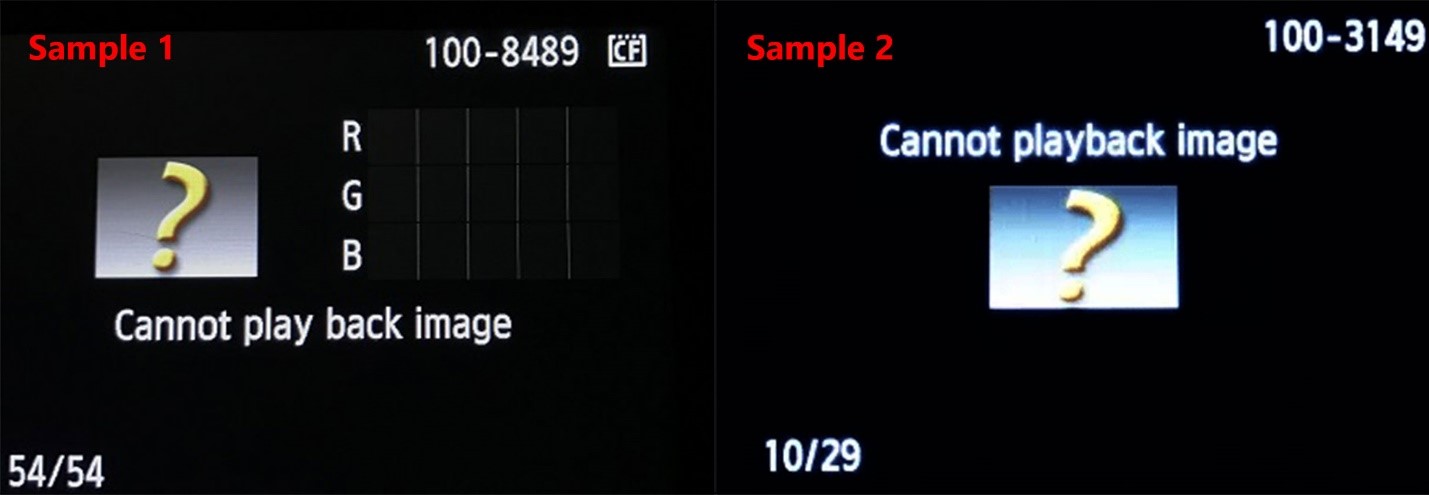
Why Does My Canon Camera Show “Cannot Playback Image”?
The “Cannot Playback Image” error usually occurs when the camera cannot properly read the image file or memory card.
The most common causes include:
| Cause | Description |
| Photo taken by another camera | The image file was captured using a different camera brand or model, causing compatibility issues when opened on the current Canon camera. |
| Photo edited on a computer | The image was edited, cropped, rotated, or resaved on a computer, which may have changed the file structure or metadata. |
| Corrupted image file | The file was damaged due to interrupted writing or improper removal. |
| Memory card error | The SD card has bad sectors, file errors, or dirty contacts. |
Now that you know the common causes of the Canon Cannot Playback Image error, let’s explore how to fix it and recover your photos.
Troubleshoot Canon Cannot Playback Image Error
How to troubleshoot Canon Cannot playback image error? You can follow the guide in this section to find out the culprit of the error on your Canon camera and then solve it in a targeted manner.
Way 1. Check If the Camera Card or Camera Is Corrupted
If the Canon camera or its memory card is corrupted, you can also encounter the Cannot play back image error easily. In this case, you can do the following steps to check it:
- Take out the memory card from your Canon camera.
- Insert it into another camera or use a card reader to connect it to another computer.
- Try to check files.
- If accessible, it means that there is something wrong with your camera. You can contact a technician and ask for help.
- If inaccessible, it means that there is something wrong with your Camera card. In this case, you can fix the error by replacing the memory card.
Way 2. Upgrading Camera Firmware
Outdated Canon camera firmware may also cause errors when you use it, including the Cannot playback image Canon error. In this case, you can try upgrading your Canon camera firmware to fix the error.
Way 3. Check the Compatibility
If you have transferred other devices’ images to the Canon camera card, you may encounter the Cannot playback image Canon error as well. In this case, you just need to remove these images from the Canon camera card to fix the error.
Way 4. Recover Cannon Files Affected by Cannot Playback Image Error
Accidentally formatting your camera card, corruption or accidental deletion of the image file are also responsible for the Cannot playback image error. In these situations, the best solution is to use a data recovery tool to recover the lost file. This will help you fix the error and access your images again.
MiniTool Partition Wizard is a professional Canon files recovery tool that can help you recover lost data or partitions from MicroSD cards, SD cards, flash drives, SSDs, etc. It can even recover data from the RAW file system.
Besides, it is also a surprising partition/disk manager that can help you format SD card FAT32, create/extend/resize/copy/format partitions, migrate OS to SSD without reinstalling OS, rebuild MBR, convert MBR to GPT, and more. Here’s how to use it to recover lost files from the Canon camera card:
Step 1. Click the Download button below to get the MiniTool Partition Wizard installation package. Then run the downloaded exe files and follow the setup wizard to complete the app installation.
MiniTool Partition Wizard DemoClick to Download100%Clean & Safe
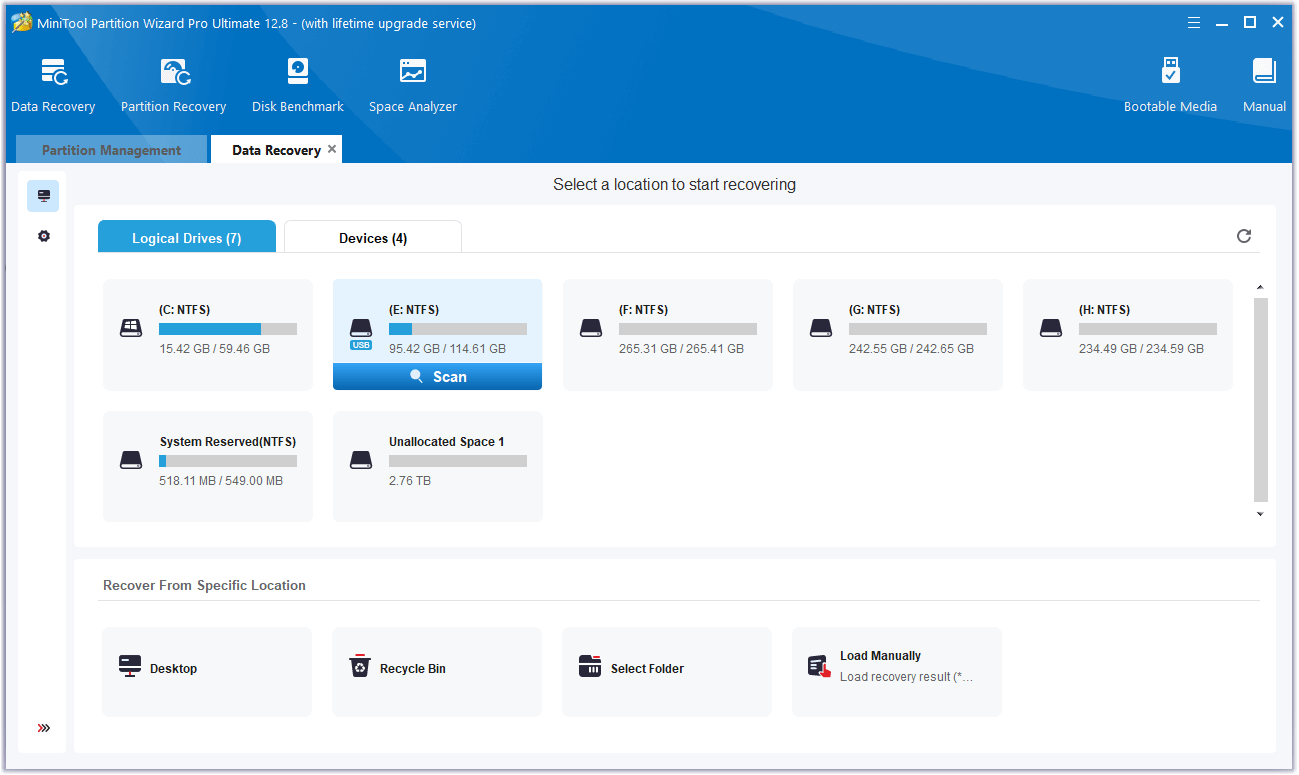
Step 2. Connect the Canon Camera card to your PC, and launch MiniTool Partition Wizard into its main interface. Next, click the Data Recovery option from the top toolbar, select the partition of the device, and then click Scan.
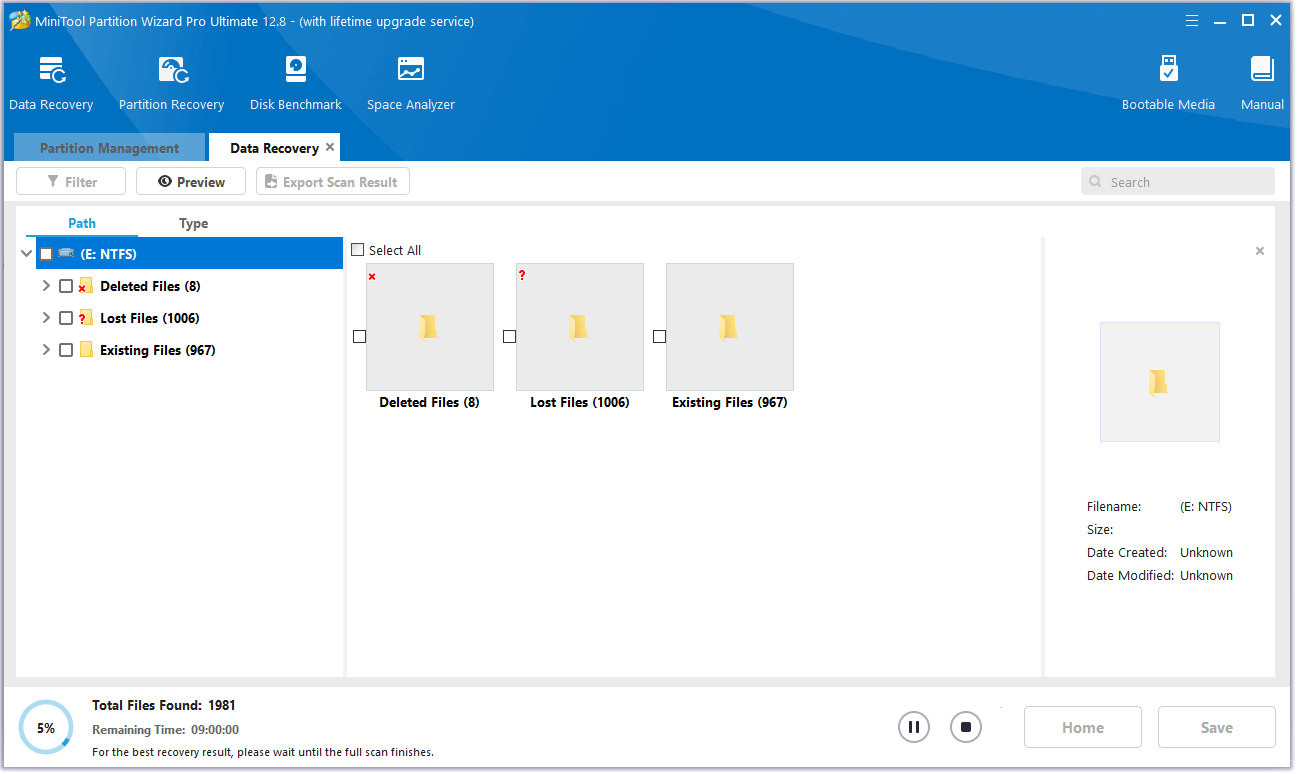
Step 3. While the program scans your disk, you can preview files and click pause or stop when you find what you need. Here are some tools that can help you:
- Path: All lost files in this tab are listed in the order of directory structure.
- Type: All lost files in this tab are classified by types.
- Search: You can find files by their names.
- Filter: You can filter the files by File Type, Date Modified, File Size, and File Category.
- Preview: You can preview up to 70 kinds of files, but you need to install a package first.
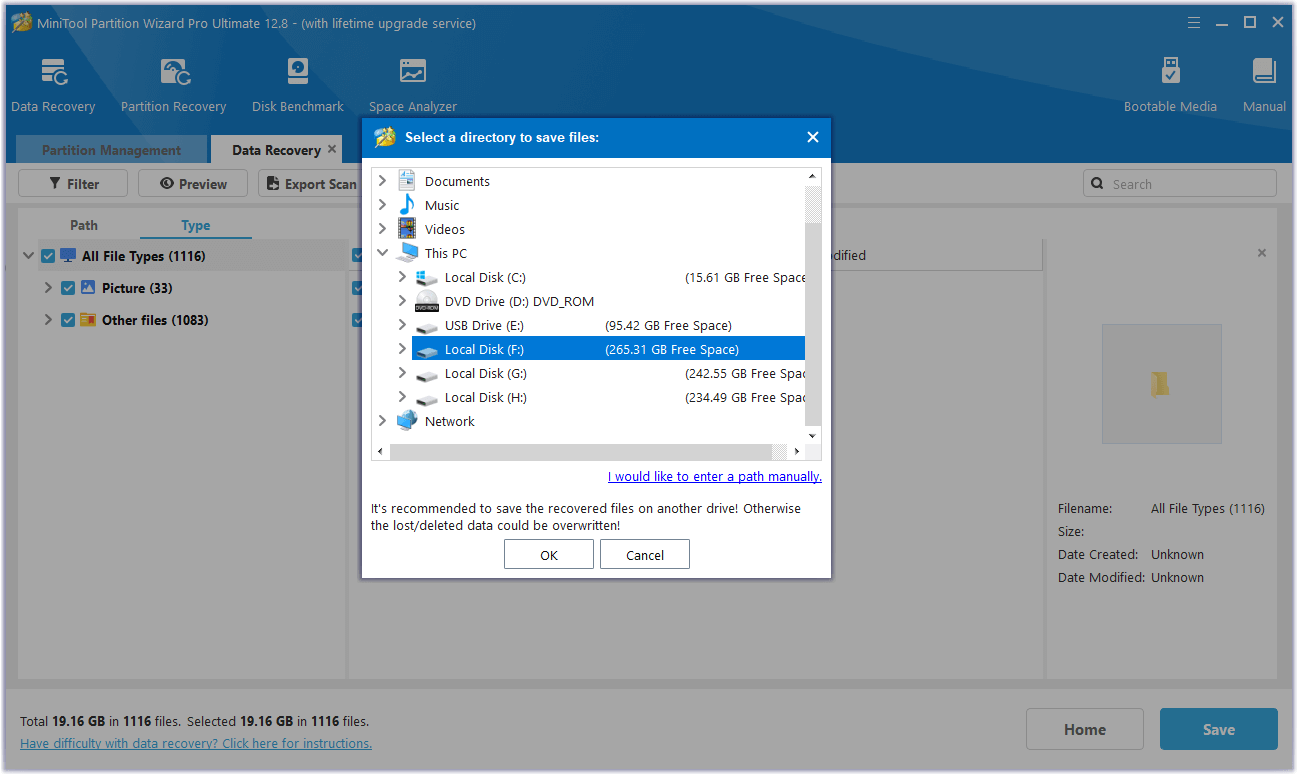
Step 4. Once done, tick the files you want to recover and click Save. Choose a safe location to save the recovered files and click OK.
Bottom Line
This post analyzes the causes of the Cannot playback image error and introduces a wonderful data recovery tool to help you recover lost files.
In addition, MiniTool Partition Wizard is a professional and multifunctional tool. You can email us at [email protected] if you have difficulty using the MiniTool software and we will get back to you as soon as possible.
User Comments :